
The foundation of a successful evaluation is a high-quality data set. This data set consists of paired questions or inputs, and expected responses. The expected response must be factually correct and grounded in the source context.
An evaluation set contains one or more test questions, the expected agent responses, and the metrics to be measured. Evaluation sets are specific to each agent, and an agent can have multiple evaluation sets. Creating a good evaluation set helps in improving the efficiency of your evaluation.
Below are the steps to create an evaluation set.
Create Evaluation Set:
- In AI Agent Studio, open the Monitoring and Evaluation tab
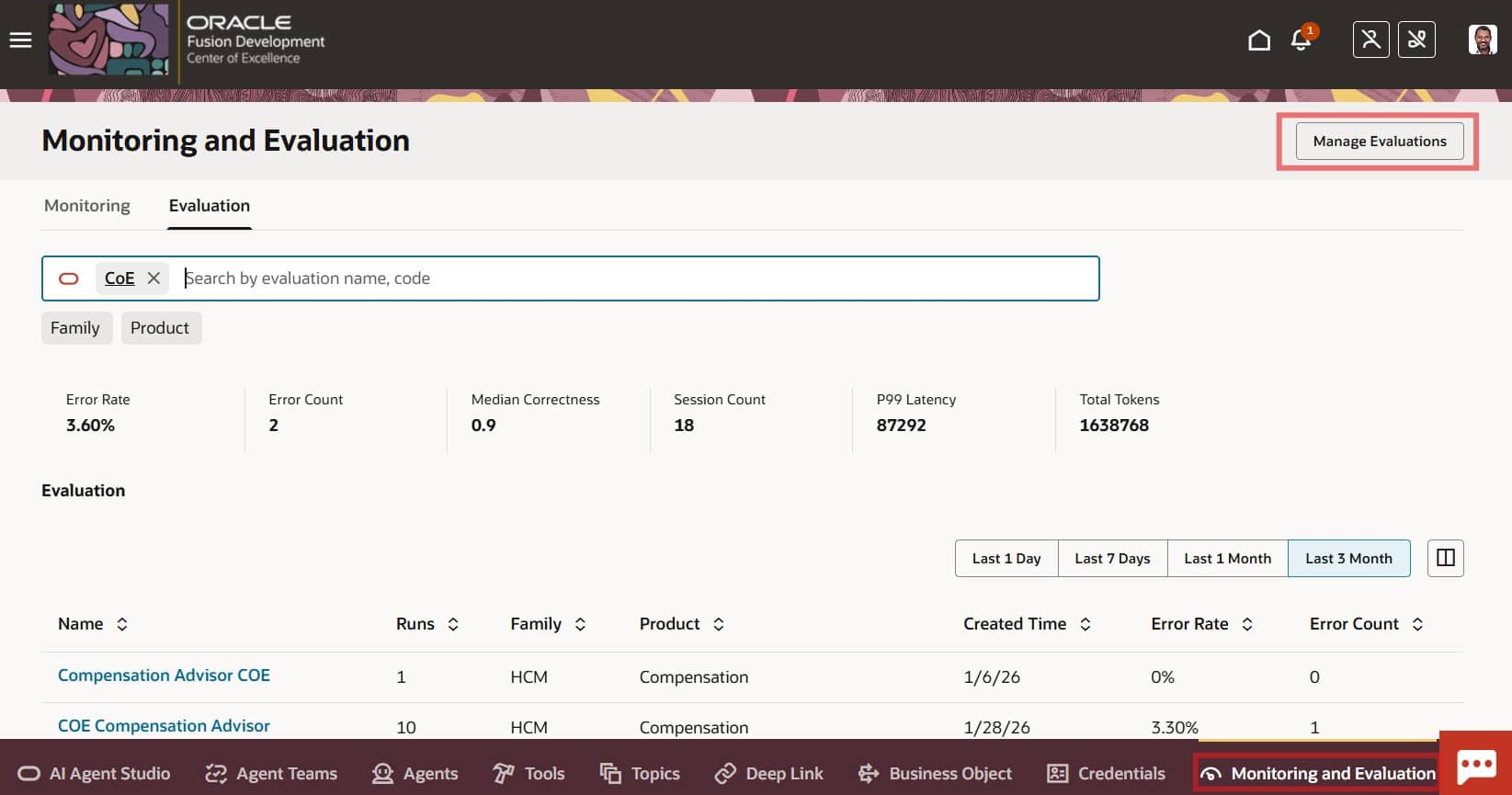
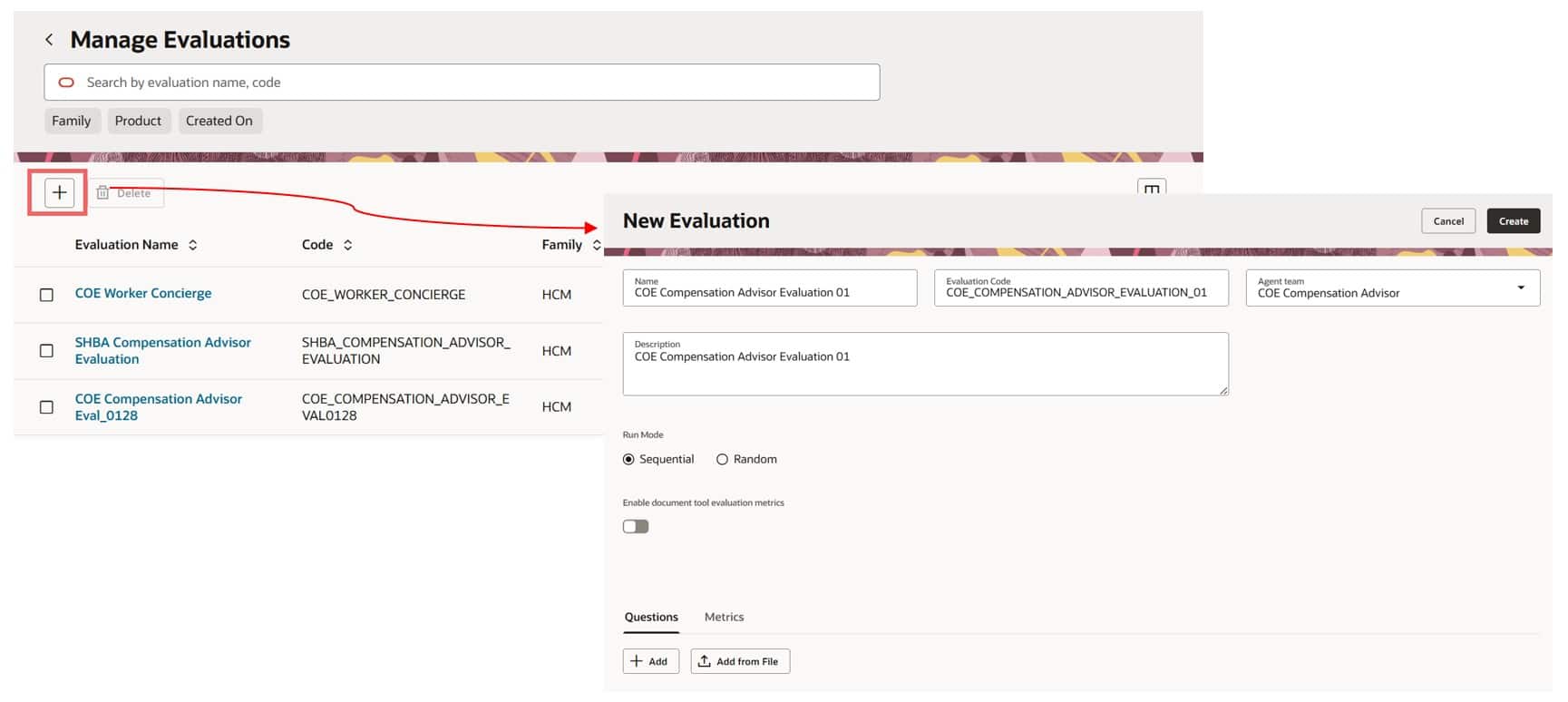
- Select Manage Evaluations, then click + to create a new evaluation set.
- Enter the Name, Code, and Description, and select the Agent Team you want to evaluate.
- Choose the run mode.
- Sequential: Runs questions in the exact order you define. Use this when later questions depend on the context from earlier ones.
- Random: Runs questions in a randomized order.
- (Optional) Enable Document Tool Evaluation if you want RAG metrics included in the evaluation report.
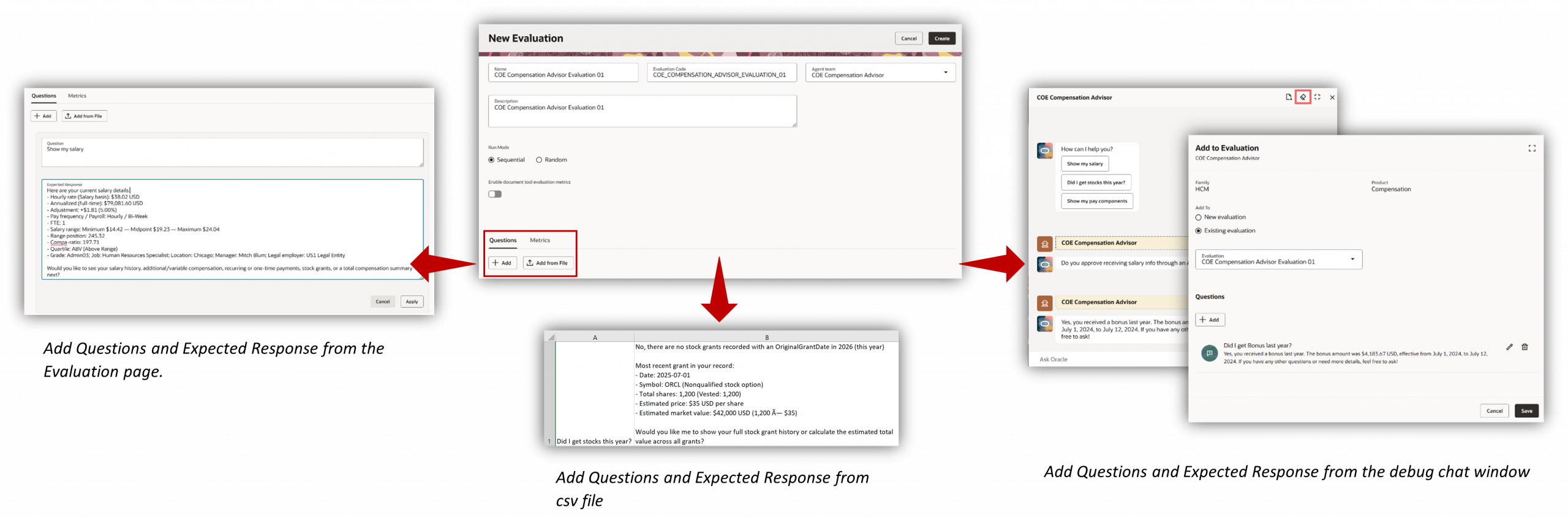
- Questions Tab: user questions and the expected answers you want the agent to produce. You can add them in any of the following ways:
- Enter questions and expected answers manually on the page
- Upload a CSV file (Column 1 = Questions, Column 2 = Expected Answers)
- Add them using the Debug Chat window
- Metrics Tab: In the Metrics tab, define the scoring rules and thresholds used to evaluate responses.
Example: To fail the test when Correctness < 0.8, set the condition to < and the threshold value to 0.8.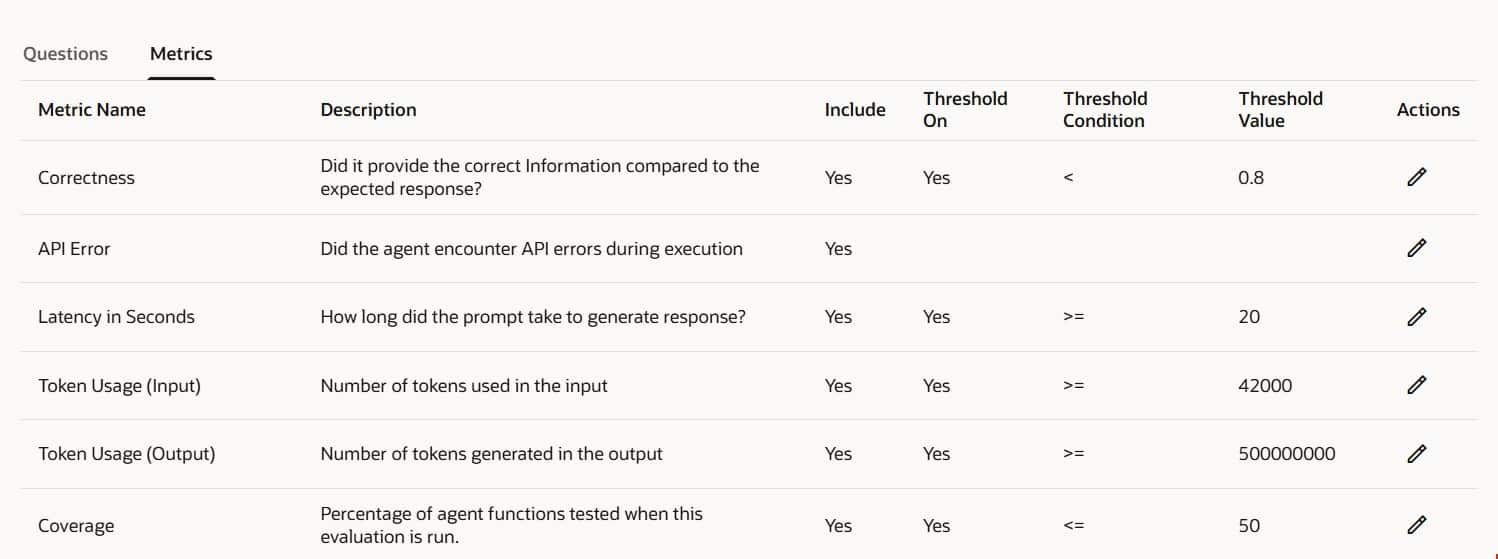
- Select Create to save the evaluation set.
Run the Evaluation Set:
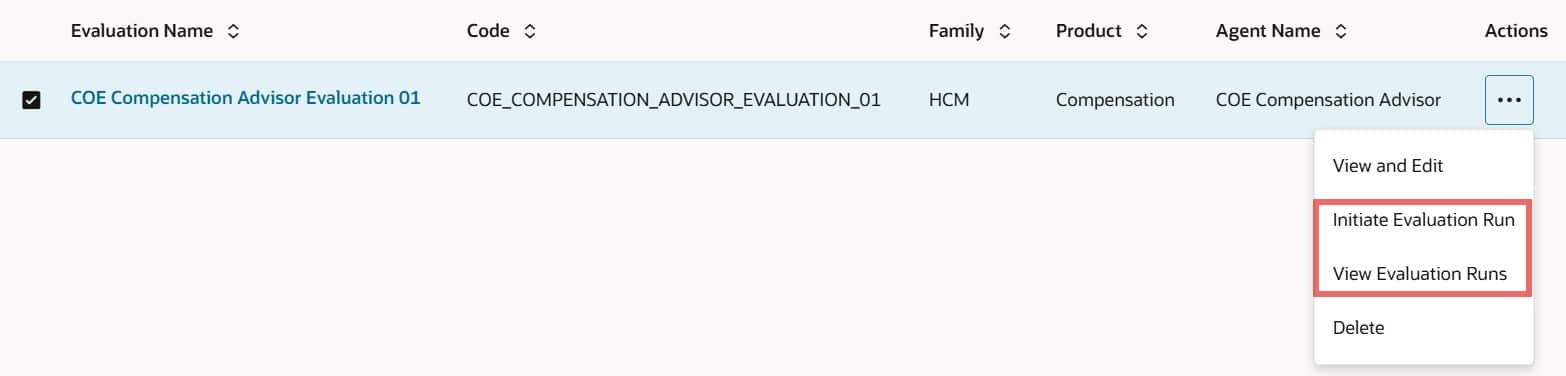
- On the Manage Evaluations page, locate your evaluation set.
- From the Actions menu, select Initiate Evaluation Run.
- Choose the agent team version you want to evaluate, then start the run.
Analyze the Results:
- Click the evaluation set to open the Evaluation Runs page.
- Select the run you want to review, then choose View Run Results.
Run Results Tabs
- Response Performance
Shows a question-by-question comparison of the expected response vs. the agent’s actual response, along with the metrics for each question. It also includes trace information.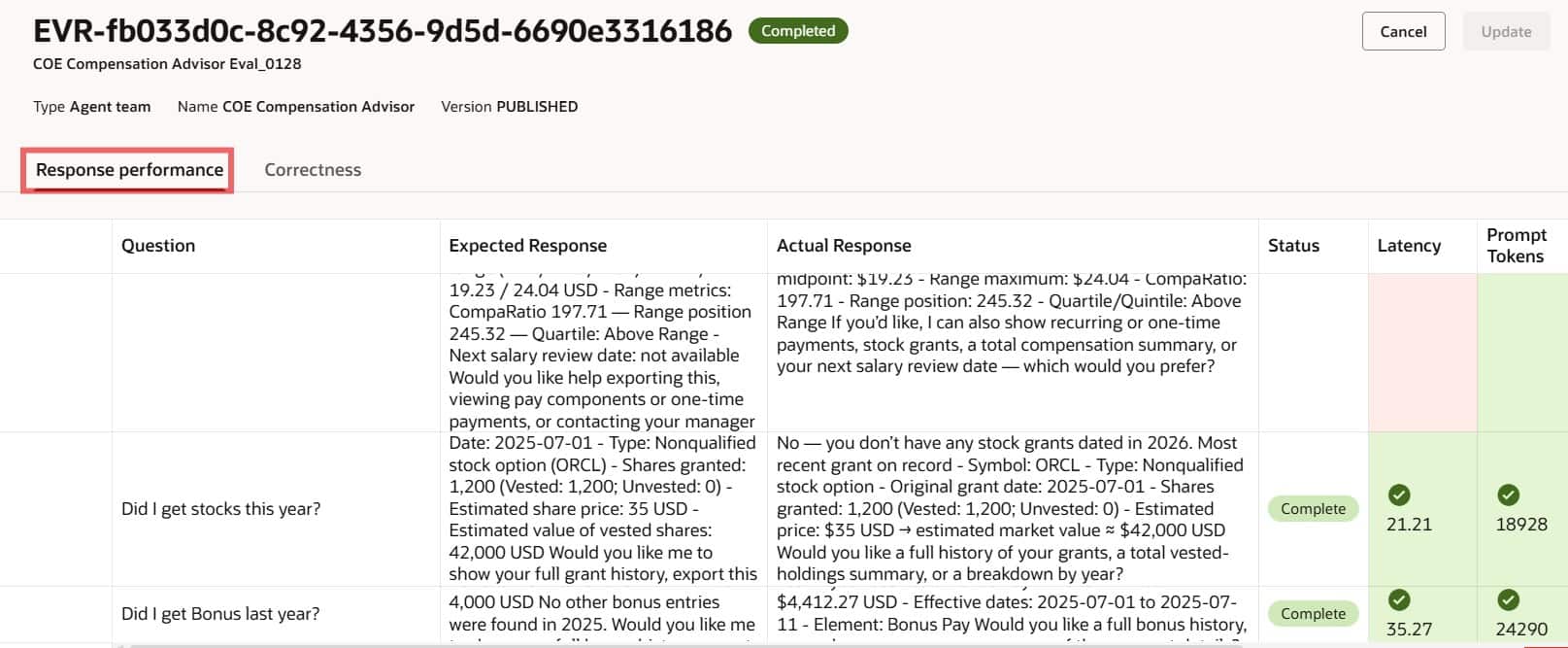
- Correctness
Provides a detailed breakdown of the correctness score. The LLM generates an initial score and feedback, and you can add your own notes in the Correctness Score by Human column for record-keeping.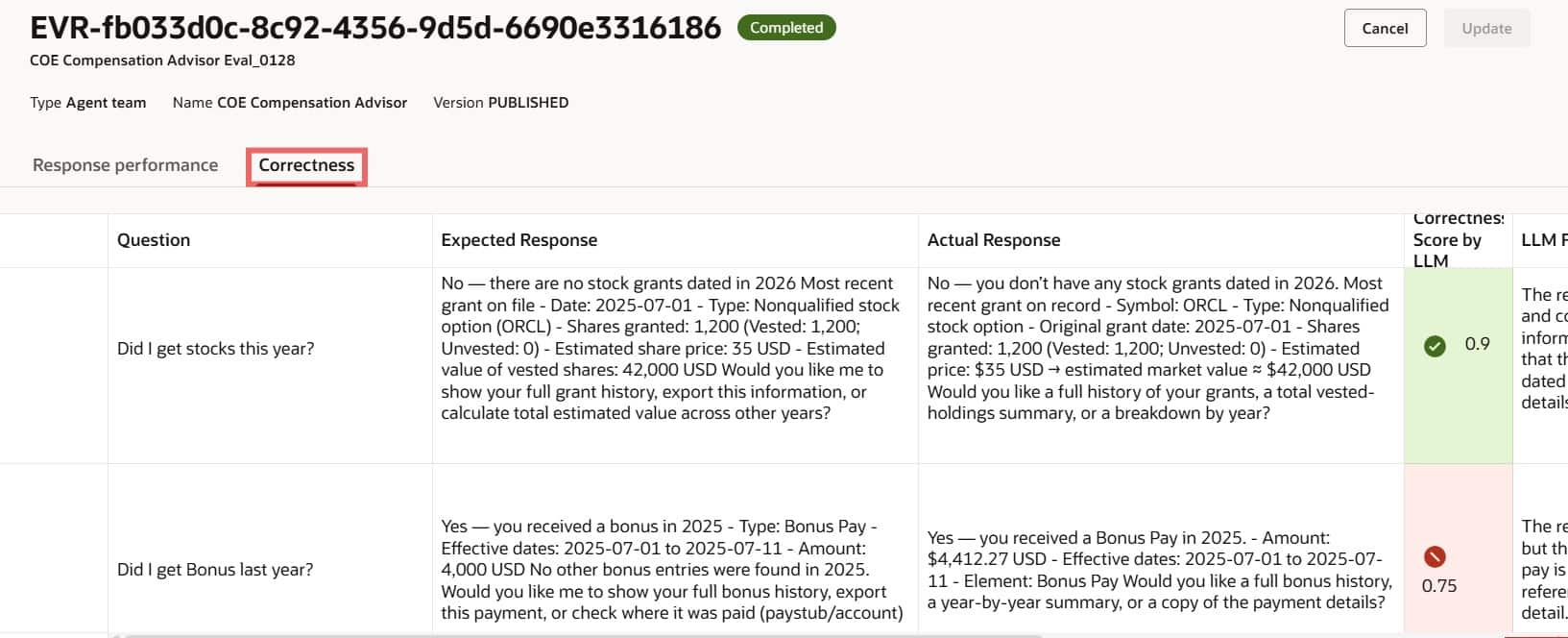
This blog walked through creating and managing evaluation sets in AI Agent Studio, from defining high-quality Q&A pairs to configuring metrics and analyzing results. By following these steps, you can continuously measure, refine, and strengthen your agent’s performance with confidence.