
Calculator Tool in AI Agent Studio
Grounding AI Agents with reliable mathematical operations rather than approximating
What is the Calculator Tool?
It’s a tool integrated into Oracle AI Agents that performs numeric computations (for example, calculating totals, balances, differences, percentages, or date-based math). Because the underlying large language model (LLM) might occasionally make mistakes when doing math, the calculator tool ensures accurate arithmetic results by explicitly executing the computation.
Typical use cases include things like time-off balance calculations, cost summaries, or other numeric business logic where precision matters. It is very helpful for agents supporting period close, financial reporting, calculate month-end accruals based on purchase order receipt and invoice match data.
Key Concepts
The Calculator Tool is a built-in utility that AI agents can use to perform accurate numeric computations during conversations or workflows. Below are the core concepts you should understand:
| Feature | Description |
| Tool-Based Execution (Not LLM Guessing) | LLMs can make arithmetic mistakes, the Calculator tool provides deterministic evaluation of math expressions to deliver reliable, consistent results without hallucinated numbers. |
| Expression Evaluation | The tool evaluates basic arithmetic (+, –, *, /), percentages, and multi-step numeric formulas. |
| Precision & Accuracy | The Calculator tool is critical for enterprise scenarios like payroll/leave balances and financial totals or invoice summaries, where accuracy in business applications is essential. |
| Stateless Computation | The Calculator tool performs a single calculation per request and returns only the computed result without storing any memory. |
| Integration with Business Context | The calculator works with business object, database, API, and Fusion data tools, letting the agent retrieve values first and then compute results. |
Calculator Tool in AI Agent Studio
Let us walk through how to use a Calculator Tool in AI Agent Studio. Since this is a built-in functionality, we’ll locate the Calculator tool in AI Agent Studio first and later use it as per requirement.
- Navigate to AI Agent Studio and Look up existing calculator tool — Open AI Agent Studio from Tools. Navigate to Tools tabs. Search for Tool Type “Calculator” and click on the View icon.

- No changes allowed as this is a delivered in-built functionality and can be directly added to the agents.

- View Dependency — If you to see which workflows/agents are using this tool, you an get the list under View Dependency link. In this example, the tool is being used in a delivered template “Shipping Assistant”.
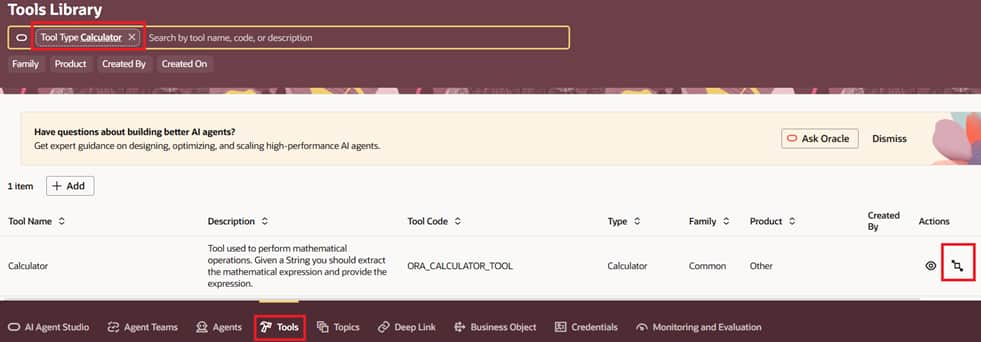
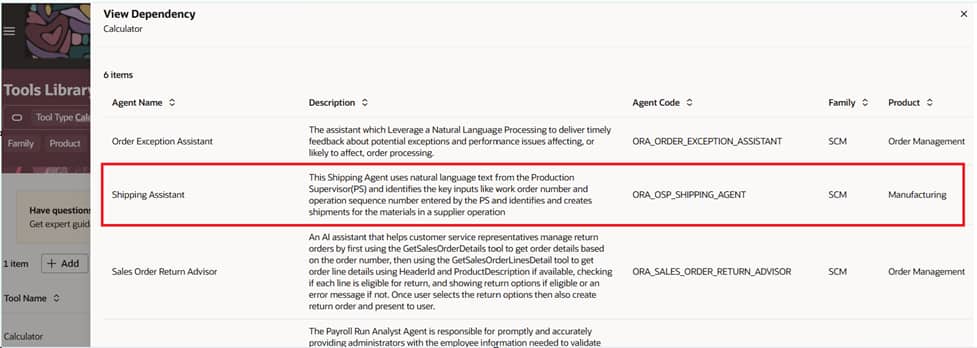
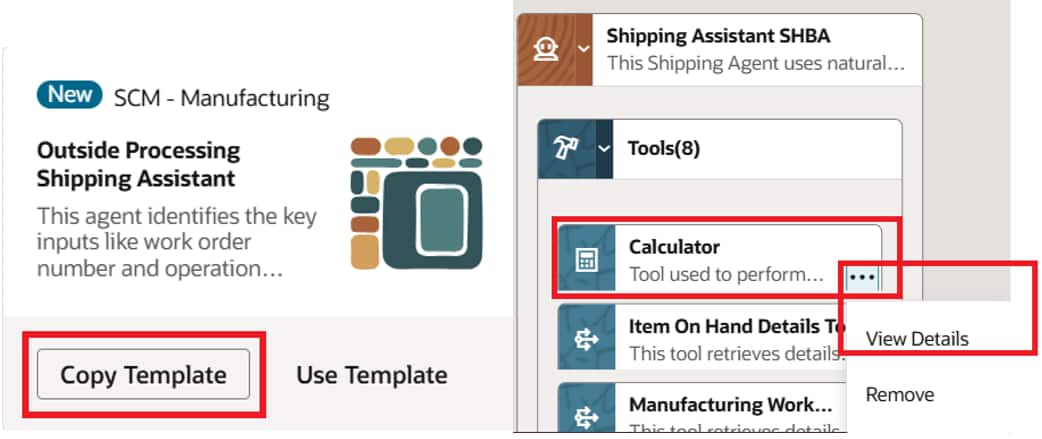
Applying Calculator Tool in Hierarchical Agents– Here we will show two examples where in first case we will copy a seeded template with calculator tool and in the second example we will copy a seeded hierarchical agent and customize it by adding a calculator tool for performing mathematical calculations..
a. Check implementation of calculator tool in a seeded agent:
- Create a copy of prebuilt Hierarchical Agent – From AI Agent Studio tab, copy the delivered template Shipping Assistant. This template has calculator tool added to it. If you have created a new agent, in the agent’s tool configuration, add the delivered Calculator Tool from the left pane. The agent will now automatically use this tool when a user asks a question that is described in the tool’s description.
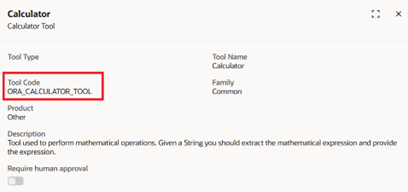
- Review the details of the calculator tool in the agent and note that it is the same delivered tool.
- Review the details of the agent prompt to view the tool call details and guardrails to ground the responses of the agent.
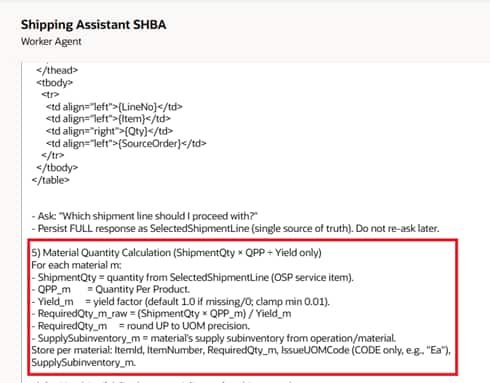
- Test the Agent — Use the integrated chat debugger within AI Agent Studio to test your agent. Ask questions that should be answered by the relevant tool added to the agent and verify the agent retrieves the correct passages.
b. Add calculator tool in a hierarchical agent: Now let us see an example of adding Calculator tool to a seeded agent where we need mathematical calculation. Create a copy of Pay Analyst, add Calculator tool and modify the prompt to perform tax calculations
- Create a copy of an Agent and add Calculator tool to it – Copy Pay Analyst agent and create a new agent COE Pay Analyst. Search for the Tool type as Calculator and click on + button to add the Calculator tool along with other required tools.

- Modify the LLM – Add the instructions in agent LLM to pick the calculator tool for specific scenarios and add it to a supervisor agent.
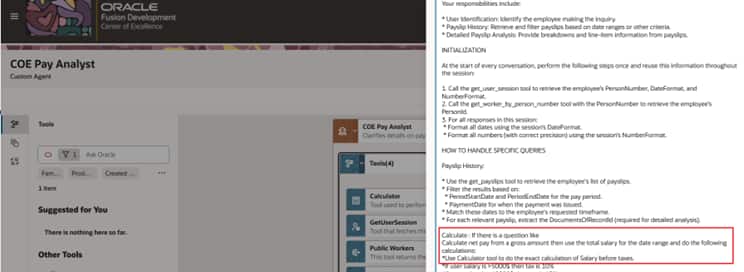
- Run the Agent- Click on play button to run the agent. Ask a question that will invoke some calculation like ‘Calculate the net pay if my gross salary is xxxx$’

As shown above, the agent is using the calculator tool to provide the exact amount rather than estimating.