
Introduction
As Oracle Fusion Cloud continues to deliver a growing roster of seeded AI Agents — and gives teams the power to create fully custom ones — a critical question emerges: how does an end user actually access and use these agents within their everyday Fusion pages?
This blog answers exactly that. Whether you are an IT administrator planning a rollout or a business user eager to explore what’s available, understanding the three deployment paths will help you get the most value from Oracle’s AI Agent Studio.
| 🔒 Access Control Reminder An end-user can only see an agent if: • The security assigned to the agent matches the user’s access criteria, AND • The agent has been published by an administrator. |
Multiple Ways to Deploy AI Agents
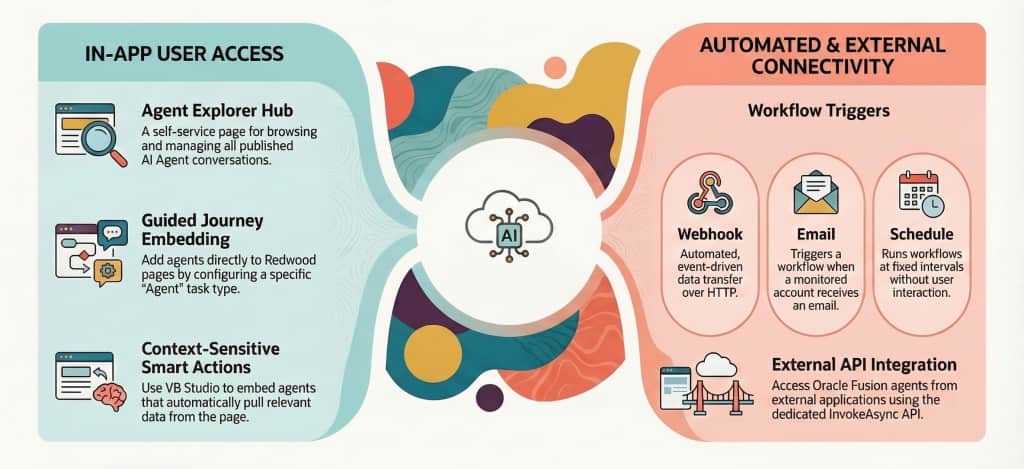
Oracle Fusion Cloud offers multiple deployment paths — each suited to a different type of user workflow and integration depth.
1. Self-Service via Agent Explorer
Think of Agent Explorer as your personal AI app store inside Oracle Fusion Cloud. It is a self-service hub where end users can discover, search, and start conversations with any AI Agent that has been published and made available to them — all in one place.
This page mirrors the experience of popular AI chat applications, making it immediately familiar to most users.
How to Navigate to Agent Explorer
You can reach Agent Explorer in couple of ways:
| Fusion Navigation: Me > Show More > AI Agent Studio |
| 🔗 Or — Append Directly to Your Environment URL /fscmUI/redwood/human-resources/ai-studio/agent-explore Example: https://abcd.oraclecloud.com/fscmUI/redwood/human-resources/ai-studio/agent-explore |
What’s Inside Agent Explorer? Two Key Tabs
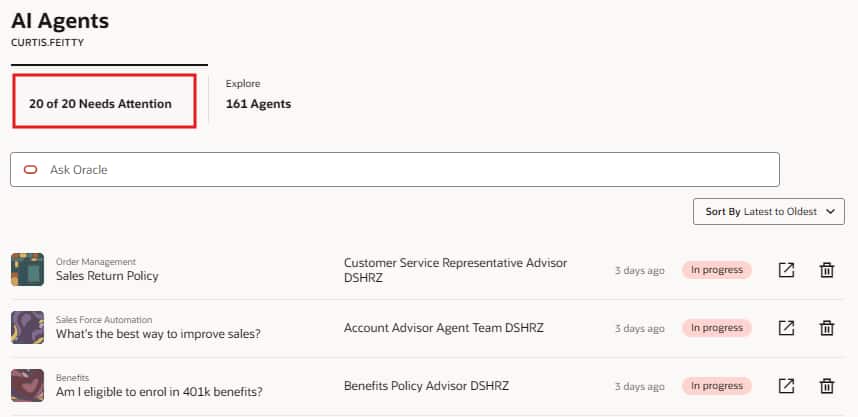
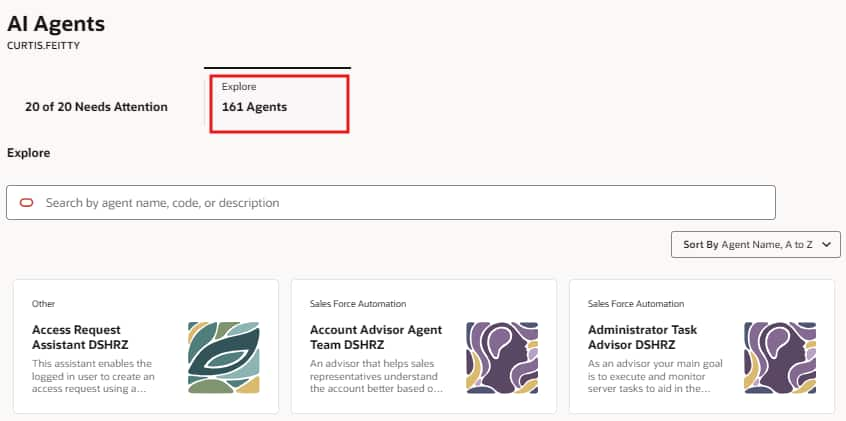
Once you arrive at Agent Explorer, you will find two tabs that serve distinct purposes:
| 🔔 Tab 1: Needs Attention | 🔍 Tab 2: Explore |
| What’s here: ✓ History of all ongoing agent conversations ✓ Re-open any in-progress conversation ✓ Delete completed conversations Just like your favourite AI chat apps! | What’s here: ✓ All published agents you can access ✓ Search agents by topic ✓ Start a new conversation instantly Your AI app store inside Fusion! |
2. Embedding AI Agents via Guided Journey
Guided Journeys are one of Oracle Fusion’s most flexible page-personalisation tools — and they are now supercharged with AI. A Guided Journey can be attached to almost every Redwood page, either at page level or at a specific section level.
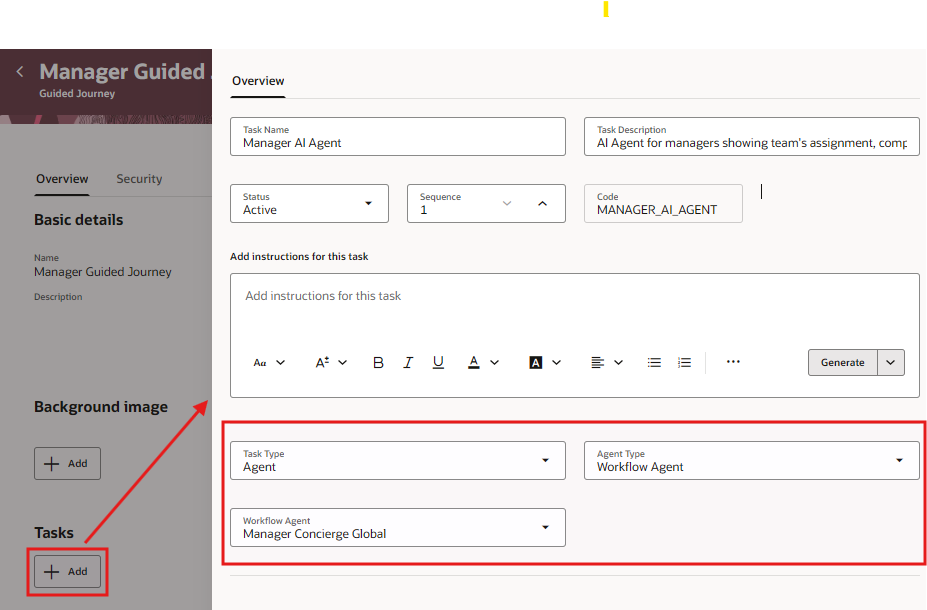
By creating an Agent task type within a Guided Journey, you can embed any AI Agent directly into a structured, step-by-step workflow that appears right on the user’s page.
| ✨ Why Guided Journeys Are the Most Versatile Option Unlike Agent Explorer (which lives in its own page) or VB Studio integrations (limited to specific modules), Guided Journeys can be added to almost every Redwood page in Oracle Fusion – making them the most universally applicable deployment method. |
Two-Step Setup Process
Embedding an AI Agent via Guided Journeys is a two-step process:
| STEP 01 🛠️ Create & Configure Build a Guided Journey in Oracle Fusion and set the task type to Agent → Configure Agent Task Type | STEP 02 📄 Add to Redwood Page Attach the Guided Journey to a Redwood page at page level or section level. → Enable Journey on Redwood Page |
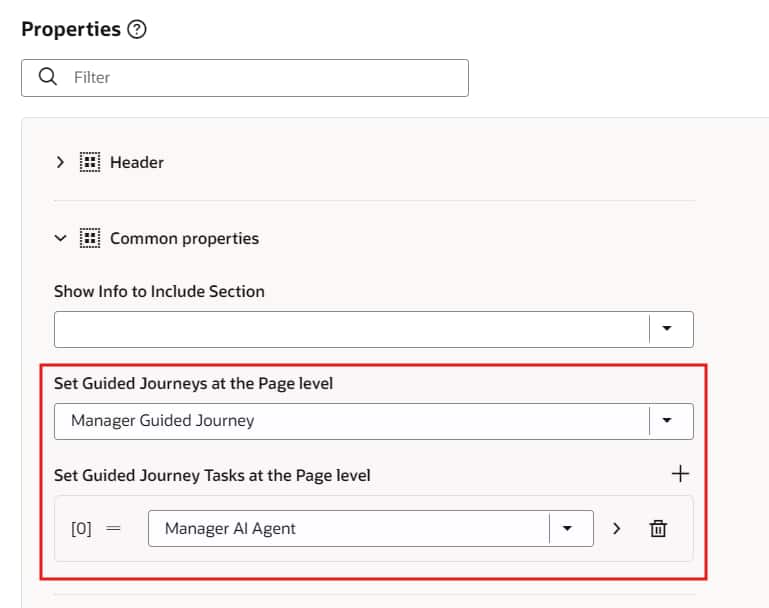
| 🎯 Page-Level Attach the journey to the entire Redwood page – visible to all users landing there. | 📌 Section-Level Target a specific section of a page – more granular and context-specific. | 🤖 Any Agent Works with all seeded agents and any custom agents you have created. |
| 📌 Additional notes: Check access and profile option requirements before enabling agent-type journeys. From 26B: You can also trigger a workflow agent on journey task completion or task save. |
3. Embedding via VB Studio or Smart Actions
This is the deepest level of AI Agent integration available in Oracle Fusion Cloud. Using Smart Actions within Application Composer, or via Visual Builder (VB) Studio, select AI Agents can be embedded directly into Redwood pages.
| ⚡ Context-Sensitive Intelligence These agents are uniquely context-sensitive — they automatically detect and pull the data present on the page when a user queries them. No manual input required. The agent already knows what the user is looking at. |
| ⚠️ Important: Limited Availability This deployment method is NOT universally available across all Oracle Fusion modules. It is limited to specific modules and products that have been architected to support direct agent embedding. Always check the product-specific documentation before planning an implementation. |
Few examples of Embedded Agents
The following agents are available as embedded, context-aware integrations in their respective modules:
| 📋 Subscription Advisor AI Agent Embedded in subscription management pages; assists sales teams with renewals and customer insights. 📦 Module: CX / Sales → View Setup Docs | 📊 Sales Dashboard Agent Surfaces AI insights via Global Actions inside the Sales Dashboard – answers without navigating away. 📦 Module: CX / Sales → View Setup Docs |
| 🎧 CX Service Page Agent Provides contextual case guidance, knowledge retrieval, and resolution suggestions for B2B service teams. 📦 Module: CX Service → View Setup Docs | 🔩 Component Replacement Assistant Helps PLM teams find and evaluate component substitutions – auto-pulls BOM and supplier data from the active page. 📦 Module: SCM / PLM → View Setup Docs |
4. Run Agents Automatically — No User Required
Triggers let workflow agents run in the background without any user interaction. The agent listens for an event, an email, or a time schedule — and executes on its own.
This is ideal for routine automation: scheduled reports, inbox-driven processing, or event-triggered workflows.
| Trigger | How it works | Real-world example |
| 🔗 Webhook | Event-driven HTTP trigger — send real-time data to the agent from any app. → Docs | Example: Context-based workflow agents (26A+) use this to fire automatically when a business event occurs. |
| Monitors a mailbox and runs the agent whenever a matching email arrives. → Docs | Example: Send an email to a designated address → the agent picks it up and processes it — no UI needed. | |
| 🕐 Schedule | Runs the agent on a defined time interval — fully hands-free. → Docs | Example: Inventory Task Allocation Assistant (26B) reallocates tasks on a schedule automatically. |
5. External access — InvokeAsync API
Agents can also be called from other Oracle apps or external systems using the /invokeAsync API.
For the step-by-step process, please go through the InvokeAsync API: Accessing Agents Externally.
Quick Summary: Side-by-Side Comparison
Use this table to choose the right deployment approach for your use case, user type, and available technical resources.
| Deployment Method | Best For | Availability | Context-Aware? | Setup Effort |
| 🧭 Agent Explorer (Self-Service) | Users exploring all available agents | All Modules (*Redwood not required) | No | Zero setup |
| 🗺️ Guided Journeys (Structured Workflow) | Step-by-step tasks embedded in Redwood | Most Redwood Pages | Partial | 2-step config |
| ⚙️ VB Studio / Smart Actions (Deep Integration) | Module-specific contextual AI | Selected Modules | Yes – auto | Developer config |
| ⚡Triggers (Agents in Background) | Automated background processing | Workflow agents (26A+) | NA | AI Studio Config |
| 🔗 External Access (Outside Fusion) | Accessing agents from External Apps | All Agents | NA | OCI IAM Authentication Token setup |
Things to keep in mind
| 🔒 Security First Agents only appear when the user has the right security role AND the agent has been published. | 🧩 Mix & Match Use Agent Explorer for general access; layer in Guided Journeys; Automate using Triggers, and call from outside using invokeAsync | 🚀 Start Simple Begin with Agent Explorer — zero config — then add Guided Journeys or Triggers as needs grow. |