
Blog 4 · Hands-on
This is the day-to-day part. How to start a session, run one test or a whole suite, choose the data and the version to run against, get model-written answers judged, and find the reports afterwards.
Key terms in this post
- File mode: Running tests with their saved data. The normal choice for regression runs and pipelines.
- Live mode: Running tests against the connected Fusion environment, ignoring the saved data.
- Needs judge: A test whose exact checks passed and whose model-written output is waiting to be scored.
- Run label: A name that keeps one run’s reports separate from the rest, such as “baseline” and “candidate”, or “red” and “green”.
Other terms are defined in the ATLAS glossary.
Before your first run
- Open the project root. Open your AI Studio project folder in VS Code: the folder that contains
src/andtest/, orapp-pkg/in a git app-package repository. - Start your coding assistant from that folder. Codex or Claude needs to see the AI Studio skill in
.agents/skills/aistudio/and run commands from the project root. - Check the connection.
env.propertiesat the root holdsaistudio.fa-hostandaistudio.fa-userfor your Fusion environment. - Be ready to sign in once. If a command needs your password, the assistant pauses and offers two choices: run the sign-in command it shows you in your own terminal, or explicitly allow it to pass a password you provide for that one step. The password is never written to a file.
Your first session, step by step
Here is a real session against the Team Health workflow that backs a panel in the Manager Coaching Workspace app. You type the left column. The assistant runs the middle column for you.
| You say | The assistant runs | You get |
|---|---|---|
| “Show me the workflow test sync plan for the Team Health workflow.” | get-workflow-test-sync-plan | The checklist: 7 scenarios, all marked [create] on the first visit. |
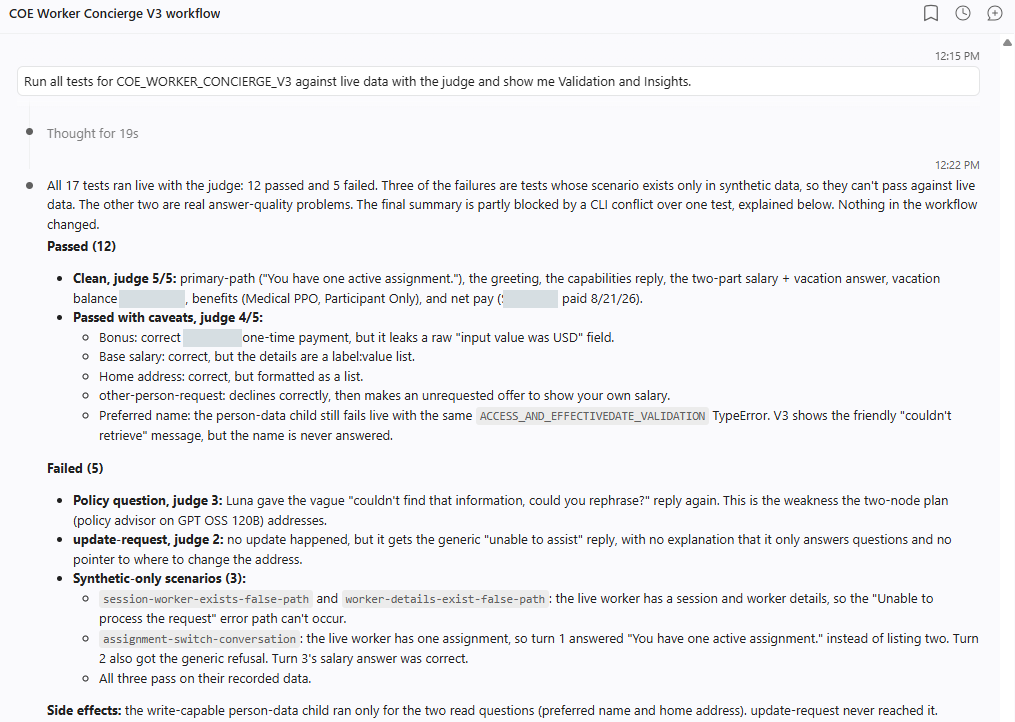
| “Run the sync plan and complete all supported tests.” | do-generate-workflow-test, recording, run-workflow-tests, judging, get-workflow-test-final-summary | Seven test files in test/workflows/manager_coaching_team_health/ and a Validation and Insights summary. |
| “Run the existing tests for Team Health from recorded data.” | run-workflow-tests --workflow-code MANAGER_COACHING_TEAM_HEALTH --data-source file | 7/7 passed in about 35 seconds, 30 AI units, with a link to the suite report. |
| “Open the init-display report and explain the checks and the judge result.” | Reads test-reports/…/init-display/result.html | A plain-language walkthrough: 16 of 16 exact and path checks passed, judge score 5/5. |
What happens during a run
Choose how to run
| What you want | Say something like | The assistant adds |
|---|---|---|
| One test while you fix it | “Run only the query test for Team Health.” | run-workflow-test --test-file test/workflows/manager_coaching_team_health/query.json |
| Every test for a workflow | “Run the Team Health tests.” | run-workflow-tests --workflow-code MANAGER_COACHING_TEAM_HEALTH |
| Everything behind an app, then its panels | “Run all the tests for the Manager Coaching Workspace.” | run-workflow-tests --app-code … then run-app-tests --app-code … |
| Same data every time | “…from recorded data.” | --data-source file |
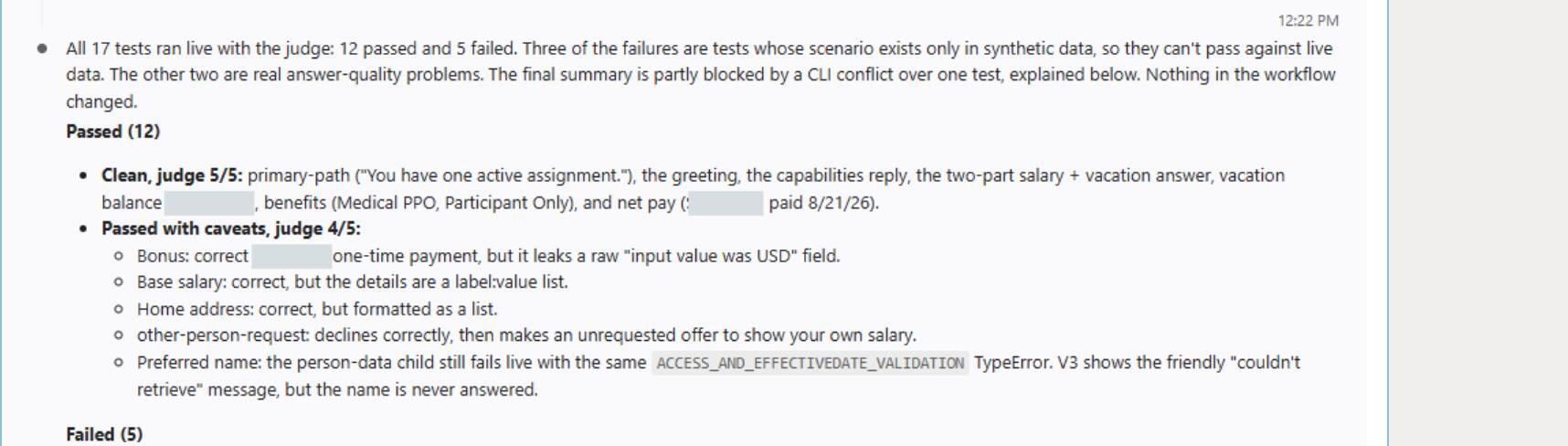
| Today’s real environment | “…against live data.” | --data-source live |
| The released version | “…against the published workflow.” | --workflow-status PUBLISHED |
| A quick slice | “Run only the smoke tests.” | --tags smoke (all listed tags) or --any-tag (any of them) |
| Two runs side by side | “Run this as baseline, then again with my fix.” | --run-label baseline, --run-label with-fix |
File mode is not the same as “exact checks only”.
Recorded data controls where the data comes from. It doesn’t switch off judging. In a normal run, every test keeps its own evaluation setting, so tests with model-written output are still judged.
Getting model-written answers judged
- Exact checks run: Output, path, node, and count checks
- “Needs judge”: Checks passed; the output still needs scoring
- Your assistant judges: Scores each criterion in the test’s rubric
- Results attached: Reports refresh without rerunning the workflow
Judging happens in your coding assistant by default. If you ask for remote judging, the Fusion environment judges during the run instead, which is what CI/CD pipelines use. Once results are attached, don’t run an “exact checks only” pass to double-check: it replaces the judged reports with unjudged ones.
Ask
Complete local judging for every pending test in the Team Health workflow and refresh the reports without rerunning the workflow.
Where the results land
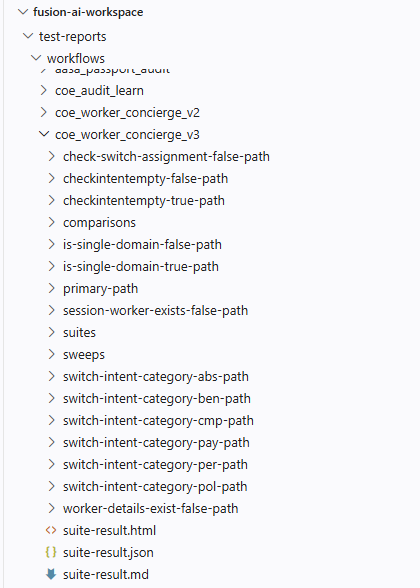
test-reports/
  suite-result.html                      everything in scope, apps and workflows
  apps/<app>/suite-result.html            panel tests for one app
  workflows/<workflow>/suite-result.html  one workflow's suite: counts, Metrics, Optimization
  workflows/<workflow>/<test>/result.html one test: checks, path, data, judge, output preview
  workflows/<workflow>/suites/<run-label>/ labelled runs kept separate
Open the HTML files to read results. The JSON files are for automation, and the Markdown files suit review comments. Running one test or attaching one judge result updates every report above it, so there’s no need to rerun a suite just to refresh the totals. In a git app-package repository the same tree sits under app-pkg/<package>/test-reports/.
House rules that save time
- Commit the tests, not the reports: Commit
test/. Leave outtest-reports/,.debug/, andenv.properties. - Repair one test at a time: While fixing, run just that test. When it’s clean, run the whole suite once with each test’s normal settings.
- Leave npm to the pipeline:
npm run testis for the CI/CD pipeline. On your machine, the assistant runs the AI Studio CLI directly.
Ask
Run the existing tests for the Team Health workflow from recorded data against the published workflow, complete local judging, and show me Validation and Insights with the suite report link.
Ask
Run only the tests tagged smoke from recorded data and summarize the suite report.
Key takeaways
- Open the project root, start your coding assistant there, and sign in once when it asks.
- Say what to run, on which data, and against which version; the assistant picks the command and flags.
- Exact checks run first and model-written output is judged after. Reports roll up on their own, so you never rerun a suite just to refresh totals.
Part 4 of the ATLAS learning path.
Previous: Where ATLAS lives, and how to ask
Next: Review your test reports
Back to the Learning Path for ATLAS