


How the framework turns a user’s question into a routed, context-aware, multi-modal response — and how to build the agents that answer it well.
Introduction
Learn how Ask Oracle dispatches queries via the Query message hint. Why a dedicated Query agent is different from your panel agents. The five-step request flow. Exactly what to pass into your Query LLM node. Why $chatHistory makes or breaks follow-ups. How agent descriptions drive routing in multi-agent apps. Response composition — text plus supporting displays. Section-focus scoping. Builder UI configuration. Tone and summary behavior. Common pitfalls.
1. Ask Oracle: who answers the user’s question?
Every agentic app surfaces a single, persistent input field at the top of the page — the Ask Oracle bar. The user can type any question into it, at any time. The interesting design decision is what happens next: which agent actually answers.
You have two ways to handle this, and you choose between them when you build the app:
- Assign a dedicated Query agent. You pick a specific agent (or agent team) and bind it to the Ask Oracle slot. Every question the user types is routed to that agent. You control the routing, the prompt, and the response style — the answer always comes from the agent you chose.
- Let the orchestrator pick a panel agent. If you don’t assign a dedicated Query agent, the agentic app orchestrator decides which of your panel agents should handle each question — matching the intent of the question against each agent’s description and capabilities. Different questions can land on different agents.
Neither option is more correct than the other — they suit different apps. A dedicated Query agent gives you tight, predictable control over voice and behaviour, which is ideal when you want every answer to feel consistent or when one agent (or team) genuinely owns the whole domain. Letting the orchestrator dispatch is the natural fit when you have several specialised panel agents and you want the user’s question to reach whichever specialist is best suited — like having a 24/7 expert panel where the right expert steps forward.
This blog walks through both paths: the request lifecycle they share, the variables you must pass into the Query LLM node, how the orchestrator decides which agent to pick, the configuration steps in the Builder UI, and the production-grade patterns that make the Ask Oracle experience reliable either way.
2. Ask Oracle and Summary: the two special agent slots
Every agentic app has two app-level agent slots that sit outside the regular panel agents:
Ask Oracle — the Query agent
A specific agent team you assign to handle every conversational query the user types into the Ask Oracle bar. It responds with answers and can also produce supporting information displays. Why a dedicated agent? Because you control the routing, the prompt, and the response style — rather than letting the orchestrator pick. The Query agent is bound to the app via the queryAgent property in the application configuration.
Summary — the rolled-up snapshot
A specific agent (or team) that generates the main summary at the top of the app. This replaces the default behavior where the agentic app orchestrator aggregates insights from every agent on the page. Why a dedicated Summary agent? When you have many agents, you want a single voice and a focused summary — not a generic roll-up of every panel.
3. The Ask Oracle Query flow — from keystroke to response
When the user types a question and submits it, the framework executes five well-defined steps. Knowing each step is essential for debugging — most failure modes map cleanly to one of them.
- The user types a question into the Ask Oracle bar. The text becomes the input message for the request.
- The framework dispatches a Query hint — it sets $OraMessageHint == “Query” on the request. Every other event in the app lifecycle (Summary, InitDisplay, InitActions, InvokeAction, FillParameters, SendCommunication) has its own hint value; Query is the one that fires for typed user questions.
- The orchestrator routes the query. In a multi-agent app, the agent team’s orchestrator decides which specialist agent should handle the query — based on each agent’s description and the intent of the question. In a single-agent app, this step collapses: the one agent always handles it.
- The selected agent’s workflow routes on $OraMessageHint and processes the Query LLM node. This is where your prompt runs, with whatever inputs you wired in (the input message, $chatHistory, $OraUserContext, $OraAppContext).
- The response is rendered — typically as a new section at the top of the page, with conversational text and optional <oraInfoDisplay> widgets attached.
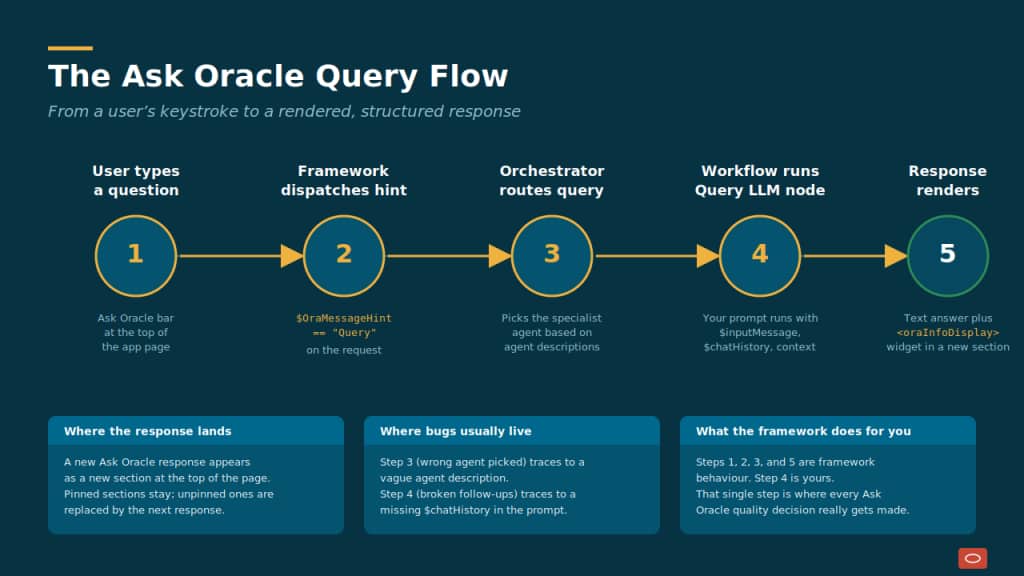
| Where each Ask Oracle response actually lands. By default a new Ask Oracle response appears as a new section at the top of the page. The most recently displayed Ask Oracle section is highlighted in the chat. If the user has pinned a previous section, the new response appears on top without overwriting it; if they have not, the new response replaces the prior one. This is intentional — it keeps the workspace from sprawling while letting users keep responses they want to act on. |
$OraMessageHint == “Query”: the routing pivot
Inside your agent team’s workflow, the very first thing the entry node does is inspect $context.$app.$OraMessageHint. That single string tells your agent which lifecycle event has just fired and, by extension, which branch of your workflow should run.
Two things are worth emphasizing here. First, the Query branch is the only one that is fed by a free-form user input — it cannot be precomputed at app initialization the way Summary or InitDisplay can. Second, the Query branch is the only branch that is expected to use chat history to maintain conversation continuity.
| Query is post-initialization. Summary, InitSubtitle, InitDisplay, InitActions, and InitCommunications all fire during the app’s initialization phase — before the user has done anything. Query, InvokeAction, FillParameters, and SendCommunication only fire later, in response to user interaction. Your routing logic should treat the two phases differently. |
What you must pass into the Query LLM node
The single most reliable way to predict whether an Ask Oracle agent will perform well is to look at exactly which context variables are wired into the Query LLM node. This is also where the majority of production bugs originate: builders assume the framework auto-passes context, and it doesn’t.
| Variable | Required? | Why it matters | |
| $context.$system.$inputMessage | Required | The user’s actual question. Nothing answers without it. Pass it verbatim to the prompt. | |
| $context.$system.$chatHistory | Required | The prior turns of the Ask Oracle conversation. Without it, the agent has no memory and follow-ups like “and the next quarter?” break completely. | |
| $context.$app.$OraUserContext | Optional | Logged-in user identity: fullName, userId, userName, guid. Pass it when answers should be personalized or scoped to who is asking. | |
| $context.$app.$OraAppContext | Optional | Context passed via URL parameters at app initialization — typically the entity the app is scoped to (a candidate, a deal, a requisition). Pass it when the answer must respect that scope. | |
| $context.$app.$OraAttachments | Optional | Files the user attached to the chat. Pass it when your agent is set up to reason over uploaded documents. | |
| $context.$app.$OraAgentList | Optional | The list of agents available in the app. Useful for dedicated query agents handling Ask Oracle queries when they need to know what other panel agents exist. | |
$chatHistory — the make-or-break variable
If we had to point to a single variable that separates a competent Ask Oracle experience from a frustrating one, it would be $chatHistory. The Query LLM node is invoked once per user question — the model itself has no memory between invocations. Every turn of conversation is a brand-new call. Without $chatHistory wired into the prompt, the agent has amnesia.
What goes wrong without it
Consider a two-turn conversation:
- Turn 1: “Show me the top talent we are at risk of losing.”
- Turn 2: “And what about the next quarter?”
Without chat history, Turn 2 is parsed as a standalone question. The agent has no idea what list was just shown, what “the next quarter” refers to, or even that the conversation is about talent retention. It produces a generic, off-target response — or worse, an apologetic refusal. With $chatHistory wired in, the model sees the prior question and answer, infers the topic, and produces the natural continuation the user expected.
How to wire it
Inside the Query LLM node’s prompt, reference the variable directly. A minimal pattern looks like this:
| You are the Talent Retention Advisor. Conversation so far: {{$context.$system.$chatHistory}} New question from the user: {{$context.$system.$inputMessage}} Answer concisely using the data in {xxxx}. If the new question is a follow-up, use the conversation context to interpret pronouns, time references, and implicit subjects. |
4. Why agent descriptions decide who answers
When the user types a question, the agent team’s orchestrator has to choose which specialist answers. It does this by comparing the user’s intent against each agent’s description. Vague descriptions cause the orchestrator to skip your agent — or pick the wrong one entirely.
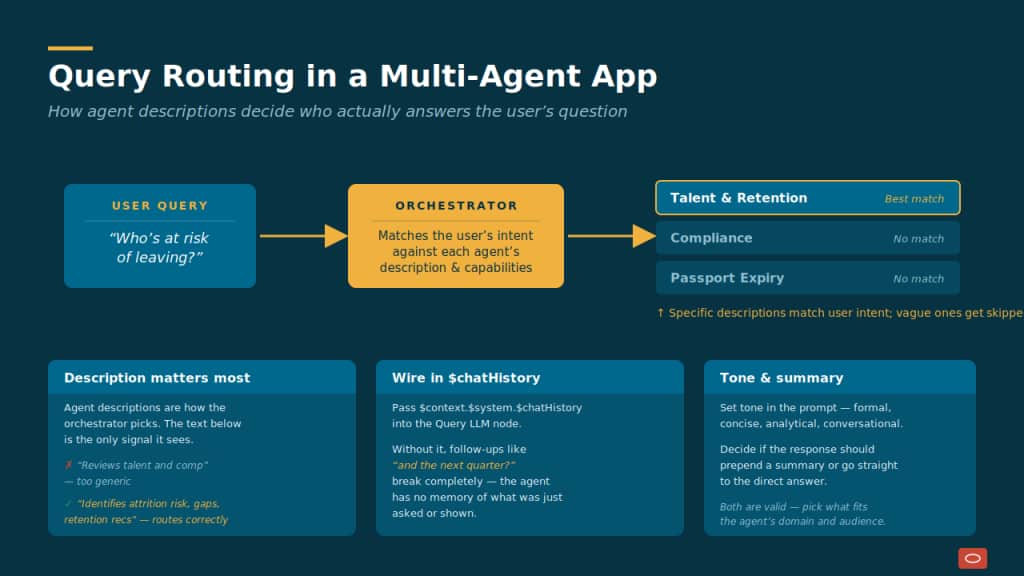
| Diagnose routing problems with one test. Ask the app: “Show me the top talent we are at risk of losing.” If the wrong agent answers, do not rewrite the prompt. Rewrite the description. Then re-run the same query. If the right agent now responds, routing was the problem all along. |
5. Response composition — text, displays, and dynamic content
An Ask Oracle response is not just a paragraph of text. The Query agent can emit a multi-part response that combines a conversational answer with structured visualizations and follow-up actions.
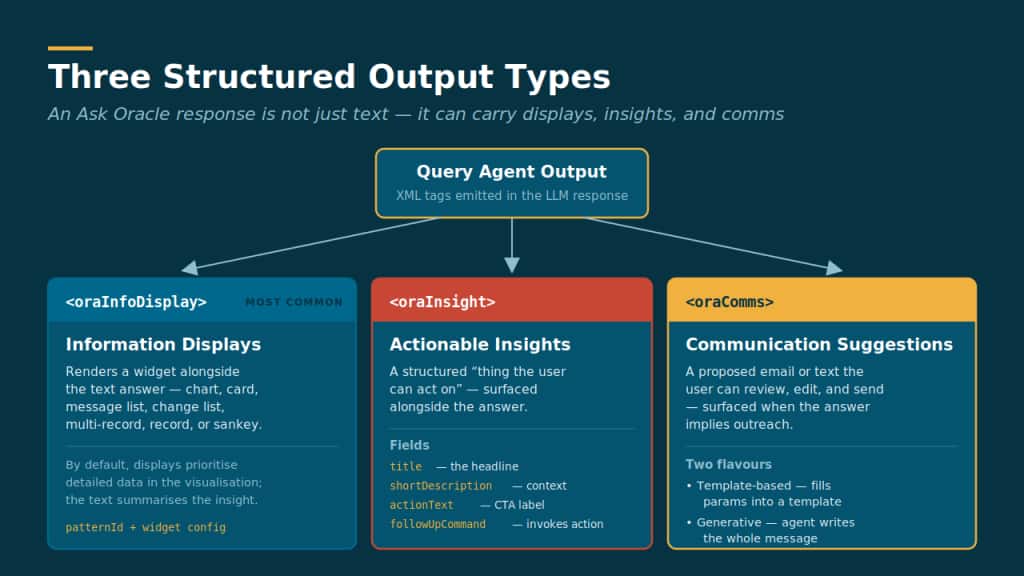
There are three structured output types the Query agent can produce, all delivered through XML tags in the LLM response:
- <oraInfoDisplay> — information displays. The most common Ask Oracle output. Renders a widget (chart, card, message list, change list, multi-record, record, or Sankey) alongside the text answer. By default these displays prioritise showing detailed data in the visualisation, while the accompanying text summarises the key insight.
- <oraInsight> — actionable insights. A structured “thing the user can act on” — with a title, short description, action text, and an optional followUpCommand the user can click to invoke a workflow.
- <oraComms> — communication suggestions. The agent proposes a template-based or generative email/text the user can review and send.
Whether an Ask Oracle response includes any of these structured outputs is entirely controlled by your Query LLM node’s prompt. If you want the agent to produce a chart alongside its answer, you tell it to in the prompt; you also enable the relevant widget in the Output Tab so the runtime accepts the emission.
| Two-step pattern for widgets. For an agent to actually emit a widget, two things must be true. First, on the agent’s LLM node, in the App Experience Tab under “Select Widgets”, the widget type must be enabled. Second, your Query LLM node’s prompt must instruct the agent to use it (“Use a chartWidget when comparing trends; use a messageListWidget for prioritized lists”). Skip either step and the widget never appears. |
6. Section focus and scoping behavior
Ask Oracle is not always app-wide. When the user enters a Section Focus View — zooming into a single panel of the app — Ask Oracle quietly changes who it talks to.
- App-level Ask Oracle: When the user is on the main app page, the Ask Oracle bar dispatches to the configured queryAgent for the app as a whole.
- Section Focus Ask Oracle: When the user is inside a Section Focus View, Ask Oracle interacts only with the agents powering that section. This keeps guidance focused and relevant — the user asking a question about “this section” doesn’t get an answer from an unrelated agent on another panel.
From a builder perspective, you do not need to wire section-focus routing yourself — the framework handles the scoping automatically. You just need to make sure each panel’s agent is configured to handle Query hints, the same way the app-level queryAgent is.
7. Configuring Ask Oracle in the Builder UI
All Ask Oracle configuration happens in the Builder UI — you never need to hand-edit the appConfig.
Assigning the Query agent
- In the Builder Panel, locate the dedicated Ask Oracle container near the top of the layout (it is one of the two static agent slots, the other being Summary).
- Click the container, then + Add Agent, and select the agent or agent team from the dropdown.
- Save the app. Under the hood this populates the queryAgent property in the application configuration.
Configuring the agent itself
The agent you assign must be set up to handle Query hints. The two non-negotiables:
- Expose to Agentic Apps: On the agent’s Output Tab, the Expose to Agentic Apps toggle must be ON. Without it, the agent never appears in the agent dropdown in the Builder UI.
- Query branch in the workflow: The agent team’s workflow must have a branch that fires when $OraMessageHint == “Query”, a Query LLM node on that branch, and the required context variables ($inputMessage and $chatHistory at minimum) wired into the node’s prompt.
8. Tone and summary behavior in the Query prompt
The Query LLM node’s prompt is also where you control the personality and shape of every Ask Oracle response. Two dials are worth deliberate attention:
Tone
Tone is set directly in the prompt. “Respond in a concise, analytical voice” produces a different answer than “Respond in a friendly, conversational voice”, which produces a different answer again from “Respond formally; reserve the analytical detail for the supporting display.” Tone is the single fastest way to make an agent’s personality match its domain — the Compliance agent should not sound the same as the Talent agent.
Summary behavior
Each Ask Oracle response can either include a generated summary of the answer up front or skip directly to the direct answer. Both are valid; the choice depends on what makes sense for the agent’s domain and the user’s typical question style. Quick lookups (“who owns Deal X?”) often work better without a summary. Analytical questions (“how has Region 2 performed this quarter?”) usually benefit from a one-line summary above the supporting display.
You toggle this behavior by including or omitting a summary instruction in the Query LLM node prompt.
9. Common pitfalls and how to avoid them
| Pitfall | What to do instead |
| Follow-up questions break (“and the next quarter?” gets a generic answer). | Wire $context.$system.$chatHistory into the Query LLM node’s prompt. It is not auto-passed. |
| The orchestrator routes to the wrong agent. | Rewrite the agent team’s description with specific verbs, nouns, and dimensions. Re-run the same query to confirm. |
| The agent never appears in the Ask Oracle dropdown in Builder UI. | Open the agent’s Output Tab and turn on Expose to Agentic Apps. Without this toggle the agent is invisible to apps. |
| The Query agent produces no widgets, only text. | Two-step fix: enable the widget type on the agent’s Output Tab under Select Widgets, and instruct the agent to use it in the Query LLM node prompt. |
| Responses ignore the user’s identity or the entity in the URL. | Pass $OraUserContext and $OraAppContext into the Query LLM node prompt, and reference them in the instructions. |
| Two back-to-back questions overwrite each other on the page. | That is the default behaviour — a new response replaces the prior section unless the user pinned it. Tell the user about pinning if they want to keep multiple responses side by side. |
| Latency feels excessive for a simple question. | Review the Query branch for unnecessary LLM nodes or tool calls. Workflows beat supervisors for predictable latency; aim to stay well under the 60-second response limit. |
Recap
Ask Oracle is the single most open-ended surface in an agentic app, and the only one driven entirely by an unscripted user prompt. That is what makes it strategically valuable — and what makes it the most demanding feature to configure well.
Six things to remember:
- Ask Oracle is a dedicated agent slot — distinct from your panel agents, configured via the queryAgent property. You assign one agent (or agent team) to it.
- The Query message hint is the routing pivot — inside your agent team’s workflow, route on $OraMessageHint == “Query” to the Query LLM node.
- Pass $inputMessage and $chatHistory always — they are required for any reasonable Query experience. Optionally add $OraUserContext, $OraAppContext, and $OraAttachments when the use case calls for them.
- Agent descriptions decide routing — in multi-agent apps, the orchestrator picks the agent whose description best matches the user’s intent. Be specific about verbs, nouns, and dimensions.
- Responses can combine text, displays, insights, and comms — controlled by the Query prompt and gated by the Output Tab’s Select Widgets configuration.
- Section Focus scoping is automatic — Ask Oracle inside a section only talks to that section’s agents. You just need each panel agent set up to handle Query hints.
New to Oracle Fusion AI Agents?
Explore AI Agent Studio Learning Path — blog series to help build from zero to production-grade AI agents, with deep dives on every agent pattern, node type, and tool integration.
Explore AI Agentic Apps Learning Path — blog series on everything you need to build Oracle Fusion AI Agentic Apps using AI Agent Studio.