


Configure outbound messaging — app-defined templates, agent-generated runtime messages, the communication lifecycle, four formats, the <oraComms> schema, and prompt-writing patterns
Introduction
Agentic apps are not just about seeing problems and deciding what to do—they are about following through. When a procurement manager identifies an expiring supplier contract, the next step is not to open Outlook and start drafting. The next step is to send the notification right there, from inside the app, with the message already drafted, the recipient already filled in, and the contract details already included. That is what the Communications pillar delivers.
But communications need structure. A supplier renewal email must have a professional format with the right recipient, subject line, and body content. An executive compliance report must have a predictable layout: summary first, department breakdown in the middle, recommended actions at the end. Templates provide this structure.
Templates are the blueprints for AI-generated content. They define what the AI should create (Generation Instructions), how the output should look (Presentation Instructions), and how the content is organized (sections or parts). App-defined communications—the structured, recurring outputs that agents suggest at runtime—require a template to function. You design the blueprint in the Template Editor, link it to a communication in the Builder UI, and the template engine generates the final output when the user sends.
This post covers everything you need to build complete communication workflows: the two communication types, the four template formats, how to design templates with generation and presentation instructions, the multi-section architecture for complex documents, the five-stage communication lifecycle, the <oraComms> schema for agent-generated runtime messages, and the prompt-writing patterns that make it all work.
Two Types of Communications
Oracle’s agentic app framework supports two fundamentally different approaches to communications, each suited to different needs. Understanding when to use each is a critical design decision.
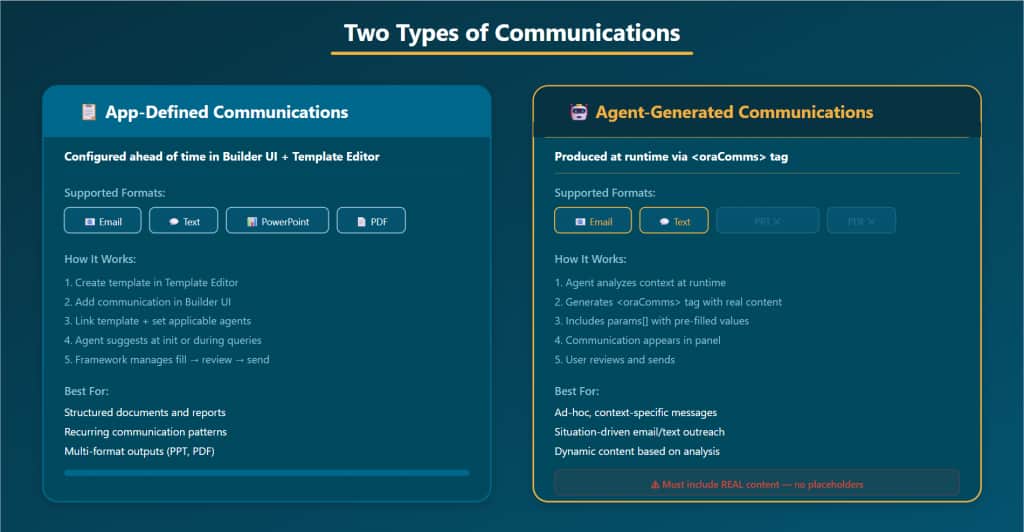
App-Defined Communications (Template Required)
App-defined communications are configured ahead of time using the Builder UI and Template Editor. Every app-defined communication requires a template—you must first create the template in the Template Editor, then link it to the communication in the Builder UI. At runtime, agents recommend the communication when relevant, the framework manages parameter filling, the user reviews, and the template engine generates the final output using the linked template.
App-defined communications support all four formats—PowerPoint, PDF, Email, and Text—and are the right choice for structured, recurring outputs: executive summary reports, compliance decks, standard notification templates, and any communication where the format and structure are known in advance.
| Templates are a prerequisite for app-defined communications. You cannot create a functional app-defined communication without first creating its template in the Template Editor. The Template dropdown in the Communication Editor will be empty until at least one template exists. |
Agent-Generated Communications
Agent-generated communications are produced at runtime via the <oraComms> XML tag in the agent’s LLM response. The agent decides when a communication is needed, generates the content dynamically based on its analysis, and surfaces it in the Communications panel. These support only email and text formats—no template is required because the agent supplies the content directly.
Agent-generated communications are the right choice for ad-hoc, context-specific messaging: a supplier notification tailored to a specific contract situation, a team alert based on a real-time anomaly, or a follow-up email based on a user’s Ask Oracle conversation. The key requirement: the agent must include actual content with real data—no placeholders, no fabricated information.
| Choosing the Right Type Use app-defined for structured, recurring formats (PowerPoint reports, PDF summaries, standard email templates) where the output structure is known in advance. A template defines the structure. Use agent-generated for ad-hoc, situation-specific email and text messages where content depends on real-time analysis. Many apps use both: app-defined for reports and agent-generated for contextual outreach. |
Four Formats: Communications and Their Templates
Agentic apps support four output formats. Each format maps to a corresponding template type in the Template Editor. App-defined communications support all four. Agent-generated communications support only email and text.
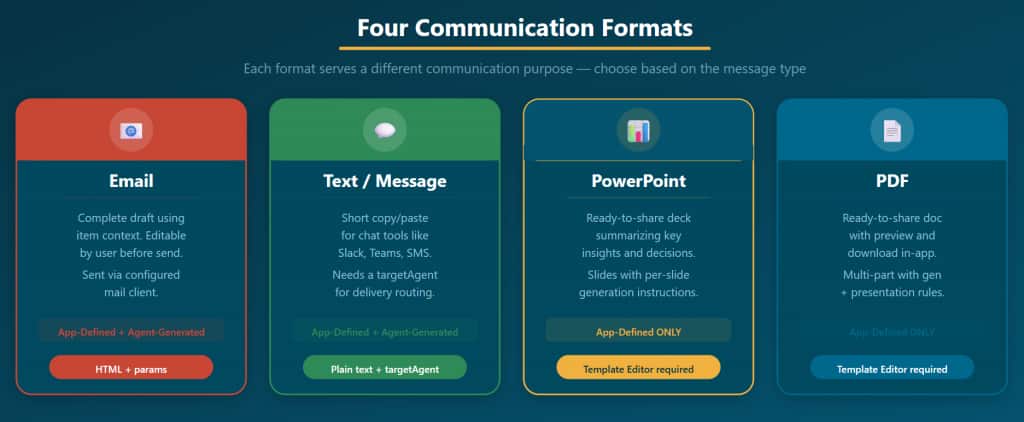
The most common format. Email communications produce complete drafts—full message body, subject line, and recipient fields—generated using item context. The user can edit everything before sending. Emails are delivered via the configured mail client.
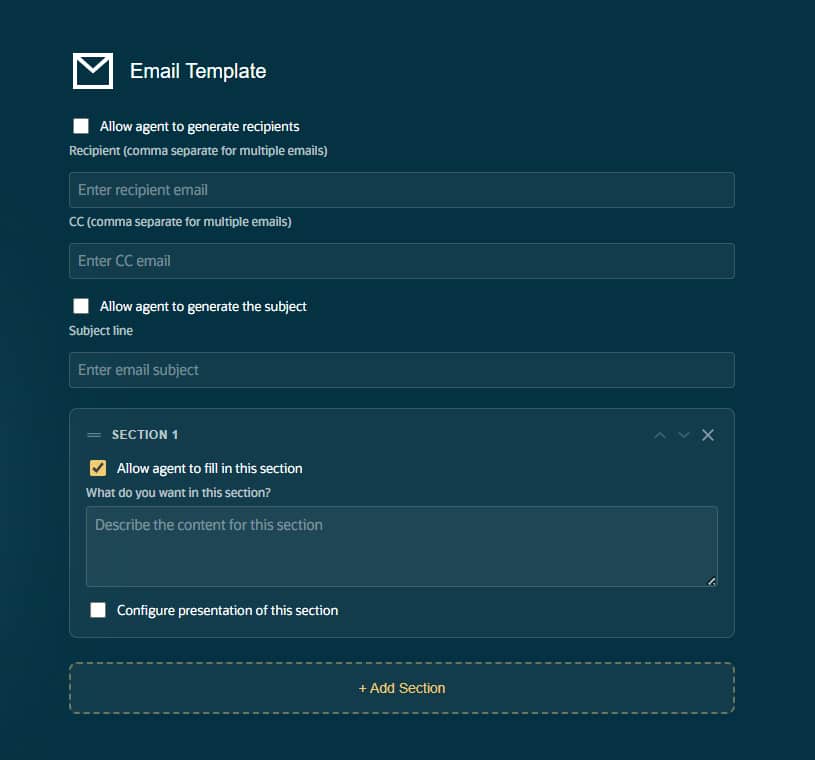
Email templates define the message structure. The template’s generation instructions tell the AI what to include (salutation, contract details, next steps). Presentation instructions specify formatting (bold for key dates, bulleted action items). For app-defined email communications, you create the template first, then link it. For agent-generated emails, the agent produces content directly via <oraComms>—but having a template ensures consistent structure across similar emails.
Text / Message
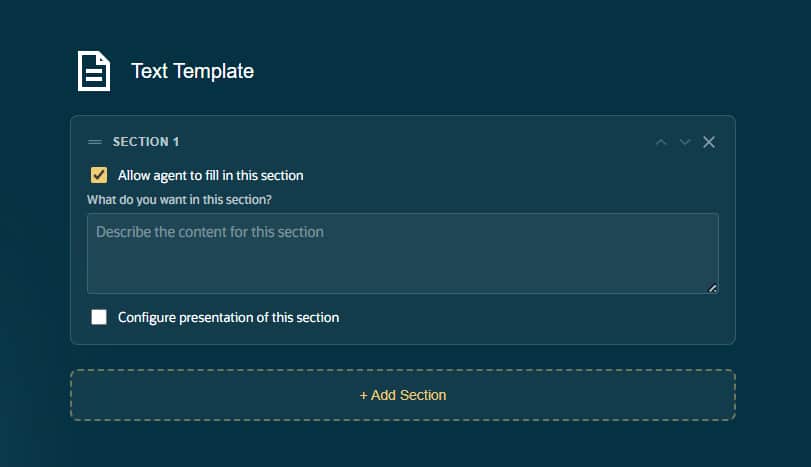
Short-form messages designed for chat tools like Slack, Teams, or SMS. Text communications are plain text (no HTML), where a targetAgent can be configured for delivery routing—this is the agent that will actually send the message to the configured channel.
Text templates are the simplest format. Generation instructions specify the message content and length (“Generate a 2–3 sentence alert including the issue type, severity, and recommended action”). Presentation instructions are minimal since text has no formatting. For app-defined text communications, the Communication Editor’s Target Agent field must be set to the exact agent code.
PowerPoint
Ready-to-share slide decks summarizing key insights and decisions. PowerPoint communications are app-defined only—they require a template configured in the Template Editor with per-slide generation instructions.
PowerPoint templates use sections as slides. Each slide has its own generation instructions (“Present the top 3 compliance risk areas with a brief description”) and presentation instructions (“Use a title and subtitle format; place key metrics as large numbers”). A three-section template produces a three-slide deck. Ideal for executive summaries, compliance reports, and stakeholder presentations.
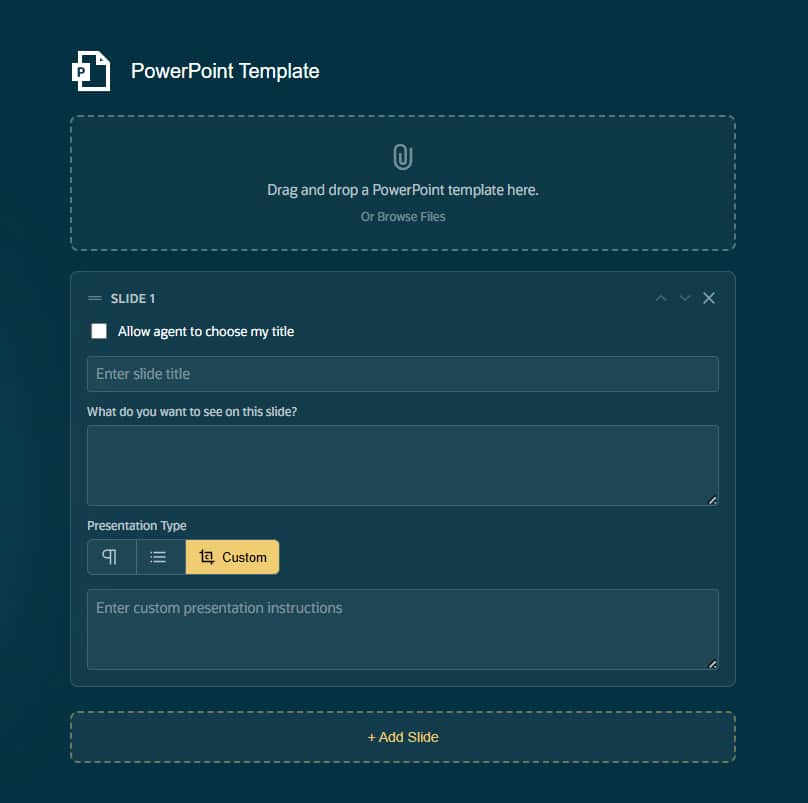
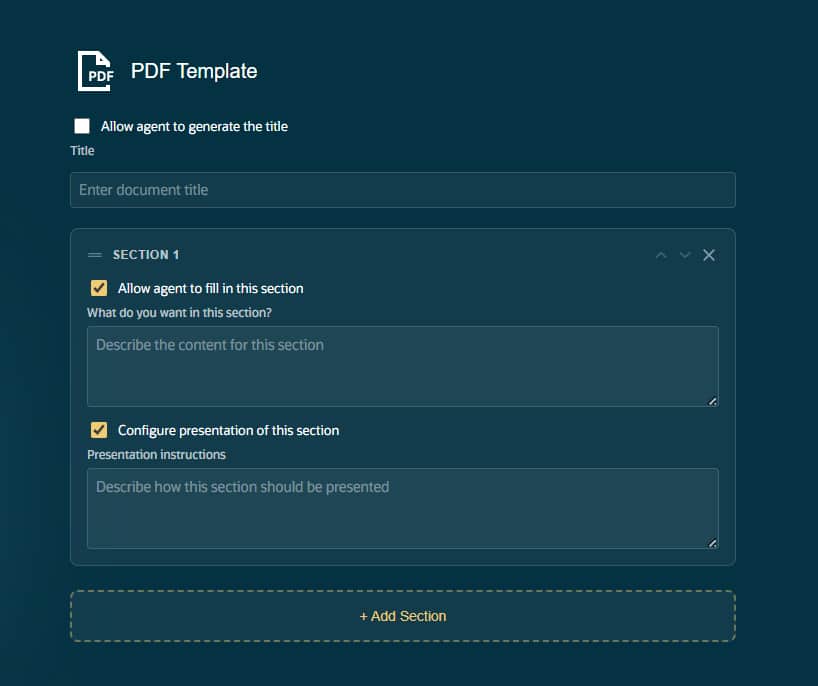
Ready-to-share documents with preview and download capabilities directly within the app. PDF communications are also app-defined only, requiring a template with multi-part generation and presentation instructions.
PDF templates use sections as sequential document parts. The first section might be an executive summary, the second a detailed breakdown table, the third a recommendations list. The Template Editor provides a live PDF preview as you configure sections. Ideal for formal reports, audit summaries, and shareable compliance documentation
Template Design: The Configuration Fields
Every template section—whether a PowerPoint slide, a PDF part, an email body, or a text message—is configured with fields that control what the AI creates and how the output looks.
Generation Instructions
The first and most important field. This tells the AI what content to create in this section. Be specific about the data points, analysis, and insights to include. Vague instructions produce unpredictable output.
- Vague (avoid): “Summarize compliance.”
- Specific (use): “Provide a concise paragraph summarizing: overall learning compliance posture, percentage of learners on track vs. overdue, and the top 3 risk areas by department.”
Presentation Instructions
The second field tells the AI how to format the output. This is where you control structure and visual organization.
- “Generate a bulleted list where possible.”
- “Use a table format with columns for department, gap count, and severity level.”
- “Start with a bold heading, then a numbered list of actions with deadlines.”
- “Keep to one paragraph, no more than 4 sentences.”
| Generation Instructions = WHAT to create. Presentation Instructions = HOW to format. Never mix content requests with formatting rules in the same field. This separation ensures the AI can focus on content quality in one step and formatting quality in another. |
Multi-Section Templates
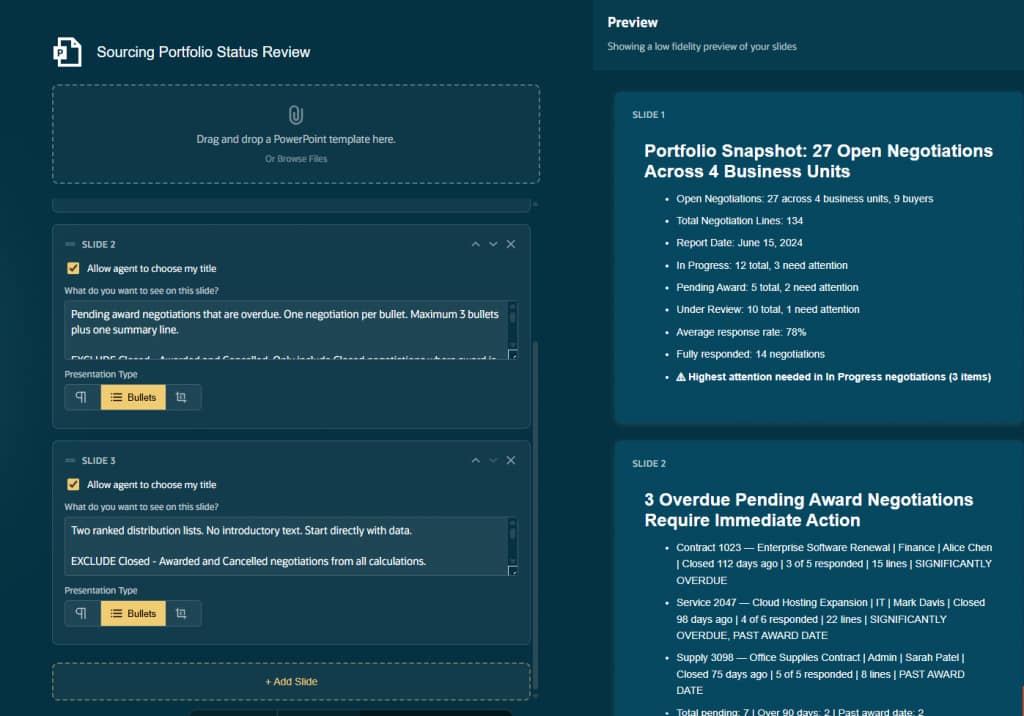
Templates can contain multiple sections, each with its own generation and presentation instructions. This is where templates become powerful—you can design complex, structured documents with distinct content in each part.
How Multi-Section Works
Each template starts with one default section. Click “+ Add Section” to add more. Sections render sequentially—the first section appears first in the output, the second section follows, and so on. Each section can have its own generation instructions, presentation instructions, and the “Allow agent to fill in this section” checkbox.
PowerPoint: Sections = Slides
For PowerPoint templates, each section corresponds to a slide. A three-section PowerPoint template produces a three-slide deck. Think of each slide as one idea:
- Slide 1: Executive Overview — key metrics and overall posture
- Slide 2: Risk Areas — top 3 risks with affected learner counts
- Slide 3: Department Breakdown — 2-column comparison layout
- Slide 4: Recommended Actions — numbered action list with deadlines
PDF: Sections = Document Parts
For PDF templates, each section becomes a sequential part of the document. Plan the structure before building the template—each section should have a clear role in the overall narrative. The Template Editor shows a live preview as you configure sections.
Email and Text: Sections = Body Parts
For Email templates, sections make up the email body. Typically one section is sufficient for most emails, but multiple sections work for longer structured communications. For Text templates, a single section is standard since messages are short by nature.
The Template-to-Communication Link
Templates do not work in isolation—they must be connected to a communication in the Builder UI before agents can suggest them. The link between template and communication is the bridge between blueprint and delivery.
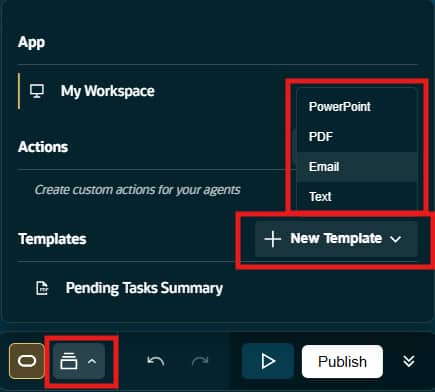
Step 1 — Create the Template
Open the Template Editor from the Builder toolbar. Click “+ New Template” and select the type (PowerPoint, PDF, Email, or Text). Configure the template parts with Generation Instructions (what content the AI should create) and Presentation Instructions (how it should be formatted). For PowerPoint, configure each slide individually. For PDF, configure sequential parts. For Email and Text, configure the body content.
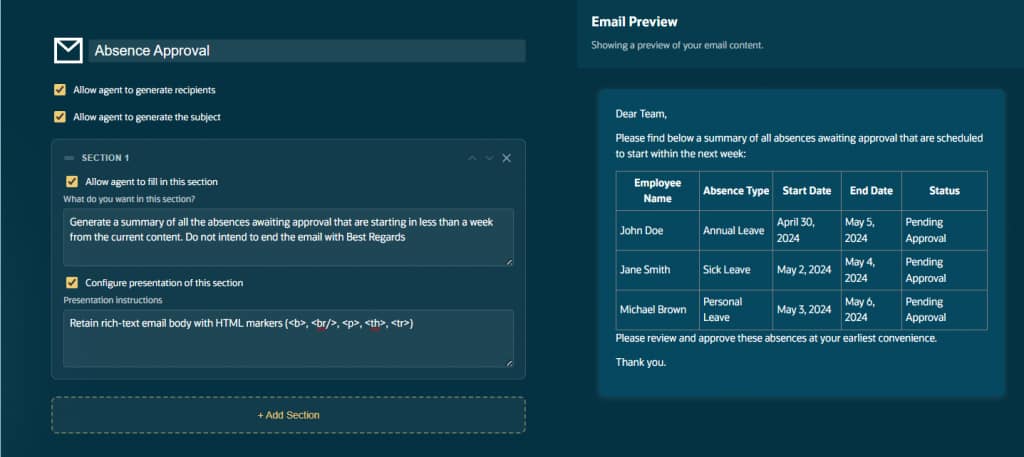
Step 2 — Create the Communication
In the Builder UI’s Communications panel, click “Add Communication.” Link your template via the Template dropdown. Configure the six fields:
- Title: Descriptive name displayed in the communications panel.
- Description: When to suggest this communication. Helps agents decide relevance.
- Applicable Agents: Multi-select which agents can suggest it.
- Template: Select from the dropdown (must be created in Template Editor first).
- Action Text: Button label (“Send Email”, “Generate Report”) – Applicable for Email/Text
- Target Agent: Agent that handles delivery – Applicable for Email/Text
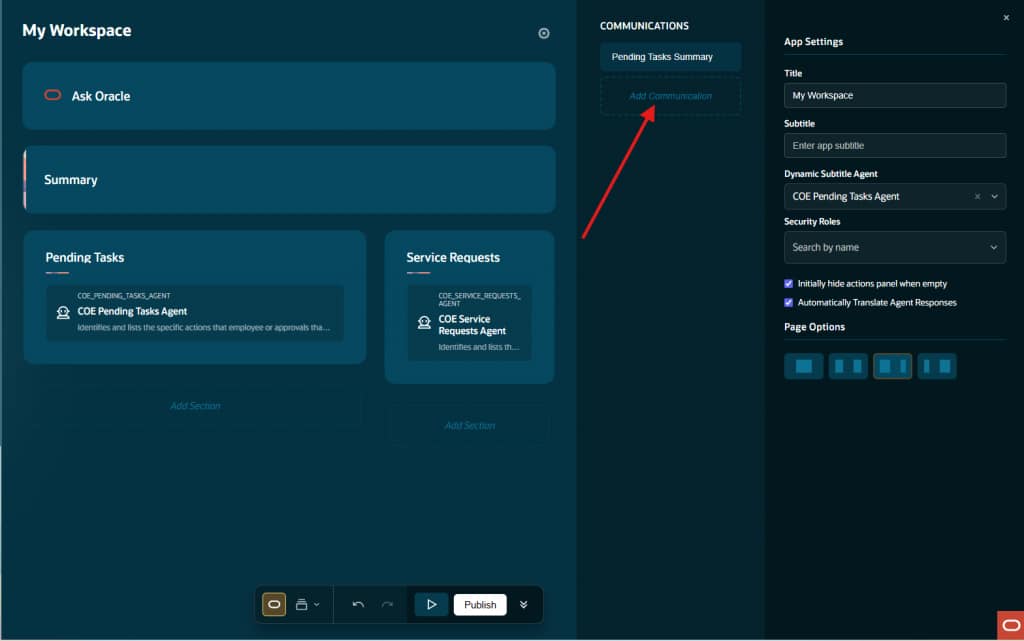
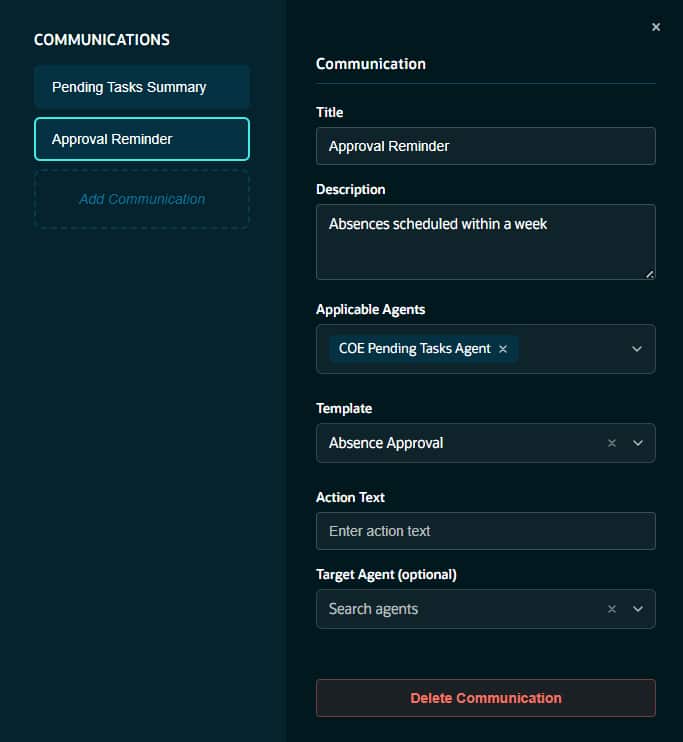
Step 3 — Enable on Agents
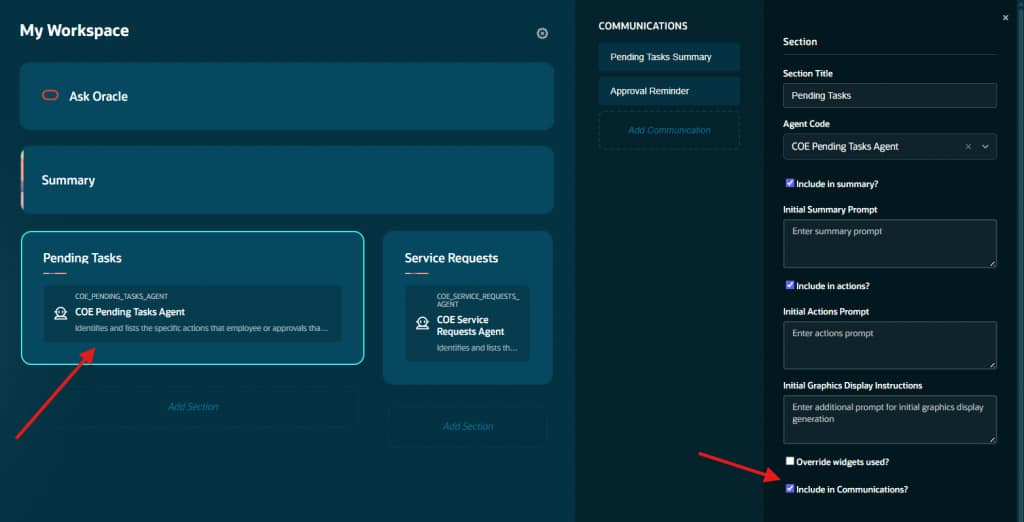
In the Agent Editor, check “Include in Communications” for each agent that should be able to suggest this communication. Without this checkbox, the agent will not recommend the communication even if it is listed as an applicable agent.
| You MUST create the template in the Template Editor BEFORE linking it to a communication. If the Template dropdown in the Communication Editor is empty, no templates exist yet. Templates are a prerequisite—communications are the delivery mechanism. Deleting a template also removes it from any communications that reference it—always check dependencies before deleting. |
The Communication Lifecycle
Every communication—whether app-defined or agent-generated—follows a structured five-stage lifecycle from initial suggestion to final delivery. Understanding this lifecycle is essential for configuring both the Builder UI and the agent prompts correctly.
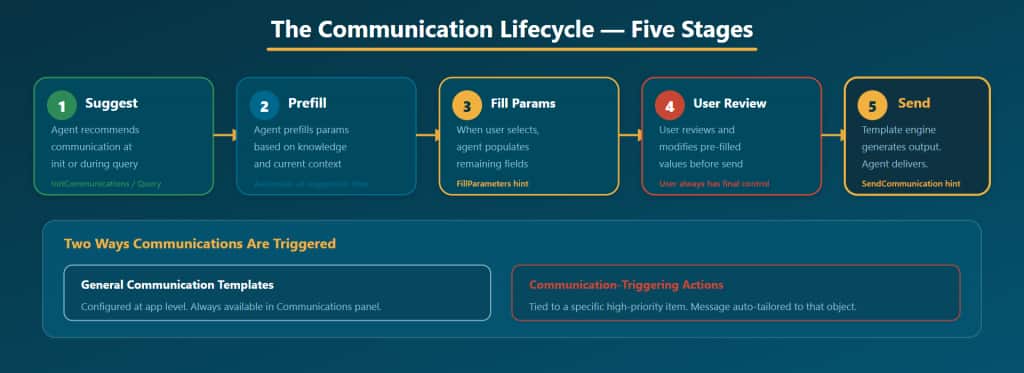
Stage 1 — Suggest: Agents produce communication suggestions during InitCommunications (at app startup) or in response to user queries. App-defined communications are suggested when the agent determines they are relevant based on the communication’s Description field. Agent-generated communications are suggested when the agent’s analysis warrants outreach.
Stage 2 — Prefill: Agents may prefill template parameters at the time of suggestion, based on their knowledge and the current context. For example, a supplier renewal communication might auto-fill the supplier name, contract value, and renewal date.
Stage 3 — Fill Parameters: When the user selects a communication from the panel, the framework triggers a FillParameters event. The designated agent receives $OraCommsParamsToFill and populates any remaining empty fields. This is the stage where agent intelligence automates the tedious work of filling in details.
Stage 4 — User Review: The user sees all pre-filled values and can modify anything before sending. They always have final control. The user can change the recipient, edit the subject, rewrite the body, or cancel entirely. This human-in-the-loop step is critical for trust and accuracy.
Stage 5 — Send: The template engine generates the final output (email body, PDF document, PowerPoint deck, or text message) and the designated agent delivers it via the appropriate channel. The SendCommunication hint is sent to the agent responsible for delivery. The designated agent receives $OraCommNonTemplateParamList that has the custom information populated while creating the communication, which can then be used for processing downstream logic.
Two Trigger Mechanisms
Communications reach the panel through two mechanisms:
- General communication templates: Configured at the app level and always available in the Communications panel. These are the app-defined communications set up in the Builder UI. Any applicable agent can suggest them.
- Communication-triggering actions: Tied to a specific high-priority item. The message is automatically tailored to that object—not a general template. These appear when an agent’s action includes a communication step, producing contextually-relevant outreach tied to a specific decision.
The <oraComms> Tag: Agent-Generated Communications
When an agent produces a communication at runtime, it uses the <oraComms> XML tag. This tag wraps a JSON object that defines the communication’s type, content, parameters, and delivery instructions. Getting this schema right is critical—malformed output will result in communications that do not appear or do not send correctly.
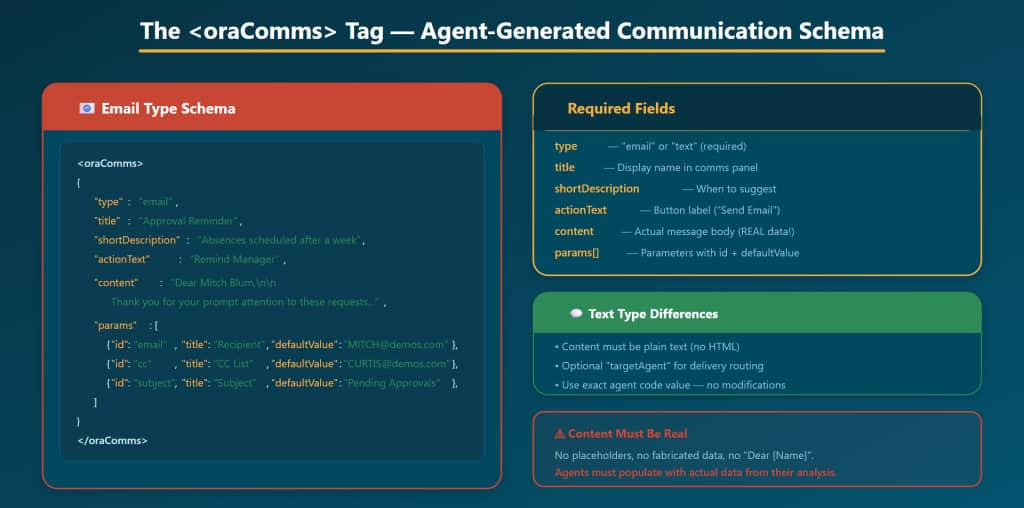
XML Fields
- type: Either “email” or “text”. Determines the format and delivery mechanism.
- title: The display name shown in the Communications panel. Keep it descriptive: “Notify AcmeParts of Renewal Terms.”
- shortDescription: Brief context about when this communication is appropriate. Helps users understand the purpose.
- actionText: The button label. Examples: “Send Email”, “Alert Team”, “Notify Supplier.”
- content: The actual message body. For email, this is the full message text. For text, this is plain text. Must include REAL data from the agent’s analysis—no placeholders, no fabricated information, no “Dear [Name]”.
- params[]: Array of parameter objects, each with id (unique identifier), title (human-readable label), and defaultValue (pre-filled value). Common params: email address, subject line, recipient name.
- targetAgent: (text type only) The exact agent code of the agent that will deliver the message. Use the value verbatim from the agent team—do not modify it.
| The Golden Rule of Agent-Generated Content Instruct your agents to NEVER fabricate recipient information, email addresses, or message content. Every field must be populated with real data from the agent’s knowledge and analysis. If the agent does not have enough information to populate a field, it should leave the defaultValue empty and let the user fill it in during review. |
Writing Agent Prompts for Communications
The quality of your communications depends heavily on how you prompt your agents. Here are the patterns that produce the best results:
For App-Defined Communications
Tell agents when to suggest specific communications and under what conditions. The Description field on the communication itself helps, but reinforcing conditions in the agent prompt ensures consistent behavior.
Example: “Suggest the ‘Executive Summary’ communication when the user views the Summary View. Suggest the ‘Send Risk Alert’ communication when any compliance item is overdue by more than 14 days.”
The template linked to each communication determines the output structure—agents only need to know when to suggest it and which parameters to prefill.
For Agent-Generated Communications
Tell agents exactly when to generate an <oraComms> tag and what content to include. Be explicit about the type (email vs. text), what data to include, and which parameters to pre-fill.
Example: “When a supplier contract expires within 7 days, generate an email communication to the supplier’s primary contact. Include the contract ID, renewal terms, and expiry date in the message body. Use the supplier’s email from the contract record. Do not fabricate any recipient information.”
Common Mistakes
Template Mistakes
- No template linked: If the Template dropdown in the Communication Editor is empty, the app-defined communication will not function. Always create the template first.
- Mixing generation and presentation instructions: Putting formatting rules in the generation field confuses the AI. Keep content and format in separate fields.
- Too much in one section: Asking a single section to cover five different topics produces rambling output. Split into multiple sections.
- Not testing with real data: Templates that look good in Preview with placeholder content may fail with real data. Always test with the actual agents that will fill the template.
- Deleting templates with live dependencies: Deleting a template removes it from ALL communications that reference it. Verify dependencies before deleting.
Communication Configuration Mistakes
- Enable Communications toggle off: On the Output Tab in AI Agent Studio, “Enable Communications for Widgets” must be ON for the agent to produce <oraComms> tags.
- “Include in Communications” unchecked: In the Agent Editor, this checkbox must be on for the agent to suggest app-defined communications.
- No applicable agents: If no agents are selected as applicable for an app-defined communication, no agent will ever suggest it. Always assign at least one.
- Missing targetAgent for text: Text communications require a targetAgent for delivery. Without it, the message has no delivery path.
- Fabricated content: Agent-generated communications must use real data. Prompts must explicitly instruct agents not to fabricate recipients, email addresses, or content.
| The Template Principle Templates are the structure that turns AI-generated content into professional output. Without templates, app-defined communications have no blueprint. With templates, they become polished documents—reports with sections, emails with structure, decks with narrative flow. Invest time in template design, because every communication that uses the template inherits that quality. |
| The Communications Principle Communications are the last mile of the agentic experience. Without them, users identify problems and decide on actions—but must switch to another tool to follow through. With templates powering app-defined communications, the entire workflow stays in one place: see the issue, decide the response, send the message. Every communication should be pre-drafted, pre-filled, and one click from delivery. |
New to Oracle Fusion AI Agents?
Explore AI Agent Studio Learning Path — blog series to help build from zero to production-grade AI agents, with deep dives on every agent pattern, node type, and tool integration.
Explore AI Agentic Apps Learning Path — blog series on everything you need to build Oracle Fusion AI Agentic Apps using AI Agent Studio.