


Building reusable action workflows — four action types, five step types, the <oraInsight> schema, ora.Invoke() vs ora.Agent() vs ora.App.*, and chaining steps into multi-step execution paths
Introduction
Insights are only valuable if you can act on them. An agentic app that shows you a contract is expiring but offers no way to renew it is only half an app. The Actions pillar closes this gap — it provides the mechanism for agents to recommend decisions, for users to approve them, and for the system to execute them, all within the same experience.
Actions are built from steps — sequential building blocks that you chain together in the Actions Editor. A step might keep the action available for reuse, send a command to an agent, navigate to another app, refresh displays, or switch the app context. By combining these five step types, you can build everything from single-click instant actions to multi-step guided workflows.
This post covers the complete actions system: the four action types, the <oraInsight> tag that agents use to surface actions, the five step types and how to configure each one, the critical distinction between ora.Invoke(), ora.Agent(), and ora.App.*, and practical examples of chaining steps into real action flows.
How Agents Produce Actions: The <oraInsight> Tag
Agents surface actions through the <oraInsight> XML tag embedded in their LLM response. Each insight represents a single actionable recommendation that appears in the app’s Actions Panel. The agent produces these during InitActions (at startup) or in response to user queries.
The Schema
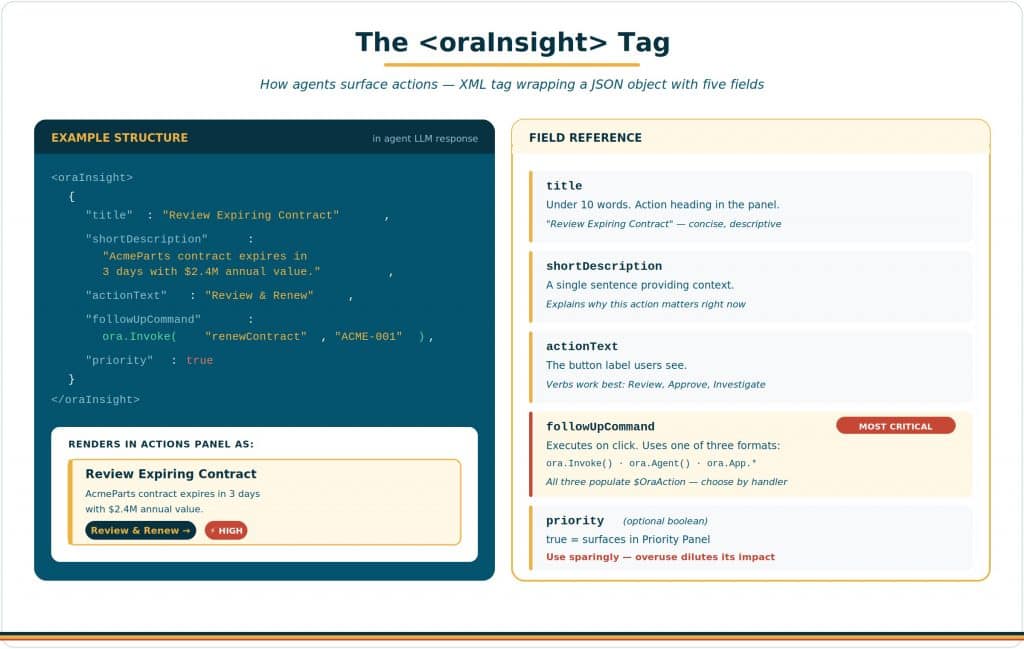
Each <oraInsight> tag wraps a JSON object with these fields:
- title: Under 10 words. Displayed as the action heading in the Actions Panel. Must be concise and descriptive: “Review Expiring Contract” not “There is a contract that is about to expire and may need attention.”
- shortDescription: A single sentence providing context. Explains why this action matters: “AcmeParts contract expires in 3 days with $2.4M annual value.”
- actionText: The button label users see. Verbs work best: “Review & Renew”, “Investigate”, “Approve”, “Escalate.”
- followUpCommand: The command that executes when the user clicks. This is the most critical field — it determines what happens next. Uses one of three command formats: ora.Invoke() for defined action workflows, ora.Agent() for ad-hoc agent commands, or ora.App.* for UI/navigation changes.
- priority: Optional boolean. When set to true, the action surfaces in the Priority Panel for immediate visibility. Use sparingly — only for genuinely critical items that require urgent attention.
| Enable Actions Toggle For an agent to produce <oraInsight> tags, the “Enable Actions for Widgets” toggle must be ON in the App Experience Tab of the agent’s LLM/Agent node in AI Agent Studio. Additionally, the “Include in Actions” checkbox must be checked in the Agent Editor with an Actions Prompt configured. Both are required. |
Three Command Formats
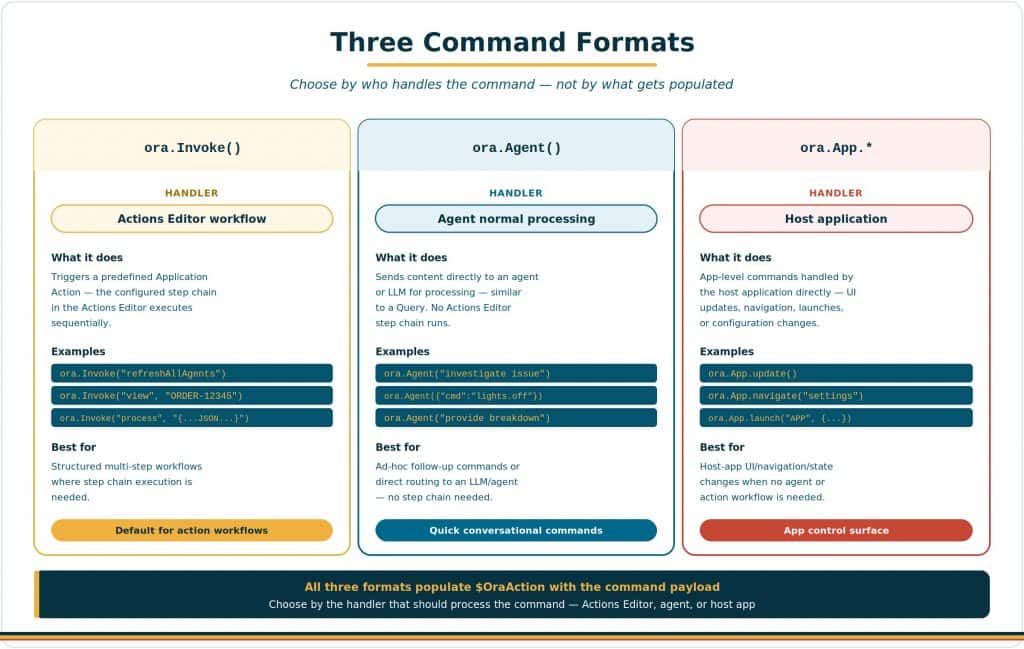
The followUpCommand in an <oraInsight> tag determines what happens when the user clicks. There are three supported formats. Each one populates $OraAction with the command payload — the difference between them is which handler processes the command: the Actions Editor workflow, the agent’s normal processing path, or the host application itself.
ora.Invoke(“command”, “context?”)
Invokes a predefined Application Action (reusable workflow) from agent output, widgets, or clickable items. The optional context string is passed as the action payload. Handler: the Actions Editor — the action’s configured step chain executes sequentially, and $OraAction is available to those steps.
- No context: ora.Invoke(“refreshAllAgents”)
- Simple context: ora.Invoke(“viewOrderDetails”, “ORDER-12345”)
- JSON context: ora.Invoke(“processItem”, “{\”id\”:\”123\”}”)
Use ora.Invoke() when you have a structured, multi-step workflow defined in the Actions Editor — for example, preserving context, sending a command to an agent, then navigating to a detail app. Make sure the agent is configured with Actions enabled and is explicitly prompted to generate actionable insights, since actions are produced by the agent and handled by that same agent on invocation.
ora.Agent(“command text”)
Sends content directly to an agent or LLM for processing. The content can be a string or a JSON object. Handler: the agent — the agent receives the command and processes it through its normal path, similar to a Query. No Actions Editor step chain runs.
- String: ora.Agent(“investigate issue”)
- JSON: ora.Agent({“command”: “lights.off”, “reason”: “safety”})
Use ora.Agent() for ad-hoc follow-up commands where you do not need the Actions Editor’s step chain — for example, asking the agent to “investigate this issue further” or “provide a detailed breakdown.”
ora.App.*
App-level commands that tell the host application to perform UI, navigation, or configuration/state actions. Handler: the host application — the host processes the command directly to update the UI, navigate, launch another app, or change configuration. No agent invocation or Actions Editor workflow runs.
- Update: ora.App.update()
- Launch app: ora.App.launch(“ORDERDETAILSAPP”, {“orderId”:”12345″})
Use ora.App.* for host-app UI/navigation/state changes — update UI, navigate, launch apps, or set config/context.
The Five Step Types
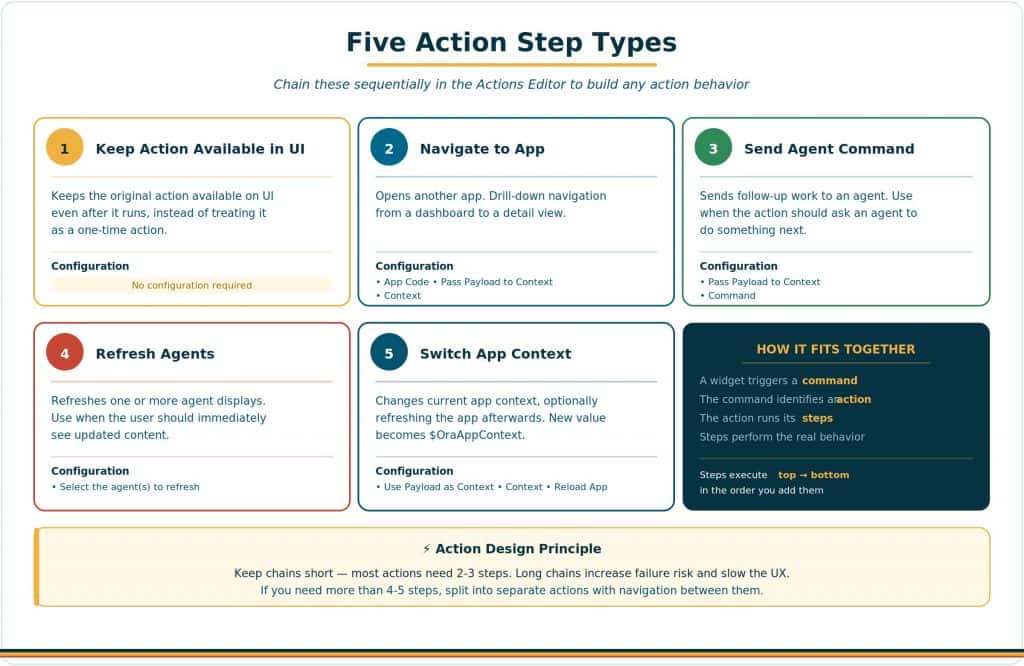
Actions are built from steps that you chain sequentially in the Actions Editor. Each step type serves a specific purpose. Click “+ Add Step” to add steps, and they execute in order from top to bottom.
The mental model is straightforward: a widget or UI element triggers a command. The command identifies which action to run. The action runs its steps in order. Those steps perform the real behavior.
Keep Action Available in UI
Keeps the original action available on the UI even after it runs, instead of treating it as a one-time action. No configuration required. Use this for repeatable actions like “Refresh data” or “Re-analyze” that users may want to run multiple times.
Navigate to App
Opens another app. Configure:
- App Code — the code of the destination app to navigate to.
- Pass Payload to Context — toggle to send the action’s payload to the destination app as $OraAppContext.
- Context — the context data to send to the destination app.
This is the primary mechanism for drill-down navigation from a dashboard to a detail view.
Send Agent Command
Sends follow-up work to an agent. Use this when the action should ask an agent to do something next. Configure:
- Pass Payload to Context — toggle to send the action’s payload to the agent.
- Command — the command text the agent should process.
The agent receives this via its normal InvokeAction workflow path. Use this for triggering backend operations, approvals, or any agent-mediated processing.
Refresh Agents
Refreshes one or more agent displays. Use this when the user should immediately see updated content. Configure by selecting the Agent Codes to refresh. The refreshed agents re-execute their InitDisplay to show updated information. Essential after any action that changes data.
Switch App Context
Changes the current app context, optionally refreshing the app afterwards. Configure:
- Use Payload as Context — toggle if you want the action’s payload to become the new context.
- Context — the new context value if not using the payload.
- Reload App — toggle to refresh the app after the context switch.
The new value becomes $OraAppContext. Use this for dynamic view switching — for example, switching from a “This Week” view to a “This Month” view without navigating away.
Building Actions in the Actions Editor
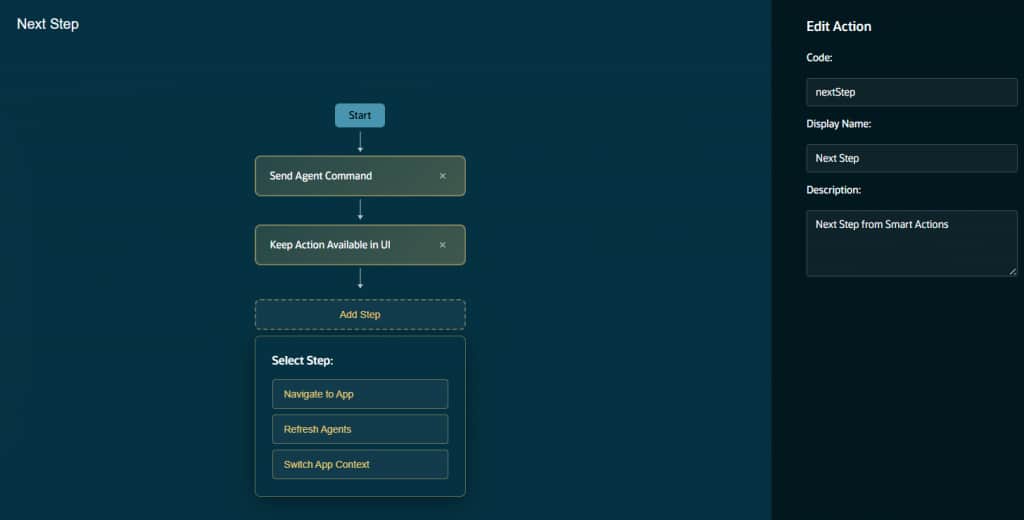
The Actions Editor is accessed from the Builder toolbar at the bottom of the screen. Click “App Builder Menu” → “Actions” to open it. From here you can create, edit, and delete action workflows.
Creating an Action
- Click “+ Add Action”. Give the action a descriptive name that matches how agents will reference it in their ora.Invoke() calls.
- Add steps sequentially. Click “+ Add Step” for each step in the chain. Select the step type from the dropdown and configure its parameters.
- Configure each step. Fill in the required configuration for each step type (App Code, Command text, Agent Codes, URL, or Context value).
- Test in Preview. Trigger the action via the app and verify every step executes correctly. Watch for context passing issues and timing problems.
| Action Design Principle Keep action chains short. Most actions need 2–3 steps. Long chains increase the risk of failure at each step and slow down the user experience. If an action requires more than 4–5 steps, consider breaking it into separate actions with navigation between them. |
Writing Agent Prompts for Actions
The quality of your actions depends on how well you prompt your agents to produce <oraInsight> tags. Here are the best practices:
- Be specific about conditions: “Suggest an action when a contract expires within 14 days” is better than “suggest actions when appropriate.” Conditions eliminate ambiguity.
- Use the correct command format: If the action has steps in the Actions Editor, tell the agent to use ora.Invoke(“actionName”, “payload”). If the action is ad-hoc, use ora.Agent(“command”). For UI/navigation changes, use ora.App.*.
- Include data in the payload: The second argument to ora.Invoke() should contain the record ID or relevant context: ora.Invoke(“renewContract”, “ACME-2024-001”). Without this data, the action’s steps have no context to work with.
- Use priority sparingly: Tell agents to set priority:true only for genuinely critical items — items overdue, items above threshold, items requiring same-day action. Overusing priority dilutes its impact.
- Keep titles under 10 words: Instruct agents that the title field must be concise. “Review Expiring Contract” is good. “There is a contract that needs review because it is expiring soon” is too long.
Common Mistakes
- Forgetting Refresh Agents after changes: Any action that modifies data should include a Refresh Agents step. Without it, the display shows stale data after the action completes.
- Forgetting Reload App or Refresh Agents after Switch App Context: When you change the app context, agents won’t re-initialize unless you either enable Reload App on the Switch step or follow it with Refresh Agents. Otherwise the new context is set but no agent picks it up.
- Overusing priority: true: When every action is marked critical, nothing is critical. Reserve priority for items that genuinely require urgent attention.
| The Actions Principle Actions are where insight becomes impact. The best agentic apps identify what needs attention (via displays), explain why it matters (via descriptions), and offer a clear path to resolution (via actions) — all in one flow. Every action should be pre-contextualized, clearly labeled, and as few clicks as possible from completion. |
New to Oracle Fusion AI Agents?
Explore AI Agent Studio Learning Path — blog series to help build from zero to production-grade AI agents, with deep dives on every agent pattern, node type, and tool integration.
Explore AI Agentic Apps Learning Path — blog series on everything you need to build Oracle Fusion AI Agentic Apps using AI Agent Studio.