
What Is the Email Tool
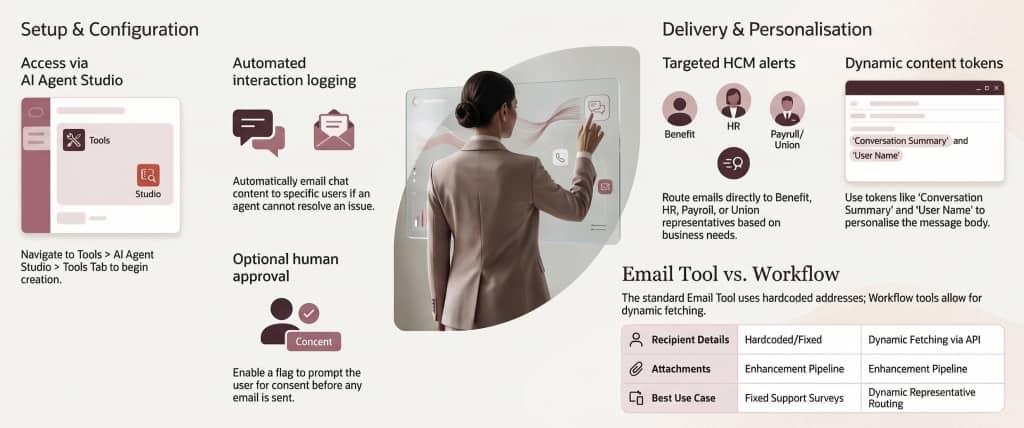
| Overview The Email Tool in Oracle Fusion Cloud’s AI Agent Studio enables hierarchical agents to automatically send emails to one or more users — triggered by specific hierarchical agent. No manual intervention needed. Your agent handles it all. | Real-World Scenarios User is unsatisfied with an agent’s response — email the entire chat history to a supervisor team. Survey interactions — auto-send all conversations to a designated review email. Route HR alerts to Benefits or Payroll representatives automatically. |
| 💬 Chat Escalation Send chat history when users are unsatisfied | 📋 Survey Capture Forward all interactions to a review inbox | 🔔 HR Alerts Route notifications to AOR representatives |
How To Access
| Navigation Path: Tools → AI Agent Studio → Tools Tab |
| 1. Navigate to AI Agent Studio – From the main menu, go to Tools > AI Agent Studio 2. Open the Tools Tab – Within AI Agent Studio, click on the ‘Tools’ tab to manage your available tools 3. Create a New Tool – Select ‘Email’ as the Tool Type and fill in the Basic Details below 4. Configure Delivery Options – Set up email addresses, subject, template, and tokens for your notification 5. Add Tool to Hierarchical Agent – Once saved, add the Email Tool to your agent via the Agents or Agents Team tabs |
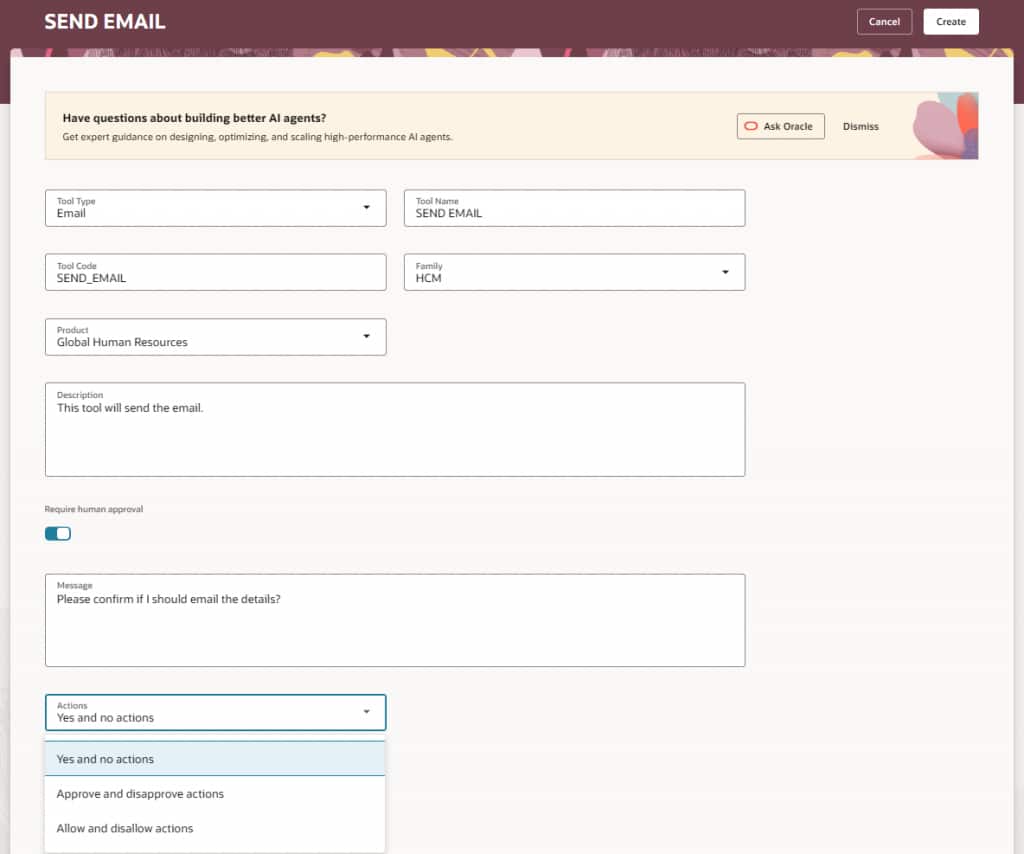
Tool Configuration — Basic Details
| Field | Description |
| Tool Type | Select ‘Email’ from the dropdown |
| Tool Name | Choose any descriptive name for your tool |
| Tool Code | Auto-generated but can be modified |
| Family | Choose the module — HCM, SCM, etc. |
| Product | Select the relevant product |
| Description | Write a short description explaining what this tool does |
| 🔐 Require Human Approval (Optional Flag) When enabled, the agent will first prompt the end user for confirmation before sending the email. A custom Message can be configured to appear in the chat window. Action Buttons Available: Yes / No Approve / Disapprove Allow / Disallow |
Delivery Options
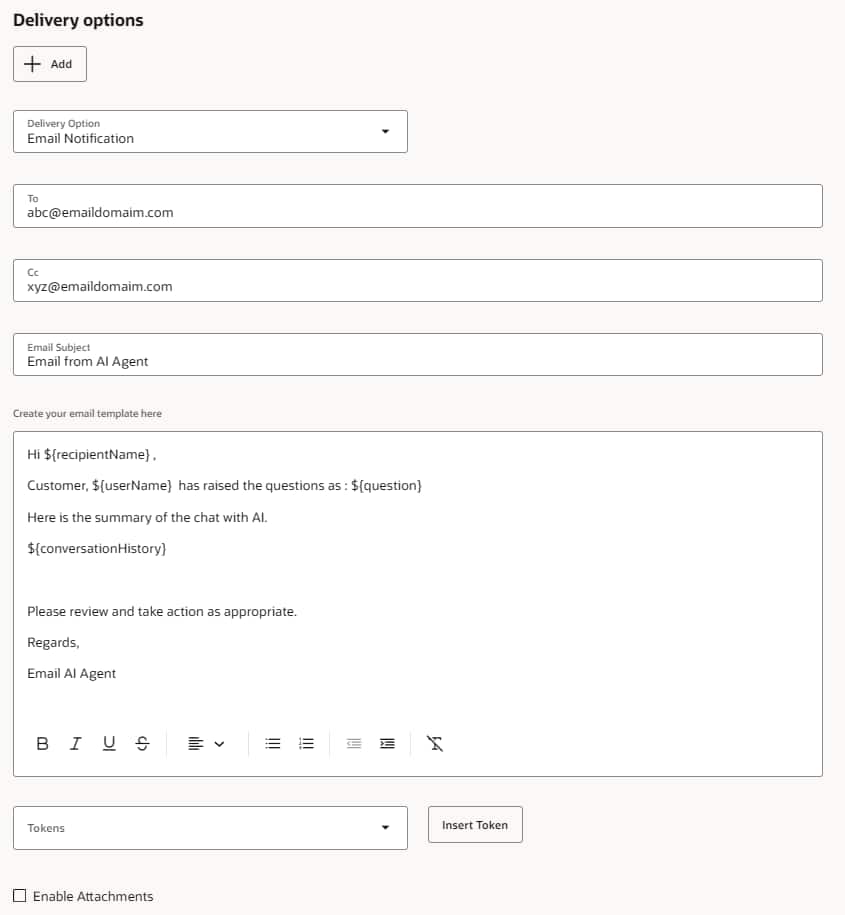
| 📨 Email Notification To: Add one or more email addresses (comma-separated) Cc: Add one or more email addresses (comma-separated)Email Subject: up to 200 characters Email Subject: Indentation supported, no HTML tags required. | 🔔 HCM Alerts Send to one or more of these predefined AOR roles: Benefits Representative Human Resource Representative Payroll Representative Union Representative |
| 🏷️ Available Tokens for Email Templates |
| 💬 Conversation Summary Adds the summary of chat content prior to the Email Tool being called | 👤 Recipient Name Name of the person receiving the alert (alert-based only) | ❓ Question Captures and includes the user’s input message | 🙋 User Name Name of the user who initiated the chat conversation |
| 📎 Attachment Support Attachment functionality is currently under active development and will be available in an upcoming release. |
Email Tool vs. Workflow Send Email Tool
| 📧 Email Tool | ⚙️ Workflow Send Email Tool | |
| Recipients | Email addresses must be hardcoded — not dynamically fetched | Recipient details can be dynamically fetched or configured at runtime |
| Attachments | Currently being enhanced — not yet available | Currently being enhanced — not yet available |
| Dynamic Routing | Limited to alert-based notifications for specific Areas of Responsibility (AORs) | Can use Business Object Tool to call APIs, fetch representative or hierarchy details, and send emails dynamically |