
In a recent post, Peter Fusek and I outlined why you should use Exascale volumes for your new VM cluster image files, and how to use OEDA to implement them.
In this post, we’re going to show you how you can use OEDACLI to move VMs implemented with Exascale volumes quickly and easily between KVM hosts.
Why might you want to move a VM?
- minimizing VM downtime when applying firmware and OS updates or hardware maintenance
- re-balancing VMs and resources across KVM hosts as workloads change
- evacuating an older KVM host in the deployment prior to decommissioning
- restarting a VM on a different KVM host while repairs are being undertaken to the physical KVM host it was originally on
Being able to easily and quickly move VMs between hosts makes operations more agile, helps maintain SLAs during maintenance, and improves overall resource utilization and cost efficiency.
In the example below we see an Exadata system with three KVM hosts, two of which have been updated with the latest Exadata System Software release, and one which has not yet. We also have a 2-VM cluster, one VM on an updated KVM host, the second on the KVM host with a previous release of the Exadata System Software. In this environment, one of the KVM hosts is empty allowing us to update it–and reboot it to enable the latest kernel and firmware to be activated. We can then move one of the VMs to the updated KVM host using OEDACLI. This evacuates or empties the KVM host that requires updating and allows it to be rebooted without further impact to VMs.
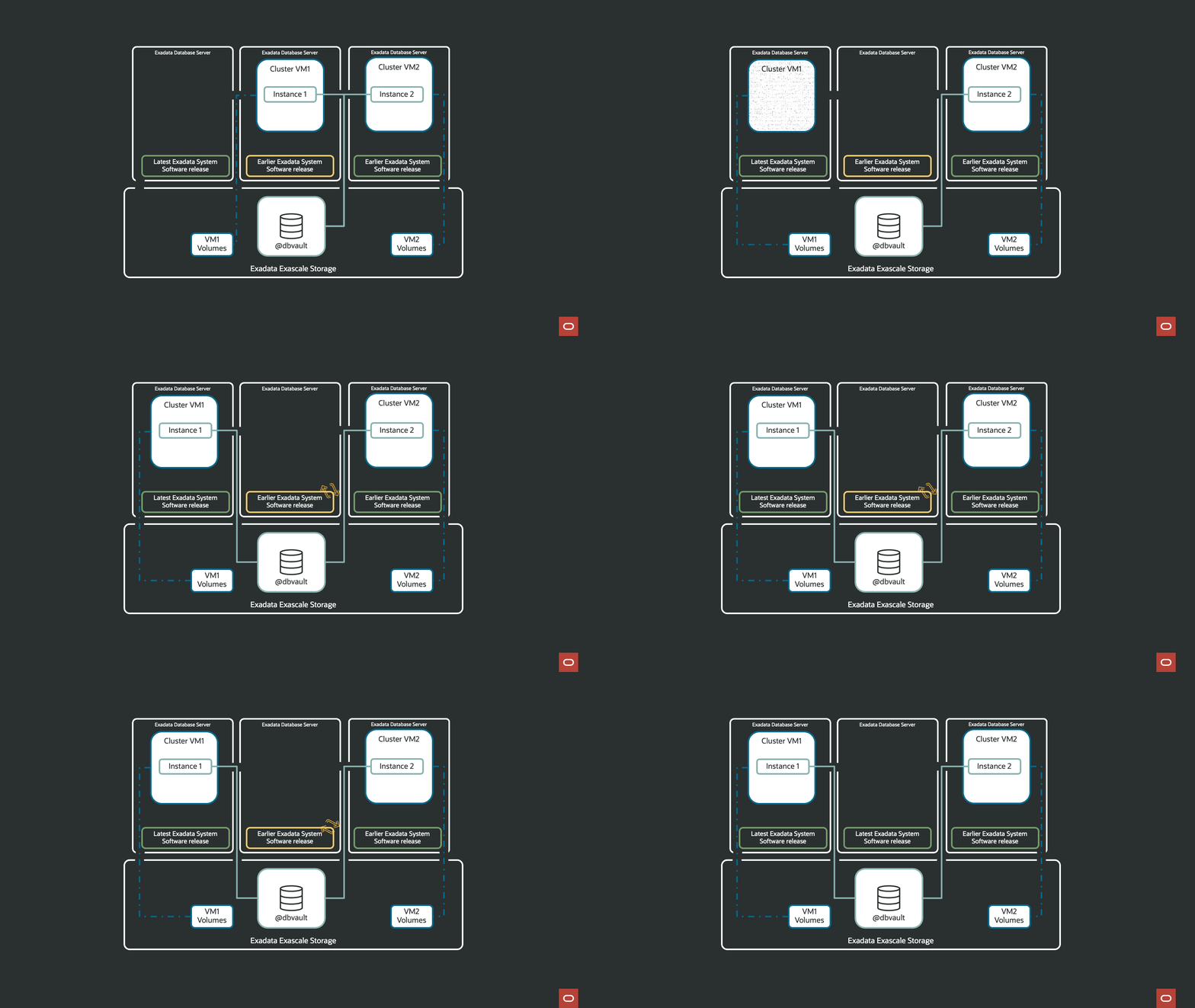
Prerequisites
Before beginning, everything in this post applies to VMs on X8M and newer on-premises Exadata machines with VMs that use Exascale volumes, as outlined here: https://blogs.oracle.com/exadata/deploying-vms-on-exadata-with-exascale-volumes
You need to have:
- An X8M and newer on-premises Exadata Database Machine with virtualization
- Deployed Exascale on your system and created a storage pool
- Chosen “Use Exascale for VM file storage” when defining the VM clusters (KVM guests)
- This will use Exascale volumes instead of local storage for VM images on the KVM hosts internal SSDs
- Databases running in VMs using Exascale volumes can use either ASM (11g – 26ai) or Exascale (26ai)
- The latest OEDA from https://www.oracle.com/database/technologies/oeda-downloads.html
- The current es.xml file for your deployment
- The source and target KVM hosts, and the Exascale cluster must all be in the same Exadata system configuration and have the same network visibility. You cannot migrate a VM between different Exadata deployments (use database migration methods such as Data Guard, GoldenGate, Data Pump Export/Import or Zero Downtime Migration)
Before you start moving VMs between KVM hosts, you also need to make sure you have enough CPU and memory on the target host to start the VM being migrated. The VM name must also not be already in use on the target KVM host.
The full list of requirements can be found at Moving a Guest Using Automated Offline Migration
If your VMs were created using local storage in the KVM hosts, use the procedure described here to migrate VMs between KVM hosts: Manually Moving a Guest to a Different KVM Host
So how do you migrate a VM?
Great question.
It turns out, it’s very easy. Just use OEDACLI and the MIGRATE GUEST command.
The latest OEDACLI show the following when we check the help for MIGRATE GUEST.
oedacli> HELP MIGRATE GUEST
Usage:
MIGRATE GUEST
 HOSTNAME = <guesthostname>
 MODE = <migrationmode>
 SRCHOST = <sourceKVMhost>
 TGTHOST = <targetKVMhost>
WHERE
 [ STEPNAME = <stepname> ] |
Purpose:
  Migrate a guest VM from one KVM host to another, including any related database instances, Oracle home directories, and clusterware definitions.
Arguments:
  <migrationmode> : migration mode can be OFFLINE, OFFLINEFORCE, or LIVE.
Where:
  <stepname> : The name of an individual migration step being performed (optional)
                For OFFLINE/OFFLINEFORCE mode:  STOP_GUEST | CREATE_BRIDGES | DETACH_INTERFACES  | ATTACH_VOLUMES  | MIGRATE_GUEST  | ATTACH_INTERFACES  | DETACH_VOLUMES  | STARTUP_GUEST
                For LIVE mode: ATTACH_VOLUMES | CREATE_BRIDGES  [| CREATE_NAT_BRIDGE_TGT] |  MIGRATE_GUEST | DETACH_VOLUMES
                The step name 'PRECHECK_LIVEMIGRATION' serves as a standalone command for the LIVE migration pre-check
Comments: Use STEPNAME to run a specific guest migration step or undo a failed step.
        : Use OFFLINE mode for cold migration
        : Use OFFLINEFORCE mode for cold migration involving an unresponsive source KVM host or guest
        : Use LIVE mode to keep the KVM guest running continuously during migration
        : Use SRCHOST to specify the source KVM host, which contains the guest VM before the migration.
        : Use TGTHOST to specify the target KVM host, which will contain the guest VM after the migration.
Immediate command  : no
Deployment command : yes
Note that we have been discussing OFFLINE VM migration in the post. But there are 3 options for the MIGRATE GUEST command:
- OFFLINE – automated migration of a VM between KVM hosts
- OFFLINEFORCE — automated migration of a VM between KVM hosts. This option is used when the source KVM host is not available.
- LIVE — this option is now available and allows you to move a VM between KVM hosts with minimal to no disruption to the database workload. For more on Exadata VM Live migration, take a look at this blog.
Next, using our es.xml file, we use the MIGRATE GUEST command to setup the migration.
oedacli> MIGRATE GUEST HOSTNAME=exadpm01adm06vm11.us.oracle.com MODE=offline SRCHOST=exadpm01adm06.us.oracle.com TGTHOST=exadpm01adm05.us.oracle.com
oedacli> SAVE ACTION
oedacli> MERGE ACTIONS
processMerge
processMergeActions
Merging Action : MIGRATE GUEST HOSTNAME=exadpm01adm06vm11.us.oracle.com MODE=offline SRCHOST=exadpm01adm06.us.oracle.com TGTHOST=exadpm01adm05.us.oracle.com
Merging MIGRATE GUEST
Action Validated and Merged OK
Finally, we execute the migration using DEPLOY ACTIONS.
oedacli> DEPLOY ACTIONS
Deploying Action ID : 29 MIGRATE GUEST HOSTNAME=exadpm01adm06vm11.us.oracle.com MODE=offline SRCHOST=exadpm01adm06.us.oracle.com TGTHOST=exadpm01adm05.us.oracle.com
Deploying MIGRATE GUEST
Migrate Guest
Starting Guest Migration : exadpm01adm06vm11.us.oracle.com
Stopping Guest exadpm01adm06vm11.us.oracle.com on KVM host exadpm01adm06.us.oracle.com
Waiting for node : exadpm01adm06vm11.us.oracle.com to be stopped
exadpm01adm06vm11.us.oracle.com is down
exadpm01adm06vm11.us.oracle.com is Down
Detaching Network Interfaces for Guest : exadpm01adm06vm11.us.oracle.com on KVM host exadpm01adm06.us.oracle.com
Attaching Exascale volumes for Guest : exadpm01adm06vm11.us.oracle.com on KVM host exadpm01adm05.us.oracle.com
Attaching EDV Volume exadpm01adm06vm11_u01 using device exadpm01adm06vm11_u01_vol0078_e47f36d83b214eec97268fd928e32fc1 to host exadpm01adm05.us.oracle.com
Attaching EDV Volume exadpm01adm06vm11_sys using device exadpm01adm06vm11_sys_vol0074_ab74345d2e4e413aa9ac59f453015123 to host exadpm01adm05.us.oracle.com
Attaching EDV Volume exadpm01adm06vm11_gih01 using device exadpm01adm06vm11_gih01_vol0079_3f6970ce1ce74c38a13bb2c0a8eb49f5 to host exadpm01adm05.us.oracle.com
Attaching EDV Volume exadpm01adm06vm11_dbh01 using device exadpm01adm06vm11_dbh01_vol0072_b8d71b2e39524795b28746b942b420da to host exadpm01adm05.us.oracle.com
Mounting Guest Configuration Files volume /dev/exc/exadpm01adm06vm11_cfg_vol0071_1540f1a11423495eb31f29f55541ca42 for guest exadpm01adm06vm11.us.oracle.com on kvmhost exadpm01adm05.us.oracle.com.
Adding Guest Configuration Volume entry /dev/exc/exadpm01adm06vm11_cfg_vol0071_1540f1a11423495eb31f29f55541ca42 for guest exadpm01adm06vm11.us.oracle.com to fstab on kvmhost exadpm01adm05.us.oracle.com.
Creating Network Bridge for Guest : exadpm01adm06vm11.us.oracle.com on KVM host exadpm01adm05.us.oracle.com
Migrating Guest exadpm01adm06vm11.us.oracle.com from KVM host exadpm01adm06.us.oracle.com to  KVM host exadpm01adm05.us.oracle.com
Enabling autostart for guest exadpm01adm06vm11.us.oracle.com on kvm host exadpm01adm05.us.oracle.com
Removing Network Bridges for Guest : exadpm01adm06vm11.us.oracle.com on KVM host exadpm01adm06.us.oracle.com
Attaching Network Interfaces for Guest : exadpm01adm06vm11.us.oracle.com on KVM host exadpm01adm05.us.oracle.com
Removing Guest networks for Guest exadpm01adm06vm11.us.oracle.com on KVM host exadpm01adm06.us.oracle.com
Detaching Exascale Volumes for Guest : exadpm01adm06vm11.us.oracle.com on KVM host exadpm01adm06.us.oracle.com
Unmounting Guest Configuration Files volume /dev/exc/exadpm01adm06vm11_cfg_vol0071_1540f1a11423495eb31f29f55541ca42 for guest exadpm01adm06vm11.us.oracle.com on kvmhost exadpm01adm06.us.oracle.com.
Removing Guest Configuration Volume entry /dev/exc/exadpm01adm06vm11_cfg_vol0071_1540f1a11423495eb31f29f55541ca42 for guest exadpm01adm06vm11.us.oracle.com from fstab on kvmhost exadpm01adm06.us.oracle.com.
Removing Guest Configuration Files directory /EXAVMIMAGES/GuestImages/exadpm01adm06vm11.us.oracle.com for guest exadpm01adm06vm11.us.oracle.com on kvmhost exadpm01adm06.us.oracle.com.
Detaching EDV Volume exadpm01adm06vm11_u01 from KVM host exadpm01adm06.us.oracle.com
Detaching EDV Volume exadpm01adm06vm11_sys from KVM host exadpm01adm06.us.oracle.com
Detaching EDV Volume exadpm01adm06vm11_cfg from KVM host exadpm01adm06.us.oracle.com
Detaching EDV Volume exadpm01adm06vm11_gih01 from KVM host exadpm01adm06.us.oracle.com
Detaching EDV Volume exadpm01adm06vm11_dbh01 from KVM host exadpm01adm06.us.oracle.com
Starting Guest exadpm01adm06vm11.us.oracle.com on KVM host exadpm01adm05.us.oracle.com
Waiting for node : exadpm01adm06vm11.us.oracle.com to be ready
Done...
Done [Elapsed = 189379 mS [3.0 minutes] Tue Jan 20 21:14:53 PST 2026]]
Don’t forget to save the es.xml file so it doesn’t get out of sync with the deployment!
oedacli> save file
File : ExadataConfigurations/ExadataPM-exadpm01-exadpm01050611.xml saved OK
There you have it…
Quick, easy, and automated OFFLINE migration of a VM on Exadata—using Exascale volumes for its file system storage—between KVM hosts!
As I mentioned earlier in the post, OEDACLI also allows for LIVE migration of VMs between KVM hosts. You can check out the documentation for more details. You can also read this blog on Exadata VM Live Migration.