

Did you know that you can use Exascale volumes to store Exadata virtual machine (VM) image files—even while still using Oracle ASM for your Oracle Grid Infrastructure (GI) and Oracle AI Database storage? This article demonstrates how and explains why you should care.
Why does it matter?
Exadata X8M and newer systems configured with Exascale can use Exascale volumes (EDV) to store guest image files for Exadata database server VMs rather than the local SSDs in the KVM hosts (also known as the database servers). This is important for two reasons.
First, using Exascale to store VM image files eliminates the physical storage constraints imposed by the limited amount of local storage space available on each Exadata database server. This, coupled with other advancements, enables Exadata X10M and later database servers to host up to 50 VMs on each KVM host; up from the previous maximum of 12!
Second, VM images on Exascale are easily accessible from any KVM host. This capability effectively decouples VM guests and hosts, providing the infrastructure to enable quick and easy offline migration of a VM guest to another host. Decoupling VM guests and hosts also opens up additional possibilities for:
- Balancing database server VM workloads by separating busy VMs onto different hosts.
- Reducing the impact of scheduled VM host maintenance by proactively moving VMs to another host.
- Reducing the impact of unscheduled VM host downtime by reactively moving VMs to another host.
My database is still using ASM, I can’t use Exascale!
Oh yes, you can!
Exascale can store all your Oracle AI Database 26ai database files. In addition, Exascale introduces volumes, which extend Exadata’s capabilities by allowing you to create arbitrarily sized block volumes on shared Exadata storage, attach them to VMs (or bare-metal database servers), and format them with POSIX-compliant file systems such as XFS, ext4, and ACFS (now known as the ‘Advanced Cluster File System‘) on them.
Importantly, where the database is stored has no bearing on the how the VM operates. If you have existing VMs that were deployed using the local storage in the database servers, they will continue to run in exactly the same way. You can even deploy more VMs in this manner if you want!
Or, you can deploy new VMs using Exascale volumes and get the advantages mentioned above.
Another key point in favor of Exascale volumes is that they are RDMA-enabled! This means that in addition to being mirrored across multiple storage servers for high-availability and resilience, and being cached in Flash on the storage servers for high-performance, the hottest portions of the volumes are cached in Exadata RDMA Memory (XRMEM) for even higher performance!
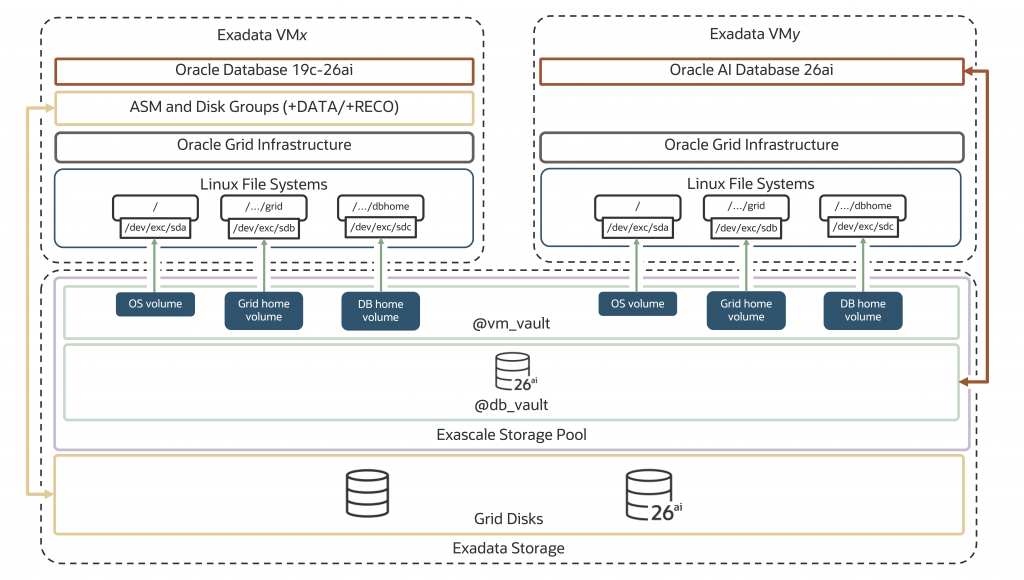
Lets take a look at how all of this looks once deployed. In the diagram above, we have two VMs–’VMx’ and ‘VMy’. ‘VMx’ is running Oracle Database 19c through 26ai with ASM and Grid Infrastructure. What’s different though is that the file systems for root (/), the grid_home (/../grid), and the database_home (/../dbhome) are all using volumes as indicated in blue within a dedicated Exascale vault called ‘@vm_vault’. ASM is still running in the VM and the database files are still written to the the grid disks on the shared Exadata storage.
The same pattern is true for ‘VMy’ on the right of the diagram which is running Oracle AI Database 26ai and has its database files stored in Exascale!
In both scenarios, the databases get all the advantages of shared Exadata storage—Smart Scan, Storage Indexes, XRMEM, Columnar Caching, and more—and the database VMs get the advantage of RDMA-enabled volumes which accelerate I/O performance for the VMs, increase the number of VMs per KVM host (X10M and newer), and simplify VM mobility.
One final point before we move on, Oracle AI Database 26ai is capable of using either Exascale natively or ASM to store the database files. Earlier releases, such as 19c, can use ASM only.
How can use Exascale volumes for my VMs?
If you’re configuring a new Exadata system or want to add a new VM cluster to an existing system, the procedure is reasonably straightforward. Note, however, that the procedure currently cannot migrate existing VMs from local storage to Exascale.
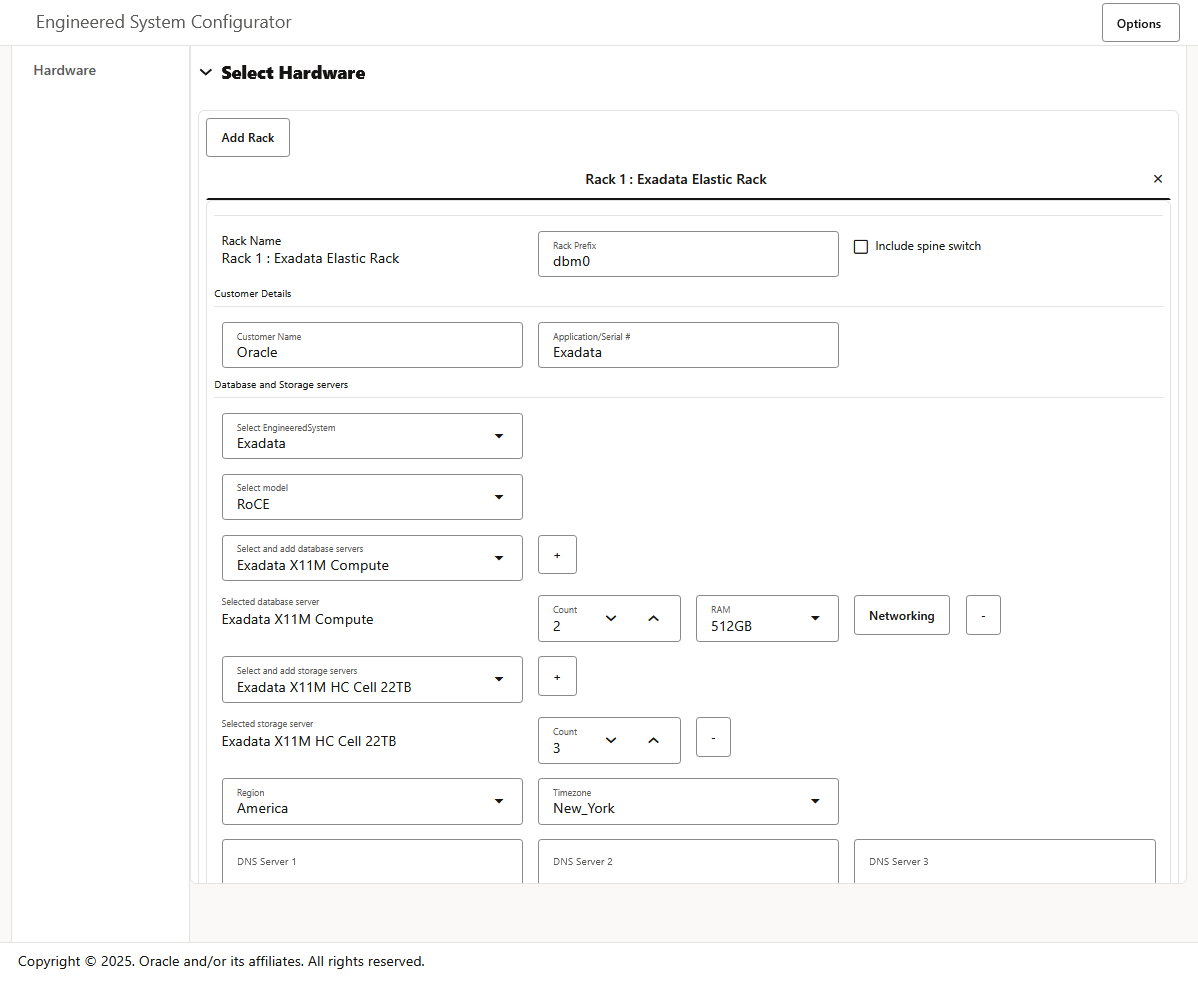
Start by using the Oracle Exadata Deployment Assistant (OEDA) web user interface. The following screenshot shows the start of a fresh Exadata deployment. However, you can also import the Exadata XML configuration file (es.xml) from an existing Exadata deployment and add Exascale to the existing configuration.
Note: If you want to add Exascale to the existing configuration, you must first ensure that the existing Exadata system configuration has free space in the storage servers to accommodate Exascale. The total amount of required free space is governed by your projected use of Exascale.
If required, reconfigure the existing ASM disk groups and Exadata grid disks to ensure that every Exadata cell disk contains the same amount of space available for Exascale to use. Also, ensure that any adjustments to the storage configuration are reflected in the Exadata XML configuration file (es.xml).
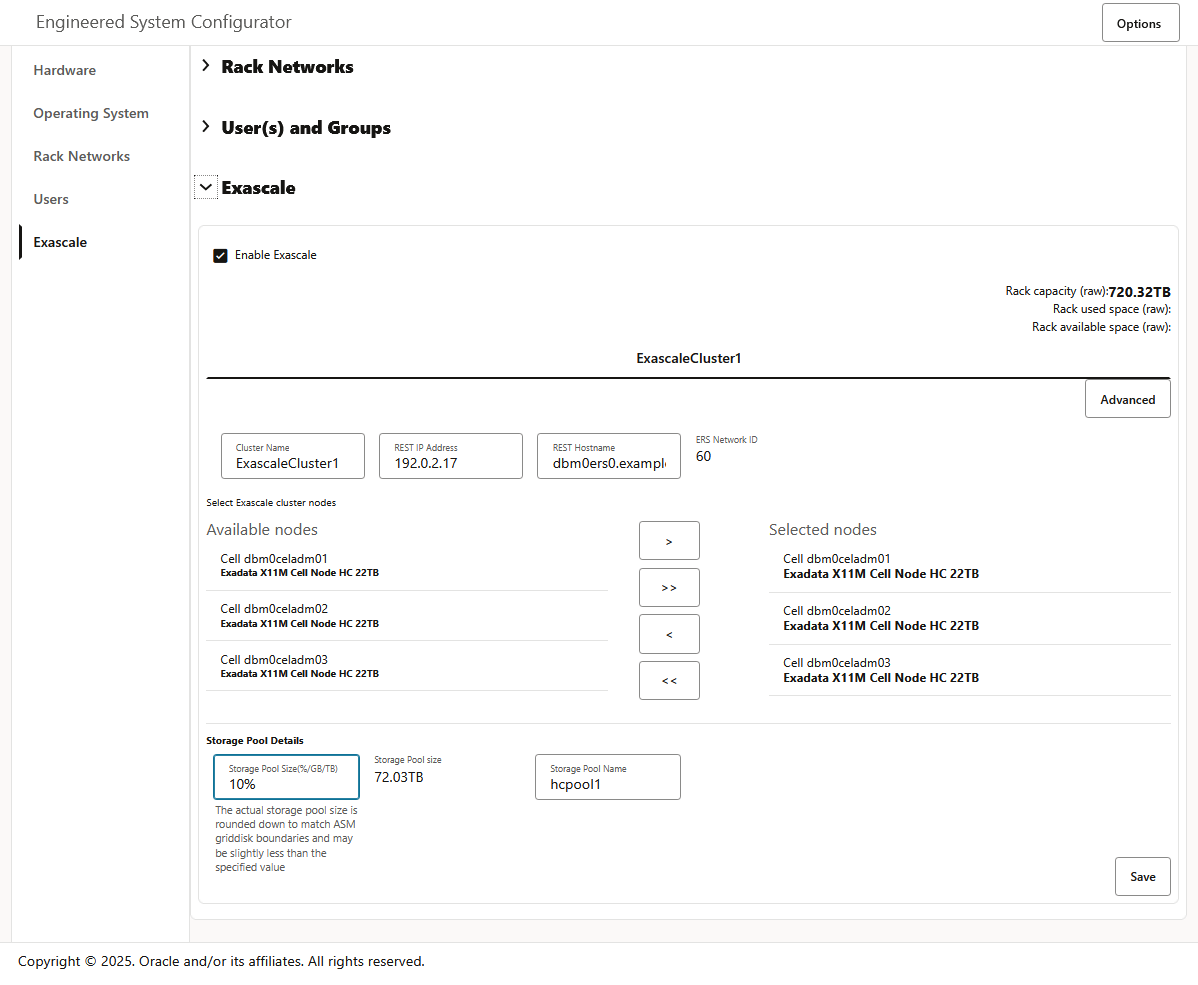
Navigate to the OEDA Exascale page and click the check box to Enable Exascale. Then, use the fields in the Exascale page to specify the initial configuration of the Exascale cluster and the first Exascale storage pool.
As shown in the following example, you can specify:
- The name of the Exascale cluster.
- The host name and IP address for the Exascale REST Services (ERS) endpoint.
- The storage server nodes that are included in the Exascale cluster.
- The name and size of the first Exascale storage pool.
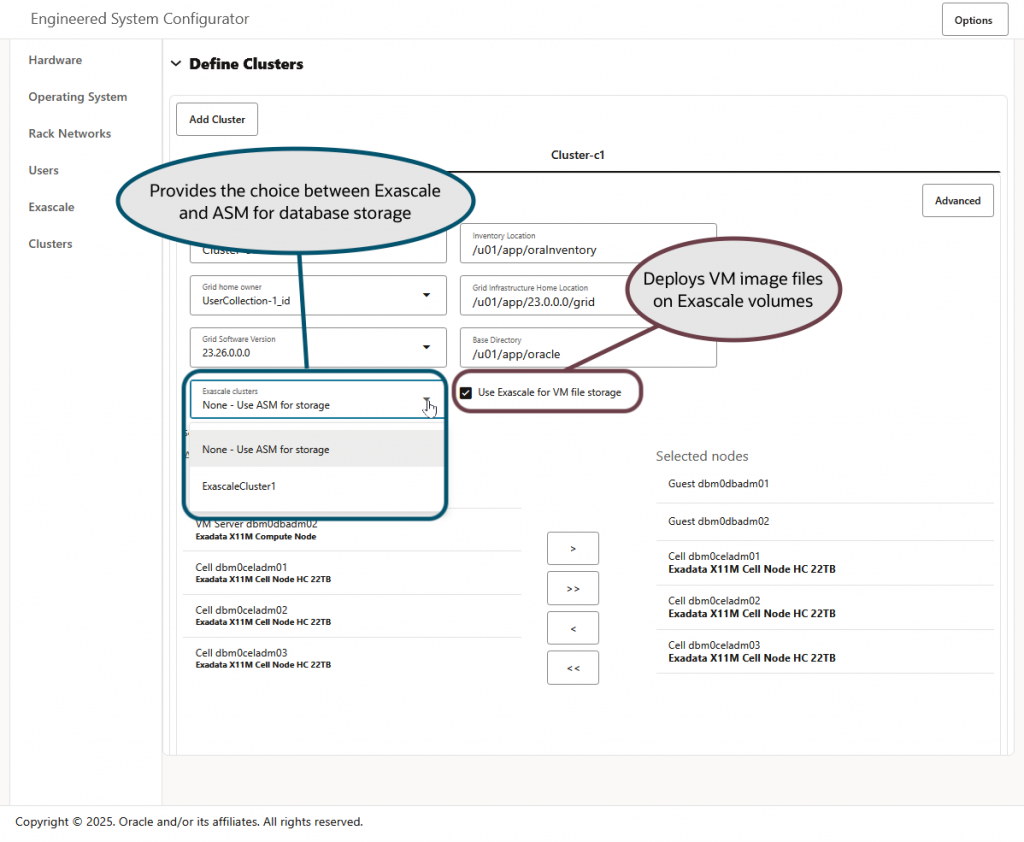
After you save the Exascale page, you will see two new options on the Define Clusters page.
- A checkbox labeled Use Exascale for VM file storage. If you select the check box, Exascale is used to store the guest image files for Exadata database server VMs.
- A drop-down list labeled Exascale clusters.
- If you select None – Use ASM for storage, then ASM is used for the GI cluster and all the databases it contains.
- Otherwise, if you want to use Exascale storage on the GI cluster, you must select an Exascale cluster that you defined previously on the Exascale page.
After you complete the remainder of the OEDA session, you can generate the Exadata XML configuration file (es.xml) and deploy it using the OEDA deployment utility (install.sh). During deployment, the utility creates the Exascale cluster and storage pool as defined in the OEDA Exascale page. Then, it creates the new VM cluster, with the VM image files stored in Exascale, as defined in the Define Clusters page.
That’s it!
As mentioned at the outset, you can use this facility to support up to 50 VMs on each Exadata database server. Furthermore, this capability effectively decouples VM guests and hosts, providing the infrastructure to enable quick and easy migration of a VM guest to another host. Stay tuned for further developments.