


A walkthrough for users who want to query Oracle AI Database using natural language from Gemini Enterprise.
Introduction
Enterprise data is most valuable when the people who need it can reach it on demand without writing SQL, filing IT tickets, or waiting on custom reports from BI teams. The Oracle AI Database Agent for Gemini Enterprise gives authorized users a secure way to query Oracle AI Database running as Oracle AI Database@Google Cloud in plain English from Gemini Enterprise.
Under the hood, Gemini Enterprise provides the user experience and agent invocation, while Oracle handles natural-language-to-SQL translation, and SQL execution. Queries run using each user’s own database identity through OAuth, and results stay bounded by the schemas, tables, and policies administrators have put in scope.
This post is the technical how-to companion to the launch announcement. It walks through the configuration, OAuth registration, Select AI setup, and Gemini Enterprise permissions needed to run the managed integration end to end. For developers, it also establishes the system boundary you are building on before extending it with custom A2A or ADK workflows in Part 2.
Target audience:
- Developers who want to understand the managed integration before extending it with custom orchestration or multi-agent workflows
- Oracle database administrators (DBAs) who manage the database, A2A server, OAuth registration, and Select AI configuration
- Gemini Enterprise app administrators who add the Oracle AI Database Agent to Gemini Enterprise and grant access to users
What the Oracle AI Database Agent Does
At its core, the Oracle AI Database Agent is a Natural Language-to-SQL (NL2SQL) agent. It takes a user’s question in natural language, generates and runs the SQL to answer it, executes the query against your Oracle AI Database, and returns results in the Gemini Enterprise chat interface.
Key enterprise characteristics:
- OAuth authentication using Database Identity: Every query runs under the individual user’s database identity. There are no shared service accounts, no credential pooling.
- Controlled data surfaces: DBAs define which schemas and tables are exposed to the agent. The agent cannot access data outside that boundary.
- No new tooling for end users: Users work inside the Gemini Enterprise chat interface. There are no separate applications, browser extensions, or tools to learn.
Agent-to-Agent (A2A) protocol: The integration uses A2A, which means the Oracle AI Database Agent is not simply an end-user chat tool. Developers can also use it as a Oracle data-access component inside broader multi-agent workflows, which Part 2 covers. (Note for developers: even if you are not the person enabling the database or registering the agent, this post is still useful. It shows where user identity is enforced, where SQL is generated and executed, and what the managed integration already gives you before you decide to add custom orchestration, additional tools, or multi-agent behavior.)
Demo Video
Prerequisites
Below are prerequisites for each role that must be completed before the full setup.
Oracle Database Administrator
- An active Oracle Autonomous AI Database instance running on Google Cloud (Oracle AI Database@Google Cloud)
- IAM permission to update the Database resource and manage tags
- Database admin account credentials (used for HTTP Basic authentication on the registration API)
- URL for client registration: https://dataaccess.adb.{region-identifier}/adb/auth/v1/connect/databases/{database-ocid}/register
- A redirect URI for Agent in Gemini Enterprise App provided by the Gemini Enterprise App Administrator typically https://vertexaisearch.cloud.google.com/oauth-redirect
Database User (or Oracle DBA)
- A database account with
EXECUTEprivilege onDBMS_CLOUD_AIandDBMS_CLOUD_AI_AGENT - Schemas and tables/views that should be available through the agent
Gemini Enterprise App Administrator
- A Google Workspace subscription that includes Gemini Enterprise
- Billing Admin access to enable Oracle Database AI Agent
- Access to Google Cloud Marketplace to procure the Oracle AI Database Agent offer
client_id,client_secretfrom the Oracle DB Admin
Gemini Enterprise End User
- Active Gemini Enterprise license and access to the Gemini Enterprise chat interface
- Oracle database credentials with read permissions on the relevant schemas
- Database username and password for the OAuth authorization if the session token expires
Solution Overview
The diagram below shows the high-level flow from the initial client registration through a live end-user query.
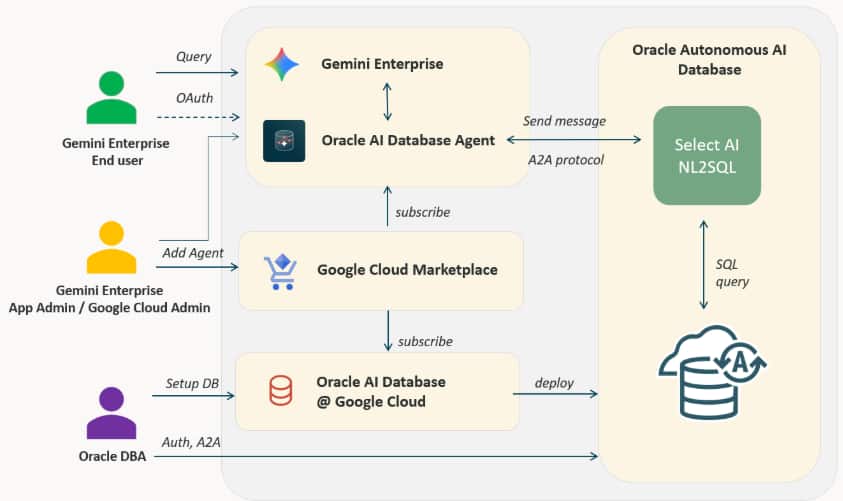
The end-to-end flow has four stages, each with a distinct owner:
- Oracle AI Database setup (DBA): The Oracle database administrator provisions the Oracle AI Database@Google Cloud and enables A2A. Next, use the REST API to register an OAuth client for the database. This produces OAuth credentials (
client_idandclient_secret) that Gemini Enterprise uses to initiate OAuth flows. Note that the registration endpoint is protected by HTTP Basic authentication using database admin credentials so only database admins can register OAuth clients. - Oracle Select AI NL2SQL setup (Oracle DBA or database user): To setup the NL2SQL setup on the database, the DBA needs to download and install two scripts. Clone the official Oracle repository https://github.com/oracle-devrel/oracle-autonomous-database-samples . The Oracle AI Database Agent is available under the
google-gemini-marketplace-agentsdirectory. Running theoracle_ai_database_agent_tool.sqland theoracle_ai_database_agent.sqlcreates a Select AI Profile. Each profile defines the schemas and tables the agent is allowed to query, acting as the boundary for what the AI can see. Such a database user must haveEXECUTEprivilege onDBMS_CLOUD_AI_AGENTPL/SQL package. - Agent Card and A2A Client Configuration (Gemini Enterprise App Admin): Gemini Enterprise App Admin procures the Oracle AI Database Agent from Google Cloud Marketplace. The Oracle team allow-lists the Gemini Enterprise admin using their billing account. The OAuth client credentials generated by DBA are supplied here to wire up the authentication flow between the Gemini Enterprise app and the Oracle AI Database. Gemini Enterprise App Admin creates an app in Gemini Enterprise for business users which has access to the agent.
- End-User Query Execution (End user): The end user selects Oracle AI Database Agent in Gemini Enterprise chat. They authorize via an OAuth prompt using their database credentials. From that point, they can ask questions in plain English. Gemini Enterprise routes each query to the Oracle AI Database agent, which executes it and returns the result to the chat.
Setup
Step 1: Procure the Oracle AI Database Agent from Google Cloud Marketplace. The Oracle AI Database Agent must be procured from the Google Cloud Marketplace before it can be configured in Gemini Enterprise. Navigate to the Google Cloud Marketplace and search for Oracle AI Database Agent.
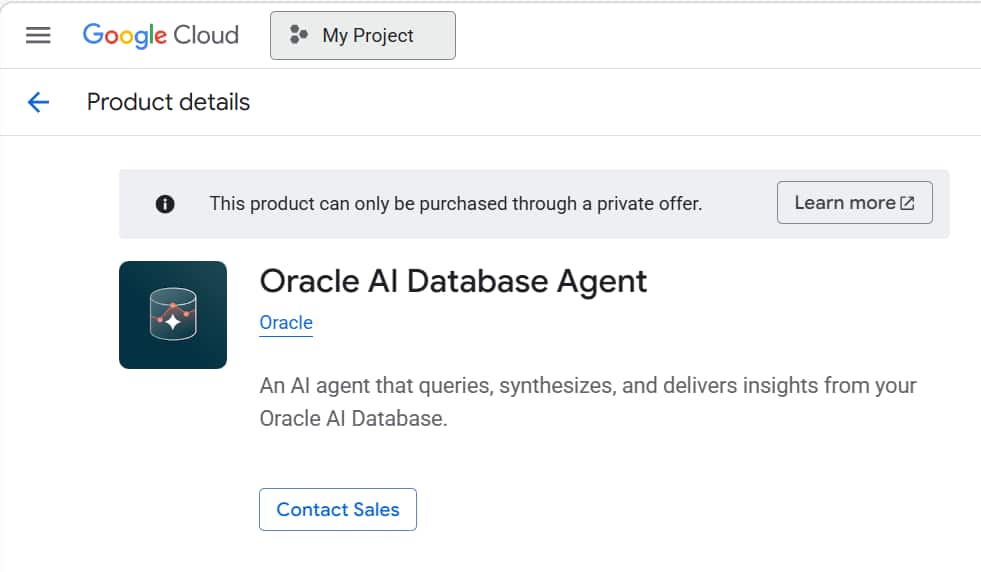
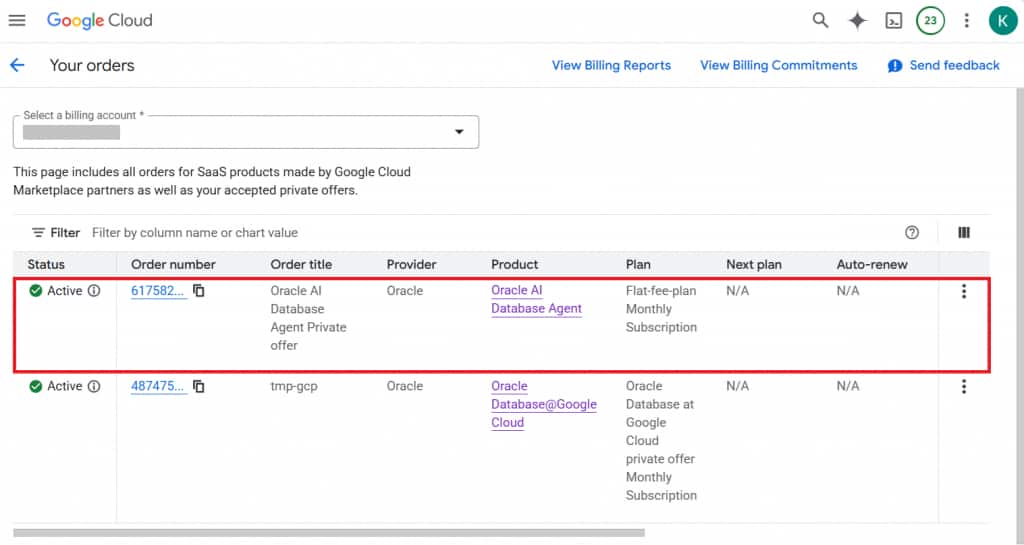
Submit a request through the form to Oracle sharing your email and billing account details. Depending on your organization’s setup, this may require approval from your procurement team before the offer is unlocked. Once the offer is approved from Oracle, you will receive an email with the offer acceptance link. Accept the private offer from the email or from Google Cloud Marketplace -> Private offers and follow the on-screen installation steps. Once accepted, your entitlement will be active and usable in a few minutes.
Step 2: Enable the A2A Server The A2A server is disabled on Oracle AI Database by default. Enabling it by adding a free-form tag to your Autonomous Database resource. From the Google Cloud Console, navigate to your Oracle Autonomous AI DB instance and choose Manage in OCI.
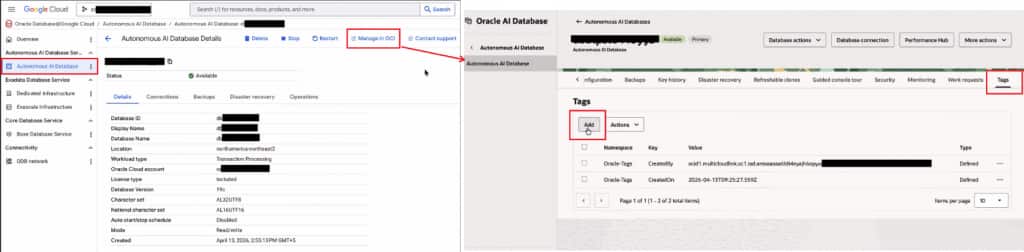
Under Tags, add a free-form tag with the following values:
# Enable the A2A server
Tag Name: adb$feature
Tag Value: {"name":"a2a_server","enable":true}
Only OCI users with at least the use IAM permission on the Autonomous Database resource can add or update free-form tags. If the tag silently fails to save, confirm your IAM policy before proceeding. Allow up to 5 minutes after saving for the change to propagate.
Step 3: Generate OAuth Client Credentials With the A2A server running, register an OAuth client for your database. This returns the client_id and client_secret that Gemini Enterprise will use to initiate the OAuth 2.0 authorization flow.
Example cURL command:
curl -X POST 'https://dataaccess.adb.us-ashburn-1.oraclecloudapps.com/adb/auth/v1/connect/databases/{database-ocid}/register' \
-u 'db-admin-username:password' \
-H 'Content-Type: application/json' \
-H 'Accept: application/json' \
-d '{
"redirect_uris": [
    "{customer-provided-redirect-url}"
    ],
    "client_name": "{customer-provided-client name}"
}'
A sample response:
{
"client_name": "{customer-provided-client-name}",
"client_id": "{generated-client-id}",
"client_secret": "{generated-client-secret}",
"client_id_issued_at": {issue-timestamp},
"client_secret_expires_at": {expiration-timestamp},
"redirect_uris": ["{customer-provided-redirect-url}"],
"grant_types": ["authorization_code", "refresh_token"],
"token_endpoint_auth_method": "client_secret_post"
}
Note:
- The registration endpoint is protected by HTTP Basic authentication using your database admin credentials.
- The redirect_uris value must match what Gemini Enterprise expects. Confirm the redirect URI with your Gemini App Admin before registering.
- Save the response as the client secret cannot be retrieved again after this point.
Pass the client_id and client_secret to your Gemini Enterprise App Administrator. These two will be automatically picked up from the Agent Card:
- OAuth Authorization URL: …/adb/auth/v1/databases/{database-ocid}/authorize
- OAuth Token URL: …/adb/auth/v1/databases/{database-ocid}/token
Step 4: Setup the NL2SQL agent using Select AI. Clone the official Oracle repository https://github.com/oracle-devrel/oracle-autonomous-database-samples. The Oracle AI Database Agent is available under the google-gemini-marketplace-agents directory. Run the oracle_ai_database_agent_tool.sql and oracle_ai_database_agent.sql providing the schema name and AI Profile name. This defines the Select AI profile that determining which database objects the agent is permitted to see and query. This requires EXECUTE privilege on DBMS_CLOUD_AI_AGENT. Start with a narrow AI profile covering only the schemas your initial user group needs. You can broaden access incrementally as needed. This also makes it easier to audit what the agent has access to.
Step 5: Add the Oracle Agent to Gemini Enterprise The Gemini Enterprise App Admin configures the agent that was procured previously in the Google Cloud Marketplace and grants access to users. From the Google Cloud Console open the Gemini Enterprise interface. Navigate to Add agent and select Oracle AI Database Agent.
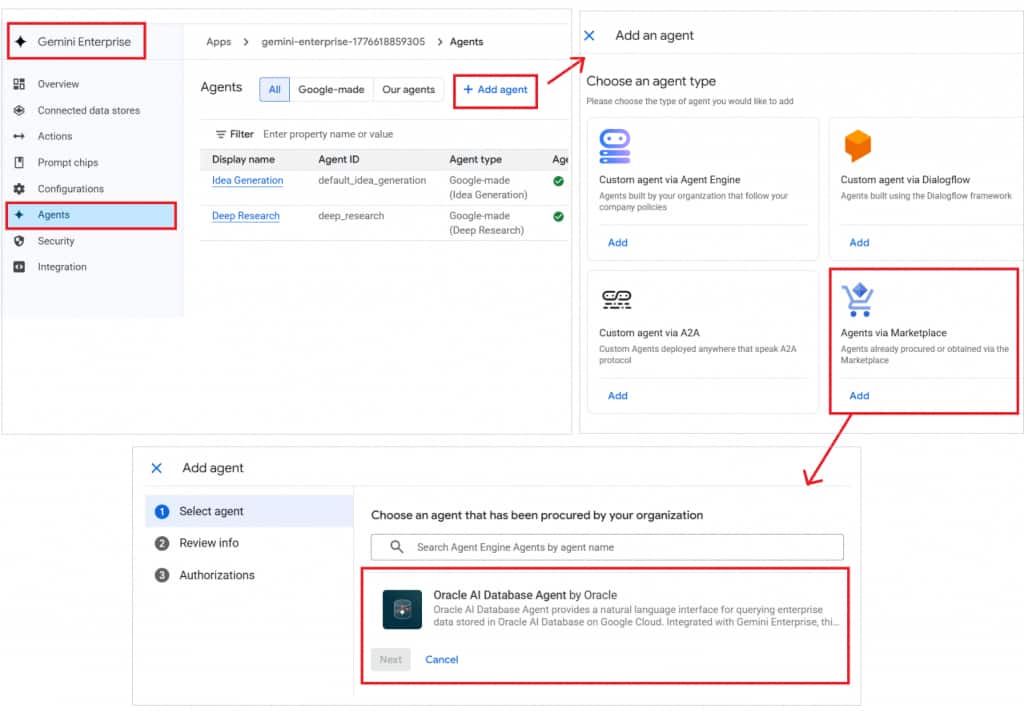
You will be prompted to supply the OAuth credentials from earlier. In the Add agent dialog, enter the four values provided by the Oracle DB Admin:
- Client ID: the
client_idfrom the registration response - Client Secret: the
client_secretfrom the registration response
After saving the agent configuration, navigate to its Permissions panel and add the users, groups, or organizational units that should have access to the Oracle AI Database Agent. Users will see the agent in their Gemini Enterprise interface after their next session refresh.
Step 6: Connect and Start Querying Open Gemini Enterprise Chat. In the agent panel or sidebar, find and select Oracle AI Database Agent. If you do not see it, confirm with your Gemini Enterprise App Admin that permissions have been granted for your account. The first time you use the agent, Gemini Enterprise will prompt you to authorize it to connect to the Oracle database on your behalf. Click Authorize in the prompt. Enter your Oracle database username and password, not your Google or OCI account credentials. After successful authentication, the agent confirms the connection. You are ready to query.
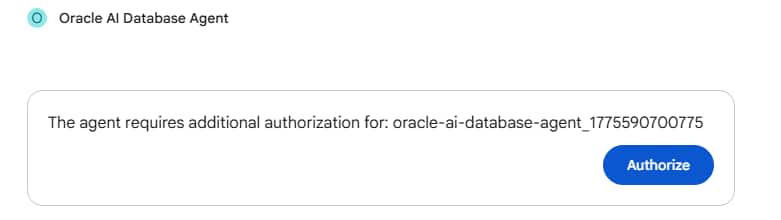
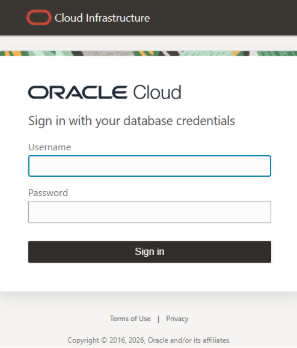
The OAuth flow authenticates you as an individual database user. The agent can only access the schemas and tables your database account has been granted permission to see, exactly as if you ran the query yourself in SQL Developer or another tool. There is no elevation of privileges.
Walkthrough: Running Your First Natural Language Query
With the agent authorized and connected, here is what a typical business query looks like from start to chart. For the examples below, we are using the Sales History (SH) schema that is available in Oracle Autonomous AI Database with data extended up to 2025.
1. Type your question in plain natural language
In the Gemini Enterprise chat window, type a business question directed at your data. You do not need to know SQL or the exact table names. An example question could be:
“For fiscal Q3 of FY2025, compare revenue and units sold by country and sales channel. Also show the year-over-year percent change versus the same fiscal quarter in FY2024.“
The Oracle AI Database Agent interprets your question, generates the appropriate SQL query for your authorized schema, and executes it against the Oracle Autonomous AI Database. A brief processing indicator appears while this happens. The generated SQL is available to inspect if you want to verify what ran.
2. Review the results
Results are returned in the Gemini Enterprise chat in a structured data table showing the raw query output.
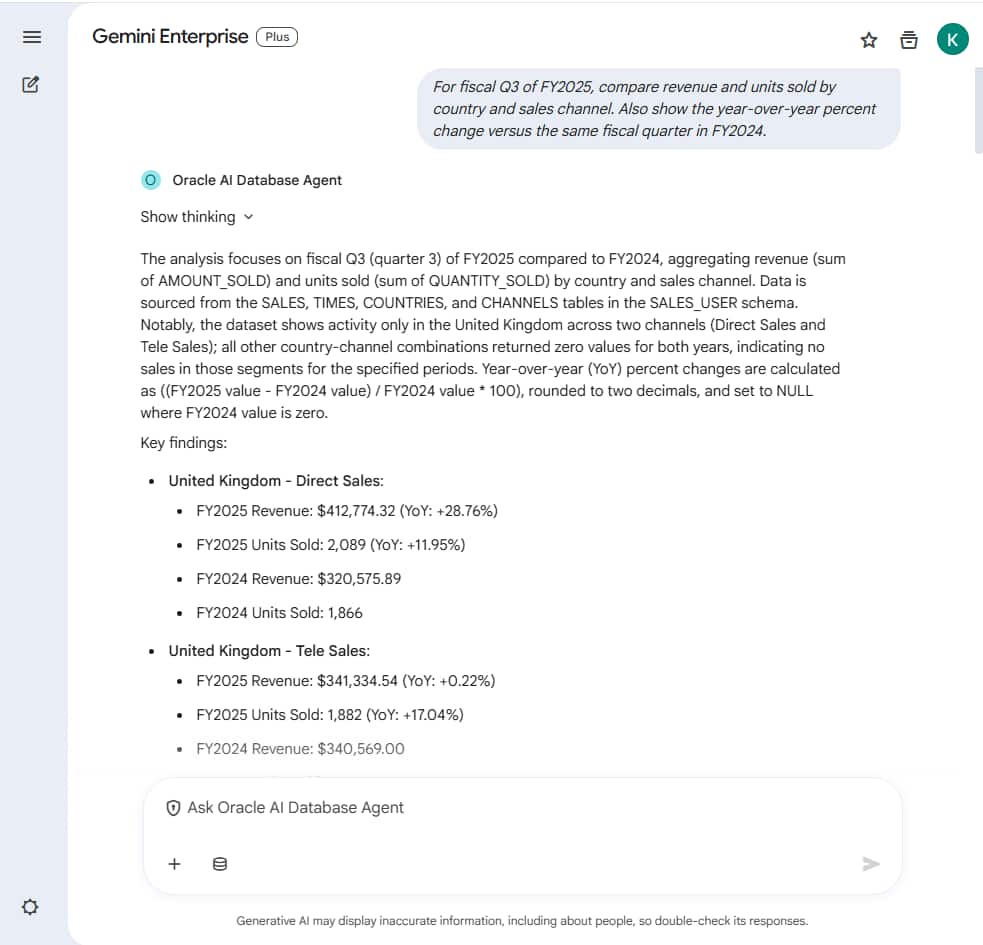
If the response includes a chart configuration, Gemini Enterprise can render the visualization inline alongside the returned table.
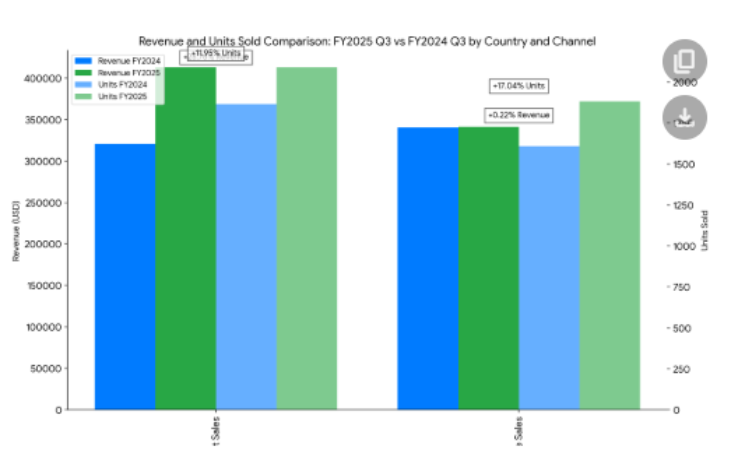
For many teams, this managed path is enough: users can ask business questions in plain English and receive governed results directly in Gemini Enterprise. For developers who want to go further and combine Oracle results with web context, visualizations, generated documents, or additional agents, Part 2 shows how to extend this foundation with ADK and A2A rather than replacing it.
Troubleshooting Common Issues
| Issue | Resolution |
|---|---|
| A2A server tag not taking effect | Allow up to 5 minutes after saving the tag. Refresh the instance details page to confirm it saved correctly. Verify the IAM permissions of the user who applied the tag. |
| Client credentials rejectedduring Gemini Enterprise setup | Verify that client_id and client_secret were copied correctly. Confirm the redirect_uri registered matches the URI expected by Gemini Enterprise. |
| Agent not visible to end users | Confirm the Gemini Enterprise App Admin saved the permission grants. Users may need to sign out and back into Gemini Enterprise for permissions to refresh. |
| OAuth sign-in fails for end user | Verify the user’s Oracle database account exists and is active. Check that the account has SELECT permissions on at least one schema in the Select AI Agent Team. Confirm the database token URL is reachable from the user’s network. |
| Query returns no results or unexpected data | Confirm the Select AI Agent Team includes the relevant schemas and tables. Ask the agent directly: “What SQL query did you run?” to verify the intent was interpreted correctly. |
Useful Links
- Unlocking Data Insights with the Oracle AI Database Agent in Gemini Enterprise: Part 2
- Oracle Autonomous AI Database Select AI: In-database generative AI and agent framework offering insights by analyzing data in natural language, with additional capabilities like automated retrieval augmented generation (RAG), synthetic data generation, and others.
- Gemini Enterprise Agents: Overview of AI agents in Gemini Enterprise.
- Explore AI Agents in Google Marketplace: How to browse and install agents from the Google Cloud Marketplace
- Requesting Procurement: Governance process for procuring marketplace offerings
- Accepting a Private Offer: Steps to accept a marketplace private offer for the Oracle AI Database Agent from Oracle