Important Notes
- First Submission: Create your questionnaire through the link “Create a new BFN questionnaire”.
- Resubmissions: Do not create your own questionnaire if you already have an approved one from previous cycle. Never click the link “Create a new BFN questionnaire” unless it is your first time to submit BFN.
- If you need to submit for the current version and no questionnaire is available, contact nsgbu_sdnqa_ww_grp@oracle.com. SDN QA will make a copy of your last questionnaire for the current version.
- Contact nsgbu_sdnqa_ww_grp@oracle.com if you get errors in accessing the questionnaire.
- Update the User Agreement tab of the BFN questionnaire with the complete name and corporate email address of your current technical contact. Do not use personal email addresses.
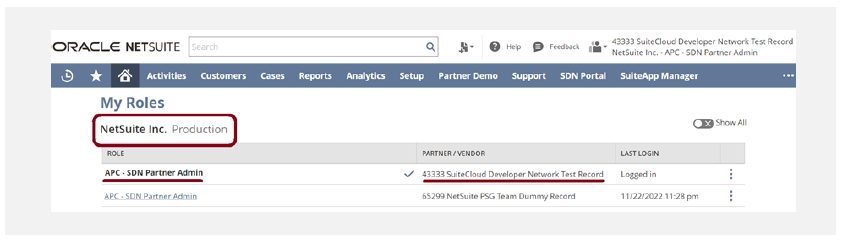
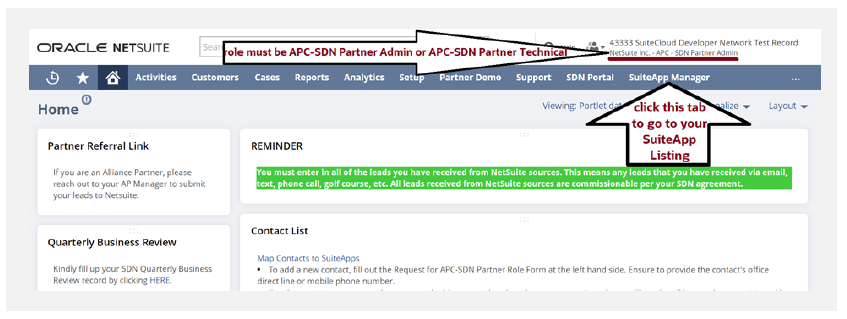
1. Login to NetSuite using APC – SDN Partner Admin role or APC – SDN Partner – Technical role ONLY. SuiteCloudDeveloperNetwork
How to Edit andSubmit BFN Questionnaire
- These roles are found in the NetSuite, Inc. – PRODUCTION account.
- If you have several accounts, to find the correct role, hover your mouse pointer in your role section and click the View My Roles. Under ‘Switch to Another Account’, find NetSuite, Inc. – PRODUCTION account, click that and you will see the available APC-SDN Partner role for you.
- You cannot access the BFN questionnaire if you are logged into your test drive account’s Administrator role.
- If anyone in your team does not have any of the two above-mentioned roles, contact nsgbu-sdnprogram_ww@oracle.com.
2. Click SuiteApp Manager tab.
- If you do not see SuiteApp Manager tab in your APC-SDN Partner dashboard, email nsgbu-sdnprogram_ww@oracle.com.
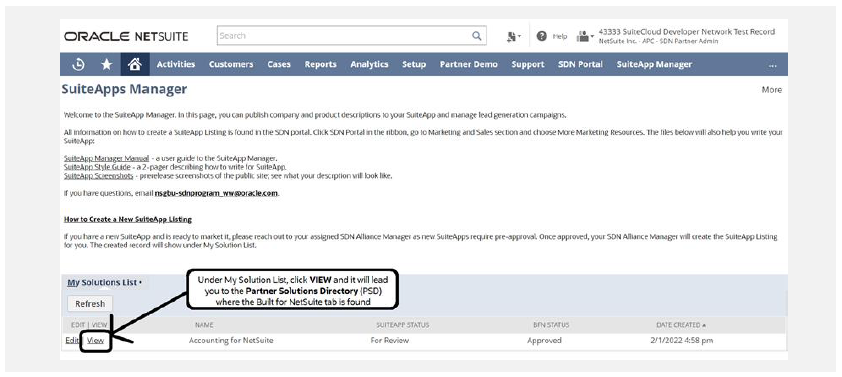
3. In the SuiteApp Manager page, scroll down to see My Solution List. Click the View link of the solution/SuiteApp listing that you want to access the BFN questionnaire, which will lead you to the Partner Solutions Directory (PSD).
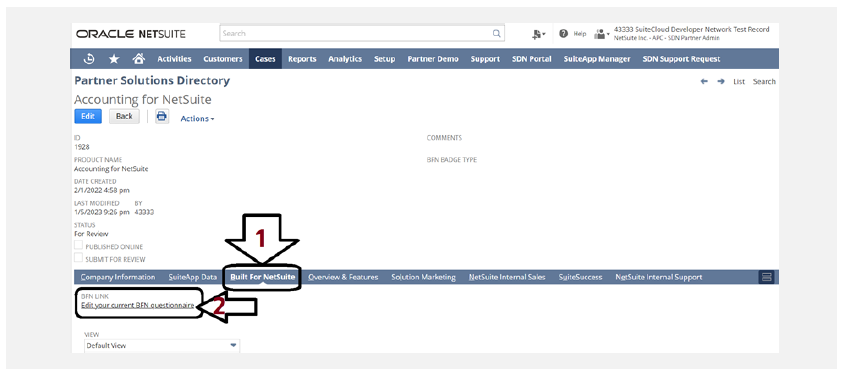
4. In the Partner Solution Directory page, click Built for NetSuite tab.
5. Under the Built for NetSuite tab, click Edit your current BFN questionnaire hyperlink.
- Click the above-mentioned link each time you want to edit or update your BFN Questionnaire that has a status of Partner – In Revision or Partner – In Progress.
- You will not be able to edit your BFN questionnaire if its status is Submitted For Review, In Review or On Hold.
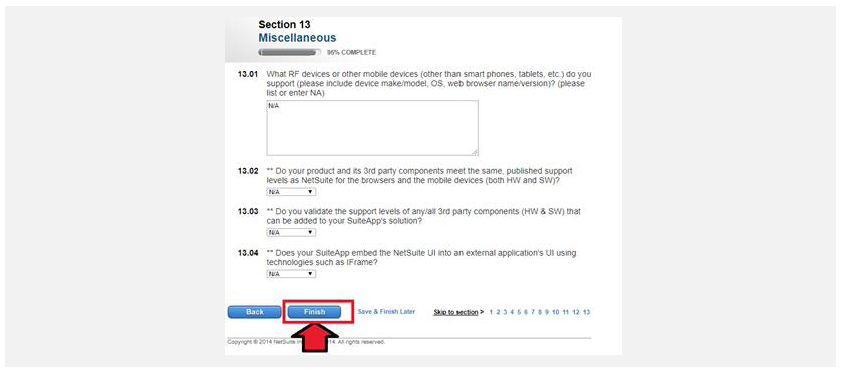
6. After answering the BFN questionnaire until Section 13, click Finish to submit it to the SDN QA team.
- A prompt message appears if you missed answering a question.
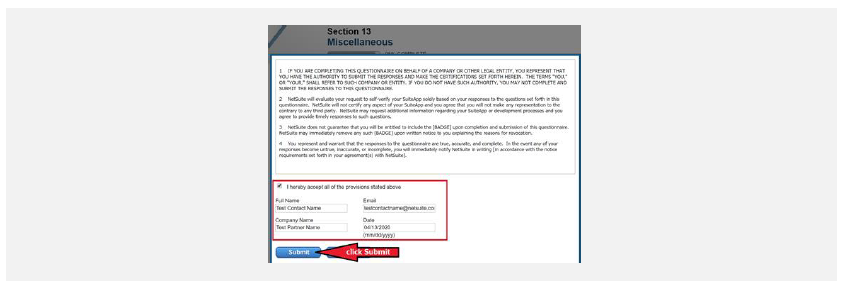
7. When you tick the Finish button, the User Agreement form will appear. Fill this out with the Current Technical Contact information.
Note that the date is dependent on your NetSuite Date Settings. If it doesn’t match, an error will occur.

8. When all fields are populated, click Submit button.
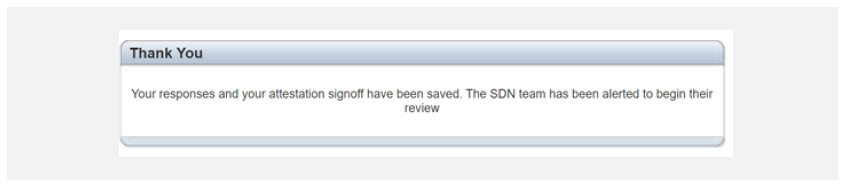
9. If you are successful in submitting it, you will receive a confirmation message like the below. SDN Operations will receive an email notification.