
This is article 3 of 8 in my Oracle AI Database Skills series.
Key Takeaways
- The assistant connects using a saved connection name, not a pasted password. Credentials stay in the SQLcl store and out of prompts, so the model sees the name but never the secret.
- Restrict levels define the tool surface at runtime. Starting at the most restrictive setting limits what the assistant can do; you widen the surface deliberately as the use case earns it.
- Session tagging and the MCP activity log give a DBA verifiable proof of what ran. Evidence comes from the database, not the chat transcript — that distinction matters when someone asks what the assistant actually did.
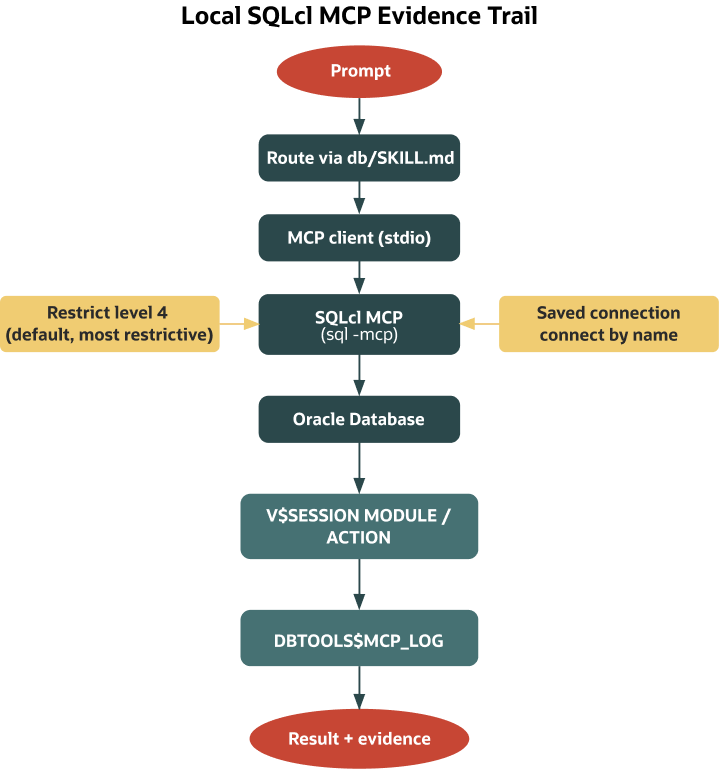
In the last piece, you routed Oracle prompts through db/SKILL.md to keep intent explicit (see Article 1 and Article 2 in this series). Now it’s time to act—locally, with guardrails, and with an evidence trail your DBA can verify. SQLcl MCP gives you that posture. You launch it as a local process (sql -mcp); it exposes a small catalog of named tools over stdio; it connects through saved connections you control; it starts in a highly restricted mode by default; and it leaves database‑native traces you can query later. That’s the right shape for early assistant experiments on a developer machine.
Note: Citations for versioned behavior are in Oracle’s SQLcl documentation (for example, “Using SQLcl MCP Server,” “SQLcl MCP Server tools,” “Starting and managing SQLcl MCP Server,” “Restrict Levels,” “Preparing your environment,” and “Saving connections” in the 25.4 and 26.1 editions). Treat any version‑sensitive claim here as “verify against your installed docs.”
What you need before you start
- SQLcl 25.2.0 or newer with MCP support
- Java 17 or 21 available to SQLcl (per “Preparing your environment”)
- A non‑production Oracle Database (19c+ suffices for this demo)
- A least‑privilege, read‑only database user for testing
- A saved SQLcl connection that includes a stored password, created with
-saveand-savepwd(required for non‑interactive MCP connects) - Permission to query
V$SESSIONfor evidence, or access to an equivalent DBA‑provided view that exposesMODULEandACTIONfor your sessions - If you use TNS aliases, configure Oracle Net as usual (for example, set
TNS_ADMINto yourtnsnames.oradirectory). If your MCP client launchessql -mcpwith a custom environment, passTNS_ADMINthere as needed.
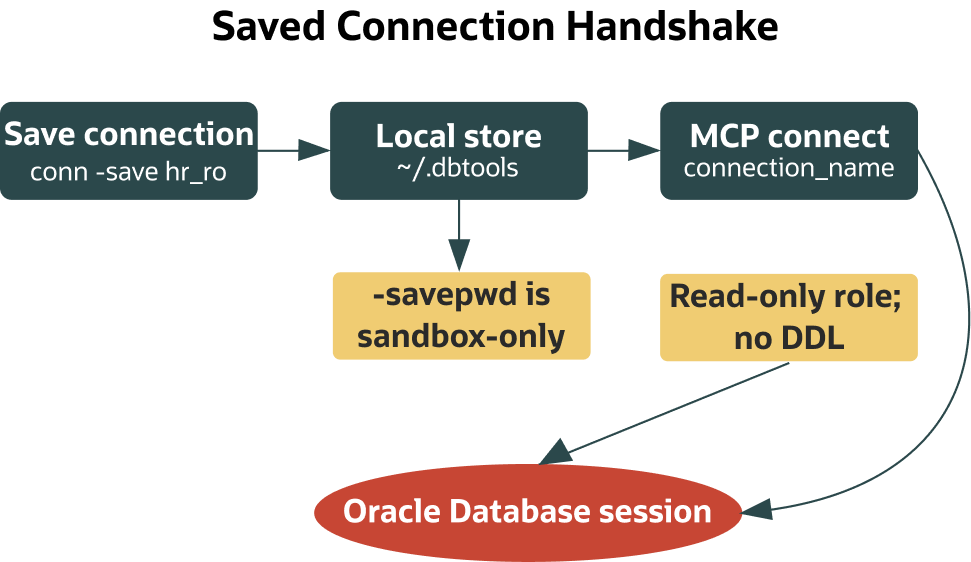
Security note: Storing passwords is a prerequisite for non‑interactive MCP connects. Keep this to a sandbox, use a read‑only account, and lock down your local SQLcl store (commonly under ~/.dbtools) per your organization’s secrets policy.
Why SQLcl MCP is the right local action layer
A tempting shortcut is to paste credentials into a prompt and let a model “try something.” That’s exactly what you want to avoid. SQLcl MCP flips the pattern: you launch sql -mcp locally and expose a small set of structured tools. Your client can list saved connections, connect by name, run SQL, and disconnect. The MCP connect path uses saved/named connections; the tool does not accept raw credentials in the call. For non‑interactive use, the password must be saved (-savepwd). You decide which saved connections exist and what privileges they carry.
Restrict levels are SQLcl’s runtime safety gates that limit which features and commands are allowed. In MCP mode the server defaults to restrict level 4 (most restrictive) unless you override it with -R, so the surface stays small until you intentionally broaden it. That’s a posture you can explain to a DBA and adjust deliberately as you earn trust.
References: SQLcl MCP overview and startup; Saved connections; Restrict levels (25.4/26.1 docs).
How the server behaves under the hood
When your client launches sql -mcp, SQLcl starts a small server over stdio and advertises a catalog of named tools. Message envelopes vary by client, but tool names and arguments follow the SQLcl MCP documentation. As of the 26.1 docs, commonly listed tools include:
list-connectionsconnectdisconnectrun-sqlrun-sqlcl
Some builds also include schema-information. Tool availability and argument shapes can vary by version/build; verify against your installed docs.
Connections are discovered from your local SQLcl store (for example, ~/.dbtools). To make a connection usable without a prompt, save it with a stored password. Oracle documents this as a prerequisite for hands‑off connection by name.
Restrict levels shape what the process can do. In MCP mode, the server defaults to restrict level 4 (most restrictive) unless you override it with -R. Outside MCP, generic SQLcl defaults to restrict level 0 (unrestricted) unless you pass -R; always verify the “Restrict Levels” page for your exact build.

References: SQLcl MCP tools; Saved connections; Restrict levels and -R flag (25.4/26.1 docs).
Traceability you can prove (monitoring and governance)
Before you run anything, plan how you’ll show what happened. The most portable approach is to tag your session with DBMS_APPLICATION_INFO and then confirm it in V$SESSION. The tag appears in performance tooling and helps a DBA correlate what ran and why. By default, SQLcl MCP records the execution history of requests in DBTOOLS$MCP_LOG (per Oracle docs). Access, owner/schema, and privileges vary by environment, so confirm presence and permissions with your DBA.
- Tagging mechanism:
DBMS_APPLICATION_INFO.SET_MODULEandSET_ACTION(documented in Oracle Database PL/SQL packages) - Evidence view:
V$SESSION(privilege‑gated; ask a DBA for a scoped alternative if you lack access) - Logs:
DBTOOLS$MCP_LOGrecords requests by default; access and retention are environment‑specific
References: DBMS_APPLICATION_INFO; V$SESSION; SQLcl MCP monitoring/logging pages (25.4/26.1 docs).
Version scope and environment notes
- Keep SQLcl at 25.2.0+ for MCP features and run it with Java 17 or 21 (per “Preparing your environment”).
- The tool catalog and defaults can evolve; the 25.4 and 26.1 guides capture current behavior, but verify against your installed version.
- The demo assumes Oracle Database 19c or later and avoids database features tied to 26ai.
- Some clients (for example, SQL Developer for VS Code) can launch and manage the MCP server for you; follow your client’s documentation for its configuration format and capabilities, which can change by version.
A small, traceable demo you can run today
This walkthrough saves a single read‑only connection, launches the MCP server, validates that the connection is discoverable, connects by name, tags its session, runs one read‑only discovery query, and disconnects. Each step includes copy‑paste commands and why the step matters.
1) Save a named connection for a read‑only sandbox user
Open SQLcl, connect once interactively, and persist the connection with a stored password so MCP can use it without a prompt.
sql /nolog
# If you connect by service name:
conn demo_ro@//host:1521/service -save demo_ro -savepwd
# If you connect by TNS alias (ensure Oracle Net is configured and tnsnames.ora is discoverable):
# conn demo_ro@ALIAS -save demo_ro -savepwd
When prompted, enter the password interactively. The -save and -savepwd flags persist the named connection (commonly in ~/.dbtools) with a stored password so MCP can use it non‑interactively. Use a sandbox‑only, least‑privilege account and follow your org’s secrets policy for local credential storage.
2) Start the MCP server (keep the default restrict level)
Launch SQLcl in MCP mode and leave the terminal open. Unless your client does this for you, this process is the local server your MCP‑aware client will talk to.
sql -mcpBy default, restrict level 4 applies. If you ever see broader capability than expected, confirm that the process was not started with a lower restrict level (for example, -R 0). For early experiments, stick with the default level 4.
3) Point your MCP‑aware client at SQLcl
Configure your client to launch sql -mcp.
Representative MCP server configuration for a desktop client. Field names and file locations vary by client; follow your client’s documentation for the exact schema.
{
  "mcpServers": {
    "sqlcl": {
      "command": "sql",
      "args": ["-mcp"],
      "env": {
        "TNS_ADMIN": "/path/to/network/admin"
      }
    }
  }
}
4) Verify that the saved connection is discoverable
Before you connect, ask the server to list saved connections. Seeing demo_ro here confirms that the server can use it non‑interactively.
Representative MCP tool call; adapt to your client’s message envelope (for example, a surrounding "type": "call_tool"), server name, and argument key names as defined by your client and the SQLcl MCP tools page for your installed version.
[
  { "tool": "list-connections", "arguments": {} }
]
If demo_ro does not appear, revisit the conn ... -save -savepwd step and make sure you created the connection under the same OS user/profile that SQLcl is using.
5) Connect by name and tag the session
Connect using the saved name, then tag the session with MODULE and ACTION so you can find it later in performance views and, if accessible, MCP logs.
Representative MCP tool call; adapt to your client’s envelope and argument names. Note: some clients use name, others connectionName or connection_name.
[
  { "tool": "connect", "arguments": { "name": "demo_ro" } },
  { "tool": "run-sql", "arguments": { "sql": "BEGIN DBMS_APPLICATION_INFO.SET_MODULE('sqlcl-mcp','schema-discovery'); END;" } }
]
Tagging is optional but strongly recommended. It creates a human‑readable breadcrumb for exactly this experiment.
6) Run one read‑only discovery query
To keep the example universal, start with a query against objects you own:
Representative MCP tool call; adapt to your client’s envelope and argument names.
{ "tool": "run-sql", "arguments": { "sql": "SELECT table_name FROM user_tables ORDER BY table_name FETCH FIRST 5 ROWS ONLY" } }
If your account has cross‑schema visibility, you can adjust the query to ALL_TABLES:
Representative MCP tool call; adapt to your client’s envelope and argument names.
{ "tool": "run-sql", "arguments": { "sql": "SELECT owner, table_name FROM all_tables WHERE owner = UPPER('<YOUR_SCHEMA>') ORDER BY table_name FETCH FIRST 5 ROWS ONLY" } }Keep the action read‑only while you learn the surface and review the evidence with a DBA partner.
Optional: Some clients also expose run-sqlcl for SQLcl console commands (for example, DESC). At restrict level 4, many SQLcl commands are disabled; simple describe operations may work depending on your build—verify in your environment. If enabled in your version and posture, a representative call looks like:
Representative MCP tool call; adapt to your client’s envelope and argument names.
{ "tool": "run-sqlcl", "arguments": { "command": "DESC USER_TABLES" } }Treat this as optional; the minimal surface for early tests is run-sql.
7) Disconnect when you are done
Disconnecting is good hygiene and makes your test’s boundaries clear.
Representative MCP tool call; adapt to your client’s envelope and argument names.
{ "tool": "disconnect", "arguments": {} }Prove what happened
Evidence checks depend on privileges. If your account cannot query performance views, ask your DBA for a scoped alternative that exposes MODULE and ACTION for your sessions.
See the tag in a live session view:
SELECT module, action, username, machine
FROM   v$session
WHERE  module = 'sqlcl-mcp';
By default, SQLcl MCP records requests in DBTOOLS$MCP_LOG. You can review recent entries there as well. Presence is standard per the docs, but owner/schema and access vary by setup; in some environments the table resides under a DBA‑owned schema. Treat the query below as an example and ask your DBA for the owner or a scoped view if needed.
SELECT id, mcp_client, model, end_point_type, end_point_name, log_message
FROM   DBTOOLS$MCP_LOG
ORDER  BY id DESC
FETCH  FIRST 10 ROWS ONLY;
If neither view is available to you directly, a DBA can run the checks or provide a narrow view limited to your test user.
When something goes wrong
If the client prompts for a password, the saved connection likely lacks a stored secret. Recreate it with both -save and -savepwd so MCP can connect non‑interactively. When the tool catalog looks unfamiliar or is missing entries, you may be on a different SQLcl version; check the MCP tools page for your installed build (the 25.4 and 26.1 docs capture current behavior). If you don’t see your session tag in V$SESSION, it’s probably a privilege boundary rather than a failure to tag; ask for a scoped view or a one‑time verification. If the server shows more capability than your risk posture allows, confirm the restrict level and restart without any -R override so the default restrictive posture applies.
Why this posture earns DBA trust
DBAs reasonably resist assistants that can write to production. SQLcl MCP avoids that leap of faith. You connect through named entries you control. You default to a restrictive mode. You tag your sessions with MODULE and ACTION so activity shows up cleanly in performance tooling. And, where available, MCP logs give an after‑the‑fact record. The point is not speed; it’s reversibility and evidence. In a world where models sometimes propose creative fixes, that’s the currency that gets you permission to try again tomorrow.
What’s intentionally out of scope here
This article focuses on local SQLcl MCP on a developer workstation, read‑only sandboxes, and minimal evidence checks. It does not cover managed or remote MCP hosting, enterprise audit/policy, advanced reasoning patterns (for example, Select AI or AI Profiles), vector‑native RAG, or change‑management workflows. Those topics are addressed next when we move beyond a single machine.
Where this leaves you next
You now have a local, developer‑friendly path for safe, traceable Oracle actions. Previously in this series: Article 1 (routing) and Article 2 (route‑to‑action bridge). Next up: Article 4, where we carry these guardrails into a managed path with audit, policy, and team controls so you can scale without losing the evidence and restraint you established here.
Freshness Note: Version‑sensitive behavior (tool catalog, defaults, restrict levels) should be verified against your installed SQLcl documentation (notably the 25.4 and 26.1 editions).