
In Part 1, we provisioned the GoldenGate deployment runtime, IAM, and connection foundation. Using those steps, you can create the required GoldenGate deployments with DATABASE_ORACLE as the deployment type for the Oracle source and BIGDATA as the deployment type for the BigQuery target.
In Part 2, you will build and validate a private OCI GoldenGate on Oracle AI Database@Google Cloud CDC pipeline from Oracle Autonomous AI Database@Google Cloud to Google BigQuery.
By the end of this guide, you will have:
- An Extract running on the Oracle AI Database GoldenGate deployment
- Supplemental logging enabled for the selected source schema or tables
- A Distribution Path moving trail data to the Big Data GoldenGate deployment
- A BigQuery Replicat writing changes to BigQuery dataset using a Google Cloud Storage staging bucket
- A validation flow that confirms Oracle inserts, updates, and deletes appear in BigQuery
- Basic monitoring checks for process status, lag, DML counts, and trail age
This guide assumes you completed Part 1, including GoldenGate deployment provisioning, IAM setup, private connectivity, and source and target connection creation.
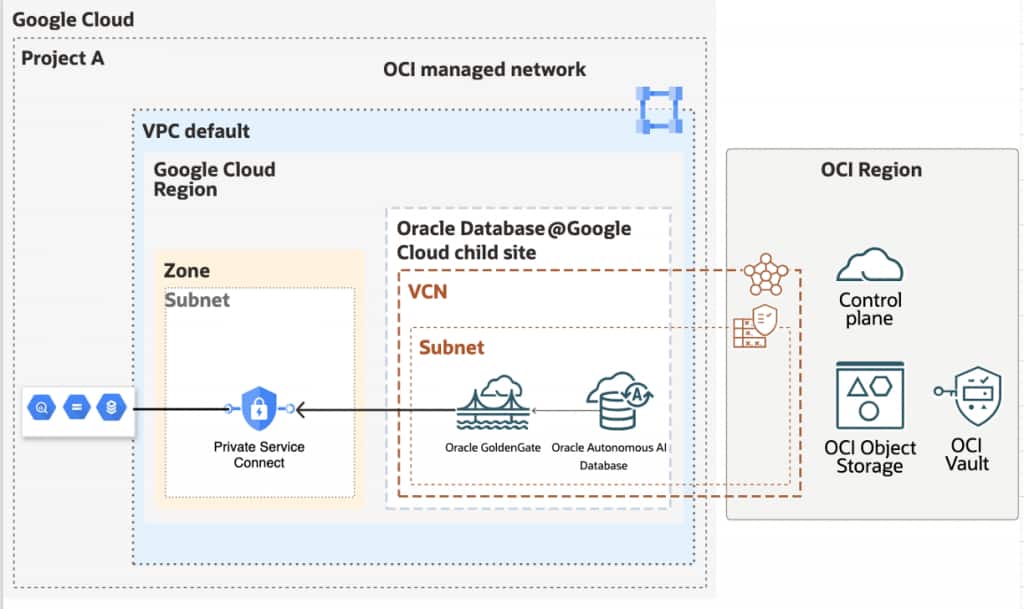
This pattern uses an GoldenGate deployment for Oracle AI Database to capture changes from Autonomous AI Database, a Distribution Path to move trail data to a Big Data GoldenGate deployment, and a BigQuery Replicat that writes to BigQuery using Google Cloud Storage as staging.
In this post we cover the full path from Oracle Autonomous AI Database (source) to Google BigQuery (target): private network connectivity so GoldenGate never touches the public internet to reach BigQuery, source database preparation, creating the BigQuery and Google Cloud Storage connections, and configuring the Extract and Replicat processes that make data flow continuously in real time.
GoldenGate BigQuery Replicat uses GCS as a staging area. The GoldenGate Bigquery replicat writes change data to a Google Cloud Storage (GCS) bucket as an intermediate staging location before loading into BigQuery. This is the standard architecture for all GoldenGate-to-Datawarehouse pipelines. Both the GCS bucket and BigQuery dataset must reside in the same location/region. You will need two connections assigned to the deployment: one for BigQuery and one for GCS. See Add a Replicat for Google BigQuery.
Google service account permissions
Grant the BigQuery service account to be used by GoldenGate only the access it needs:
| Resource | Role | Why |
|---|---|---|
| BigQuery project | roles/bigquery.jobUser | Allows the service account to run jobs, including queries, within the project. |
| BigQuery dataset | roles/bigquery.dataEditor | Allows creating, updating, listing, deleting, reading, replicating, and updating tables and table data in the dataset. |
| GCS staging bucket | roles/storage.objectAdmin | Allows listing, creating, viewing, updating, and deleting staging objects in the bucket. |
Google documents roles/bigquery.jobUser as the role that provides permission to run jobs, including queries, within a project, and roles/bigquery.dataEditor as the dataset-level role that grants table creation, update, read, replicate, and update permissions. Google documents roles/storage.objectAdmin as granting full control of objects in a bucket, including listing, creating, viewing, and deleting objects.
Tested configuration
| Component | Configuration used in this walkthrough |
|---|---|
| Source database | Oracle Autonomous AI Database@Google Cloud |
| Source GoldenGate deployment | OCI GoldenGate on Oracle AI Database@Google Cloud deployment for Oracle AI Database |
| Target GoldenGate deployment | OCI GoldenGate on Oracle AI Database@Google Cloud for Big Data deployment |
| Target system | Google BigQuery |
| Staging system | Google Cloud Storage |
| Replication method | Extract, Distribution Path, BigQuery Replicat |
| Connectivity model | Private connectivity configured in Part 1 |
| GoldenGate version | 26ai |
| Google Cloud region | Germany Central (Frankfurt): eu-frankfurt-1 |
Step 1: Confirm BigQuery and GCS GoldenGate connections
OCI GoldenGate’s BigQuery connection flow uses a Google BigQuery target connection with a service account key file secret. The Google Cloud Storage connection requires a Google Cloud Storage account key, a GCS bucket with permissions applied, and Vault/Secrets access policies.
Create the Google BigQuery connection as below if not already,
For this walkthrough, the same Google service account can be used for both the BigQuery and GCS GoldenGate connections. This simplifies setup because GoldenGate uses the service account key to authenticate to both services.
For production environments, confirm your organization’s separation-of-duties, key rotation, and least-privilege requirements. Some teams may choose separate service accounts for BigQuery and GCS to align with internal security policy. For using the single service account — the key is Base64-encoded as required by the GoldenGate connection API. See the connection attributes reference.
export GGS_BQ_KEY_FILE="/Users/shrinidhikulkarni/Downloads/GGS@GCP/ggs-bq-replicat.json"

python3 -m json.tool "$GGS_BQ_KEY_FILE" >/dev/null

export GGS_BQ_KEY_B64="$(/usr/bin/base64 -i "$GGS_BQ_KEY_FILE" | tr -d '\n')"
gcloud oracle-database goldengate-connections create bigquery-target \
--project="PROJECT_ID" \
--location="REGION_NAME" \
--properties-display-name="Connection_Display_Name" \
--properties-description="BigQuery target connection validation for GoldenGate demo replication" \
--properties-connection-type="GOOGLE_BIGQUERY" \
--properties-routing-method="SHARED_DEPLOYMENT_ENDPOINT" \
--google-big-query-connection-properties-technology-type="GOOGLE_BIGQUERY" \
--google-big-query-connection-properties-service-account-key-file="$GGS_BQ_KEY_B64" \
--gcp-oracle-zone="REGION_ZONE_NAME" 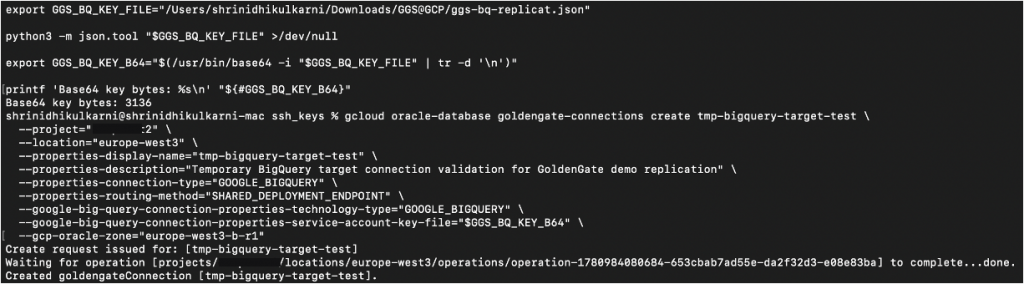
gcloud oracle-database goldengate-connections create tmp-gcs-staging-test \
  --project="PROJECT_ID" \
  --location="REGION_NAME" \
  --properties-display-name="tmp-gcs-staging-test" \
  --properties-description="GCS staging connection validation for GoldenGate BigQuery Replicat" \
  --properties-connection-type="GOOGLE_CLOUD_STORAGE" \
  --properties-routing-method="SHARED_DEPLOYMENT_ENDPOINT" \
  --google-cloud-storage-connection-properties-technology-type="GOOGLE_CLOUD_STORAGE" \
  --google-cloud-storage-connection-properties-service-account-key-file="$GGS_BQ_KEY_B64" \
  --gcp-oracle-zone="REGION_ZONE_NAME"
Assign both connections to the Big Data deployment
gcloud — Assign BigQuery and GCS connections to the Big Data deployment
gcloud oracle-database goldengate-connection-assignments create assign-tmp-bigquery-target-test \
  --project="PROJECT_ID" \
  --location="REGION_NAME" \
  --display-name="assign-tmp-bigquery-target-test" \
  --properties-goldengate-connection="projects/PROJECT_ID/locations/REGION_NAME/goldengateConnections/tmp-bigquery-target-test" \
  --properties-goldengate-deployment="projects/PROJECT_ID/locations/REGION_NAME/goldengateDeployments/ggsdemo-bigdata-ew3"
gcloud oracle-database goldengate-connection-assignments create assign-tmp-gcs-staging-test \
  --project="PROJECT_ID" \
  --location="REGION_NAME" \
  --display-name="assign-tmp-gcs-staging-test" \
  --properties-goldengate-connection="projects/PROJECT_ID/locations/REGION_NAME/goldengateConnections/tmp-gcs-staging-test" \
  --properties-goldengate-deployment="projects/PROJECT_ID/locations/REGION_NAME/goldengateDeployments/ggsdemo-bigdata-ew3"
Test both connection assignments to confirm private connectivity is working before proceeding to pipeline configuration:
gcloud — Test BigQuery and GCS connections
gcloud oracle-database goldengate-connection-assignments test assign-tmp-bigquery-target-test \
    --project="PROJECT_ID" \
    --location=REGION_NAME \
    --type="default"
gcloud oracle-database goldengate-connection-assignments test assign-tmp-gcs-staging-test \
    --project="PROJECT_ID" \
    --location=REGION_NAME \
    --type="default"
Step 2: Launch the source GoldenGate deployment console
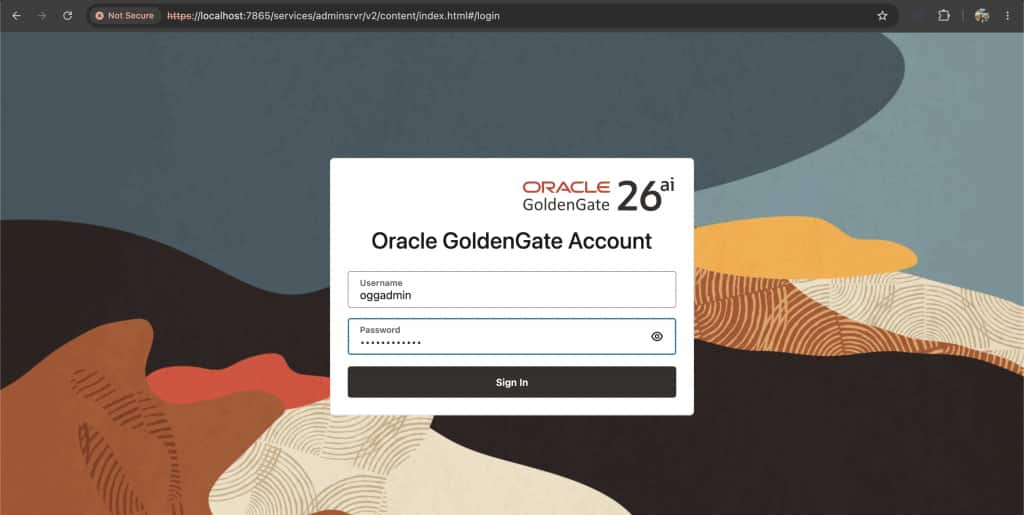
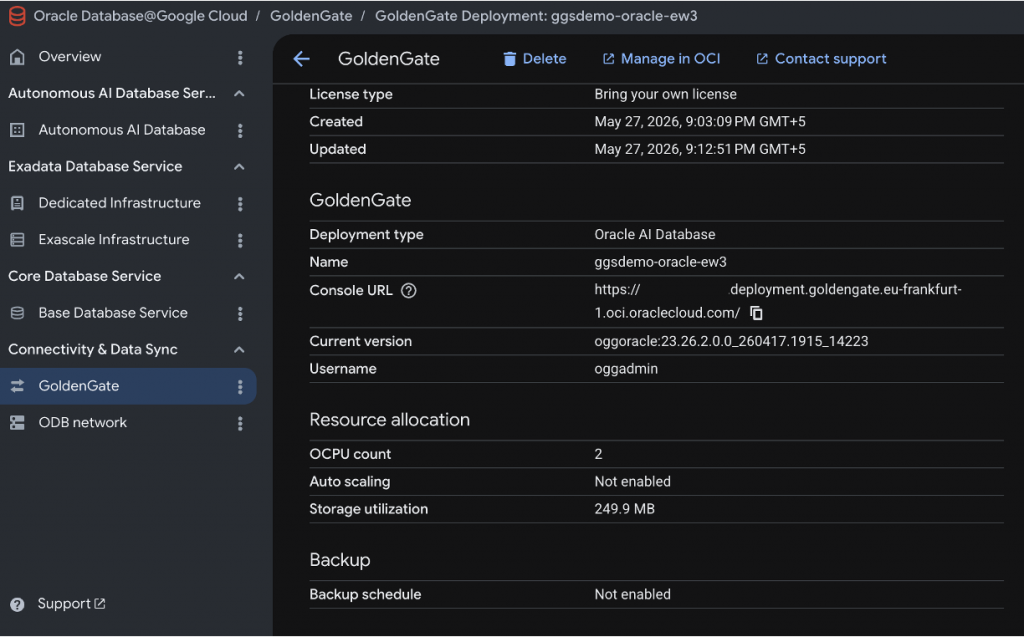
From the GoldenGate source deployment details page, launch the deployment console and sign in with the GoldenGate administrator credentials created during provisioning. Once the deployments and connection are created, you can run Extract and Replicat processes .
Since the OCI GoldenGate deployment console is hosted on a private subnet, it is not directly accessible from the internet. Secure access can be established using OCI Bastion or a Google Cloud Compute Engine instance configured as a bastion host, enabling authorized users to connect to the GoldenGate console over private network connectivity while maintaining a strong security posture.
Before you begin replication
Validation checklist:
- Oracle Autonomous AI Database@Google Cloud is provisioned and available.
- Target Google BigQuery instance and dataset exists and available
- The GoldenGate deployment for Oracle AI Database is active.
- The GoldenGate Big Data deployment is active.
- Source database connection is created and assigned to the Oracle GoldenGate deployment.
- BigQuery target connection is created and assigned to the Big Data deployment.
- Google Cloud Storage staging connection is created and assigned to the Big Data deployment.
- BigQuery dataset and GCS staging bucket are in the same Google Cloud location or region.
- The Google service account has the required BigQuery and GCS permissions.
- Connection to the Source Database and BigQuery Target test successfully from GoldenGate deployment
- You can access both GoldenGate deployment consoles through the private network path configured in Part 1.
Step 3: Enable supplemental logging with TRANDATA
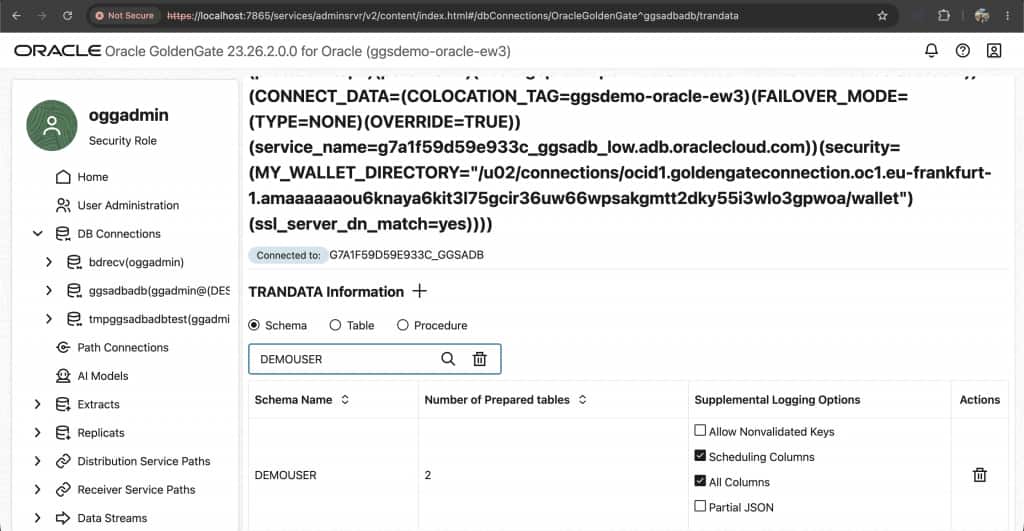
In the source GoldenGate deployment console:
- Open DB Connections.
- Select the Autonomous AI Database@Google Cloud source connection.
- Open Trandata.
- Select Add Trandata.
- Enter the schema or table name under capture scope.
- Submit and verify that TRANDATA was added.
Recommended production scope:
Schema-level capture:  <SOURCE_SCHEMA>.*;
Table-level capture:   <SOURCE_SCHEMA>.<SOURCE_TABLE>;
For production, choose the narrowest TRANDATA scope that matches the replication requirement.
- Use table-level TRANDATA for initial validation, demos, and limited-scope replication.
- Use schema-level TRANDATA only when the replication design intentionally includes the full schema.
- Confirm the capture scope with the database owner before enabling supplemental logging broadly.
- After enabling TRANDATA, verify the prepared table count before creating the Extract.
Step 4: Create the source Extract
The Extract process runs on the Oracle AI Database deployment and continuously reads committed transactions from the source Oracle Autonomous AI Database. It writes changes to a local trail file that is then consumed by the Replicat (or distributed to the Big Data deployment via a Distribution Path).
All Extract configuration is done from the GoldenGate Deployment Console. Use the login credentials provided while creating the deployment.
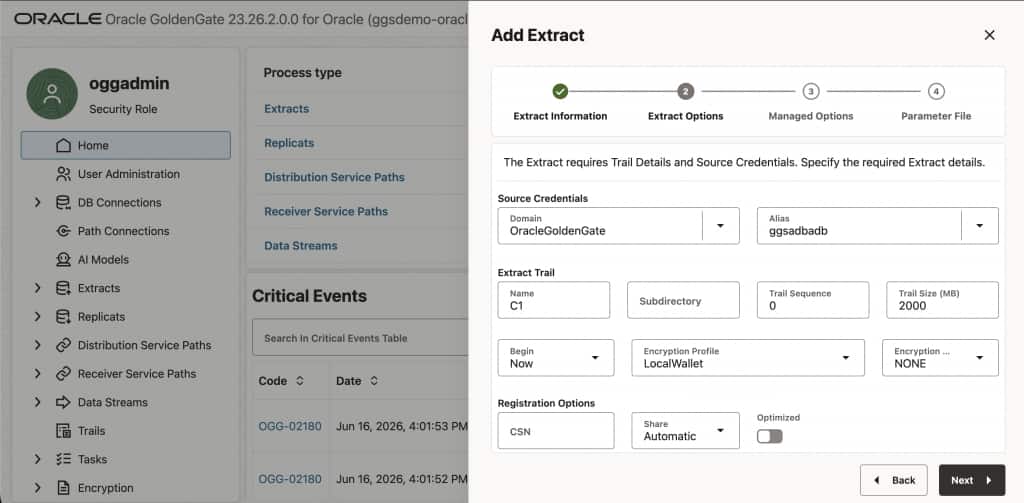
In the source GoldenGate deployment console, Add the Extract:
- Open Extracts.
- click ➕ Add Extract
- Choose Change Data Capture Integrated Extract.
- Enter a process name (for example,
EXTORA)and Description: Extract from Oracle Autonomous AI DB source. - Select the source Autonomous AI Database credentials.
- Enter a two-character trail name such as
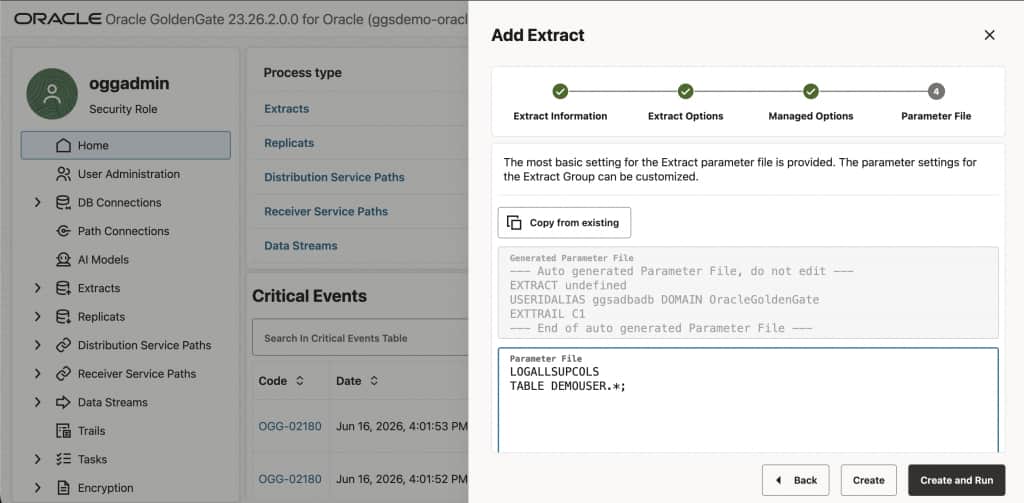
C1. - Configure the Extract parameter file.
- Create and run the Extract.
Example parameter placeholder:
LOGALLSUPCOLS
-- Table list for capture — adjust schema name as needed
-- Optional: explicitly capture specific tables
-- TABLE <schema_name>.TABLE1;
TABLE <SOURCE_SCHEMA>.*;
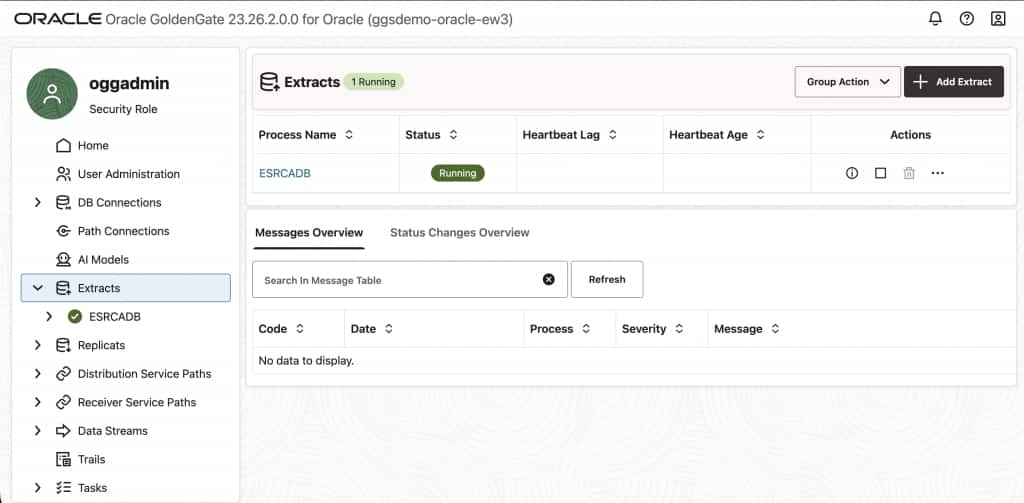
After a short initialization period, the EXTORA process status will show Running. The Extract is now continuously capturing all DML (INSERT, UPDATE, DELETE) and DDL operations from source Oracle Autonomous AI Database.
Single vs. two-deployment architecture.If your Extract (Oracle deployment) and Replicat (Big Data deployment) are on separate deployments, you need to configure a Distribution Path to move trail files from the Oracle deployment to the Big Data deployment. In the GoldenGate console, go to Distribution Service → Add Distribution Path and configure the path from trail
A1on the Oracle deployment to trailB1 on the Big Data deployment. See Add a Distribution Path.
Step 5: Create the BigQuery Replicat
The Replicat runs on the Big Data deployment and reads the trail file produced by the Extract (or received via Distribution Path). It writes change data to the GCS staging bucket and loads it into BigQuery target tables.
Launch the Big Data deployment console using the console URL for the BIGDATA deployment mentioned in Google Cloud console.
Add the Replicat
- Open Replicats.
- Click ➕ Add Replicat.
- Choose Classic Replicat or Coordinated Replicat based on your throughput and operational requirements.
- On the Replicat Information page:
Replicat Type: Classic Replicat
Process Name:REPBQ
Description: Replicat to Google BigQuery - Click Next.
- Configure Replicat options
- On the Replicat Options page:
- Trail Name:
B1 (the trail name from your Distribution Path, orA1for single-deployment) - Target: Google BigQuery
- Available Aliases: select
bigquery-target-conn - Available Staging Locations: Google Cloud Storage should already appear
- Via Staging Alias: select
gcs-staging-conn
- Trail Name:
- Add the MAP statement in Parameter section. Configure required properties, especially the GCS bucket mapping property.
- Under Managed Options, enable Critical to Deployment Health.
- Click Create and Run.
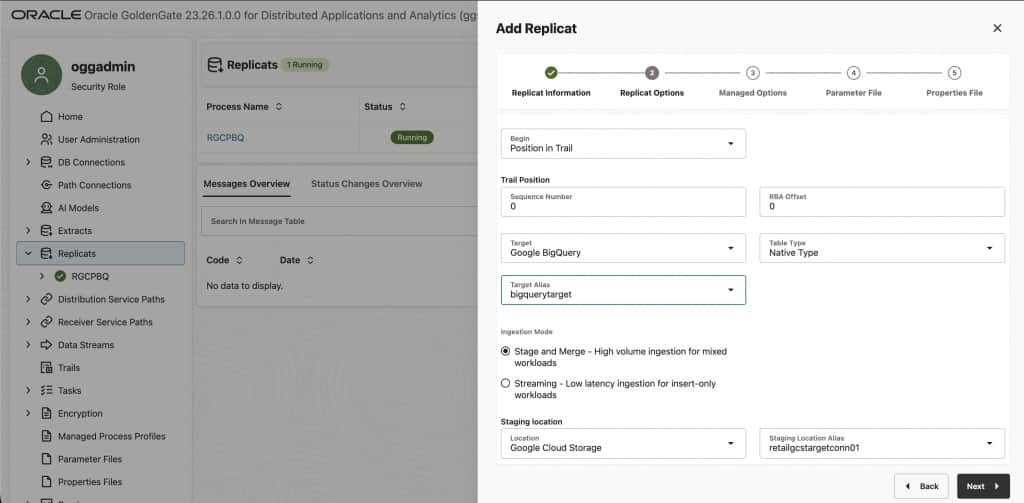
GCS bucket and BigQuery dataset must be in the same region.GoldenGate stages data in GCS before loading into BigQuery. Google Cloud Storage (GCS) bucket and dataset location: Ensure that the GCS bucket and the BigQuery dataset exist in the same location/region. See Add a Replicat for Google BigQuery.
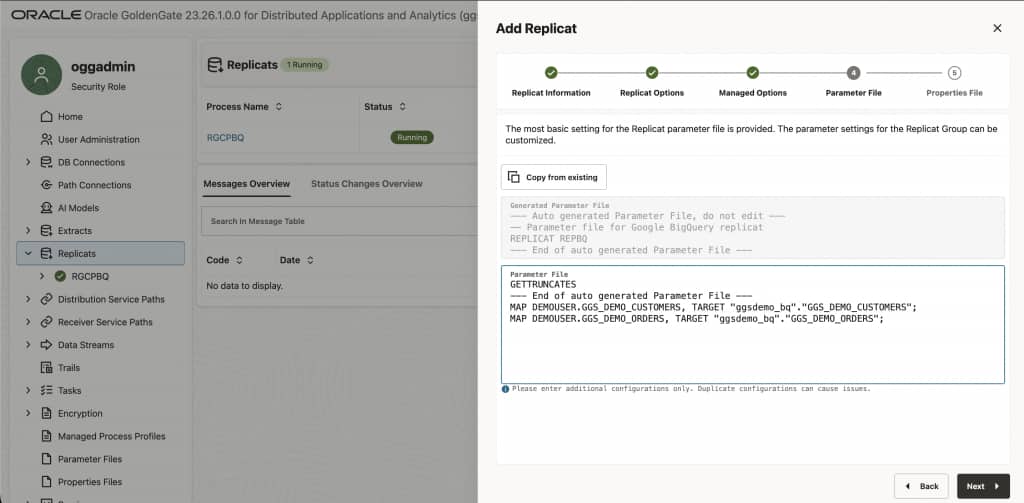
Configure the Replicat parameter file
On the Parameters page, configure the table mapping. The MAP statement maps source Oracle tables to target BigQuery tables. Adjust dataset, and schema names:
Example MAP statement:
MAP <SOURCE_SCHEMA>.*, TARGET <BIGQUERY_DATASET>.*;
For a single-table demo:
MAP <SOURCE_SCHEMA>.<SOURCE_TABLE>, TARGET <BIGQUERY_DATASET>.<TARGET_TABLE>;
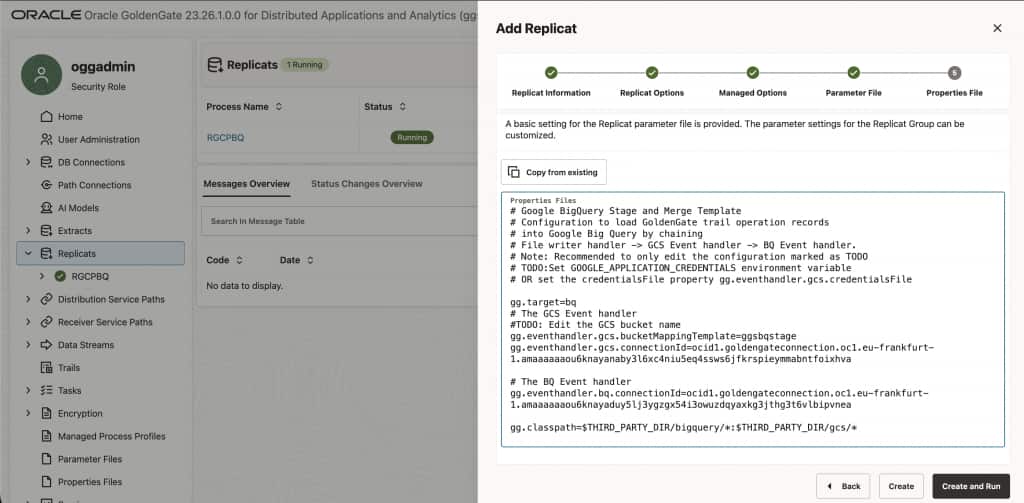
On the Properties File page, locate gg.eventhandler.gcs.bucketMappingTemplate=<gcs bucket>, and then replace <gcs bucket> with the Google Cloud Storage bucket name.
gg.eventhandler.gcs.bucketMappingTemplate=<GCS_BUCKET_NAME>
Click Create and Run. After initialization, the REPBQ Replicat will show Running and begin delivering Oracle change data into BigQuery in real time.
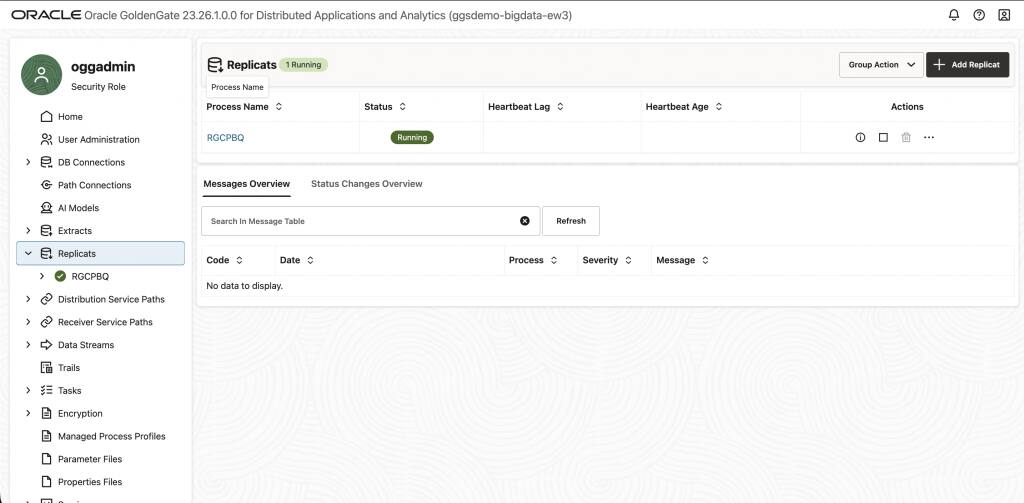
Step 6: Validate the replication flow
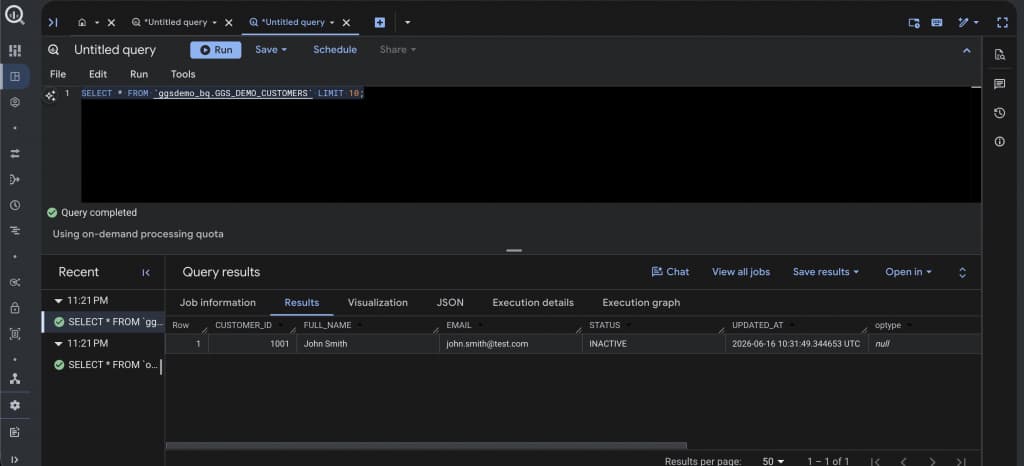
With the Extract, Distribution Path, Receiver Path, and BigQuery Replicat running, validate the pipeline with a controlled insert, update, and delete.
A successful validation means:
- The source transaction commits successfully in Autonomous AI Database.
- Extract statistics show the captured operation.
- Distribution Path and Receiver Path remain active.
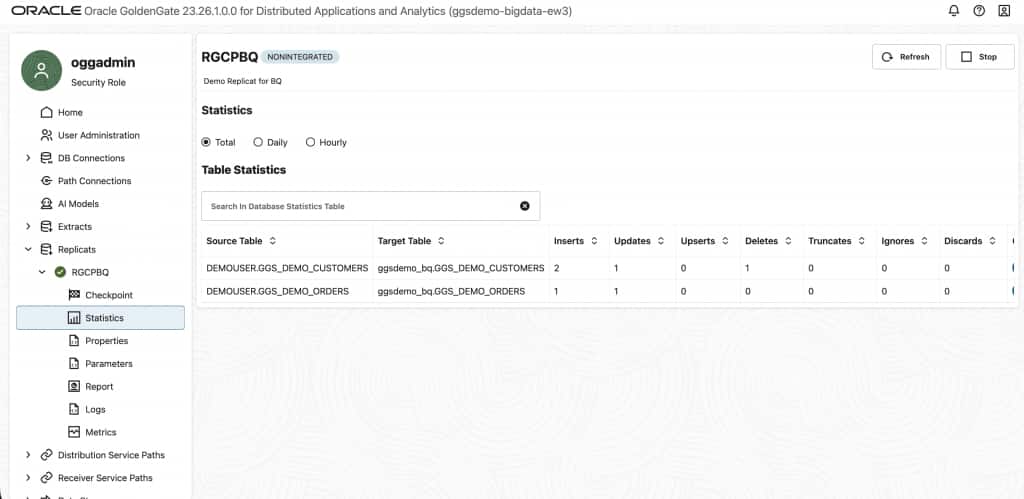
- Replicat statistics show the applied insert, update, or delete.
- The BigQuery target table reflects the expected final row state.
- GoldenGate lag remains within your expected operating threshold.
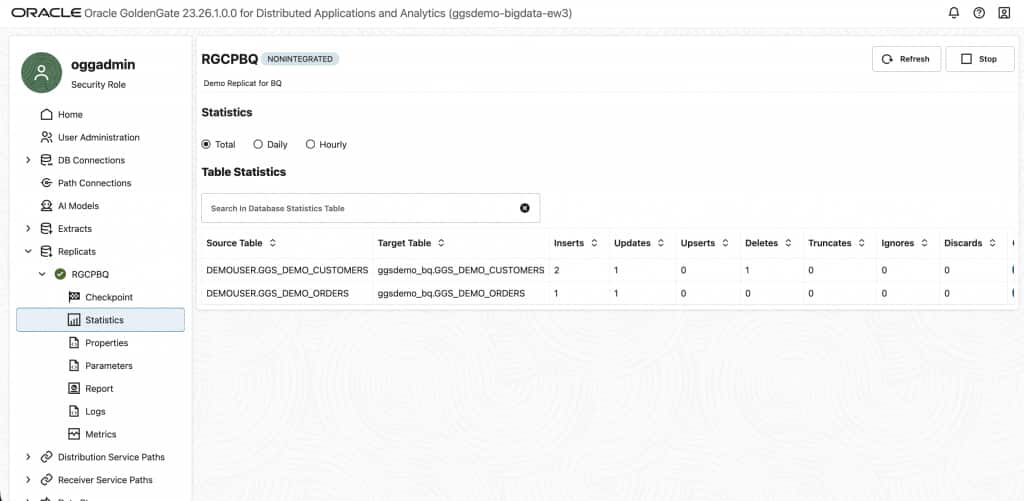
In the BigQuery console (or via bq CLI), query the BigQuery target table:
SELECT *
FROM `BQ_PROJECT_ID.BQ_DATASET.TARGET_TABLE`
ORDER BY <PRIMARY_KEY_COLUMN> DESC
LIMIT 10;
Matching counts confirm end-to-end pipeline integrity. Any lag between Extract and Replicat is visible in the Lag metric — for real-time pipelines this should be near zero under normal load.
Step 7: Monitoring and Ongoing Operations
Once the replication pipeline is running, ongoing monitoring ensures you detect and respond to any replication issues before they impact analytics workloads downstream in BigQuery.
Monitor via GoldenGate console
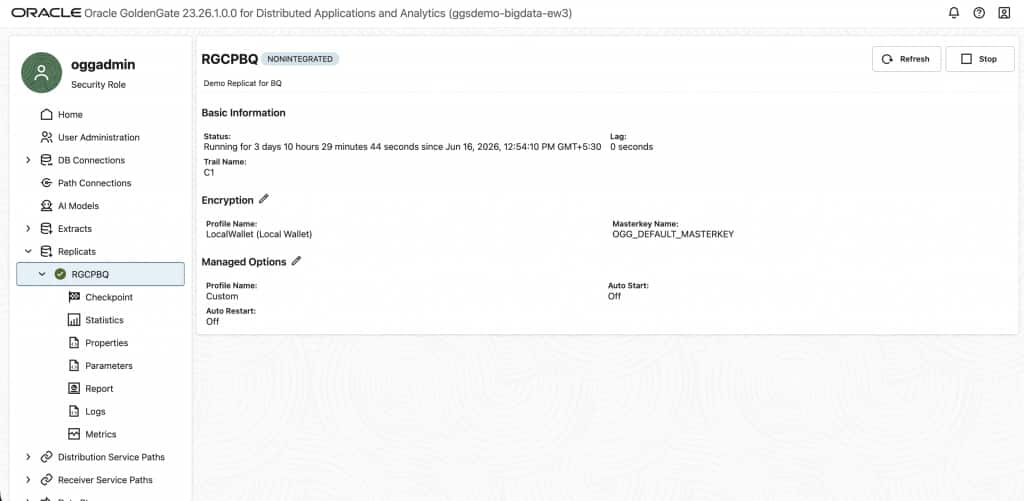
The GoldenGate console provides real-time metrics for each process. Key metrics to watch:
| Metric | Where | What to watch for |
|---|---|---|
| Process Status | Administration Service | Should always be Running. Abended = requires immediate attention |
| Lag | Extract & Replicat statistics | Near-zero under normal load. Growing lag indicates a bottleneck or error |
| Insert / Update / Delete counts | Statistics tab per process | Should match between Extract and Replicat, confirming no data loss |
| Trail size & age | Trail files list | Old, unread trails indicate a stalled Replicat |
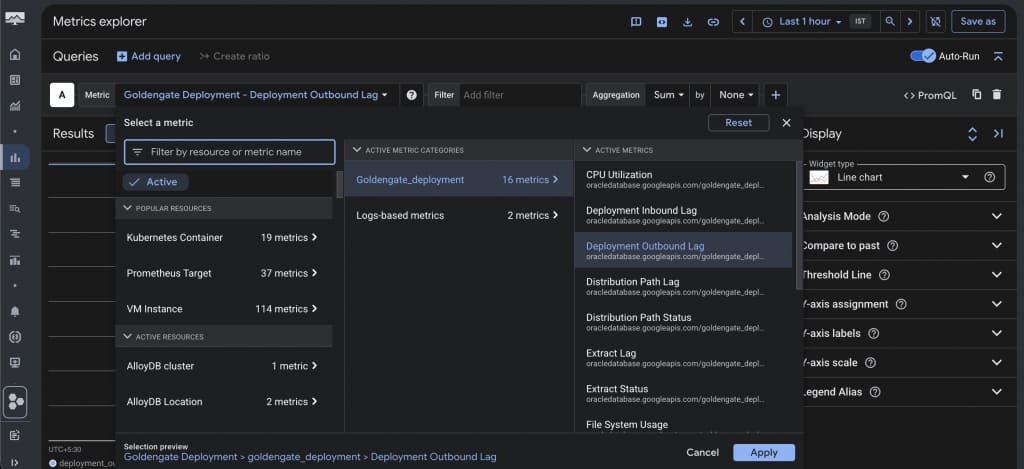
Monitor via Google Cloud Monitoring
Oracle AI Database@Google Cloud emits metrics to Google Cloud Monitoring. You can create dashboards and alerting policies based on GoldenGate deployment health metrics directly in the Google Cloud console.
Summary
In this two-part series, we configured a private GoldenGate CDC pipeline from Oracle Autonomous AI Database@Google Cloud to Google BigQuery. Part 1 established the deployment, IAM, network, and connection foundation. Part 2 configured TRANDATA, created the source Extract, moved trail data through a Distribution Path, configured the BigQuery Replicat with GCS staging, and validated the flow with source DML and BigQuery queries.
The result is a privately connected replication pattern for delivering Oracle transactional changes into BigQuery. Operators can validate the pipeline through GoldenGate process status, Extract and Replicat statistics, Distribution Path and Receiver Path health, BigQuery query results, and lag metrics.
This pattern can support analytics, AI feature stores, fraud detection, and operational reporting use cases that require fresh Oracle data in Google Cloud. For production use, validate the configuration against your workload volume, lag target, security requirements, monitoring policy, and recovery procedures.
Relevant links
For more information, see the following resources: