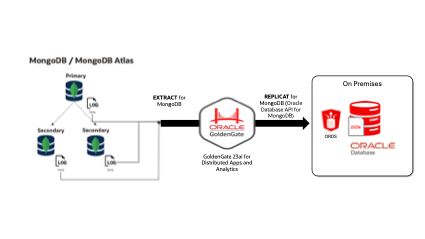
This blog could be consider the “on-premises” version of this previous blog “No Downtime Migration from MongoDB to Autonomous JSON Database” written by Deniz Sendil, a Senior Principle Product Manager in Oracle GoldenGate.
The use case is to migrate MongoDB documents to Oracle JSON Database on-premises.
What You’ll Need
Before we jump in, make sure you have the following:
- MongoDB set up as a replica set.
- Oracle GoldenGate 23ai for Distributed Applications and Analytics.
- Oracle Database 21c or higher, with Oracle REST Data Services (ORDS)
This blog offers a detailed step by step to configure:
- GoldenGate 23ai DAA to capture transactions from MongoDB.
- GoldenGate 23ai DAA to deliver transactions to Oracle DB using Oracle Database API, configured with ORDS.
The main difficulty here is that to use the Oracle Database API for MongoDB.
To setup this feature, ORDS must be configured with SSL. We provide a step-by-step guide to configuring ORDS with SSL using a self-signed certificate.
The final Oracle Database API for MongoDB URI connection, allow the GoldenGate DAA configured as a MongoDB TARGET, deliver the documents in Oracle JSON Database.
Configure OGG 23ai DAA for capture transactions in MongoDB
You should follow this documentation
This is an EXTRACT parameter file example, to capture from MongoDB replica set:
EXTRACT EMONGO
EXTTRAIL aa
SOURCEDB USERIDALIAS mongo DOMAIN OracleGoldenGate
JVMOPTIONS CLASSPATH /u01/app/product/goldengate/bigdata/ggjava/ggjava.jar:/u01/app/product/goldengate/bigdata/opt/DependencyDownloader/dependencies/mongodb_capture_4.11.0/*
NO_ABEND_ON_DDL
TRANLOGOPTIONS FETCHPARTIALJSON
TABLE "demodata"."testData";
In the properties file, the MongoDB URI replica set:
mongodb://myUserAdmin:Welcome123@localhost:27017/admin?replicaSet=rs0
Configure the Oracle Database API for MongoDB in the Oracle JSON Database 21c or higher.
We will configure a MongoDB REPLICAT, reading the trailfile from the MongoDB Capture, and deliver the transactions to a Oracle JSON Database using the Oracle Database API for MongoDB.
Prerequisites
-
ORDS configure with SSL to use the Oracle Database API. To secure ORDS, we should configure ORDS with SSL a Self-Signed Certificate
Before you start, ensure administrative access to the server where ORDS is installed, and that the OpenSSL utility is installed to create the certificates.
Create a Self-Signed SSL Certificate
Create and Navigate to a New Directory:
Make sure the directory does not already exist before creating it.
mkdir -p ~/selfsigned-certs-ok
cd ~/selfsigned-certs-ok
Generate the CA’s Private Key:
Remember the password used here, as it will be needed to sign other certificates.
openssl genrsa -aes256 -out ca-key.pem 4096
Create the CA’s Public Certificate:
This self-signed certificate acts as your Certificate Authority.
openssl req -new -x509 -sha256 -days 365 -key ca-key.pem -out ca.pem
View the CA Certificate’s Details:
openssl x509 -in ca.pem -text
Generate and Sign the Client Certificate
Generate the Client’s Private Key:
openssl genrsa -out client-key.pem 4096
Create a Certificate Signing Request (CSR):
Ensure the Common Name (CN) matches the hostname where the certificate will be used.
In my environment:
Hosts file:
127.0.0.1 localhost localhost.localdomain localhost4 localhost4.localdomain4
10.0.0.110 oraclelinux8.livelabs.oraclevcn.com oraclelinux8
openssl req -new -sha256 -subj "/CN= oraclelinux8" -key client-key.pem -out client.csr
Generate the Client Certificate Using the CA:
Ensure IP addresses and DNS names in extfile.conf match your current needs. Check for consistency in IP addresses.
Hosts file:
127.0.0.1 localhost localhost.localdomain localhost4 localhost4.localdomain4
10.0.0.110 oraclelinux8.livelabs.oraclevcn.com oraclelinux8
echo "subjectAltName=DNS:*.oraclevcn.com,DNS:oraclelinux8.livelabs.oraclevcn.com,IP:10.0.0.110" >> extfile.cnf
openssl x509 -req -sha256 -days 365 -in client.csr -CA ca.pem -CAkey ca-key.pem -out client.pem -extfile extfile.cnf -CAcreateserial
Verify the Client Certificate:
openssl verify -CAfile ca.pem -verbose client.pem
Convert the Certificate and Key to DER Format:
cat client.pem > fullchain.pem
cat ca.pem >> fullchain.pem
Configure ORDS to Use Your SSL Certificate
Convert the Certificate and Key to DER Format:
Some systems require certificates in DER format instead of PEM.
openssl pkcs8 -topk8 -inform PEM -outform DER -in client-key.pem -out client-key.der -nocrypt
openssl x509 -inform PEM -outform DER -in client.pem -out client.der
Check all *.der files generated
ls *.der
client.der client-key.der
Install ORDS in HTTPS Mode
There are a lot of steps by step blogs in Oracle.com:
https://blogs.oracle.com/database/post/installing-database-api-for-mongodb-for-any-oracle-database
Download ORDS software:
https://www.oracle.com/database/technologies/appdev/rest-data-services-downloads.html
Ensure the file paths are correct and match your ORDS configuration directory.
export JAVA_HOME=/usr/java/latest
export ORDS_HOME=/home/oracle/ords
export ORDS_CONFIG=/home/oracle/ordsconfigonprem
export PATH=${ORDS_HOME}/bin:${PATH}
export _JAVA_OPTIONS="-Xms1126M -Xmx1126M"
ords install
User: SYS AS SYSDBA

HTTPS

PORT 8443
Configure ORDS using the client Certificate and key in “der” format:
ords config set standalone.https.cert /home/oracle/selfsigned-certs-ok/client.der
ords config set standalone.https.cert.key /home/oracle/selfsigned-certs-ok/client-key.der
Enable Oracle Database Mongo API
ords config set mongo.enabled true
ords config set mongo.port 27040
Start ORDS
ords --config /home/oracle/ordsconfig serve
(From log in the ords serve start)
#Check URI
2024-05-15T23:50:20.786Z INFO The Oracle API for MongoDB connection string is:
mongodb://[{user}:{password}@]localhost:27040/{user}?authMechanism=PLAIN&authSource=$external&ssl=true&retryWrites=false&loadBalanced=true
Testing and Verification
Test the SSL Connection:
openssl s_client -showcerts -connect 10.0.0.110:27040
Test and Verify Everything is Working
Create user in bbdd Oracle for Mongo API with SODA.
sqlplus sys/xxxxxx@localhost:1521/orcl as sysdba
create user appuser identified by "Welcome#123";
grant soda_app, create session, create table, create view, create sequence, create procedure, create job, unlimited tablespace to appuser;
connect appuser/Welcome#123
exec ords.enable_schema;
Test connection without certificates
mongosh --tlsAllowInvalidCertificates 'mongodb://appuser:Welcome#123@10.0.0.110:27040/appuser?authMechanism=PLAIN&authSource=$external&tls=true&retryWrites=false&loadBalanced=true'
OUTPUT:
[orcl:oracle@oraclelinux8:~]$ mongosh –tlsAllowInvalidCertificates ‘mongodb://appuser:Welcome#123@10.0.0.110:27040/appuser?authMechanism=PLAIN&authSource=$external&tls=true&retryWrites=false&loadBalanced=true’
Current Mongosh Log ID: 66454cdb8593e216742202d7
Connecting to: mongodb://<credentials>@10.0.0.110:27040/appuser?authMechanism=PLAIN&authSource=%24external&tls=true&retryWrites=false&loadBalanced=true&serverSelectionTimeoutMS=2000&tlsAllowInvalidCertificates=true&appName=mongosh+2.2.5
Using MongoDB: 4.2.14
Using Mongosh: 2.2.5
For mongosh info see: https://docs.mongodb.com/mongodb-shell/
Warning: Found ~/.mongorc.js, but not ~/.mongoshrc.js. ~/.mongorc.js will not be loaded.
You may want to copy or rename ~/.mongorc.js to ~/.mongoshrc.js.
appuser>
(That is the Oracle Database)
Secure connection chain to Mongo API using the public CA certificate
mongosh --tls --tlsCAFile /home/oracle/selfsigned-certs-ok/ca.pem 'mongodb://appuser:Welcome#123@10.0.0.110:27040/appuser?authMechanism=PLAIN&authSource=$external&ssl=true&retryWrites=false&loadBalanced=true'
OUTPUT:
[orcl:oracle@oraclelinux8:~]$ mongosh –tls –tlsCAFile /home/oracle/selfsigned-certs-ok/ca.pem ‘mongodb://appuser:Welcome#123@10.0.0.110:27040/appuser?authMechanism=PLAIN&authSource=$external&ssl=true&retryWrites=false&loadBalanced=true’
Current Mongosh Log ID: 66454faf68dedd56752202d7
Connecting to: mongodb://<credentials>@10.0.0.110:27040/appuser?authMechanism=PLAIN&authSource=%24external&ssl=true&retryWrites=false&loadBalanced=true&tls=true&tlsCAFile=%2Fhome%2Foracle%2Fselfsigned-certs-ok%2Fca.pem&appName=mongosh+2.2.5
Using MongoDB: 4.2.14
Using Mongosh: 2.2.5
For mongosh info see: https://docs.mongodb.com/mongodb-shell/
Warning: Found ~/.mongorc.js, but not ~/.mongoshrc.js. ~/.mongorc.js will not be loaded.
You may want to copy or rename ~/.mongorc.js to ~/.mongoshrc.js.
appuser>
Configure OGG 23ai DAA to use this cert and this URI
- Certificate “ca.pem” MUST BE added to Keystore (JAVA DEPLOYMENT)
- OGG_HOME=/u01/app/product/goldengate/bigdata
cd /u01/app/product/goldengate/bigdata

./keytool -import -trustcacerts -keystore /u01/app/product/goldengate/bigdata/jdk/jre/lib/security/cacerts -storepass changeit -alias MiCA -file /home/oracle/selfsigned-certs-ok/ca.pem -noprompt
[orcl:oracle@oraclelinux8:/u01/app/product/goldengate/bigdata/jdk/bin]$ ./keytool -import -trustcacerts -keystore /u01/app/product/goldengate/bigdata/jdk/jre/lib/security/cacerts -storepass changeit -alias MiCA -file /home/oracle/selfsigned-certs-ok/ca.pem -noprompt
Picked up _JAVA_OPTIONS: -Xms1126M -Xmx1126M
Certificate was added to keystore
Config REPLICAT in OGG DAA MongoDB using Mongo API URI to Oracle DB
Follow this documentation.
For this blog, we will use these parameter files in OGG:
MONGOAPI.prm
REPLICAT MONGOAPI
MAP *.*, TARGET appuser.*;
MONGOAPI.props
# Properties file for Replicat MONGOAPI
# MongoDB Handler Template

gg.handlerlist=mongodb
gg.handler.mongodb.type=mongodb

gg.handler.mongodb.clientURI=mongodb://appuser:Welcome#123@10.0.0.110:27040/appuser?authMechanism=PLAIN&authSource=$external&ssl=true&retryWrites=false&loadBalanced=true&tlsCAFile=/home/oracle/selfsigned-certs-ok/ca.pem&tlsCertificateKeyFile=/home/oracle/selfsigned-certs-ok/fullchain.pem

gg.classpath=/u01/app/product/goldengate/bigdata/opt/DependencyDownloader/dependencies/mongodb_4.11.0/*

jvm.bootoptions=-Xmx512m -Xms32m
gg.log=log4j
gg.log.level=info
This is the clientURI you should use to connect to the Oracle JSON Database in OGG DAA 23ai configuration for MongoDB Replicat using Oracle Database MongoDB API:
gg.handler.mongodb.clientURI=mongodb://appuser:Welcome#123@10.0.0.110:27040/appuser?authMechanism=PLAIN&authSource=$external&ssl=true&retryWrites=false&loadBalanced=true&tlsCAFile=/home/oracle/selfsigned-certs-ok/ca.pem&tlsCertificateKeyFile=/home/oracle/selfsigned-certs-ok/fullchain.pem
Wrapping Up
That’s it! You’ve now set up Oracle GoldenGate 23ai to replicate data from MongoDB to OracleDB, complete with SSL security. This process ensures that your data is transferred safely and efficiently. If you ran into any issues or have questions, feel free to reach out, and I’ll be happy to help.