
We recently announced the availability of the On-Demand VM Snapshot feature for Oracle Exadata Database Service on Exascale Infrastructure. This feature enables customers to create instant, point-in-time snapshots of the VM file system, making it easier to diagnose issues, compare configurations, and recover critical files.
Use Cases
VM snapshots enable point-in-time visibility into your VM’s configuration state. The following section highlights its key use cases.
Use Case 1: Diagnose Configuration Changes
Identify differences between current VM configuration and a known-good state:
- Take a snapshot when the system is stable
- Mount the snapshot alongside the current VM
- Compare key configuration files (e.g.,
/etc, listener configs, DB parameters, custom scripts) - Identify what changed and caused the issue
Use Case 2: Safely Test Configuration Changes
Validate configuration updates with the ability to recover previous settings if needed:
- Create a snapshot before making changes
- Apply updates or modifications
- If issues occur, mount the snapshot
- Compare configurations and restore the original files
Use Case 3: Maintain a Baseline Configuration
Track configuration changes over time by comparing against a stable baseline:
- Capture a snapshot of a stable VM setup as the baseline
- Use it as a reference point as the configuration of the VM evolves
- Mount and compare against the current state to identify changes
How VM Snapshots Work On Exascale
Oracle Exadata Database Service on Exascale Infrastructure is built on Exascale storage technology. It delivers multitenant database consolidation and instant, space-efficient clones for AI, mission-critical OLTP, analytics, and developer workloads in the cloud.
For VM file system storage, Exadata Database Service on Exascale Infrastructure uses RDMA-enabled Block Volumes (Exascale Volumes) that replace traditional local storage, providing VMs with shared, high-performance storage. VM snapshots leverage this Exascale storage foundation to provide instant, space-efficient configuration restore points.
Let’s explore what gets captured in a snapshot, how the Exascale foundation enables it, and the redirect-on-write technique that makes it instant.
What a VM Snapshot Captures
A VM snapshot is a read-only, point-in-time image of the VM file system. It captures the VM’s system and configuration state including the operating system, Oracle Database Home software binaries, and configuration files.
The snapshot is thinly provisioned, meaning it doesn’t create a full copy of your data. Instead, it shares storage blocks with the VM, consuming space only as data changes over time.
What’s included: VM configuration and system files
What’s not included: Database data files (CDB or PDB)
VM snapshots are an operational tool for managing VM configuration state.
The Exascale Storage Foundation
As mentioned earlier, Exadata Database Service on Exascale Infrastructure VMs use Exascale Volumes that are RDMA-enabled block devices delivered over EDV (Exascale Direct Volume). RDMA (Remote Direct Memory Access) enables VMs to access the shared Exascale storage with extremely low latency and high throughput. This bypasses traditional network overhead, giving you the performance of local storage with the flexibility of shared infrastructure.
Because VM storage resides on the shared Exascale infrastructure rather than scattered across individual server disks, the storage system can create point-in-time snapshots of all the VM volumes simultaneously without data movement or performance impact.
How Snapshots Are Created
When you create a VM snapshot, Exascale uses a redirect-on-write technique as shown below:
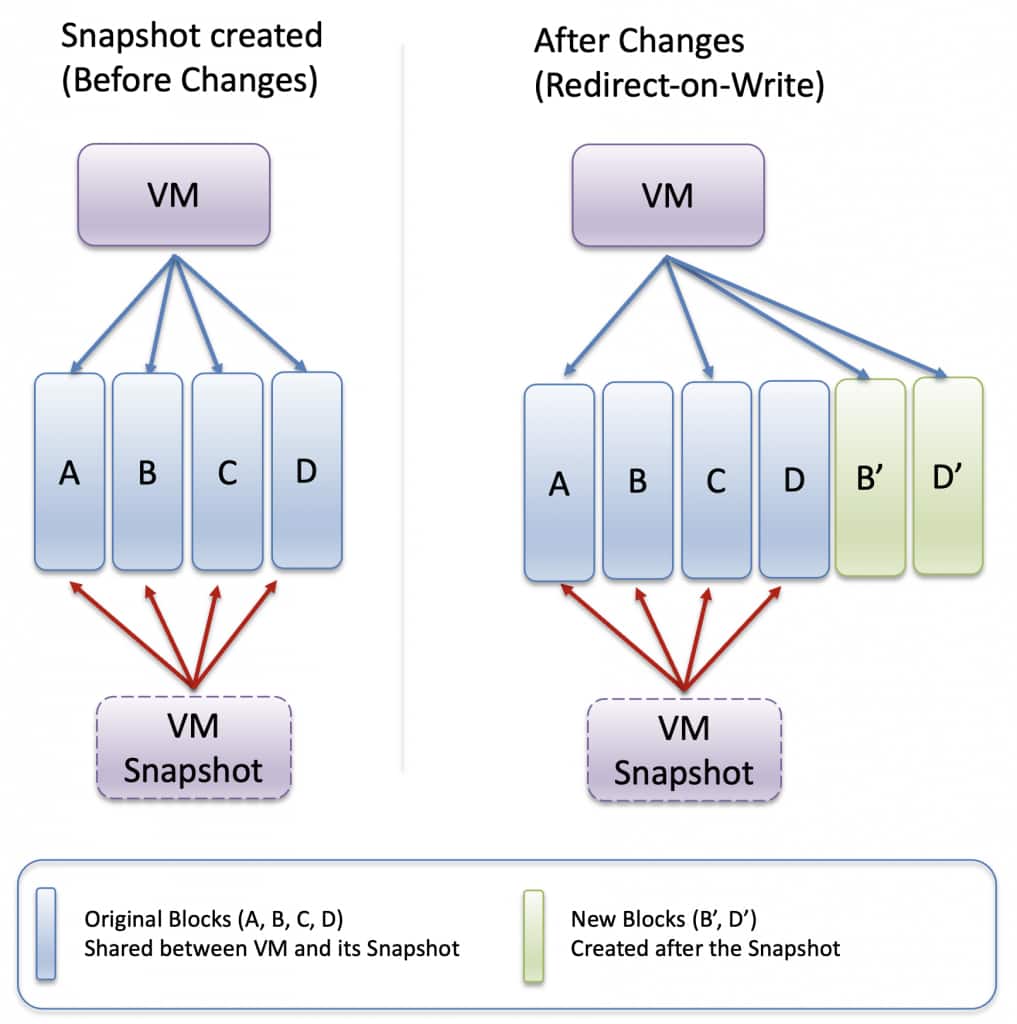
At snapshot time, Exascale preserves metadata pointers (references that track where data is stored) to current data blocks, which become shared between your live VM and the snapshot. No data is copied.
After the snapshot is created, any new writes to the live VM are redirected to new storage locations. The original blocks remain unchanged and continue to be referenced by the snapshot.
This design provides two key advantages:
Instant creation: Snapshots are virtually instantaneous because there’s no data movement. You can snapshot a VM right before a risky change without extending your maintenance window.
Space efficiency: Only new writes consume additional storage. The snapshot uses minimal space since it shares blocks with the live VM.
How to Start Using VM Snapshots
With ExaDB-XS, you can start incorporating VM snapshots into your normal operations. Here’s a practical approach to get started:
Step 1: Choose Your First Use Case
Identify a VM cluster on ExaDB-XS service where you have an upcoming change such as applying database home upgrades, modifying listener configurations, or updating security settings.
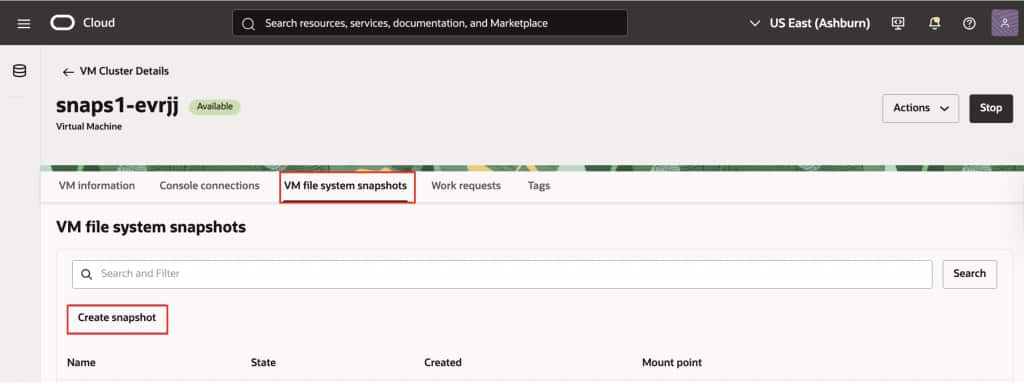
Step 2: Take a VM Snapshot
Before making any change, capture the current VM file system state. In the OCI Cloud console (shown below), navigate to your ExaDB-XS VM Cluster detail page and create a snapshot. You can provide a meaningful name for your snapshot (for example, “baseline20260406”) to easily identify it later. You can also use the OCI API for automation.
Step 3: Mount the Snapshot and Explore
After completing your change, mount the VM snapshot to explore what’s captured.
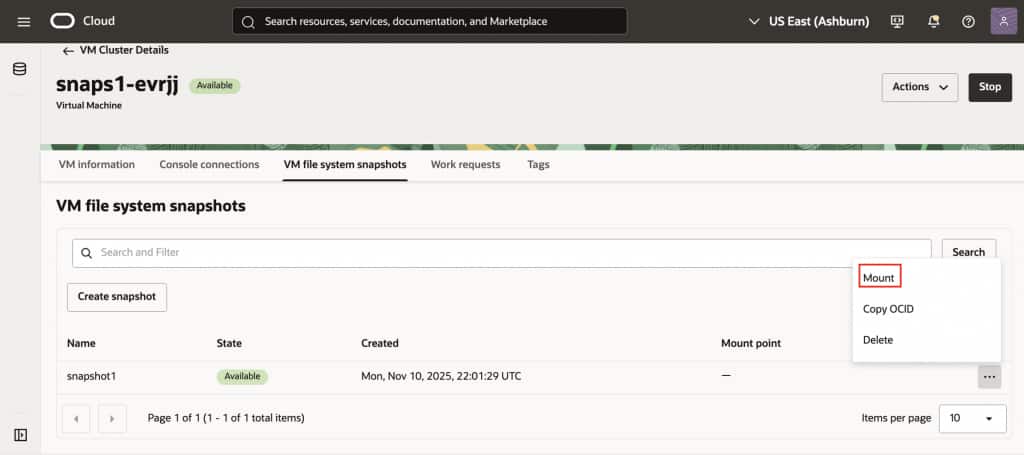
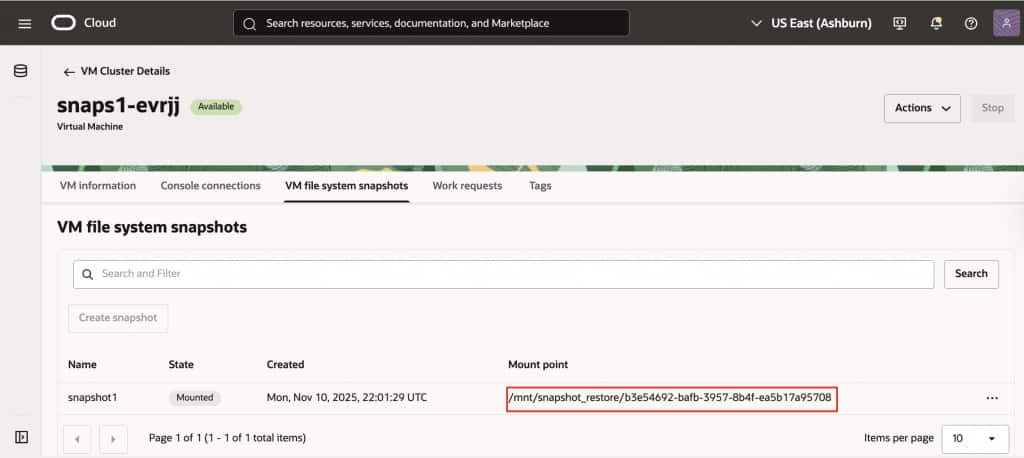
When you mount a snapshot on the VM, the mount point will be displayed on the console, allowing you to access the historical file system containing your boot volume, Oracle home binaries, and configuration files.
Step 4: Use the Snapshot for Configuration Reference or File Recovery
Refer or recover a specific configuration parameter/file from the snapshot:
- Copy back a configuration file (e.g., listener.ora, tnsnames.ora
) - Extract a specific line from a file (e.g., an NFS mount point from /etc/fstab, a firewall rule from your security configuration)
- Compare parameter files between snapshot and current state
Document these steps in your runbook so your team knows exactly how to access and recover configuration files from snapshots when needed.
Conclusion
On-Demand VM Snapshots give you an instant, Exascale-powered “point-in-time reference” for your VM configuration state. They address a real operational gap: the ability to look back at how your VM was configured at specific points in time. Whether you’re diagnosing what changed in your configuration, experimenting with changes without fear, or preserving your perfect setup over time, VM snapshots provide fast, space-efficient configuration restore points that let you move forward with confidence when managing the systems that run your most important databases.
Additional resources