
Introduction
There are two blogs in this series:
- Part 1 covered install and configuration of the Vector Index Service on the Private AI Services Container
- Part 2 covers configuration of the Vector Index Service on Oracle AI Database 23.26.2
This blog (Part 2) is about using a GPU to offload the creation of vector indexes on Oracle AI Database 26ai. Creating vector indexes is resource intensive and time-consuming using CPUs, so this task can be offloaded to a GPU on a remote machine freeing up CPU resources for Oracle AI Database 26ai. As a bonus, it can be significantly faster to create vector indexes on a GPU.
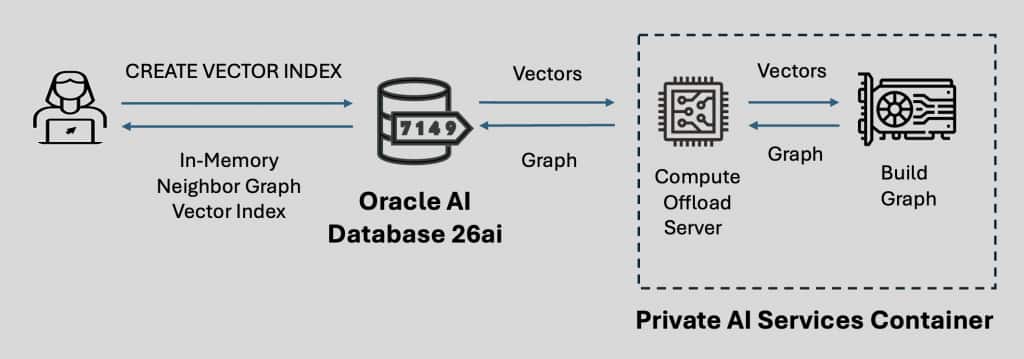
The Private AI Services Container is designed to run in a customer’s data center, but it can also run in public clouds using Linux x86-64 containers.
Contents
This blog covers the following areas
- Using the Oracle AI Database 26ai Free on OCI
- Create VM for Oracle AI Database 26ai Free
- Resize the boot volume
- Install and Configure Oracle AI Database Free 23.26.2
- Configure Oracle AI Database for the Vector Index Service
- Create a table and load vectors
- Create a Vector Index without the Vector Index Service
- Create a Vector Index with the Vector Index Service
Prerequisites
In the examples in this blog, I used two virtual machines on Oracle Cloud Infrastructure (OCI):
- A VM for Oracle AI Database 23.26.2.0.0.0
- A GPU VM for the Private AI Services Container gpu-index-26.1.0.0.0
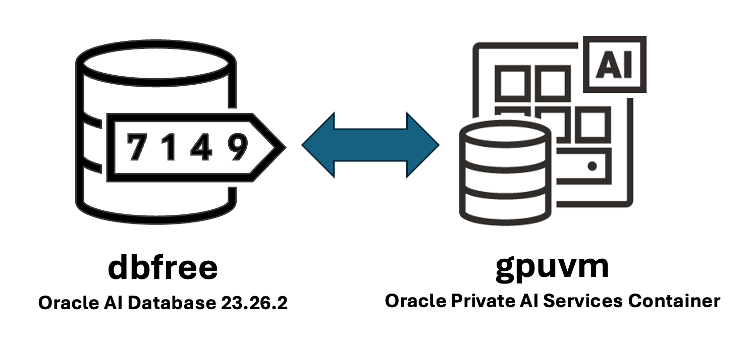
The database VM will have hostname dbfree, and the GPU VM will have hostname gpuvm.
Both VMs have their boot volume extended to 100 GB to avoid any disk space issues. Although you can run the Private AI Services Container on the same machine as the Oracle AI Database, the whole point of resource offload is to run it on a separate machine to reduce the CPU utilization on the Oracle AI Database, and as a bonus create the vector index faster.
The Enterprise Edition of Oracle AI Database 26ai 23.26.2 and high-end GPUs could have been used, but to minimize cost for getting started, I used Oracle AI Database 26ai Free for the database VM, and the smallest supported OCI GPU VM (VM.GPU.A10.1) for the Private AI Services Container. Both the GPU VM and Database VM use Oracle Linux 9.7, although Oracle Linux 8.10 could have been used.
The detailed prerequisites for installing the Oracle Private AI Services Container are provided in the official documentation.
Using the Oracle AI Database 26ai Free on OCI
Now that the Vector Index Service is up and running in the Private AI Services Container, it is time to work on the database side of things.
Create a VM for Oracle AI Database 26ai Free
The Vector Index Service works with both the Enterprise Edition and Free versions of Oracle AI Database 23.26.2. To minimize cost while learning the Vector Index Service, use Oracle AI Database 26ai Free.
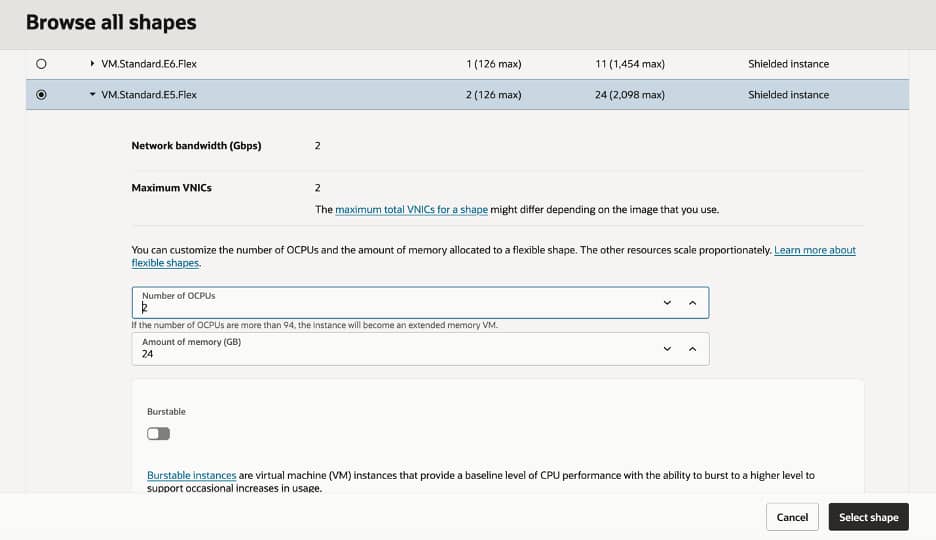
Use a two OCPU VM using the VM.Standard.E5.Flex compute shape called dbfree which has 24 GB of RAM with Oracle Linux 9.
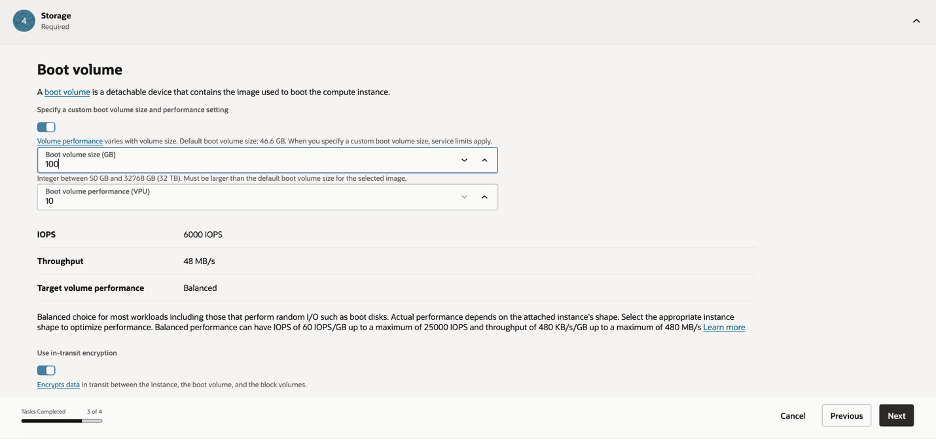
Use a custom boot volume size of 100 GB to avoid running out of disk space.
Resize the boot volume
Once you ssh into the dbfree virtual machine, grow the boot volume storage to its full size.
sudo /usr/libexec/oci-growfs -y
df -h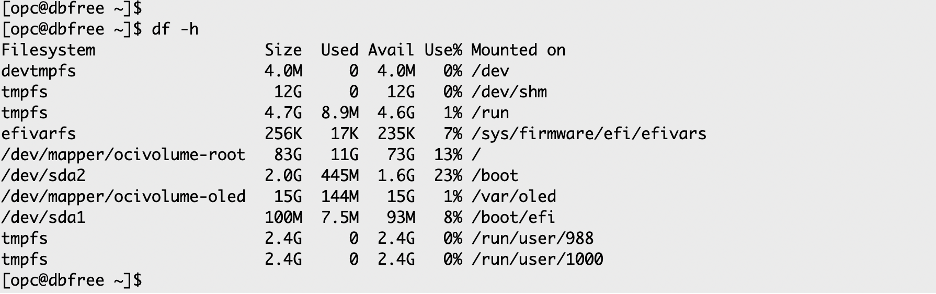
This leaves about 73 GB of usable disk space on the / mount point.
Install and Configure Oracle AI Database 26ai Free
You can use the RPM install method to install Oracle AI Database Free version 23.26.2.
The RPM install method does not require an X-Windows user interface, so is convenient for headless cloud installs.
Configure Oracle AI Database for the Vector Index Service
You need to set the vector pool in the SGA for the HNSW indexes and bounce the database.
sqlplus / as sysdbaALTER SYSTEM SET vector_memory_size = 1024M SCOPE=SPFILE;
shutdown
startup
show parameter vector_memory_size;
alter pluggable database all open;
exit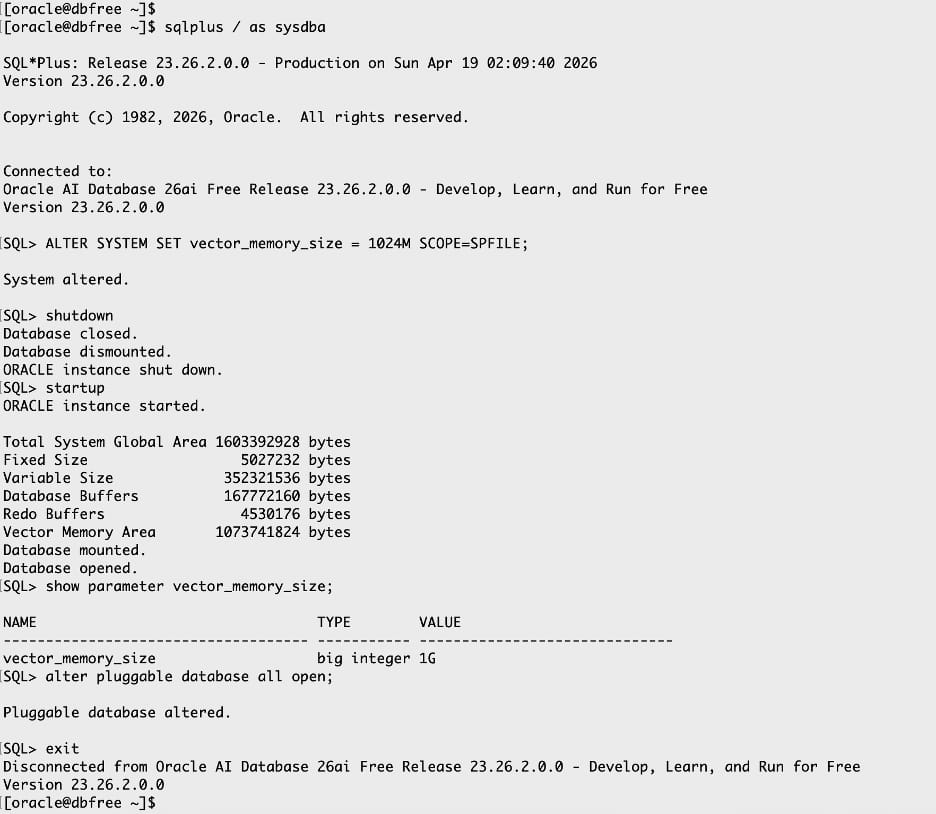
This leaves only 1 GB for the rest of the SGA and PGA for Oracle AI Database Free, but I wanted to have a sufficiently sized vector pool to allow millions of vectors for the HNSW vector index.
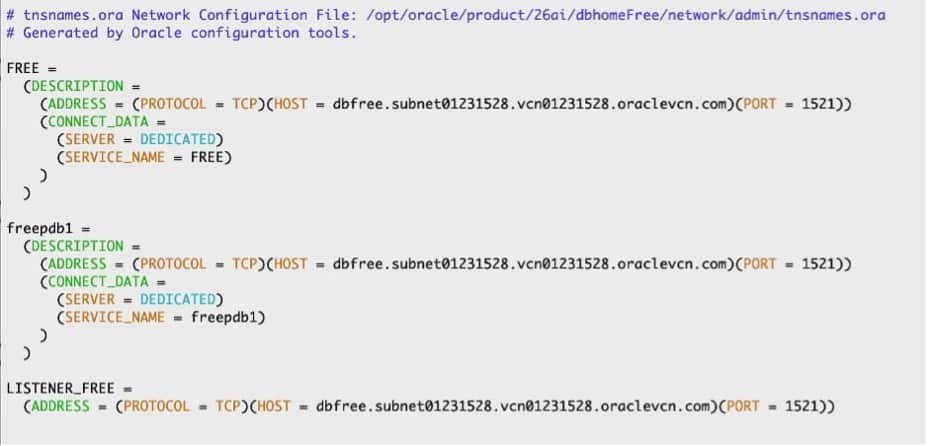
Update tnsnames.ora
Update your tnsnames.ora to have a service name (freepdb1) for the PDB.
cd $TNS_ADMIN
vi tnsnames.ora
cd
Create DB user and Grant Privileges
sqlplus sys@freepdb1 as sysdbacreate user vector identified by <MY_VECTOR_PASSWORD> default tablespace users quota unlimited on users;
grant DB_DEVELOPER_ROLE to vector;
exitCreate a table and PLSQL package to create Vectors
Create the example genvec table and PLSQL package in the AI Vector Search User’s Guide.
Use the Copy button to create the genvec table from the documentation.
sqlplus vector/<MY_VECTOR_PASSWORD>@freepdb1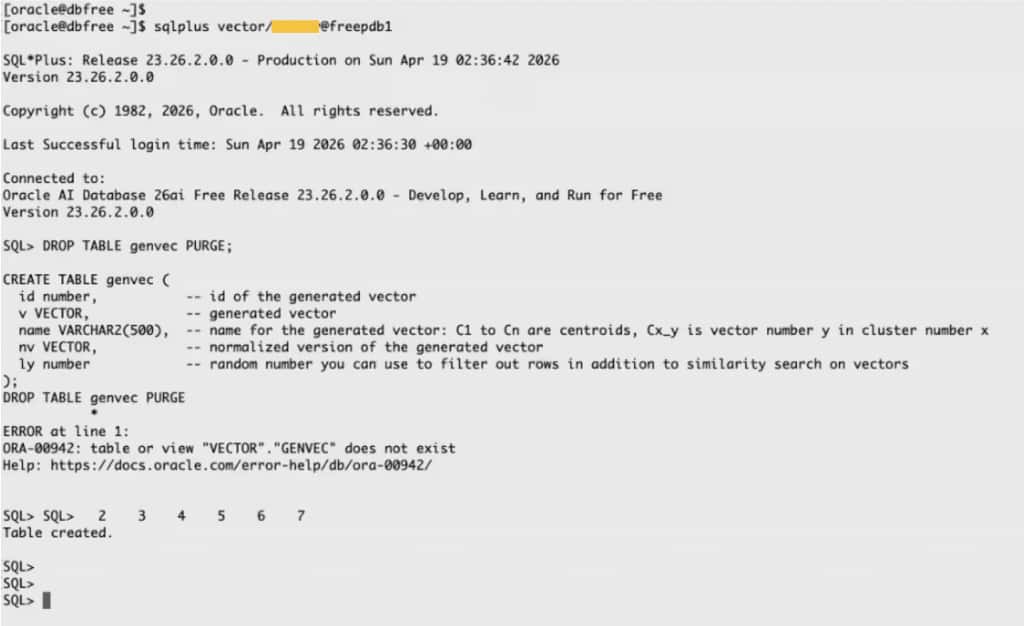
Use the Copy button to create the vector_gen_pkg PLSQL package specification.
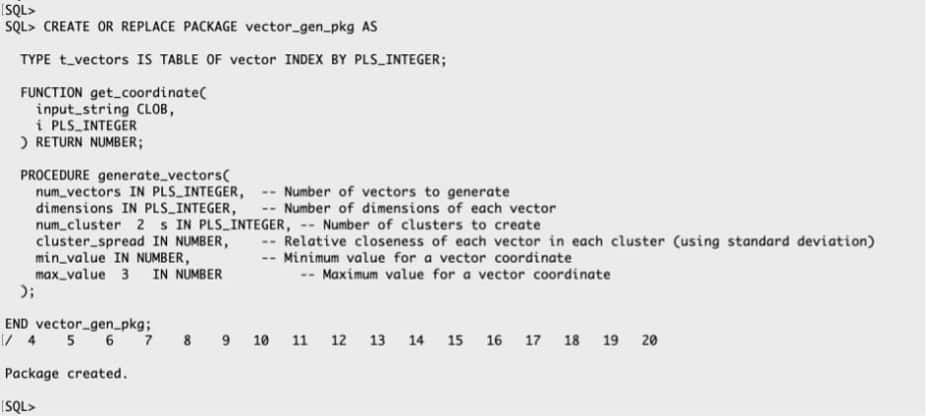
Use the Copy button to create the vect_gen_pkg PLSQL package body.
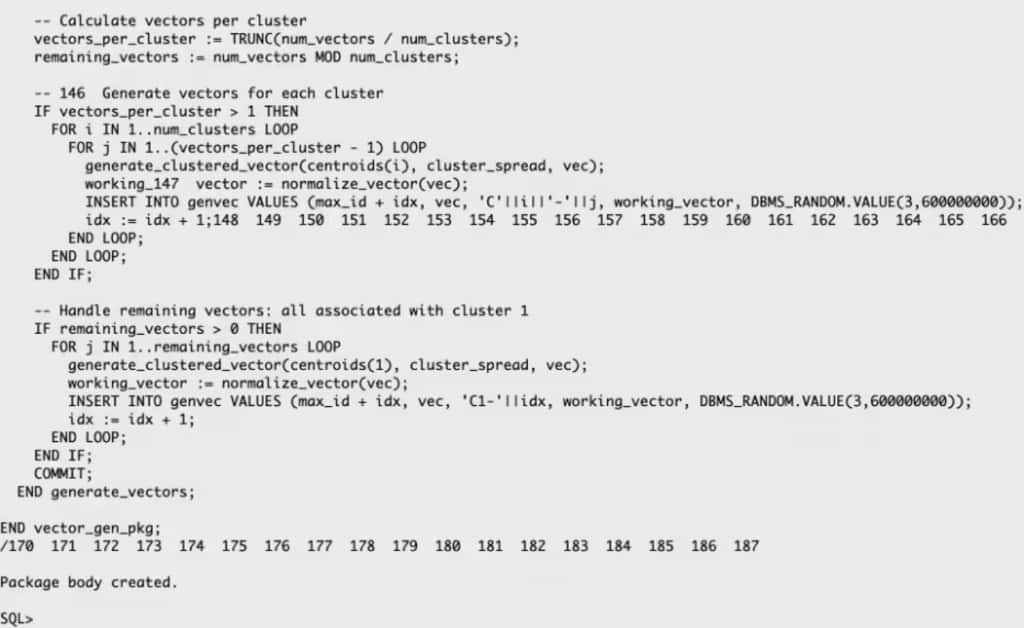
Create a PLSQL script called genv.sql
The following scripts allows you to generate 3.2 million vectors for testing the Vector Index Service. Using more than 3.2 million vectors will not fit in the vector pool for Oracle AI Database 26ai Free as it has a limit of 2 GB for the combined SGA and PGA. Use the Enterprise Edition of Oracle AI Database 23.26.2 for large HNSW vector indexes.
vi genv.sqlset timing on;
BEGIN
vector_gen_pkg.generate_vectors(
num_vectors => 1600000,
dimensions => 2,
num_clusters => 6,
cluster_spread => 1,
min_value => 0,
max_value => 100
);
END;
/
exitUse two ssh windows to create 3.2M vectors in parallel
Oracle AI Database 26ai Free only allows two foreground processes, so using more than two concurrent sessions will not reduce the time taken to create the 3.2 million vectors. Using these two database session to create 1.6M vectors each will take about 5 minutes, so grab a coffee and relax while the vectors are loaded into the database.
In one ssh window, as user vector, create 1.6 million vectors:
sqlplus vector/<MY_VECTOR_PASSWORD>@freepdb1@genv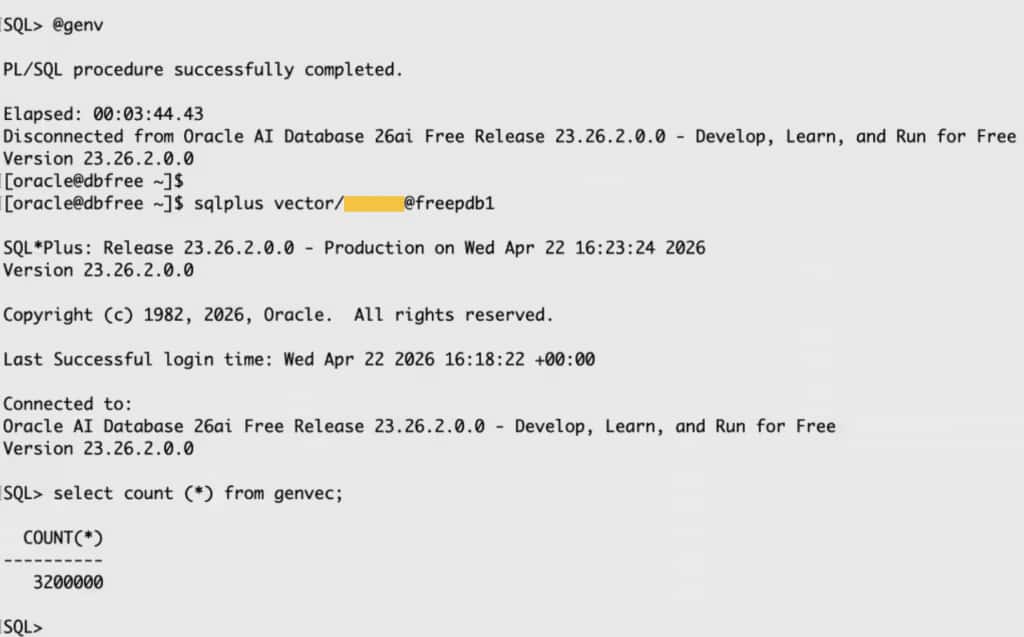
In the other ssh window, also run the same genv script as user vector to load the second 1.6 million vectors. Once both session have loaded 1.6 million vectors, you will have 3.2 million vectors in the genvec table.
Create an HNSW index without the Vector Index Service
As a baseline, create an HNSW index without GPU acceleration.
vi idx.sqlset timing on;
drop index my_hnsw_idx;
CREATE VECTOR INDEX my_hnsw_idx ON genvec(v)
ORGANIZATION INMEMORY NEIGHBOR GRAPH
PARAMETERS (
TYPE HNSW,
NEIGHBORS 32,
EFCONSTRUCTION 200
);
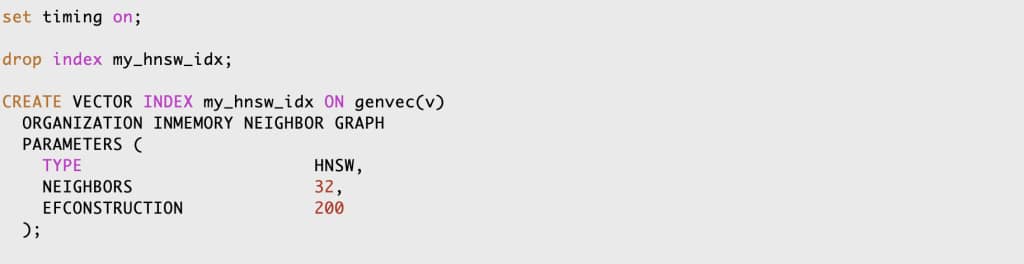
sqlplus vector@freepdb1@idx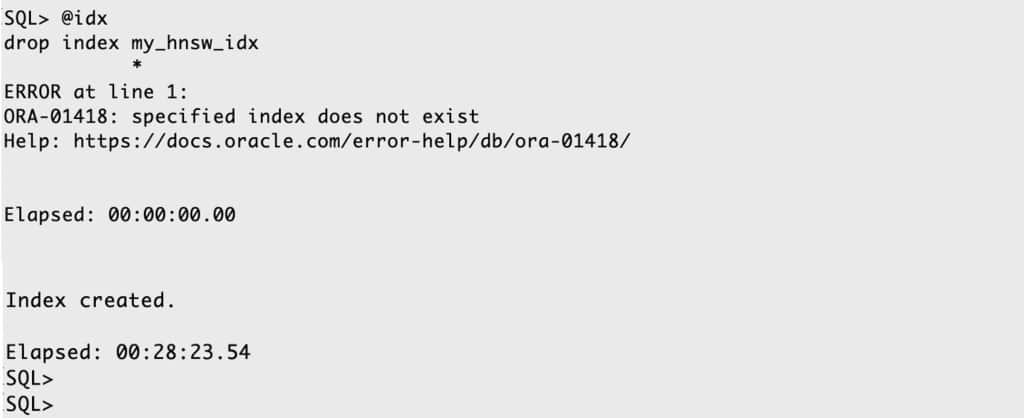
The time to create the HNSW index without the GPU can be anywhere from 24 to 40 minutes using the dbfree VM shape on OCI. This huge time variance tends to be because of virtual machine noisy neighbors.
Copy the certificate to the gpuvm
Copy the certificate from gpuvm to the /home/oracle directory on VM dbfree
You can use scp or sftp to copy the file from the gpuvm VM to the dbfree VM.
Note, the certificate is automatically created during installation of the Private AI Servics Container and the contents of the cert.pem file will be similar, but not the same as that on my machine.
Create Wallet and add Certificate
Oracle AI Database 26ai needs to use a wallet to use SSL (TLS 1.3) when communicating with the Vector Index Service of the Private AI Services Container. The following creates a wallet and adds the digital certificate to it.
mkdir -p /home/oracle/wallets

orapki wallet create -wallet /home/oracle/wallets/cwallet.sso -pwd <MY_WALLET_PASSOWRD> -auto_login

orapki wallet add -wallet /home/oracle/wallets/cwallet.sso -trusted_cert -cert /home/oracle/cert.pem -pwd <MY_WALLET_PASSOWRD>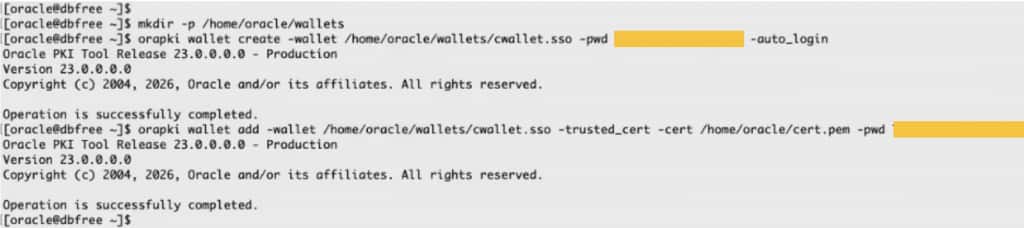
As the CDB SYS user, define the Wallet location
sqlplus / as sysdbaALTER DATABASE PROPERTY SET ssl_wallet='file:/home/oracle/wallets/cwallet.sso';
exitDetermine the Database Credential Value
On gpuvm, determine the value of the Private AI Services Container’s API KEY. This API KEY is needed to Authenticate requests.
Retrieve your API key value from the container’s secret store. This is the contents of the $SECRETS_DIR/api-key file.
Grant the Relevant Database Privileges
On the dbfree VM, as the PDB SYS user:
sqlplus sys@freepdb1 as sysdbagrant create credential to vector;
grant execute on dbms_network_acl_admin to vector;
exit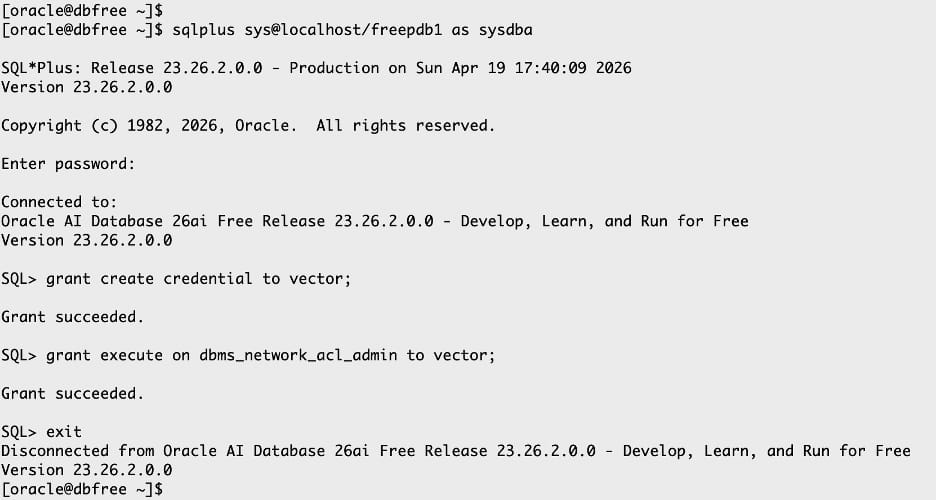
Set the Database Credential for the API KEY
As the PDB vector user, use the value of the api-key from the Private AI Services Container:
Create a file called setkey.sql
vi setkey.sqlReplace the value of the access_token with the value from the api-key file on gpuvm. Note, your api-key value will be different than the one that I used as it is generated when the Private AI Services Container is installed.
DECLARE
  jo json_object_t := json_object_t();

BEGIN
  jo.put('access_token', '<ACCESS_TOKEN>');

  dbms_vector.create_credential(
    credential_name => 'MYCREDENTIALNAME',
    params => json(jo.to_string));

END;
/
exit
sqlplus vector@freepdb1@setkey
Define the allowed outbound network endpoints
Get the Private AI Services Container’s hostname
hostname -f
Create a file called net.sql and update the value of the host, principal_name (DB user) and wallet_path as needed. Your host (hostname) will be different than mine as your VCN name will be different.
vi net.sqlBEGIN
dbms_network_acl_admin.append_host_ace (
host => '<GPUVM_FQDN>',
ace => xs$ace_type(
privilege_list => xs$name_list('http', 'http_proxy', 'resolve'),
principal_name => 'VECTOR',
principal_type => xs_acl.ptype_db));
dbms_network_acl_admin.append_wallet_ace(
wallet_path => 'file:/home/oracle/wallets/cwallet.sso',
ace => xs$ace_type(
principal_name => 'VECTOR',
principal_type => xs_acl.ptype_db,
privilege_list => xs$name_list('use_client_certificates', 'use_passwords')));
END;
/
exitsqlplus vector@freepdb1@net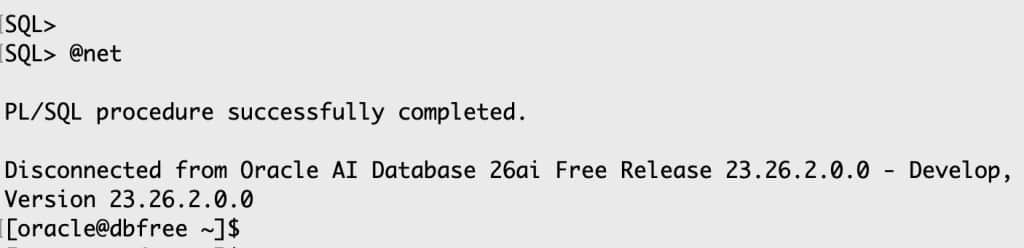
Verify Network Access to the Private AI Services Container
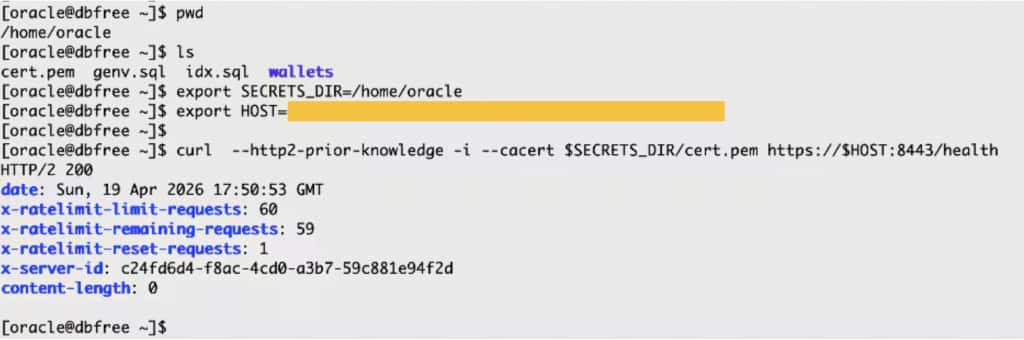
Use the curl utility to verify that the Private AI Services Container is reachable from the dbfree VM. So on the dbfree VM, do the following:
export SECRETS_DIR=/home/oracle
export HOST=<GPUVM_FQDN>
curl --http2-prior-knowledge -i --cacert $SECRETS_DIR/cert.pem \ https://$HOST:8443/healthIf curl does not work, then network calls from Oracle AI Database 26ai will also not work.
Sanity Checks for the Vector Index Service
Make sure of the following before attempting to use the Vector Index Service of the Private AI Services Container:
- The Private AI Services Container is running
- The SSL port (8443) is open on the Private AI Services Container
- The OCI network security list allows TCP access to the SSL port (8443)
- The Private AI Services Container is responding to /health requests
- The hostname of the Private AI Services Container is correct
- The URL of the Private AI Services Container is correct
- The API KEY value is correct
- The contents of the cert.pem file are correct
- The wallet directory is created in the correct place
- The wallet directory is set in the CDB
- The certificate was added to the wallet
- The database user (eg vector) has the relevant privileges in the PDB
- The database user (eg vector) is used to create vector indexes with the Vector Index Service
Use the Vector Index Service
Create a script to create an HNSW vector index using the Vector Index Service.
vi idxgpu.sqlset timing on;
drop index my_hnsw_idx;
CREATE VECTOR INDEX my_hnsw_idx ON genvec(v)
ORGANIZATION INMEMORY NEIGHBOR GRAPH
PARAMETERS (
TYPE HNSW,
NEIGHBORS 32,
EFCONSTRUCTION 200,
OFFLOAD_CREDENTIAL_NAME MYCREDENTIALNAME,
OFFLOAD_URL 'https://<GPUVM_FQDN>:8443/v1/index'
);Now use the idxgpu.sql script to create an HNSW index with GPU offload.
sqlplus vector@freepdb1@idxgpu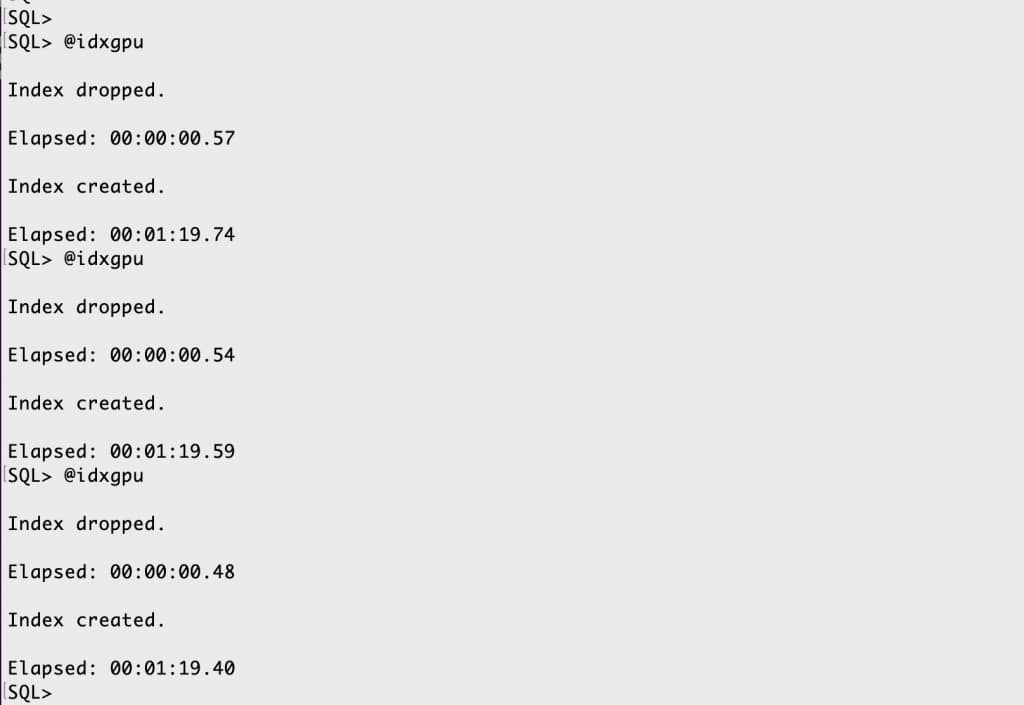
In this test environment:
- Creating the HNSW vector index took between 76 to 138 seconds with the Vector Index Service
- Creating the HNSW vector index took between 24 to 40 minutes without the Vector Index Service
- Using the Vector Index Service was faster in this example
- These results were from a single test environment; results may vary by hardware, configuration, workload, and data size