
Introduction
This blog series is about using a GPU to offload the creation of vector indexes on Oracle AI Database 26ai. Creating vector indexes is resource intensive and time-consuming using CPUs, so this task can be offloaded to a GPU on a remote machine freeing up CPU resources for Oracle AI Database 26ai. As a bonus, it can be significantly faster to create vector indexes on a GPU.
There are two blogs in this series:
- Part 1 will cover install and configuration of the Private AI Services Container
- Part 2 will cover configuration of the Vector Index Service on Oracle AI Database 23.26.2
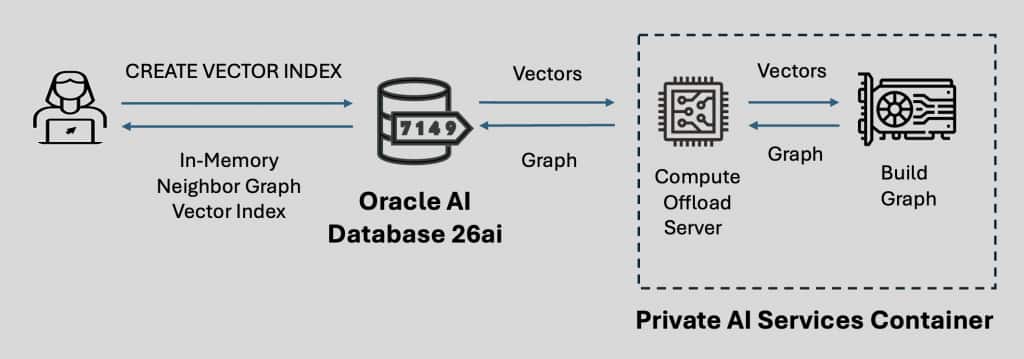
The existing HNSW Vector Indexes on Oracle AI Database 26ai are already highly optimized using SIMD techniques, so any GPU offload needs to include the time taken to send the vectors to the container and return the resulting graph. The speedup due to the Vector Index Service depends on many factors which are covered in Part 3 of this blog.
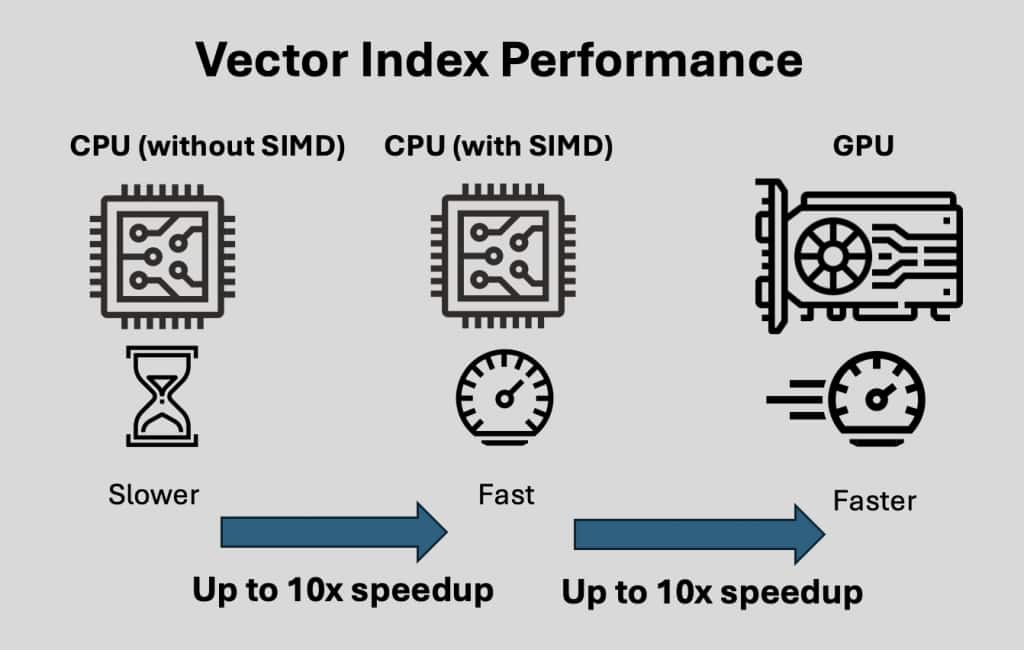
The Vector Index Service of the Private AI Services Container requires an NVIDIA GPU with capability 7.5 or later. This means that you can use a range of GPUs, from low end gaming GPUs like a GeForce RTX 3060, up to data center grade GPUs like an NVIDIA Blackwell.
The Private AI Services Container is designed to run in a customer’s data center, but it can also run in public clouds using Linux x86-64 containers.
Contents
This blog covers the following areas
- Prerequisites
- GPU Preparation on OCI
- Create GPU VM
- Resize the boot volume
- Check nvidia-smi utility
- Install NVIDIA Container Toolkit
- Confirm CDI devices
- Using Podman on OCI
- Install Podman
- Check available container images
- Using the Private AI Services Container on OCI
- Install the Private AI Services Container
- Configure the Private AI Services Container
Prerequisites
In the examples in this blog, I used two virtual machines on Oracle Cloud Infrastructure (OCI):
- A VM for Oracle AI Database 23.26.2.0.0.0
- A GPU VM for the Private AI Services Container gpu-index-26.1.0.0.0
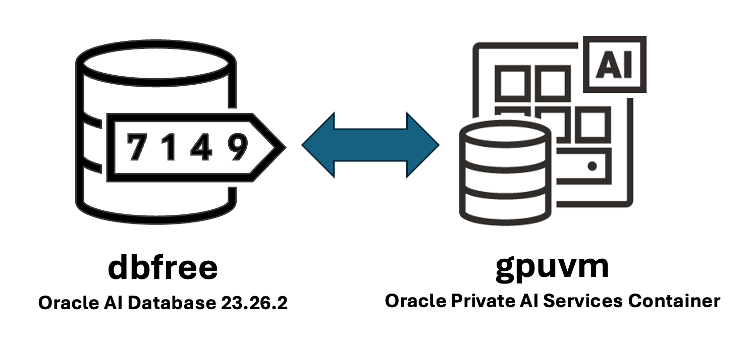
The database VM will have hostname dbfree, and the GPU VM will have hostname gpuvm.
Both VMs have their boot volume extended to 100 GB to avoid any disk space issues. Although you can run the Private AI Services Container on the same machine as the Oracle AI Database, the whole point of resource offload is to run it on a separate machine. When the GPU powered container is run on a separate machine, you get the following benefits:
- Faster vector index creation
- Potentially lower similarity search latency as you have offloaded the vector index creation
- Reduced CPU utilization as you have offloaded the vector index creation
The Enterprise Edition of Oracle AI Database 26ai 23.26.2 and high-end NVIDIA GPUs could have been used, but to minimize cost for getting started, I used Oracle AI Database 26ai Free for the database VM, and the smallest supported OCI GPU VM (VM.GPU.A10.1) for the Private AI Services Container. Both the GPU VM and Database VM use Oracle Linux 9.7, although Oracle Linux 8.10 could have been used.
The detailed prerequisites for installing the Oracle Private AI Services Container are provided in the official documentation.
GPU Preparation on OCI
Create GPU VM
You need to create a VM on OCI for the GPU. When creating a VM compute instance, use the Specialty and previous generation option.
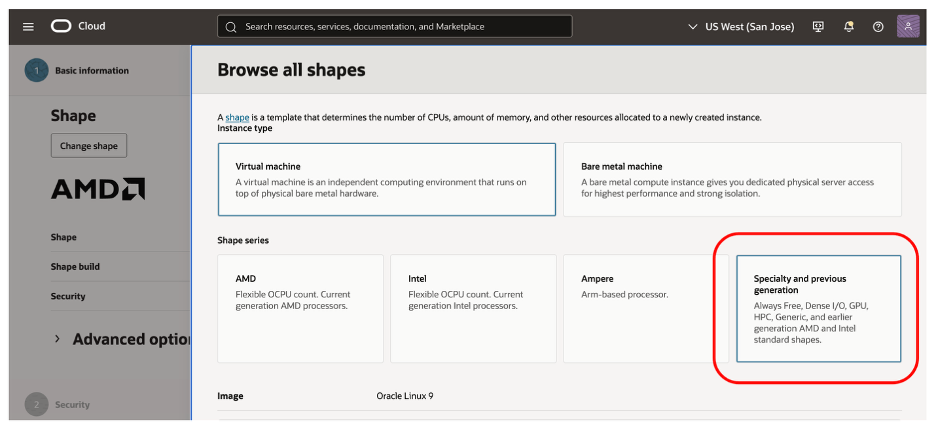
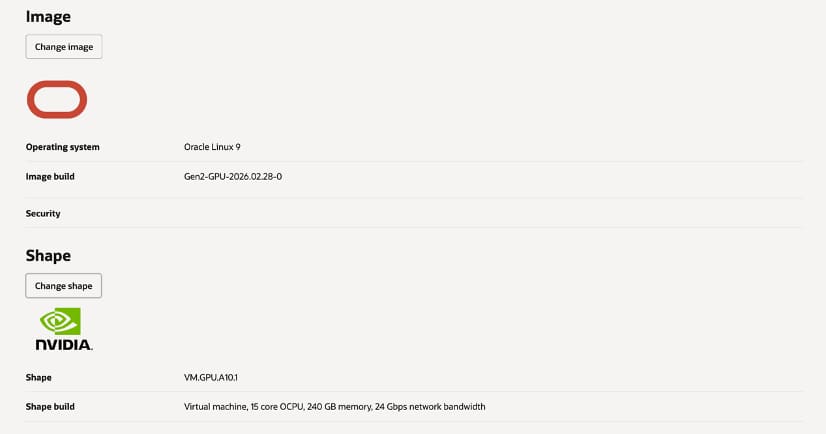
Choose the VM.GPU.A10.1 option. This is a single A10 GPU with 24 GB VRAM and 240 GB of CPU memory. The VM.GPU2.x and VM.GPU3.x compute shapes are for NVIDIA P100 and V100 GPUs which are too old to work with the Private AI Services Container. The OCI Bare Metal GPU shapes (BM.GPU*) are significantly faster than the A10 GPU, but they also cost more per hour.
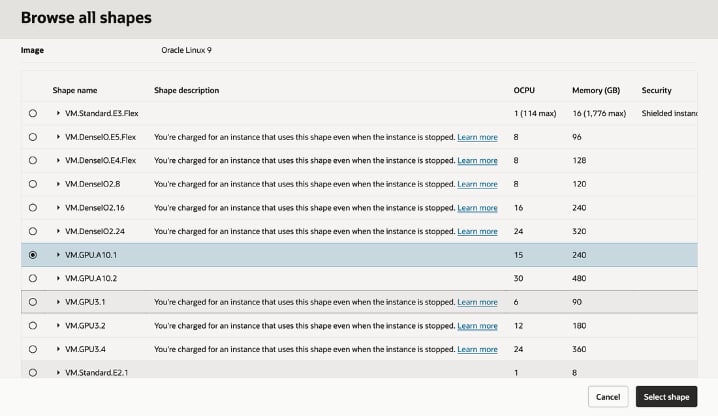
Choosing the VM.GPU.A10.1 compute shape automatically updated the default Oracle Linux 9 operating system to a GPU image with the NVIDIA drivers pre-installed. Having the correct NVIDIA Linux drivers for the GPU pre-installed can save you a lot of time if you are not familiar with the process .
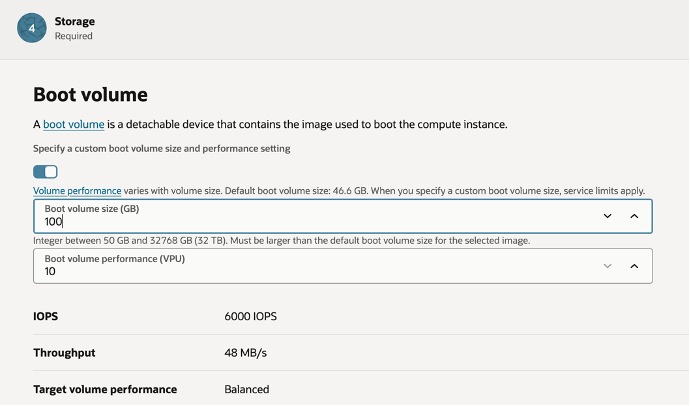
Choose a custom boot volume size of 100GB, to avoid any issues with running out of disk space. The disk does not need to be fast as the Vector Embedding Service is all about GPU and CPU processing in VRAM and memory in the container.
Resize the boot volume
Once the gpuvm has been created, ssh into it and grow the boot volume to enable the full allocated disk space.
sudo /usr/libexec/oci-growfs -y
df -h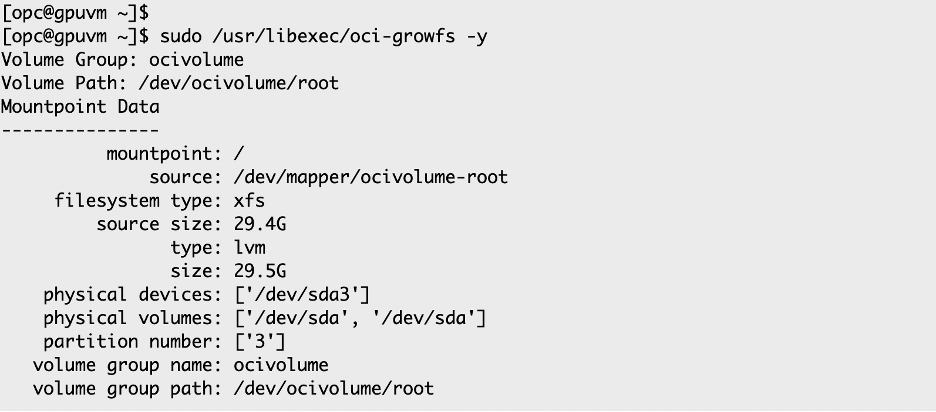
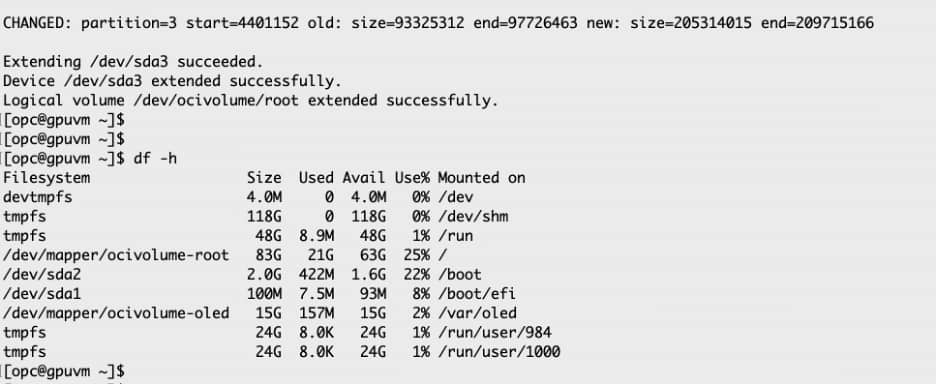
You now have about 63 GB of usable disk space on the / mount point.
Check nvidia-smi utility
If the NVIDIA drivers are correctly installed, then running the nvidia-smi utility will give you output based on your installed GPUs. For example:
nvidia-smi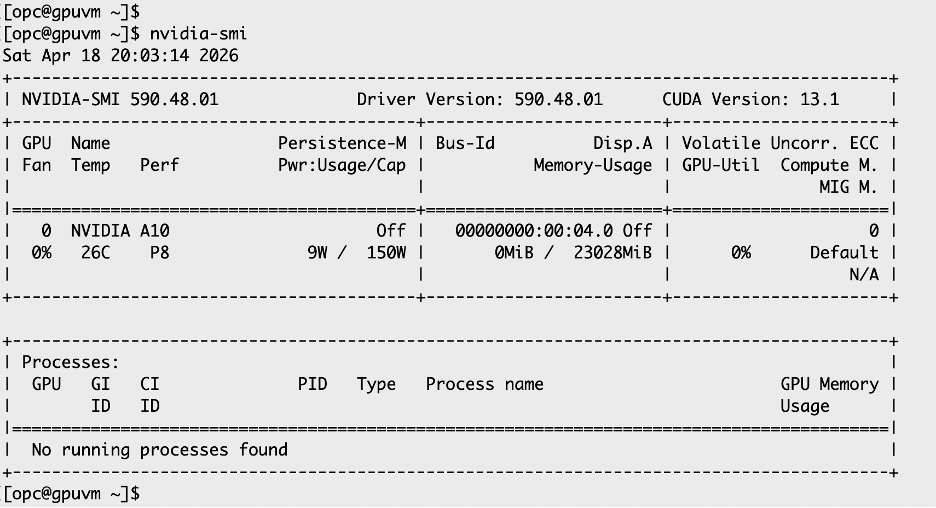
In this example, the 590.48.01 release of the NVIDIA drivers are installed which supports CUDA 13.1. A single A10 GPU is available and is not currently being used.
If you do not get meaningful output from the nvidia-smi utility, then the NVIDIA drivers are either not installed, or not install correctly. Having working NVIDIA drivers is required for the Vector Index Service of the Private AI Services Container to work.
Install NVIDIA Container Toolkit
The NVIDIA Container Toolkit is required for the container runtime to be able to communicate with the GPU. The following instructions from the NVIDIA Container Toolkit install the nvidia-ctk utility on Oracle Linux 8, 9 or 10.
curl -s -L https://nvidia.github.io/libnvidia-container/stable/rpm/nvidia-container-toolkit.repo | \
  sudo tee /etc/yum.repos.d/nvidia-container-toolkit.repo
export NVIDIA_CONTAINER_TOOLKIT_VERSION=1.19.0-1
sudo dnf install -y \
nvidia-container-toolkit-${NVIDIA_CONTAINER_TOOLKIT_VERSION} \
nvidia-container-toolkit-base-${NVIDIA_CONTAINER_TOOLKIT_VERSION} \
libnvidia-container-tools-${NVIDIA_CONTAINER_TOOLKIT_VERSION} \
libnvidia-container1-${NVIDIA_CONTAINER_TOOLKIT_VERSION}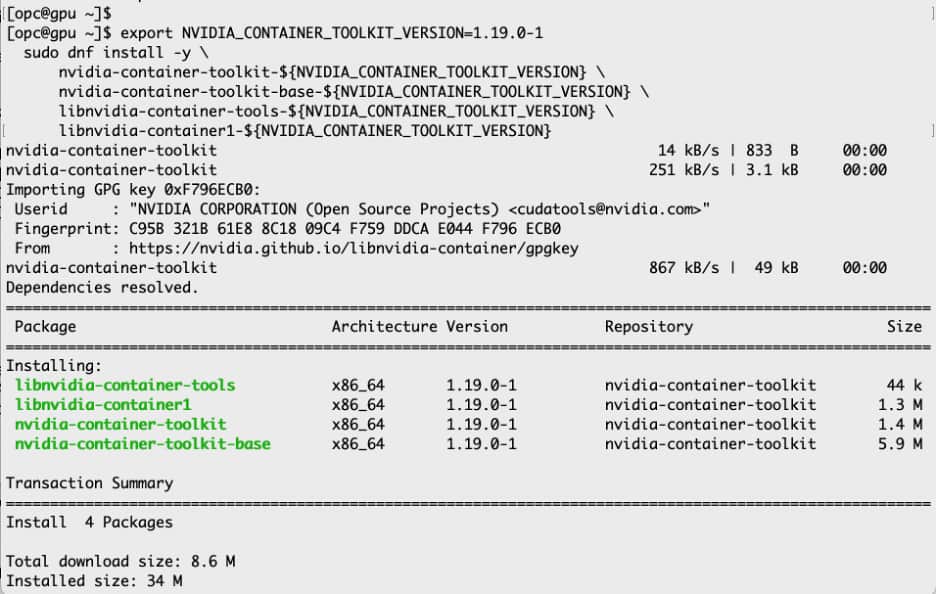
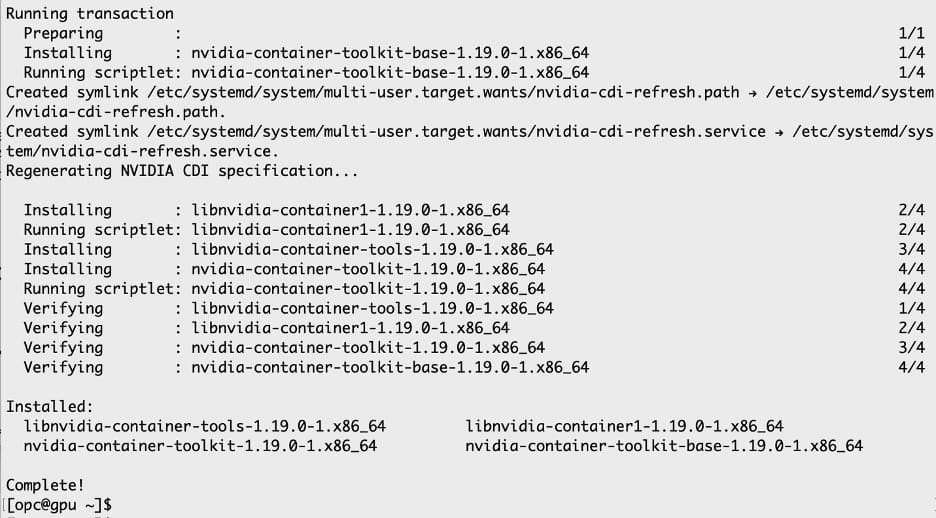
This will install the latest version (currently 1.19) of the nvidia-ctk utility.
Do the following to verify that the container tool is correctly installed
nvidia-ctk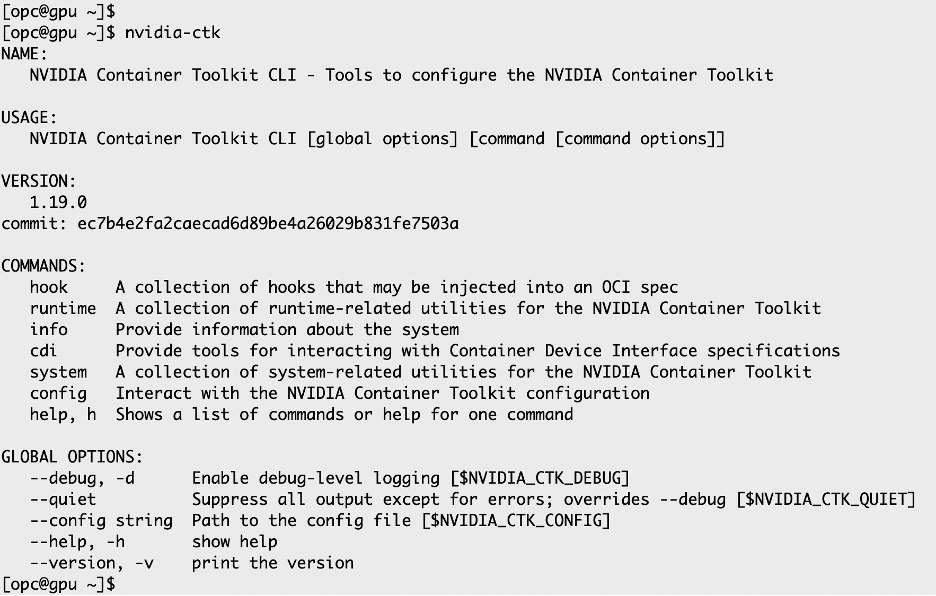
Confirm CDI devices
The nvidia-ctk utility supports the Container Device Interface (CDI). The CDI allows container runtimes to interact with 3rd party devices (eg GPUs). The CDI enables a list of the available GPUs to be provided. Use the following command to list the available GPU using the nvidia-ctk utility:
nvidia-ctk --debug cdi list
There needs to be at least one valid NVIDIA GPU in the output for the Vector Index Service of the Private AI Services Container to work.
When there are multiple GPUs listed, you can choose which GPU to use via the –gpu parameter to the containerSetup.sh script.
Using Podman on OCI
Install Podman
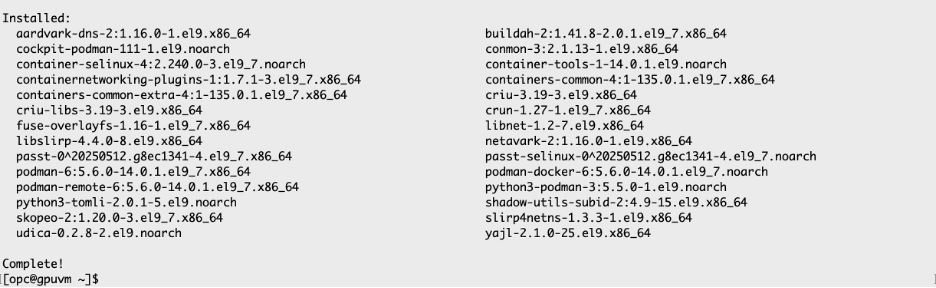
The Vector Index Service of the Private AI Services Container uses Podman as a container runtime. You need to install the podman utility on Oracle Linux 8, 9 or 10 as it is not installed by default.
sudo dnf install -y container-tools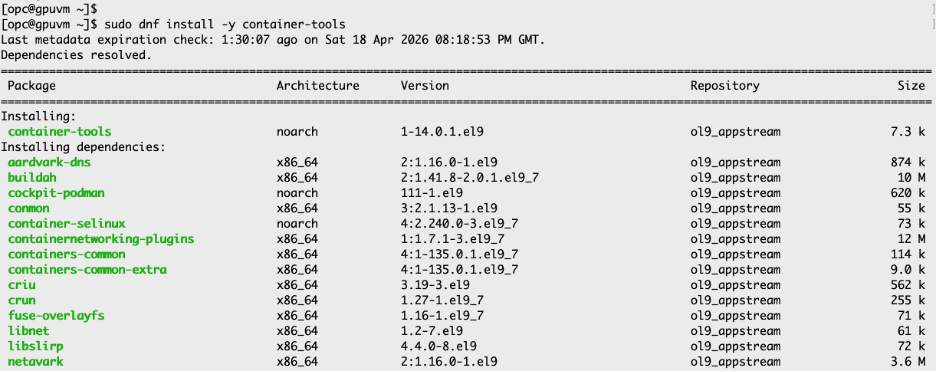
Check Container Images
Now verify that Podman is installed correctly and whether any images are loaded:
podman version
podman images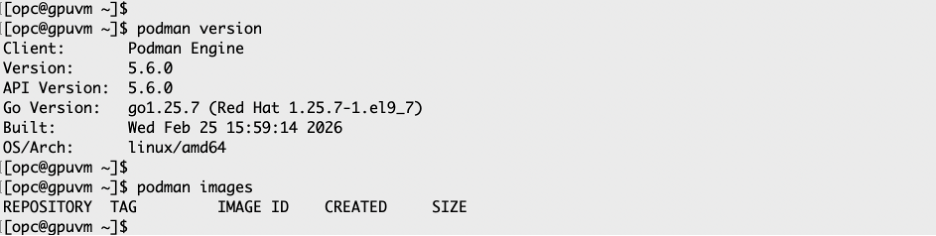
Using the Private AI Services Container on OCI
Sign in to Oracle Container Registry
Go to the Private AI Services Container page on the Oracle Container Registry website and sign in. The sign-in link is located at the top right of the page.
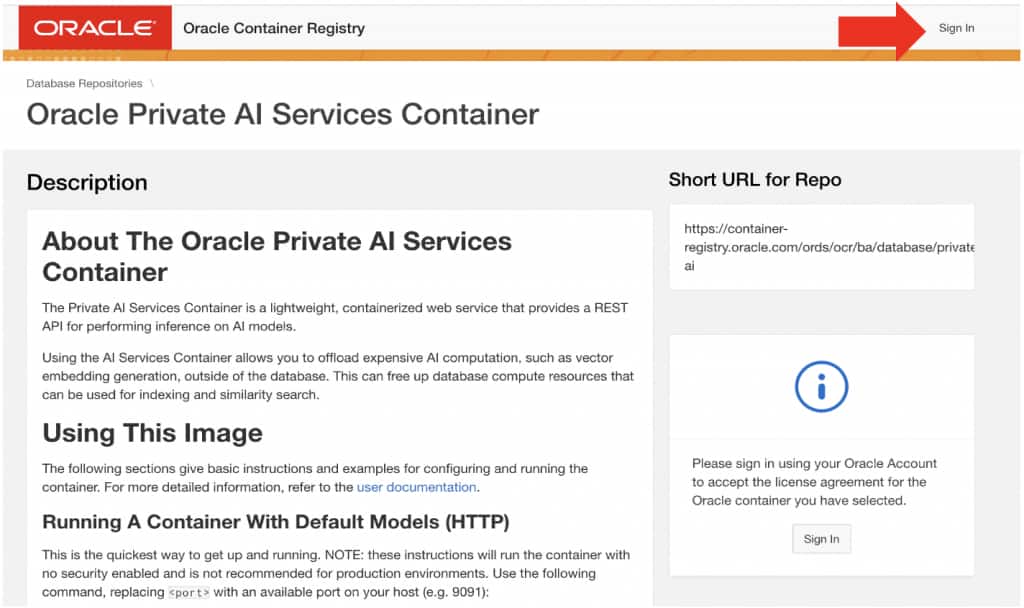
You will need to have (or create) a free Oracle account. You will be prompted to enter your Oracle Single Sign-On (SSO) username and password. If you are not yet registered with container-registry.oracle.com , you will be prompted to do so. Registering associates your SSO username with the Oracle Container Registry as an SSO-allowed user.
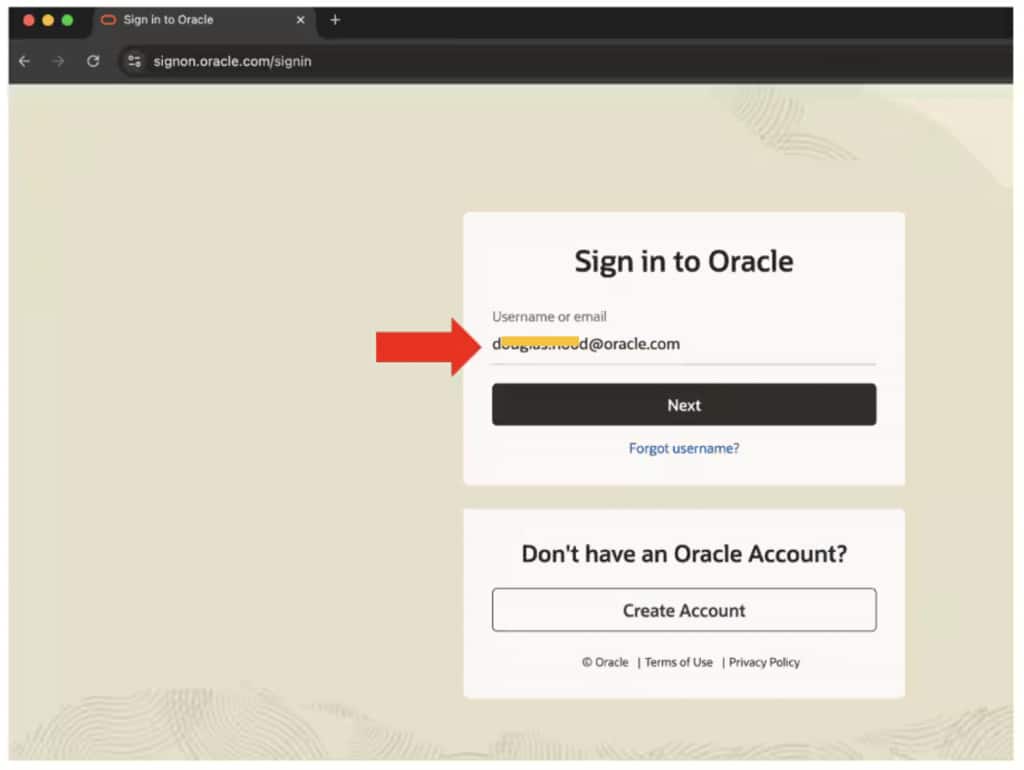
After completing this one-time registration, clicking Sign In on future visits will only require you to enter your SSO username and password.
Note Be sure to use your own SSO username and password for your Oracle Account, do not use mine.
Review the License Agreement
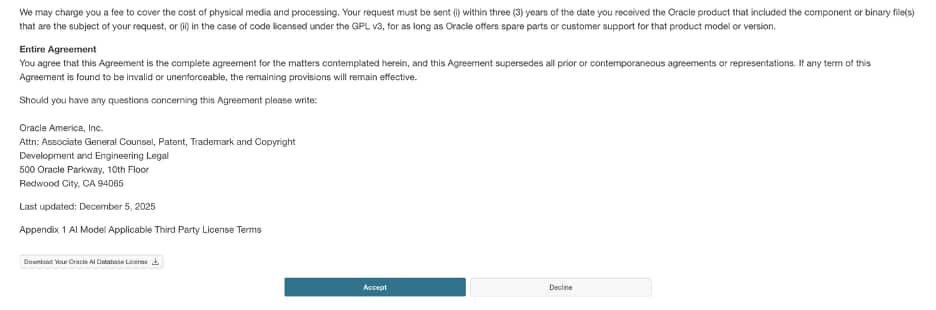
Read the license agreement and click Continue if you accept the license agreement for the Oracle Private AI Services Container. The license is free to use, does not require a credit card, and is only accepted once—your acceptance will be remembered for future access.
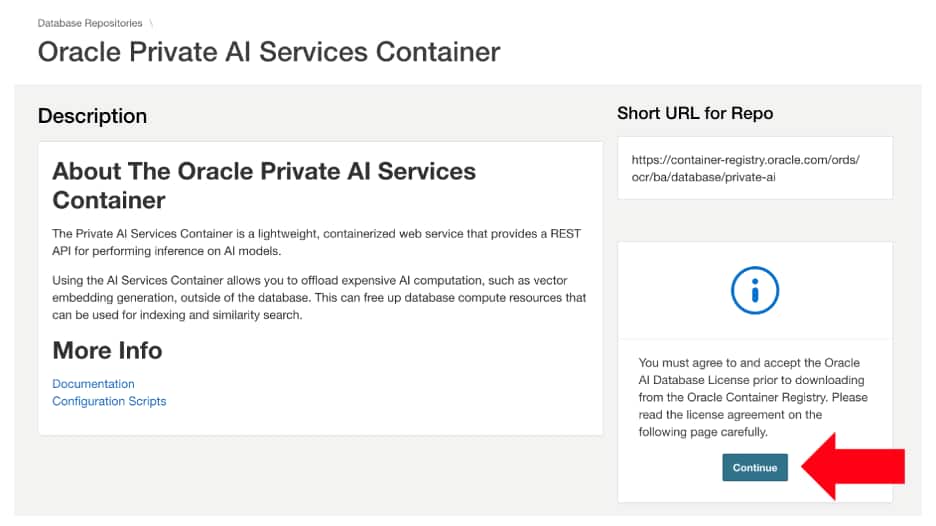
The following is the beginning of the Oracle Private AI Services Container license:
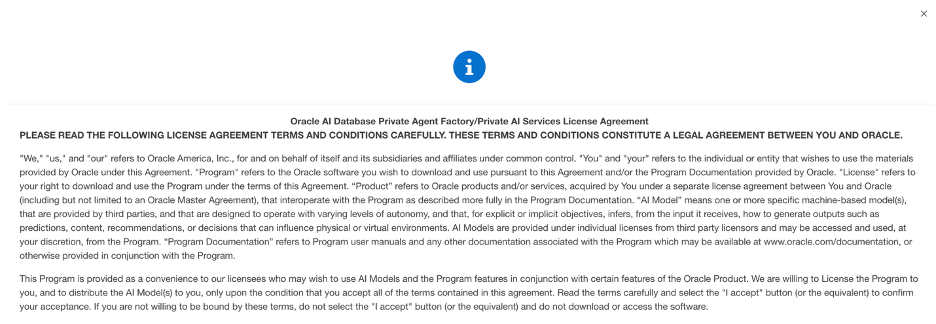
The following is the end of the Oracle Private AI Services Container license:
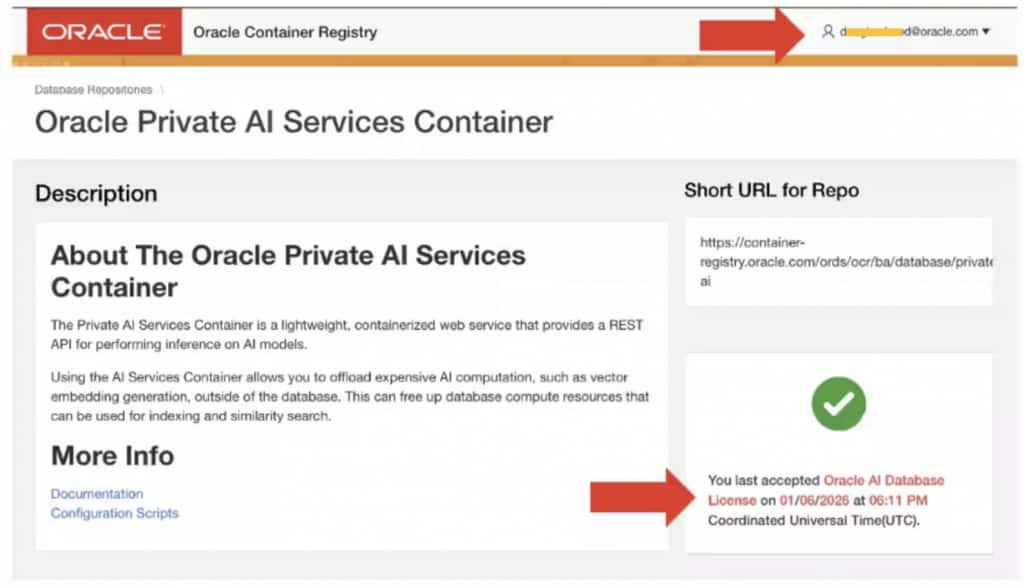
If you accept the license, this status is displayed on the right-hand side of the Private AI Services Container page on the Oracle Container Registry.
Generate an auth token to pull the container image
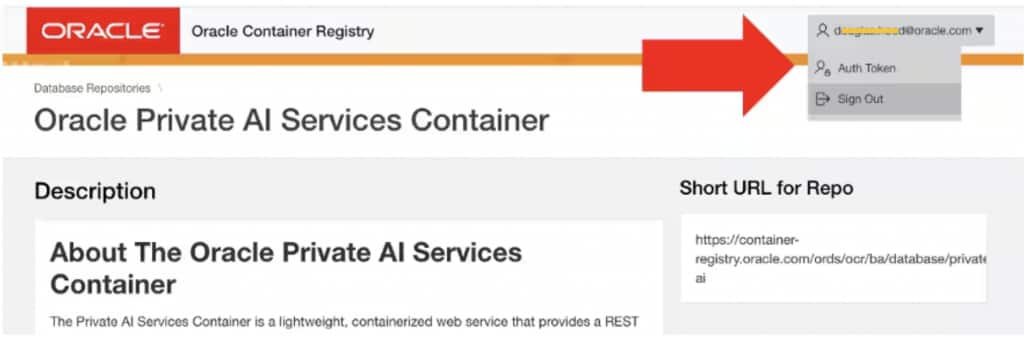
An auth token is required (used as the password) to log in to the Oracle Container Registry. To generate an auth token, click on your Oracle Account profile name at the top right of the page, then select the Auth Token option from the profile menu.
From the Auth Token page, click on the Generate Secret Key link.
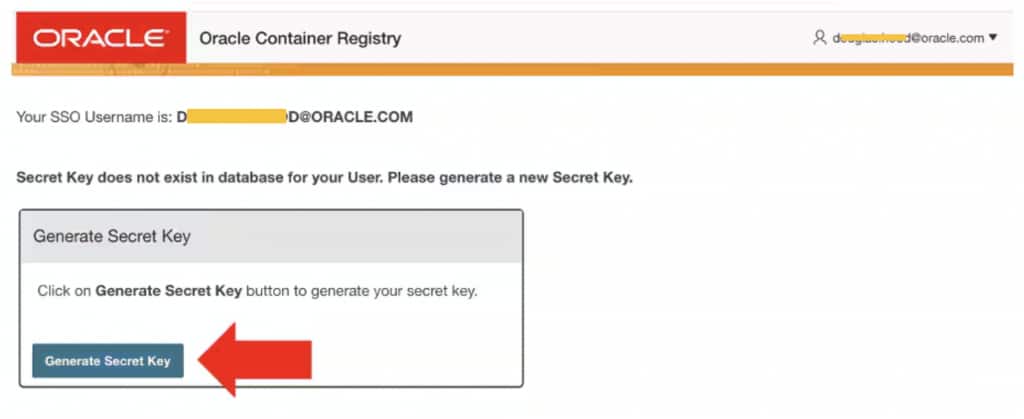
Make sure that you copy the generated Auth Token as it will only be displayed once.
Note You can always generate a new Auth Token when you forget your old one.
Download the container image
Download the Private AI Services Container image to your virtual machine.
Login to the Oracle Container Registry from the command-line
- The username will be the Single Sign On / Profile username for your Oracle account
- The password will be the auth token that you just generated from the Oracle Container Registry website
podman login container-registry.oracle.com
Pull the image from OCR
The time required to download the container image will depend on your network speed and the storage performance of your virtual machine. Make sure that you use the following container image as the earlier releases were for the Vector Embedding Service.
podman pull container-registry.oracle.com/database/private-ai:gpu-index-26.1.0.0.0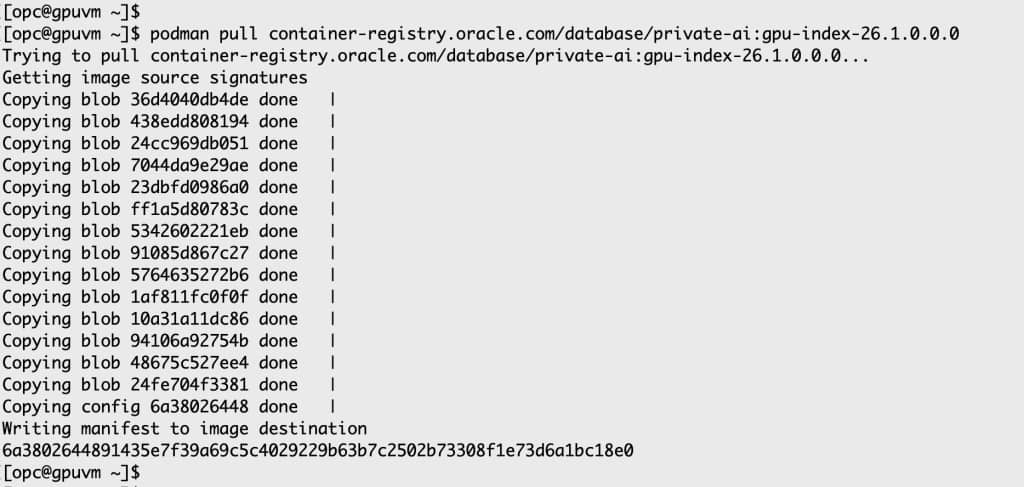
Verify container image has been downloaded
podman images
Configure the Private AI Services Container
The installation scripts for Private AI Services Container are the recommended method for installing and configuring the container. They enable best practices and handle complex tasks such as enabling least privilege for SELinux, creating digital certificates and API keys, and configuring TLS 1.3.
The install scripts are packaged within the container, you need to create a container and then copy those install scripts to your Linux host machine.
Get the Install Scripts ZIP file
IMAGEID=`podman create container-registry.oracle.com/database/private-ai:gpu-index-26.1.0.0.0`

podman cp $IMAGEID:/privateai/scripts/privateai-setup-gpu-index-26.1.0.0.0.zip .
Unzip the install scripts
unzip privateai-setup-gpu-index-26.1.0.0.0.zip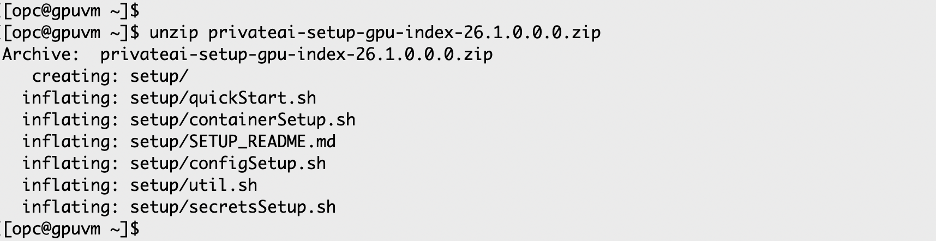
You have now completed the most challenging parts of the installation process. The actual installation and configuration using the provided scripts is much simpler.
Get the fully qualified hostname
export HOST=$(hostname -f); echo $HOSTThis hostname will be used later to check the health of the Vector Index Service.
Make directories and environment variables for install
mkdir -p /home/opc/privateai
mkdir -p /home/opc/secrets
export PRIVATE_DIR=/home/opc/privateai
export SECRETS_DIR=/home/opc/secrets
The Private AI Services Container software will be installed in the $PRIVATE_DIR directory.
Run the secretSetup.sh script
cd /home/opc/setup
./secretsSetup.sh -s $SECRETS_DIR
The API_KEY, self-signed digital certificate and PKCS12 keystore were generated from the secretsSetup.sh script.
ls -la $SECRETS_DIR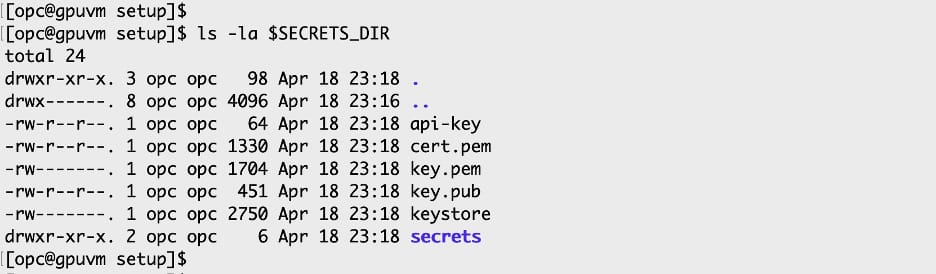
The value of the API_KEY (the contents of the api-key file) and the digital certificate (cert.pem file) will be needed by Oracle AI Database 26ai for SSL (TLS 1.3) communication with the Vector Index Service of the Private AI Services Container.
Run the configSetup.sh script
./configSetup.sh -d $PRIVATE_DIR -s $SECRETS_DIR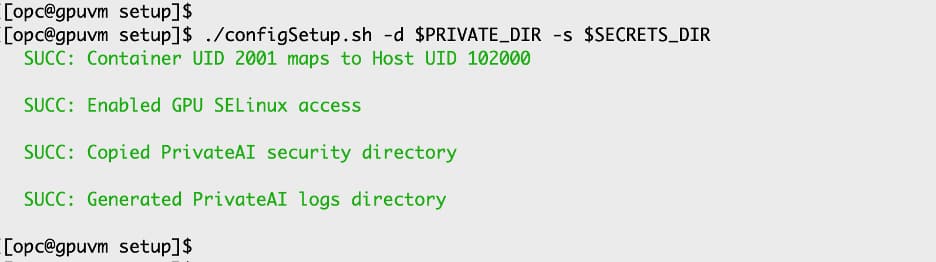
The configSetup.sh script prepares the Linux host for installing the container.
Run the containerSetup.sh script
./containerSetup.sh -d $PRIVATE_DIR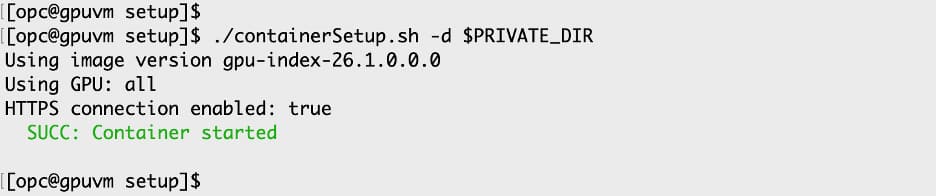
Now that the environment has been prepared, it is simple to start the container. The container is a REST server which uses SSL (TLS 1.3) and listens on TCP port 8443.
Check Whether the container is running
You can use the podman utility to tell whether the container is running or not.
podman ps
Check Whether the container is healthy
The Vector Index Service only listens for SSL requests, so the /health endpoint requires a digital certificate for secure communication.
curl --http2-prior-knowledge -i --cacert $SECRETS_DIR/cert.pem https://$HOST:8443/health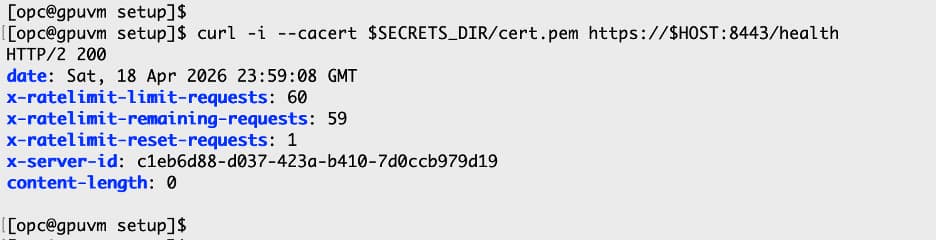
The $HOST and $SECRETS_DIR environment variables were defined as part of the install process. The above curl command is doing an HTTP/2 GET on the /health endpoint of the Private AI Services Container.
It is possible for a container to be running, but not responding to HTTP/2 requests. This health check using the /health endpoint verified that the container was responding to HTTP/2 GET requests.
Get metadata for the database
echo "offload_url: https://$(hostname -f):8443/v1/index"
echo "API key : $(cat $SECRETS_DIR/api-key)"
echo "certificate: $SECRETS_DIR/cert.pem"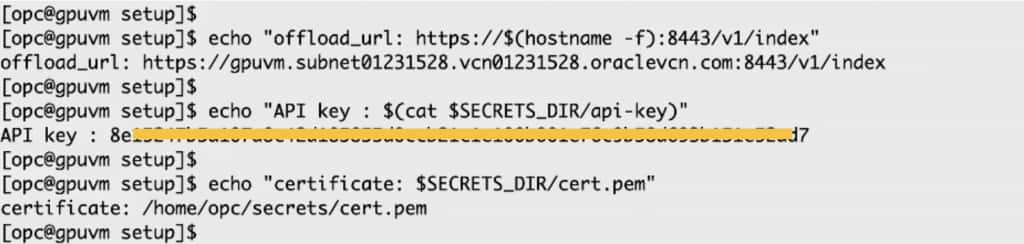
cat $SECRETS_DIR/cert.pem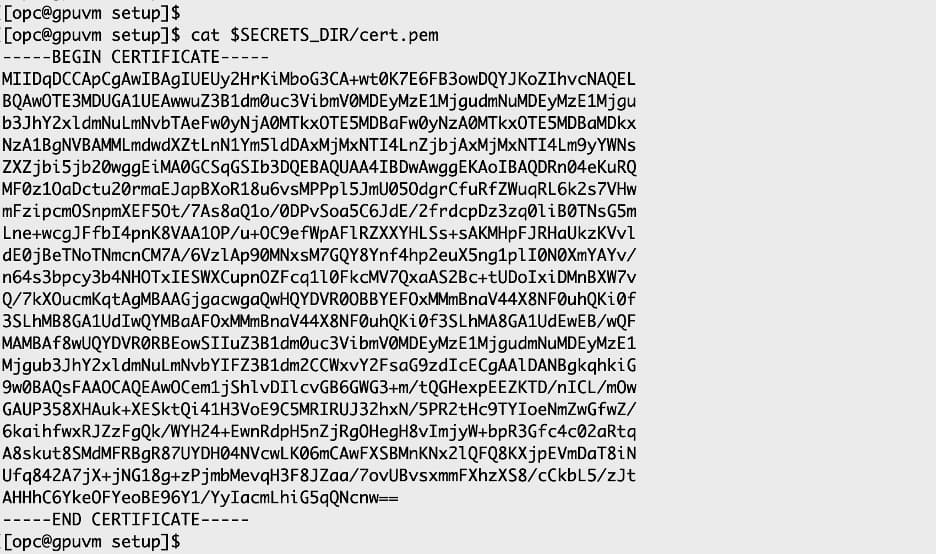
Open the SSL port on the GPU VM
Oracle Linux on OCI uses firewalld as a fireall. You will need to open the default SSL port to enable communication from the Oracle AI Database machine.
sudo firewall-cmd --permanent --add-port=8443/tcp
sudo firewall-cmd --reload
sudo firewall-cmd --list-ports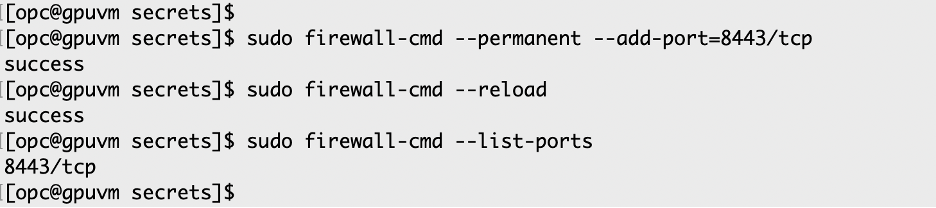
Now that the Vector Index Services is installed in the Private AI Services Container, the next steps is to configure the Oracle AI Database 26ai for use in the Vector Index Service.