
This two-part blog shows you how to deploy and use the Private Large Language Model Service from the Private AI Services Container 26.2.1 on a CPU-powered OCI virtual machine.
In part 1, you will create the VM, download the large AVX-512 container image, use the default LLM and chat with it.
In part 2, you will download open-weight LLMs from Hugging Face and use them with the llama.cpp and vLLM runtimes. You will also learn how to check the state of the LLM, use Hugging Face tokens and SSL.
The llama.cpp and vLLM runtimes are used to power the Private Large Language Model Service.
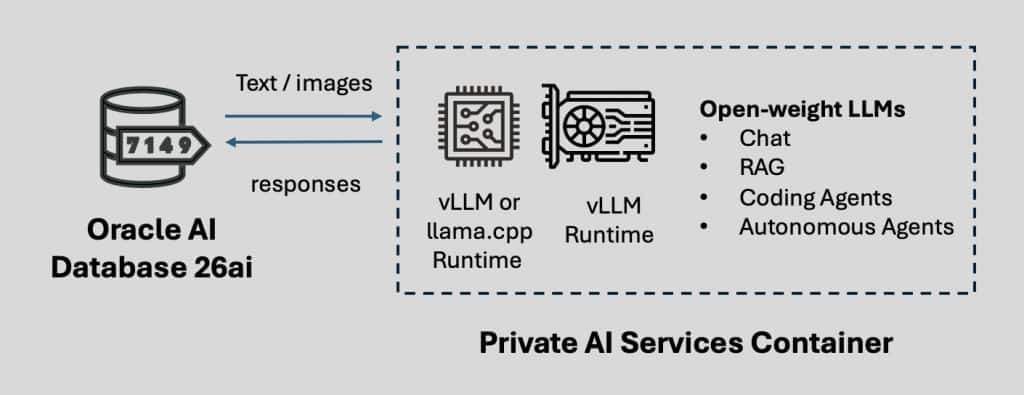
The same service can run on-premises, in an air-gap environment, or in a public cloud. This tutorial focuses on a CPU deployment in OCI. GPU deployments and deployments in other clouds will be covered in future blogs.
2. Size Matters
Large Language Models are resource intensive to run. Larger parameter counts generally increase model resource requirements, although model capabilities and performance depend on factors including architecture, training, optimization, and workload. However, larger LLMs require more resources to run and tend to be slower as a result. This has led to various size-capability tradeoffs and optimizations.
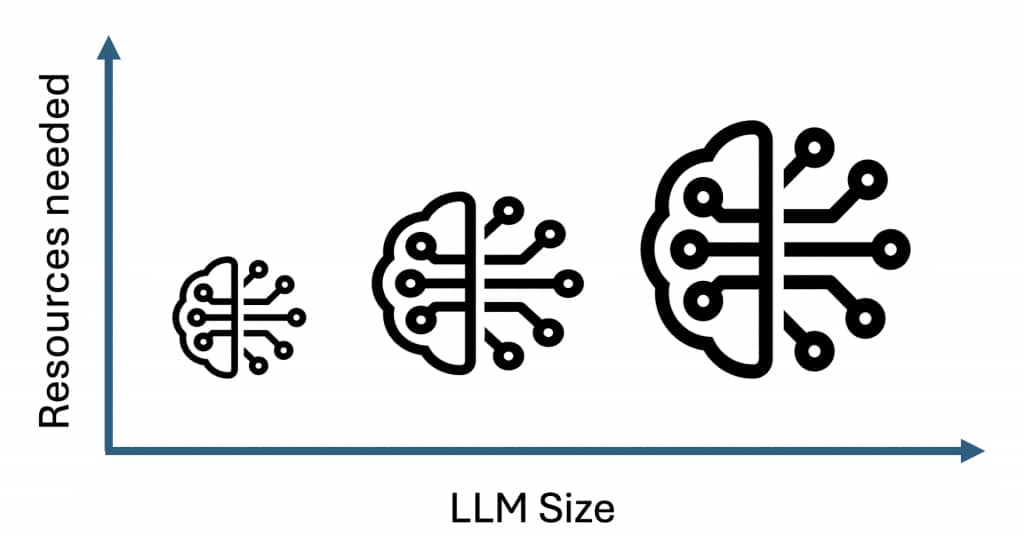
As a simplified sizing framework, models can be grouped into several parameter ranges. Appropriate model size varies depending on the model, workload, accuracy requirements, latency requirements, and available hardware. These tradeoffs mean that LLMs tend to fall within three different size ranges:
- Up to 10 billion parameters
- These are sometimes called small language models
- These models tend to be appropriate for simpler operations for
- Chat
- Retrieval Augmented Generation (RAG)
- Tool calling agents
- 10 to 70 billion parameters
- These models tend to be appropriate for medium complexity tasks for
- Chat
- Retrieval Augmented Generation (RAG)
- Tool calling agents
- Coding Agents
- These models tend to be appropriate for medium complexity tasks for
- Over 70 billion parameters
- Open-weight LLMs like GLM 5.2 and Ornith-1.0-397B are huge and approach the capabilities of frontier models like GPT 5.6 or Claude Fabel 5
- These sorts of models tend to be required for the most challenging tasks which involve ‘thinking’ or reasoning
The Private Large Language Model Service can work with those three different size ranges if you have powerful enough Linux servers. What this means in practice is the following:
- CPU Memory (RAM) = model size
Open-weight LLMs require more memory. Available memory must accommodate the model weights, runtime overhead, context or KV cache, the operating system, and other processes. Actual requirements depend on quantization, context length, concurrency, and runtime.
- CPU Cores = scalable performance
LLM inference is about processing millions of matrix multiply operations. Those math operations can be processed in parallel across CPU cores. Depending on the model, runtime, and workload, increasing available CPU resources can help improve inference latency and throughput.
- Disk Space = number and size of downloaded LLMs
Each LLM that you download will take up GB in disk space. If you test many different LLMs, the resulting disk space can quickly add up.
3. Create the Virtual Machine
To be able to use LLMs in the 1 to 20 billion parameter range, create a virtual machine on Oracle Cloud Infrastructure with the following attributes:
- Operating System Oracle Linux 9
- Shape VM.Standard.E6.Flex
- CPU 8 OCPU
- Memory 64 GB RAM
- Storage Custom boot volume size of 150 GB
Using 8 OCPUs is a tradeoff between performance and cost.
Sizing Considerations
When using open-weight LLMs with CPUs, you need to consider the following:
- Is the LLM large enough to be useful for your use case
- What is the smallest LLM that can be useful for your use case
- Will the LLM fit within the available memory (RAM)
- What is acceptable inference performance in terms of latency and throughput
- Using more CPU cores will enable better latency and throughput, but the hardware will also cost more
- Is there sufficient disk space for all the LLMs that will be downloaded
Extend the boot volume
Once the VM has been created and you have logged into it, you need to extend the OCI boot volume to the make the full disk space available. If you do not do this, there will not be enough disk space to download the container and open-weight LLMs from Hugging Face.
Run the following commands in a shell as the Linux opc user:
sudo /usr/libexec/oci-growfs -y
df -h
The boot volume should now have about 121 GB of available disk space.
4. Configure the VM environment
Some directories and environment variables are needed to install, configure and run the Private AI Services Container.
In the Linux shell, run the following commands:
mkdir -p /home/opc/privateai
mkdir -p /home/opc/config
mkdir -p /home/opc/models
mkdir -p /home/opc/secrets
export PRIVATE_DIR=/home/opc/privateai
export SECRETS_DIR=/home/opc/secrets
export CONFIG_DIR=/home/opc/config
export HOST=$(hostname -f); echo $HOST
5. Choose the correct Container
The Private AI Services Container is a single product which includes seven specialized container images.
For this excercise, you will be using the following container:
- large-cpu-avx512-infer-26.2.1.0.0
This container includes a default LLM and enables the Private Large Language Model Service for containers which will run on CPUs with the avx512 architecture.
6. Download the Container
The process to download the is the same as for previous releases. This blog covers that process. The critical part in that blog is how to get your auth token which enables you to login to the Oracle Container Registry.
The important commands are:
- sudo dnf install -y container-tools
- podman login container-registry.oracle.com
- IMAGEID=`podman create container-registry.oracle.com/database/private-ai:large-cpu-avx512-infer-26.2.1.0.0`
- podman cp $IMAGEID:/privateai/scripts/privateai-setup-large-cpu-avx512-infer-26.2.1.0.0.zip .
- unzip privateai-setup-large-cpu-avx512-infer-26.2.1.0.0.zip
The above commands install Podman, download the container from Oracle Container Registry, extract the ZIP file and unzip the file which contains the install scripts.
7. Install the Container
Run the following commands in a Linux shell to install and start the container:
cd /home/opc/setup
./secretsSetup.sh -s $SECRETS_DIR
./configSetup.sh -d $PRIVATE_DIR -s $SECRETS_DIR
./containerSetup.sh -d $PRIVATE_DIR --http
In this example, the container is configured to use the HTTP network protocol and the default TCP port of 8080.
Check the status of the container
After a few seconds, you should get a message that the container is started.
There are multiple phases involved in starting the container which occur in the background. It can take up three minutes for the default LLM to be ready to go when it is first used.
Use the following command to check the status of the container while it is running:
podman psWhile the LLM is still being loaded from disk, the container will have a status of starting.
When the container is fully loaded into memory, it will have a status of unhealthy and then finally a status of healthy when it is ready to serve requests.
Check the health of the container
Use the following cURL command to check the /health REST endpoint of the container:
curl -i http://localhost:8080/health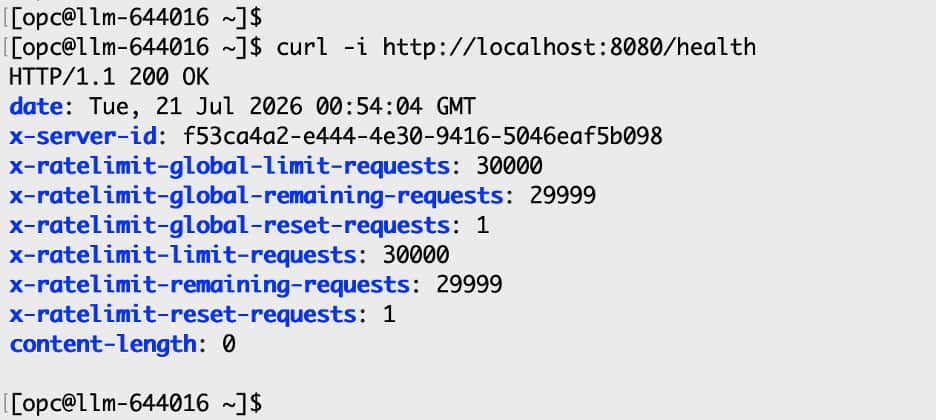
If you get a valid HTTP response like above, then the container is ready to process requests. If you get an error, the container is not yet ready to process requests.
Check the loaded Models
The large-cpu-avx512-infer-26.2.1.0.0 container image that you downloaded has an LLM and some embedding models configured by default.
Find the available models with the following command in a Linux shell:
curl http://localhost:8080/v1/models | jqThe jq command line utility pretty prints the JSON output so that it is easier to read. The jq utility is available by default on Oracle Linux 9.
The output will be similar to this:
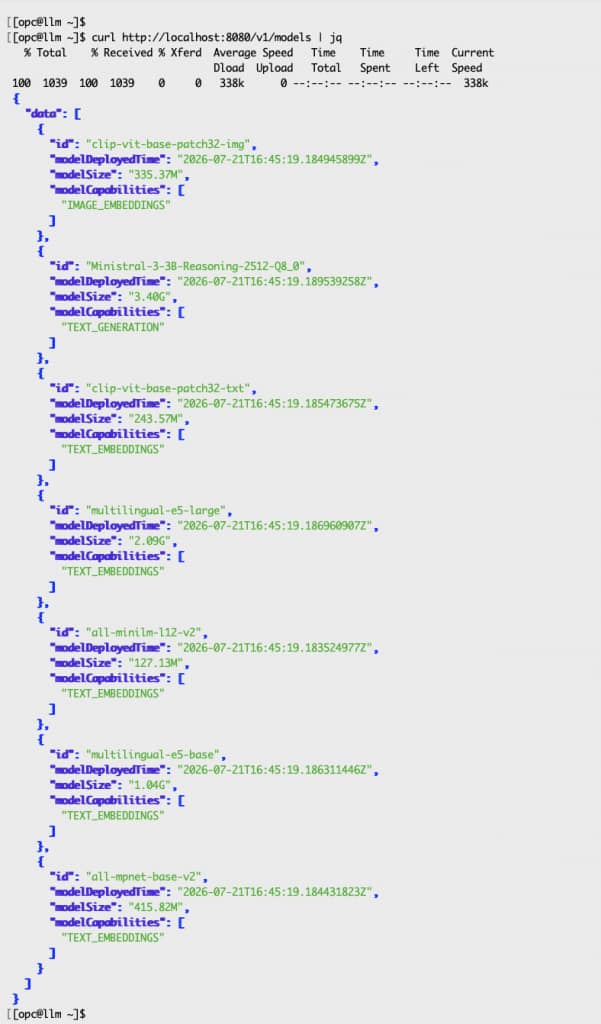
- The loaded Ministral-3-3B-Rasoning-2512-GGUF-Q8_0 model is a 3 billion parameter LLM from Mistral.ai
- The other models are the default vector embedding models for the ONNX Runtime
- This means that the large-cpu-avx512-infer-26.2.1.0.0 container can do inferencing for LLMs and create vectors without any configuration
8. Chat with the LLM
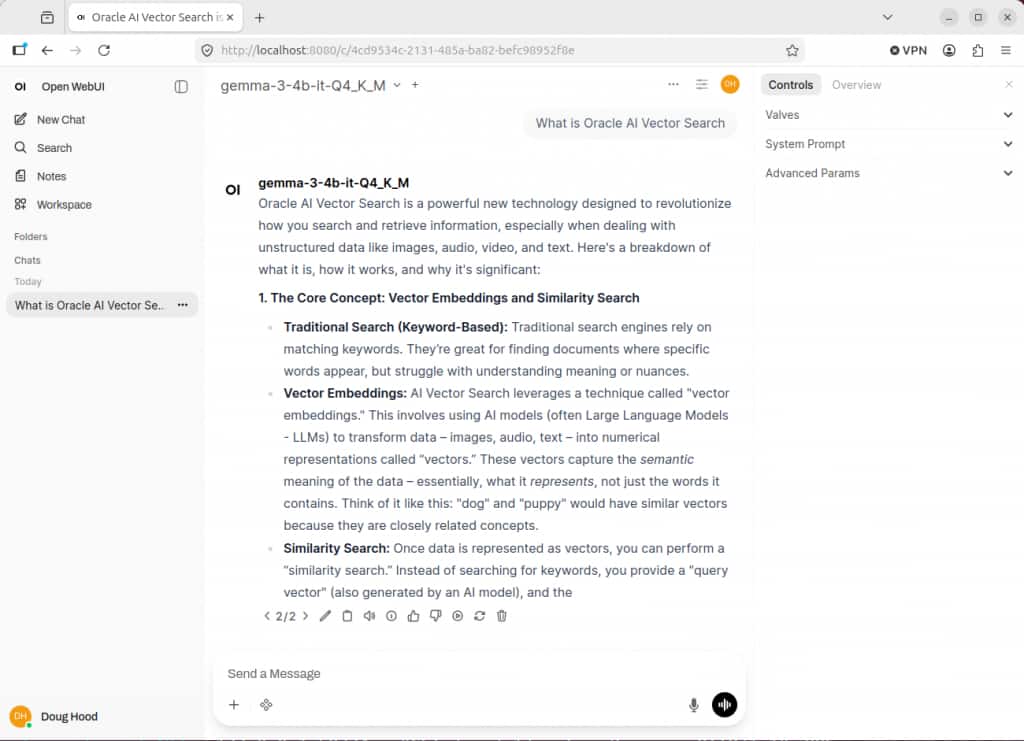
- The above image is of Open WebUI being used with the Private AI Services Container
- How to configure Open WebUI to use the Private AI Services Container will be covered in a future blog
Sophisticated LLM clients like Oracle Private Agent Factory, Open WebUI or AnythingLLM can be used to chat with the Private AI Services Container, but the examples in this blog use the cURL utility. cURL is the simplest chat client to test as there is no installation or configuration required.
The Private AI Services Container implements the REST interface for the OpenAI API for the /v1/chat/completions endpoint. This means that valid REST requests need to be created. The simplest way of doing this is to use the Linux cURL command line utility. cURL can be used to do HTTP POSTs. If the correct syntax is used, the HTTP POST can be a REST message which is a valid OpenAI API request.
Important information in this REST message includes:
- The LLM model which will be used
- The message / prompt which is sent to the LLM
- The URL of the Private AI Services Container
In the following example, localhost is used in the URL. The IP address or fully qualified domain name of the host which the Private AI Services Container runs on can also be used in the URL. This means that the cURL command can be run against the Private AI Services Container whether it is local or remote.
Chat using cURL
Create a script for the following cURL command to chat with the default Ministral-3-3B-Reasoning-2512-Q8_0 LLM using cURL. The output of the cURL script is then piped to the jq utility to pretty print the JSON output.
curl --noproxy '*' -X POST --header 'Content-Type: application/json' --header "Authorization: Bearer $API_KEY" --cacert $SECRETS_DIR/cert.pem  --data '{
        "model": "Ministral-3-3B-Reasoning-2512-Q8_0",
        "messages":[
                {"role": "user", "content": "Format the output as HTML. What does the SELECT statement in SQL do?"}
        ],
        "max_tokens": 2048,
        "temperature": 0.7,
        "stream": false
}' http://localhost:8080/v1/chat/completions | jq
The output will look some thing like this:
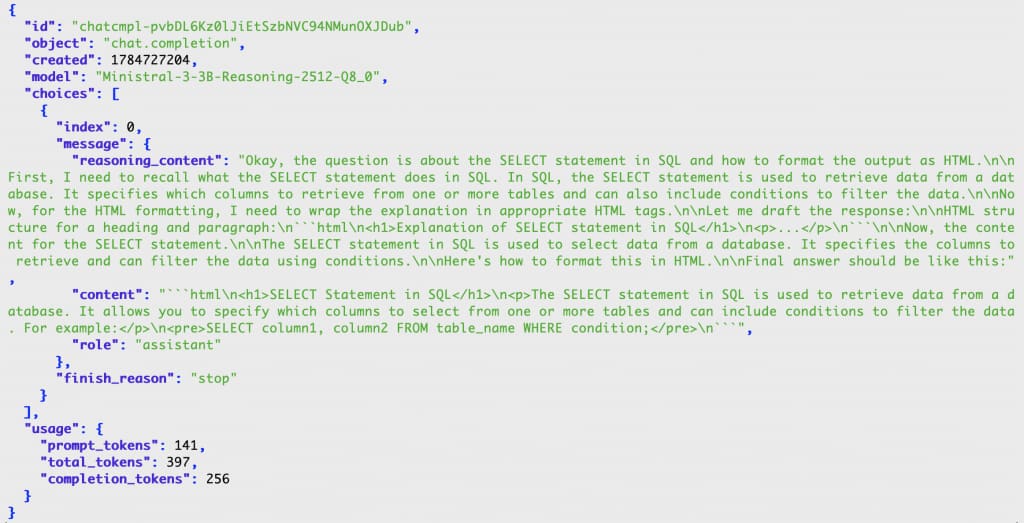
- In this example, using the configuration described in this blog, the response took approximately 18 seconds. Results vary depending on model, configuration, prompt, workload, and available compute resources.
- Larger LLMs tend to take longer to respond to requests
- Depending on the workload and configuration, additional CPU resources can help reduce response time
- Future planned posts will cover other LLMs
The output will depend on the LLM. In this example:
- content shows the HTML like formatted answer
The HTML from the content section rendered in Chrome looks like this:
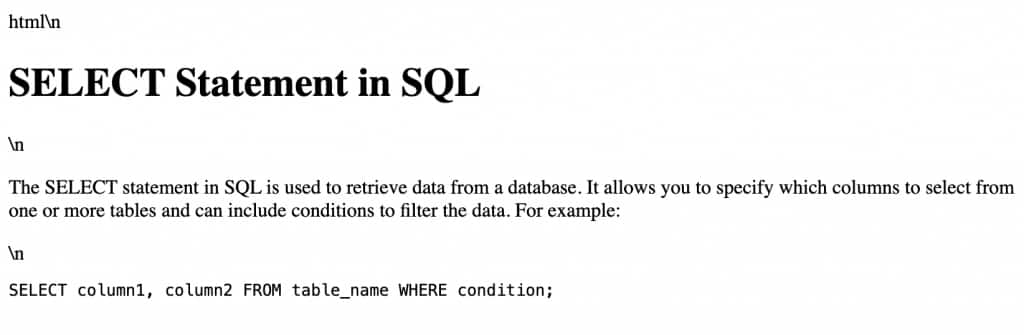
So the brief answer is ‘correct’, but the HTML was not optimal.
In Part 2, we can see some better formatted answers from other open-weight LLMs.
9. Summary
In this blog, you learned how to download, install, configure and chat with the Private Large Language Model Service on an OCI VM powered by CPUs. You also learned how to chat with an LLM using the cURL utility for HTTP.
Part 2 of this blog covers things like:
- Using streaming chat
- Downloading models for llama.cpp
- Downloading models for vLLM
- Using Hugging Face Tokens
- Using SSL
Related Blogs
- Getting Started with the Private LLM Service – Part 2
- Using DBMS_VECTOR_CHAIN with the Private LLM Service