
Wouldn’t it be good to have all relevant optimizer information for a SQL statement in one place? This includes optimizer statistics, schema metadata, configuration parameters, and other factors that affect overall performance. Having a full picture would really help to make sure the environment where those queries are running is in “good shape”!
The new REPORT_SQL function in the DBMS_SQLDIAG package provides this capability and runs across different database environments. It is easy to use and helps diagnose the performance of an executed SQL statement by providing detailed diagnostic information.
REPORT_SQL is also available in Oracle Database 19c, starting with RU 19.28. For information about features available in different Oracle releases, see the Oracle Database Features and Licensing Application.
So, what is REPORT_SQL? It generates an HTML SQL Diagnostic Report for a specified SQL ID. REPORT_SQL is the successor to SQLHC, the SQL Tuning Health-Check script available through My Oracle Support.For older database versions, you can download SQLHC from My Oracle Support (Doc ID 1366133.1).
Usage
The usage of REPORT_SQL is very simple. Provide SQL_ID of a statement, then execute the REPORT_SQL function. It returns an HTML diagnostic report with information about the specified SQL statement.
This post demonstrates how to use REPORT_SQL in different environments, including Autonomous Database and non-Autonomous Database deployments.
The function syntax is:
DBMS_SQLDIAG.REPORT_SQL(sql_id IN VARCHAR2, directory IN VARCHAR2, level IN VARCHAR2 ) RETURN CLOB
- Three options for LEVEL are available: BASIC for minimal report detail, TYPICAL the standard (default) report which contains more advanced report sections, and ALL for a complete report containing all possible report information.
- By default, the report is returned as a CLOB and not written to disk. To save it to a directory, specify the
directoryargument; the file name follows this pattern:SQLR_<SQL_ID>_<YYYYMMDDHH24MI>.html.
For more details, see PL/SQL Packages and Types Reference.
Find the SQL_ID
To find a statement’s SQL ID, check V$SQL, AWR, or ASH. Or run SET FEEDBACK ON SQL_ID to display the SQL ID for each SQL or PL/SQL statement in Oracle SQL tools such as SQL*Plus, SQLcl or SQL developer.
Here’s our first example query.
SET FEEDBACK ON SQL_ID
SELECT p.prod_id, SUM(quantity_sold) AS sold
FROM products p, sales s
WHERE p.prod_id = s.prod_id and lower(prod_category)='tennis'
GROUP BY p.prod_id
union
SELECT s.prod_id, SUM(s.amount_sold) AS sold
FROM sales s, sales p where s.time_id>=sysdate
GROUP BY s.prod_id;
At the end of the output you will get the SQL_ID, see here.
...
147     7576
148    15191

13 rows selected.

SQL_ID: 901h78g7c28d7
Using REPORT_SQL in non-Autonomous Database environments
Let’s try REPORT_SQL in a non-Autonomous Database deployment. In this example, we pass SQL ID 901h78g7c28d7 and store the resulting report in a CLOB variable named report.
set feedback on
var report clob
exec :report := dbms_sqldiag.report_sql('901h78g7c28d7');
PL/SQL procedure successfully completed.
Next, set the output format and spool the report to a file.
set trimspool on
set trim on
set pagesize 0
set linesize 32767
set long 1000000
set longchunksize 1000000

spool diagsql1.html
select :report report from dual;
spool off
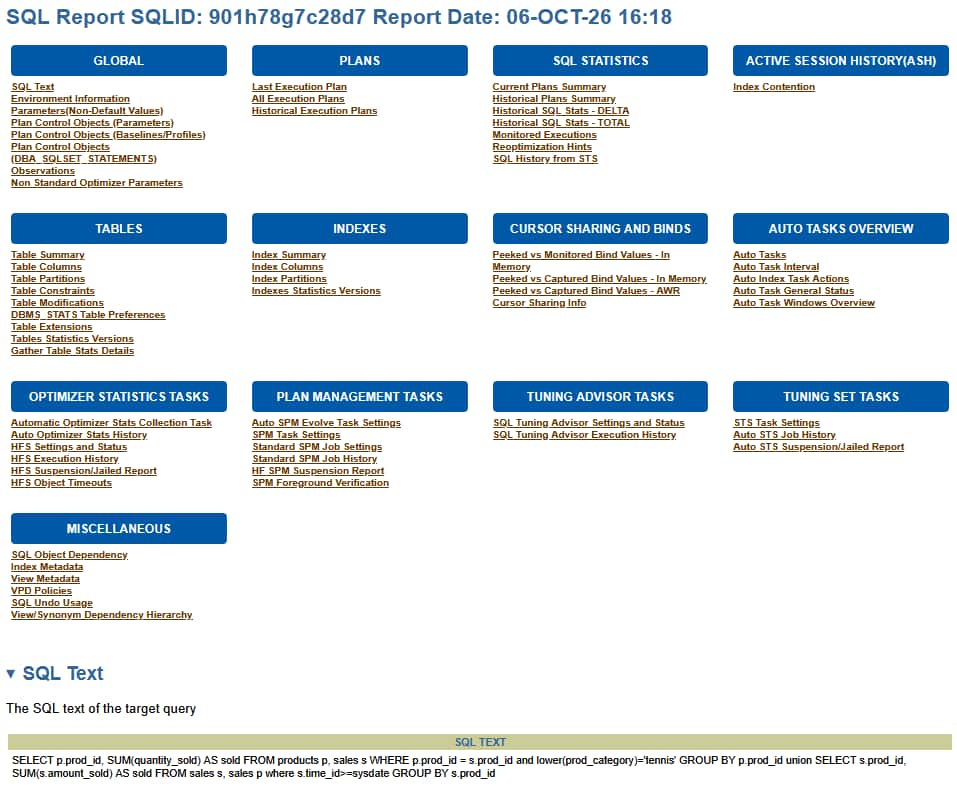
The HTML report includes execution plans, plan history, non-default database parameters, statistics history, index details, and more.
Here’s what the report header looks like.
Using REPORT_SQL in Autonomous Database environments
Our next example uses Autonomous Database Serverless (ADB-S). We will save the report in the DATA_PUMP_DIR directory.
First, let’s list the available directories.
select directory_name
from all_directories;
DIRECTORY_NAME
--------------
SQL_TCB_DIR
DATA_PUMP_DIR Now let’s run the following statement, which has SQL ID ‘amxappj6am1gq’.
SELECT p.prod_id, sum(quantity_sold) AS sold
FROM sh.products p, sh.sales s
WHERE p.prod_id = s.prod_id and lower(prod_category) ='photo'
GROUP BY p.prod_id
union
SELECT s.prod_id, sum(s.amount_sold) AS sold
FROM sh.sales s, sh.sales p where s.time_id>=sysdate
GROUP BY s.prod_id;
To generate the report in DATA_PUMP_DIR, run this PL/SQL block:
declare
 my_report clob;
begin
 my_report := dbms_sqldiag.report_sql(
    sql_id    =>'amxappj6am1gq',
    directory =>'DATA_PUMP_DIR',
    level     =>'ALL');
end;
/
After a short time, you should get the message “PL/SQL procedure successfully completed”.
Next, we’ll use DBMS_CLOUD to check the generated file. DBMS_CLOUD.LIST_FILES lists the files in a database directory.
col object_name format a40
select object_name, created from table(dbms_cloud.list_files('DATA_PUMP_DIR'));
OBJECT_NAME CREATED
---------------------------------------- -----------------------------------
SQLR_amxappj6am1gq_202610061645.zip 06-OCT-26 04.45.57.000000000 PM GMTThe report is saved as a ZIP file containing the HTML report.
Next, let’s upload a copy of the ZIP file from DATA_PUMP_DIR to Cloud Object Storage using DBMS_CLOUD.PUT_OBJECT.
Let’s check which credential to use for the upload:
select owner, credential_name from dba_credentials;OWNER CREDENTIAL_NAME
----- ---------------
ADMIN OCI_CRED Now let’s upload the ZIP file from DATA_PUMP_DIR to Cloud Object Storage using DBMS_CLOUD.PUT_OBJECT:
BEGIN
 DBMS_CLOUD.PUT_OBJECT(
 credential_name =>'OCI_CRED',
 object_uri      => 'https://objectstoragexxxx.     oraclecloud.com/n/tenant/b/bucket/o/SQLR_amxappj6am1gq_202610061645.zip',
 directory_name  => 'DATA_PUMP_DIR',
 file_name       => 'SQLR_amxappj6am1gq_202610061645.zip');
END;
/
The ZIP file is now in Cloud Object Storage. Download and unzip it to view the HTML report and review the SQL statement’s diagnostic details.
Summary
REPORT_SQL is built into Oracle Database and gives you a detailed diagnostic view of a SQL statement. As this post shows, it’s easy to use across Autonomous and non-Autonomous Database environments. Try it out and see how it can help you investigate SQL performance.
- My Oracle Support (Doc ID 1366133.1)
- DBMS_SQLDIAG Package
- Database Administrator’s Guide
- DBMS_CLOUD Package