
Operating OpenSearch is not only about search and indexing.
If you manage Oracle Cloud Infrastructure Search with OpenSearch, much of your day-to-day work could be around the service and its clusters. Which clusters are running in this compartment? What shape is this cluster using? Is a resize already in progress? Did the backup request start? What is the status of that work request?
These are normal operator questions. But answering them often means switching between consoles, scripts, CLI commands, documentation, and raw API responses.
Now imagine being able to ask an AI assistant:
“Show me the OpenSearch clusters in this compartment and summarize which ones are active.”
Or:
“Create a backup for this cluster before I resize it, then tell me the work request ID.”
That is the kind of workflow the MCP server reference implementation for the service is designed to support. It is intended for exploration, prototyping and learning.
It gives MCP-compatible AI assistants a focused way to work with cluster operations, using your existing Oracle Cloud Infrastructure (OCI) configuration and permissions. The goal is to help make common control-plane tasks easier to request and review.
1. What is MCP?
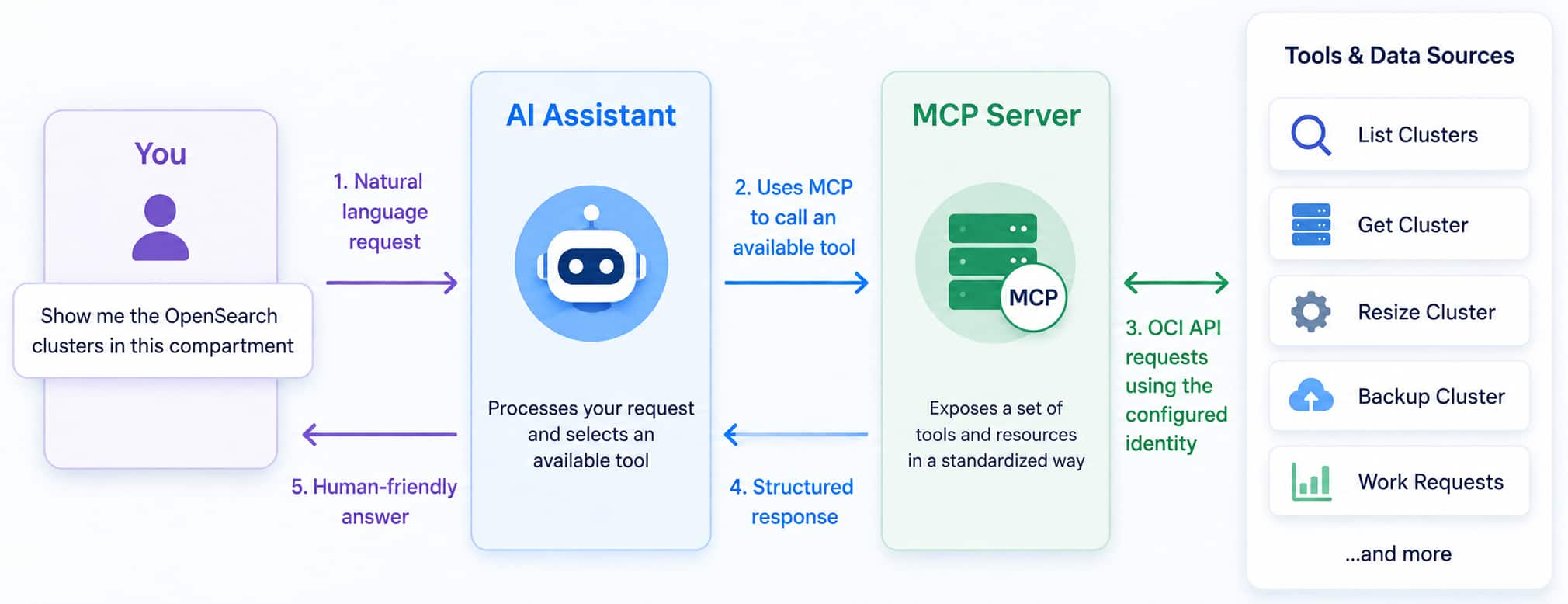
MCP, or Model Context Protocol, gives AI assistants a standard way to connect to tools and systems.
The MCP server exposes a defined set of tools the AI assistant can use. The AI assistant can receive a user request in plain language, select an available tool, send structured inputs, and present the result in a human-readable way.
For the service, that means an operator can ask natural-language questions about clusters, backups, resizes, and work requests, while the MCP server handles the OCI-side interaction.
2. Why this can help operators
Cluster operations for the service often involve more than one step.
Before resizing a cluster, you may want to check its current state. Before changing node shapes or sizing, you may want to see which shapes are available. Before making a higher-risk change, you may want to create a backup. After submitting the request, you need the work request ID so you can track progress.
That is a lot of context for a single operational task.
The MCP Server helps with that flow by giving the AI assistant purpose-built tools for cluster discovery, lifecycle operations, backups, resizing, and work-request tracking.
Instead of asking an operator to remember every command or jump between multiple places, the AI assistant can help gather the right information and present it clearly.
3. Example prompts you can try
Here are a few examples of the kind of prompts an operator might use. These examples assume operator review of the target cluster, selected tool, and arguments before a change is submitted. Actual behavior can vary with the configured client and model.
“List the OpenSearch clusters in this compartment and show which ones are active.”
“Inspect this cluster and summarize its lifecycle state, node counts, backup policy, and software version.”
“Show me the available OpenSearch cluster shapes before I resize.”
“Create a backup for this cluster and report the work request ID.”
“Resize this cluster to three data nodes and do not poll repeatedly unless I ask.”
“Check this work request once and tell me whether it is still running.”
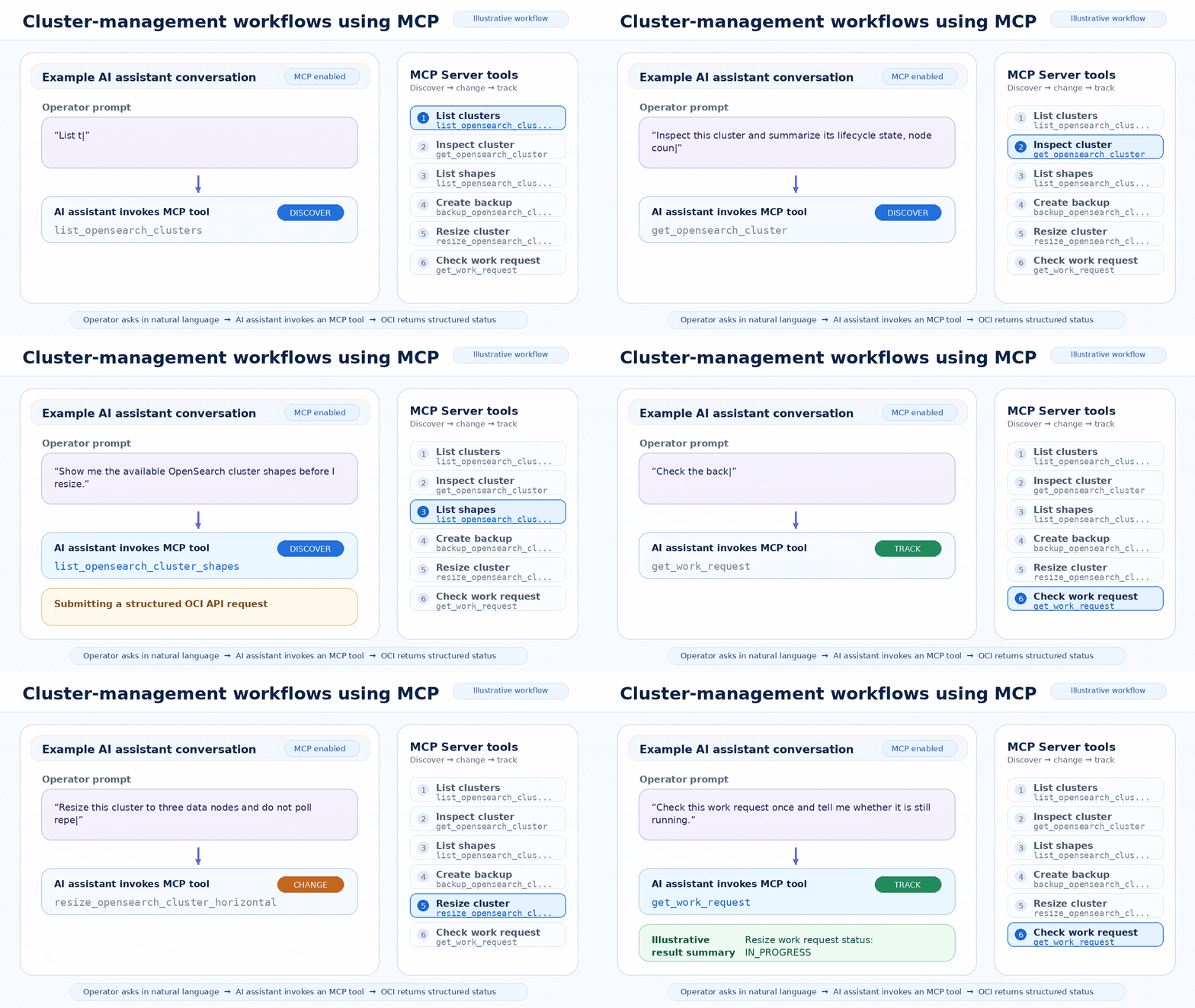
These actions use the server’s defined tools. The returned work request IDs can help operators track the status of submitted changes.
4. Example flow: back up before resizing
Let’s say an operator wants to resize a cluster. The following example is not a runbook, but it shows the kind of careful flow the MCP server can support:
First, the operator asks:
“List the OpenSearch clusters in this compartment.”
The AI assistant returns the clusters and helps identify the right target. The operator confirms the target cluster and compartment before proceeding.
Next, the operator asks:
“Inspect this cluster and summarize its current configuration.”
The AI assistant reports useful details such as lifecycle state, node counts, storage, backup policy, and software version.
Before making the change, the operator asks:
“Create a backup for this cluster and tell me the work request ID.”
The AI assistant submits the backup request and reports the work request ID.
Before proceeding, check the backup work request and confirm that its status is SUCCEEDED. Only then should the operator submit the resize:
“Resize this cluster horizontally to three data nodes. Submit one change only and report the work request ID.”
This is where the MCP server’s work-request behavior matters.
For these cluster operations, accepted does not mean complete. A resize, backup, or delete request can be accepted by OCI and still be running in the background. The AI assistant should report the work request ID clearly, check status once if useful, and then wait for the operator to ask before checking again. Actual polling behavior depends on the MCP client and AI assistant.
5. Focused on cluster-management operations
This reference implementation focuses on control-plane operations such as:
- Discovering clusters
- Inspecting cluster configuration
- Listing available shapes
- Creating or updating clusters
- Triggering backups
- Resizing clusters
- Deleting clusters
- Checking work request status
The current focus is intentionally practical and helps operators manage the OCI service that runs OpenSearch clusters.
6. Operational practices
Use the following practices when testing the reference implementation:
- Use an OCI profile associated with an identity granted only the permissions needed for the task.
- Use discovery before making changes.
- Confirm the cluster and compartment, and review the selected tool and arguments, before submitting a change, particularly a deletion.
- Submit one change at a time when practical.
- Capture the work request ID.
- Do not poll continuously by default.
- Do not pass plaintext OpenSearch security master-user passwords, OCI private keys, or other credentials through a chat workflow.
7. Getting started
After configuring OCI credentials, add the server to your MCP client using that client’s supported configuration format. The following JSON example illustrates the command, arguments, and environment variables. Adapt the format to your client.
{"mcpServers": {"oracle-oci-opensearch-mcp-server": {"type": "stdio","command": "uvx","args": ["--python","3.13","oracle.oci-opensearch-mcp-server==1.0.0"],"env": {"OCI_CONFIG_FILE": "<path_to_oci_config>","OCI_CONFIG_PROFILE": "<profile_name>"}}}}
The package is available on PyPI as oracle.oci-opensearch-mcp-server. It runs as a stdio MCP server and uses standard OCI configuration and signer behavior. The active OCI identity’s IAM permissions determine which OpenSearch operations are allowed. The server is currently provided as a reference implementation for exploration, prototyping, and learning. It is not intended for production use.
A good first prompt is simple and read-only:
“List OpenSearch clusters in this compartment.”
8. Operator review remains important
The MCP server gives AI assistants structured tools that can help operators request and review cluster operations conversationally.
Operators should review proposed changes before they are submitted. Oracle Cloud Infrastructure Identity and Access Management (IAM) permissions associated with the configured identity determine which operations are allowed. Work requests show the status of long-running operations. The AI assistant has a purpose-built way to help with tasks operators already perform.
For Oracle Cloud Infrastructure Search with OpenSearch, that means a conversational way to discover clusters, inspect configuration, submit operator-reviewed changes, and track their status.
To try it, follow the setup instructions in the server README and configure an OCI profile with only the permissions needed for the tasks you plan to perform. Start with a read-only discovery prompt, then move into change workflows only after you have confirmed the target cluster and compartment.