
A simpler way to extend your existing PKI into Oracle Cloud without rebuilding what already works.
We are excited to announce the release of Bring Your Own Certificate Authority (BYOCA) for OCI Certificates, a feature designed to give enterprises the flexibility to integrate their existing Certificate Authority (CA) infrastructure directly into OCI, while keeping full control of their private keys.
Enterprises today run mature, deeply rooted PKI environments that support thousands of applications, regulatory mandates, and long-standing trust chains. Rebuilding this hierarchy in the cloud is expensive, risky, and rarely feasible. This is especially critical for customers in highly regulated and audited industries where policies require the root of trust to remain on premises. In these environments, security administrators, architects, and CIOs need a model that lets them meet compliance obligations, reduce operational risk, and preserve uninterrupted trust. They need a secure, predictable way to connect their existing root CAs into OCI, maintain trust continuity, and adopt cloud automation without disrupting operations.
BYOCA is built precisely for this.
Unlocking Flexibility for Your Existing Trust Chains
Today, OCI Certificates lets customers build private PKI in cloud- creating CAs, issuing certificates, and managing lifecycle operations with secure, automated workflows. Some enterprises, however, already rely on long-standing root CAs they do not wish to rebuild in the cloud.
With BYOCA, we’re extending these capabilities even further, enabling customers to bring their existing root CAs into OCI while keeping full control of their keys.
What You Can Do Today
With BYOCA, you can now:
- Extend an existing root CA hierarchy into OCI without exposing private keys
- Create OCI-managed subordinate CAs using CSRs signed by the external root
- Issue certificates directly from OCI-managed subordinate CAs using secure KMS-backed keys
This bridges the gap between your current PKI investments and the automation and scalability benefits of OCI.
How Does This Benefit You
More Flexibility
Leverage your existing CA infrastructure, policies, and governance models in OCI without redesign.
Better Interoperability
Connect hybrid environments effortlessly. BYOCA makes it easier to run distributed workloads across on-prem, multi-cloud, and OCI.
Stronger Compliance Alignment
BYOCA supports strict separation of duties models, regulatory requirements, and audit mandates while OCI manages the operational lifecycle of subordinate CAs in a secure, compliant platform.
Flexible Security Options
Decide where keys live and how they are managed. Maintain full control of root keys while OCI manages the operational burden of subordinate CAs.
How It Works
Bring Your Own Root CA
Import your external root CA into OCI Certificates by simply providing the certificate (PEM), without ever uploading your private keys. OCI registers this as an externally managed root CA, maintaining trust with your existing PKI while ensuring keys remain solely under your control.
How to import your RootCA?
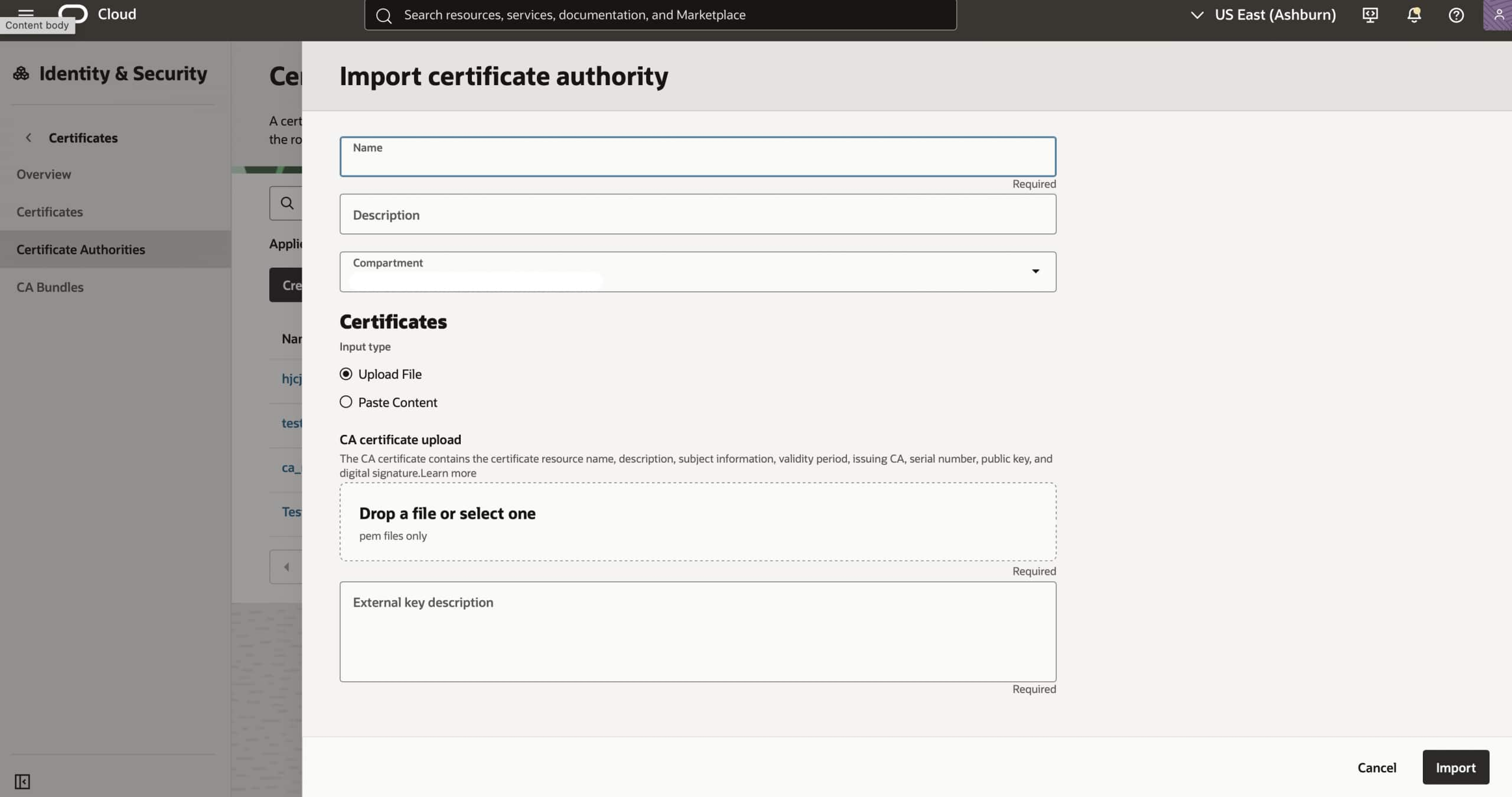
- In the OCI Console, open the ☰ (hamburger menu) and go to Identity & Security → Certificates.
- Under Certificate Authorities, Click on Import Certificate Authority.
- Enter the Name, Description and Compartment you want to import your Root CA in.
- Then, you can either Upload or Paste your Root CA certificate PEM file into OCI. Add an external key description and click on Import.
Create an OCI-Managed Subordinate CA
Once your root CA is imported, you can generate a Certificate Signing Request (CSR) in OCI to create a new subordinate CA (subCA) by choosing “Subordinate Certificate Authority: External CA issued, Managed Internally” under Create Certificate Authority. You then sign this CSR externally using your existing Root CA keys and upload the signed certificate back into OCI. At that point, OCI Certificates service activates the subordinate CA and manages it on your behalf, using keys securely stored in OCI KMS. This subordinate CA needs a HSM backed key.
How to create it?
Once you have imported your External Root CA into OCI,
- On the list of Certificate Authorities page, click on Create Certificate Authority.
- Under Basic Information, Enter the Name, Description and Compartment you want to import your CA in.
- Click on “Subordinate Certificate Authority external CA issued, managed internally” card.
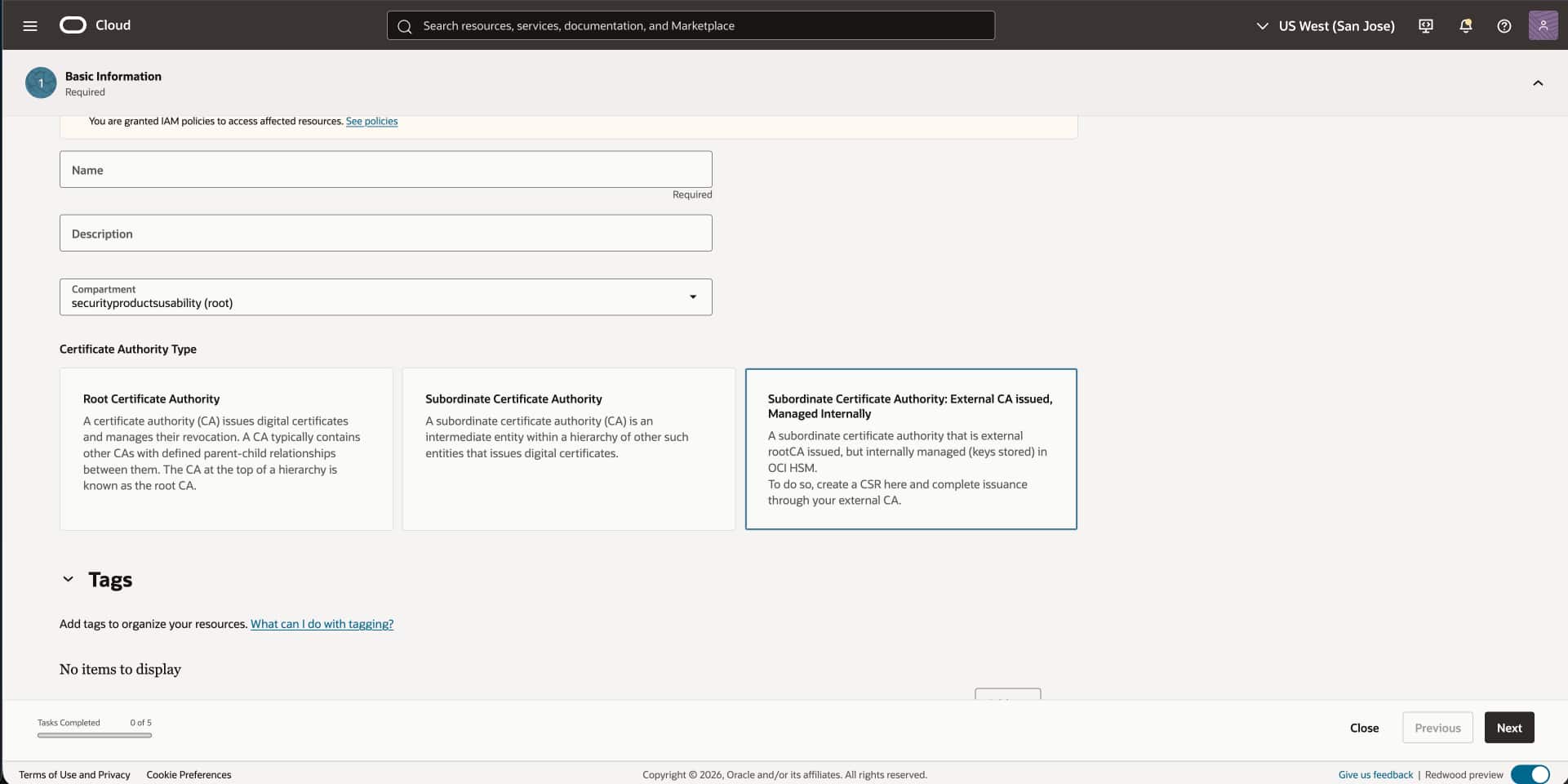
- Under Authority Configuration, choose the imported external Root CA that will serve as the parent authority for this subordinate CA. Then choose the Vault and KMS key that will protect the subordinate CA’s private key. The key may be one you previously created in OCI KMS or one you imported into OCI.
- Under Rules, you will see Expiry Rules and Issuance Rules auto enabled. You can configure certificate and subordinate CA validity, along with path length and name constraints.
- Enter Revocation details and click on Create Certificate Authority.
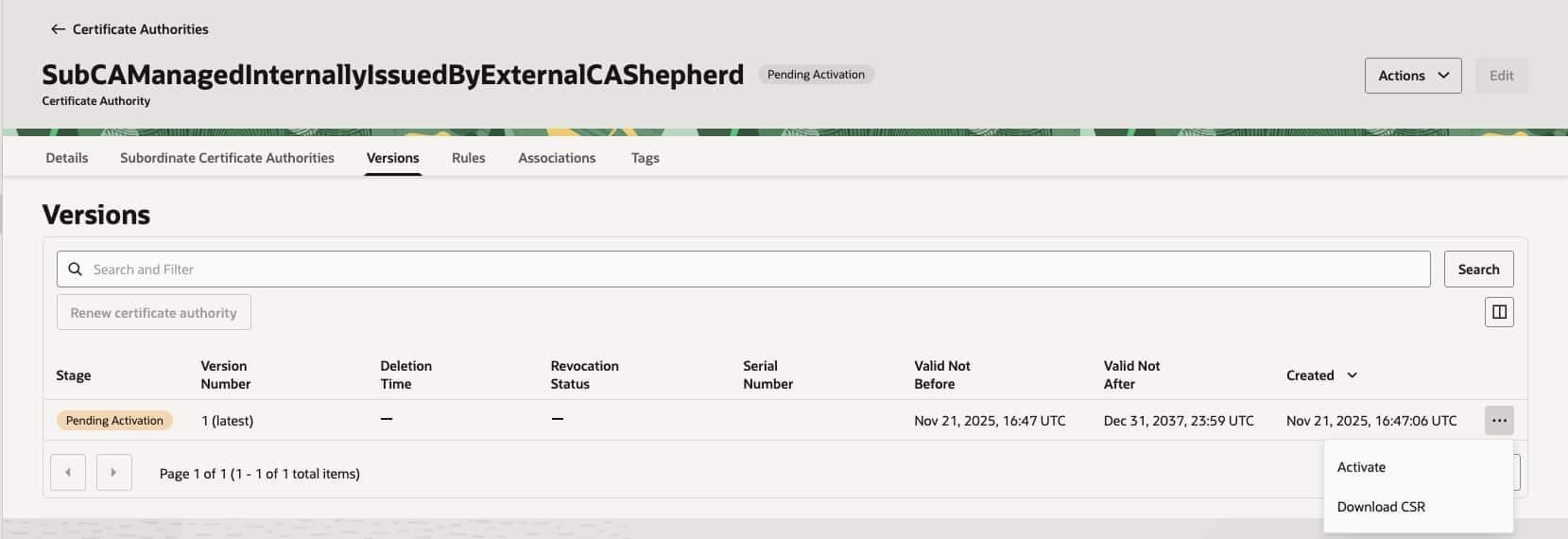
This creates a Subordinate CA entity in OCI. To activate it, follow these steps
- Under the list of Certificate Authorities, select the recently created subCA which is of type “Subordinate Certificate Authority external CA issued, managed internally”.
- Go to Versions tab where it shows “Pending_Activation” stage. Click on “…” for the desired version and click on Download CSR.
- Take the downloaded CSR and get it signed by your external CA.
- Return to the same Versions tab and now click on Activate. Upload the signed certificate and click on Activate.
The result:
- A fully operational subordinate CA
- A flexible option of Private keys either generated or imported inside OCI KMS
- Full OCI lifecycle management and certificate issuance directly from the SubCA
You can also import their own asymmetric key pairs for subordinate CAs directly into OCI KMS, giving them greater flexibility in how keys are created and controlled.
Next Steps
Read more about how the feature works in the technical documentation.
The best way to learn about it is to give it a try! Visit our website to learn more about Oracle Cloud Infrastructure Security products and sign up for a Free Tier account and to take a closer look.