
In this blog post we will cover how the recently launched support for structured logging in OCI Functions can be used to enrich the operational experience of using functions. Structured logging support allows you to preserve the structure of JSON-formatted logs emitted by your function code, enabling improved viewing and aggregation of log lines.
Background
Since launch, OCI Functions has supported integration with OCI Service Logs, allowing users to view logs emitted by their function code in the OCI Logging service. When enabled, log lines emitted via stdout/stderr appear in the OCI Logging service as strings.
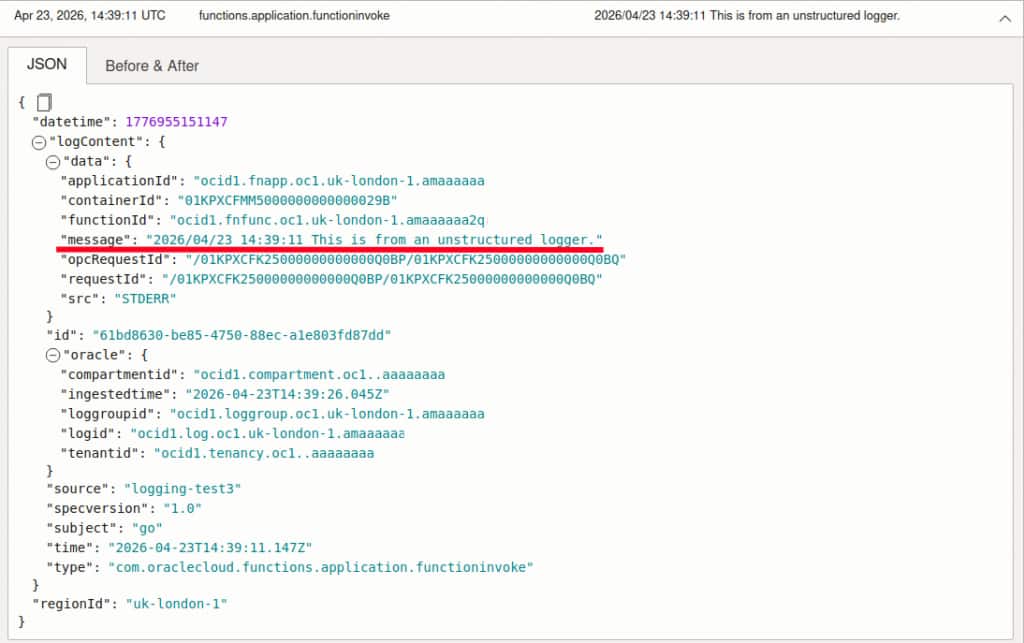
This works well enough for functions which emit plain text log lines, as in the above example. However, we are limited to just a single string field, and simple text search on that field.
In order to provide richer logs, modern applications may typically emit a JSON object per log line. This object can include multiple fields, upon which an operator may choose to filter. For example, it is typical for a logging framework to include a ‘level’ field, indicating the severity of that particular log line.
Previously, even if your function code emitted log lines in this structured format, the log line would appear in OCI Logging as a string, with any JSON escaped, limiting its usefulness.
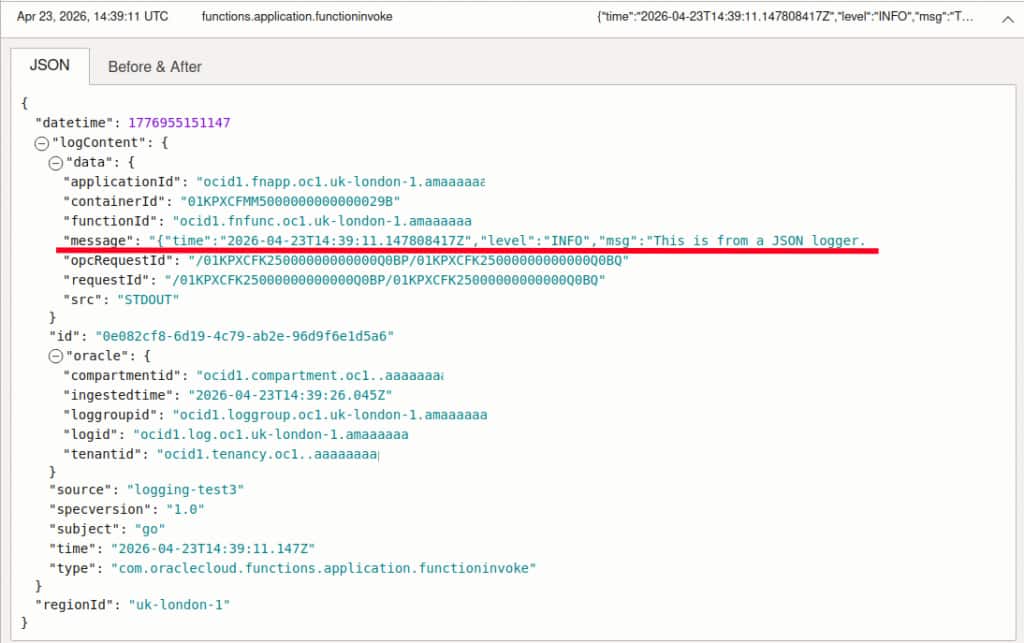
With the launch of structured logging support, it is now possible to configure the ‘logging line format’ on an application. There are two supported values:
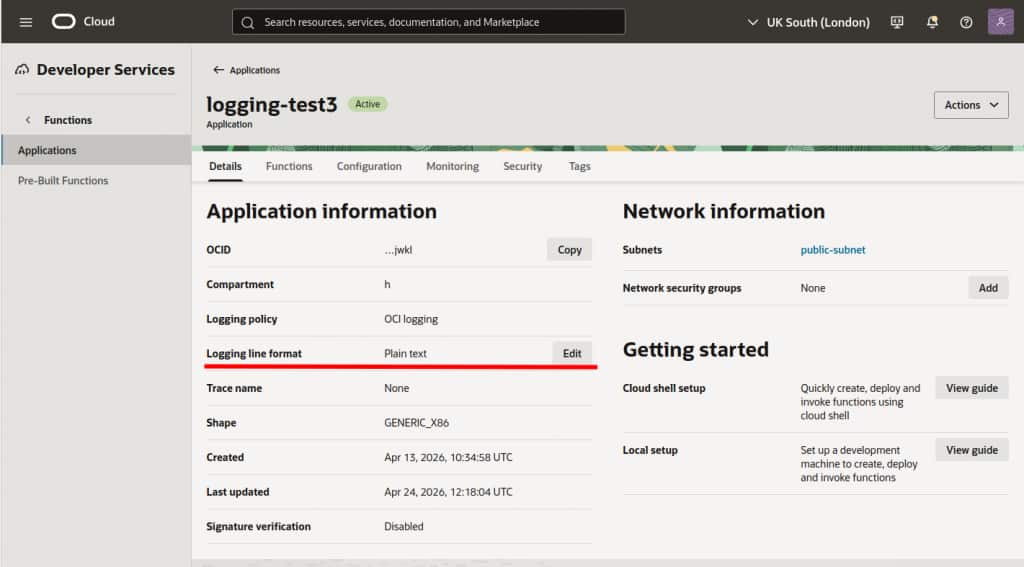
- Plain text – This is the existing behavior, shown above. Log lines from any functions within the application appear as strings in OCI Logging. This remains the default mode.
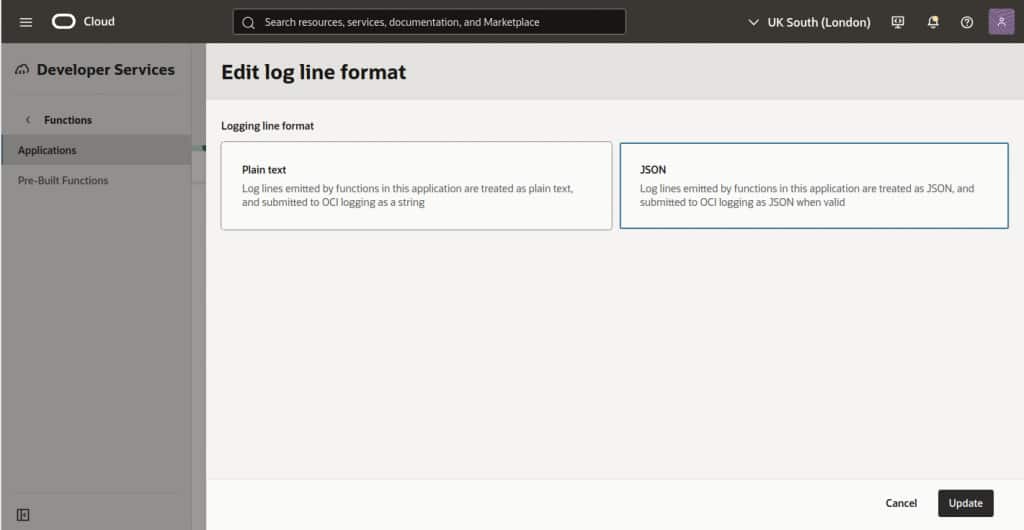
- JSON – This indicates that log lines should be treated as JSON. Log lines from any functions withing the application that are valid JSON, are propagated as JSON to OCI Logging. Any lines which are not valid JSON still get propagated as strings.
Getting Started
Structured logging support can be configured via the regular mechanisms – OCI SDKs, CLI, Terraform, and the OCI console.
Console Example
- Open the Functions service in the OCI Console.
- Select your application.
- Under Application Information, click Edit on the Logging line format row.
- Choose JSON and click Update.
CLI Example
New application
oci fn application create \
  --compartment-id <COMPARTMENT> \
  --display-name <NAME> \
  --subnet-ids '["<SUBNET>"]' \
  --logging '{"lineFormat":"JSON"}'
Update existing application
oci fn application update \
  --application-id <APPLICATION> \
  --logging '{"lineFormat":"JSON"}'
Viewing Logs
With the logging line format of our application configured to JSON, we can now explore our custom log fields within each line in the Logging Search UI:
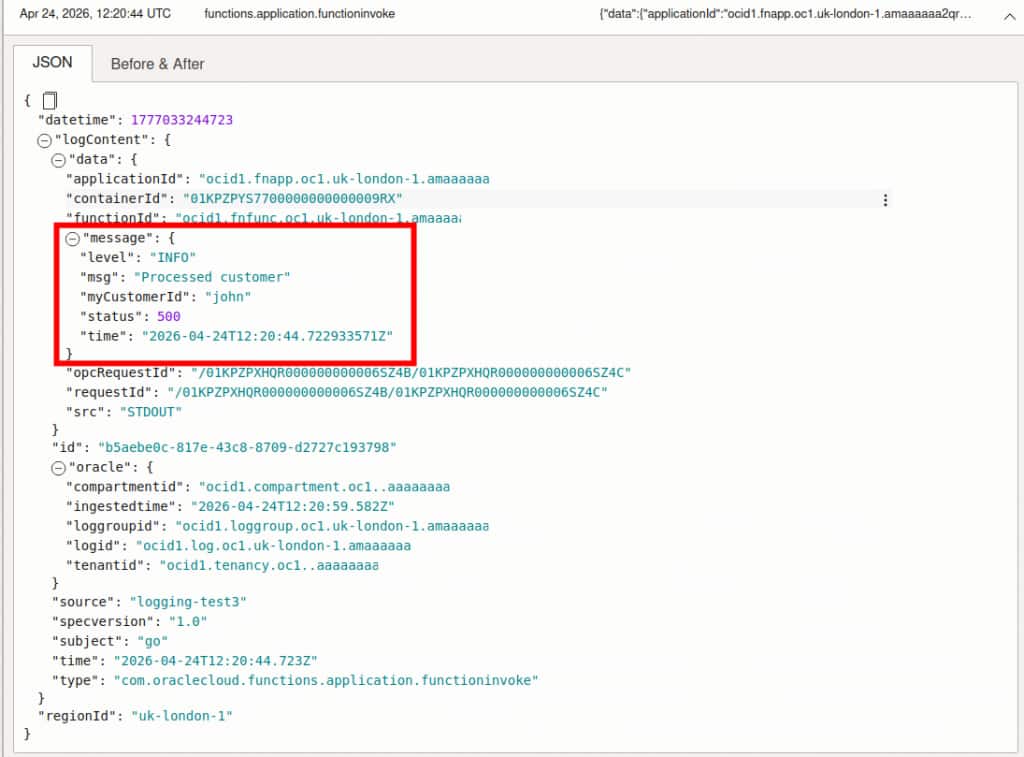
Within the ‘message’ field, you can see fields from the JSON log line emitted by my function, including ‘level’ and ‘myCustomerId’. Using the Logging Search UI, we can add columns to our summary view:
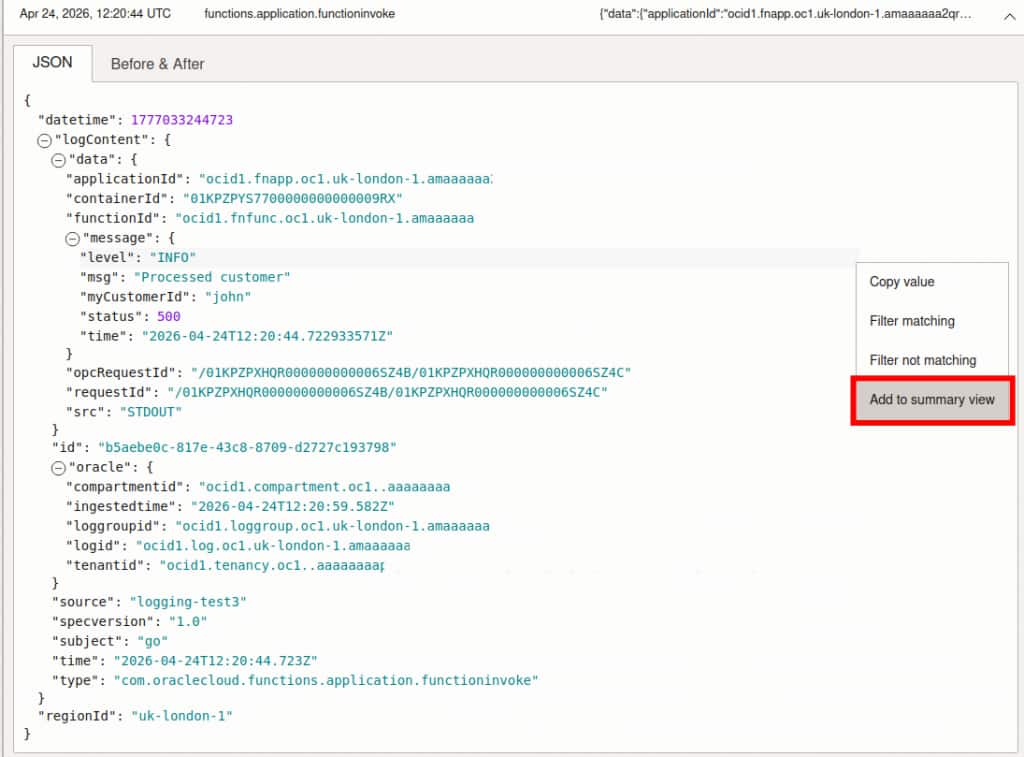
This allows us to build a view focused on fields relevant to our application:
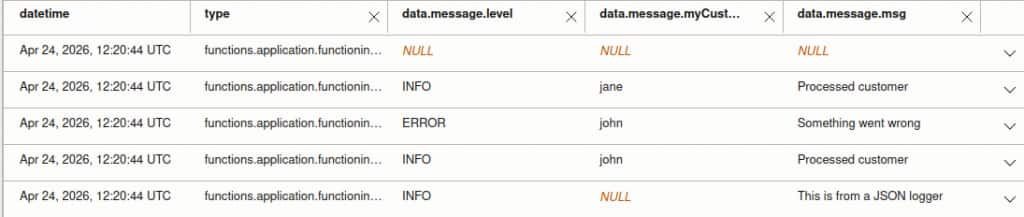
We can also easily filter by value for a given field:
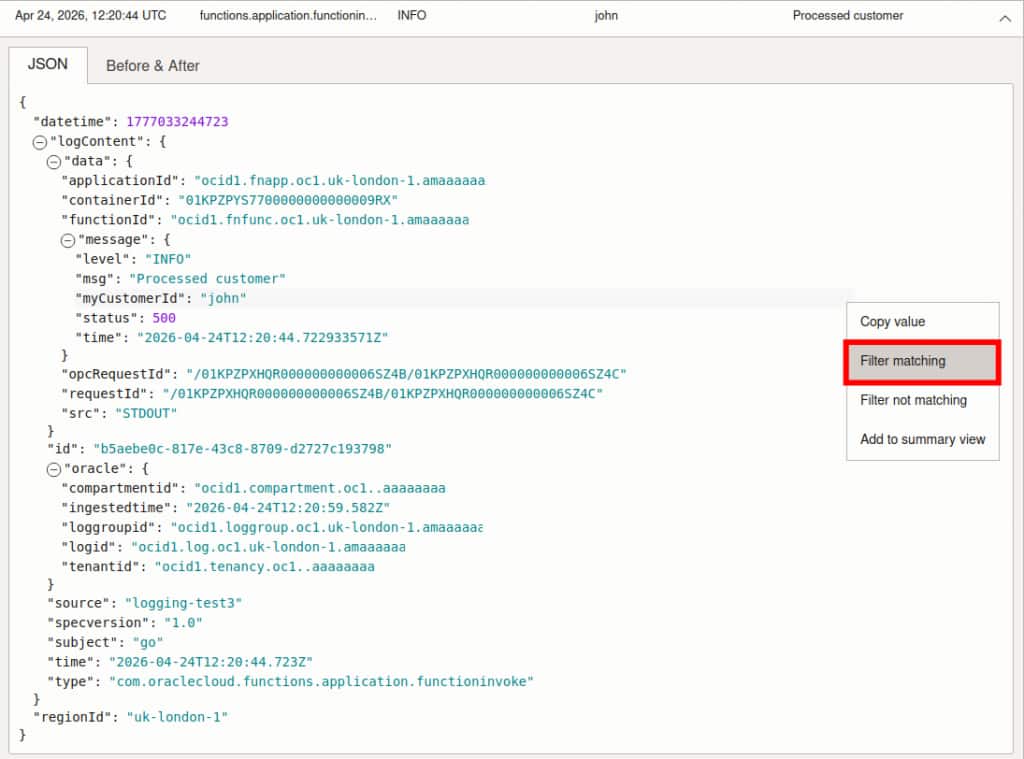
This allows us to focus on e.g. log lines pertaining to a given customer ID:

For more details on advanced log querying, see the OCI Logging documentation.
Try It Today
Functions structured logging support is now available in all commercial OCI regions at no additional cost. With this functionality, you can finally leverage JSON-format logs from your functions to surface structured data for filtering and searching. Get started with OCI Functions today and see how these new features can improve the operational experience of running functions.
To learn more, see the following resources: