


Introduction
In modern enterprise environments, ensuring the protection and recoverability of critical Oracle databases is paramount. Oracle’s Zero Data Loss Recovery Appliance (ZDLRA) offers an advanced, purpose-built solution for safeguarding Oracle databases by eliminating data loss exposure and streamlining backup operations.
When deploying Oracle Autonomous AI Database (ADB) on Dedicated Exadata Cloud@Customer (ADB-CC), integrating ZDLRA as a centralized and secure backup destination becomes a strategic necessity. However, to fully leverage ZDLRA’s capabilities in this hybrid cloud architecture, administrators must properly configure the ZDLRA to recognize and interact with the ADB instance.
This blog will guide you step-by-step through the process of setting up ZDLRA as a backup destination for ADB-CC. You’ll learn how to fulfill the prerequisites in the ZDLRA, and how to prepare the repository database to accept and manage backup metadata and operations. Whether you’re a cloud DBA or infrastructure architect, this guide aims to help you establish a robust, integrated backup environment that aligns with Oracle’s zero data loss strategy.
ZDLRA essentials
ZDLRA is an Exadata engineered platform that contains a catalog database that tracks the status of the database backups managed through ZDLRA. Inside there is the storage where both the catalog and the backups of the managed databases are hosted.
As for configuring an Autonomous Container Database (ACD) with ZDLRA as backup destination, it is not like normal non-autonomous databases, but once ready, the backup is automatically triggered by the preset schedule for the ACD and sent to the ZDLRA repository. There is no need to setup any other backup job.
It’s not mandatory to configure ADB at the OEM console level first (with the manual discovery) and then register it in the ZDLRA. The OEM configuration can be skipped and proceed directly with the ZDLRA.
As a best practice, it is recommended to initially create the ACD without configuring backups. This approach provides greater flexibility, as the ZDLRA configuration can be applied afterward in a controlled manner once the ACD is successfully created. Decoupling these steps simplifies the overall setup process and is generally recommended for all ACD deployments.
In case of an Autonomous Data Guard configuration, each database (primary and standby) must be configured against a separate ZDLRA. Databases in the same DG configuration cannot share the same ZDLRA. In this blog, the steps will be performed from the ZDLRA itself and the OCI Console. The commands referred are applicable for RA23 version, please check the documentation for other releases.
Steps to do the configuration
- Create or use an existing virtual private catalog user (VPC) previously created in the ZDLRA catalog. To create it connect as an admin user to the ZDLRA appliance and use “racli add db_user” command to add a VPC user. Each Recovery Appliance VPC user account is the owner of a virtual private catalog.
- Create or use a ZDLRA backup protection policy. This can be done using the RA command line interface (racli create protection_policy), the DBMS_RA.CREATE_PROTECTION_POLICY procedure or the OEM interface if it is used to manage the ZDLRA appliance.
Both, VPC user and backup policy, should be provided by the ZDLRA administrator. - For the next steps, we need to know the DB_UNIQUE_NAME parameter of the database we want to register. This item can be found in the ACD main page:
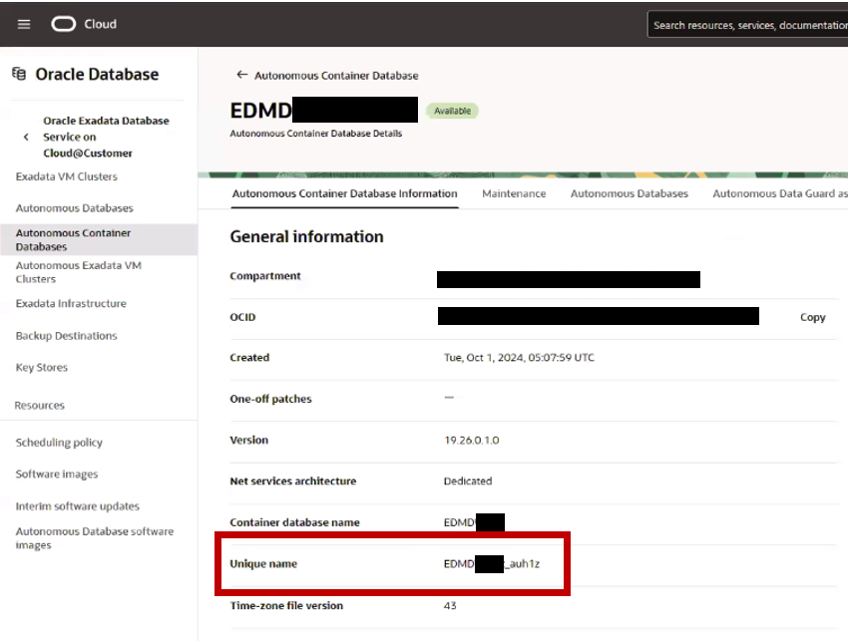
At this point, add the database to the Recovery Appliance protection using its unique name obtained before and assign to it the protection policy. It can be done using the RA command line interface (racli add protected_db) or directly in the RA catalog database as a user with administrative rights using the DBMS_RA.ADD_DB procedure. For example:
BEGIN
DBMS_RA.ADD_DB(
      db_unique_name => 'EDMD_AUH1Z'
      , protection_policy_name => 'EXACC_POLICY'
      , reserved_space => '5G'
);
END;
/
To add a database, you must specify the reserved space, that is the amount of disk space that is guaranteed to be available for the protected database.
- Grant access to this database to the Recovery Appliance VPC user account. This will enable this RA VPC user account to backup, restore, and access recovery catalog metadata for the specified protected database. It can be done using the RA command line interface (racli grant db_access) or directly in the RA catalog database as a user with administrative rights using the DBMS_RA.GRANT_DB_ACCESS procedure. For example:
BEGIN
DBMS_RA.GRANT_DB_ACCESS (
      db_unique_name => 'EDMD_AUH1Z',
      username => 'VPC_C01');
END;
/
At this point the ACD database will appear as UNREGISTERED in the RA catalog. Use the internal RA catalog views to check it.
select DB_UNIQUE_NAME, STATE
from RA_DATABASE
where DB_UNIQUE_NAME  like ‘%EDMD%AUH1Z%’;

DB_UNIQUE_NAME   STATE
--------------   -----
EDMD_AUH1Z UNREGISTERED- On the OCI side it is necessary to associate the Recovery Appliance as backup destination service. The backup destination should be created using the OCI console.
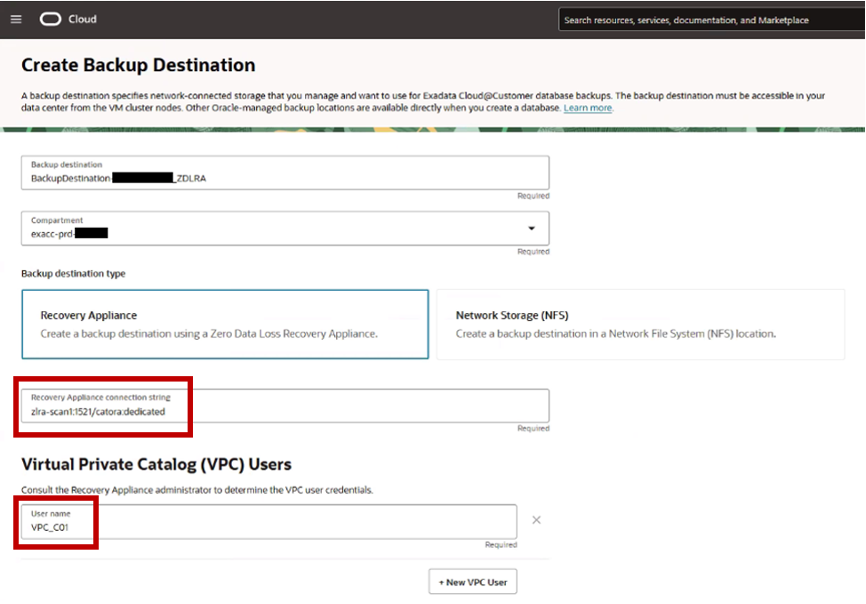
Create the backup destination in the right compartment using “Recovery Appliance” as type. The connection string used for the backup destination recovery configuration follows the format <zdlra_host>:<port>/<zdlra_servicename>:dedicated and the VPC user is the one previously created.
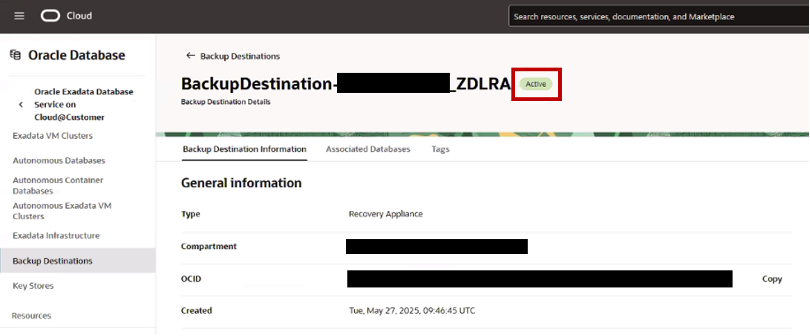
- On the OCI side, from the Autonomous Container page, run the wizard to finalize the backup destination process. Use the backup destination created in the previous step.
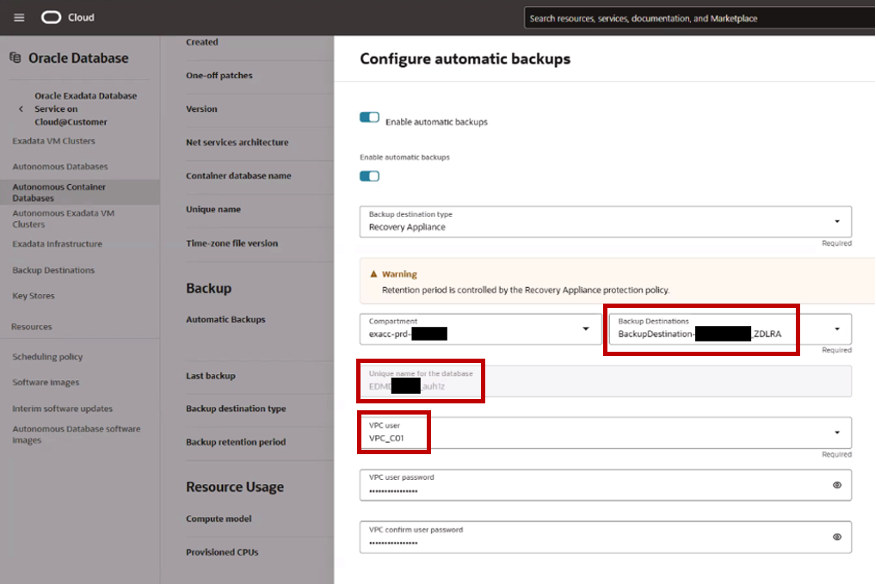
- Put special attention on the “Unique name for the database” and check that it matches with the DB_UNIQUE_NAME added previously. A work request will be created. The process will take about 10 minutes.
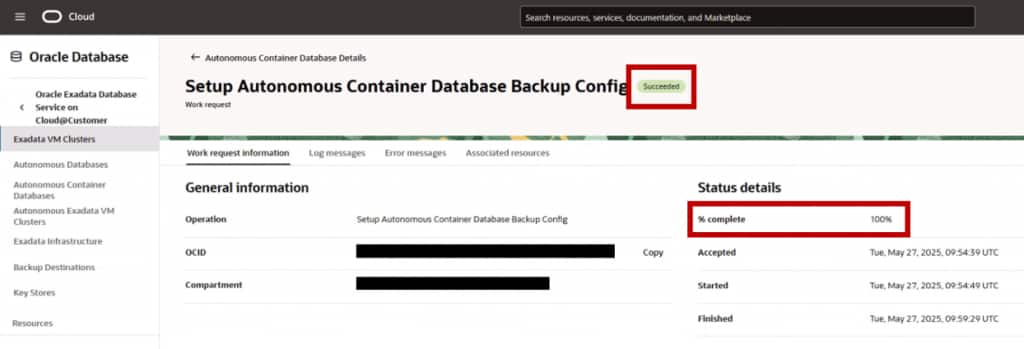
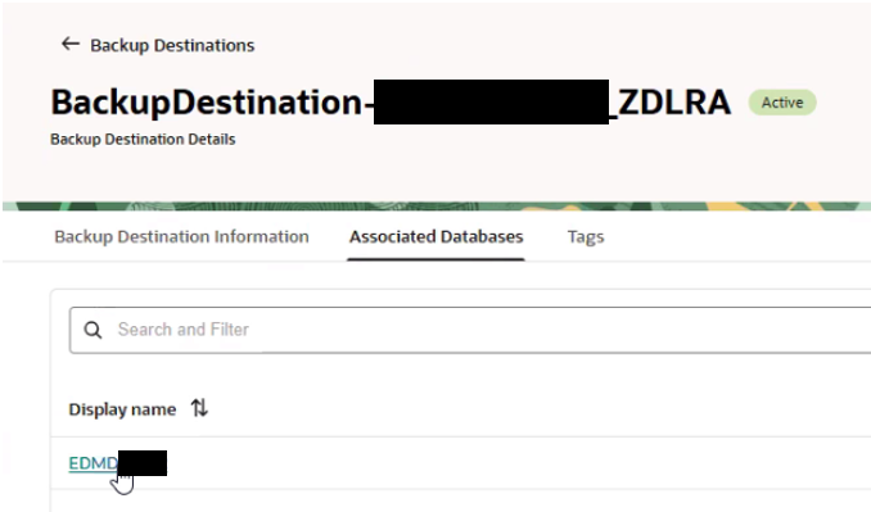
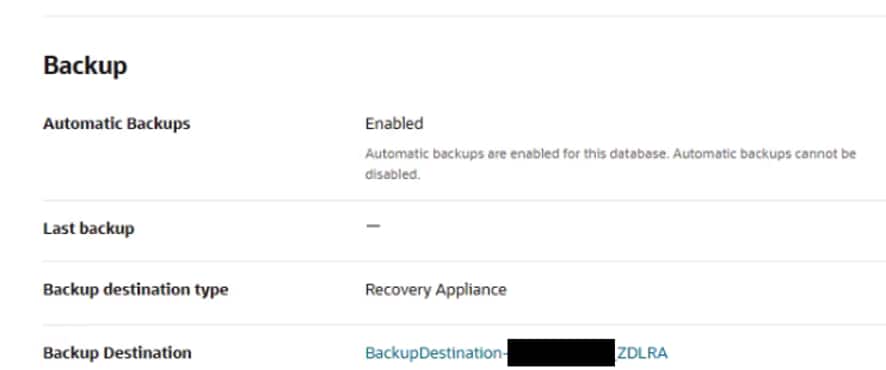
Once it is done the database will appear as ASSOCIATED in the Backup Destination and the Backup Destination will be updated in the Backup section for the ACD.
- If the previous step finishes successfully the ACD will change its status in the RA catalog from unregistered to ACTIVE in the RA_DATABASE view. This can also be checked from OEM accessing to the protected databases view from the ZDLRA management page, but it will take some time to be refreshed and appear there.
select DB_UNIQUE_NAME, STATE
from RA_DATABASE
where DB_UNIQUE_NAME  like ‘%EDMD%AUH1Z%’;

DB_UNIQUE_NAME   STATE
--------------   -----
EDMD_AUH1Z       ACTIVE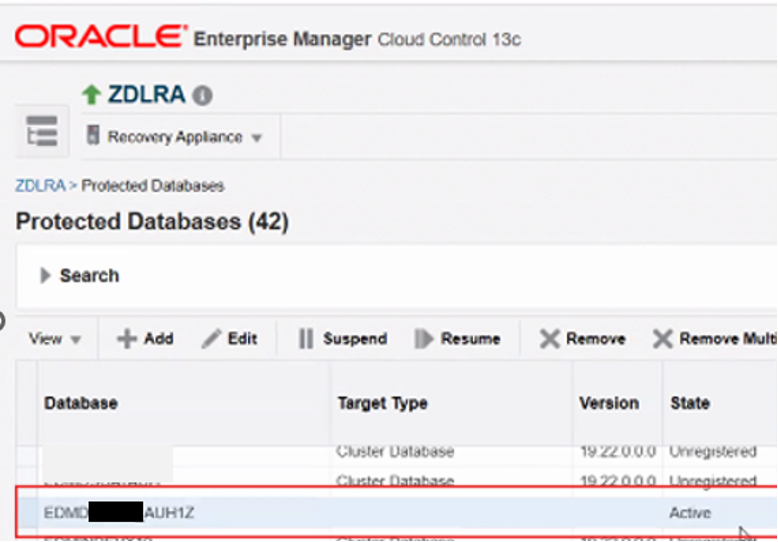
Currently the Redo Transport capability is not supported for ACD databases so this option will appear as not enabled in the view.
- From the RA repository it is possible to verify the backups using the RC_BACKUP_% views as RC_BACKUP_SET and RC_BACKUP_SET_SUMMARY.
- At this point, as a final step, it is possible to go to the ADB console and verify from the backup page the backups history which are those generated through ADB scheduling but stored in ZDLRA
Conclusions
Setting up Oracle ZDLRA as a backup destination for an Autonomous AI Database on Exadata Cloud@Customer ensures a resilient and centralized backup strategy. By properly configuring backups through ZDLRA you enable seamless integration with ADB, aligning with Oracle’s best practices for enterprise data protection. With this setup in place, your organization gains a powerful safeguard simplifying backup management across your hybrid cloud environment.
References
- Managing Autonomous Container Databases – https://docs.oracle.com/en-us/iaas/exadata/doc/adb-managing-acd.html
- ZDLRA Administrator’s Guide V23.1 – https://docs.oracle.com/en/engineered-systems/zero-data-loss-recovery-appliance/23.1/amagd/index.html
- ZDLRA Protected Database Configuration Guide V23.1 – https://docs.oracle.com/en/engineered-systems/zero-data-loss-recovery-appliance/23.1/ampdb/index.html