

Enterprise data rarely lives in one place. Customer relationships are managed in CRM applications, transactions are recorded in operational databases, and product activity is tracked in yet another system. Business questions routinely span all three.
The usual solution is to build ETL pipelines that copy, transform, and consolidate data for analysis. Those pipelines require ongoing maintenance, and scheduled refreshes can leave users working with outdated information. Each new question may introduce another data source, another transformation, or another pipeline to manage.
Oracle Autonomous AI Lakehouse addresses this challenge with Live AI Hub, which brings the latest available data from connected systems into a single analysis without needing to consolidate it. Teams can query distributed data using Oracle SQL, ask questions in natural language, and give AI agents access to the same connected information.
Let’s look at how Live AI Hub works, then follow a sales question from connecting sources to reviewing an answer.
Live AI Hub brings the analysis to the data
Oracle Live AI Hub connects to Oracle databases in the cloud and on premises, other supported databases, business applications, and object stores. Through a common Oracle SQL interface, a single query can combine customer information from a CRM application, purchasing history from an Oracle database, and product usage from MySQL.
Teams can bring AI capabilities to supported existing databases without upgrading those source databases. Built-in, Oracle-managed connectors provide connectivity to supported remote sources at no additional connector cost.
Oracle Autonomous AI Lakehouse serves as the hub, coordinating query execution across connected systems. Based on each source’s capabilities, Live AI Hub pushes supported subqueries to that source for execution. Filtering and aggregation can happen closer to the data, reducing the information transferred between systems. The hub completes the remaining processing, including joins across sources, and returns a combined result.
Local views give remote data familiar names, governed access, and a consistent structure. Select AI uses metadata and business semantics associated with these views to generate SQL from natural-language questions. The same connected data can support SQL queries, dashboards, and AI agents, giving users and applications access to information across enterprise systems.
For analysts, this means they can change their criteria and run the analysis again without building a new pipeline for every question. “Live” means querying the information each connected source makes available when the query runs. A source’s own update schedule still determines how current its records or summaries are.
Which opportunities deserve attention?
Consider a sales team deciding which open opportunities to pursue. Deal value provides a starting point, but the team also needs to understand the customer relationship, product adoption, and unresolved support problems.
The relevant information is distributed across four systems:
| Source | Information it contributes |
| Oracle database in the cloud | Purchasing history and historical revenue |
| On-premises Oracle database | Support cases, including their status and priority |
| MySQL | Recent product usage |
| HubSpot | Open opportunities and deal values |
Strong purchasing history and product adoption may indicate a promising opportunity. An unresolved, high-priority support case could change the timing of the conversation.
The team wants to bring these signals together, using the latest information available from each system.
Connect the sources in Data Studio
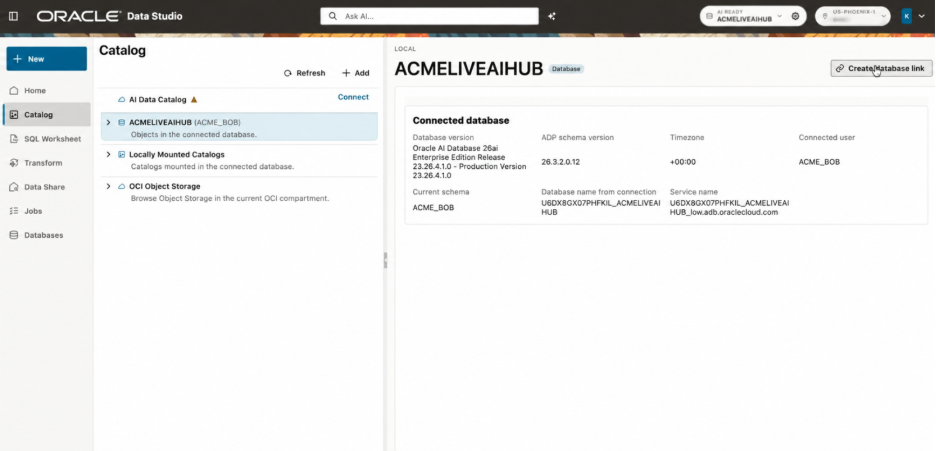
Data Studio (datastudio.oracle.com) provides a unified workspace for connecting sources, exploring their data, and running the analysis. Start by connecting Data Studio to the Autonomous AI Lakehouse instance that will serve as the hub.
An authorized user establishes the remote connections and creates the views. For the examples below, the private database links and views belong to the same hub schema.
We’ll work through the connections from cloud Oracle to on-premises Oracle and MySQL, then HubSpot.
Start with an Oracle database in the cloud
In Data Studio, select the connected hub database and choose Create database link.
For the cloud Oracle database containing purchasing history:
- Name the link CLOUD_ORACLE_LINK.
- Provide the remote database’s hostname, listener port, and service name.
- Select or create a credential containing a remote database account with read access to the purchasing data.
- Create the link and verify access with a small query against the remote purchasing table.
The credential identifies the account used to access the remote database.
Add on-premises Oracle and MySQL
The same database-link approach connects the hub to the on-premises Oracle database containing support cases. First, establish network reachability from the hub to the database, including routing, DNS resolution, and access to the listener port.
Create ONPREM_ORACLE_LINK using the remote hostname, port, service name, and a credential for an account permitted to read the support data.
For MySQL, create MYSQL_LINK using the MySQL hostname, port, database name, and a read credential. Oracle-managed heterogeneous connectivity handles the connection to the supported MySQL source. When creating the link through DBMS_CLOUD_ADMIN.CREATE_DATABASE_LINK, the gateway configuration identifies the source type—for example, mysql—and includes the settings required for its public or private endpoint. [2]
Verify both connections by querying a few records before building the analysis.
Connect HubSpot using OAuth
HubSpot adds application authentication and an API-to-relational mapping to the connection process.
- Authorize a HubSpot OAuth application with the scopes required to read the opportunity data. Obtain its client ID, client secret, and refresh token.
- In SQL Worksheet, create an OAuth credential named HUBSPOT_OAUTH_CRED using DBMS_CLOUD.CREATE_CREDENTIAL.
- Create HUBSPOT_LINK using DBMS_CLOUD_ADMIN.CREATE_DATABASE_LINK, referencing that credential. Configure the HubSpot endpoint, api.hubapi.com, port 443, and the HubSpot gateway options, token URI, and supplied relational model required by the deployed connector.
- Verify the connection with a small read query against an exposed HubSpot object.
The connector’s built-in relational model presents supported application data through tables and columns, reducing the work needed to map application APIs before querying them.
Create views that make the data easier to use
Once the sources are connected, create local views over remote objects. These views define the fields and business structure used by the analysis while accessing the underlying remote records when queried.
The examples below use illustrative table and column names. They assume a normalized HubSpot mapping exposes the deal fields shown, all monetary amounts are in USD, and the sources have been mapped to a common CUSTOMER_ID.
First, summarize purchasing history from the cloud Oracle database:
CREATE OR REPLACE VIEW customer_revenue AS
SELECT customer_id,
       SUM(revenue_amount_usd) AS historical_revenue_usd
FROM sales.customer_revenue@CLOUD_ORACLE_LINK
GROUP BY customer_id;
Next, expose the MySQL usage summary. This example assumes the source contains one current summary per customer:
CREATE OR REPLACE VIEW mysql_product_usage AS
SELECT "customer_id" AS customer_id,
       "active_users_30d" AS active_users_30d
FROM "analytics"."product_usage"@MYSQL_LINK;
Expose the support fields needed for the analysis:
CREATE OR REPLACE VIEW onprem_support_cases AS
SELECT customer_id, case_status, priority
FROM support.support_cases@ONPREM_ORACLE_LINK;
Finally, create a view of open HubSpot opportunities:
CREATE OR REPLACE VIEW hubspot_open_deals AS
SELECT customer_id, deal_name, deal_value_usd
FROM crm.deals@HUBSPOT_LINK
WHERE deal_status = 'OPEN';
The revenue view produces one row per customer, and the usage view exposes one summary per customer. Keeping those relationships explicit helps prevent revenue or usage figures from being multiplied when the data is joined.
These are ordinary views: they store query definitions rather than copies of the remote records. [3]
Enrich the views with business semantics
Readable names help people understand data. Natural-language query generation also benefits from context about what fields mean, how objects relate, and how business terms map to stored values.
Store that context as annotations on the hub’s views and columns. Additionally, AI-driven automatic annotations in Data Studio provide a 1-click mechanism to explain semantic meaning of data.
In the Select AI profile used for this analysis, include the four views in object_list and enable annotation retrieval with “annotations”: “true”. Select AI can then include those annotations in the metadata supplied to the configured language model for SQL generation. [6]
The context now connects business phrases such as “historical revenue,” “recent product adoption,” and “unresolved high-priority cases” to the objects and values used by the query.
Ask the question in natural language
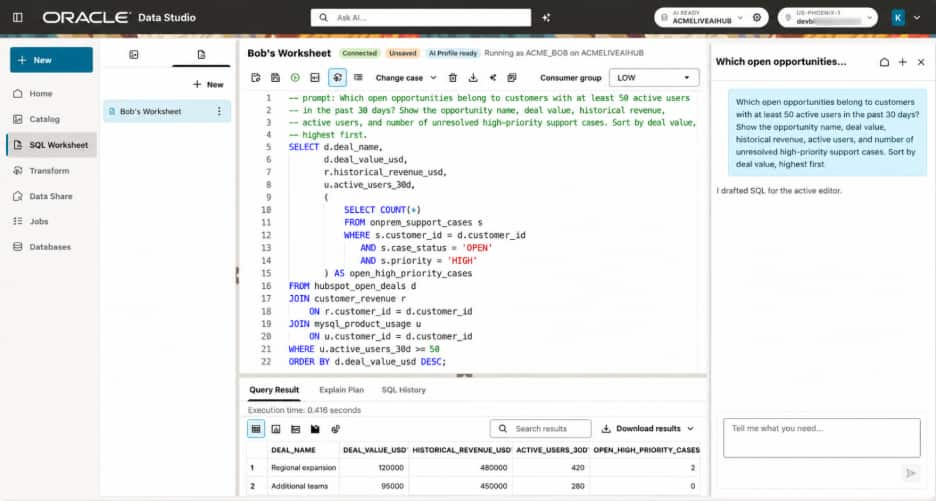
With the views and AI profile configured, the analyst can open Data Studio’s AI Assistant and ask:
Which open opportunities belong to customers with at least 50 active users in the past 30 days? Show the opportunity name, deal value, historical revenue, active users, and number of unresolved high-priority support cases. Sort by deal value, highest first.
The assistant uses the available object metadata and business annotations to draft SQL. The analyst reviews the generated statement, adjusts it if necessary, and runs it in SQL Worksheet.
An illustrative query to count support cases:
SELECT d.deal_name,
       d.deal_value_usd,
       r.historical_revenue_usd,
       u.active_users_30d,
       (
           SELECT COUNT(*)
           FROM onprem_support_cases s
           WHERE s.customer_id = d.customer_id
             AND s.case_status = 'OPEN'
             AND s.priority = 'HIGH'
       ) AS open_high_priority_cases
FROM hubspot_open_deals d
JOIN customer_revenue r
    ON r.customer_id = d.customer_id
JOIN mysql_product_usage u
    ON u.customer_id = d.customer_id
WHERE u.active_users_30d >= 50
ORDER BY d.deal_value_usd DESC;
The query combines open HubSpot opportunities with historical purchasing revenue and MySQL usage. The support subquery counts relevant cases without multiplying the opportunity rows.
An illustrative result might look like this:
| Opportunity | Deal value, USD | Historical revenue, USD | Active users, past 30 days | Open high-priority cases |
| Regional expansion | 120,000 | 480,000 | 420 | 2 |
| Additional teams | 95,000 | 450,000 | 280 | 0 |
The first opportunity has a higher deal value and strong product adoption, but two unresolved support cases may warrant a conversation with support before an expansion discussion. The second has no matching high-priority cases in the accessible support data.
Live AI Hub coordinates execution across the sources and can send supported portions of the query to them for processing. The analyst receives one result containing the signals needed for the decision.
The team can now change the question: Which valuable customers have low engagement? Which open opportunities have unresolved support problems? The connections and views support those investigations without another data pipeline.
Control access through source credentials and views
Connecting distributed data also requires deciding who can access it. Live AI Hub supports that design through the credentials used for remote connections and the permissions applied to local views.
Source credentials determine what each connection can retrieve. A database-link credential identifies the remote database account; a HubSpot OAuth credential represents an authorized application and its granted scopes. Source permissions apply to that identity. Different teams can use separate credentials and private links when their remote access requirements differ.
Views determine what the hub exposes to its users. A view can select the required columns, apply approved row filters, or expose an aggregate instead of detailed records. Grant SELECT on those views to the appropriate database users or roles.
The AI profile supplies context for SQL generation. Database grants and the permissions of the remote connection identity enforce access.
An AI agent can use the same approach: authenticate with an appropriately restricted hub identity and query the views or approved query interface made available to it.
Let the question lead the analysis
Live AI Hub lets teams begin with a business question and investigate it using live, connected data. Once access, customer relationships, and business semantics are established, analysts can explore different combinations of information without building a new pipeline for every question.
AI agents gain the same broader reach when given access through the hub. A sales agent can evaluate an opportunity alongside purchasing history, recent product activity, and unresolved support cases, helping it explain why an account merits attention or why a support handoff should come first.
With Live AI Hub in Oracle Autonomous AI Lakehouse, teams can spend more time deciding what to ask and understanding the answer, with less infrastructure work between the two.