
Data Transforms is the bridge, in three clicks: bring Fusion data into Autonomous AI Lakehouse with the Spectra Batch Processing connector. Incremental loads, deletes, and parallel loading are handled for you.
A modern path from Fusion Applications to AI Lakehouse
Oracle Data Transforms, the pipeline builder in Autonomous AI Lakehouse, extracts data from Fusion Applications through either the BI Cloud Connector (BICC) connection type or the newer Spectra Batch Processing connection type. Both let you configure which data objects to extract and where to land the results in a target schema. The load is managed in the familiar Data Transforms design and runtime editors, so teams can create, run, and monitor it alongside the rest of their integration work.
Fusion, the Lakehouse, and the data between them
Fusion is Oracle’s SaaS solution for running a business. Autonomous AI Lakehouse is Oracle’s data lakehouse solution. This post is about getting data from the first into the second.
Fusion covers finance (ERP), supply chain (SCM), people (HCM), customers (CX), and planning (EPM). More than 14,000 enterprises run on it. Because Fusion is built on one data model, a supplier, customer, or employee is a single record across every module. Oracle updates it every quarter. The Lakehouse is where that data is analyzed: combined with data from other systems, transformed, and queried in SQL or plain English.
Fusion is the system of record for much of the data analysis needs, including spend, deliveries, commitments, invoices, and headcount. Analysis usually needs that data alongside information from other systems, shaped for reporting rather than transactions, and queried without adding load to the application people are using. So the data is copied into a lakehouse and analyzed there. That means extracting it from Fusion reliably and repeatedly without disturbing the application.
Until now, that extraction has been a project in itself. Fusion’s established route is the BI Cloud Connector (BICC): choose view objects by offering, schedule extract jobs in the BICC console, receive CSV files in Universal Content Management or OCI Object Storage, and then build the load. BICC is dependable for bulk and incremental extracts, but it is batch-only. It cannot filter rows conditionally or run every few minutes, and frequent large extracts affect application performance. Teams therefore end up writing and maintaining the scheduling, file handling, incremental logic, and delete handling around it. REST APIs are intended for real-time integration, not volume, and Oracle advises against using BI Publisher, a report engine, for extraction.
Spectra: Fusion’s next-generation data platform
Spectra is the new platform underneath Fusion. Spectra Batch Processing is its service for extracting data in bulk. Data Transforms, the pipeline builder in the Lakehouse, now has a connector for it.
Spectra Batch Extract exposes Fusion data as business objects rather than database views. Alongside it, Oracle has introduced a Read-Optimized Data Store (RODS): a continuously synchronized copy of Fusion data, replicated with Oracle GoldenGate onto Autonomous AI Lakehouse technology and built for read-intensive workloads. Extracts run against RODS, so they do not compete with application transactions. The copy is kept current rather than refreshed by a nightly batch.
Spectra Batch Processing is the bulk extraction service on that platform. A batch job is submitted for a business object, runs against RODS, and ends when its output files land in OCI Object Storage or Universal Content Management—the same hand-off point as a BICC extract. Oracle’s Data Extraction Tool in Fusion is one client of this service; Data Transforms is another.
Data Transforms handles both sides of that hand-off. It creates the definition of what to extract, submits and monitors the Spectra batch job, detects when files have landed, and restarts the job when needed. Then it loads the files into Autonomous AI Lakehouse with the right upsert or delete behavior for each table. Objects set to Incremental Merge have their changed rows merged. Objects set to Incremental with Deletes also have rows removed from Fusion deleted from the target.
The connection needs the Fusion service URL, OAuth token endpoint, client ID, client secret, and scope. You could build all of this in custom code. Data Transforms provides it as a data load that you configure in a wizard, schedule, and monitor in the Jobs panel.
Spectra covers many Fusion modules today and all new modules, and its business-object coverage grows with each quarterly release. The Spectra platform, including RODS replication, must be provisioned in your Fusion environment through Oracle. For modules not yet on Spectra, the BICC connection remains available in the same wizard, so one tool covers both.
Why this matters
Data Transforms hides the complexity of loading Fusion data into the Lakehouse: incremental loads, removal of deleted rows, and parallel loading are handled for you. For a data engineer, the difference is the amount of plumbing that disappears. An extract, whether through BICC or Spectra, ends when files land in object storage. Everything around it is a chain of steps: defining what to extract, submitting and watching the job, noticing that files have arrived, loading them, merging changes, applying deletes, and monitoring the process. With Data Transforms, that chain is one data load, designed, scheduled, and monitored in the same tool as the transformations that follow it.
For the business, Fusion data can arrive in the Lakehouse sooner and more often because extracts run on a read-optimized copy rather than on the application. Questions such as which suppliers carry the most risk can then be answered using complete, current data together with everything else the Lakehouse holds.
Why Data Transforms
Data Transforms is built into Autonomous AI Lakehouse. There is nothing to install, and one tool covers the whole pipeline: load data from applications, databases, files, and object storage; transform it with a no-code data flow designer or SQL; orchestrate the steps as workflows; schedule them; and monitor every run from one console. Transformations execute inside the Lakehouse, so data is not pulled out to a separate engine and pushed back.
The same tool connects to Oracle Fusion, NetSuite, Salesforce, other SaaS applications, major cloud warehouses and lakehouses, and open formats such as Apache Iceberg. The result is fewer tools and hand-offs, with one place to see what ran, what failed, and why.
For Fusion, extraction, incremental loading, delete handling, transformations, and scheduling all live in one tool, with no separate extraction framework to run.
Build AI Lakehouse with Oracle Fusion data sources in three steps
Imagine a data engineer who needs to find which suppliers have the highest spend, late deliveries, outstanding commitments, and elevated external risk. Much of the required data is in Fusion ERP, Procurement, and SCM modules, while some comes from external sources, such as supplier-risk information. To create a report like this, the relevant Fusion data must first be moved to AI Lakehouse.
Historically, extracting Fusion data involved many steps. With Data Transforms, the complexity is hidden, and the data engineer needs only three simple steps:
- Create and configure the connection to the Fusion application.
- Choose the Fusion objects to extract.
- Create a schedule to run the data load.
Fusion Launch card for loading and organizing raw data from Oracle Fusion
1. Run the Fusion Launch Wizard from Data Studio
Start by running the Fusion Launch Wizard from the Data Studio home page. You can reach Data Studio at datastudio.oracle.com or from Database Actions in the OCI Console.
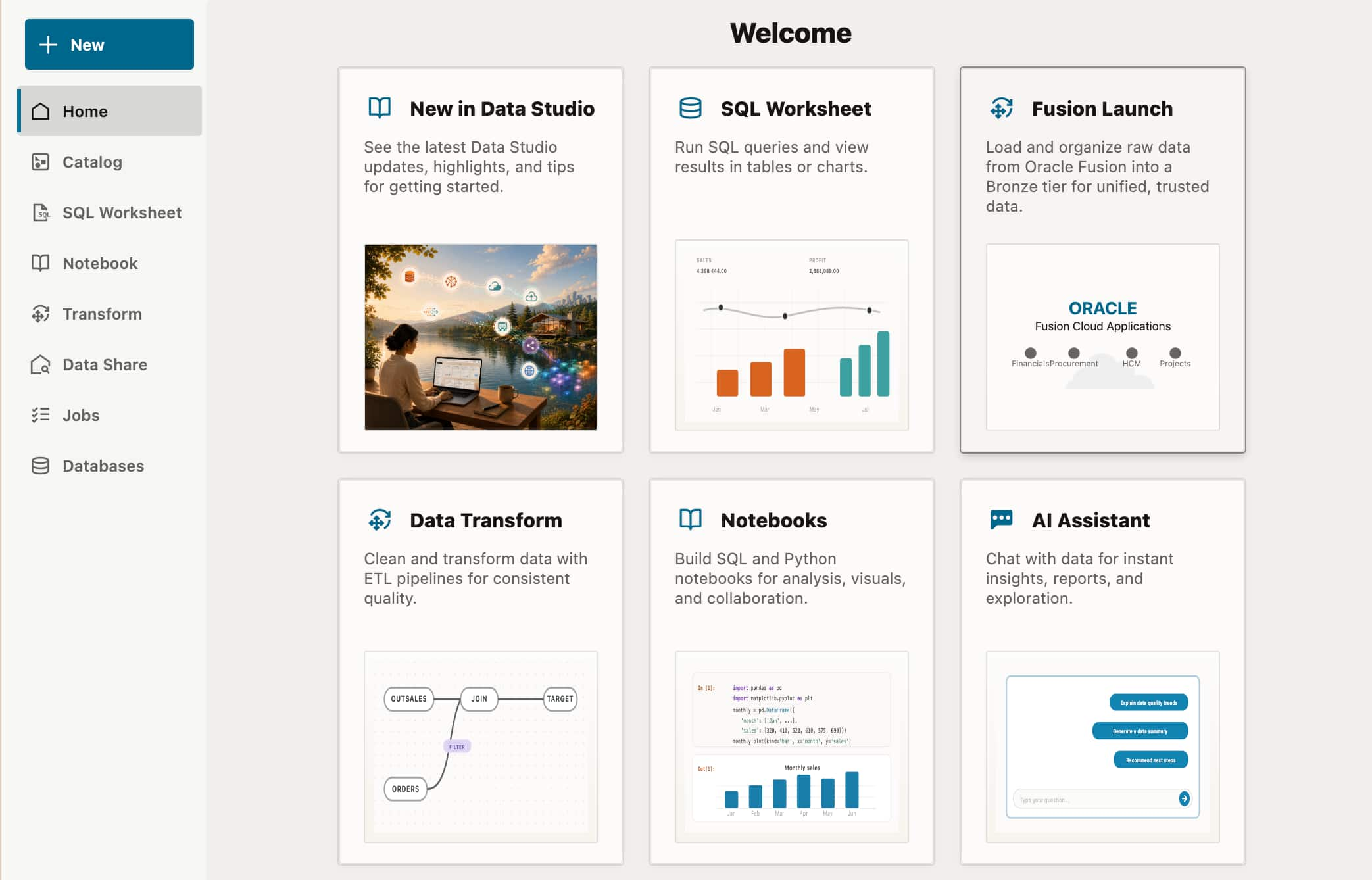
Figure 1. The Data Studio home page, where you’ll find the Fusion Launch wizard.
If this is your first time accessing Fusion data, you will be asked to create a connection to Oracle Cloud Applications (Fusion). You can choose between these extraction methods:
- BI Cloud Connector (BICC): The established extraction route, based on view objects, for most Fusion modules.
- Spectra Batch Processing: The newer business-object route, running on the read-optimized data store, for many Fusion modules and all new ones.
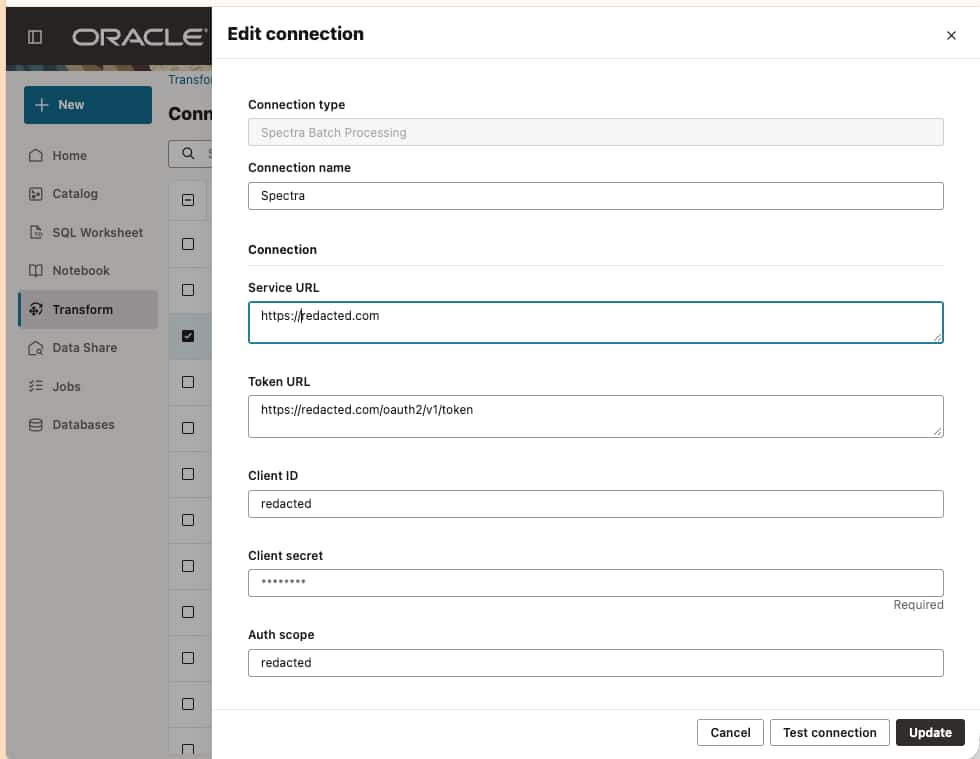
Figure 2. Provide credentials to connect to Fusion.
After entering the credentials, test the connection and continue with the wizard.
2. Choose the Fusion modules and objects you want to extract
Choose the Fusion functional areas you are interested in. Narrowing the functional areas makes it easier to find the objects you want to extract later. You can also choose all areas and filter in the editor.
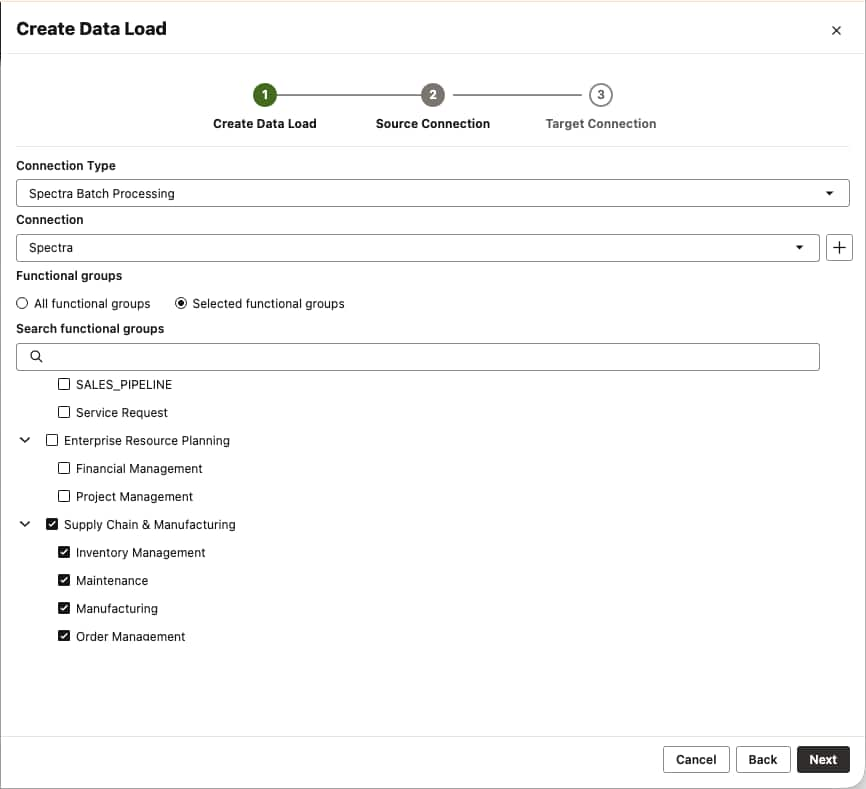
Figure 3. Select the extraction type and business areas.
When the wizard is complete, Data Transforms opens the Data Load Editor. Choose the objects to replicate, using filters and search fields to find them. For each object, you can choose whether to handle deletes. If a row no longer exists in the Fusion application, it will be deleted from the target table. All selected objects use incremental handling; Data Transforms calculates how to detect changed data and identify merge keys.
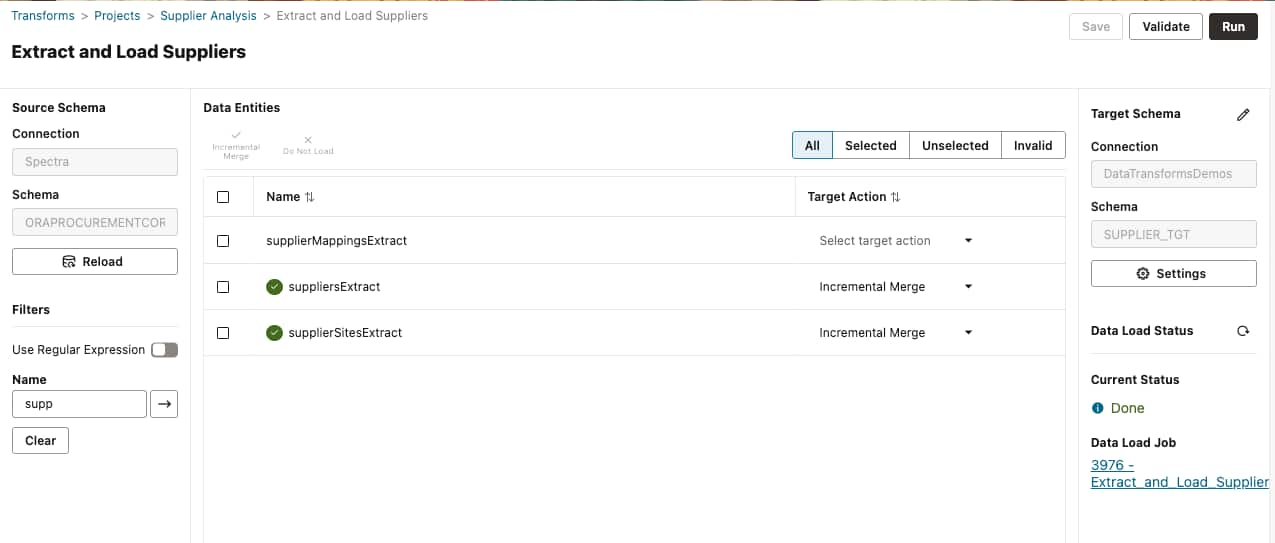
Figure 4. Select the Fusion objects you want to extract.
3. Schedule the job and monitor the extraction
After saving the data load, run it directly from the Data Load Editor, or create a workflow and add it to a schedule.
Follow the job status in the Jobs panel. The Data Load job lists the selected objects and, for completed extracts, how many rows were inserted or updated in each table. When the load finishes, the job details report aggregates the final statistics and information about any errors.
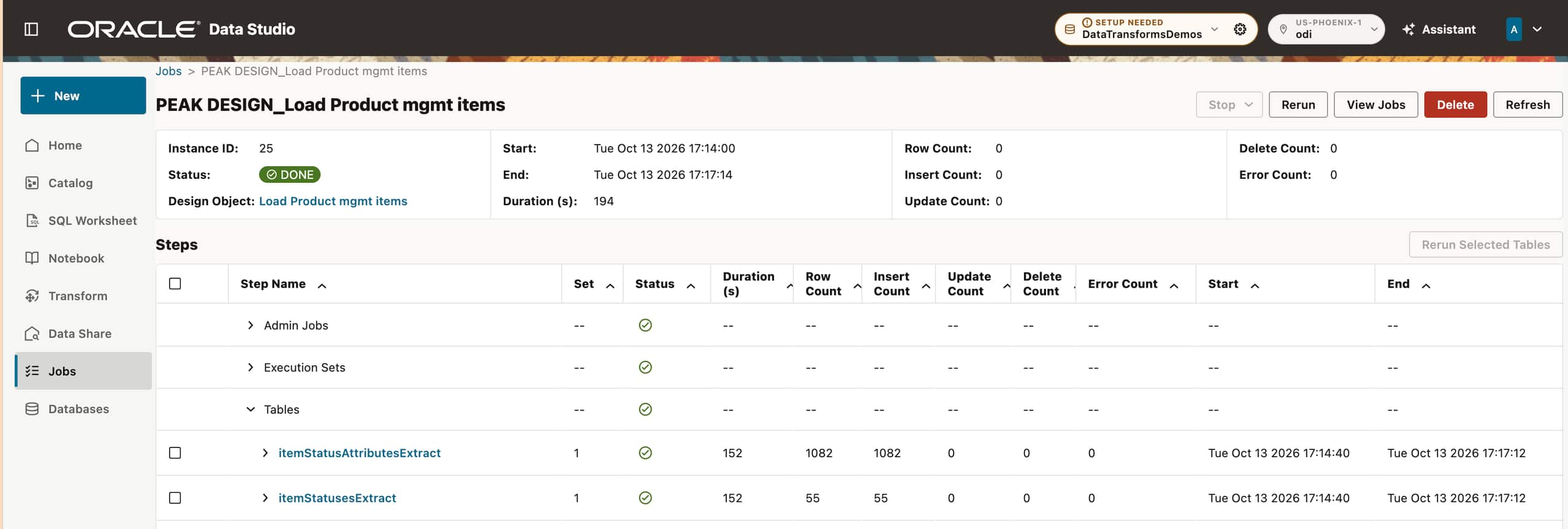
Figure 5. A completed Fusion extraction reports job status, row counts, load actions, duration, and error counts.
4. Transform the data and join it with other systems
After loading Fusion data into AI Lakehouse, transform it in the Data Flow Editor. The example below builds an extended supplier table by adding external information for supplier risk analysis. The supplier names in both tables are normalized to increase the chance of a match in the Lookup operator. The flow creates a new table for analysis.
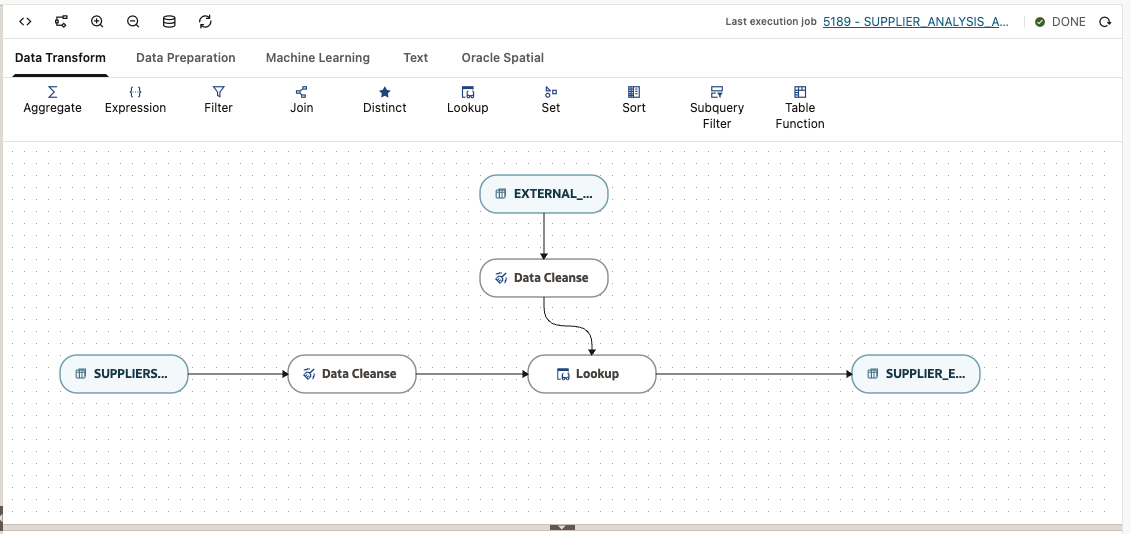
Figure 6. Data flow combining Fusion data with external data.
5. Query the data in AI Lakehouse using natural language
In Data Studio, open the SQL Worksheet tab to query the table created by the data flow. To create the final Supplier Risk Score, use this prompt to generate SQL:
Write a query against
SUPPLIER_ANALYSIS.SUPPLIER_EXT1to identify the top 100 highest-risk suppliers. Create a supplier risk score column using multiple component scores in the table.
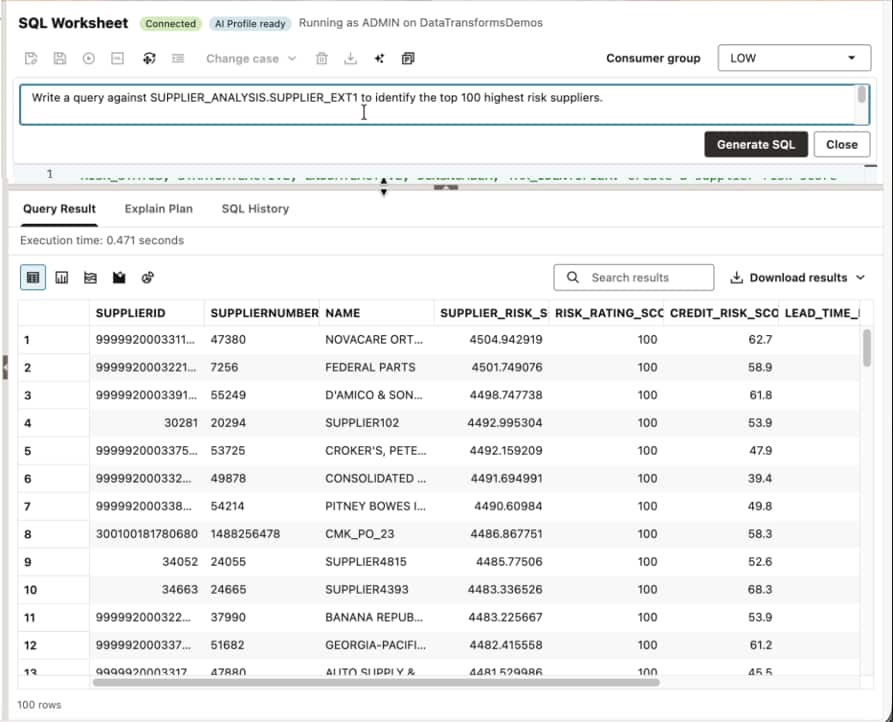
Figure 7. Run a query in Data Studio to list the top 100 risky suppliers.
Architecture: from Fusion Applications to the AI Lakehouse
The architecture below shows the design and runtime components in Data Transforms, together with the flow of data from Fusion to AI Lakehouse.
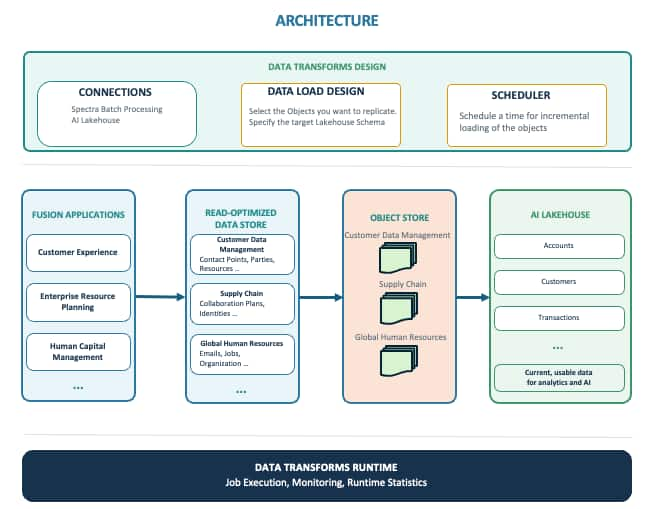
Figure 8. Data Transforms hides the complexity of moving data between Fusion Applications and AI Lakehouse.
What this adds to Data Transforms and AI Lakehouse
Bringing Fusion data into AI Lakehouse provides a foundation for analysis and reporting across your data. With Data Transforms handling and monitoring Fusion extraction, incremental loading, and deletes, the Spectra Batch Processing connector offers a user-friendly path through what would otherwise be a complex operation.
The value is in what the data engineer no longer has to build: no extraction scripts, no hand-written incremental or delete logic, and one Jobs panel to watch instead of a separate console for each step.
Start building pipelines with Oracle Data Transforms at datastudio.oracle.com.