
Most of the large companies have data already fragmented in different data sources, existing analytics eco-systems and want to connect all these data in a single Lakehouse without moving or duplicating it. Before analysis can begin, the team needs to find those sources, inspect their metadata, and obtain appropriate access.
This walkthrough uses Oracle AI Data Catalog through Data Studio to connect the sources and manage discovery access. We start as an administrator, complete catalog setup, and then show what an unprivileged user sees and how an authorized user can browse the catalog and run a sample query.
Create the AI Data Catalog database
In Data Studio, open AI Data Catalog under Data and choose Create. We can also go to the Databases screen and create AI Data Catalog.
Once the AI Data Catalog database is provisioned, we need to continue with the setup of object storage for this Catalog.
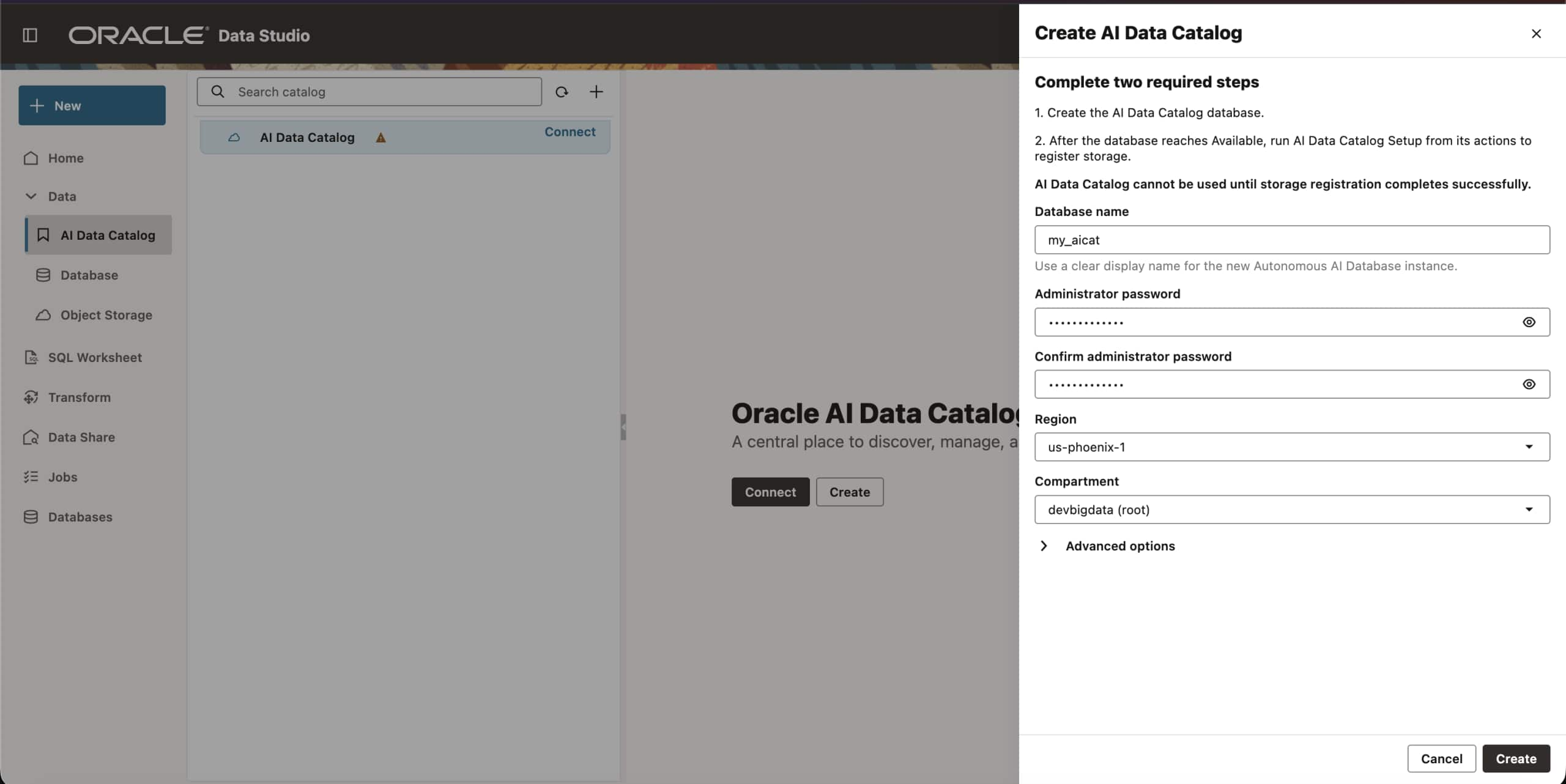
Figure 1. Create the database that hosts AI Data Catalog.
More details: Oracle AI Data Catalog setup
Register storage to complete setup
Object storage setup is needed so that AI Data Catalog can use that location to read and write the data for the Iceberg Catalog. The selected bucket serves as the Iceberg warehouse for table data. Setup connects to the hosting database as ADMIN to register the storage credentials.
This can be done either from the Databases screen where the AI Data Catalog is available or from the AI Data Catalog in the navigator.
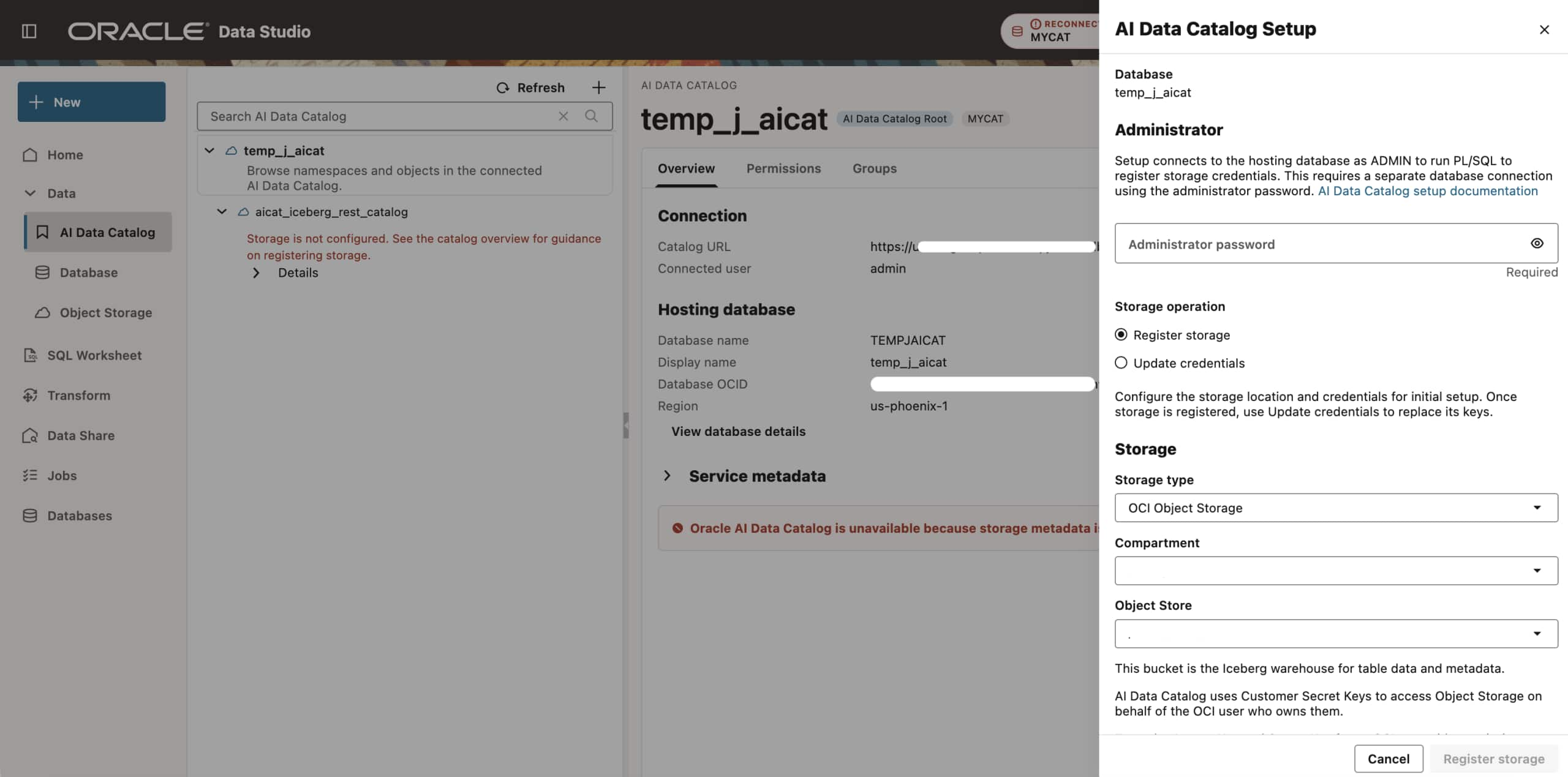
Figure 2. Register the storage location and credentials for AI Data Catalog.
More details: Oracle AI Data Catalog Object Storage Setup
Connect Databricks Unity Catalog
Add Iceberg Catalog by clicking + button and select Catalog Type. Supply the Iceberg REST endpoint, authentication details and catalog object storage settings.
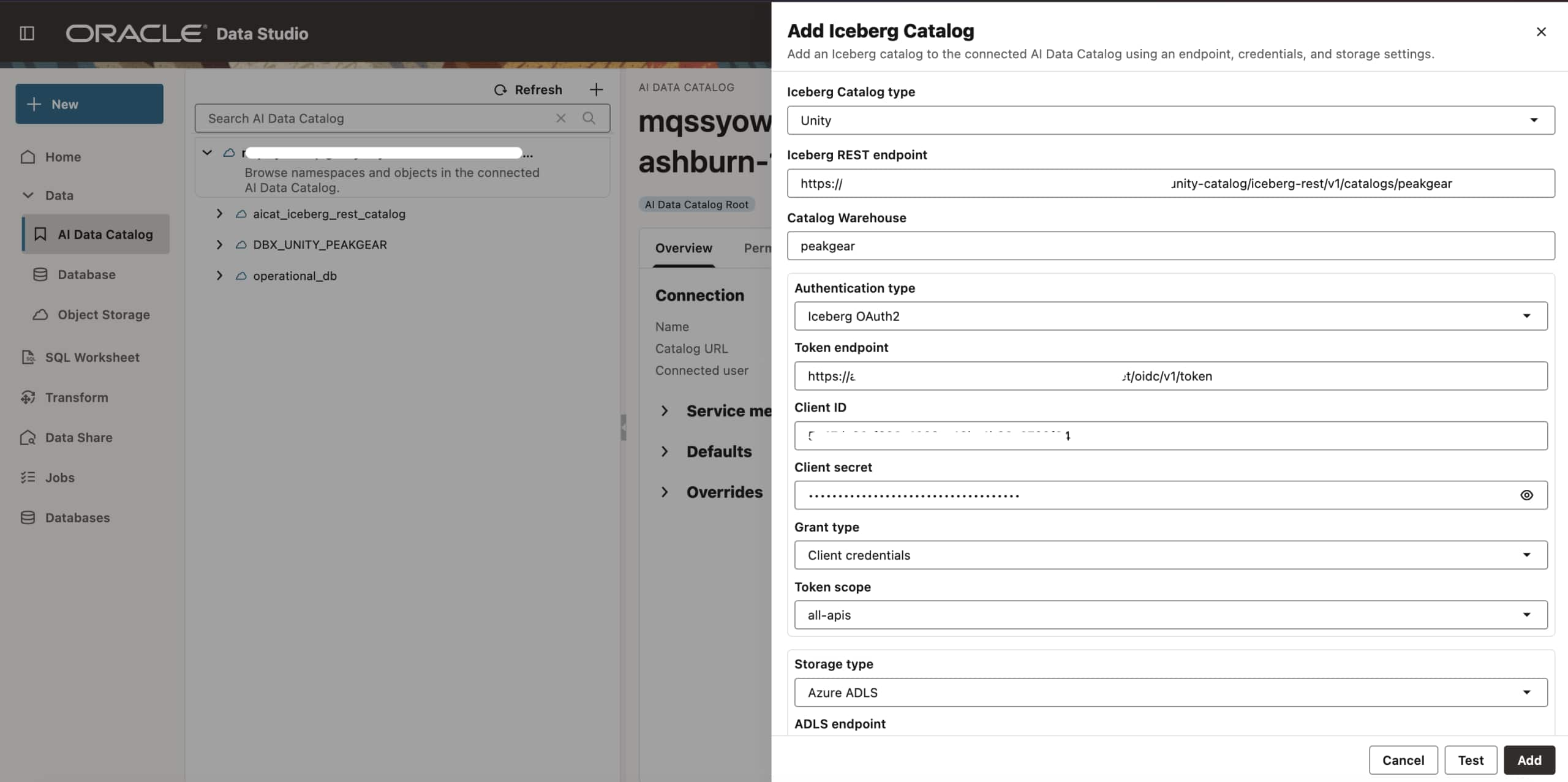
Figure 3. Add Unity Catalog using its endpoint, authentication, and storage settings.
The administrator can then expand DBX_UNITY_PEAKGEAR and its iceberg schema to inspect tables such as digital_clickstream_events and products. Reviewing this metadata helps identify the data relevant to customer activity analysis.
More details: Oracle AI Data Catalog OAuth
Connect the Oracle operational database
Connect JDBC Catalog to Oracle AI Data Catalog by clicking + button. Choose Oracle as the database type and provide the connection details.
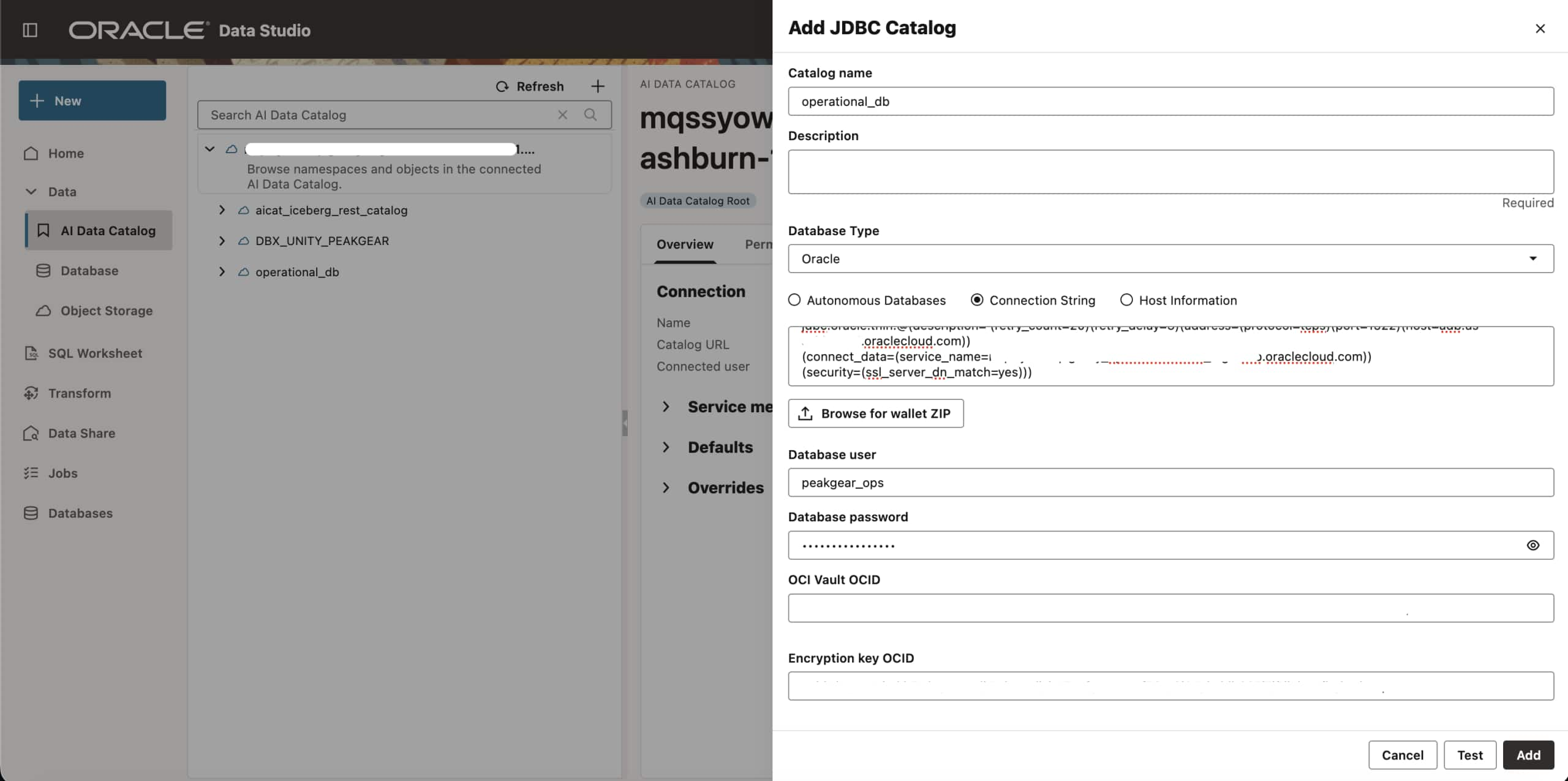
Figure 4. Register the Oracle database as a JDBC catalog named operational_db.
More details: Creating a Vault in OCI, Creating Encryption Key in OCI
The administrator now has the Databricks and Oracle catalog entries in the same Data Studio navigation tree. The next step is to give the analytics team the access it needs to discover data.
Privileges to access the AI Data Catalog
As an AI Data Catalog user which already has MANAGE permissions, select the AI Data Catalog root and open Permissions, then Grant access. Choose User and select the intended principal. In this example, a user named analytics_user, is granted BROWSE_METALAKE access.
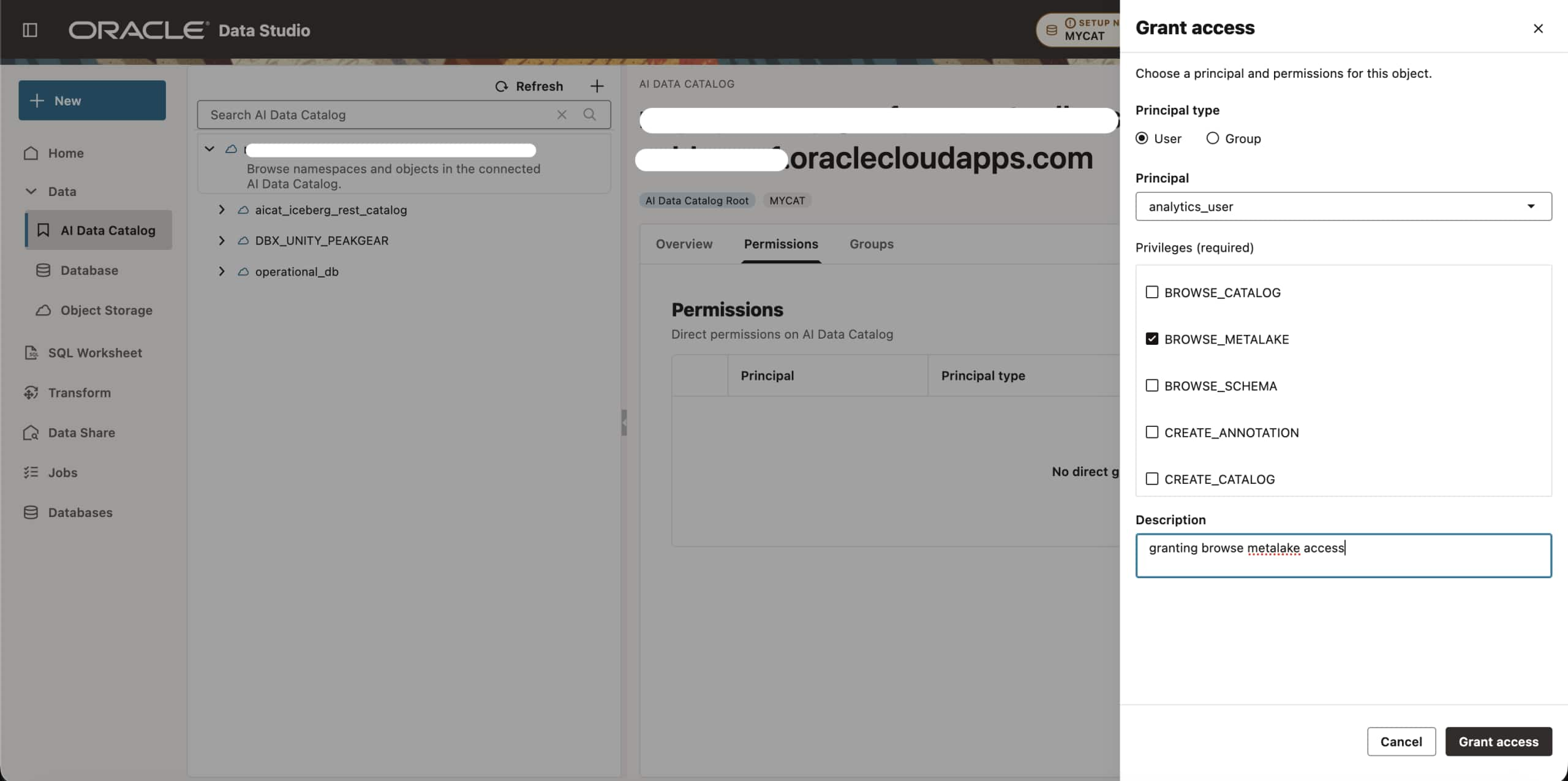
Figure 5. Grant BROWSE_METALAKE to analytics_user at the AI Data Catalog root.
Managing access via Groups
For a team, use the root Groups tab to create a group such as Analytics_Team and manage its members. In Grant access, select Group as the principal type and grant the required privileges to that group. This lets administrators maintain shared access through group membership.
Verify the authorized user view
Connect as the intended user and refresh the catalog tree to verify the access. In the authorized view below, analytics_user can expand aicat_iceberg_rest_catalog and MY_NAMESPACE to see SALES_CURATED and SALES_RAW. This verifies catalog browsing; it does not establish permission to read table data.
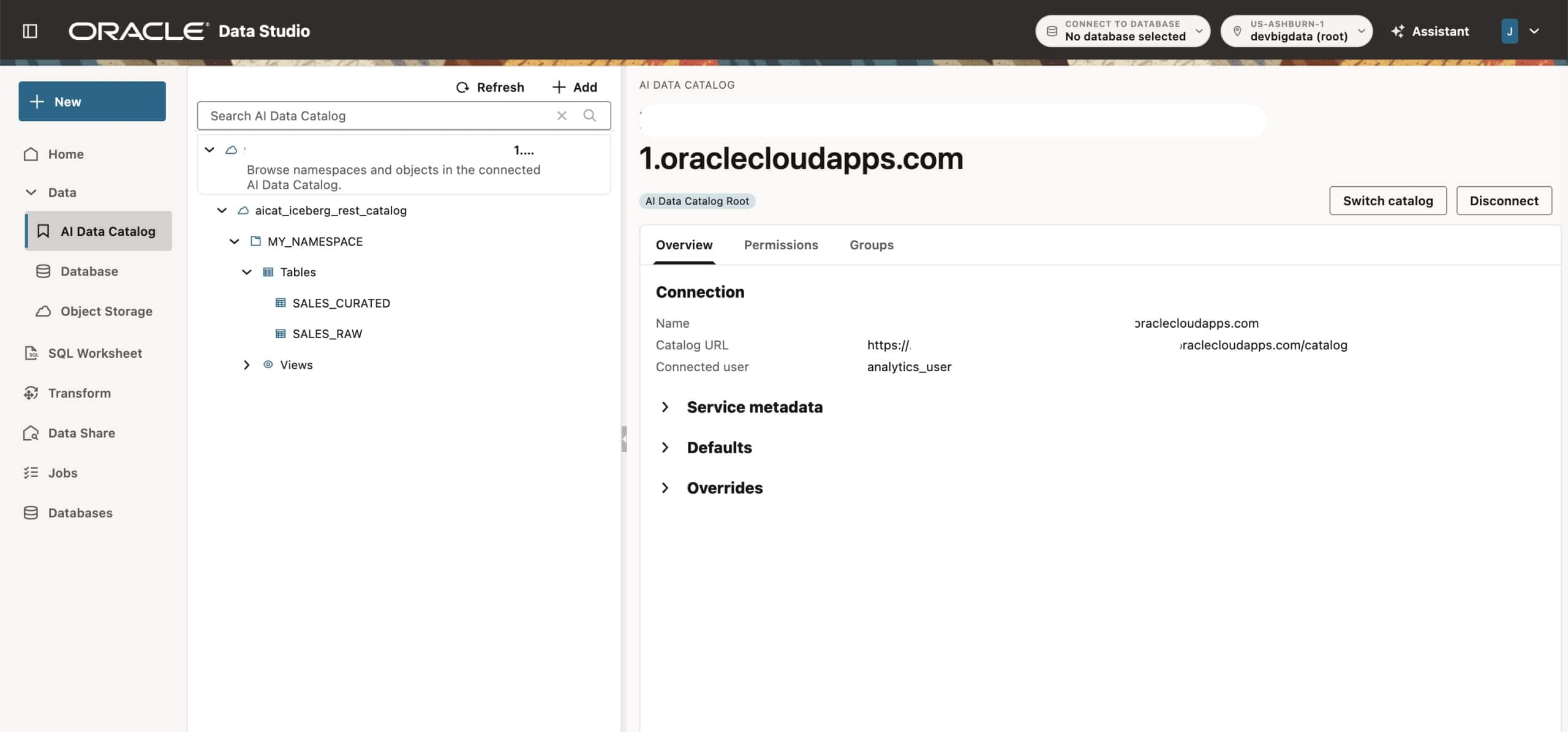
Figure 6. The authorized user can browse the catalog, namespace, and visible tables.
Query a sample of customer activity data
To query data in a Catalog, select SQL Worksheet and locate the table.
Querying data requires Oracle Database and uses connected Oracle Database’s session user. Confirm required permissions and setup in Database Settings or via banner message in SQL Worksheet.
Oracle AI Data Catalog user connection is used to browse the Catalog’s metadata. Querying table data also requires Oracle AI Data Catalog SELECT_TABLE permission granted to the connected Catalog user.
Below screenshot shows a different Oracle AI Data Catalog with similar connected data sources setup.
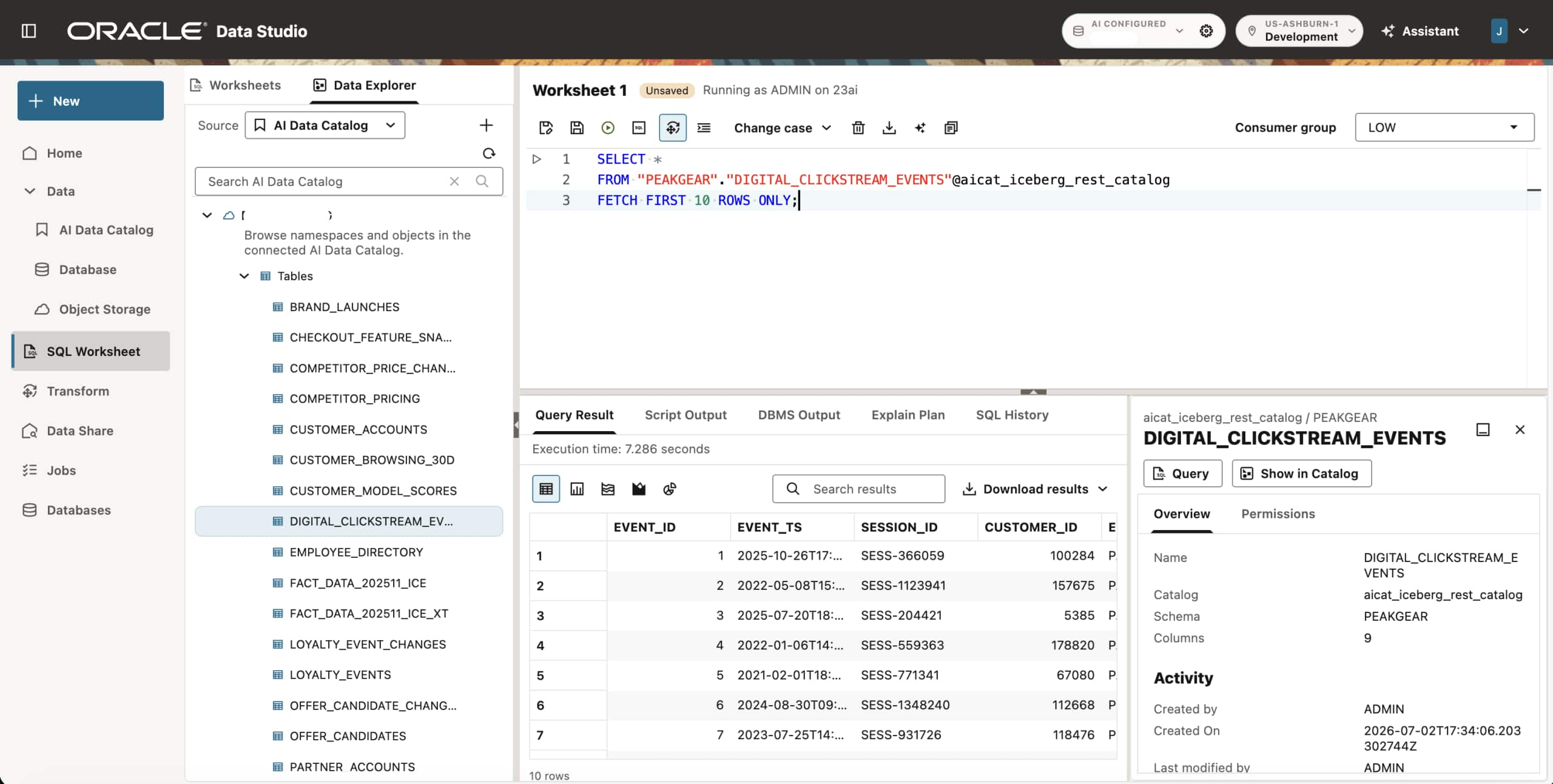
Figure 7. Query a 10-row sample of DIGITAL_CLICKSTREAM_EVENTS through AI Data Catalog.
AI Assistant for data discovery and Natural Language
AI assistant is a first-class citizen of Data Studio UI, where we can use natural language prompts to discover the metadata from all the connected data sources and even generate data query to help with data discovery, subject to connected user’s permissions.
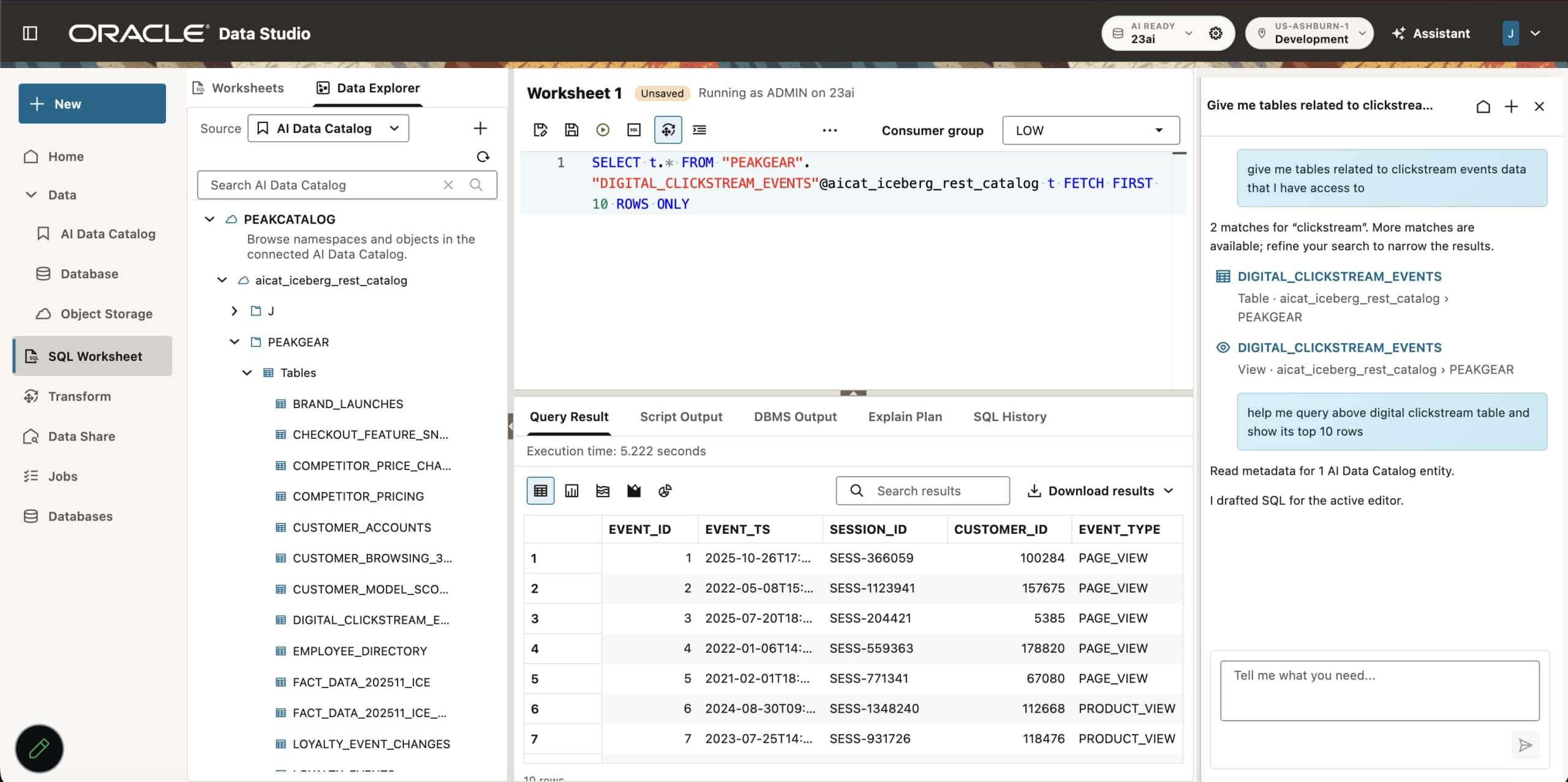
Figure 8. AI Assistant helping with metadata and data discovery
Using one governed Oracle AI Data Catalog, we were able to connect different distributed data sources and let users and AI discover and consume data.
More details: Activate AI Agents on your entire enterprise data estate with innovations in Oracle Autonomous AI Lakehouse