

Oracle APEX 26.1 introduced APEXlang, an open, human-readable application definition language for Oracle APEX. Developers can export an application in APEXlang, work with its structured .apx files in an external editor such as Visual Studio Code, validate their changes, and import the application back into an APEX workspace.
This brought a modern, source-driven workflow to APEX development. Pages and shared components could be edited as individual files, reviewed using familiar diff tools, and tracked in source control. However, applying even a small change still required importing the entire application.
For large applications, a full import can take additional time when only one page or shared component has changed. For teams not using the Working Copy workflow, importing the complete application could also overwrite unrelated changes made by other developers in the same development environment.
Oracle APEX 26.2 addresses this with support for importing selected APEXlang files.
You can now import one or more updated files such as a page or shared component without importing the entire application.
Supporting Incremental, Collaborative APEX Development
File-level import helps teams adopt APEXlang incrementally in a shared development environment. Some developers can export an application in APEXlang format and use VS Code or other local editors to modify individual .apx files, while other team members continue working in App Builder.
When changes are ready, developers can import only the modified page or shared component instead of redeploying the entire application. This can help shorten the edit–import–test cycle, reduce the scope of each update, limit testing for unrelated areas, and make troubleshooting easier.
For example, in the Employee Portal application, one developer may update pages/p00003-employees.apx in VS Code using APEXlang, while another updates the dept-dname shared List of Values (LOV) in App Builder. The updated page file can be imported independently, leaving the LOV changes made in App Builder untouched and avoiding a full application redeployment.
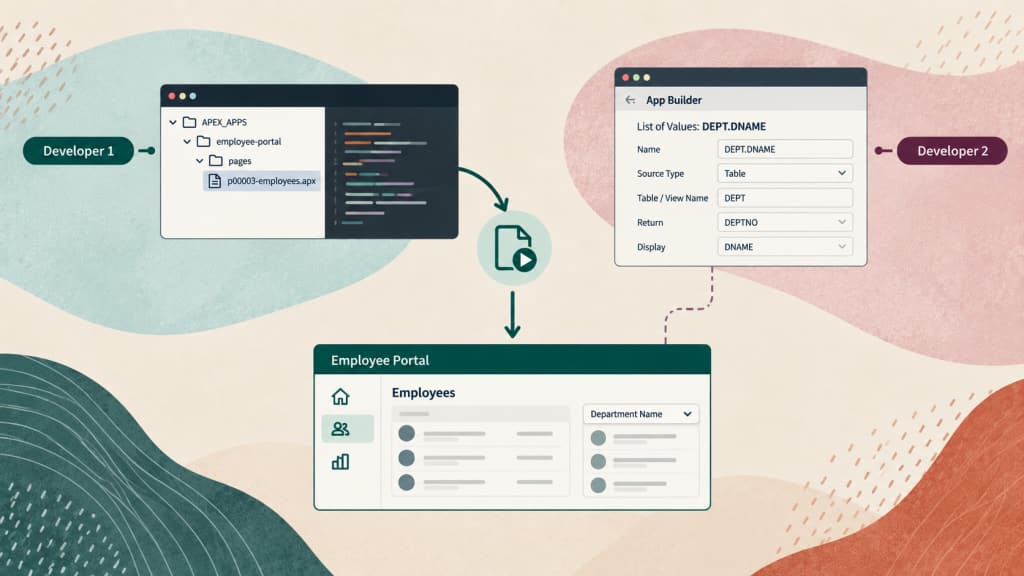
Note: The shared-workspace example assumes that developers are working directly on the main application rather than using Application Working Copies. For isolated development, a developer can create a Working Copy and use APEXlang and VS Code with it. File-level import can then help streamline the development and testing cycle by allowing individual files to be imported repeatedly before the completed changes are merged into the main application through App Builder.
Import a selected APEXlang source file from VS Code
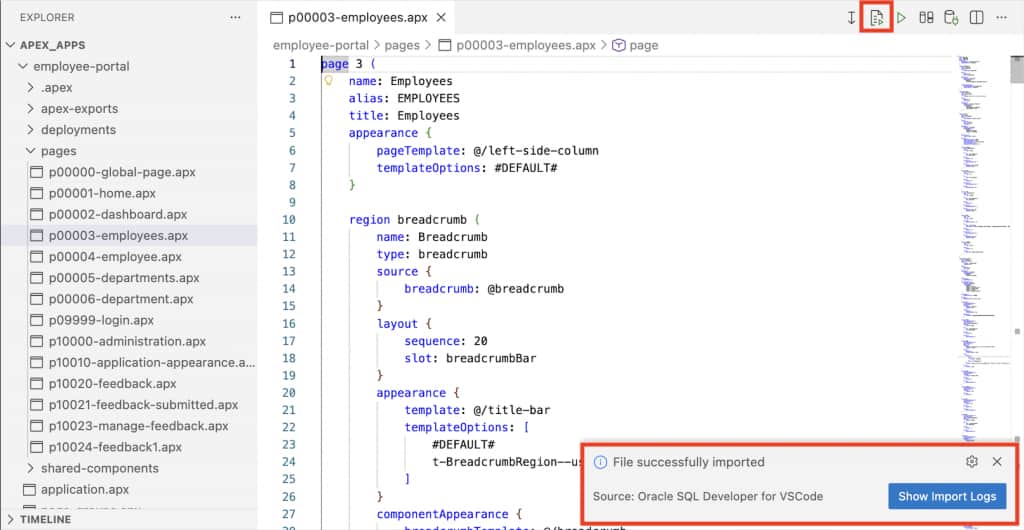
The SQL Developer VS Code extension now has an Import File button next to Import Application. The Import File button appears only when the SQL Developer extension for VS Code is connected to a database with Oracle APEX 26.2 or later installed, and the APEXlang application was exported using APEX 26.2 or later. Refer to this blog for more information on development workflow with APEXlang.
Before importing an updated file, confirm that the target APEX application has already been imported or is available in the current workspace. Also, verify that SQL Developer is configured to connect to an Oracle Database with Oracle APEX 26.2 installed. For detailed setup instructions, see the documentation.
To import an updated file:
- Open the APEXlang application folder in VS Code.
- Open the .apx file containing your targeted change.
- Click Import File in the editor toolbar.
Note: Only the file open in the editor is imported. The rest of the application is not included.
Import selected files using SQLcl
A new -files argument lets you specify which files to import. Only the specified files are imported into the existing application, all other application components remain unchanged.
For more information about working with APEXlang using SQLcl, refer to this blog
Import a single file
The following command imports the Employees Report page from the employee-portal APEXlang application. Depending on the current working directory, you can use either of the following equivalent commands:
apex import -input employee-portal/ -files employee-portal/pages/p00003-employees.apxAlternatively, you can use the command to change to the application directory first:
cd employee-portal
apex import -files pages/p00003-employees.apxNote: The -files argument accepts paths relative to the current working directory. If you first change to the application directory, you can specify the files using paths relative to that directory and omit the -input argument.
Only the specified page is imported into the existing application.
Import multiple files
To import multiple files, specify the file paths after the -files argument, separated by spaces. Depending on the current working directory, you can use either of the following equivalent commands:
apex import -input employee-portal/ -files employee-portal/pages/p00003-employees.apx employee-portal/shared-components/lovs/dept-dname.apxAlternatively, change to the application directory first:
cd employee-portal
apex import -files pages/p00003-employees.apx shared-components/lovs/dept-dname.apx
Both commands import the Employees Report page and the Departments List of Values while leaving the remaining application files unchanged.
Compare and Pull Changes Before Importing
Before importing changes into the target workspace, compare the local APEXlang source with the current application in the connected APEX environment. This is especially important when other developers may have modified the same page or component in App Builder since the local files were exported.
Using SQL Developer for VS Code 26.3 and later, developers can compare the local APEXlang source with the connected application and selectively pull changes into their local .apx files. They can then review the updated files, resolve any conflicts, validate the application, and import the reconciled changes.
For example, one developer may add a column to the Employees page in App Builder, while another adds a button to the same page using APEXlang in VS Code. Before importing the local update, the developer working in VS Code can compare pages/p00003-employees.apx with the connected application and pull in the latest changes made by other developers in App Builder. After reviewing both sets of updates and resolving any conflicts, the developer can validate and import the updated page, helping avoid unintentionally overwriting colleagues’ changes.
Note: This workflow is intended for teams working directly on a shared application. Alternatively, teams can use Application Working Copies, optionally with APEXlang and VS Code, to isolate changes before merging them into the main application through App Builder.

Conclusion
Selected APEXlang file import in Oracle APEX 26.2 makes local application development more targeted and can help streamline development workflows. Developers can edit pages or shared components in VS Code and import only the required file using the new Import File button. SQLcl users can likewise validate the application and use the -files option to import one or more selected changes.
Combined with the ability to compare and pull changes before importing, this workflow can help reduce the scope of updates, supports collaboration, and provide faster feedback for teams developing APEX applications in parallel.
FAQs
Can I use File-level import in a production environment?
Although File-level import may technically work in production, it is intended primarily for development and testing. Because it updates only the specified files, it may not include all related dependencies or represent a complete, tested version of the application. For production deployments, follow your organization’s standard full-application deployment process so that changes can be tested, traced, and recovered according to your organization’s procedures.
Can I import the file if the application does not already exist in the target APEX workspace?
No. The application must already exist in the target APEX workspace. If it is not present, the import will fail with an error.
How should I import an APEX page when it has a dependency on a newly created shared component that is not yet part of the application?
When using VS Code, import the dependency’s corresponding .apx file before importing the page. When using SQLcl, you can import both files in a single command by listing them after -files, separated by spaces. The order in which you specify the files does not matter, SQLcl resolves the dependencies and imports them in the correct order.
This applies to new or previously unimported shared components created manually or through AI-assisted APEXlang development.
Can I use File-level import in App Builder?
No. File-level import is available only through the SQL Developer Extension for VS Code and SQLcl. It is not supported in App Builder.
Can I import themes, templates, plug-ins, or workspace components using File-level import?
No. Currently file imports for themes, templates, plug-ins, and workspace components are not supported.