

An AI Agent in Oracle APEX combines a Generative AI Service, instructions, and tools to help users work with application data and perform tasks. For example, a customer-support agent could retrieve an order’s details, check or update its delivery status, and use that information to answer a question. You configure the tools available to the agent. The Generative AI model can then request an on-demand tool when needed, and APEX executes it and returns the result to the model.
Oracle APEX 26.2 builds on these capabilities with support for the Provider API in Generative AI Services and a Reasoning Effort setting for AI Agents and programmatic AI requests. You can choose the provider API used by a service and adjust how much reasoning a supported model uses for a task.
Responses API support extends the API choices available in Generative AI Services. The Provider API setting lets you select Responses API for supported providers, including OpenAI and supported models in OCI Generative AI. For Google Gemini, APEX adds support for Interactions. Oracle APEX handles the selected API’s endpoint and request and response formats, allowing you to use it through APEX’s AI components and PL/SQL APIs.
Reasoning Effort lets you configure how much reasoning a supported model applies when an AI Agent handles a task. You set it on each agent, so agents using the same Generative AI Service can use different effort levels. You can also specify reasoning effort in an APEX_AI.GENERATE or APEX_AI.CHAT call, or adjust it for a request through an AI Request Handler. The supported values depend on the provider, API, and model.
In this blog, we first configure Provider API for Generative AI Services, then explore how to set reasoning effort on an AI Agent and adjust it at runtime.Oracle APEX communicates with AI providers through REST APIs. Its existing integrations include OpenAI’s Chat Completions API, Google Gemini’s generateContent API, and OCI Generative AI’s Generic API.
Responses API support in Generative AI Services
Understanding Provider API
Oracle APEX communicates with AI providers through REST APIs. Its existing integrations include OpenAI’s Chat Completions API, Google Gemini’s generateContent API, and OCI Generative AI’s Generic API.
APEX 26.2 adds support for the Responses API for OpenAI and compatible providers, including supported models in OCI Generative AI. For Google Gemini, it adds support for the Interactions API. These are provider APIs that APEX can now use. Oracle APEX is not introducing a new REST API.
The Provider API setting lets you choose which API a Generative AI Service uses. APEX handles the corresponding endpoint and request and response formats. Selecting Responses changes how APEX communicates with the provider. The agent’s tool execution flow remains the same. Chat Completions remains available as a Provider API choice for the applicable providers.
OpenAI recommends Responses for new integrations:
“While Chat Completions remains supported, Responses is recommended for all new projects.” — OpenAI migration guide
Google similarly recommends Interactions for new projects while continuing to support generateContent. See the Gemini Interactions API overview.
Note: APEX marks its Chat Completions and Gemini content-generation choices as deprecated.
Provider API choices
| AI provider | Provider API choices in APEX | Default for new services |
|---|---|---|
| OpenAI | Responses; Chat Completions | Responses |
| Generic OpenAI Compatible | Responses; Chat Completions | Responses |
| Ollama | Responses; Chat Completions | Responses |
| OCI Generative AI Service | Generic; Responses | Generic |
| Google Gemini | Interactions; legacy generateContent API | Interactions |
| Anthropic Claude, Mistral AI, and Cohere | Existing provider integration; no Provider API selection added | Unchanged |
Before selecting Responses, confirm that your endpoint supports it. This also applies to services configured as Generic OpenAI Compatible or Ollama.
Prerequisites
Use an APEX 26.2 workspace where you can create or edit Generative AI Services. You will need a credential for the selected provider and access to a model that supports the API and reasoning settings you want to use.
Example 1 Configure an OpenAI service
Step 1: Create or edit the service
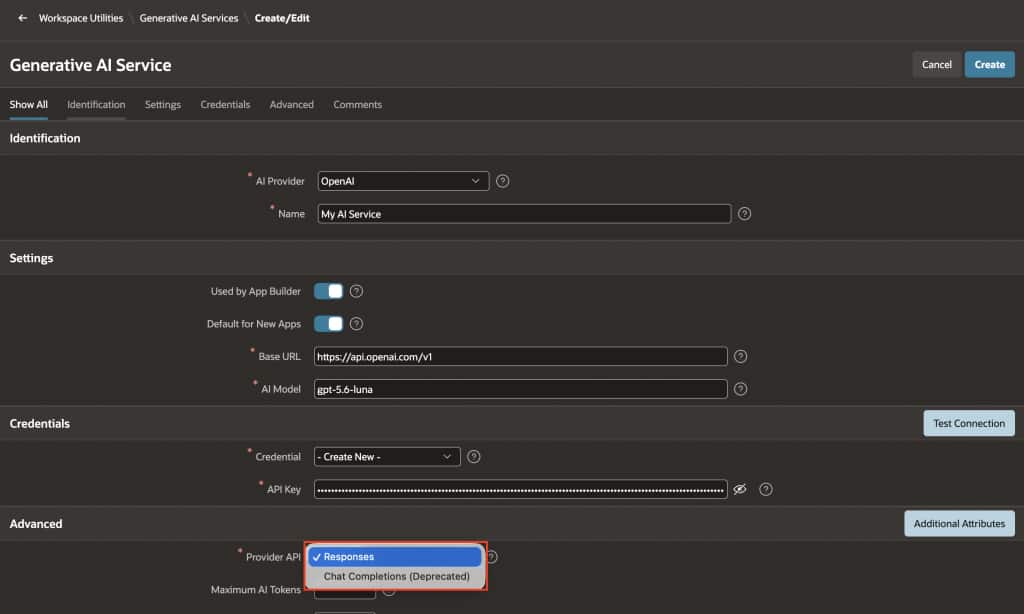
Navigate to Workspace Utilities → Generative AI Services and create or edit a service. Provide a Name and select OpenAI as the AI Provider.
Step 2: Enter the connection details
Choose a model available to your account that supports Responses and High reasoning effort and select or create the required Credential.
Step 3: Select the Provider API
Under Advanced, set Provider API to Responses. We will use my-ai-service as the Static ID in the PL/SQL example later in this blog.
Click Test Connection and save the service. APEX appends the request path to the Base URL, so do not add /responses to that field.
Example 2 Configure an OCI Generative AI service
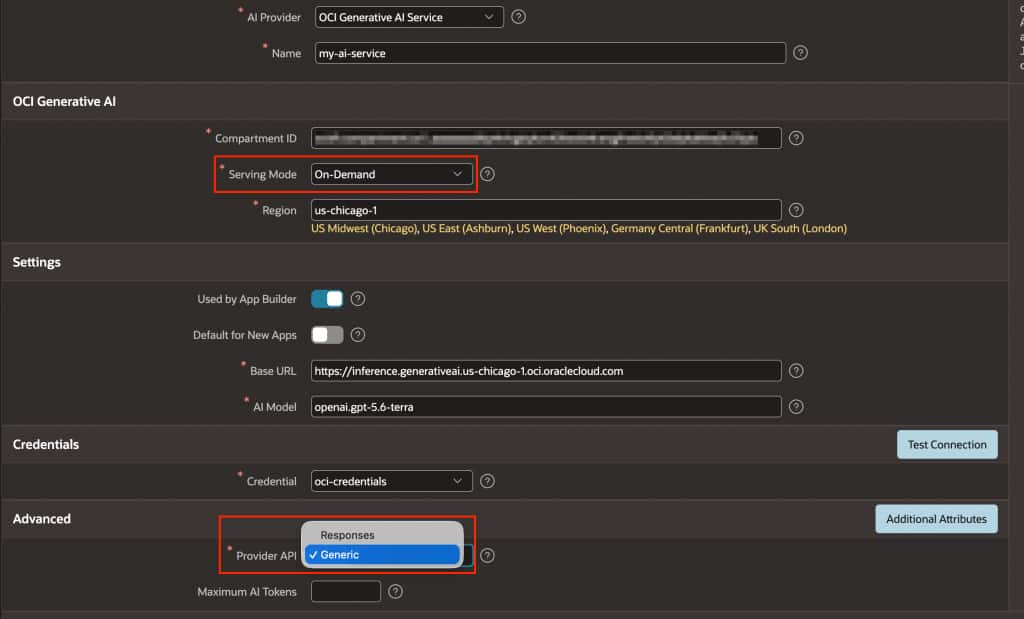
If you are using OCI Generative AI, Generic remains the default Provider API because API support varies by model. Choose Responses when the model and use case require it.
APEX 26.2 also simplifies the OCI configuration. Compartment ID, AI Model, and Serving Mode are stored as service properties instead of values inside Additional Attributes JSON. Serving Mode now has a dedicated field with On-Demand and Dedicated options. APEX builds the request JSON at runtime and, for Responses, sends the compartment identifier in an HTTP header.
Step 1: Check the OCI prerequisites
Before using Responses, confirm that your model is available in the selected region. Create the required OCI Generative AI project and configure the IAM permissions for your service credential. See the OCI Responses API guide, Quick Start Guide, and supported models and regions.
Step 2: Enter the service details
Create or edit a Generative AI Service and select OCI Generative AI Service as the AI Provider. Enter the Compartment ID and Region, then select the Serving Mode.
For On-Demand, select the model you want to use. For Dedicated, enter the Endpoint ID of your dedicated endpoint. Select the service’s Credential and enter the regional Base URL.
For example, use https://inference.generativeai.us-chicago-1.oci.oraclecloud.com for Chicago. APEX adds the request path based on the selected Provider API, so you don’t need to append /openai/v1 as shown in the OCI OpenAI SDK examples.
For details about both serving modes and how to set up dedicated hosting, see OCI Generative AI serving modes.
Step 3: Select the Provider API
Under Advanced, select Responses as the Provider API and enter your OCI Generative AI project’s OCID in Project ID. This field is required for the Responses API. If you don’t have a project yet, follow the steps in Creating a Project.
Click Test Connection and save the service.
Note: Provider-hosted conversation history and memory are outside the scope of this APEX feature. Entering a Project ID does not enable them in APEX.
Existing services after an upgrade
During an upgrade, APEX sets Provider API to Responses for eligible OpenAI services and Interactions for eligible Gemini services. This automatic change applies when the service has neither custom Additional Attributes nor custom HTTP Headers. Review services with custom settings before changing their Provider API manually, and update any API-specific attributes or headers.
Generic OpenAI Compatible, and Ollama services without Additional Attributes are also eligible for an automatic change to Responses. Services with custom Additional Attributes keep the legacy API selection. Before switching manually, review those attributes and confirm that the endpoint supports the Responses API.
OCI services remain on Generic. Their compartment, model, and serving-mode values are moved out of Additional Attributes into the corresponding service properties. Any remaining custom attributes are preserved.
Reasoning Effort
Understanding Reasoning Effort
Reasoning Effort, also called Thinking Level, controls how much reasoning a supported model uses before producing an answer or deciding on its next tool call.
A lower effort can reduce response time and token usage. A higher effort may help with tasks such as reviewing dependencies in a release plan, but usually requires more time and tokens. Choose the effort based on the task and model, and test the result before increasing it.
APEX exposes this control in three places:
- AI Agent: set Reasoning Effort under Advanced.
- PL/SQL calls: pass
p_reasoning_efforttoAPEX_AI.GENERATEorAPEX_AI.CHAT. - AI Request Handler: set the outgoing request’s
reasoning_effortfield at runtime.
Available settings
| Reasoning Effort setting | Value used by APEX |
|---|---|
| Default | NULL — APEX sends no explicit reasoning-effort value |
| None (Provider Specific) | none |
| Minimal (Provider Specific) | minimal |
| Low | low |
| Medium | medium |
| High | high |
| Extra High (Provider Specific) | xhigh |
| Maximum (Provider Specific) | max |
Default leaves the choice to the provider and model. It does not explicitly disable reasoning. Existing agents keep this default after an upgrade.
Oracle APEX shows the complete list for all providers. The available choices are not filtered by model or API, so make sure the value you select is supported. Extra High and Maximum are separate values.
AI service support
The following table shows how the APEX integrations support this setting. The accepted values depend on the model and API.
| Service | Reasoning Effort support in APEX |
|---|---|
| OpenAI | Use Responses for APEX’s reasoning-effort integration. |
| OCI Generative AI | Use Responses for OpenAI models. Compatible non-OpenAI models can use the Generic API’s reasoningEffort control. |
| Google Gemini | Supports thinking levels on compatible models through APEX’s Interactions API integration. |
| Anthropic Claude | Supports effort through its existing provider integration; no Responses API selection is needed. |
| Mistral AI | Supports reasoning_effort through its existing integration; no Responses API selection is needed. |
| Ollama and Generic OpenAI Compatible | Require an endpoint and model that implement the selected API and reasoning control. |
| Native Cohere | Not supported by this setting. Cohere’s numerical thinking-token limit is not implemented by this feature. |
For example, Mistral’s reasoning documentation describes none and high, while Gemini’s thinking levels vary by model. Check the Mistral reasoning guide, Gemini thinking guide, or Claude effort guide for the values accepted by your model.
Set the effort on an AI Agent
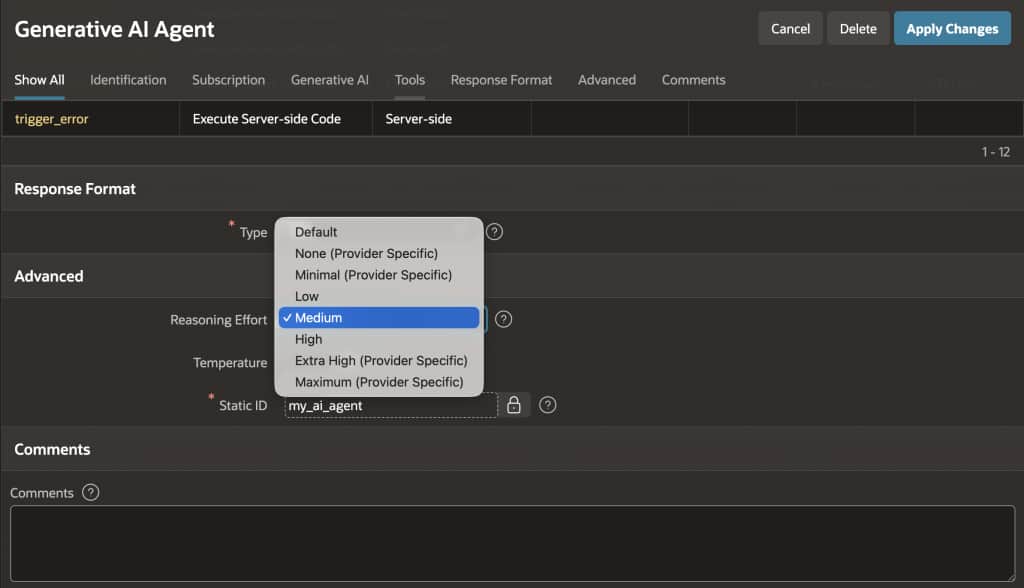
Open the Generative AI Agent and select the Generative AI Service you want to use. Under Advanced, choose Reasoning Effort, then click Apply Changes.
For an OpenAI service, confirm that Provider API is set to Responses. Choose an effort supported by the selected model, run a representative task, and compare the answer and response time before increasing it.
Set the effort in PL/SQL
You can also set reasoning effort directly in a PL/SQL call. The following example uses APEX_AI.GENERATE with the service configured earlier and requests High effort:
declare
    l_response clob;
begin
    l_response := apex_ai.generate(
        p_prompt => 'Review this release plan and identify '
                 || 'missing dependencies: develop, test, '
                 || 'approve, deploy.',
        p_service_static_id => 'my-ai-service',
        p_reasoning_effort => apex_ai.c_reasoning_effort_high
    );
    dbms_output.put_line(dbms_lob.substr(l_response, 4000, 1));
end;
/
Run the example in SQL Workshop → SQL Commands in the workspace containing my-ai-service. It calls the service directly and prints the first 4,000 characters of the response. The selected model must support High effort.
The same parameter is available on APEX_AI.CHAT. APEX provides constants for none, minimal, low, medium, high, xhigh, and max, using the prefix apex_ai.c_reasoning_effort_. The parameter defaults to NULL.
Read the official API Reference documentation for more details.
Pro Tip: Change the reasoning effort at runtime
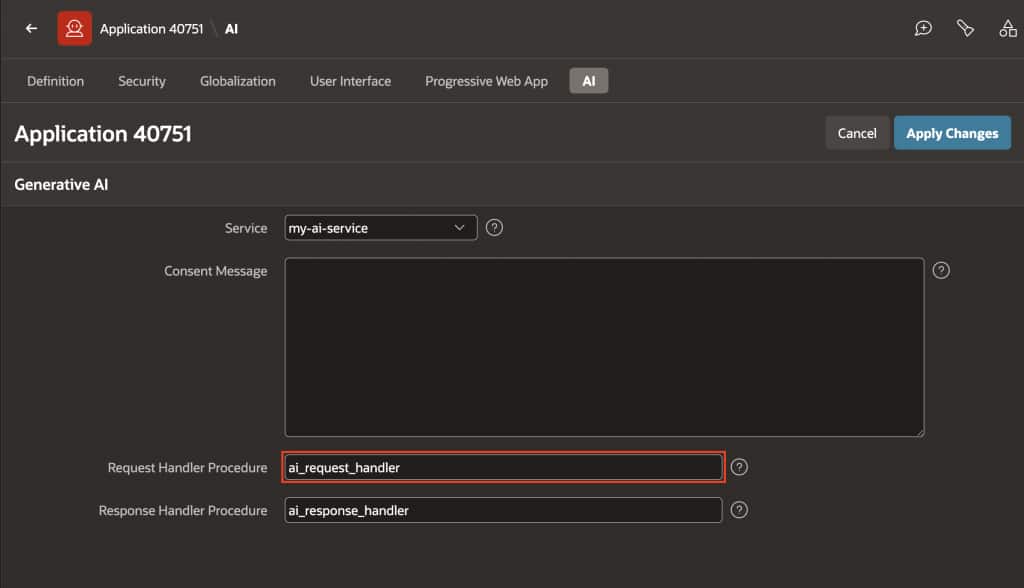
Use an AI Request Handler when reasoning effort needs to change based on the request or application context. The handler updates the outgoing request without changing the saved settings of the AI Agent or Generative AI Service.
To use it, you need:
- A supported effort value: Determine the value through your application logic. If it comes from a page item, include that item in the AI component’s Items to Submit so the handler can read it from session state.
- A handler procedure: Use the required procedure interface below and assign the effort value to
p_result.request.reasoning_effort. - Application Configuration: Enter the procedure name under Edit Application Definition → AI → Request Handler Procedure.
procedure ai_request_handler (
    p_param  in            apex_ai.t_chat_request_handler_param,
    p_result in out nocopy apex_ai.t_chat_request_handler_result )
as
begin
    if p_param.component.static_id = 'p100-show-ai-assistant' then
        p_result.request.reasoning_effort :=
            v('P100_REASONING_EFFORT');
    end if;
end ai_request_handler;
APEX calls the application handler before each request is sent to the AI service, after component-specific request handling. p_param provides the request context, while p_result.request contains the outgoing request you can modify. Because the handler applies across the application, use conditions to restrict the change to the intended requests.
The effort value must be supported by the selected provider, API, and model. For the handler interface and configuration details, see Configuring Generative AI Attributes. Thereasoning_effort field is part of the APEX 26.2 feature.
Using both features together
For an agent using OpenAI, set Provider API to Responses on the Generative AI Service and set Reasoning Effort on the agent. APEX sends the request through the Responses API with the chosen effort and continues to execute the agent’s configured tools.
To compare effort levels, run the same task with the same model using two supported values, such as Low and High. Review the answer, response time, and token usage. Use the agent setting for a consistent effort across its requests, or the PL/SQL parameter and AI Request Handler when your application needs to choose the effort at runtime.