

Getting your Data Reporter environment live is the beginning, not the end. Reporting needs evolve, data domains expand, and at some point your environment will need to move from development to test, or from test to production. This final part of the series covers the four management tasks that keep your reporting environment healthy over time.
- Updating a Published Report
- Managing Your Datasets
- Extending Your Reporting Application
- Exporting and Importing Your Data Reporter Application
Oracle APEX Data Reporter Series
- Part 1: Putting Self-Service Reporting Back in the Hands of Business Users
- Part 2: Setting Up Your Oracle APEX Data Reporter Environment
- Part 3: Managing, Updating, and Moving Your Oracle APEX Data Reporter Environment ← You are here
Updating a Published Report
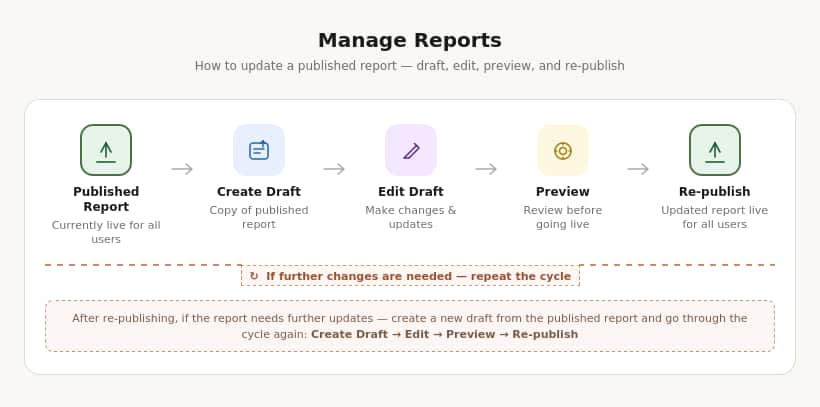
Business requirements change. Fields that were relevant six months ago, now need to be hidden, facets need to be reconfigured, or the data scope needs to evolve. When a published report needs to evolve, there are two ways to approach it.
Approach 1: Draft-based Update (Recommended)
Create a draft of the published report, make your changes, preview them, and re-publish. The existing report stays live and accessible to end users throughout the process. The updated version only goes live once you explicitly re-publish it. The existing live report stays accessible throughout, viewers experience no interruption at any point in the process.
Approach 2: Unpublished, Edit, Re-publish
Unpublish the report, make your changes, then publish it again. Note that during this window the report is completely unavailable to end users, so this approach is best reserved for situations where the changes are significant enough to warrant taking the report offline temporarily.
Deleting a Report
To delete a report, navigate to the Reporting Application, select the relevant report, and choose Delete from the options menu (three dots). Workspace Administrator, Data Reporter Administrator, or Data Reporter Editor can delete reports. This helps ensure that published content cannot be removed without appropriate oversight.
Managing Your Datasets
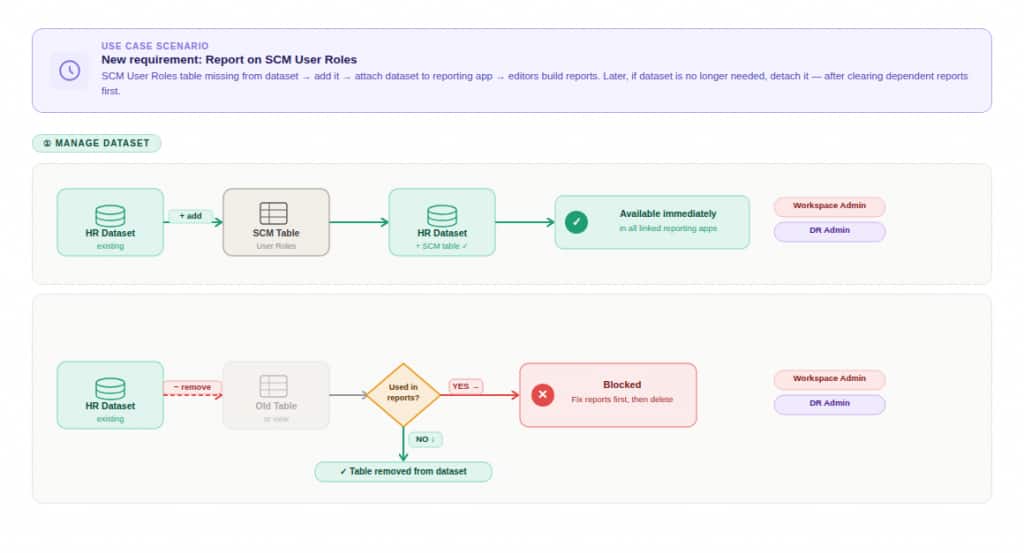
As reporting needs evolve, you may need to expand or trim the tables and views available within a dataset. For example, if a new requirement emerges to report on SCM User Roles but the relevant table isn’t currently part of any dataset, a Workspace Administrator or Data Reporter Administrator can add it directly.
Adding a Table or View
Navigate to Data Reporter > Manage Datasets, click Add Object, and select the table or view you want to include. The object is immediately available for use in reports within any reporting application that uses this dataset.
Removing a Table or View
Select the table or view you want to remove and click Delete.
NOTE: If the table or view is currently being used in an existing report, deletion will not be permitted. Remove or update the affected reports first before attempting to delete the object from the dataset.
Extending Your Reporting Application
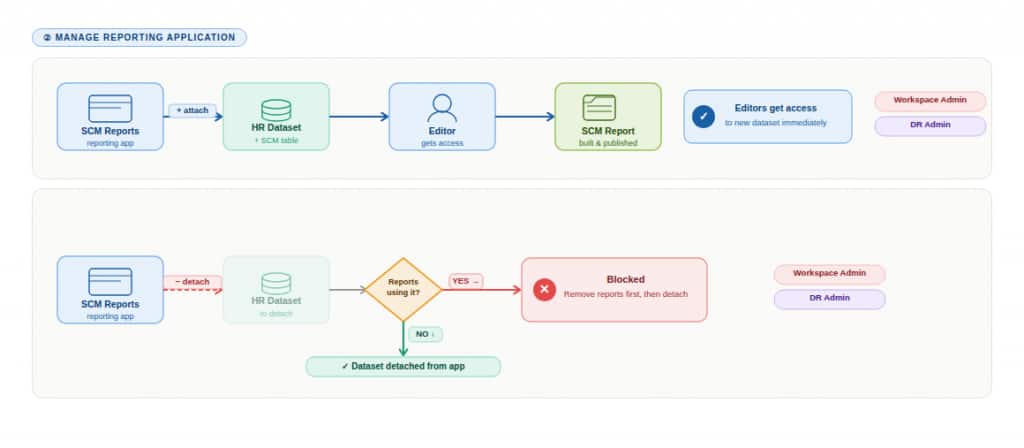
Reporting needs rarely stand still. New teams come on board, new data domains get added, and reporting applications need to grow alongside them. Rather than creating a new application from scratch when this happens, you can extend an existing one by attaching an additional dataset to it.
Adding a Dataset to a Reporting Application
Navigate to the Reporting Application you want to update, click Edit Reporting Application Definition, then click Add Dataset and select from the datasets available in your workspace. Once added, Editors assigned to that application will have access to the new dataset immediately.
NOTE: Only a Workspace Administrator or Data Reporter Administrator can modify reporting application definitions, including adding or removing datasets.
Exporting & Importing Your Data Reporter Application
At some point, your reporting environment will need to move — most commonly from development to test, or from test to production. Data Reporter supports this through a single export file that captures everything: the reporting application, all associated datasets, created reports, saved report configurations, and subscriptions. There is no need to migrate each component separately.
Before You Import: Ensure that all tables and views referenced in the exported datasets already exist in the target environment. If they do not, Data Reporter will flag the missing objects under Datasets and enable a Synchronize button; clicking this will remove the missing objects from the dataset automatically, which may affect your reports if those tables or views are being used in reports.
Once the target environment is ready, importing the single export file restores the full reporting application; datasets, reports, saved configurations, and all. The import process is restricted to Workspace Administrators and Data Reporter Administrators, helping ensure that environment migrations remain under controlled, authorized hands.
Across this three-part series, we’ve covered the full Data Reporter journey: understanding why it exists and what it changes, walking through the setup steps in detail, and now the management practices that keep a production environment current and reliable.
The core idea is straightforward. Developers and administrators build the governed foundation — authentication, datasets, reporting applications, roles. Business users build the reports. The platform keeps both sides in their lane without either slowing the other down. Explore Data Reporter in the Oracle APEX documentation, and the best next step is to take it for a spin in your APEX Workspace.