
This blog is part of the Oracle Analytics best practice series.
In Oracle Analytics, administrators can set the default time zone used for date and time calculations in System Settings, and this default setting applies to all calculations. If you want to use a different timestamp in your calculations, you can use the method described in this blog.
Set the Default Time Zone for Calculations in System Settings
By default, the system time for Oracle Analytics Cloud is based on UTC time. The following functions return values using the UTC time or date:
- CURRENT_DATE
- CURRENT_TIME()
- CURRENT_TIMESTAMP()
- NOW()
Administrators can change the timestamp used in calculations using the Default Time Zone for Date Calculations option in the Console, under System Settings. Select the desired time zone from the dropdown and apply the changes for the new value to take effect.

Use a Specific Time Zone for Timestamps in Calculations
To generate a timestamp other than the system setting in your calculations, use the TIMESTAMPADD function in conjunction with CURRENT_TIMESTAMP() or NOW(). The basic TIMESTAMPADD calculation is: TimeStampAdd(SQL_TSI_<<interval>>, <<integer expression>>, <<timestamp expression>>)
For timestamp calculations, HOUR will be the interval and the time offset will be the difference in hours between UTC and the time zone to be reported on.
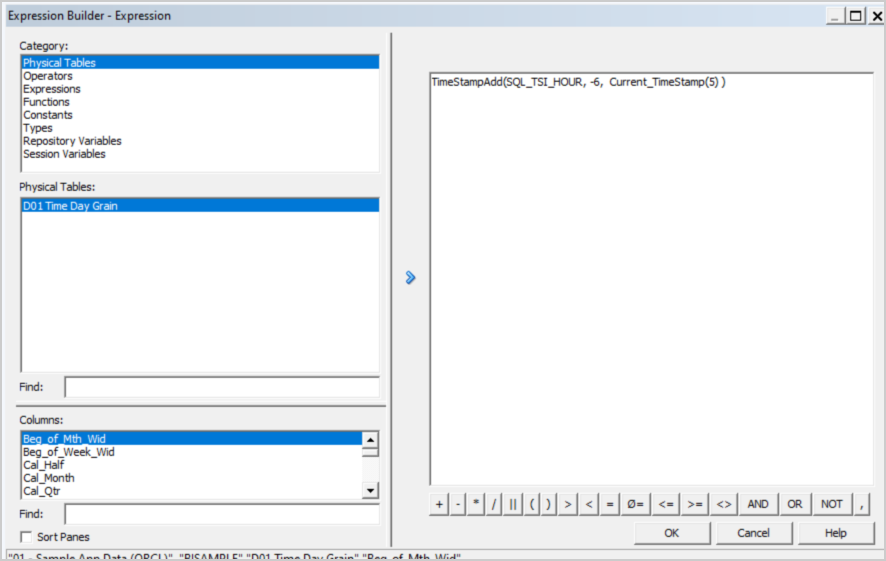
For example: TIMESTAMPADD(SQL_TSI_HOUR, -6,CURRENT_TIMESTAMP(5))
This calculation returns the current timestamp in US Mountain time. The new timestamp column can be created as a derived column in the logical table source or mapped directly to the database, the difference being where the calculation is to be performed, on Oracle Analytics or on the database. Here, the calculation is mapped directly to the database:
In another case, when the default time zone is set to UTC, the CURRENT_DATE function doesn’t return the correct date for certain hours of the day relative to a user’s time zone. For example, when it’s midnight UTC, the local date doesn’t match the UTC date for the duration of the time offset.
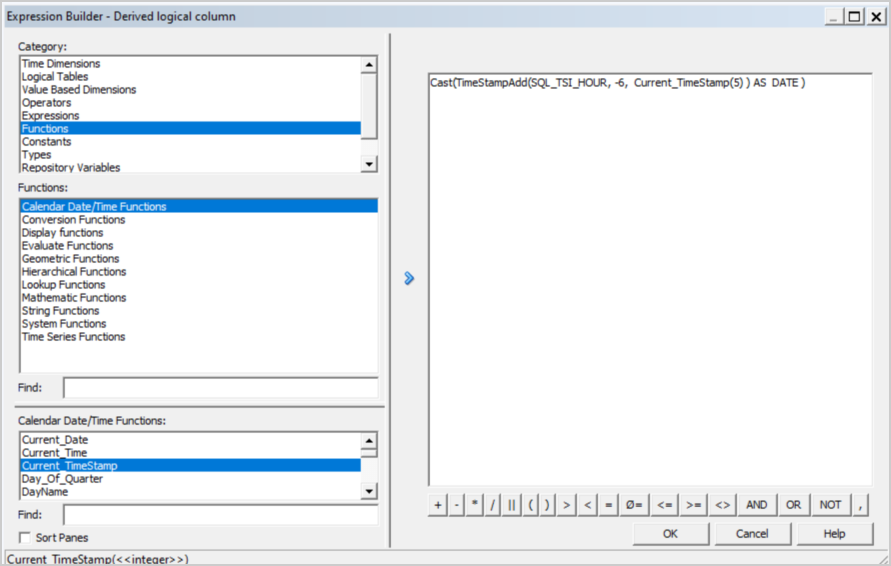
Casting the timestamp calculation as a date will resolve the issue: cast(TIMESTAMPADD(SQL_TSI_HOUR, -6,CURRENT_TIMESTAMP) as date)
Here, the calculation is created as a derived column:
For one-off reports, you can create timestamp calculations at the report level in either a data visualization workbook or a classic analysis. If you plan to reuse the calculations, its often easier to define them as columns in the .RPD file.
Conclusion
Oracle Analytics allows the administrator to set the default time zone for calculations in System Settings. This is a global setting and for most installations handles any concerns about which time zone is used in a calculation. If you need to use more than one time zone in your calculations, you must create a timestamp calculation that specifies the desired time zone.
See the System Settings documentation for more information about global time zone settings. See also Calendar Functions and Time Series Functions. Alternatively, post a question in the Oracle Analytics forum on Cloud Customer Connect