
This blog is part of a series of best practice blogs for Oracle Analytics Server.
Securing Oracle Analytics Server on Oracle Cloud by Enforcing OCI WAF on Flexible Load Balancers
This blog describes how to secure your Oracle Analytics Server deployment on Oracle Cloud using the Web Application Firewall (WAF) in Oracle Cloud Infrastructure (OCI).
Learn how to enforce Payment Card Industry (PCI) compliant global security standards on a flexible load balancer using WAF.
OCI’s Web Application Firewall is a cloud-based, PCI-compliant, global web application firewall service. By combining threat intelligence with consistent rule enforcement on Oracle Flexible Load Balancer, WAF strengthens and protects internet-facing web applications, API endpoints, and load balancers (public or private).
When Oracle Analytics Server is deployed in OCI, the recommended enforcement is Load Balancer-WAF or Regional WAF (WAF v2).
- Load Balancer WAF is OCI’s new version for the WAF that works as a policy attached to a load balancer. The main difference is that the WAF and the Load Balancer work side-by-side, instead of separately as with the previous version of the WAF (Edge WAF /WAFv1).
- Load balancer WAF or Regional WAF is specifically attached to an OCI Load Balancer and acts more as an expansion to the load balancer providing additional security functionality and is recommended for customers with a strong OCI regional presence. Regional WAF doesn’t currently offer the “Bot Management” suite of countermeasures. However, this feature set is on the roadmap.
Regional WAF has “Advanced IP Rate Limiting”, an improved version of “IP Rate Limiting” available in Edge WAF and it is configurable through the CLI.
Web application firewall policies encompass the overall configuration of your WAF service, including access rules, rate limiting rules, and protection rules.
This blog shows how to implement access control rules and protection rules.
- Access control rules help to restrict or control access to your critical web applications, data, and services.
- Rate limiting rules allow inspection of HTTP request properties and limit the frequency of requests for each unique client IP address.
- Protection rules help to protect your critical web applications against malicious cyber-attacks from bad actors. Incoming requests are inspected to determine if it contains an attack payload as compared to industry-leading threat feeds and will block and alert on the requests: SQL injection, cross-site scripting, HTML injection, and many more.
Prerequisites
- Use Oracle Cloud Marketplace to install and configure Oracle Analytics Server on Oracle Cloud. See Deploy Oracle Analytics Server on Oracle Cloud.
- Ensure that your Oracle Analytics Server instance is running on either a public or private subnet.
- Create an OCI load balancer and enable SSL. See SSL Offloading at Load Balancer for Oracle Analytics Server on OCI Marketplace
- Ensure that you have the required IAM policies to implement WAF. See Required IAM Service Policy.
- (Recommended) Use a separate compartment for your WAF policy to make management easier and more secure. See Managing Compartments.
Architecture
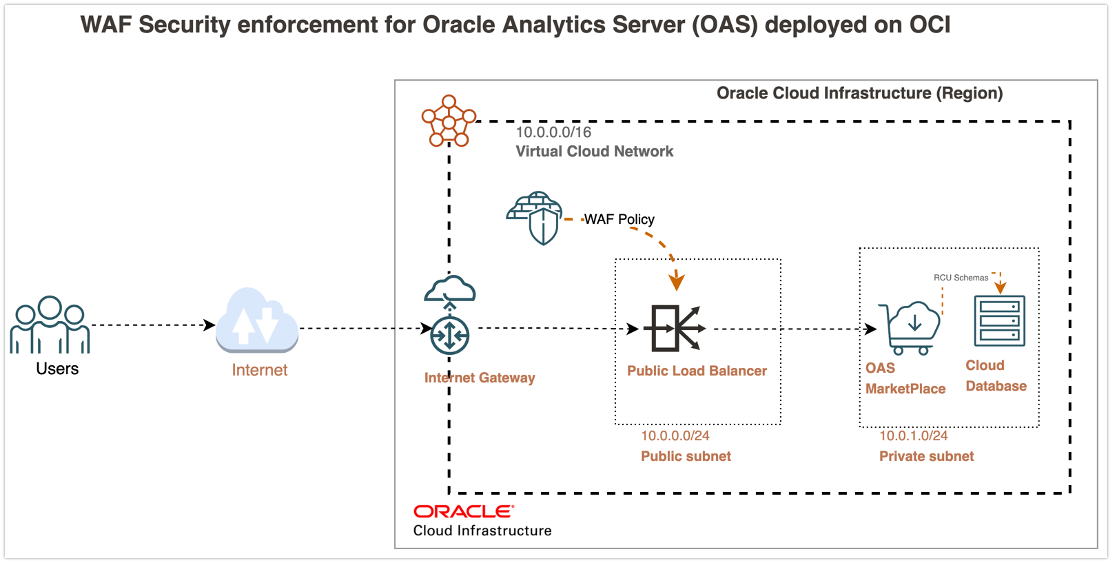
This architecture diagram describes WAF security enforcement for Oracle Analytics Server deployments on Oracle Cloud Infrastructure.
Configure Web Application Firewall for Oracle Analytics Server
This blog describes how to configure OCI’s WAF on a public load balancer so that any traffic hitting the load balancer URL is examined by the rules configured in WAF. After successful verification, the load balancer redirects the traffic to the appropriate backend, in this case, Oracle Analytics Server deployed on OCI.
Step 1: Create the WAF Policy
- In Oracle Cloud Infrastructure Console, open the navigation menu and click Identity & Security. Under Web Application Firewall, click Policies.
- Select a Compartment.
- Click Create WAF Policy.
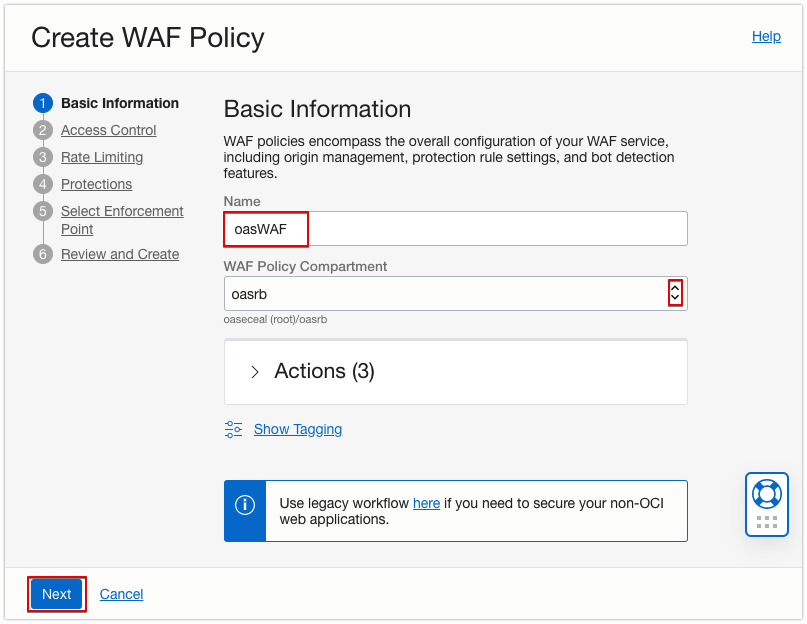
- In the Name field, enter a unique name, select the correct WAF Policy Compartment, and click Next.
Step 2: Configure Your Access Control Rules
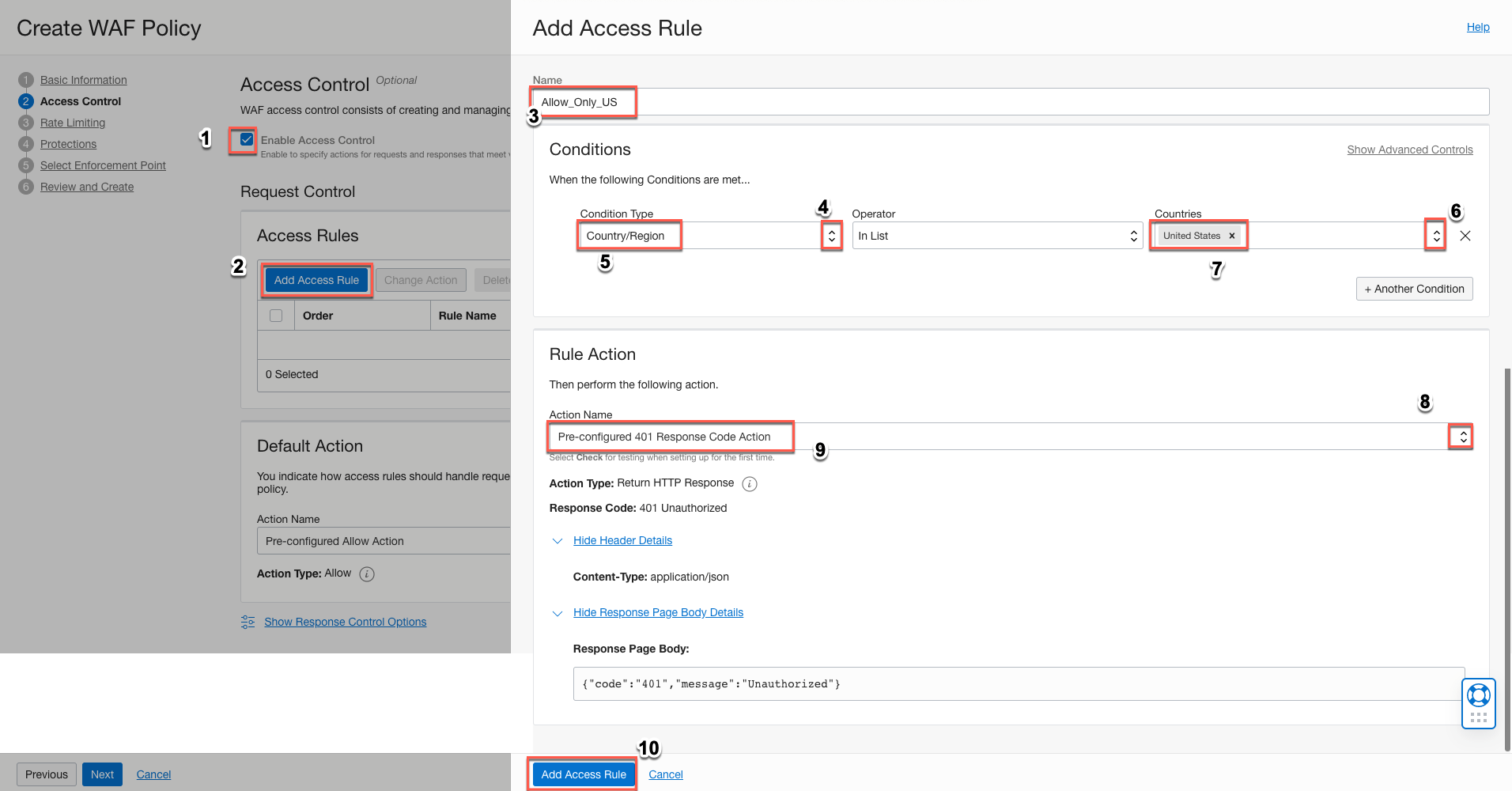
- Add an access rule for the WAF policy.
For example, create an access rule that allows traffic from the US and blocks traffic coming from any region outside the US. The steps are shown on the diagram.
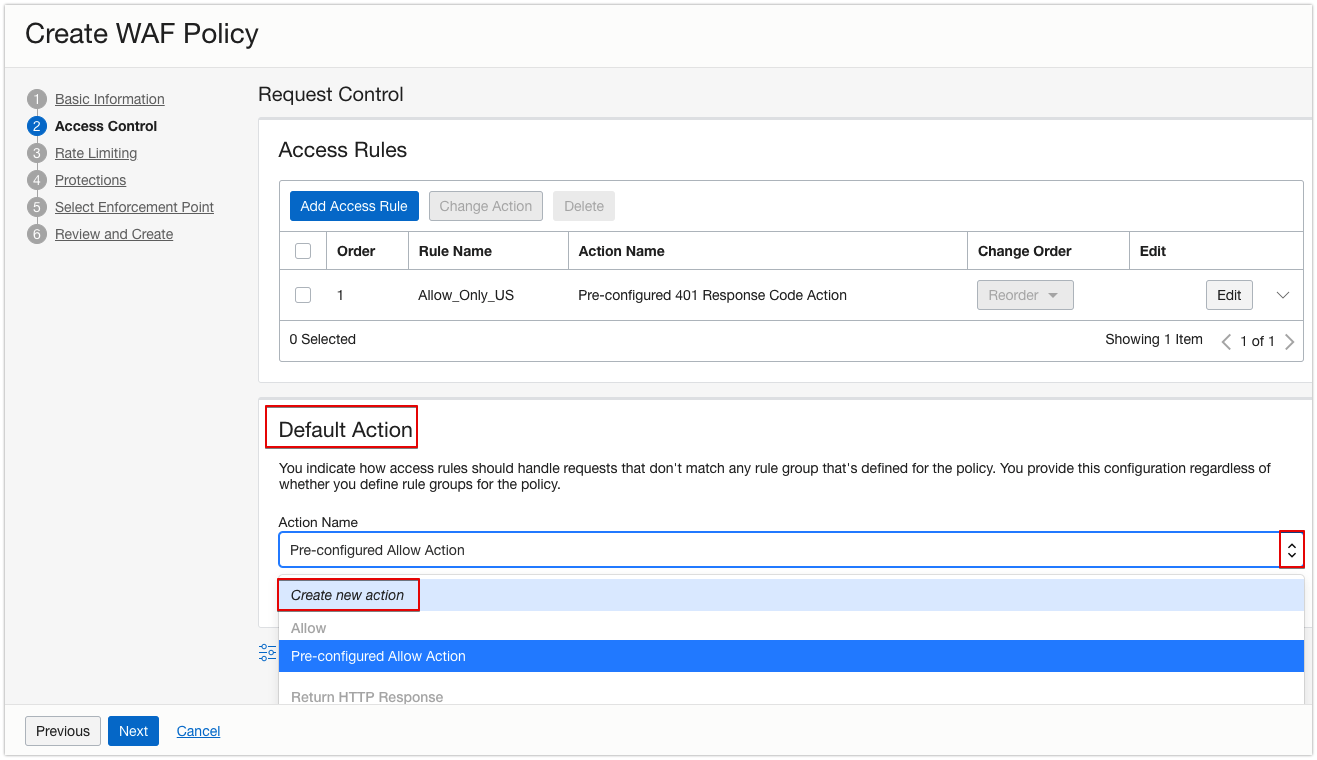
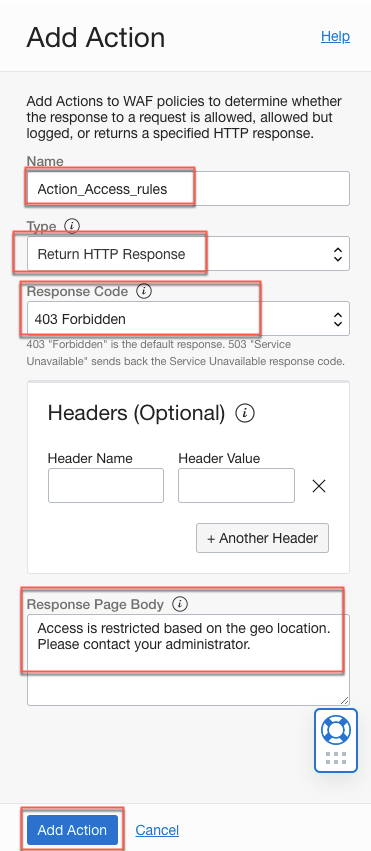
- Define the action to take when the rule is detected. Click Create New Action.
- Enter the action details, and then click Add Action.
- Click Next.
- Click Next again to skip the Rate Limiting feature and navigate to the Protections section.
Step 3: Configure Your Protection Rules
Protection rules enable you to apply Oracle-managed request protection capabilities to catch malicious traffic.
- Click Enable to Configure Protection Rules to display the Request Protection Rules list.
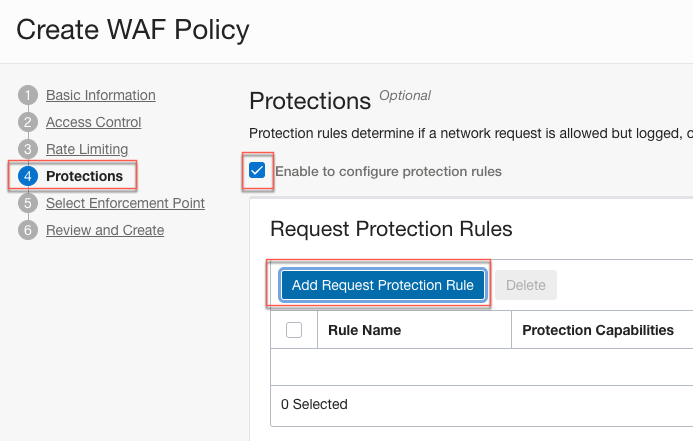
- Click Add Request Protection Rule to configure rule actions and protection capabilities.
- In Rule Action, for Action Name, either select Pre-configured 401 Response Code Action or select Create New Action from the dropdown menu to customize the message displayed when a violation is detected.
If you choose Pre-configured 401 Response Code Action , then for any violation that is detected by WAF the users get response code as 401 Unauthorized message.
If you choose Create New Action option, you can customize the message that you would like to display when a violation is detected.
In this example I have chosen Create New Action option and customized message as OWASP Top10 violation detected!
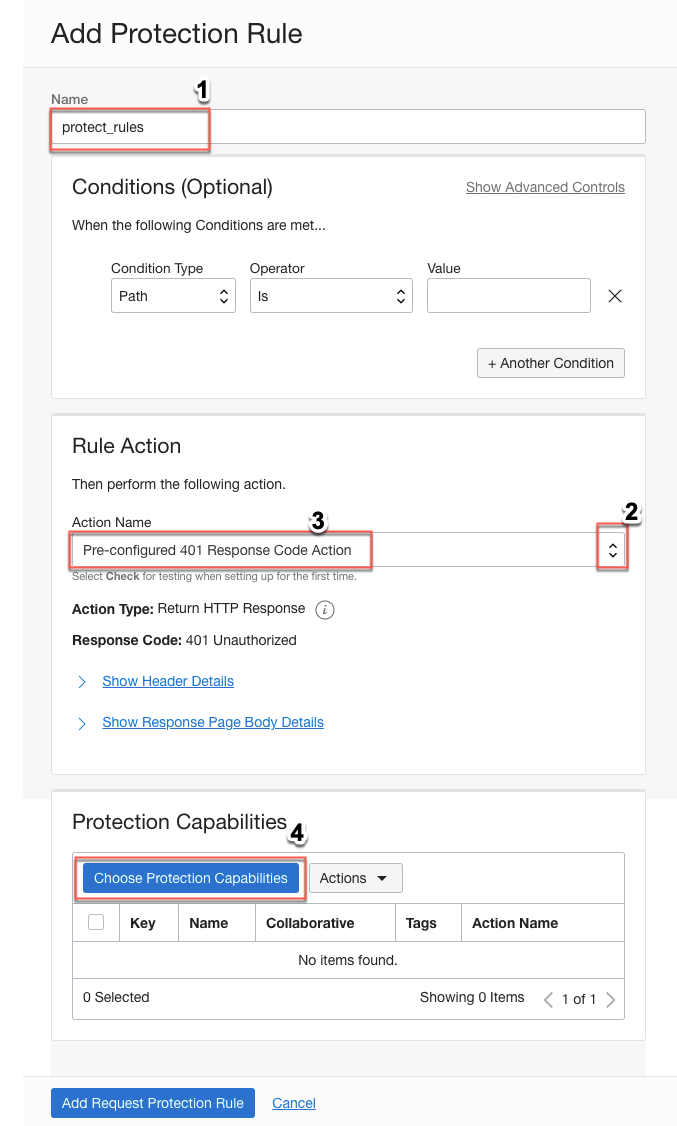
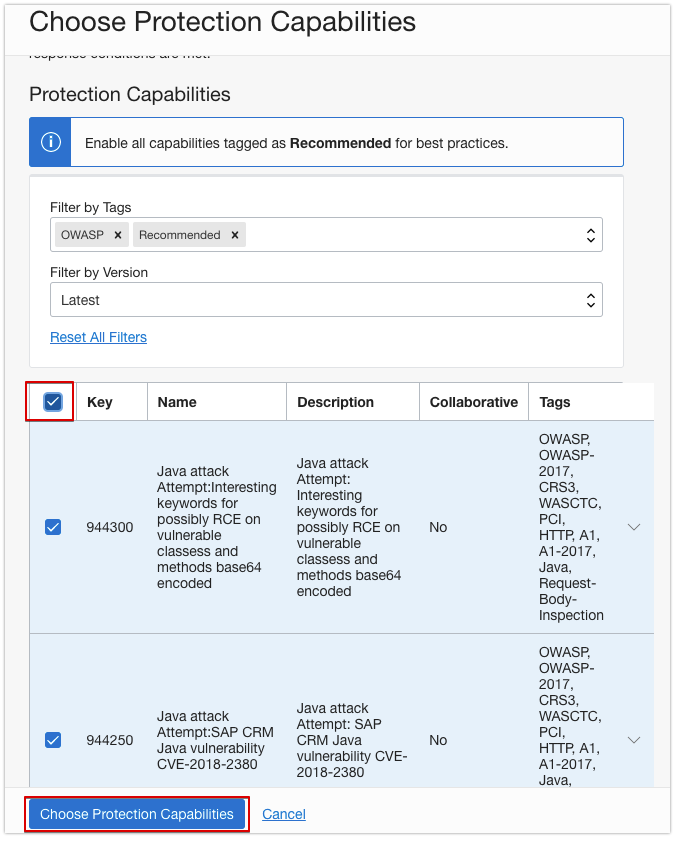
- Click Choose Protection Capabilities.
- Select the type of protection you want.
For example, to detect Open Web Application Security Project (OWASP) violations, enter OWASP in Filter By Tags.
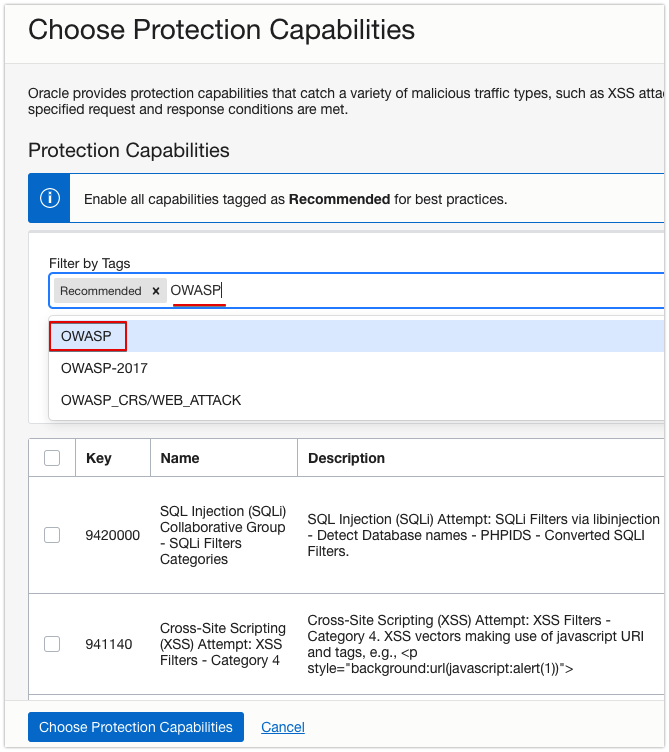
- Enable the protection rules you want, click Next.
In this example, enable all the OWASP protection signatures.
Step 4: Configure the Enforcement Point
- In Select Enforcement Point, select the load balancer that’s configured Oracle Analytics Server.
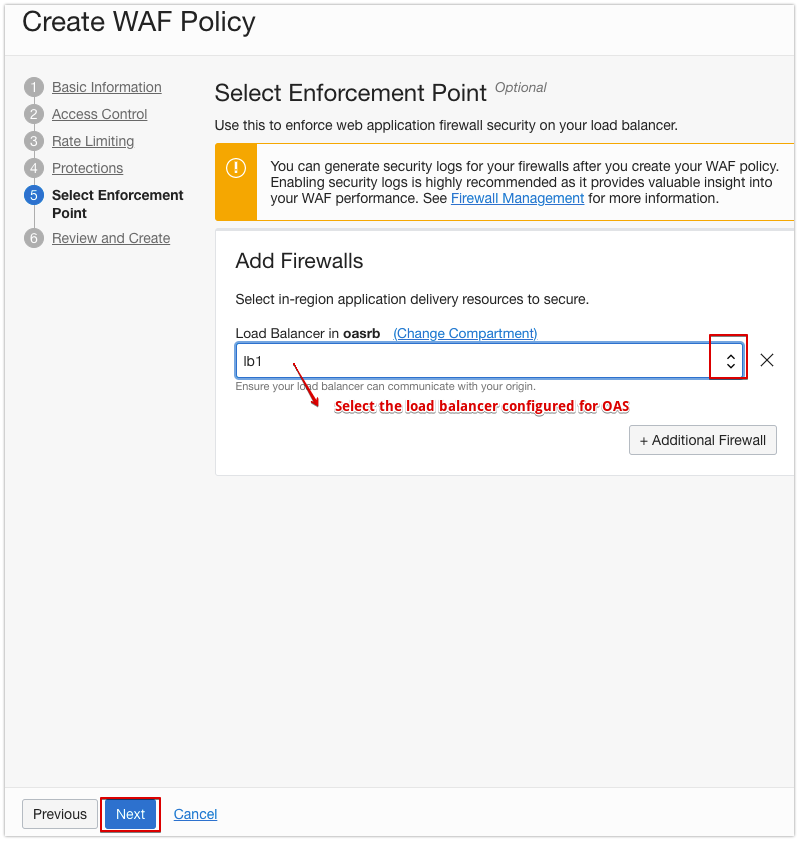
- Click Next.
Step 5: Review and Create the WAF Policy
- In Review and Create, check your selections and click Create WAF Policy.
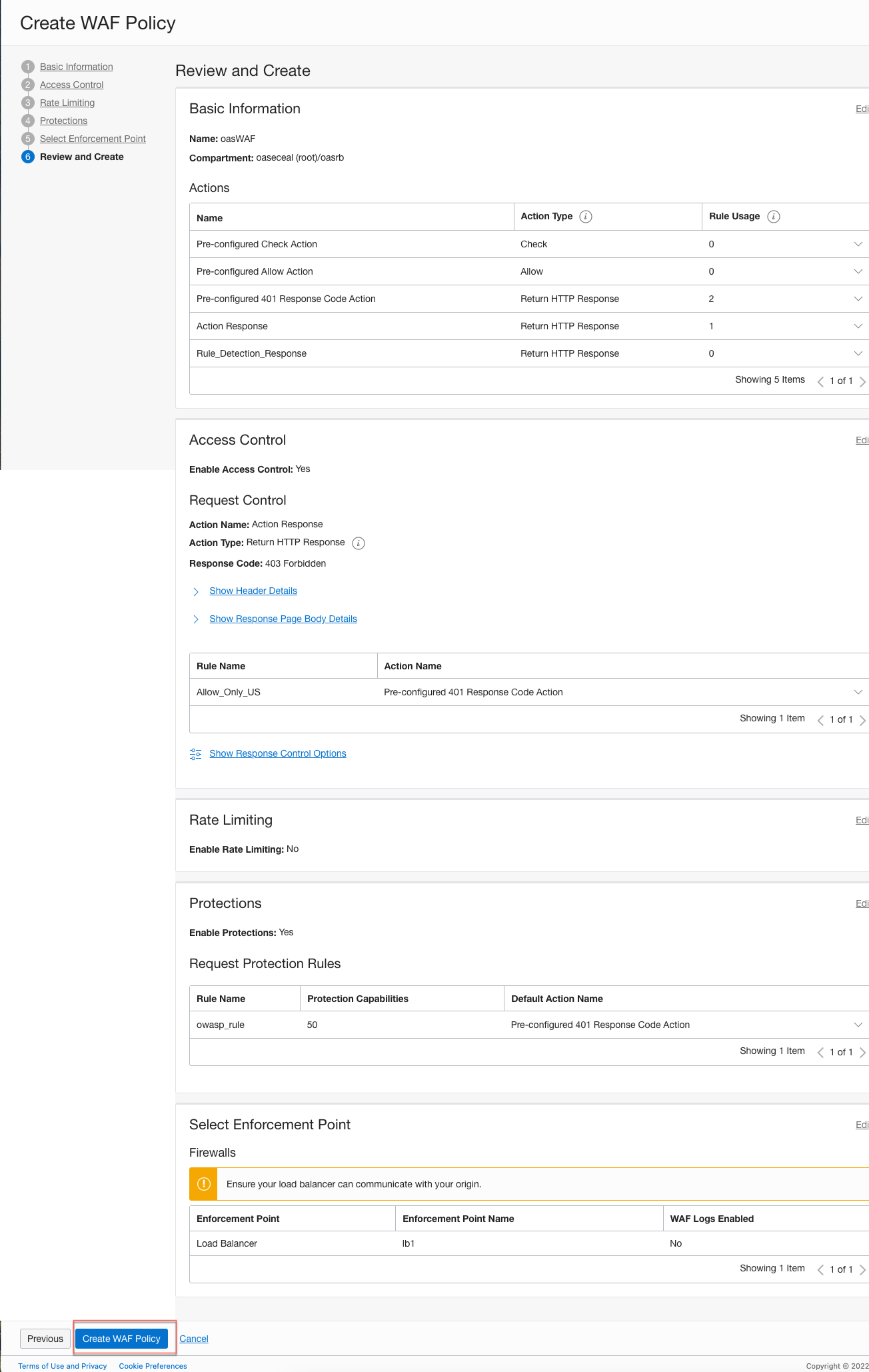
- Review the WAF policy summary page.
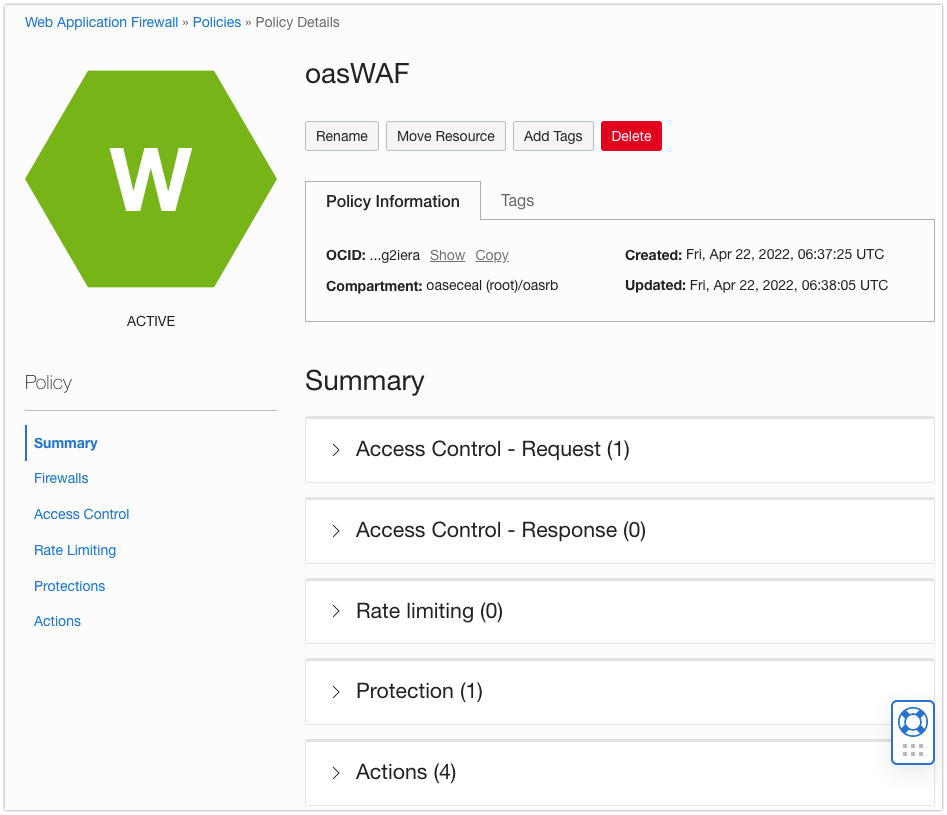
Step 6: Verify the WAF Policy Rules
Now, let’s verify both scenarios.
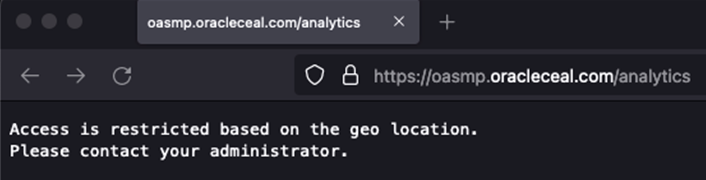
- Scenario 1: A user tries to access the Oracle Analytics Server from a location other than the US. In this scenario, the action rule you configured restricts the application’s access and displays a message.
- Scenario 2: A user tries to access the protected Oracle Analytics Server endpoint from within the US with a Cross-Site Scripting (XSS) attempt enabled. In this scenario, the protection rules you defined automatically detects the traffic and blocks the request and presents the page with a pre-configured message for that rule.

Summary
Oracle’s WAF is the right choice for any business that wants to tighten security at the web application layer. WAF is 100% cloud-based and vendor-agnostic, which means it can protect your entire hybrid or multi-cloud environment regardless of where internet-facing applications are hosted. Its monitored 24/7 by our security operations center experts, and it leverages the power of automated threat identification and global cloud infrastructure with points of presence spread over the world.
Reference: Web Application Firewall