

With Inputs from
Krithika Raghavan, Senior Director
Introduction
This article explains how to merge external applications for customizing Oracle Fusion Data Intelligence using the Semantic Model Sandbox framework.
Advantages for Using External Applications
- Reuse and avoid reconfiguring existing semantic models from non-Oracle Data Fusion Data Intelligence applications such as Oracle Analytics Cloud, Oracle Analytics Server, and Oracle Business Intelligence Enterprise Edition
- Similar development process for previous users of Oracle BI Administration Tool
- Reduced development time
Supported External Applications Use Cases
| [1] Extend a prebuilt conformed dimension | Add attribute columns to a dimension folder such as Customer, Item Category, and Time. | Yes | Supported for conformed dimensions available in the template. All dimensions from 25.R4.P1 are included in the Semantic Model template. |
| [2] Extend a prebuilt degenerate dimension | There’s no support to add attribute columns to a transaction details folder such as Dim – OM Sales Order Details. Folder names mostly end in “Details”. | Yes | To use this feature with your external applications, apply patch 25.R4.P1, download your most recently imported semantic model from the External Application tab, and then apply your future changes to this newly downloaded semantic model. See Download the Imported Semantic Model. |
| [3] Add a custom dimension to a prebuilt fact | There’s no support to create a new folder containing dimensional attribute columns. | Yes – Limited | In 25.R4, import your custom dimensions into the external application and then associate them with the existing prebuilt facts in the sandbox. The Sandbox framework currently doesn’t support adding value-based hierarchies to a subject area. |
| [4] Add a custom fact and join to prebuilt dimensions | Create a new folder containing the fact measure columns. | Yes | Fully supported for all dimensions available in the template. |
| [5] Add a custom fact containing both attributes and measures (not supported for prebuilt facts or degenerate dimensions) | Create two folders; one containing fact measure columns and another containing dimension attribute columns. | Yes | Model fact attributes in a separate degenerate dimension. |
| [6] Add derived columns | Add a calculated column to a dimension folder. | Yes – Limited | Supported for all dimensions only (available in the template). |
| [7] Create custom dimension with hierarchy | Add workbook, with expand and collapse for custom dimension attributes. | Yes – Limited | Only supported for custom dimensions (not supported for prebuilt dimensions). |
| [8] Create a new custom subject area including custom fact and custom dimensions | Create an empty custom subject area with all custom elements such as Salesforce, QuickBooks, and Google Analytics subject areas. | Yes | Create a new custom subject area including custom fact, joining to custom or prebuilt dimensions |
| [9] Write-back from the Oracle Analytics Cloud Classic dashboard to an Oracle Autonomous AI Lakehouse | Not supported for Oracle Analytics Cloud data visualizations. | Yes | Oracle Analytics Cloud Write-back |
| [10] Create a custom variable | Define a variable in the semantic model and reference it in Oracle Analytics Cloud. | Yes | Create session and request variables for Oracle Analytics Cloud calculations and parameters. |
| [11] Set security on factory objects | Not Supported | No | Not Supported (no workaround available) |
| [12] Set security on custom objects | Not Supported | No | Configure all security for custom objects within the sandbox framework. |
High Level Steps to Merge an External Application in Oracle Data Intelligence
- Create a custom database schema in the Oracle Autonomous AI Lakehouse associated with your Oracle Data Intelligence instance. Follow the instructions here.
- Migrate or create database objects such as tables, views, and synonyms in the new schema. Import or migrate your external database objects such as tables, views, and synonyms into the new database schema using the Oracle database utilities or any ETL tool.
- Grant semantic model access to the database objects. Follow the instructions here.
- Configure Oracle Analytics Client Tools (Oracle BI Administration Tool). Follow the instructions here. Detailed steps showing how to Install Oracle Analytics Client Tools can be found here.
- Export the semantic model template. Follow the instructions here.
- Import the custom database objects or merge your semantic model metadata into the Semantic Model Template. Follow the instructions here. If not complete, see the documentation, Export the Semantic Model Template.
- To import:
- Temporarily change the data source name and login credentials to import the custom database objects into the physical layer of the Sematic Model Template.
- Don’t modify any other setting except for the data source name, username and password.
- Always revert to original template configuration before importing or merging.
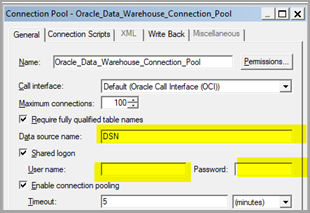
- Before: Data source name: DSN and Username and Password: Blank
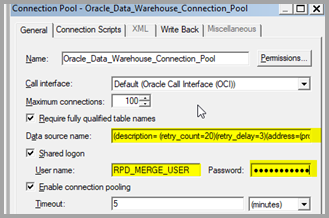
- After: Data source name: Oracle Autonomous AI Lakehouse tns– be sure to use _low.adb.oraclecloud.com and User name: RPD_MERGE_USER and Password
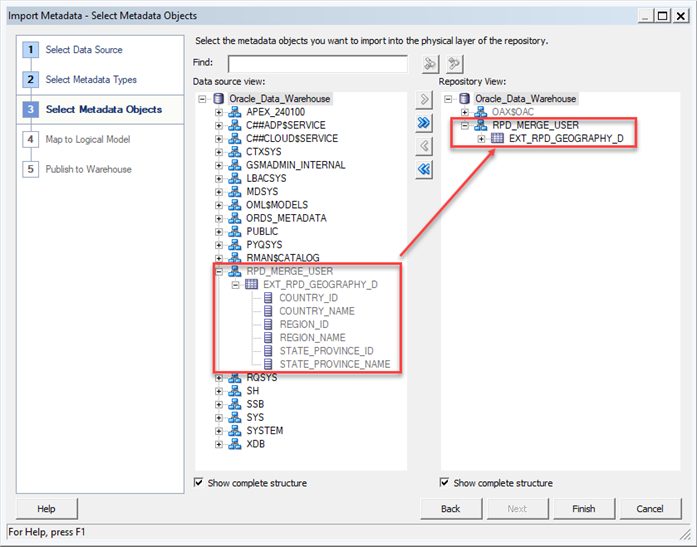
- Right-click Oracle_Data_Warehouse_Connection_Pool and select Import Metadata.
- Select Metadata Types to import. Views are used in these examples.
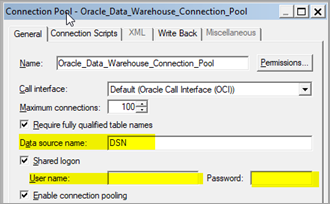
- Revert Oracle_Data_Warehouse_Connection_Pool back to the original state.
*** It’s very important that the database connections are not modified in any way prior to merging. The Data source name and User name must be reverted to the factory settings as shown below. ***
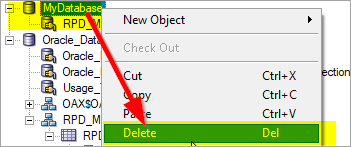
- Additionally, don’t leave any custom database connections in the semantic model. Only the three prebuilt database connections should remain before importing.
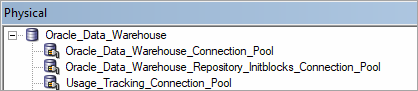
- The custom schema should remain and point to the factory database connection (which only supports Oracle Autonomous AI Lakehouse).
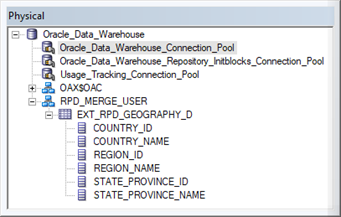
- Alternatively, merge from your existing semantic model.
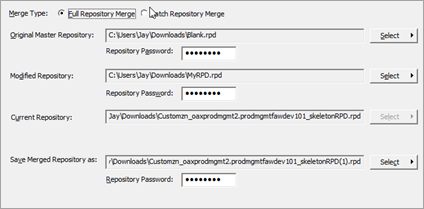
- If merging, don’t leave any custom database connections in the semantic model. Only the three prebuilt database connections should remain.
7. Model the custom semantic model objects.
- Copy or configure the semantic model physical, business, and presentation layer mappings as required.
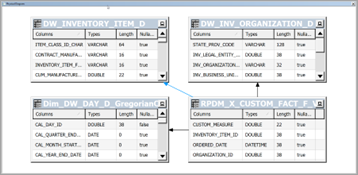
8. Merge the external semantic model with the semantic model of your Fusion Data Intelligence instance. Follow the instructions here.
- Check Global Consistency of the semantic model to confirm it’s error-free before merging.
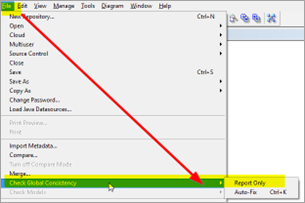
*** Errors must = 0. Review warnings. Resolve any warnings that occurred because of custom modifications that could potentially negatively impact the semantic model. Note: The template contains many warnings prior to changes that may be ignored. ***
- Save the semantic model with a unique name to represent the changes made.
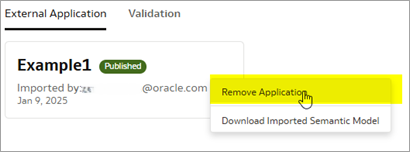
*** If an existing external application already exists, it’s preferrable to fully replace the semantic model by deleting the existing imported application prior to merging the new. If the prior external application isn’t removed, a merge will be performed between existing and new and may cause conflicts. ***
- Under External Application, click the ellipse, and select Remove Application.
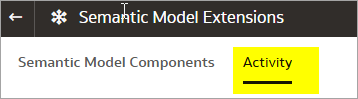
- Review the Activity tab to confirm that the External Application Delete is complete.

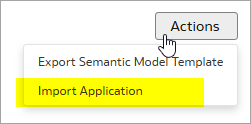
- Click Actions and select Import Application.
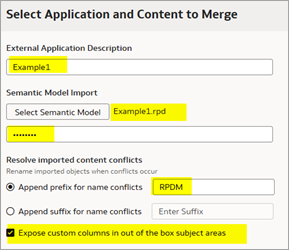
- Browse for the semantic model, provide Name, Password, Prefix, and Postfix, and select Expose custom columns in the prebuilt subject areas.
*** “Expose custom columns in prebuilt subject areas” should only be selected when necessary and not by default, as it has performance impacts. Only select this option if you modified the prebuilt business model. ***
| Process | Verify or select “Expose custom columns in prebuilt subject areas” |
|---|---|
| Extend a prebuilt dimension | YES |
| Add a custom dimension | NO |
| Add a custom fact – join to prebuilt dimensions | NO |
| Add a custom fact – containing both attributes (degenerate dimensions) and measures | NO |
| Add derived columns to a prebuilt dimension | YES |
| Create a custom dimension with a hierarchy | NO |
| Create a new custom subject area – add a custom fact that joins to a dimension | NO |
- Click Validate.

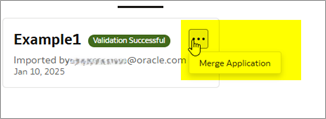
- For Post Validation Successful, left-click the ellipse and select Merge Application.
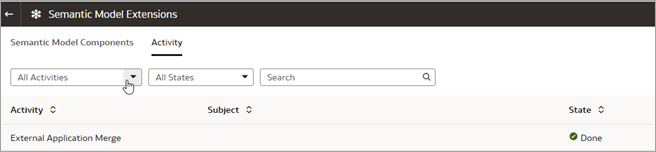
- Monitor the Activity Tab, refresh it to see the current status, and wait for In Progress to switch to Done.


Summary
This article explained how to merge the external applications for customizing Fusion Data Intelligence using the Semantic Model Sandbox framework.
References
For additional information, see the following articles:
- About Migrating to the Enhanced Semantic Model Extension Framework
- Use the Enhanced Semantic Model Extension Capabilities
- About Merging External Applications
Call to Action
For more information, refer to Merge Your External Applications and About Semantic Model Customization to learn more about extending the semantic layer using the Semantic Model Sandbox framework.
Now that you’ve read this article, try it yourself and let us know your results in the Oracle Analytics Community, where you can also ask questions and post ideas.
Contribution
Many thanks to Padma Rao Padala and Suzanne Gill for reviewing and all the useful feedback!