
Implementing Custom HR Security in Oracle Fusion Data Intelligence (FDI)
Use Case:
Organizations often need to give different HR personas access to the same workforce analytics while protecting employee data that is sensitive or confidential. Although Oracle Fusion Data Intelligence (FDI) provides several out-of-the-box security capabilities, many customers need additional controls to secure employee data by department, grade, and sensitive HR attribute.
This article shows how a customer can implement a custom security model for the HCM – Workforce Core subject area, so that each user group sees the workforce data and sensitive attributes required for its business responsibility.
In this example, the customer needs to secure Workforce Core analytics according to:
- Department
- Employee Grade
- Sensitive HR attributes
The organization also wants to restrict access to sensitive folders such as:
- Personal Information
- Diversity Information
- Compensation
The following business requirements must be enforced:
- HR users should be able to access employees in the HR department and selected grades, including personal information for the HR department only.
- Compensation users should be able to access salary information without visibility into PII or diversity attributes.
- Managers should be able to access broader workforce data while remaining restricted from sensitive HR information.
- HR administrators should have unrestricted access.
Security Matrix:
The security matrix below translates the customer requirements into separate access groups. It shows the intended combination of data-level and object-level controls before the configuration steps begin.
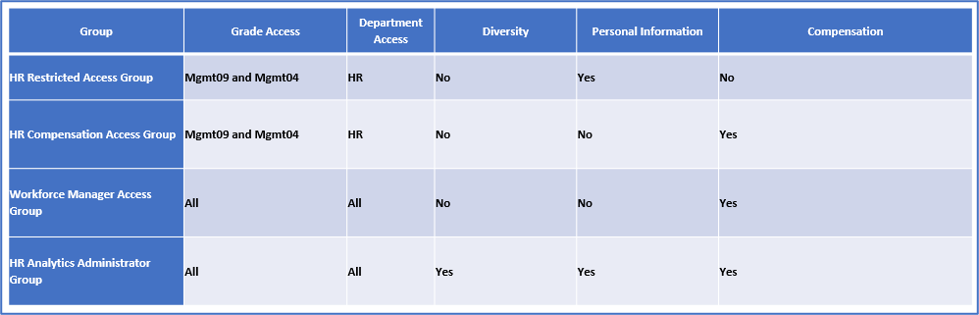
HR Restricted Access Group
- Access restricted to:
- HR Department
- Mgmt09 and Mgmt04 Grades
- No access to:
- Diversity Information
- Compensation Data
HR Compensation Access Group
- Access restricted to:
- HR Department
- Mgmt09 and Mgmt04 Grades
- Compensation visibility enabled.
- No access to:
- Diversity Information
- Personal Information
This group is typically used for HR compensation analysts who require salary-related reporting access without visibility into sensitive personal data.
Workforce Manager Access Group
- Access to:
- All Departments
- All Grades
- Access to:
- Compensation Data
- No access to:
- Diversity Information
- Personal Information
This group is designed for management users who require broader organizational reporting visibility while still restricting confidential employee information.
HR Analytics Administrator Group
- Full unrestricted access to:
- All Departments
- All Grades
- Diversity Information
- Personal Information
- Compensation Data
This group represents the highest level of access and is typically assigned to HR IT administrators or platform security administrators responsible for maintaining and supporting the FDI environment.
To meet these requirements, the implementation uses:
- Existing FDI security context for Department
- Custom security context for Grade
- Security Configurations (under Semantic Model Extension) object permissions for sensitive folders
- Custom duty roles mapped through security groups.
Solution:
The implementation consists of two layers of security.
Data-Level Security
Data-level security controls which employee records users can access.
In this implementation:
- Department uses the Oracle-delivered out-of-the-box security context.
- Grade uses a custom security context.
The custom Grade security context restricts employee visibility based on grade values such as:
- Mgmt09
- Mgmt04
Object-Level Security
Object-level security controls visibility of sensitive HR folders inside Workforce Core subject areas.
The secured objects include:
- Diversity
- Personal Information
- Facts – Compensation
- Facts – Workforce Diversity
Implementation Steps Summary
- Create custom duty roles for secured HR folders.
- Configure SME Object Permissions for secured subject areas and folders.
- Create security groups based on access requirements.
- Configure custom security contexts for data-level filtering.
- Map security groups to data roles and custom duty roles.
- Assign users to the appropriate security groups.
- Configure required security assignments.
- Validate data access, folder visibility, and security restrictions using test users.
Step 1: Create Custom Duty Roles
Create custom duty roles for secured HR folders.
- PII Access
- Compensation Salary Access
- Diversity Access
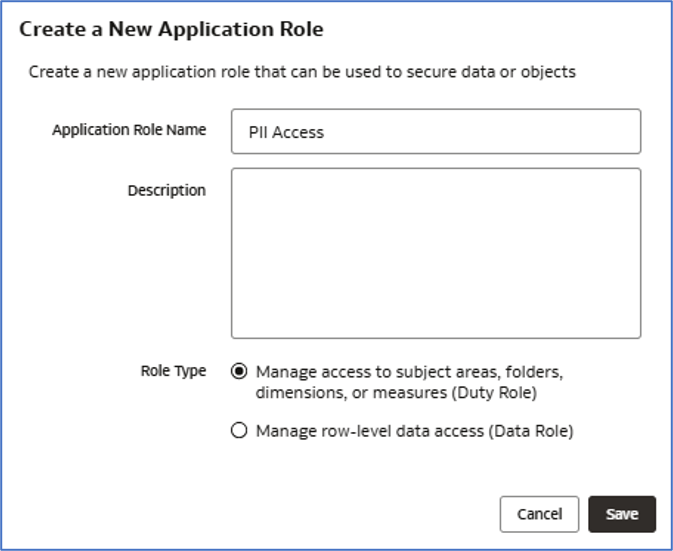
Similarly create other two duty roles for diversity and compensation.
Step 2: Configure Object Permissions
This is a critical step where you define which custom duty role (created in the previous step) has access to specific secured folders.
In Semantic Model Extension (SME):
- Configure Read or No Access permissions for secured folders.
- Assign permissions based on the custom duty roles created earlier.
The secured folders include:
- Compensation
- Personal Information
- Diversity Information
Navigation
Go to:
Semantic Model Extensions → Security Configurations → Configure Object Permissions
Configuration Steps
- Begin by configuring access at the Subject Area level, as shown below.
- Assign the appropriate permission (Read or No Access) to each custom duty role.
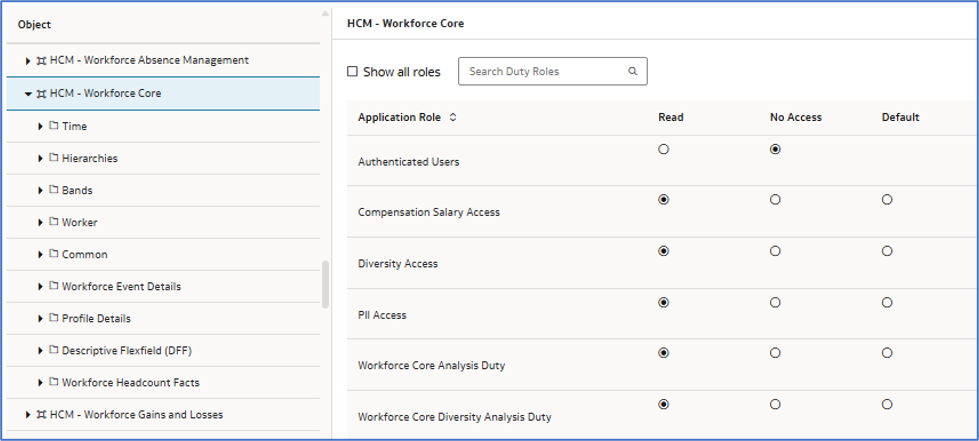
After configuring permissions at the Subject Area level, the next step is to assign permissions at the Folder level.
The following images illustrate how object permissions are configured for Personal Information, Diversity Information, and Compensation related objects, including both Fact and Dimension objects.
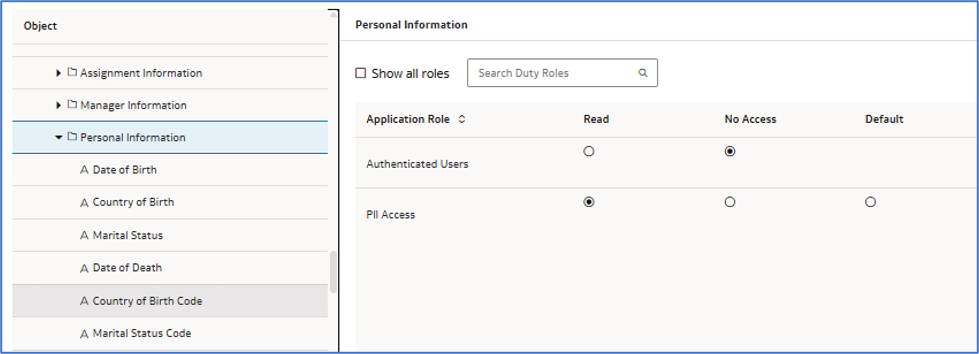
The above image shows that the Personal Information folder is accessible only to users assigned the PII Access role.
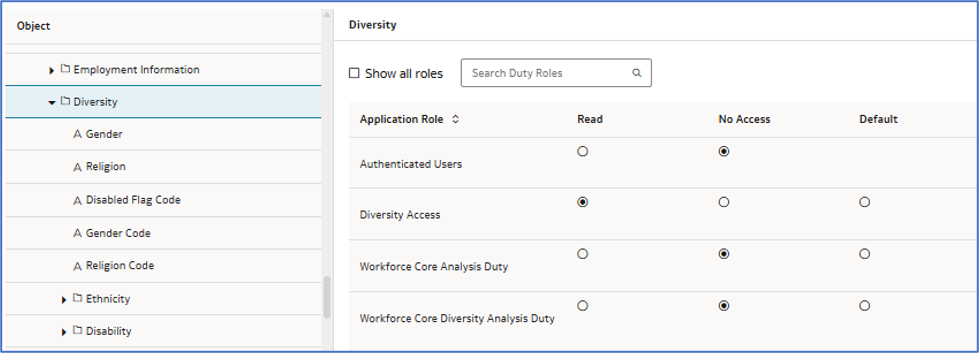
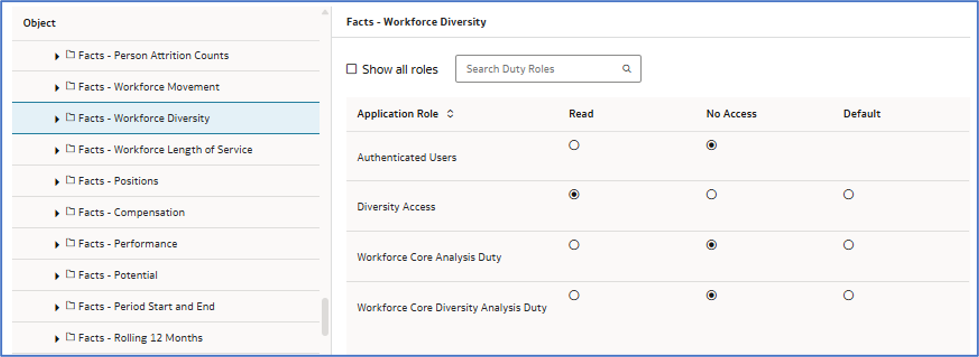
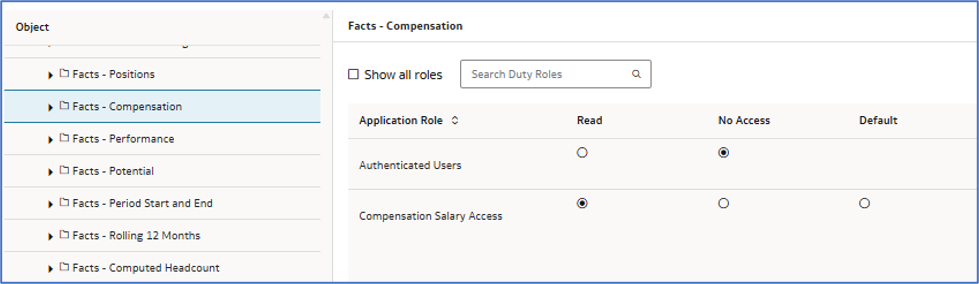
Similarly, configure permissions for the Diversity Information and Compensation folders, as shown in the images below.
Important:
In SME object permissions, first set Authenticated Users to No Access for the secured subject area or folders. Then grant Read access only to the required custom duty roles such as:
- PII Access
- Compensation Salary Access
- Diversity Access
This prevents unintended access to sensitive HR data, please ensure you publish the model after the SME changes.
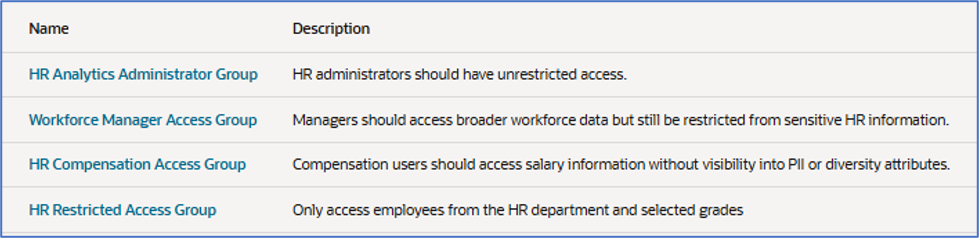
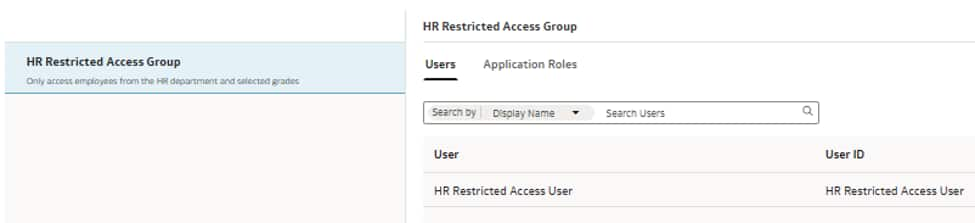
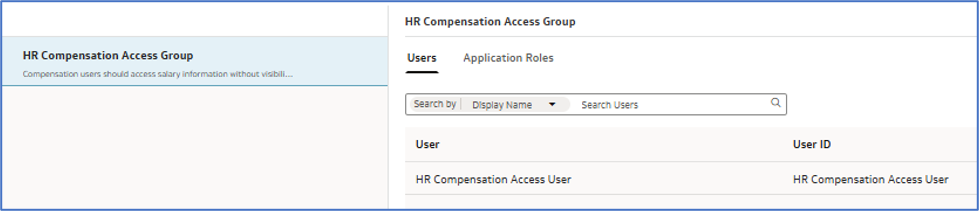
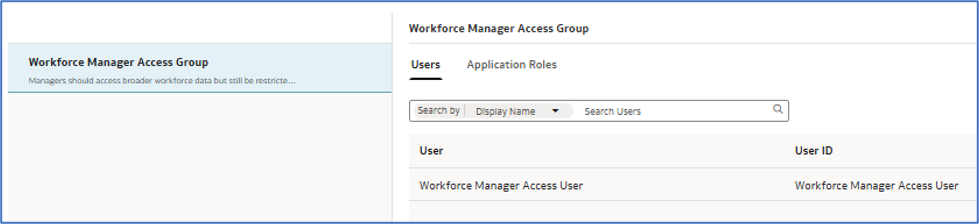
Step 3: Create Security Groups
Create the following security groups (or use those which are already existing, in the example new groups are created)
- HR Restricted Access Group
- HR Compensation Access Group
- Workforce Manager Access Group
- HR Analytics Administrator Group
These groups control both data-level and object-level access, add corresponding users into these groups.
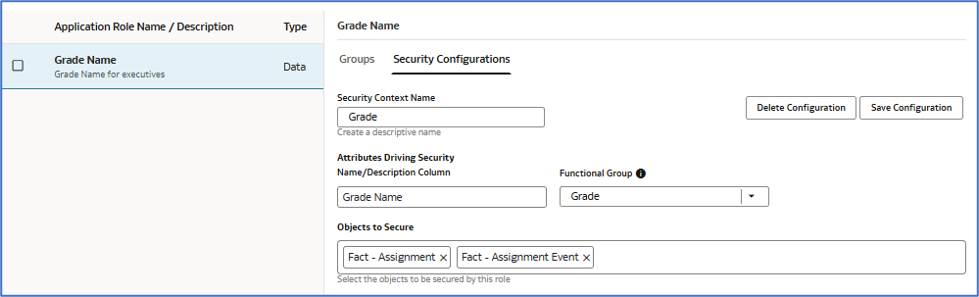
Step 4: Create Custom Grade Security Context
Create a custom security context for Grade-based filtering.
This restricts employee access based on grade values.
Follow the implementation steps in the article below:
Step 5: Configure Group-to-Role Mapping
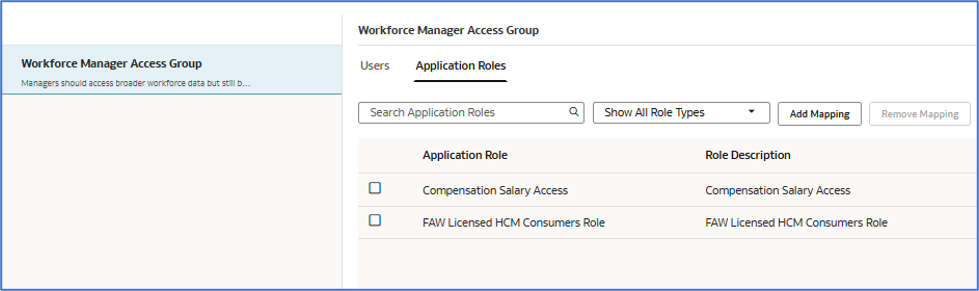
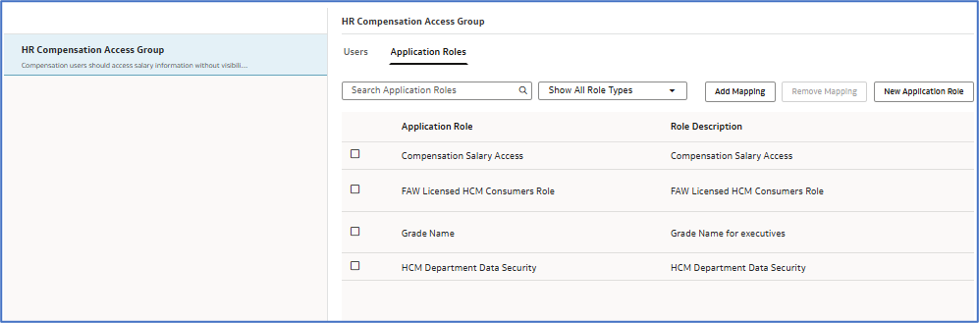
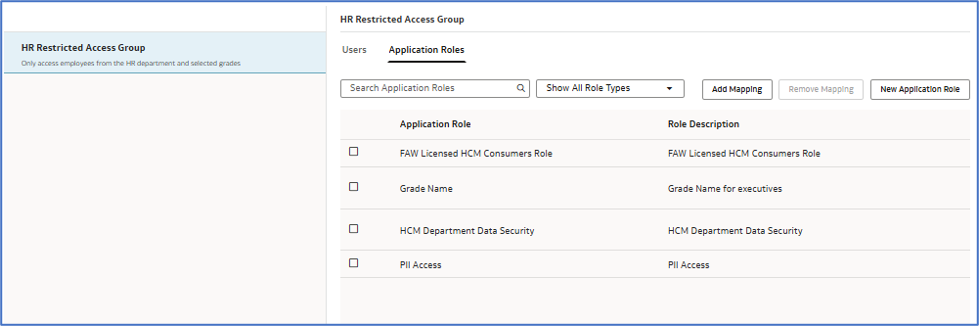
Assign the following to the appropriate security groups:
- Data Roles
- Use the delivered HCM Department Data Security role (out-of-the-box).
- Use Grade Name as the custom security context created in the previous step.
- Custom Duty Roles
This security group mapping determines:
- Department-level access
- Grade-level access
- Folder visibility
- Compensation data access
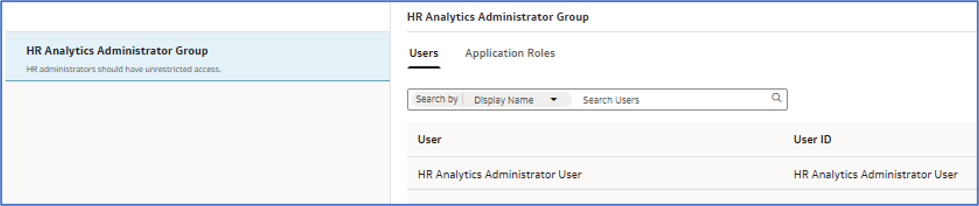
This image shows how required duty and data roles are assigned to HR Analytics Administrator Group.
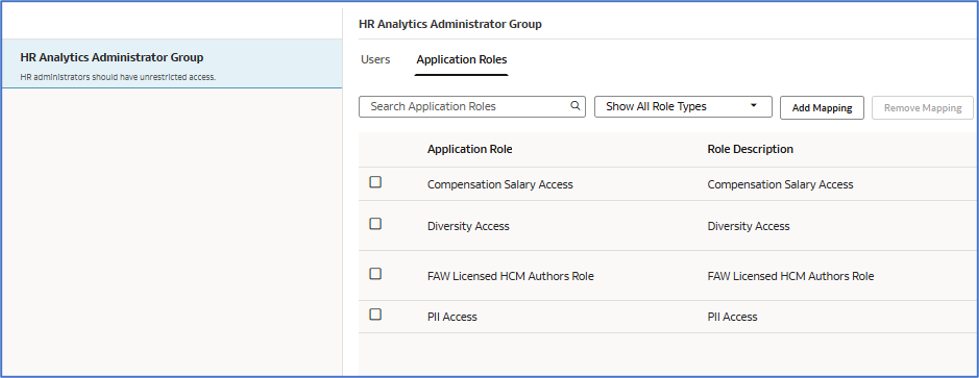
Similarly, do it for other groups created in step#3
Step 6: Add Users to Security Groups
Add users to the appropriate security groups based on business requirements.
Once assigned:
- Department and Grade security contexts enforce data security.
- Security Configuration Object permissions enforce secured folder visibility
Step 7: Add Security Assignments
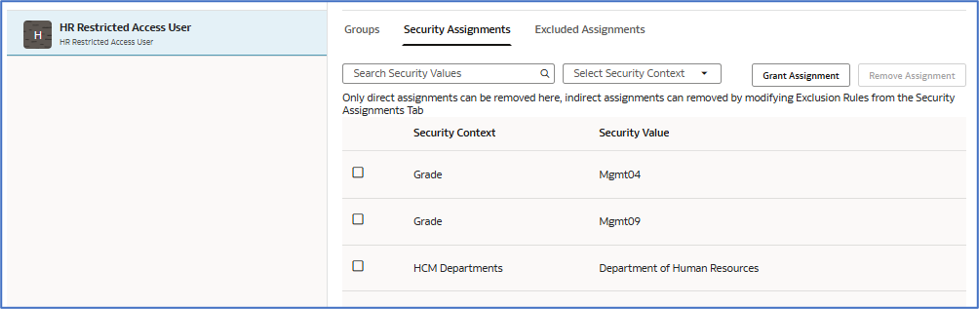
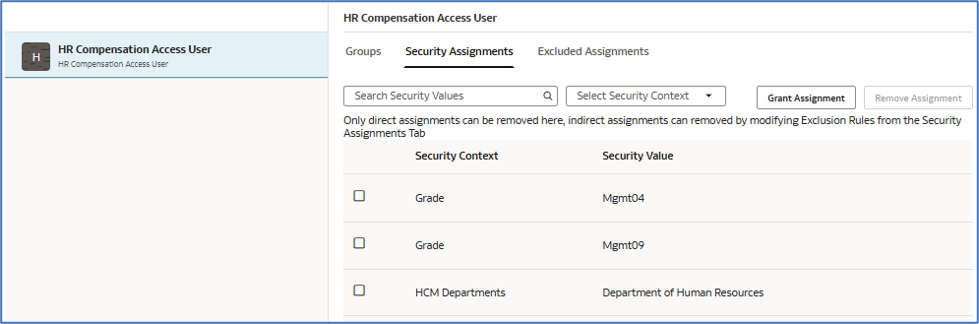
Ensure that security assignments are configured only for users who have been assigned the appropriate Grade and Department Data Security roles.
Step 8: Validate Security Access
Validate the implementation using sample users from each security group.
Verify the following:
- Department-level filtering
- Grade-level filtering
- Compensation data visibility
- Personal Information access restrictions
- Diversity Information access restrictions
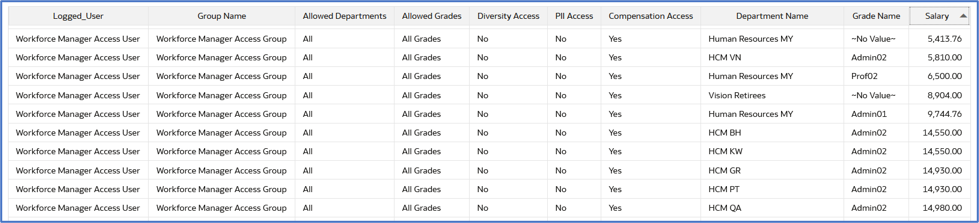
The images below demonstrate how data and attributes are restricted based on the logged-in user’s assigned security roles. In the example below, the logged-in user is an HR Analytics Administrator, who has unrestricted access to all data and folders.
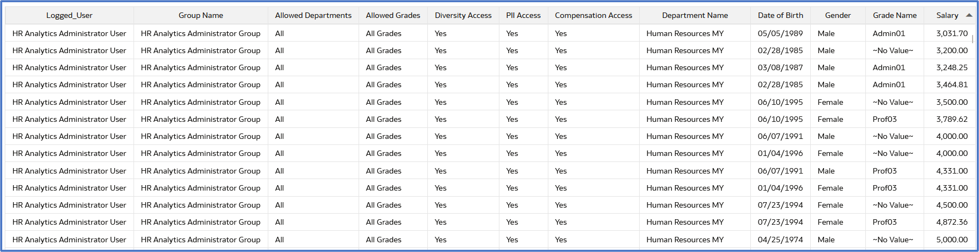
When the same report is accessed by other users, you can see how data and attributes are restricted based on their assigned security roles.
For example, a user with the HR Compensation Access role can view Salary (Compensation data) but cannot view Date of Birth (DOB), which is classified as PII data.
Please perform similar validations for other users and security groups to ensure that access restrictions are working as expected.


Conclusion:
Implementing a custom HR security framework in Oracle Fusion Data Intelligence (FDI) enables organizations to effectively protect sensitive workforce data while providing appropriate analytical access to different business users. By combining data-level securityandobject-level security, organizations can enforce granular access controls based on various business requirements such as workforce attributes, business units, or any other custom security dimensions, along with sensitive HR data such as compensation, personal information, and diversity information.
Call to Action
Refer to these resources:
Now that you’ve read this article, try it yourself and let us know your results in the Oracle Analytics Community, where you can also ask questions and post ideas. It’s free and easy to join!