
Oracle Analytics Cloud has traditionally used a single deployed semantic model as the governed metadata layer for an instance. That pattern remains simple and effective for many organizations. As analytics programs grow, however, teams may want to deploy an existing semantic model from another Oracle Analytics environment, organize models by business domain or use case, or assign dedicated compute capacity to different workloads without operating a separate Oracle Analytics Cloud instance for each model.
Oracle Analytics Cloud supports deploying multiple semantic models in a single instance using Resource Groups. An administrator can configure up to three Resource Groups, and each group supports one deployed semantic model. Additional Resource Groups allocate dedicated OCPU capacity to their models, helping query processing and user workloads operate more independently.
This article explains how Resource Groups change the deployment model, it shows the administrator and modeler workflows, and it describes what analytics users see when subject areas from multiple semantic models are available in the same environment.
A more flexible semantic model deployment pattern
The important change isn’t simply that an instance can hold more models. Resource Groups provide an administrative construct that combines a semantic model deployment target with assigned compute capacity. This gives organizations a practical way to consolidate governed models in one Oracle Analytics Cloud environment while preserving clear runtime and workload boundaries.
At a glance
- Up to three Resource Groups can be configured for an Oracle Analytics Cloud instance.
- Each Resource Group supports one deployed semantic model.
- Additional Resource Groups provide dedicated OCPU capacity for their deployed models.
- Users can access subject areas from all deployed models through workbooks, dashboards, and analyses.
Every Oracle Analytics Cloud instance includes a built-in default Resource Group for the familiar single-model deployment pattern. The default group can’t be modified or deleted, and many organizations can continue using it without any additional configuration. When multiple models are needed, administrators add Resource Groups based on workload demand and deployment requirements.
This design can support a broader range of business areas and use cases in one instance. It allows business domains to be managed in separate semantic models and gives additional Resource Groups dedicated OCPU capacity, which can reduce query contention and help workloads operate more independently.
Plan the model and workload boundaries
A Resource Group is most effective when the semantic model assigned to it represents a coherent analytics boundary. Before creating groups, identify which business semantics, data sources, security rules, query patterns, and deployment dependencies belong together. Closely related content that must participate in the same calculations and visualizations generally belongs in the same semantic model.
Capacity is another part of the boundary. Review the expected query volume, complexity, concurrency, and user population for each planned model, and size the Resource Group deliberately. Dedicated OCPU allocation gives administrators more control, but it doesn’t eliminate the need to monitor usage and adjust capacity as demand changes.
Finally, define ownership and lifecycle expectations. Independent models can follow different development and deployment schedules, but each model exposes subject areas that can be used by reports, dashboards, and workbooks. Establishing a responsible owner and a change process for every Resource Group helps preserve governance as the environment grows.
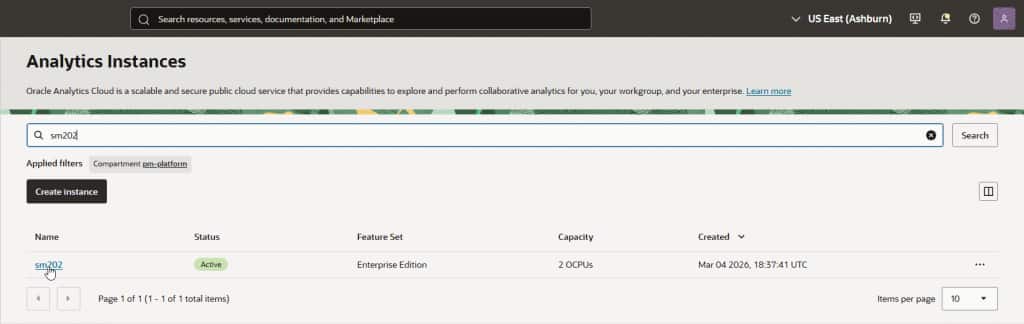
Create Resource Groups in the Oracle Cloud Console
Resource Group administration starts in the Oracle Cloud Infrastructure Console. The administrator needs permission to manage the analytics instance, including the ANALYTICS_INSTANCE_MANAGE permission.
1. Open the analytics instance. In the Oracle Cloud Infrastructure Console, go to Analytics & AI, select Analytics Cloud under AI Data Platform, choose the compartment, and open the Oracle Analytics Cloud instance.
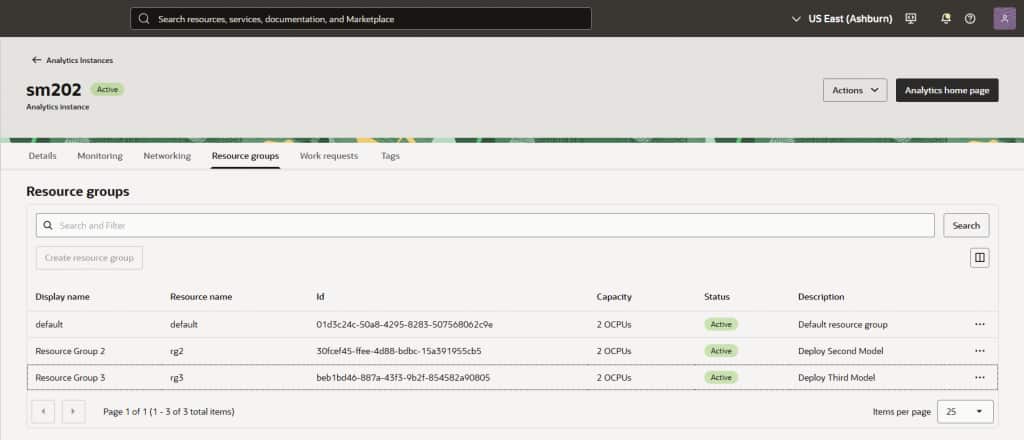
2. Create a Resource Group. Select the Resource groups tab and click Create resource group.
3. Define the deployment target. Enter the Resource name, Display name, and optional Description. The Display name is especially important because it’s the name that modelers see when they choose a deployment target.
4. Assign capacity. Choose the number of OCPUs to allocate and click Create.
While the change is being applied, the analytics instance moves to Updating. When the instance returns to Active, modelers can deploy a semantic model to the new Resource Group.
Prepare the semantic models for deployment
Before deploying, confirm that the modeler has the BI Data Model Author application role. The model should pass Check Consistency and Advanced Check, and any errors must be resolved. The same requirement applies whether the deployment source is an existing model in the environment or an exported RPD file.
When several models are deployed together, naming also becomes an instance-level design concern. Subject area names must be unique across all deployed semantic models. Subject area alternate names must also be unique. Establishing a naming convention before deployment prevents conflicts and makes the workbook selection experience clearer for users.
Deploy a semantic model in two ways
Semantic Modeler provides two deployment paths. Both use the same Resource Groups created in the Oracle Cloud Infrastructure Console, but they support different working styles.
Option 1: Deploy from the semantic model editor
This option is designed primarily for semantic model developers working in a development environment. While building or testing a semantic model, a developer can deploy it directly from the Semantic Modeler editor without leaving the model.
Open the semantic model, click Page Menu, and select Deploy. In the Deploy Semantic Model dialog, choose the target Resource Group and start the deployment.
The deployment status appears at the bottom of the editor. You can cancel a deployment that’s still in progress, and if deployment fails, Oracle Analytics creates log files that can help identify and resolve the issue.
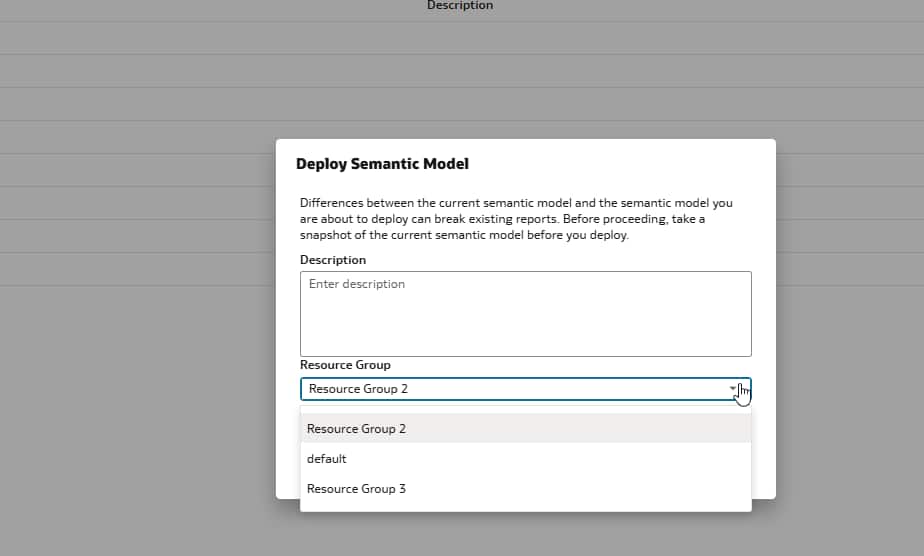
Option 2: Deploy from the Deployments page
This option is designed primarily for model deployment administrators who are responsible for deploying approved semantic models but might not develop the models themselves. This approach is particularly useful in test and production environments, where model development and deployment responsibilities are often separated.
The Deployments page provides a consolidated operational view of every Resource Group, the semantic model deployed to each group, deployment status, history, logs, and lifecycle actions.
Select an available Resource Group and click Deploy. You can select Model to deploy an existing semantic model from the Oracle Analytics environment, or File to deploy an exported RPD file. When deploying an RPD file, enter the password assigned when the file was exported.
If the Deployments page isn’t displayed, additional Resource Groups haven’t been configured for the instance, and the environment continues to use the standard single-model deployment workflow.

What analytics users see in workbooks
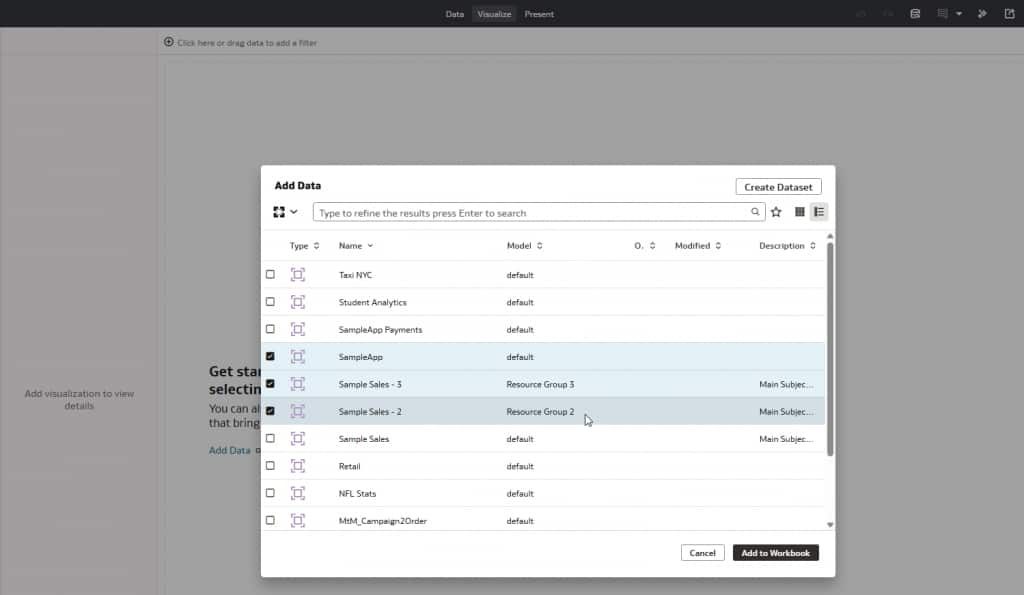
For analytics users, the experience remains familiar. After the semantic models are deployed successfully, their subject areas appear in the workbook subject area selector. A user can add subject areas from several deployed models to the same workbook and create visualizations from each subject area.
Resource Groups don’t merge the deployed models into one semantic model. Each model remains independently deployed and queried. As demonstrated in the accompanying video, fields from subject areas that originate in different semantic models can’t be combined in a single visualization. If fields must participate in the same visualization, they should be modeled within the same semantic model.
This boundary is an important part of deployment planning. Resource Groups are well suited to independently governed data domains and workloads. They’re not a substitute for designing integrated business semantics when cross-domain analysis must happen inside one query or visualization.
Operate the lifecycle with clear dependencies
The Deployments page supports more than the initial deployment. Authorized users can monitor status, view history and logs, undeploy a model, and deploy a replacement model to an available Resource Group. You might undeploy a model to replace it, remove outdated content, troubleshoot issues, restrict access to data, or free resources.
Administrators should treat Resource Group deletion as a dependency-aware operation. Deleting a Resource Group also removes the semantic model deployed to it. Reports and workbooks that depend on its subject areas are affected. As with creation, the instance can remain in Updating for up to 60 minutes while the change is applied.
If subject areas don’t appear or don’t reflect the latest deployment, sign out and sign back in to Oracle Analytics. In some cases, an administrator might need to reload files and metadata from Sessions and Query Logs in the Console.
Call to action
Resource Groups provide a more flexible alternative to the standard deployment pattern with one semantic model. Administrators gain capacity and lifecycle controls, modelers can deploy through the semantic model editor or the Deployments page, and users continue to work with subject areas in workbooks, dashboards, and analyses. Start by identifying which semantic models should be deployed in the same Oracle Analytics Cloud instance and how their data domains, ownership responsibilities, and workload requirements should be divided across separate Resource Groups. Use unique subject area names, allocate capacity deliberately, validate each model, and test dependent workbooks, dashboards, and analyses before moving to production.
Learn more
- Watch the demo: Deploy Multiple Semantic Models with Resource Groups
- Set Up Resource Groups for Multiple Semantic Models
- Manage Resource Groups using the Console
- About Deploying Semantic Models
- Considerations for Deploying Multiple Semantic Models
- Deploy from the Semantic Model Editor
- Deploy from the Deployments Page
- Undeploy a Semantic Model from a Resource Group
- The Semantic Modeler in Oracle Analytics Cloud
- Learn more about Oracle Analytics Cloud