
Introduction
Organizations often need to enrich Oracle Fusion Data Intelligence (FDI) with enterprise data that does not originate in Fusion Applications. That data may live in a custom operational schema, a curated reference data store, or an Oracle Autonomous AI Database used by another business process.
When the source Oracle Autonomous AI Database is private, the integration pattern needs a little more planning. The source must remain protected, but FDI still needs a governed way to read metadata and extract data for augmentation. One practical approach is to use the Remote Agent with the Oracle JDBC preview connector. The Remote Agent runs in a network location that can reach the private database endpoint, while FDI uses the managed connection to test connectivity, refresh metadata, and create the augmentation.
Oracle also documents a related private Oracle Autonomous AI Database endpoint pattern for public FDI instances in the same tenancy and region, using controlled access through Oracle Services Network CIDR 240.0.0.0/4. Use that guidance when your architecture follows that model. In the flow below, the screenshots focus on the Remote Agent and Oracle JDBC setup path.
1. What You Need Before You Start
Before configuring the connection in FDI, prepare the following:
- FDI service administrator access.
- Access to Application Administration and Data Configuration in FDI.
- The Remote Agent preview feature enabled.
- The Oracle JDBC preview feature enabled.
- A Remote Agent installed and configured in a network location that can reach the private Oracle Autonomous AI Database endpoint.
- Database credentials with access to the source schema and tables.
- A JDBC TCPS URL for the Oracle Autonomous AI Database service.
- Any required wallet, trust, or network configuration needed by your Remote Agent host.
Oracle documents the Oracle JDBC connector for extract-based data augmentation as a preview capability. It also notes that administrators can create up to five Oracle JDBC connections.
2. Enable the Oracle JDBC Preview Feature
In FDI, open Application Administration, then select Enable Features. Under Preview Features, search for Oracle JDBC and enable the connector you plan to use, such as Oracle JDBC 1.
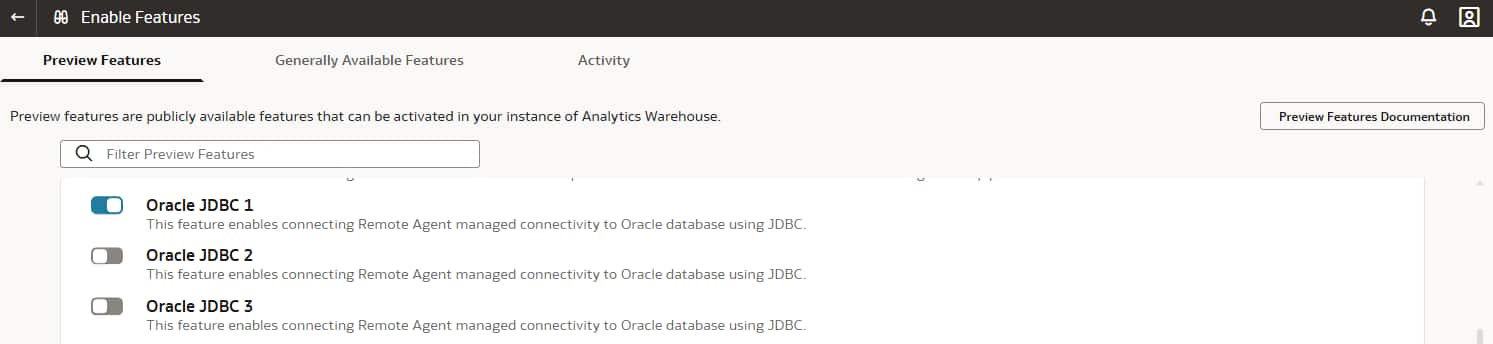
Figure 1: Oracle JDBC 1 is enabled as a preview feature so it can be used as a data extraction connection.
The Oracle JDBC preview connector is the managed FDI connection type used later to define the source database connection. If the feature is not enabled, the connector will not appear when you create the extraction connection.
3. Enable the Remote Agent Preview Feature
In the same Preview Features page, search for Remote Agent and enable it.
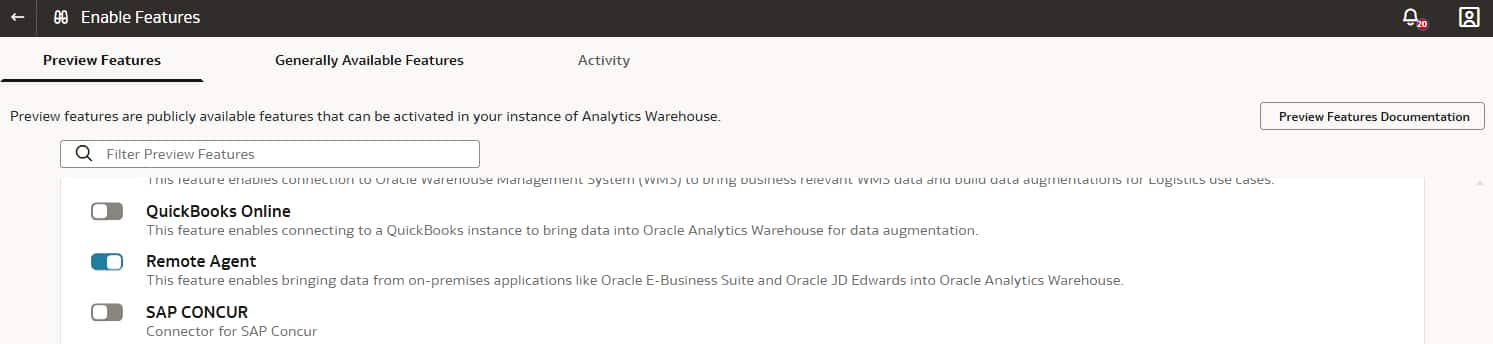
Figure 2: The Remote Agent feature is enabled so FDI can communicate with a source reachable from the agent network.
The Remote Agent is the bridge between FDI and the private database network. For a private Oracle Autonomous AI Database, install or place the agent where it can resolve and reach the database endpoint on the required port, typically TCPS on 1522 for Oracle Autonomous AI Database connections.
4. Configure the Remote Agent Connection
After the feature is enabled, configure the Remote Agent connection in Manage Connections. The configuration includes the agent identifier, host, and public key. Use values generated or assigned for your environment rather than copying values from a screenshot.
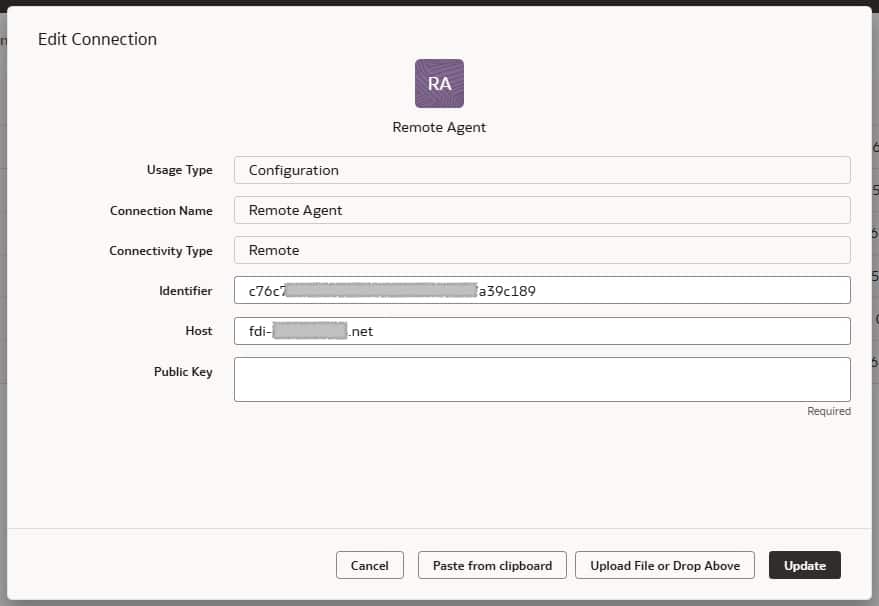
Figure 3: Remote Agent configuration captures the identifier, host, and public key used by FDI to recognize the agent.
At this stage, focus on establishing trust between FDI and the Remote Agent. If the public key or agent host is incorrect, the later JDBC connection test will fail even if the database URL and credentials are valid.
5. Validate the Remote Agent
Once the Remote Agent configuration is saved, test the connection. In Manage Connections, open the Activity tab and search for the Remote Agent activity. The status should show Completed.
Do not move on to the JDBC connection until the agent test succeeds. A successful agent test proves the management path is working, but it does not yet prove that the agent can connect to the database.
6. Create the Oracle JDBC Data Extraction Connection
Next, create or edit the Oracle JDBC 1 connection. Set the usage type to Data Extraction, choose Remote as the connectivity type, and select the Remote Agent you validated in the previous step.
Provide the source database user, password, and JDBC URL. Update the rest of the fields as per your requirement.
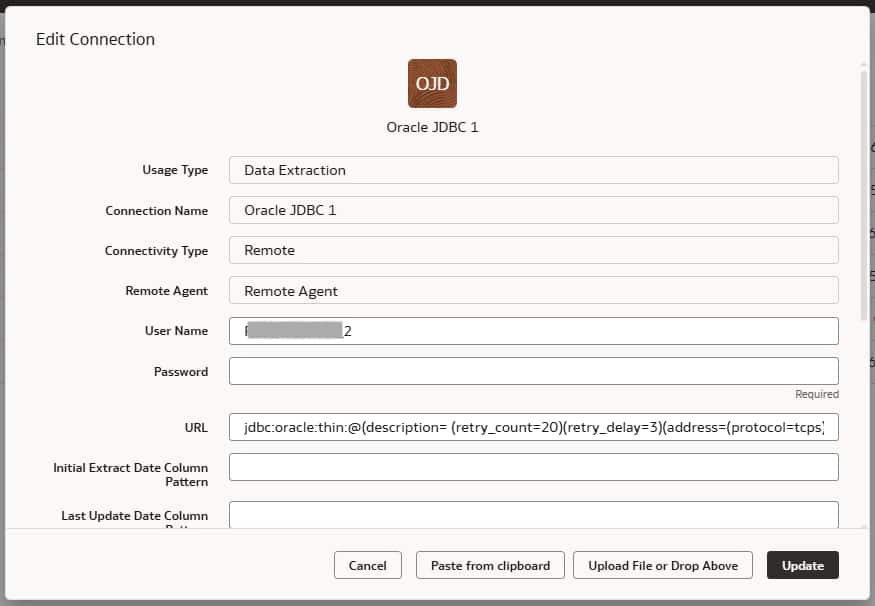
Figure 4: Oracle JDBC 1 is configured as a data extraction connection that uses the Remote Agent.
For data augmentation, use a database account with the minimum required privileges to read the source objects. The account should be able to list and query the source tables you want to augment into FDI.
7. Build the JDBC TCPS URL
For Oracle Autonomous AI Database, the JDBC URL typically uses TCPS, port 1522, a host, and a service name. The screenshot below shows the shape of the connection string. In your own implementation, replace the host and service name with the values from your Oracle Autonomous AI Database connection details.
jdbc:oracle:thin:@(description=
  (retry_count=20)
  (retry_delay=3)
  (address=(protocol=tcps)(port=1522)(host=<PRIVATE_ADB_HOST>))
  (connect_data=(service_name=<ADB_SERVICE_NAME>))
  (security=(ssl_server_dn_match=no))
)
Confirm that the Remote Agent host can resolve the private hostname and reach the private IP address. Alternatively, you can copy the connection string from the tnsnames.ora file in the wallet and replace the hostname with the private IP address of the Oracle Autonomous AI Database.
8. Test the Oracle JDBC Connection and Refresh Metadata
After saving the Oracle JDBC connection, run a connection test. Then run metadata refresh so FDI can discover the source objects available for augmentation.
The metadata refresh is a key checkpoint. If it doesn’t complete, then the source tables won’t be available in the augmentation wizard even if the database connection itself is valid.
9. Select the Oracle JDBC Data Source
Go to Data Configuration and select Oracle JDBC 1 as the data source.
This confirms that the connection is available to the data configuration workflow. From here, you can create and manage data pipelines for the source.
10. Create the Data Augmentation
Open the data augmentation workflow for the Oracle JDBC source. In the first step, select the augmentation type, source dataset type, source table type, and source table. Follow the steps to create Data Augmentation(s).
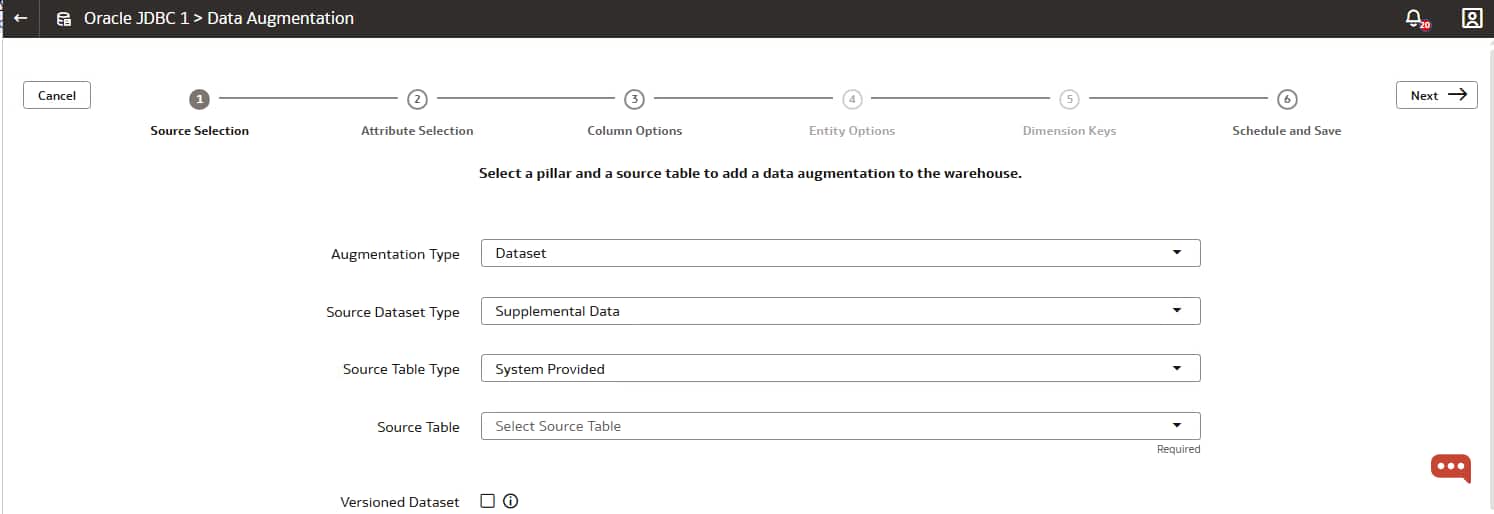
Figure 5: The Data Augmentation wizard starts with source selection before moving through attributes, column options, entity options, keys, and schedule.
Once the source table is selected, continue through the wizard:
- Select the attributes to include.
- Review column options and data types.
- Configure entity options as required.
- Define dimension keys where applicable.
- Schedule and save the augmentation.
Run the augmentation only after validating that the selected source table and keys match the intended reporting model. For production use, coordinate the schedule with the documented extraction frequency limit.
11. Items to Validate
Before handing the configuration over to business users, validate these checkpoints:
- Preview features: Remote Agent and Oracle JDBC are enabled.
- Remote Agent: The agent test completes successfully.
- Network path: The Remote Agent host can reach the private Oracle Autonomous AI Database endpoint.
- Credentials: The database user can read the required source schema and tables.
- JDBC URL: The TCPS URL uses the correct host, port, service name, and security settings.
- Metadata: Metadata refresh completes successfully in the activity log.
- Data source: Oracle JDBC 1 appears in Data Configuration.
- Augmentation: The expected source tables are visible in the Data Augmentation wizard.
12. Troubleshooting Tips
Remote Agent test fails
Check the agent identifier, host, public key, and agent runtime status. Confirm that the agent is reachable from FDI and that no firewall or proxy setting blocks agent communication.
Oracle JDBC test fails
Validate the database user name, password, JDBC URL, TCPS port, and network path from the Remote Agent host to the Oracle Autonomous AI Database endpoint. If the database uses a private endpoint, test name resolution and connectivity from the agent network.
Metadata refresh completes with no useful tables
Confirm that the database user has privileges on the source schema and objects. Also review any schema or data store filters configured on the connection.
Source table is missing in the augmentation wizard
Refresh metadata again after privileges or source objects change. Then confirm that the selected data source is Oracle JDBC 1 and that the source table type matches the table that you expect to use.
13. Call to Action
Connecting a private Oracle Autonomous AI Database to Fusion Data Intelligence for data augmentation is straightforward once the responsibilities are separated clearly. FDI manages the connection, metadata refresh, and augmentation workflow. The Remote Agent provides the network reachability needed for private database access. Oracle JDBC defines the extraction path into the warehouse.
The most important checkpoints are simple: enable the preview features, validate the Remote Agent, test the JDBC connection, refresh metadata, and confirm that the source table appears in the augmentation wizard. Once those are green, administrators can safely move from connectivity setup into data modelling and augmentation design.