

Introduction to Data Level Security for Oracle Analytics
Oracle Database users, roles, and privileges limit what data a user is authorized to access. A report should display the appropriate data based on the Oracle Database privileges for the actual user signed into Oracle Analytics. Oracle Analytics doesn’t support the variables :user and :password in data source connection credentials. Therefore you can implement this functionality in the metadata repository (RPD file) using an Oracle Database proxy user and passing through an Oracle Analytics session variable using the VALUEOF function that contains the actual Oracle Analytics SSO user as an argument.
This example uses Oracle Database views to limit the data, but the same proxy user technique can be used with Oracle virtual private database. A subsequent blog post will demonstrate a VPD example. This was tested in Oracle Analytics Cloud (May 2022 Update) and Oracle Analytics Server (version 6.4).
High Level Steps to Implement Oracle Analytics Data Security using Database Proxy Users, Views and Session Variables
- Install the Sample HR Schema in your target database.
- Create two sample users in the Oracle Database: one does not have privileges to the restricted data and one user that can see all hr data.
- Create the same users in the Oracle Identity Cloud Service (IDCS) if they do not exist. In this example, we manually create those users in IDCS, assign those users to Oracle Analytics Cloud Application, and assign them the required application roles to create and view the reports. For OAS, make sure these same users exist in the Weblogic console.
- Create a view that limits the data for the restricted access user.
- For the users in the database, assign the required database privileges.
- Create a database proxy user and grant that user the ability to log in.
- Create a database connection in the admin tool (RPD) and import the required tables and views into the physical layer with the database schema user.
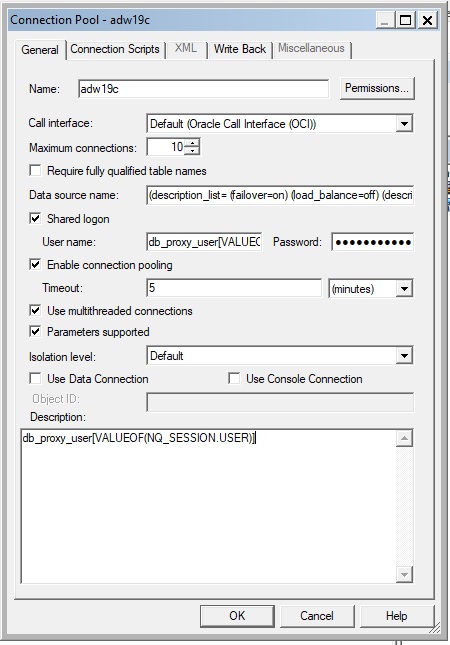
- After the import has completed, update the RPD Connection Pool with the proxy user name to include the session variable as an argument of the VALUEOF function and enclose the NQ_SESSION.USER portion in paranthesis and the VALUEOF session variable name in square brackets. For example: proxy_user_name[VALUEOF(NQ_SESSION.USER)]
- Deploy the the metadata repository in your test instance.
- Create and view the report by logging in as a user who has full access and as a user who has restricted access based on the database privileges.
Detailed Steps to implement Oracle Analytics Data Security using Database Proxy Users, Views and Session Variables
- Oracle Sample HR schema is installed in the target database.
- Create User JCHEN in both Oracle Analytics and in the target database with the CREATE SESSION privilege. This user is restricted to non-salary related columns data via the view:
CREATE USER JCHEN IDENTIFIED BY <password>;
GRANT CREATE SESSION TO JCHEN;
- Create User NGREENBE in both Oracle Analytics and the target database with the CREATE SESSION privilege. This user works in HR and can see all the data in the HR schema.
CREATE USER NGREENBE IDENTIFIED BY <password>;
GRANT CREATE SESSION TO NGREENBE;
- Create the proxy user DB_PROXY_USER and grant it the ability to log in and to alter the session but don’t grant data level privileges. The database view privileges will be granted to roles given to the actual users.
CREATE USER DB_PROXY_USER IDENTIFIED BY <password>;
GRANT CREATE SESSION TO DB_PROXY_USER;
GRANT ALTER SESSION TO DB_PROXY_USER;
- Create the HR.EMPLOYEES_NOSALARY view. This view is identical to the HR.EMP_DETAILS_VIEW, except the salary and commission_pct columns are set to null in the SELECT statement.
CREATE OR REPLACE VIEW HR.EMPLOYEES_NOSALARY (“EMPLOYEE_ID”, “JOB_ID”, “MANAGER_ID”, “DEPARTMENT_ID”, “LOCATION_ID”, “COUNTRY_ID”, “FIRST_NAME”, “LAST_NAME”, “SALARY”, “COMMISSION_PCT”, “DEPARTMENT_NAME”, “JOB_TITLE”, “CITY”, “STATE_PROVINCE”, “COUNTRY_NAME”, “REGION_NAME”) AS
SELECT
e.employee_id,
e.job_id,
e.manager_id,
e.department_id,
d.location_id,
l.country_id,
e.first_name,
e.last_name,
null,
null,
d.department_name,
j.job_title,
l.city,
l.state_province,
c.country_name,
r.region_name
FROM
employees e,
departments d,
jobs j,
locations l,
countries c,
regions r
WHERE e.department_id = d.department_id
AND d.location_id = l.location_id
AND l.country_id = c.country_id
AND c.region_id = r.region_id
AND j.job_id = e.job_id;
- Create the role HR_NO_SALARY and grant its access to the new view:
CREATE ROLE HR_NO_SALARY;
GRANT SELECT ON HR.EMPLOYEES_NOSALARY TO HR_NO_SALARY_ROLE;
- Grant the HR_NO_SALARY_ROLE role to JCHEN so they can see only non-salary related information
GRANT HR_NO_SALARY_ROLE to JCHEN;
- Create a synonym for user JCHEN so when the EMP_DETAILS_VIEW is queried, this user sees the HR.EMPLOYEES_NOSALARY view instead.
CREATE SYNONYM JCHEN. EMP_DETAILS_VIEW for HR.EMPLOYEES_NOSALARY;
- Create the HR_SALARY role and GRANT SELECT ON HR.EMP_DETAILS_VIEW in the sample HR schema:
CREATE ROLE HR_SALARY;
GRANT SELECT ON SELECT ON HR.EMP_DETAILS_VIEW TO HR_SALARY;
- Grant the HR_SALARY role to NGREENBE:
GRANT HR_SALARY to NGREENBE;
- Create a synonym for NGREENBE for the HR.EMP_DETAILS_VIEW:
CREATE SYNONYM NGREENBE.EMP_DETAILS_VIEW for HR. EMP_DETAILS_VIEW;
- Allow the users NGREENBE and JCHEN to connect via proxy user DB_PROXY_USER:
ALTER USER NGREENBE GRANT CONNECT THROUGH db_proxy_user;
ALTER USER JCHEN GRANT CONNECT THROUGH db_proxy_user;
- Test restricted user via SQL*Plus first.
It should show blank or null for salary and commission_pct:
connect db_proxy_user[jchen]/<db_proxy_user_password>@targetdb
select first_name, last_name, salary, commission_pct from emp_details_view where last_name like ‘Russell’;
FIRST_NAME            LAST_NAME            SALARY              COMMISSION_PCT
 -------------------- -------------------- -------------------- --------------------
 JOHN                  RUSSELL                  ""                     ""
To view user context information:
column session_user format a20
column session_schema format a20
column current_schema format a20
column proxy_user format a20
select sys_context(‘userenv’,’session_user’) as session_user,
sys_context(‘userenv’,’session_schema’) as session_schema,
sys_context(‘userenv’,’current_schema’) as current_schema,
sys_context(‘userenv’,’proxy_user’) as proxy_user
from dual;
SESSION_USER SESSION_SCHEMA CURRENT_SCHEMA PROXY_USER
-------------------- -------------------- -------------------- --------------------
JCHEN JCHEN JCHEN DB_PROXY_USER
- Now connect the view user who has access to everything:
connect db_proxy_user [NGREENBE]/<db_proxy_user_password>@targetdb
select first_name, last_name, salary, commission_pct from emp_details_view where last_name = ‘Russell’;
FIRST_NAME            LAST_NAME            SALARY           COMMISSION_PCT
 -------------------- -------------------- -------------------- --------------------
 JOHN                    RUSSELL            14000                  .4
column session_user format a20
column session_schema format a20
column current_schema format a20
column proxy_user format a20
select sys_context(‘userenv’,’session_user’) as session_user,
sys_context(‘userenv’,’session_schema’) as session_schema,
sys_context(‘userenv’,’current_schema’) as current_schema,
sys_context(‘userenv’,’proxy_user’) as proxy_user
from dual;
SESSION_USER         SESSION_SCHEMA       CURRENT_SCHEMA         PROXY_USER
 -------------------- -------------------- --------------------  --------------------
 NGREENBE               NGREENBE            NGREENBE              DB_PROXY_USER
- Now you’re ready to set up the metadata repository (RPD). This method of passing the session variable allows the Oracle Analytics session user to be passed to the database proxy user as part of the database login.
From the Physical panel, Select the Database, Double-Click on the Connection Pool and under Shared logon: User name, include the session variable as an argument of the VALUEOF function and enclose the NQ_SESSION.USER portion in paranthesis and the VALUEOF session variable name in square brackets:
proxy_user_name[VALUEOF(NQ_SESSION.USER)]
In our example, Oracle Analyics will automatically pass user as: db_proxy_user[jchen] or db_proxy_user[ngreene] depending on the Oracle Analytics login session user. - Be sure to UNCHECK the Require fully qualified table names box and click OK.
- In the Physical panel, select the hr.emp_details_view, Right-click and create an alias called emp_details_view_alias.
- Create the join between the two objects on employee_id.
- Drag HR to the Business Modeling and Mapping panel.
- Drag HR from the Business Modeling and Mapping panel to the Presentation panel.
- Remove the employee_details_view_alias from the Presentation layer.
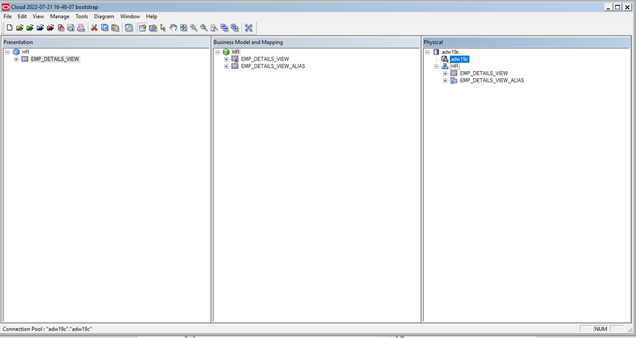
The metadata repository looks like this in our example:
- Save and deploy the metadata repository to an Oracle Analytics instance where you want to test this functionality.
- Test creating a report with a user that has privileges to all HR data (for example, the ngreenbe user) and a user that is restricted (for example, the jchan user).
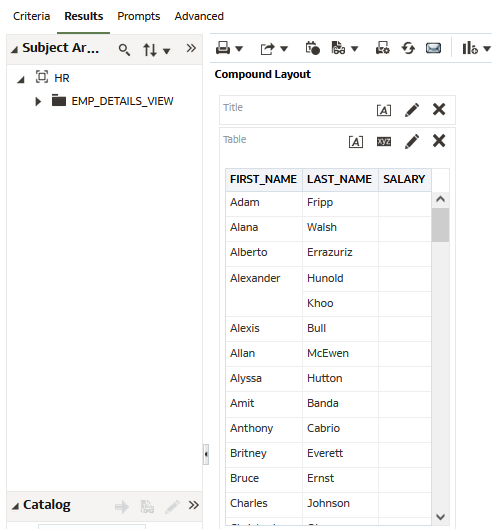
The report will be the same for all users. If a user without permission runs the report that has a column that they don’t have access to, the data is displayed blank in our example:
Troubleshooting Oracle Analytics Data Security
To check the physical SQL generated and sent to the database, navigate to Oracle Analytics Administration, Manage Sessions and view log for the specific report. It should look similar to the following example (if first name, last name, and salary were selected in the analysis). Notice the view name isn’t fully qualified with the schema owner (HR). This is intended behavior because emp_details_view resolves to a different view depending on the user who runs the report.
WITH
SAWITH0 AS (select distinct T1140.SALARY as c1,
T1140.LAST_NAME as c2,
T1140.FIRST_NAME as c3
from
EMP_DETAILS_VIEW T1140)
select D1.c1 as c1, D1.c2 as c2, D1.c3 as c3, D1.c4 as c4 from ( select 0 as c1,
D1.c3 as c2,
D1.c2 as c3,
D1.c1 as c4
from
SAWITH0 D1
order by c2, c3, c4 ) D1 where rownum <= 125001;
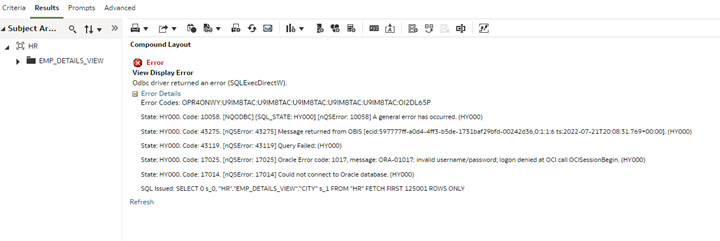
If the proxy user definition is incorrect, an invalid username and password error message will appear similar to this one:
Conclusion
In this article, you’ve seen how to leverage Oracle Database proxy users, database users, roles, privileges, and views to limit row-level access based on the Oracle Analytics session login user. For more information, see Modeling Enterprise Data in Oracle Analytics Cloud.