As an Author opening a workbook, you open it in edit mode by default. An Author of a workbook is also the Consumer of the data in the workbook. An Author opens the workbook or dashboard to consume the data and to see the workbook load in view mode.
Open Workbook as a Viewer
With the Open Workbook as a Viewer feature of Oracle Analytics, you can take control of setting the default opening mode of workbooks to be either edit or view. The Open Workbook as a Viewer feature enables you to put the consumer experience at the forefront for both Authors and Consumers.
You use the Open Workbook as a Viewer feature in two places:
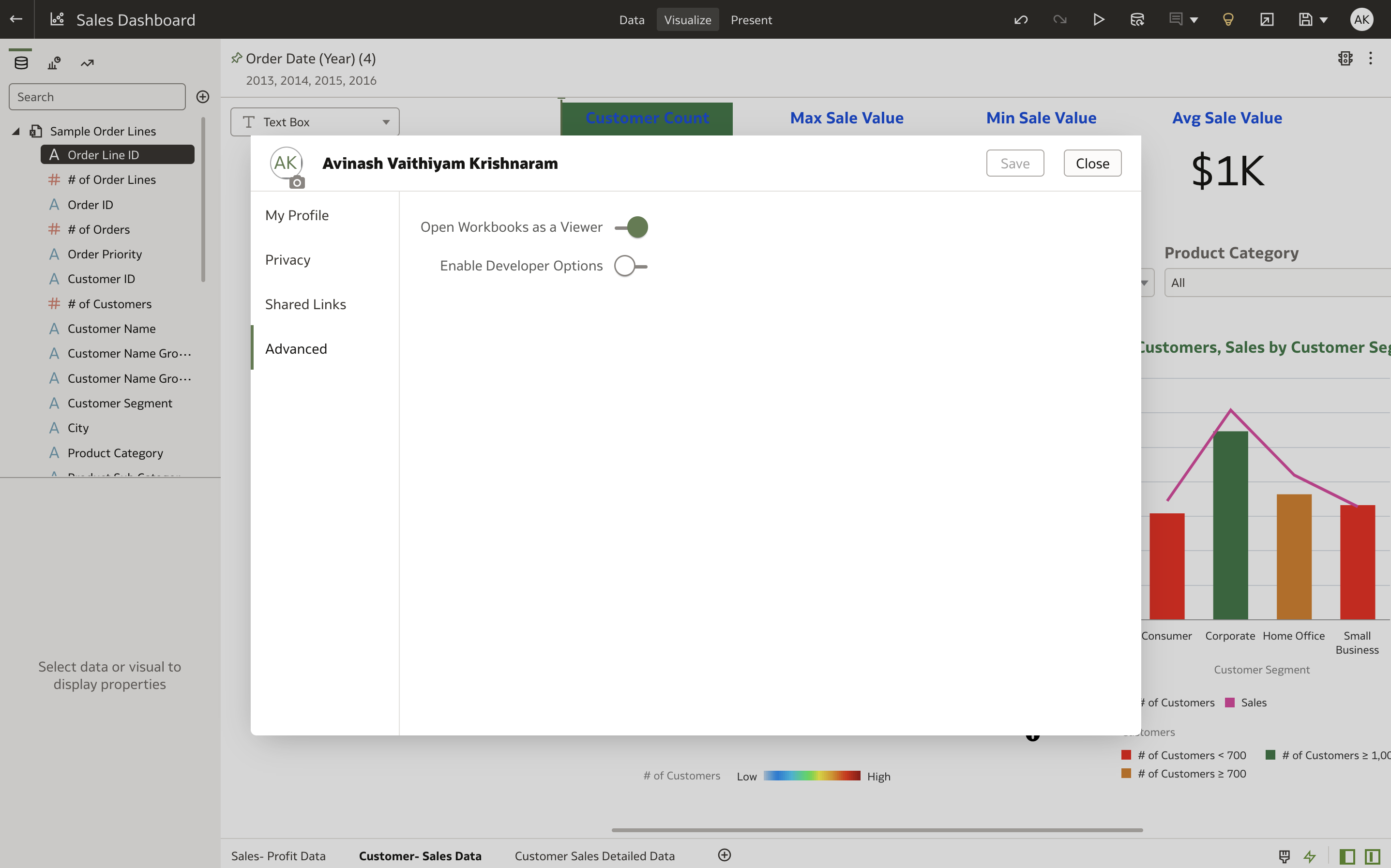
- The Open Workbook as a Viewer property on the Advanced tab of your User Profile.
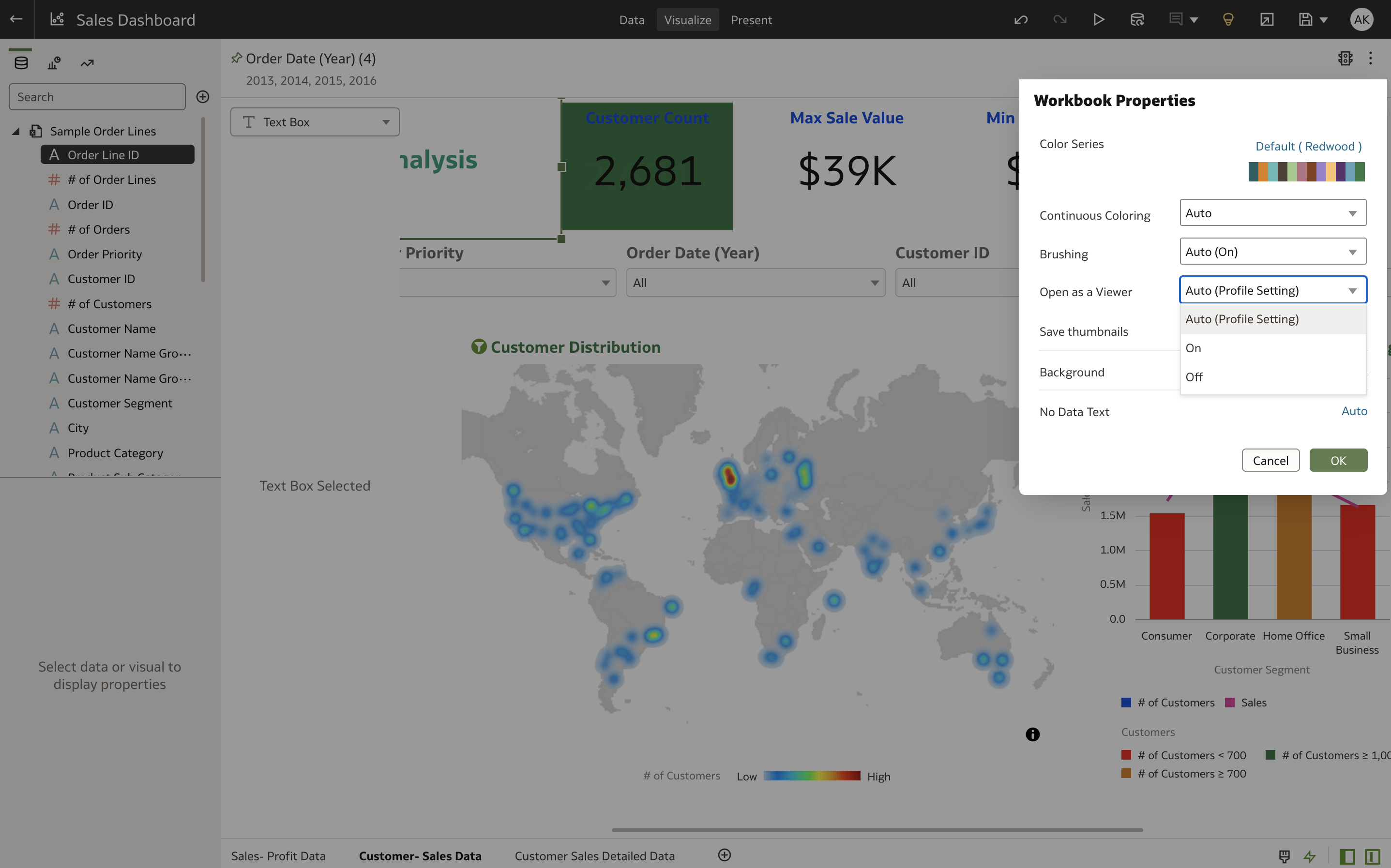
- The Open as a Viewer property for the Workbook level in Workbook properties.
Open Workbook as a Viewer Property in Your User Profile
The Open Workbook as a Viewer property on the Advanced tab of your User Profile is set to On by default. This global setting is applied to all workbooks created by that Author or to all workbooks to which the Author has edit access:
- When ON, all workbooks (owned or with edit permission to workbooks) open by default in View Mode.
- When OFF, all workbooks (owned or with edit permission to workbooks) open by default in Edit Mode.
Open as a Viewer Property in Workbook Properties
The Open as a Viewer property for the Workbook level in Workbook properties allows the Author to override the global user profile setting for a workbook.
Consider a scenario where the Author is building a dashboard and wants to open a work-in-progress workbook in edit mode by default (until it’s completed and published with business users).
The Open as a Viewer property has the following values:
- Auto (Profile Settings) – Inherits the setting from the User Profile setting.
- When User Profile setting = ON, Workbook setting is ON and opens the workbook in View mode.
- When User Profile setting = OFF, Workbook setting is OFF and opens the workbook in Edit mode.
- ON – Open the workbook in View mode.
- OFF – Open the workbook in Edit mode.
Switching Between View and Edit Mode
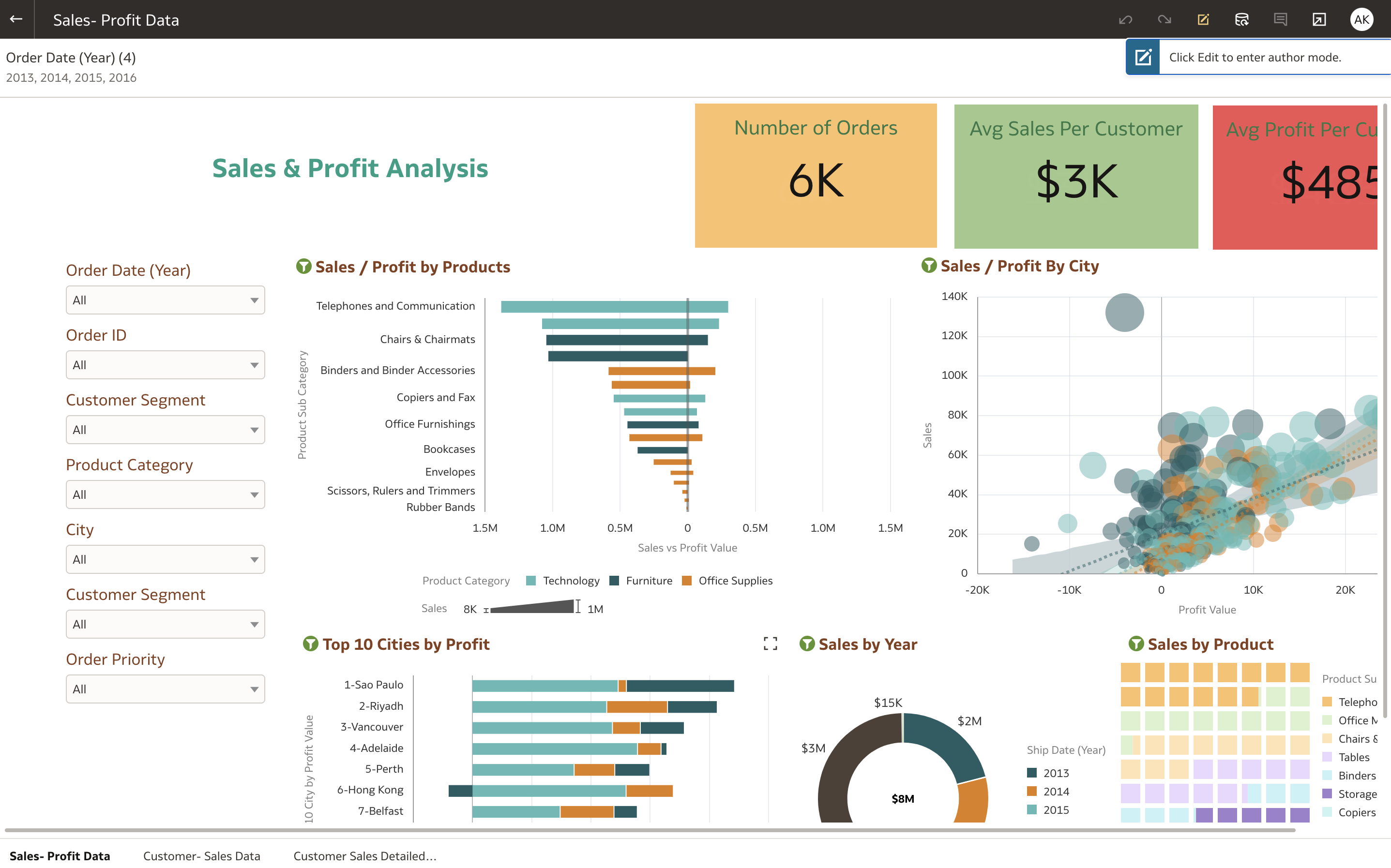
An Author can easily toggle between view and edit mode using the edit button (pencil icon in yellow). Clicking the edit icon takes the author into edit mode. When the workbook loads in view mode, you see a notification message as shown below. Authors can dismiss the message or allow it to disappear within few seconds.
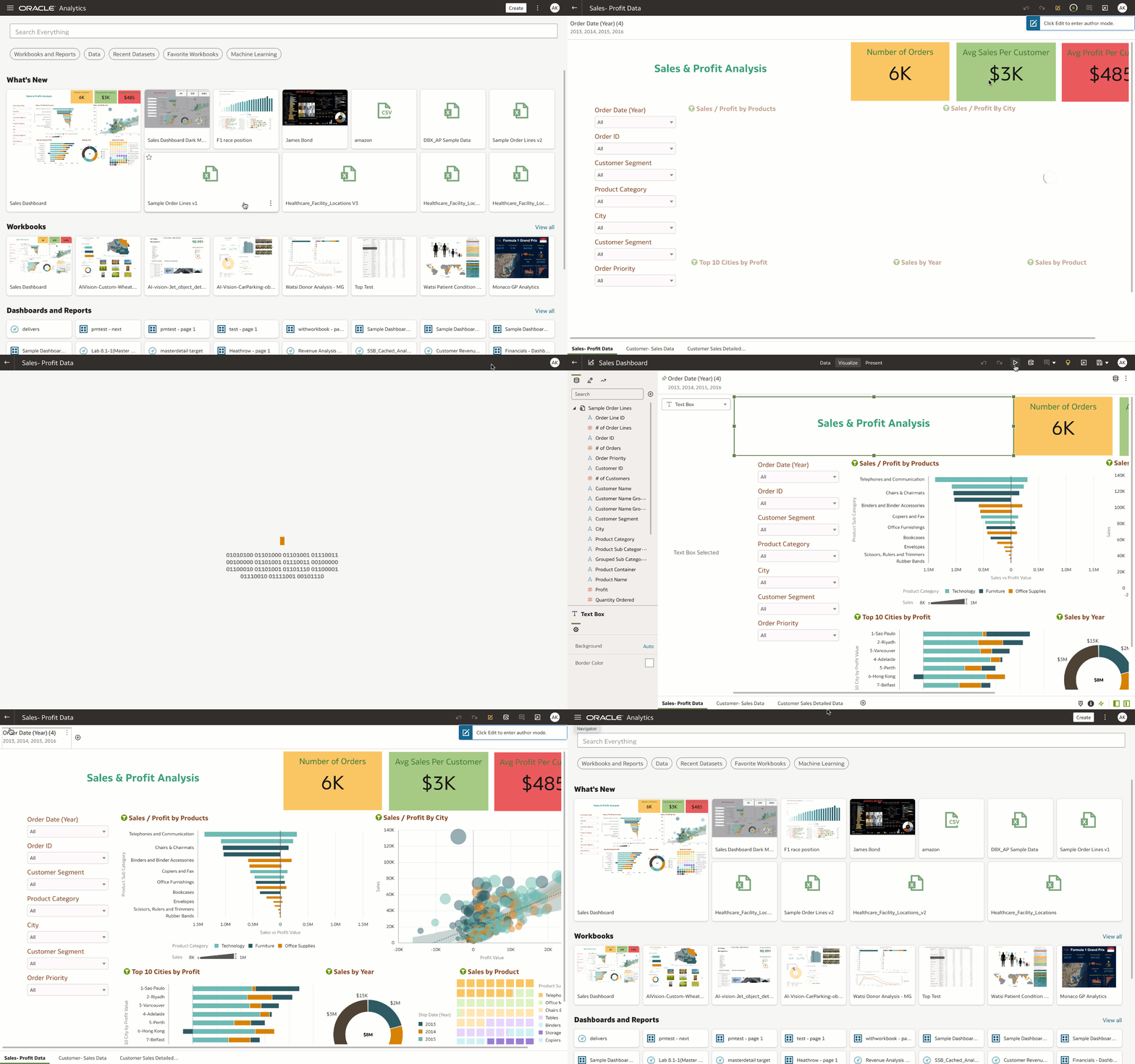
An Author can preview the workbook as a viewer using the Preview functionality. Preview loads the workbook in view mode and the notification message is displayed to the user every time the workbook loads in view mode.
Consider this scenario to explain the behavior of the Preview functionality, An Author is building a workbook and uses the Preview functionality to view the dashboard as a end user. The workbook loads in view mode (as a end user would see).
- A notification message is displayed, and the Author can click the edit icon to return to edit mode and continue making changes. At any time during the development of the workbook, the Author can load the workbook in view mode to experience it as end users will.
- The Back button on the header bar allows the user to return to the Home page
The following video demonstrates the behavior of the Edit and Back buttons when a workbook loads in view mode.
For more details, see Configure How Workbooks Open by Default and this video provides a detailed demonstration of this feature.
Oracle Analytics Cloud (OAC), a Visionary in the Gartner Magic Quadrant, is a cloud-first platform that provides rich data visualization and interaction capabilities for end users.