
Your finance team stores sales data in Google BigQuery, and your data engineers use Oracle AI Data Platform (AIDP) for analysis and workflows. How do you bring that data into an AI Data Platform notebook?
The BigQuery external catalog connects AI Data Platform to an approved Google Cloud project. You can browse datasets, inspect table metadata, and read supported objects into Spark dataframes without first building a separate ingestion pipeline. In this tutorial, you’ll create a BigQuery external catalog, explore a dataset, and analyze an orders table from an AI Data Platform notebook.
What you’ll build
We’ll use the following example names. Replace them with your own project, dataset, and objects.
| Item | Example |
| Google Cloud project | retail-analytics-prod |
| AI Data Platform external catalog | my_gbq_cat |
| BigQuery dataset | finance |
| BigQuery table | orders |
| BigQuery logical view | customer_summary |
The Google BigQuery external catalog supports discovering and reading supported BigQuery objects through AI Data Platform notebooks and workflows.
Step 1: Prepare access to BigQuery
Before creating the catalog, have the following ready:
- Permission to create an external catalog in AI Data Platform.
- Your Google Cloud project ID.
- A Google service account key in JSON format.
- A BigQuery dataset containing data you’re authorized to read.
The bound Google service account needs permissions for the operations the connector performs. These include metadata access, data access, and permission to create BigQuery Storage Read API sessions. Relevant predefined roles include BigQuery Data Viewer and BigQuery Read Session User; the required scope depends on the resources and read path. See Google’s BigQuery IAM documentation.
If your configured read path uses query materialization, it also needs permission to create query jobs and use the configured temporary dataset.
AI Data Platform catalog permissions and Google IAM work together: granting access to the catalog does not expand the service account’s permissions in Google Cloud.
Step 2: Create the BigQuery external catalog
Start creating a catalog in AI Data Platform and supply these values:
| Field | Value |
| Catalog Name | my_gbq_cat |
| Description | An optional description, such as “Finance data in BigQuery” |
| Type | External Catalog |
| External Source Type | Google BigQuery |
| Host | Host address of the Google BigQuery instance |
| Port | Port used by the Google BigQuery instance |
| Google Cloud Project ID | Your google project ID |
| Service account email | The service account email |
| Google service account key JSON | Your approved service account key |
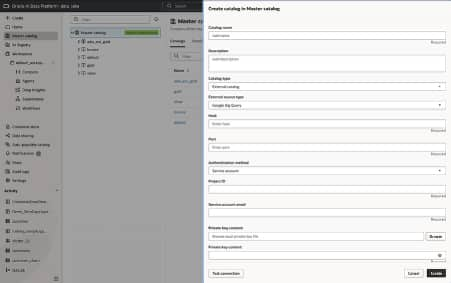
Use the catalog’s credential input for the service account key. The notebook examples below access the saved catalog, so you do not need to embed the key in notebook code.
Step 3: Test the connection
Select Test Connection before creating the catalog.
The connection test checks authentication, access to the configured project, resolve any reported failure, then test again. Once the test succeeds, complete catalog creation.
Step 4: Explore datasets and metadata
Open my_gbq_cat and locate the finance dataset. AI Data Platform maps BigQuery datasets to schemas. Objects use a three-part name:
<aidp_catalog>.<dataset>.<object>Our orders table is therefore:
my_gbq_cat.finance.ordersHere, my_gbq_cat is the AI Data Platform catalog name. The connector accesses Google BigQuery using the configured service account and respects that account’s access permissions. Before reading the table, inspect its metadata. Depending on what BigQuery returns, you can review columns and data types, object type, partitioning, clustering, and external-data configuration. For the next example, assume orders table contains:
order_id
customer_id
order_date
order_total
Adapt the analysis to match your table’s actual schema.
Step 5: Read a BigQuery table in a notebook
Open an AI Data Platform notebook with Spark available and read the table using its catalog name:
Spark DataFrame API:
orders = spark.read.table("my_gbq_cat.finance.orders")
orders.printSchema()
orders.show(10, truncate=False)
Spark SQL through Python:
df = spark.sql("SELECT * FROM my_gbq_cat.finance.orders")
df.printSchema()
df.show(10, truncate=False)
Both examples above create a Spark DataFrame from the BigQuery table. printSchema() displays the schema, and show(10, truncate=False) previews 10 rows without truncating column values. The connector uses the service account configured for the external catalog and respects its BigQuery access permissions, so no additional connection setup is needed in the notebook.
Next, use the DataFrame to calculate the total order value for each customer:
from pyspark.sql import functions as F

customer_totals = (
    orders
    .select("customer_id", "order_total")
    .groupBy("customer_id")
    .agg(F.sum("order_total").alias("total_order_value"))
    .orderBy(F.desc("total_order_value"))
)

customer_totals.show(10, truncate=False)
This produces a derived DataFrame for analysis. It does not update the source orders table.
Step 6: Read a view or external table
The same three-part naming pattern applies to supported views and external tables. For example, read the customer_summary logical view:
customer_summary = spark.read.table(
    "my_gbq_cat.finance.customer_summary"
)

customer_summary.show(10, truncate=False)
Today you can read native BigQuery tables, logical views, materialized views, and supported external tables. The underlying read path and permissions can vary by object type.
Once the notebook read succeeds, you can incorporate the analysis into an AI Data Platform workflow using the configured external catalog. Access remains subject to AI Data Platform authorization and the bound Google identity’s permissions.
Troubleshooting your first read
| Symptom | What to check |
| Connection test fails | Service account key, project ID, network configuration, and reported permission failures |
| A dataset or table is missing | Metadata permissions and the configured project |
| A table is visible but cannot be read | Data permissions and Storage Read API session permissions |
| A view read fails | Access to the view and its dependencies, plus job and temporary-dataset permissions if materialization is used |
| Reads fail after a connection change | Re-test after changing the project or service account key |
Clean up
When you finish experimenting, an authorized user can delete the AI Data Platform external catalog configuration. Deleting the catalog removes the AI Data Platform connection configuration. It does not delete the BigQuery project, datasets, tables, views, or underlying external data. You now have a path from discovering BigQuery data to reading and analyzing it in an AI Data Platform notebook.