
A notebook often starts as an exploratory asset. A data engineer validates a source, an analyst reviews a reporting period, or a data scientist tests a feature set. But as that notebook becomes part of a repeatable workflow, its inputs may need to change from one execution to the next – without requiring someone to edit the notebook code.
Notebook parameterization makes that reuse possible by separating the inputs that can change from the notebook logic that should remain consistent.
Oracle AI Data Platform Workbench provides aidputils.widgets, a notebook utility that lets authors define supported inputs, useful defaults, and allowed choices directly in notebook code. Users can then select or enter values for a specific execution without changing the notebook’s underlying logic.
Once those inputs are defined, the same notebook can run interactively, as part of a job, from another notebook, or with values supplied by an upstream workflow task. Each execution can provide its own input values, allowing user to reuse the notebook across contexts rather than maintain separate notebook copies.
Why reusable notebooks matter
Hard-coded notebook values create operational friction. A processing date may need to change every day. A development environment must not be confused with production. A notebook that works as a manual run may need different inputs when it is scheduled or called by another task.
Without parameterization, user often chooses between two imperfect approaches:
- Edit notebook code before each run, increasing the risk of accidental or unreviewed changes.
- Create multiple notebook copies, making it harder to keep logic, fixes, and documentation aligned.
aidputils.widgets provides a clearer model. User can define the inputs the notebook accepts for a specific execution, and the notebook logic remains unchanged.
This is useful for data engineers operationalizing pipelines, analysts running trusted analysis for different business contexts, and data scientists repeating experiments with controlled input values.
Define inputs where the notebook uses them
A widget is a named notebook input with a default value and, where appropriate, a defined set of choices.
For example, a data-processing notebook can define a processing date and target environment. When this notebook is run interactively, Oracle AI Data Platform displays the defined widgets in the notebook UI. A user can select an environment, enter a date, and execute the notebook without editing a code cell.
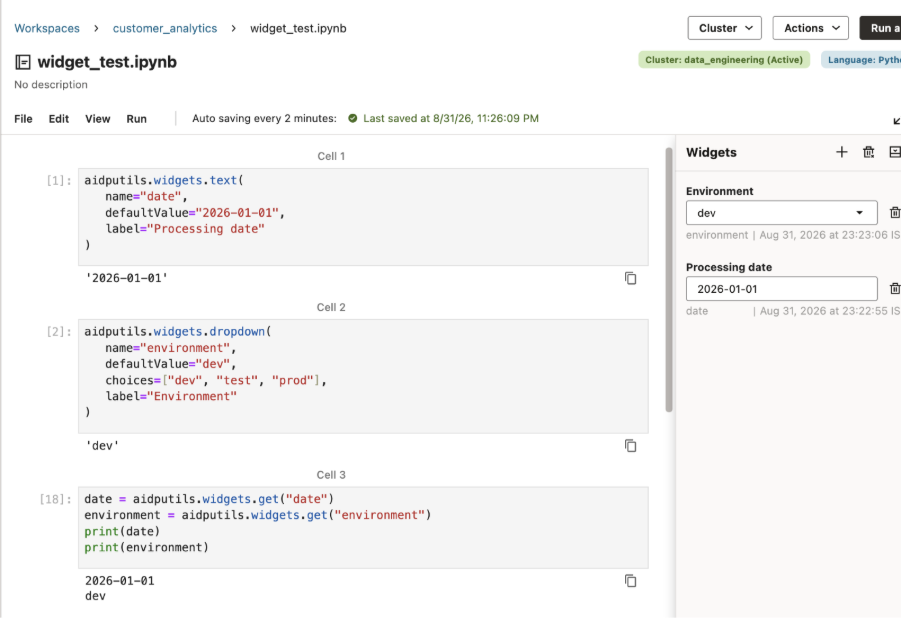
Image 1: Defining processing date and environment inputs in a notebook
The widget name is the stable identifier used in code and workflow parameters. The label gives notebook user a readable description of the input. Defaults allow a notebook to run immediately while still making its assumptions visible.
Choose the right type of input
aidputils.widgets supports four widget types:
- Text accepts any string value. Use it for dates, paths, dataset names, or run identifiers.
For example, an analyst may want to enter a reporting date for the customer-retention analysis:
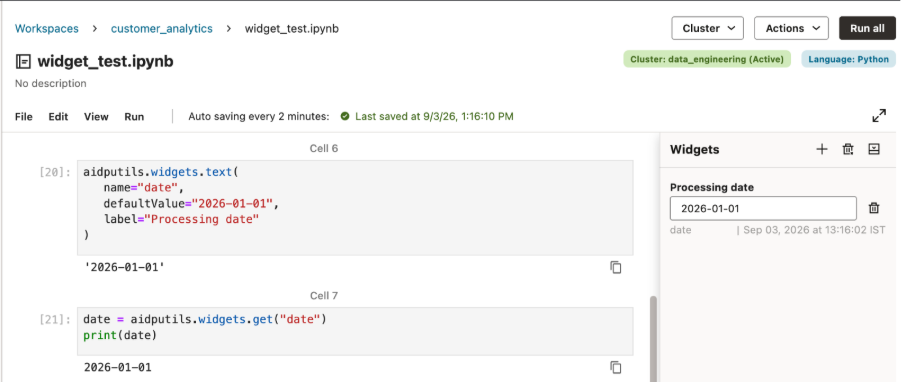
Image 2: Selecting a reporting date with a text widget
- Dropdown requires one selection from a defined list. Use it when the value should be controlled, such as an approved environment.
For example, a data engineer may want to select the environment in which to run the customer-retention analysis:
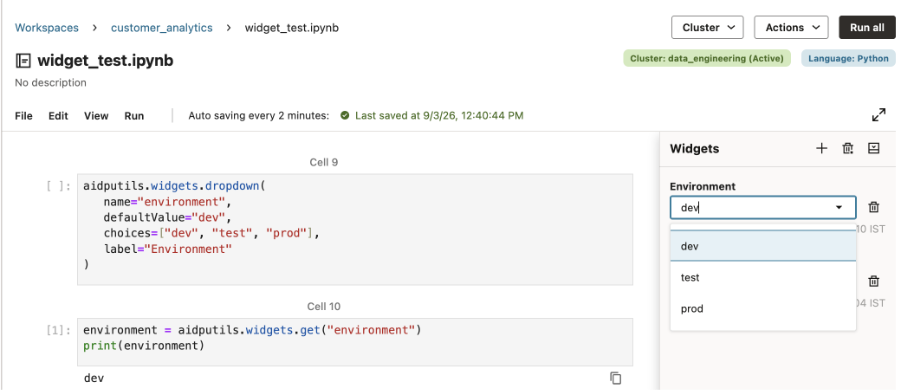
Image 3: Selecting an environment with a dropdown widget
- Combo box provides suggested choices while allowing a user to enter a custom value.
For example, an analyst may want to select an existing campaign or enter a newly launched campaign for the customer-retention analysis:
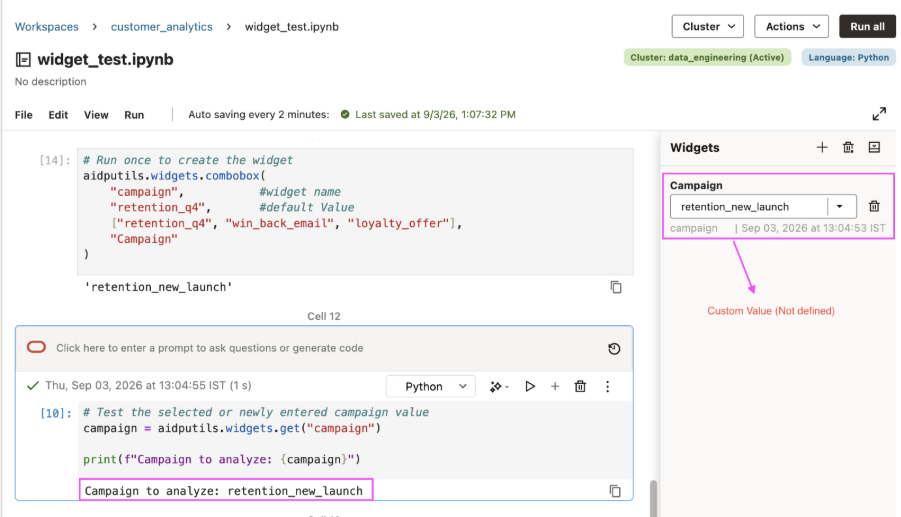
Image 4: Selecting a custom campaign value with a combo box widget
- Multiselect lets user choose one or more values from a defined list.
For example, an analyst may want to process several business regions in one run:
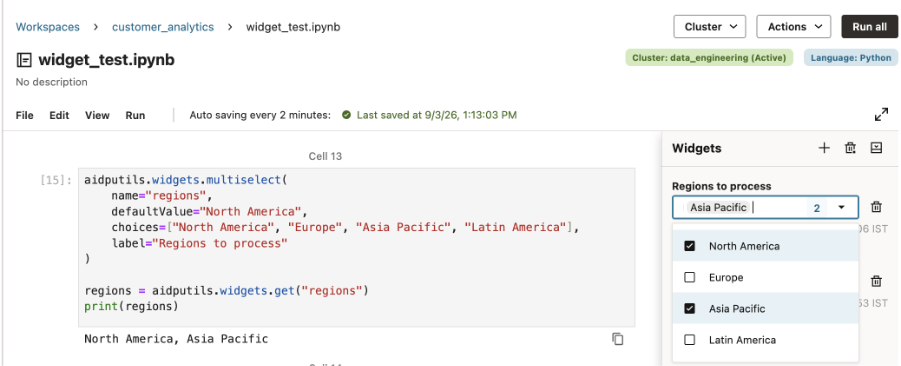
Image 5: Selecting multiple regions with a multiselect widget
Widget values are returned as strings. For multiselect widgets, the selected values are returned as a comma-separated string. This predictable behavior makes it straightforward to use widget values in notebook logic.
Use one notebook across environments
Defaults are useful for interactive development, but production execution usually needs values supplied by the workflow.
For example, a notebook can default to dev:
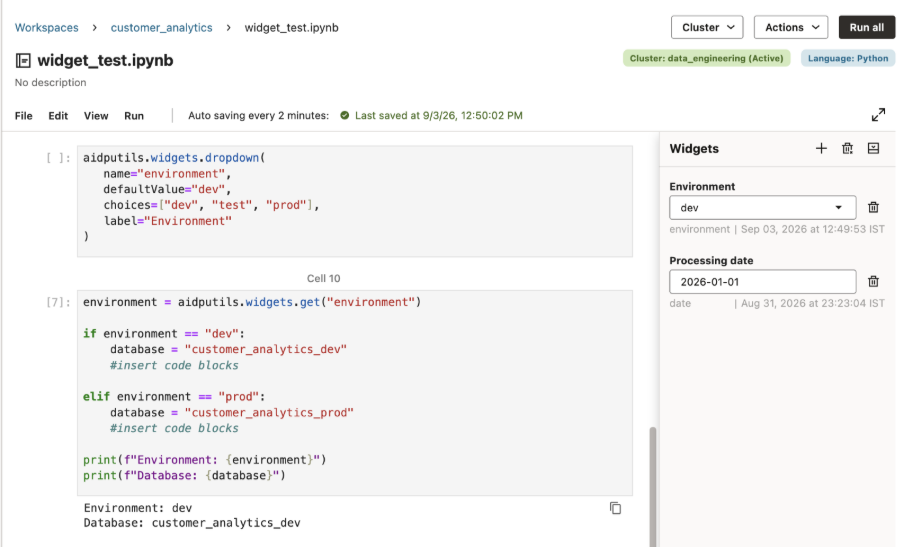
Image 6: Running the notebook with the default dev environment
A job or workflow task can then supply:
environment = prod
At run time, the job parameter overrides the notebook default. The notebook does not need a production-specific branch or copy.
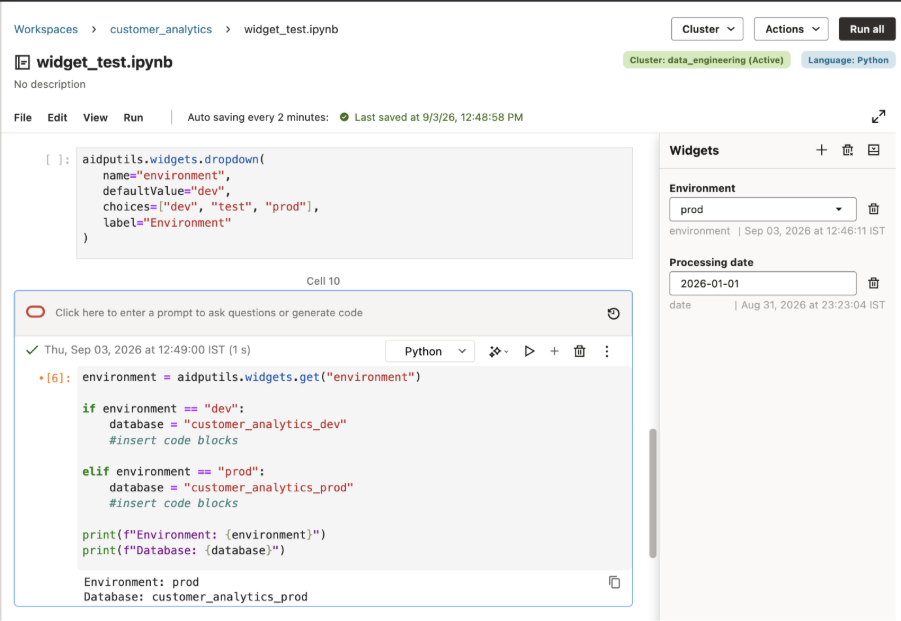
Image 7: Running the same notebook with the prod environment
This approach gives user a practical separation between reusable logic and run-specific configuration. A data engineer can develop and test the notebook interactively, while the scheduled workflow supplies the production date, environment, and other values required for an unattended run.
Pass inputs between notebooks
Parameterization also makes it possible to compose larger processes from reusable notebooks.
A parent notebook can run a child notebook through aidputils.notebook.run() and pass values for the child notebook’s widgets.
When the child notebook defines widgets with matching names, the values supplied by the parent override the child notebook’s default values for that execution.
This lets user breaks a larger data process into focused, reusable notebooks. For example, one notebook can validate source data, another can transform it, and a third can publish curated outputs. Each notebook can still run independently with its default values, while a parent notebook can supply the context required for a specific execution.
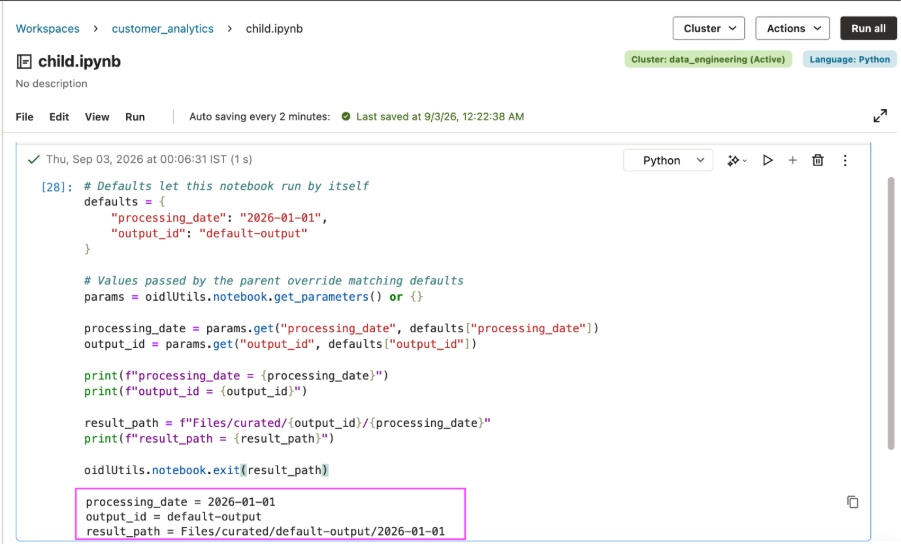
Image 8: Child notebook running with its default input values
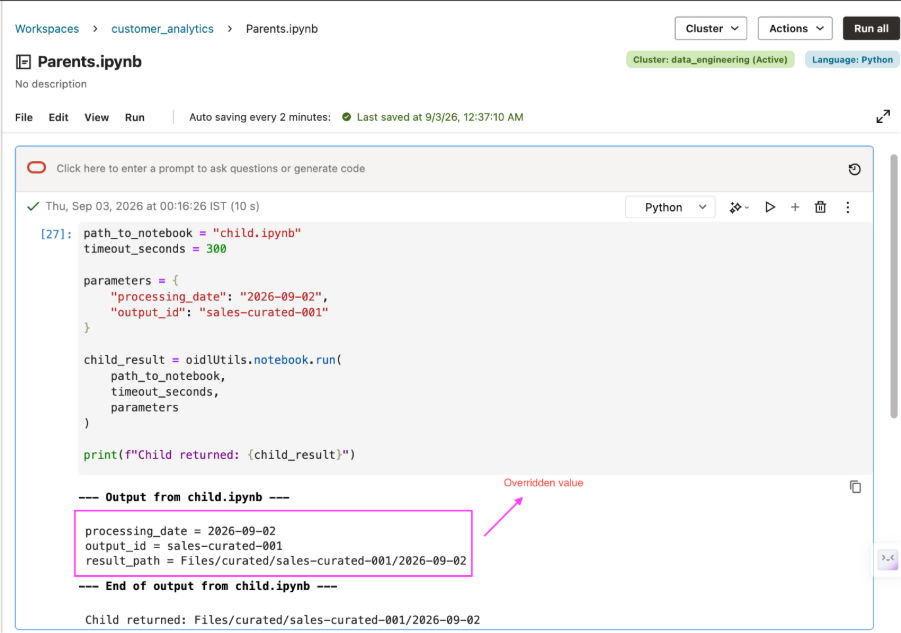
Image 9: Parent notebook passing input values to a child notebook
Set values for a specific workflow run
After validating a notebook interactively, a user can add it to a workflow and set the execution context in the task details. Rather than edit notebook defaults before each scheduled run, the user enters the required values as task parameters.
When a parameter name matches a widget name, Oracle AI Data Platform uses the task value for that execution instead of the notebook default. If a task does not provide a value for a widget, the notebook uses that widget’s default value.
This keeps run-specific configuration with the workflow, while the notebook continues to hold the reusable analysis logic. User can promote and schedule the same notebook across environments without creating copies or changing code for each run.
In the example shown, the task parameters supply the values for that execution. When the workflow runs, the notebook reads those values instead of using the defaults defined in the notebook.
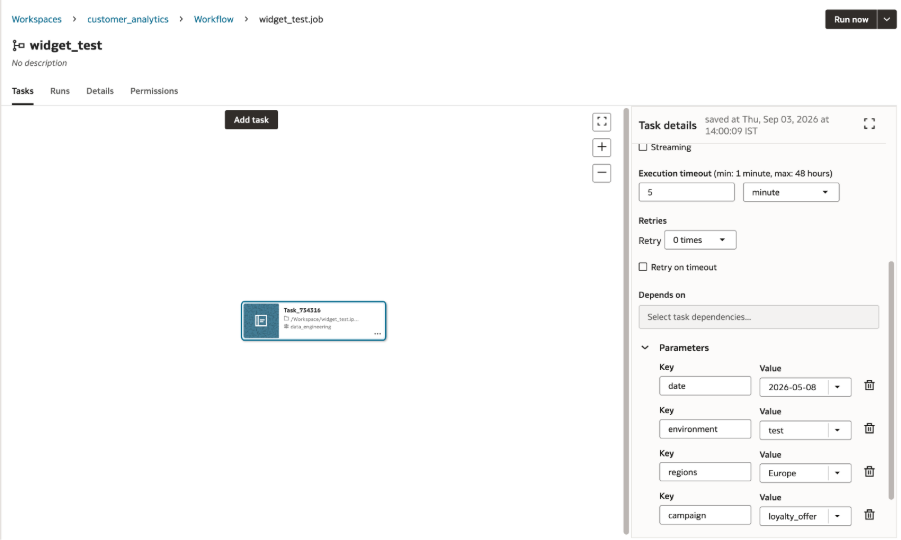
Image 10: Configuring notebook inputs as workflow task parameters
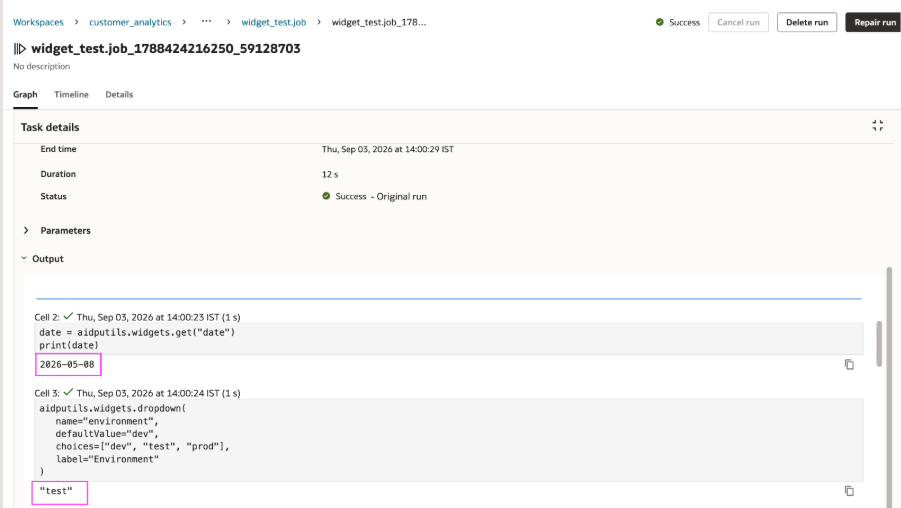
Image 11: Workflow task output showing the overridden date and environment values
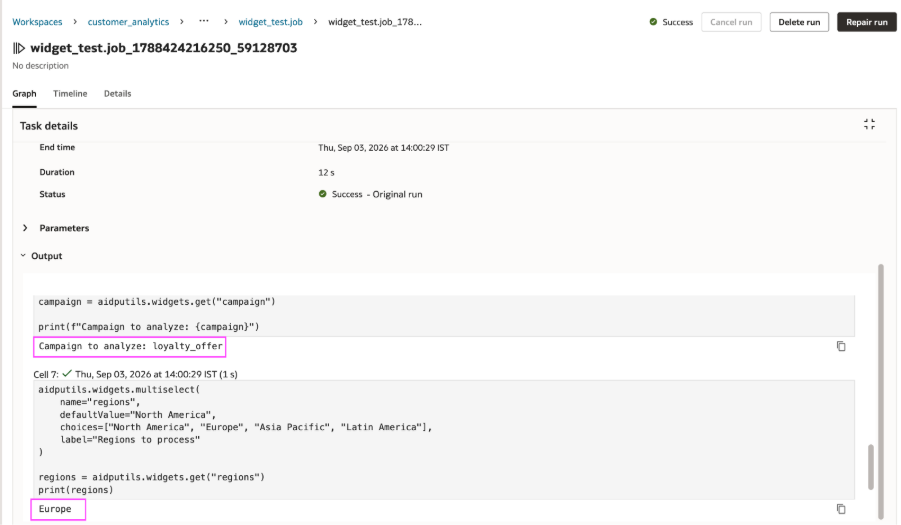
Image 12: Workflow task output showing the overridden campaign and region values
Make notebook inputs explicit and governed
Widgets create a clear operating boundary between notebook author and notebook user. Author defines the inputs a notebook supports, including default values and allowed choices. User with USE permission can then select or enter values for an interactive run without being able to edit the notebook’s code. Changing a value can change the context of a run for example, the date, region, or environment but it does not change the notebook’s saved logic. User with MANAGE permission can create or remove widgets, defining the inputs available in the notebook.
Each widget name must be unique within a notebook. When a workflow task or parent notebook passes a parameter, Oracle AI Data Platform uses the name to match that value to the corresponding notebook input.
For user working with shared notebooks, the supported inputs are visible in the widget panel on the right side of the notebook rather than buried in implementation cells or implied by a runbook.
From exploration to repeatable execution
aidputils.widgets helps user turn notebooks as reusable component rather than one-time scripts.
Data engineers can run the same transformation notebook across development, test, and production contexts. Analysts can reuse trusted notebooks for different reporting periods or regions. Data scientists can repeat experiments with different datasets and controlled parameters.
The notebook stays readable. The workflow stays configurable. And user can move from interactive exploration to reliable, repeatable execution without duplicating notebook logic.
For more information
- Product Page
- Oracle AI Data Platform community
- Oracle AI Data Platform Workbench Forum
- Related Blogs