
A workflow job is only as useful as your ability to understand what happened, diagnose failures quickly, and recover without unnecessary reruns. In AIDP, that operational loop happens through the Jobs tab, the Job Runs page, run Details, Logs, Spark UI, Metrics, Repair run, schedule controls, and Notifications.
What makes that story stronger is that these features map directly to how notebook tasks behave in real workflow jobs.
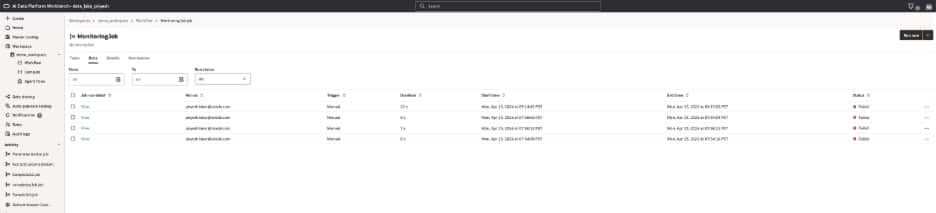
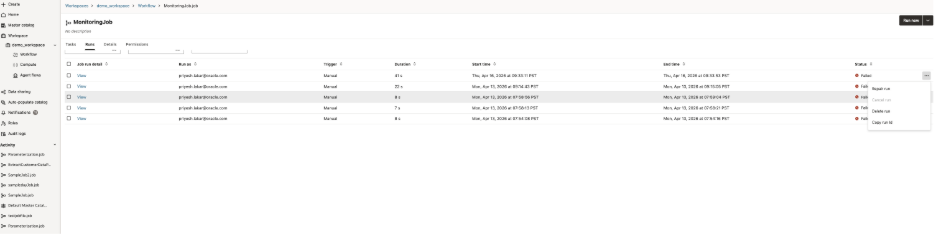
A sample Job Runs page showing filters, job name, trigger type, duration, and status columns
Start with a workflow job that leaves useful signals behind
Imagine a daily customer pipeline with three steps:
- prepare data
- validate the result
- publish if validation succeeds
A notebook task in that flow should leave behind useful context for operators. Even simple logging and task values make support easier.
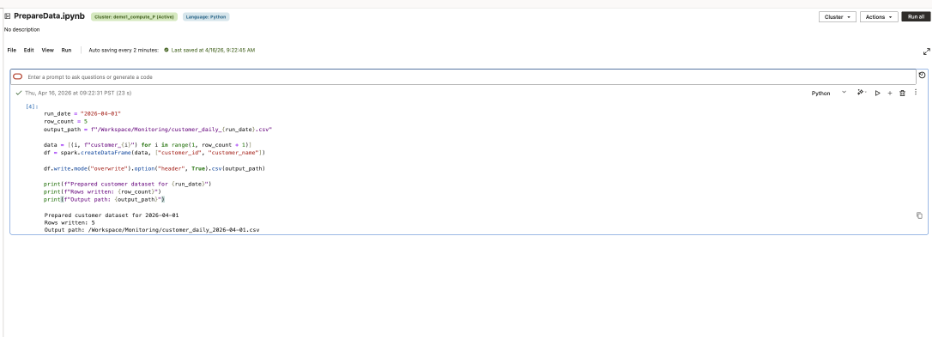
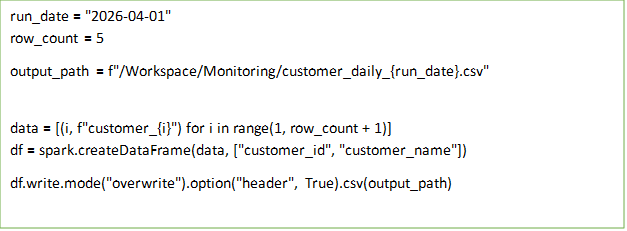
This kind of notebook gives operators something concrete to work with. When a run succeeds, Job Runs shows the execution history. When it fails, the task outputs, logs, and run details point back to what the notebook was doing and why it stopped.
Investigate failures with Job Runs, Details, and Logs
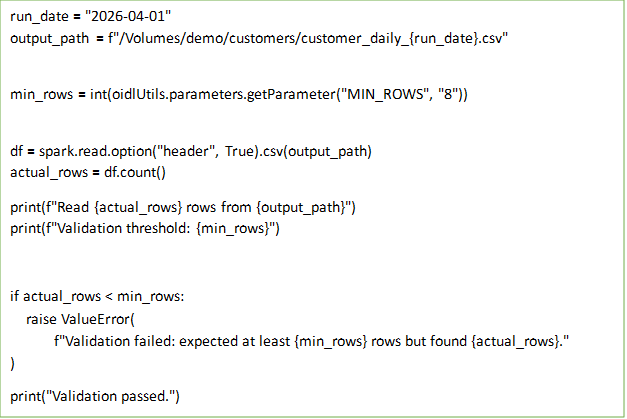
Now imagine the validation step fails because the workflow job passed a MIN_ROWS threshold that is higher than the number of rows produced by the earlier task. That is exactly the kind of issue teams will trace from Workflow > Job Runs.
In AIDP, the investigation flow is straightforward:
- Go to Workflow > Job Runs
- Open the failed run
- Workflow Job Run will directly surface the outputs and errors for each task
- Additionally, one can go to Details tab to access logs, Spark UI, or Metrics in the compute depending on what you need to inspect
This is where the AIDP operational value shows up. A failed run is not just a red badge in the UI. The run detail view gives you the paths needed to understand whether the problem is in notebook logic, runtime behavior, or compute.
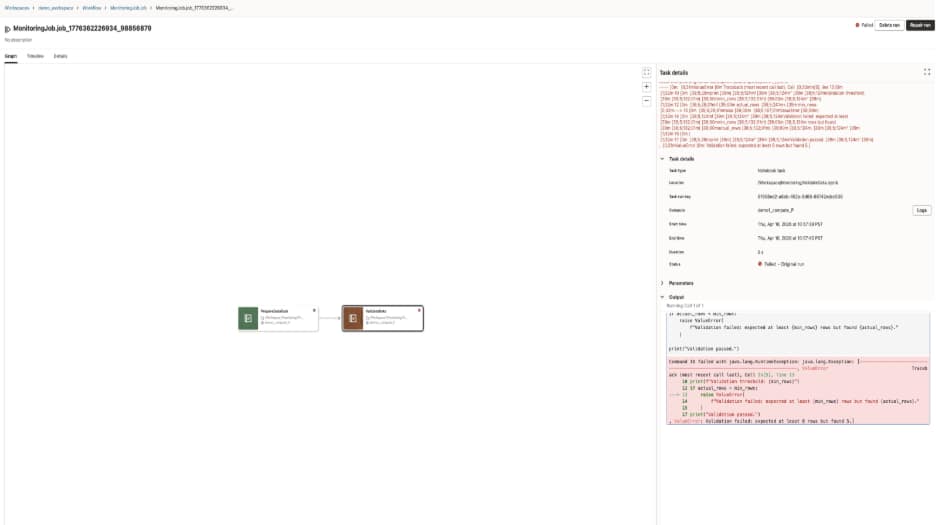
Run details and logs connect workflow job failures back to the exact notebook behavior.
For additional logs user can click on Logs Spark UI & Metrics from the Details tab
Repair only the failed step
A stronger operational scenario is when one step in a larger workflow job fails, but the earlier tasks have already succeeded. In that case, rerunning the entire job is often unnecessary.
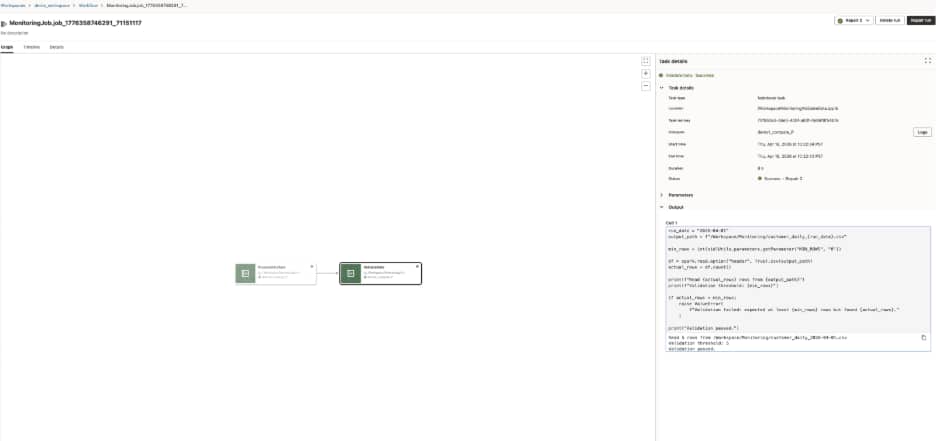
AIDP’s Repair run flow is especially useful when notebook tasks accept repair-friendly parameters. In this example, the validation notebook reads a workflow job parameter named MIN_ROWS. On the initial run, that value is set intentionally too high, so the validation step fails. During repair, the operator can rerun only the failed task and provide a corrected parameter value.
From the AIDP UI, the operator can:
- Go to Workflow > Job Runs
- For a failed run, click on the three dots towards the end of the row
- Then from the dropdown click on Repair run
- Select the failed tasks to rerun
- Optionally provide repair-only Key/Value or JSON parameters
- Click Run repair
That makes repair more than a retry button. It becomes a way to rerun the right part of the job under corrected conditions.
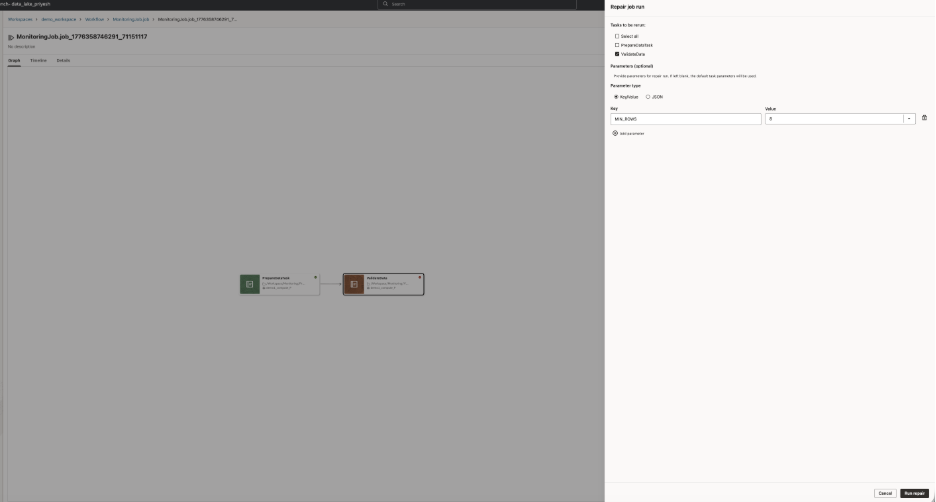
Repair run dialog showing failed tasks and optional Key/Value or JSON parameters
Use the timeline to understand the run at one glance
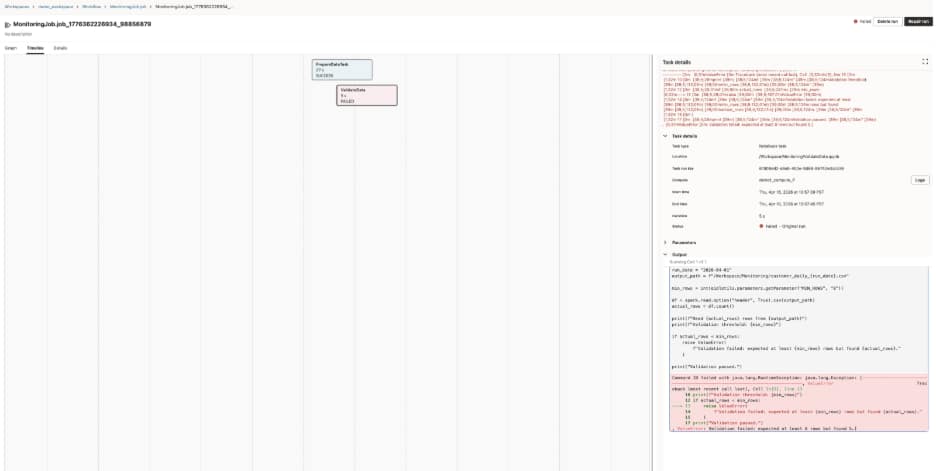
The Timeline view gives a quick, visual way to understand how a job run progressed. It shows when each task started, how long it ran, and which steps failed, all in one place.
That makes it easier to spot where the run stopped, which downstream tasks were affected, and whether the issue came from a single task or from a larger dependency chain. Instead of reading through logs first, users can start with the timeline to get an immediate picture of what happened in the run.
Use notifications to shorten time to awareness
Notifications complete the operational loop. Teams should not have to keep refreshing Job Runs to know that something needs attention.
That is where AIDP notifications help. A failed notebook task surfaces as a failed run, and notifications help make the issue visible sooner. All the notebooks itself can
be asynchronously accessed and filtered from the notification tab. Notifications help teams know when to act, and clear notebook logs help them understand why.


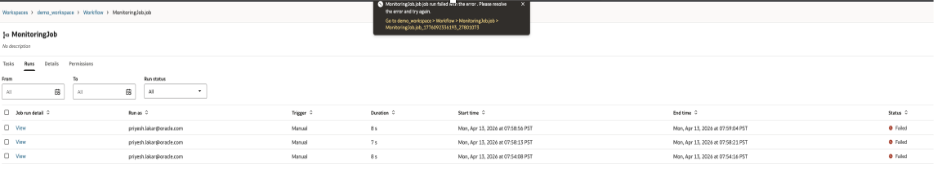
Sample Notifications pop ups to support diagnosis
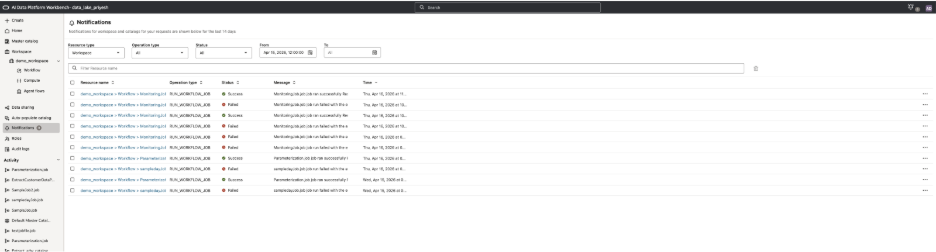
Notifications for async tracking to reduce time to awareness
The real value of workflow job operations in AIDP is not just visibility. It is supportability. Job Runs gives teams execution history. Run Details, Logs, Spark UI, and Metrics help with diagnosis. Repair run shortens recovery time. Notifications help surface what needs attention and when notebook tasks are written with clear logging, intentional failure conditions, and repair-friendly parameters, those product capabilities become much more effective in practice. That is what turns workflow jobs from something that merely runs into something teams can operate with confidence.