
Many Siebel teams still reach for script first even when a workflow can do the job faster and with less maintenance. In this post, we will see how to replace a simple Siebel script with a Workflow Process that queries a parent Account and its child Contacts, reducing custom code and simplifying maintenance.
Note: Consider configuration alternatives first before writing new script. The examples in this post address simple scenarios. More complex requirements may need additional workflow logic. We don’t recommend replacing stable, working script solely for parity. Consider configuration options like workflows before writing new script.
Why replace Siebel script with a workflow?
Workflows deliver equivalent results for common parent–child queries while reducing custom code, improving transparency, and lowering maintenance overhead. The logic is easier to understand, review, and extend than script in many routine scenarios.
“Using a workflow instead of script can reduce maintenance effort and improve clarity.”
Replace Siebel script with a simple workflow
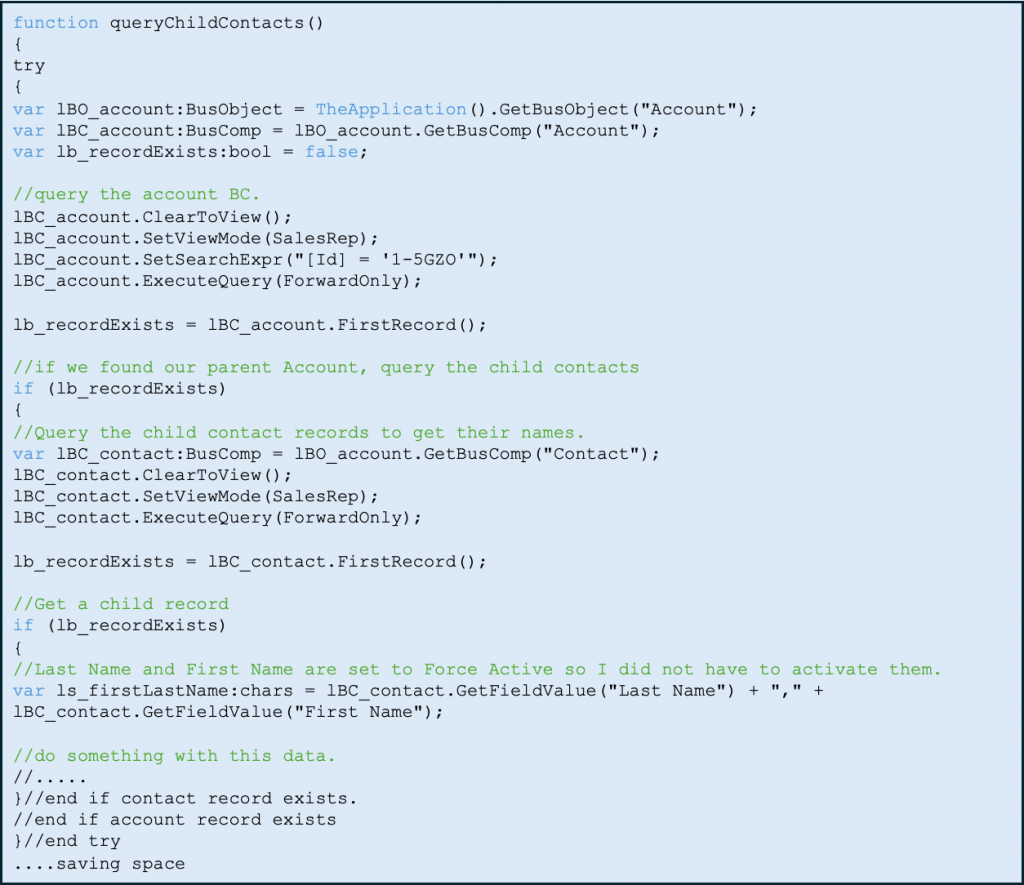
Here’s a simple and commonly encountered script scenario. This script queries the parent Business Component (for example, Account). If it finds a record, it then queries the child Business Component (for example, Contact) to retrieve the child data.
Sample script pattern (what the code does)
• Query the Account by Row Id.
• If a record is found, navigate to the child Contact BC.
• Read the Contact “Last Name, First Name” field and return it (for example, as ContactName).
Workflow equivalent (no custom script)
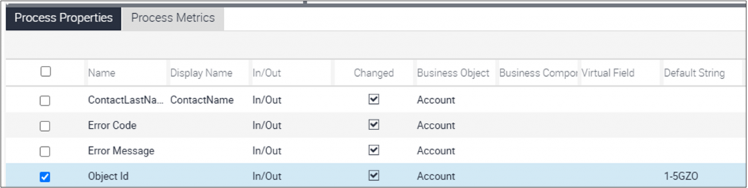
• Input/context: Set Object Id to the Account Row Id so the workflow automatically queries the Account BC on start; the child Contact BC is then in context.
• Retrieval step: Add a step (e.g., GetContactName) that calls Workflow Utilities: Echo and defines an output argument ContactName mapped to the Contact BC field “Last Name, First Name”.
• Result: The workflow returns ContactName for downstream steps or integrations, replacing the scripted pattern with configuration.

Let’s take a detailed look at the workflow steps now.
Step 1: Query the Account and Contacts using the Object Id
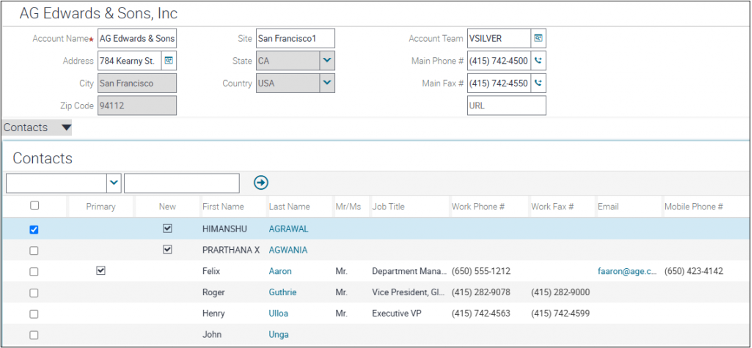
When the workflow queries the Account BC by Row Id, Siebel also brings the child Contact BC into context. This enables direct access to Contact fields in later steps without a separate scripted query.
Set Object Id to the Account Row Id to establish Account context.
Here’s the account that corresponds to that Row Id and it’s child Contact records.
Step 2: Retrieve the Contact “Last Name, First Name” via output arguments
Add a step (for example, GetContactName) that calls the Workflow Utilities Business Service using the Echo method. Map an output argument (ContactName) to the Contact BC field “Last Name, First Name” to return the display name of the first Contact in context.
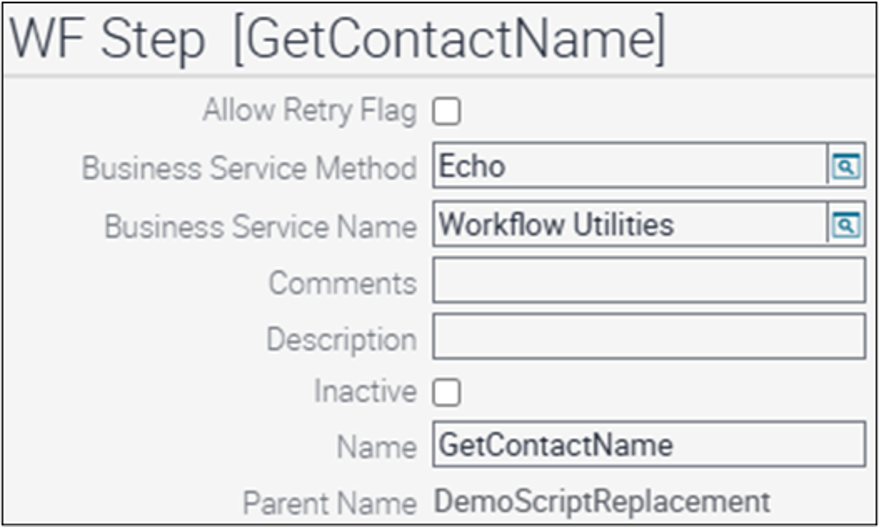
You have to use the Output Arguments to get the data. The value is retrieved from the Last Name, First Name Field of the Contact Business Component.

Step 3: Return ContactName for downstream use
Use ContactName in integrations, routing conditions, or subsequent workflow steps (for example, comparisons, assignments).
Step 4: Validate the configuration in the Business Service Simulator
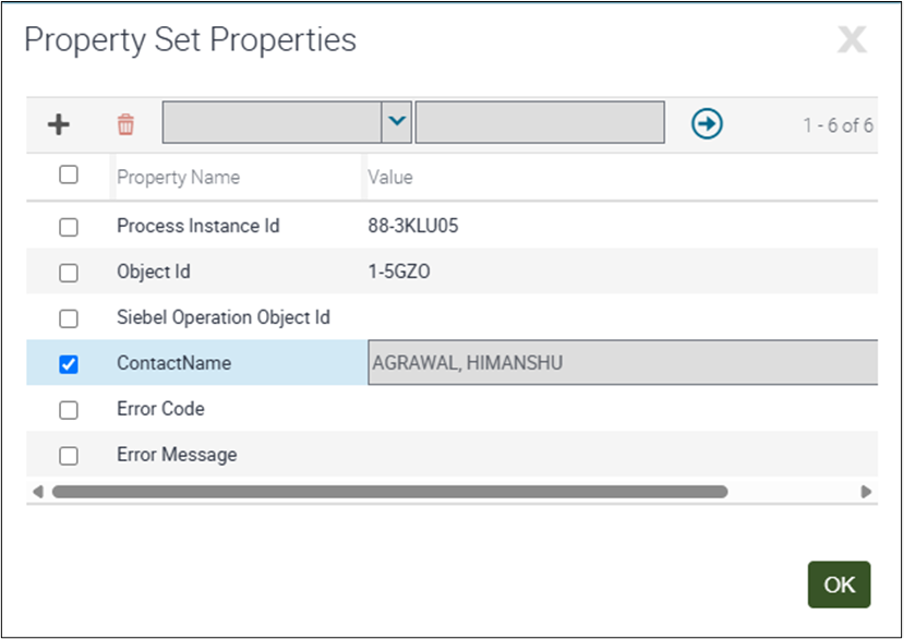
Run the process (or the Business Service step) in the Business Service Simulator with a known Account Row Id. Confirm the ContactName output matches the first Contact for that Account, verifying the child BC context and field mapping are correct.
Watch the video to build this workflow end-to-end
Here’s a short video that walks through configuring Object Id, establishing Account context, and mapping the Contact field via output arguments so you can reproduce the setup quickly.
Review the benefits for maintainability and clarity
- Lower maintenance by replacing custom script with configuration.
- Greater transparency via named steps, properties, and arguments.
- Consistency with Siebel mechanics: Object Id, BC context, and Workflow Utilities.
Apply best practices and handle edge cases
- Keep steps focused: establish context, then retrieve fields.
- Use clear names (e.g., GetContactName) for steps and arguments.
- Define behavior when no Contacts exist or when selection order matters.
- Document BCs, fields, and mappings for reviews and reuse.
- If publishing screenshots, anonymize sample data.
Ready to try this workflow?
Start with a common parent–child query: set Object Id to the Account Row Id, validate in the Business Service Simulator, and return Contact fields via output arguments in Workflow Utilities: Echo. Assess maintenance savings and readability, then apply the pattern to similar use cases.
We recently hosted a webinar on practical alternatives to scripting. This was the first webinar in our series—watch the recording, stay tuned via the Siebel InfoPortal for upcoming sessions, and attend or reach out with any questions.