
When a purchase order changes, approvers need to know which change order they are reviewing and why it was made. The enhanced PeopleSoft Purchasing Fluid approval page brings that context into the Summary section of the Purchase Order – Approval Header Detail page.
Select a purchase order from Pending Approvals – Purchase Order to see two fields in the Summary:
- Change Order shows the change order number associated with the purchase order.
- Reason Code Description shows the description entered for that change order.
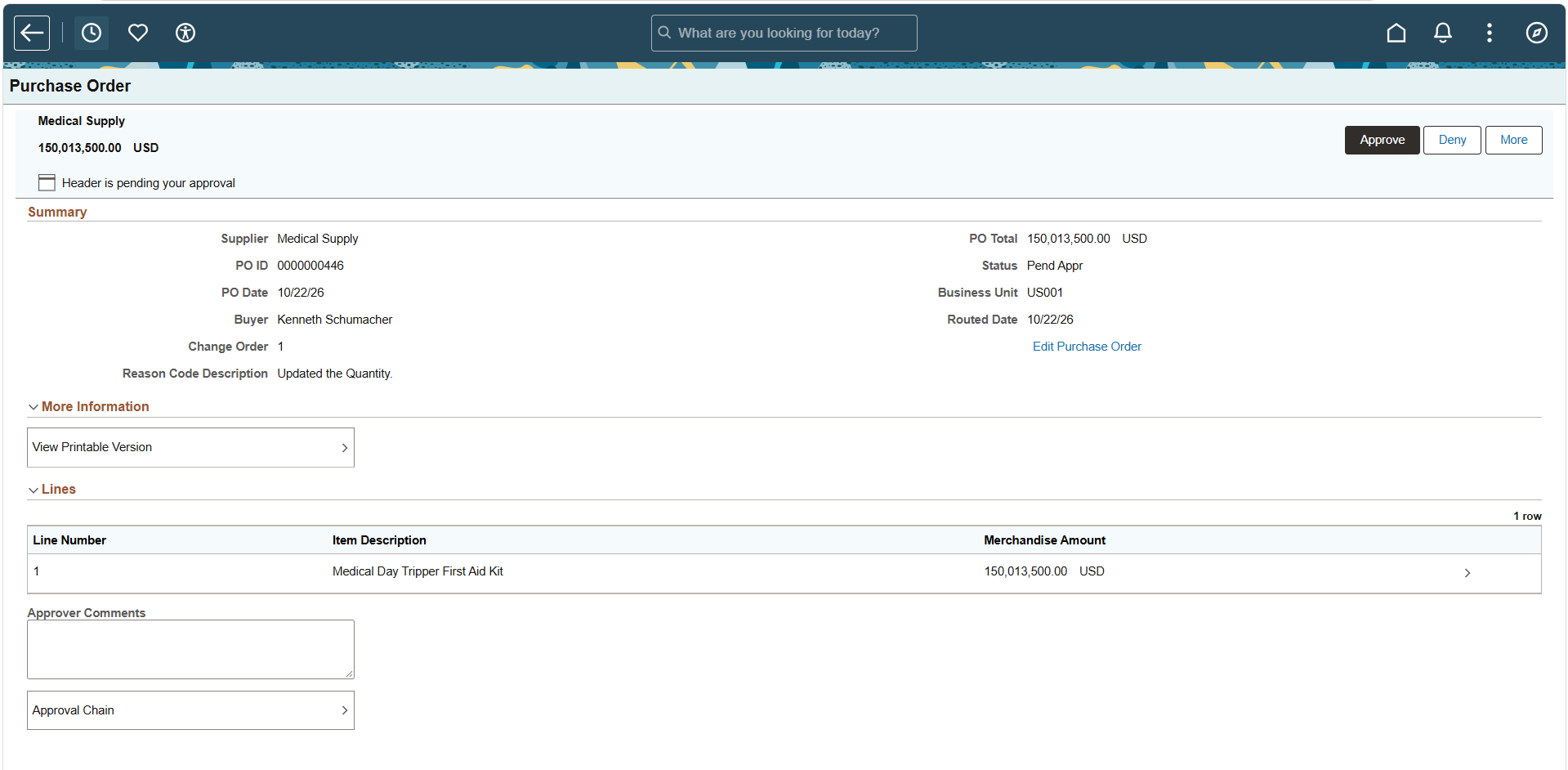
Approvers can see this information at the start of their review, then examine the purchase order details and take approval action. When there is no change order, Change Order displays 0 and Reason Code Description is blank.
When the surgical schedule changes
Medical staff: “Tomorrow’s operating room schedule has expanded. Our purchase order covers the original procedures, but we need more surgical supplies for the added cases.”
Buyer: “I’ll increase the quantity on the purchase order and enter ‘Additional supplies for scheduled procedures’ as the change reason.”
Medical staff: “When the revised order reaches the approver, will they understand why it changed?”
Buyer: “The approval Summary will show the change order number and the reason I entered. They can review the revised lines and total with that context before deciding.”
The supplies matter to the surgical schedule, and the change still needs a careful purchasing review. Showing which change order is awaiting approval and why it was raised helps the approver make that decision with the relevant context in view.