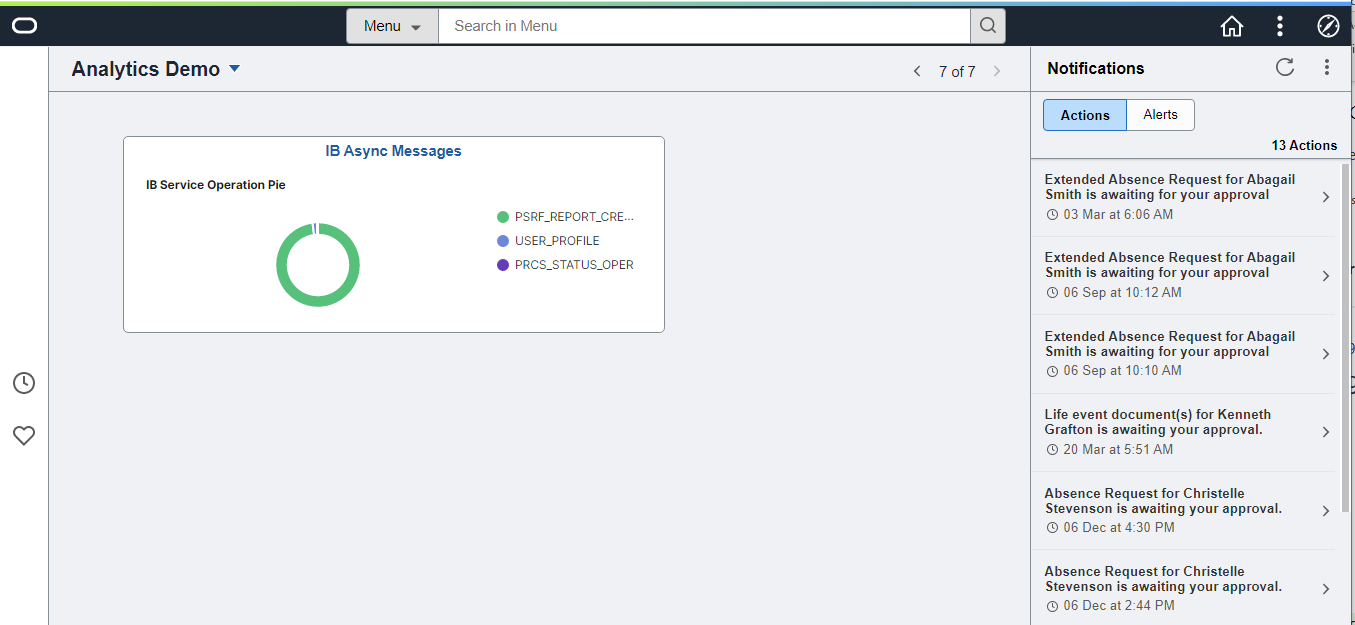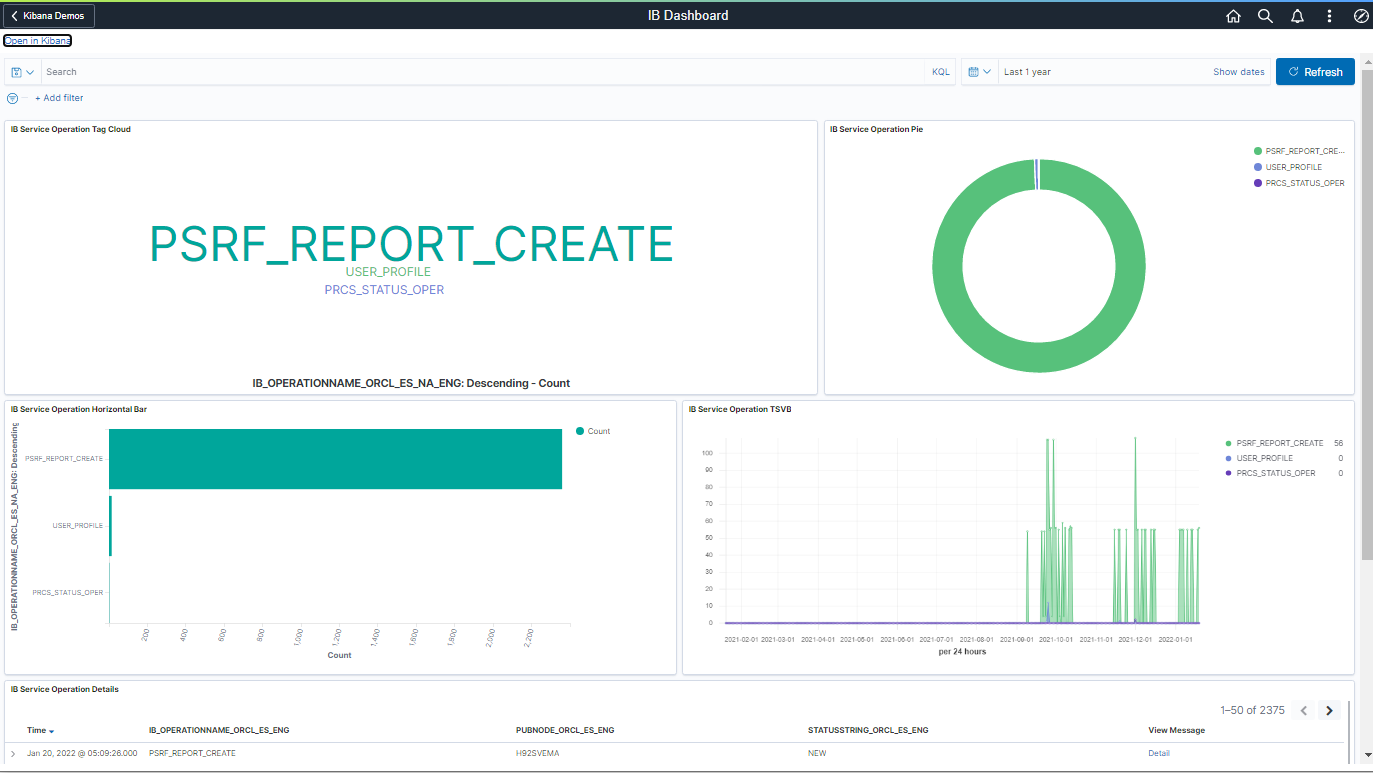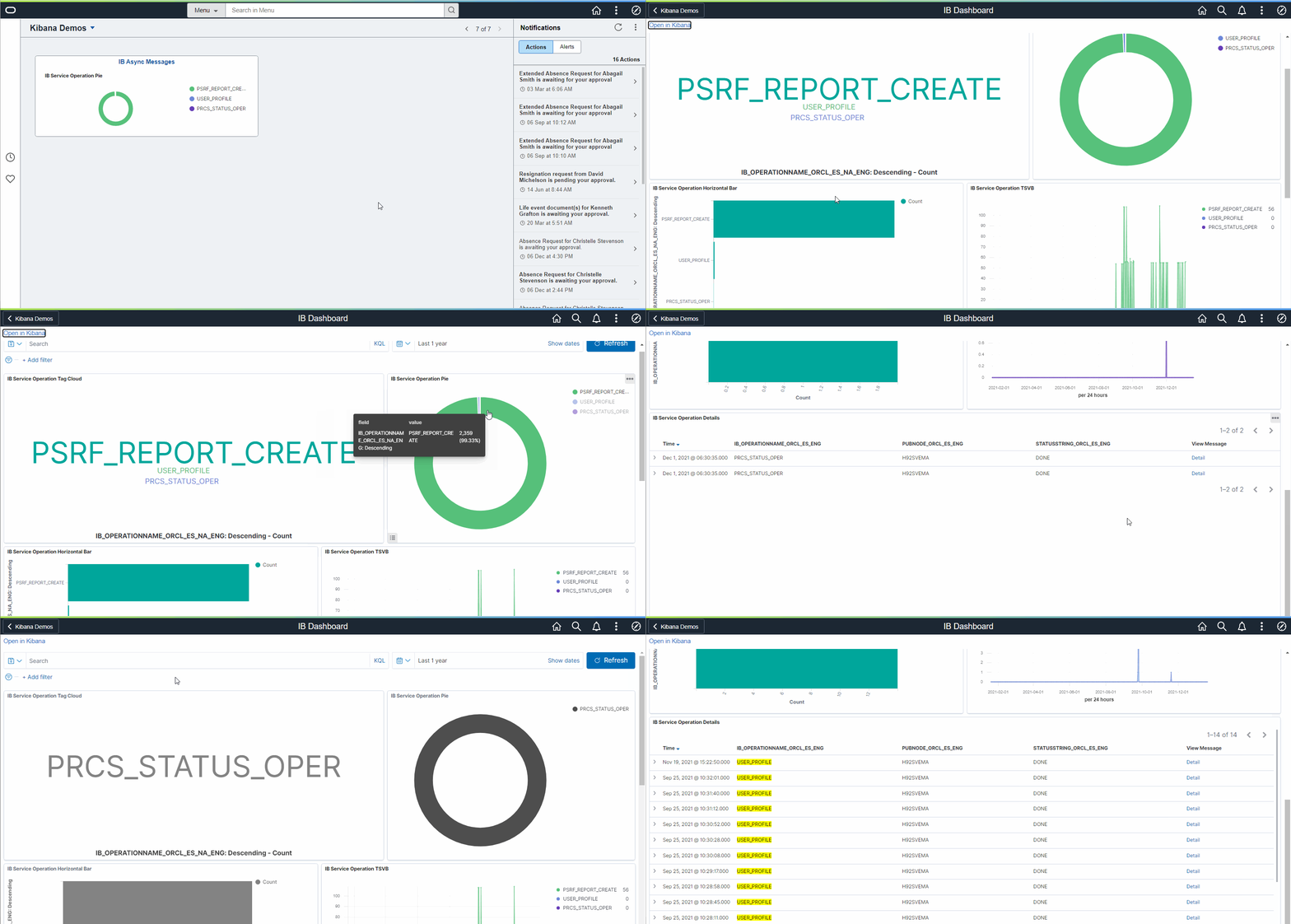
In this part of the blog series, we will review how to administer the visualizations and dashboards created using Kibana. This is the final part of the visualization and dashboard development process. We will import the visualization and dashboard objects created using Kibana into PeopleoSoft. Once we import the Kibana objects into PeopleSoft, we will configure them as tiles or related content and apply appropriate security for user access. We will perform all these steps using delivered configuration pages in the Search Framework.
Import Dashboards from Kibana
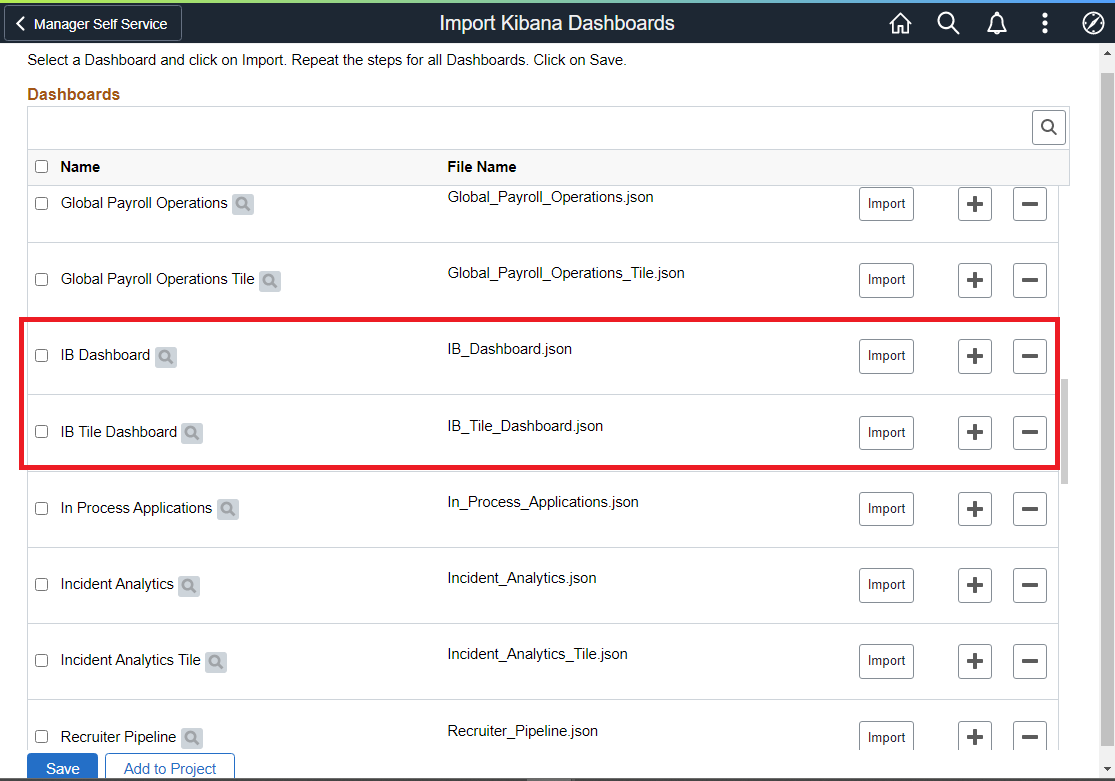
The first step is to import the visualizations and dashboards objects from Kibana.
Navigation: PeopleTools > Search Framework > Administration > Import Dashboards from Kibana
When we add a new row and import a Kibana dashboard, the json object of the dashboard is retrieved from Kibana and stored in PeopleTools as a file. For the example used in this blog series, we will import ‘IB Dashboard’ and ‘IB Tile Dashboard’ as shown below.
Configure Kibana Dashboards
Once we import the dashboards, we are ready to configure them either as tiles or related content using the following page.
Navigation: PeopleTools > Search Framework > Administration > Configure Kibana Dashboards
For the example used in this blog series, we will configure the dashboards (IB Tile Dashboard and IB Dashboard) as a tile. We will simply add a new row, provide a content reference name and label (for the tile), assign the full view and tile view dashboards, and set the height and width of the tile.
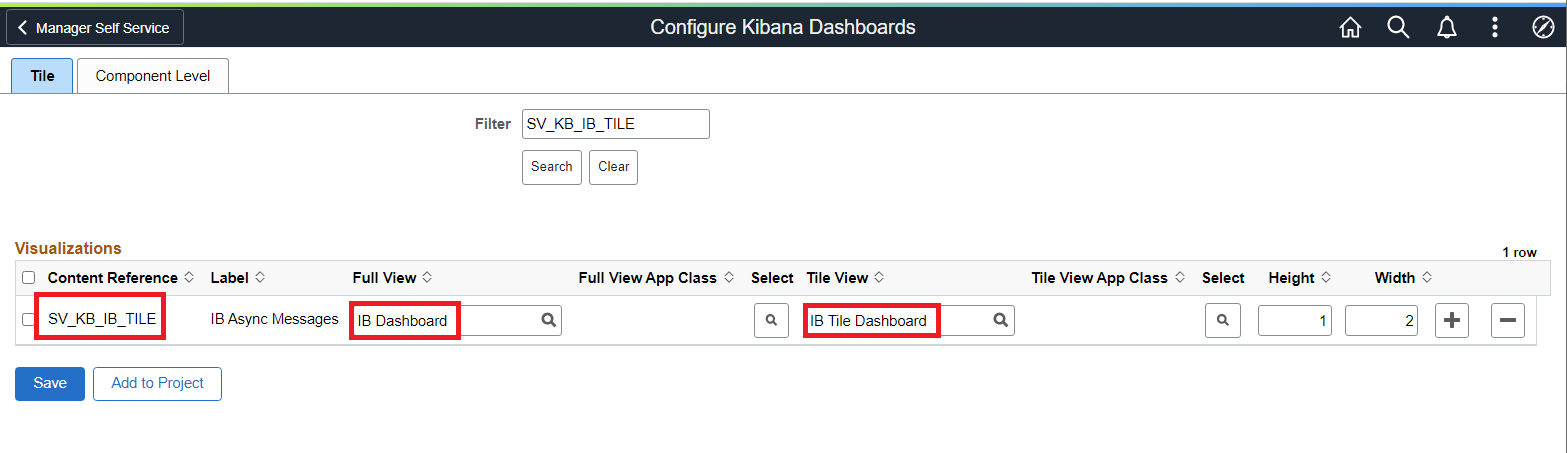
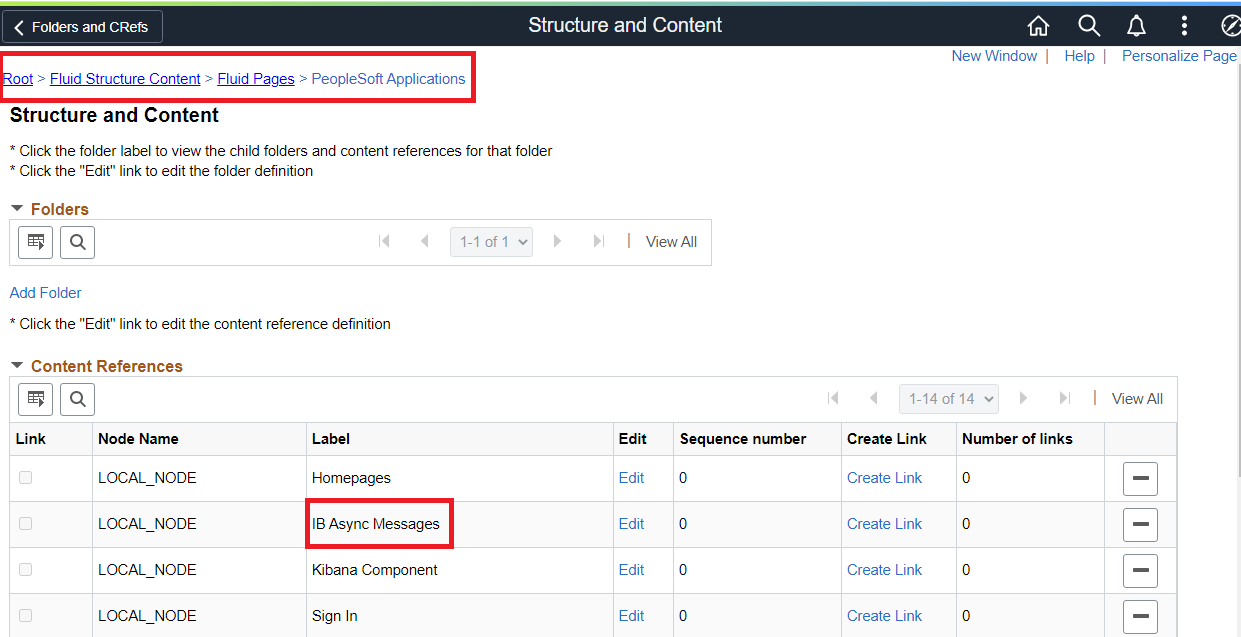
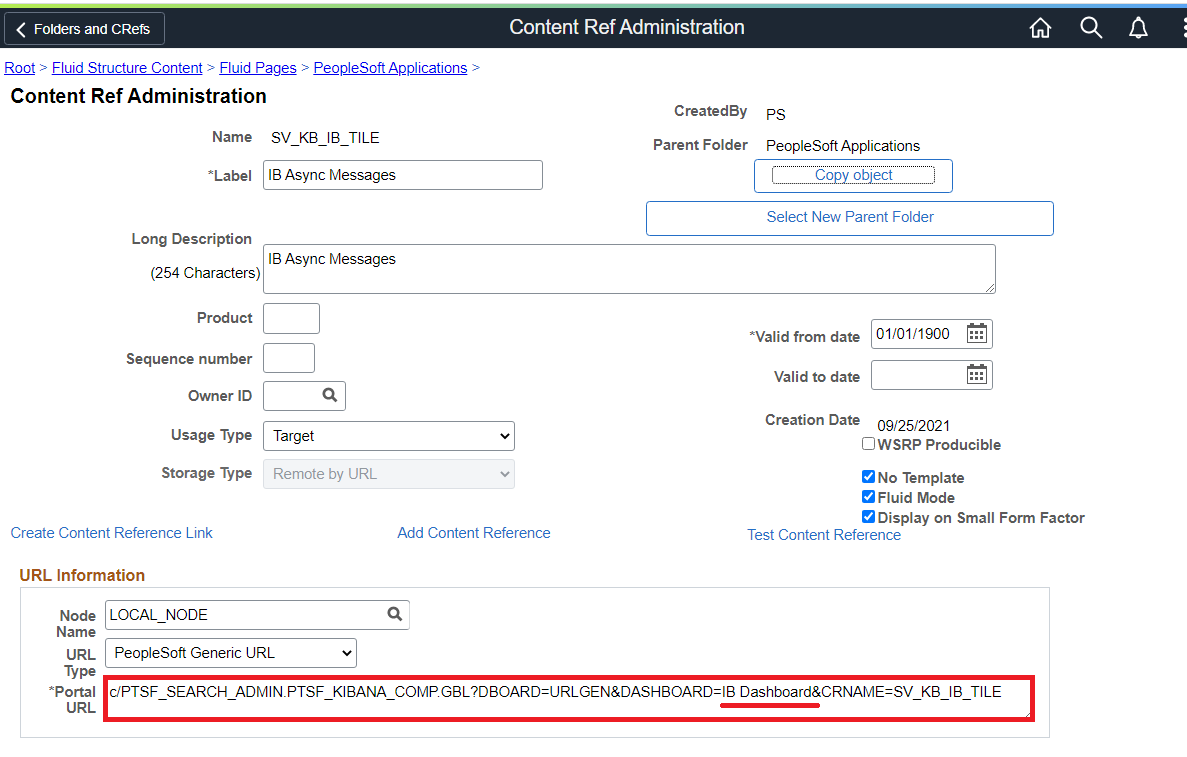
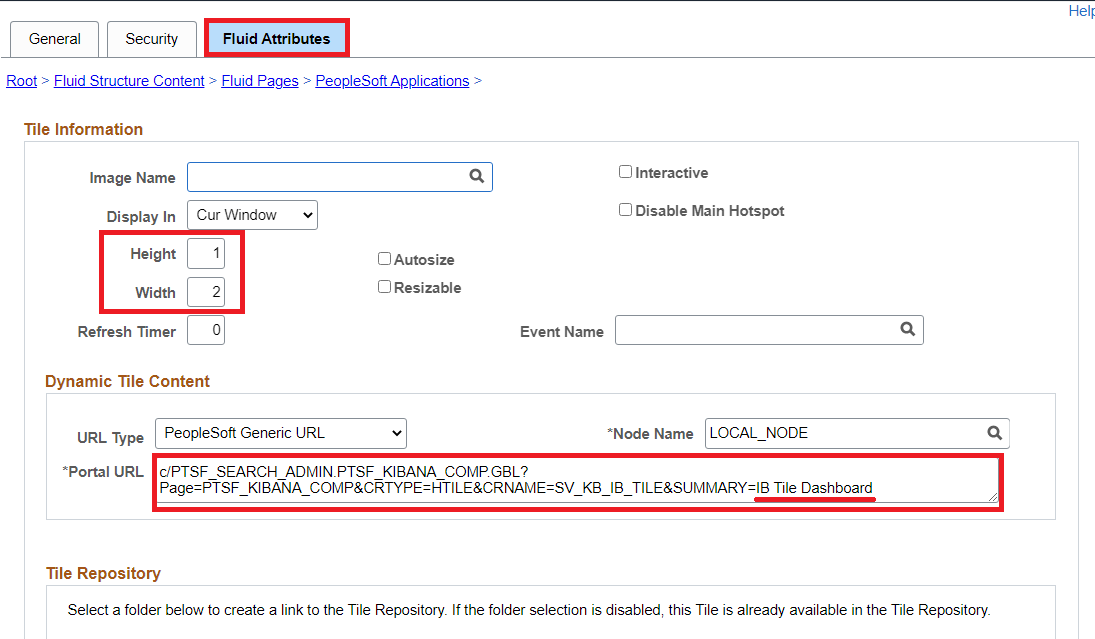
When we add the details and save, behind the scenes PeopleTools will create the necessary tile content reference (CREF) under portal structure and content. We can review this CREF object as shown below.
Navigation: PeopleTools > Portal > Structure and Content
Assign Kibana Dashboard Roles
Finally, we will set up the appropriate roles to control user access to the dashboards. There are two privilege options:
- View: A user with view privilege can open a dashboard or visualization in PeopleSoft and view it.
- Edit: A user with edit privilege can edit a dashboard or visualization in Kibana and save the changes. On PIA, when a dashboard is displayed, the Open in Kibana link appears for a user with the edit privilege. The Open in Kibana link enables you to open the dashboard in Kibana and edit the dashboard.
Only users with the specified role can view or edit a dashboard.
Navigation: PeopleTools > Search Framework > Administration > Assign Kibana Dashboard Roles
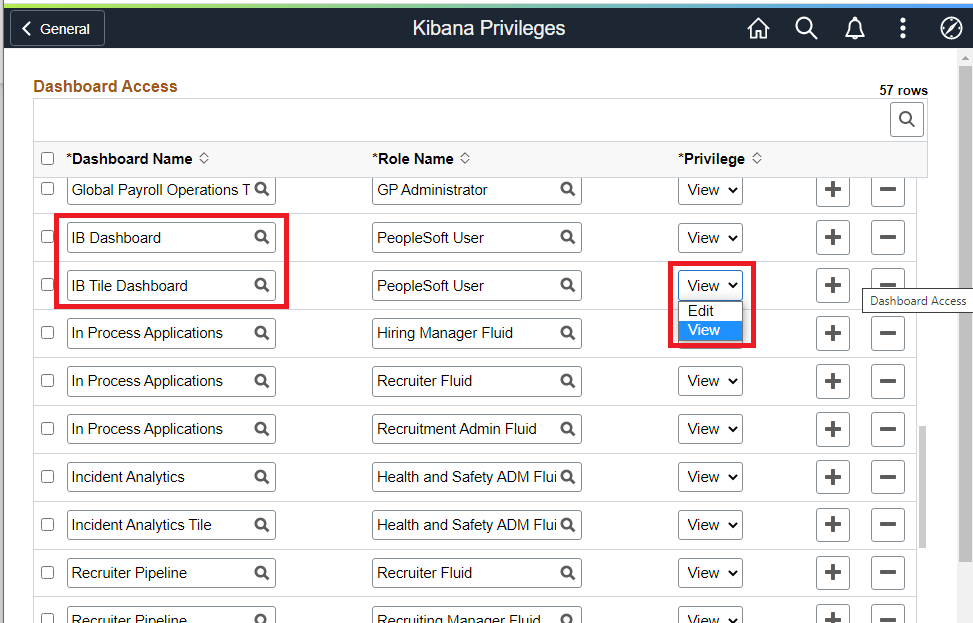
For the example used in this blog series, we simply provide view access using the PeopleSoft User role.
Deploy Dashboards to Kibana
This step is not required for the example used in this blog series. It is because we built everything from scratch. It means that the Kibana objects (visualizations and dashboards) are already in our Kibana server. This will be the case typically in the development environments. However, the deploy step will be necessary when we migrate these visualizations and dashboards to other environments. We will cover the topic of migration in detail as a separate post in the future.
Summary
This completes the steps to administer the visualizations and dashboards created in Kibana. We have also completed all the steps to build our own analytics from scratch!
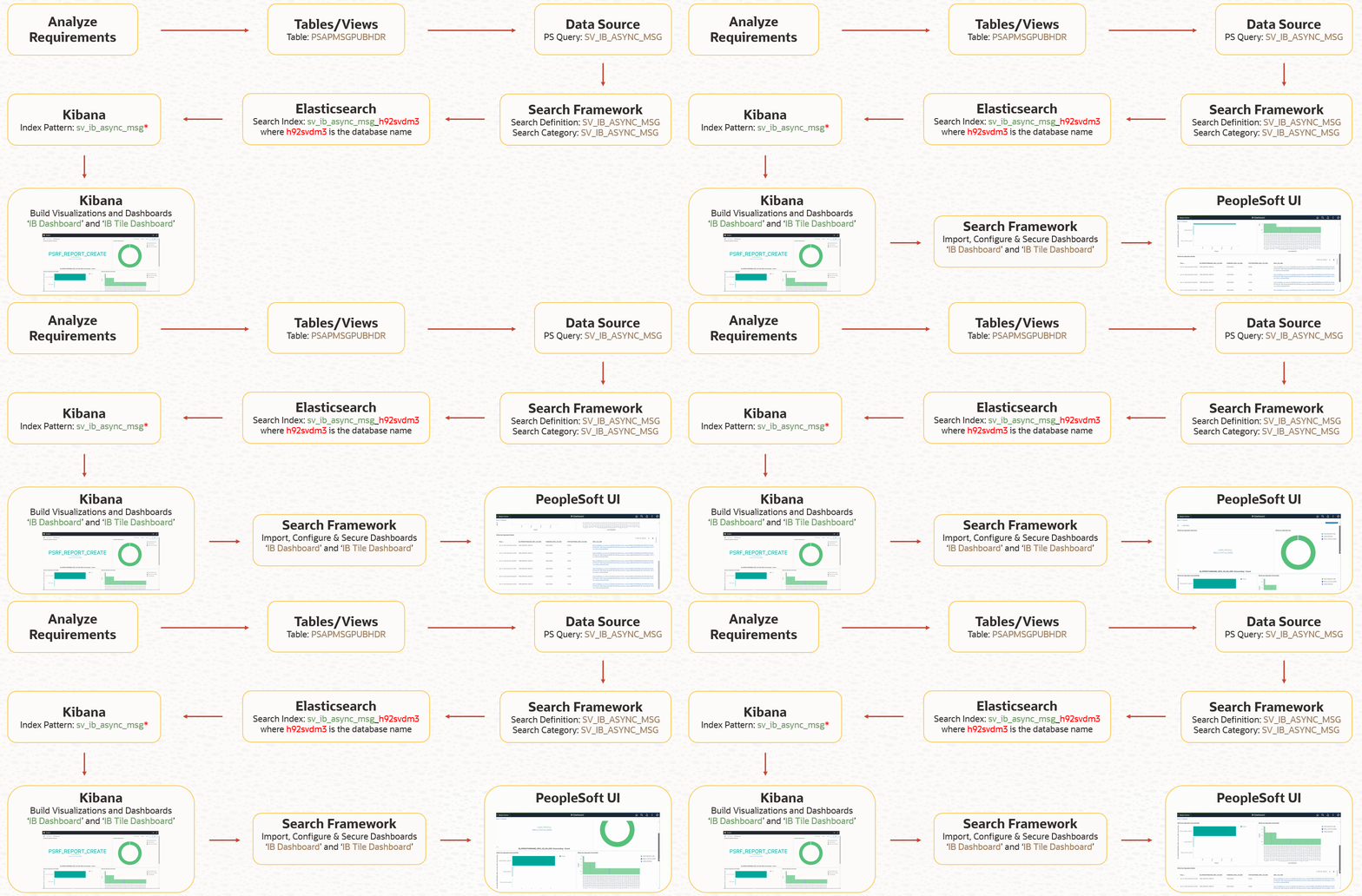
Let us take a peek at the analytics embedded and presented in the PeopleSoft user interface.