
Fluid Announcements is a great feature to “announce” to your employees when timesheets are due, company events or release of a new feature like Gender Identity and Expression. You can configure the announcements for all employees or for a select group of employees (just follow the steps below) – Fluid Announcements is an easy and creative way to communicate with your employees.
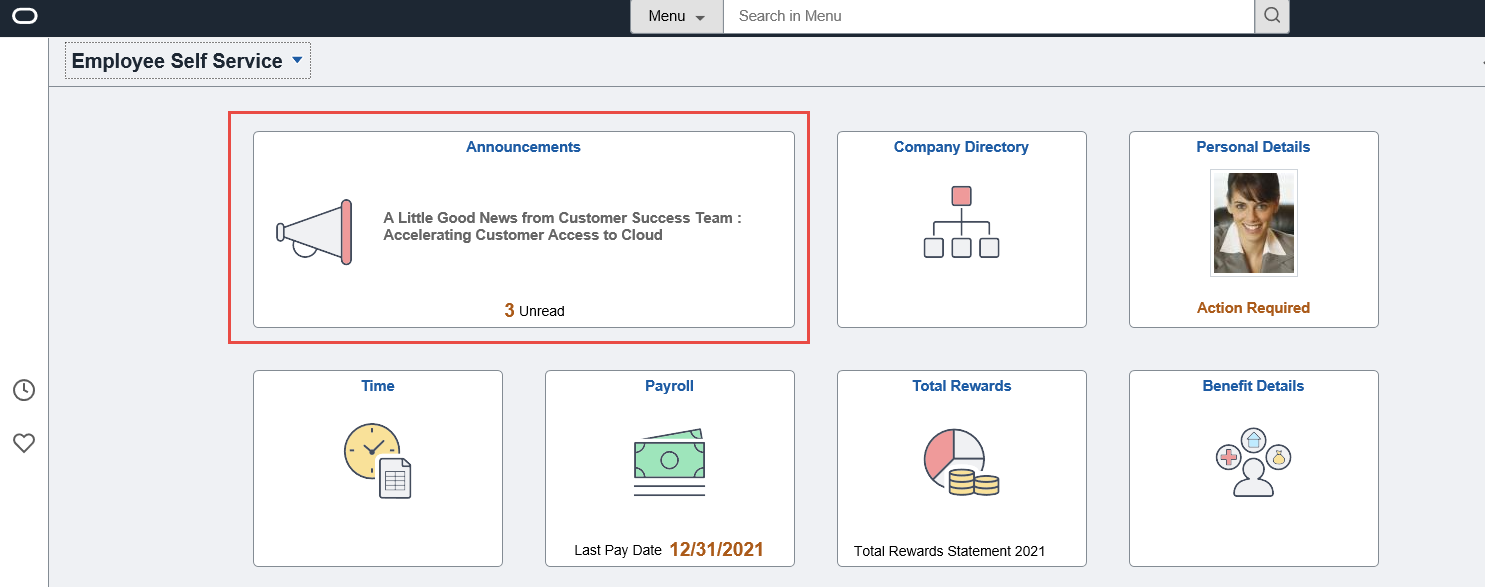
Note: The Fluid Announcement feature was delivered in Image 29 (BUG#28848093).
Scenario – The month is June; also PRIDE month and your organization just deployed the Gender Identity and Expression – Fluid Announcements is great way to communicate this new feature to your employees.
Step 1 – Add the Fluid Announcement tile to the employee or manager homepage.
Log in PS/PS – To add ‘Announcements Tile’ on the Home page for Employees
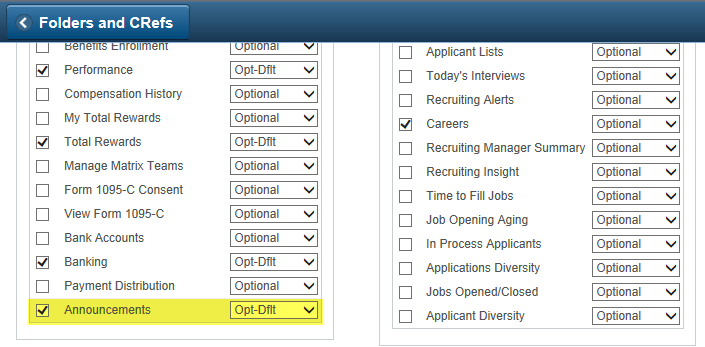
Navigation: PeopleTools>Portal>Structure and Content
Click on Fluid Structure and Content, Click on Fluid Home Pages, Click Edit next to Employee Self Service
Go to the 3rd tab Tile Content >Search for Announcements and make the value ‘Opt-dflt’ > Save.
Step 2 – Configure the Announcement message you want displayed in the Fluid Announcements.
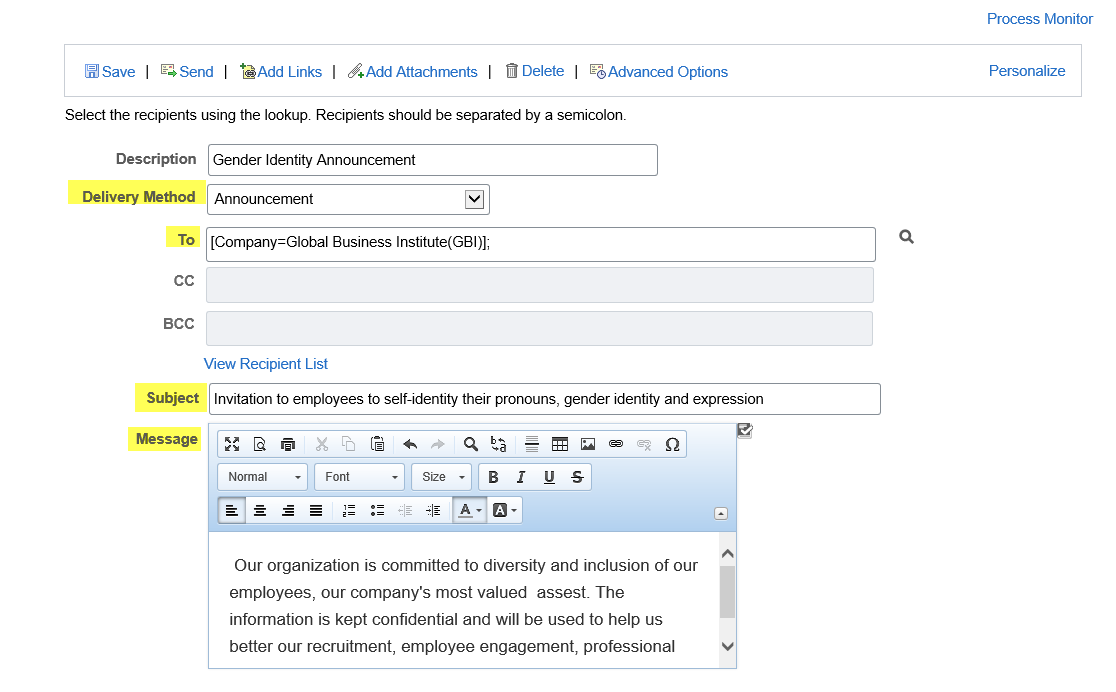
Navigation: Set Up HCM > Common Definitions > HR Notification > HR Notification > HR Notification – Add a New Value (announcement)
Description – Enter an announcement description
Delivery Method – Announcement
To – All Employees (Global Business Unit) – you can select groups of employees you want to send this to
Message – Enter a more detailed message/instructions why this announcement is important (optional).
Click on the save icon. Click on the Send icon.
Step 3 –Once the process completes successful, the message will appear on the Announcement tile. Note: You can schedule when you want this process to run or run ad hoc. You can also have multiple announcements display for employees.
Navigation: Set Up HCM > Common Definitions > HR Notification > HR Notification > Process Notification > Run the process.

Login as VZINN/VZINN (or any employee) – Announcement displays in Employee Self Service
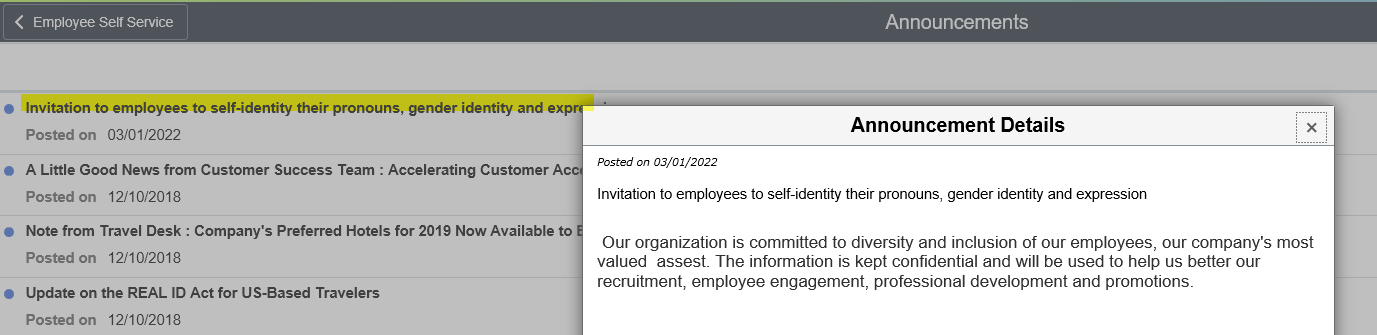
Employee can click on Announcement to see more details.
For more information, check out the video on the Gender Identity and Expression feature.