
This blog post describes how to download the PeopleTools version 8.60 and upgrade an older version through the Cloud Manager.
If you are not familiar with Oracle Cloud Infrastructure (OCI) and PeopleSoft Cloud Manager, then please go through the links below.
If you are using an earlier image of Cloud Manager, then upgrade to image 14 using the instructions described in the online help.
Once your Cloud Manager instance is upgraded to image 14, please follow the steps outlined below to automatically download PeopleTools 8.60 and then upgrade your environment using Cloud Manager’s auto upgrade feature.
1. Prerequisite
For upgrading PUM full tier environments to PeopleTools 8.60, first, verify the OCI shape configuration of the environment. If the shape configuration is lower than VM.Standard2.2, then scale up the shape to VM.Standard2.2 through OCI Console before starting the PeopleTools upgrade.
Steps to do vertical shape scale up using OCI console:
- Open the navigation menu and click Compute. Under Compute, click Instances.
- Click the instance that you’re interested in.
- Click More Actions, and then click Edit.
- Click Edit shape.
- Select ‘VM.Standard2.2′ shape
- Click Save changes. If the instance is running, it is rebooted. Confirm when prompted.
- Then wait for instance state until its in RUNNING status.

Similarly, for provisioning PeopleTools 8.60 PUM full tier environments, select Shape VM.Standard2.2 or higher in the template.
2. Subscribe to PeopleTools 8.60 channel
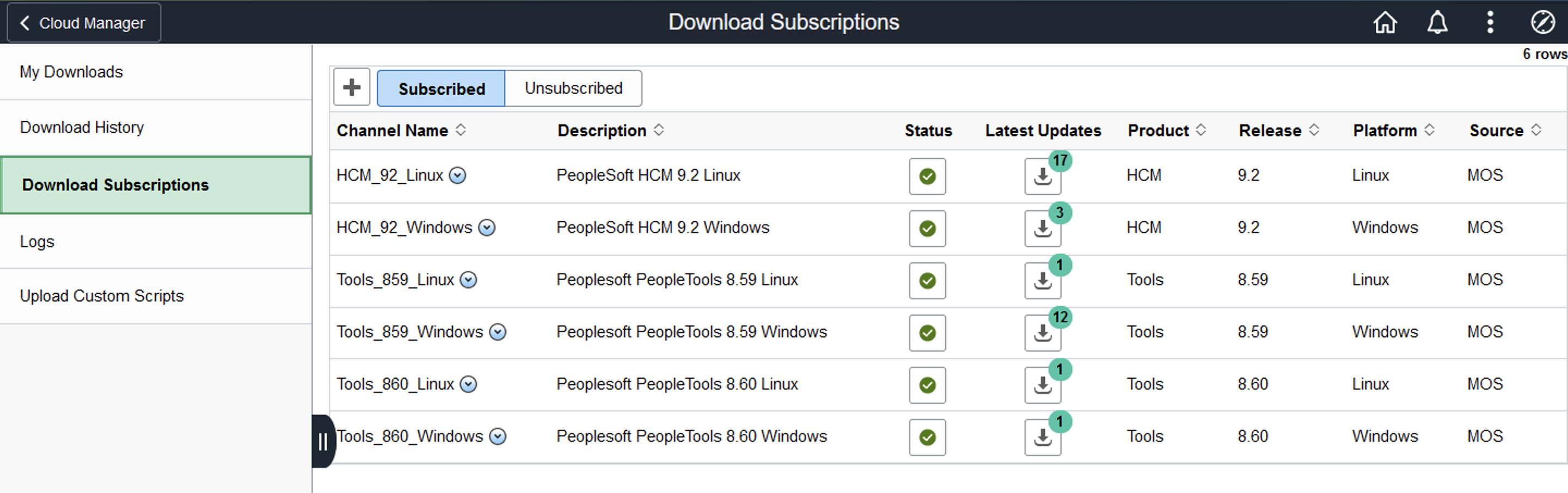
Navigate to Dashboard > Repository > Download Subscriptions. Click on the Unsubscribed Tab. Subscribe to the new Tools_860_Linux, Tools_860_Windows channel using the related Actions menu.
Also, subscribe to any application download channels, for example, HCM_92_Linux. Downloading the new PeopleTools version takes a while.
Wait for the status to indicate ‘Success.’
3. Upgrade to PeopleTools 8.60
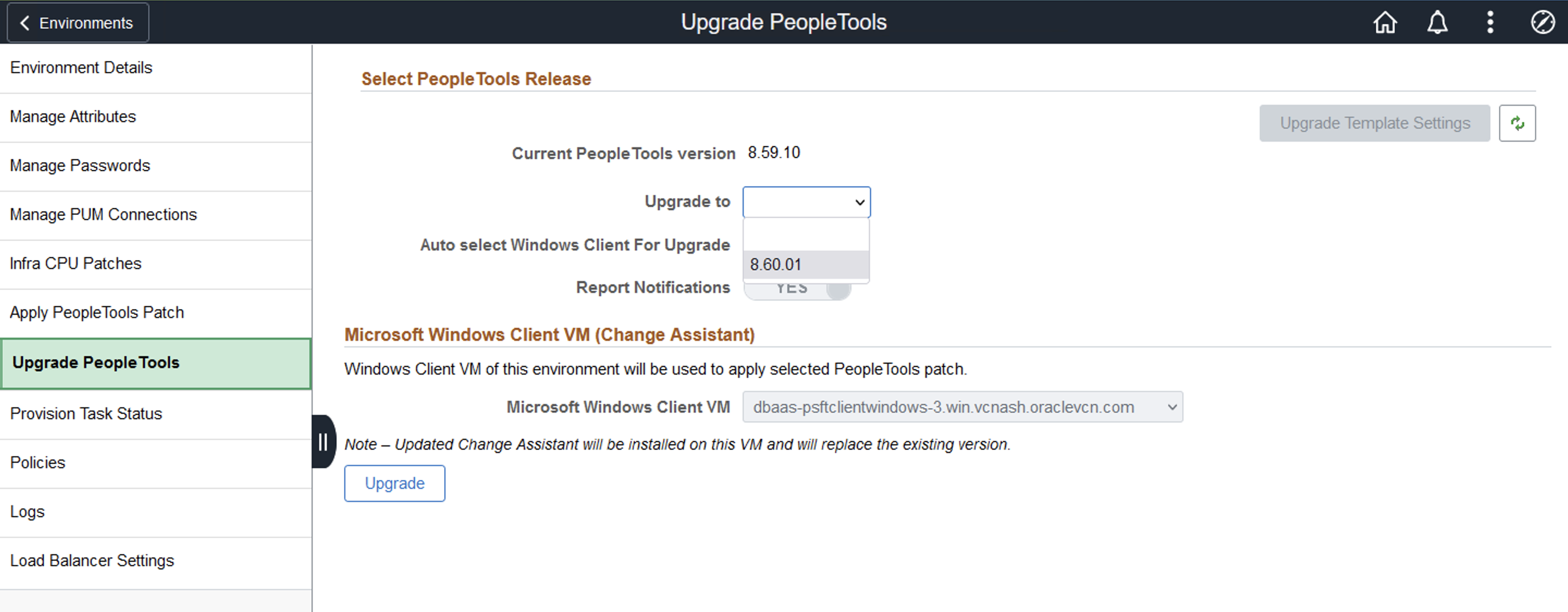
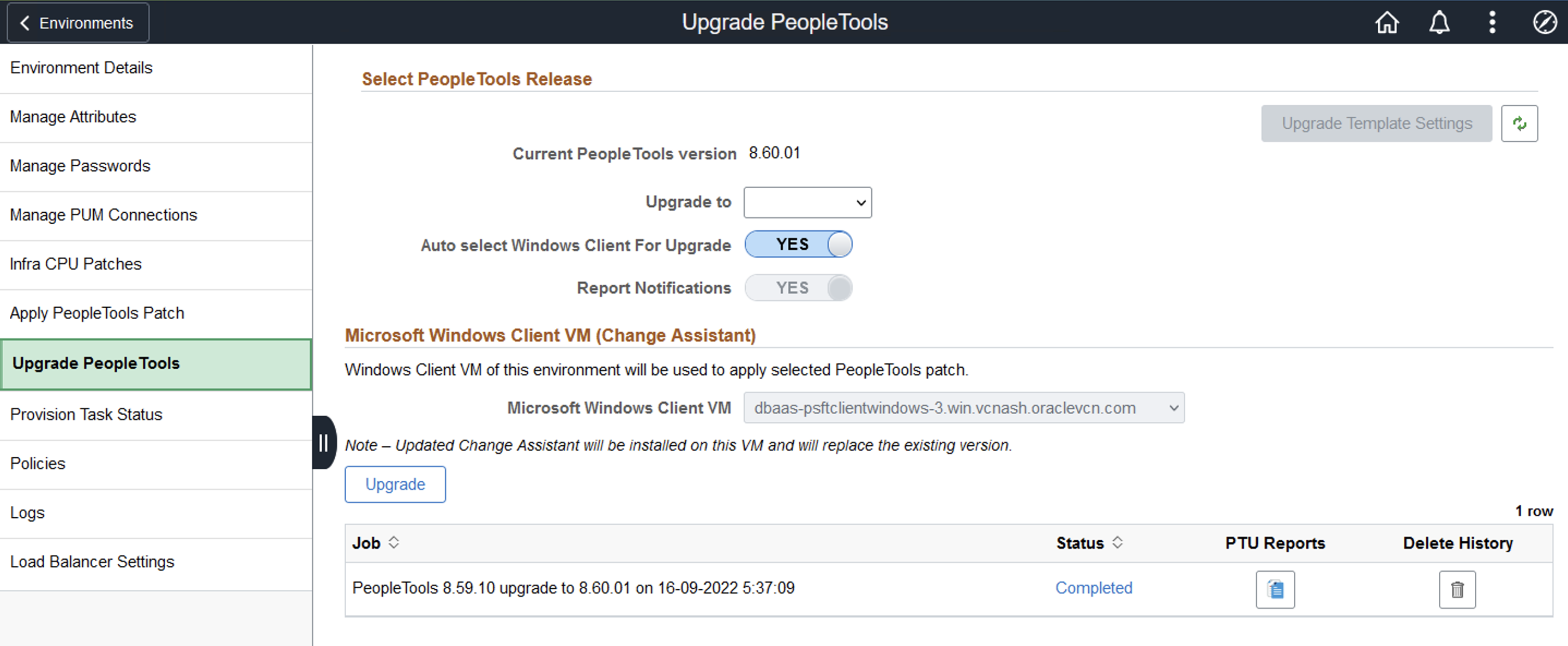
For the environment to upgrade, navigate to My Environment Details > Upgrade PeopleTools. On the right pane, select the PeopleTools 8.60 version and click Upgrade to start the upgrade process. By default, the Auto Select Windows client for upgrade is set to Yes.

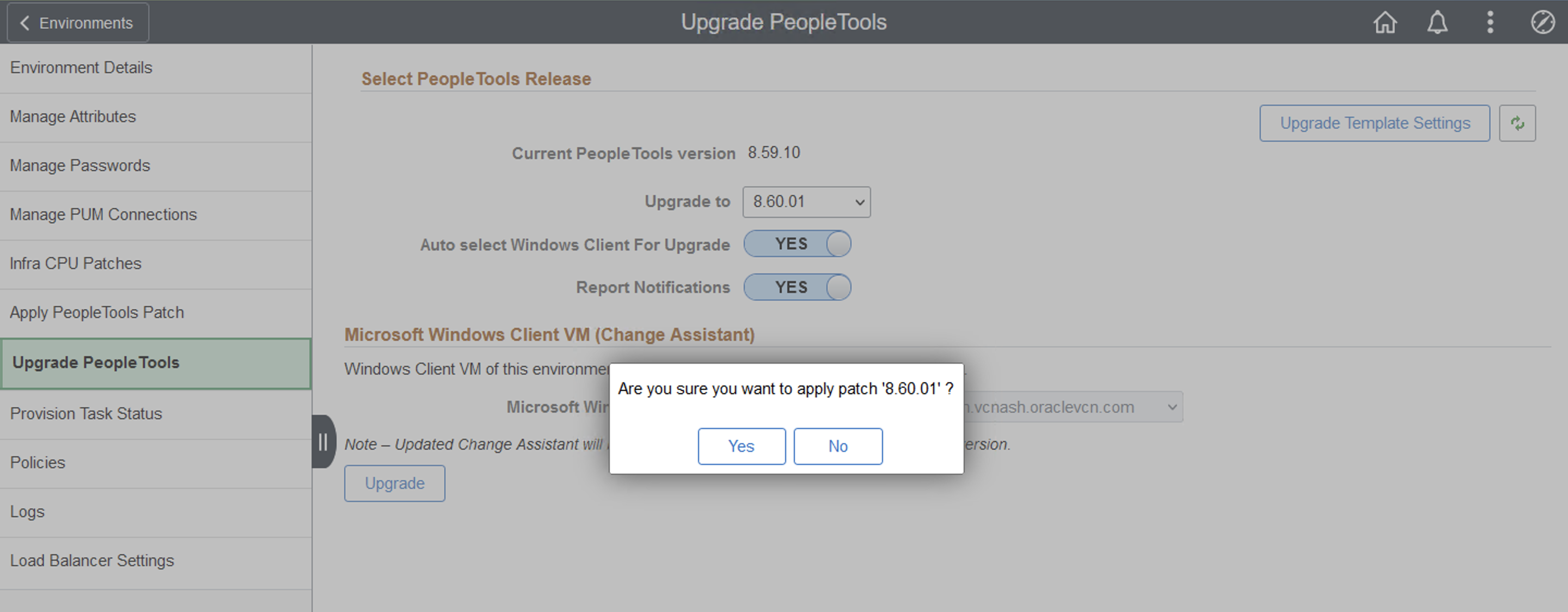
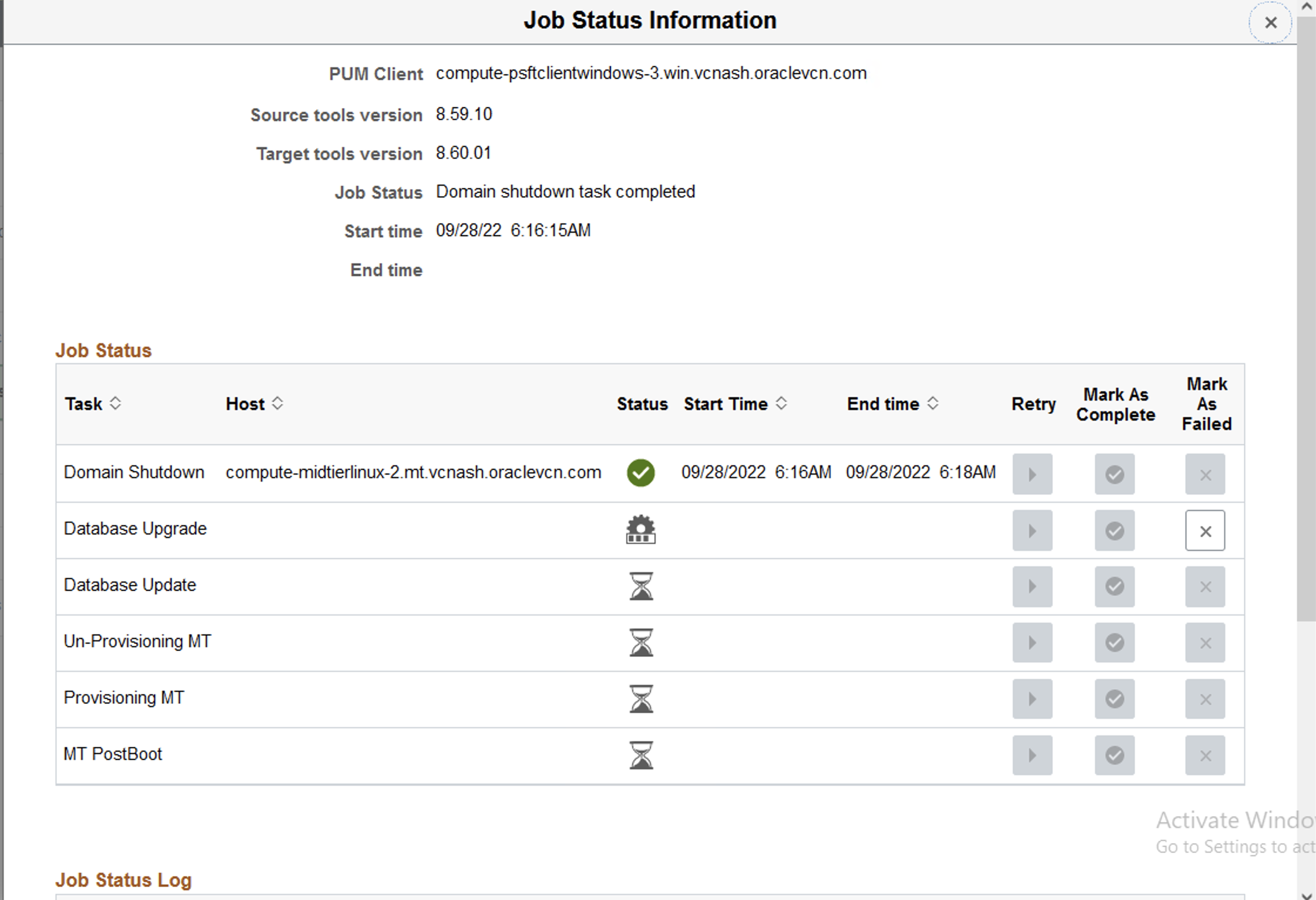
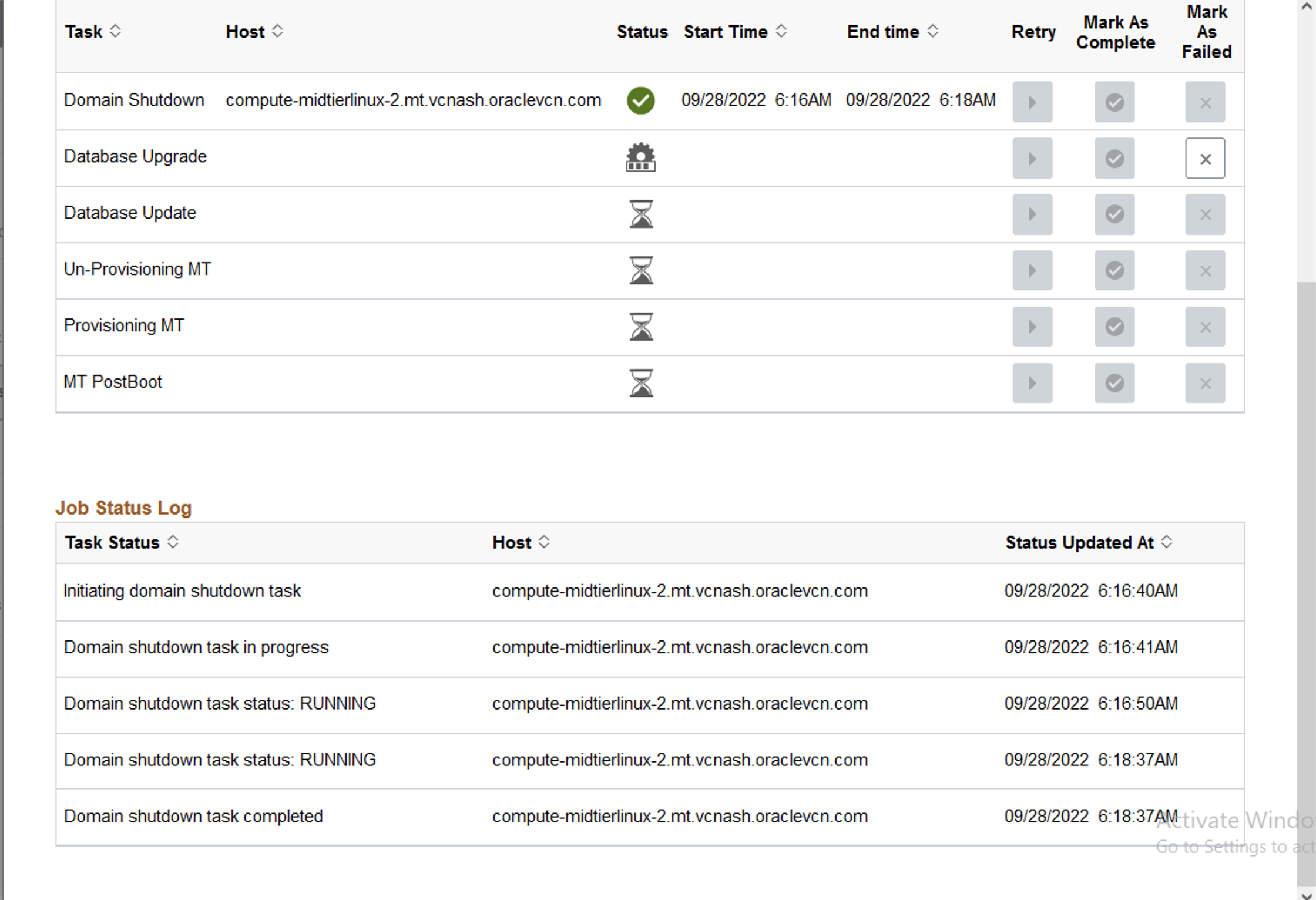
The upgrade process takes a few hours to complete successfully. To see the progress and the job status details, click the upgrade job status link on the same page.
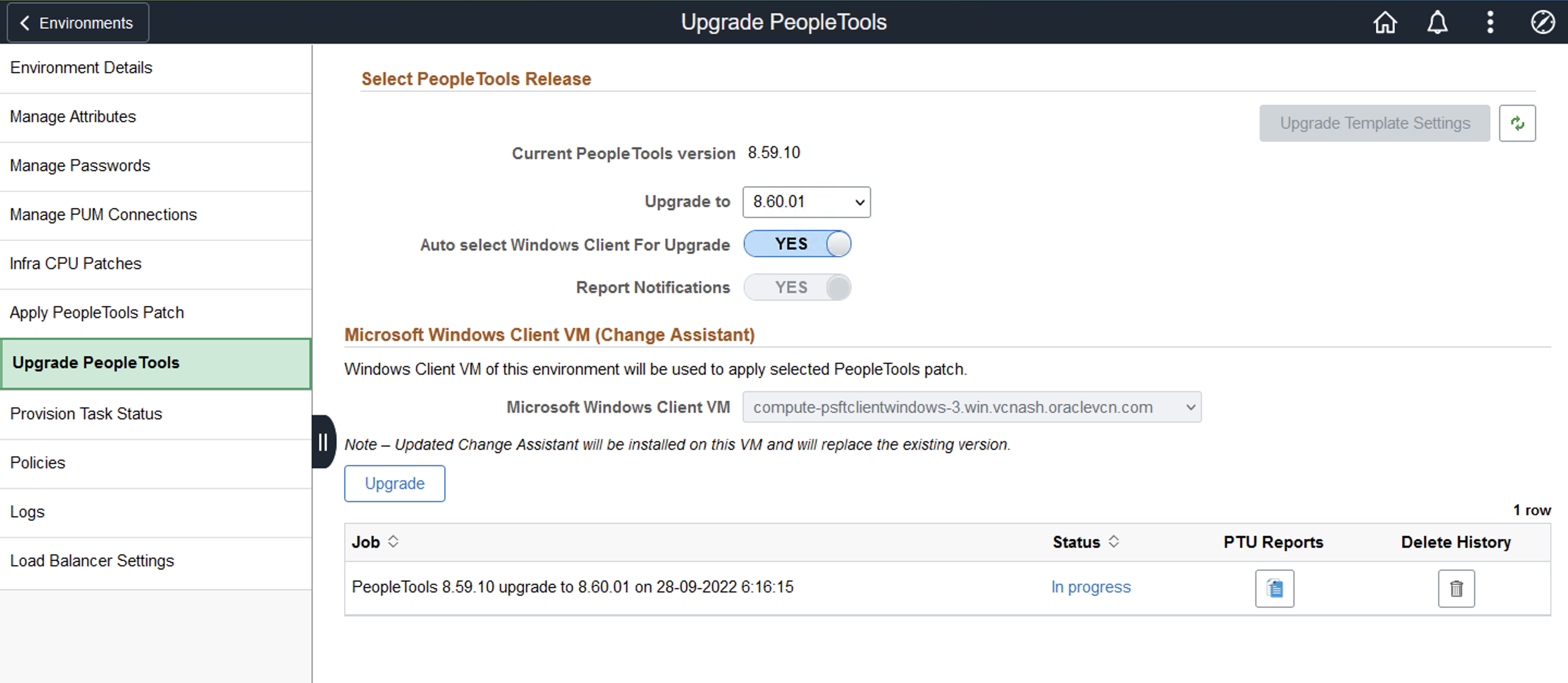
Job Status Information
Job Status Log
Once the upgrade process is completed, the status is shown as ‘Completed’.
Now the environment is upgraded. To evaluate the new features in PeopleTools 8.60, sign in to the PeopleSoft Pure Internet Architecture (PIA) of the upgraded environment.
For more information on PeopleTools 8.60 and Cloud Manager Image 14, go to PeopleSoft Hosted Online help.