

Did you know that PeopleSoft offers a powerful and robust payment plan feature, enabling you to create payment plans for outstanding item balances? Using this feature, you can define a Payment Plan and Plan Type, select items to include in the plan and create installment payments. This feature was delivered in PeopleSoft Update Image 41.
This blog post will help you understand the activities involved in converting open Items to installments.
Lets consider a scenario –
David, a collector, is working with Robert, his customer from ABC Company about the Company’s outstanding Invoice balances. Robert conveys the organization’s difficulty to pay for a few of the open items.
David informs Robert about the flexibility to pay for these items in installments. Robert proposes to pay the balance over a period of two months.
David has to perform the steps below on behalf of Robert:
Step # 1: Selection of Items to Create a Payment Plan
Single or multiple items, including debits and credits, can be selected for the Payment Plan. The condition for these items is the total item balance has to be a positive amount.
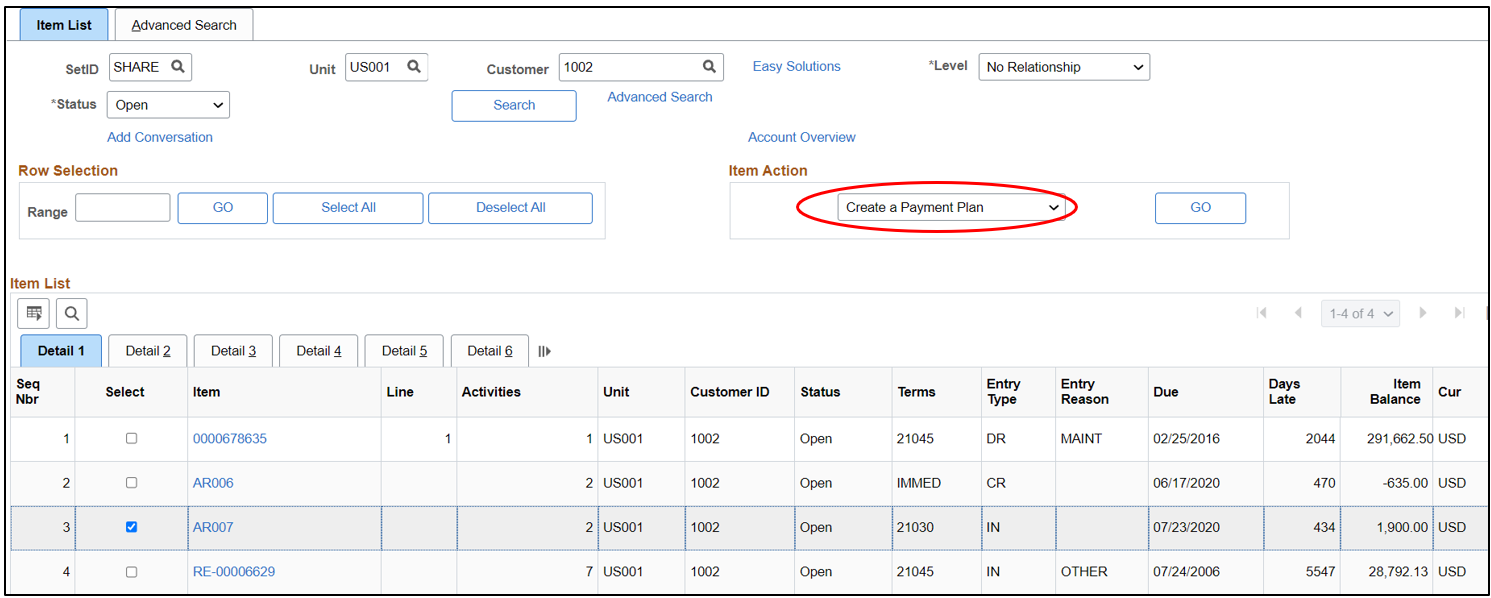
Step # 2: Creation of the Payment Plan
PeopleSoft Accounts Receivable offers the following Plan Types.
- Fixed Monthly Amounts: Monthly amounts can be specified to create installments
- Number of Months: The number of months can be specified to create installments
- Custom – Item/Line, Amount/Percentage has to be entered manually to create installments
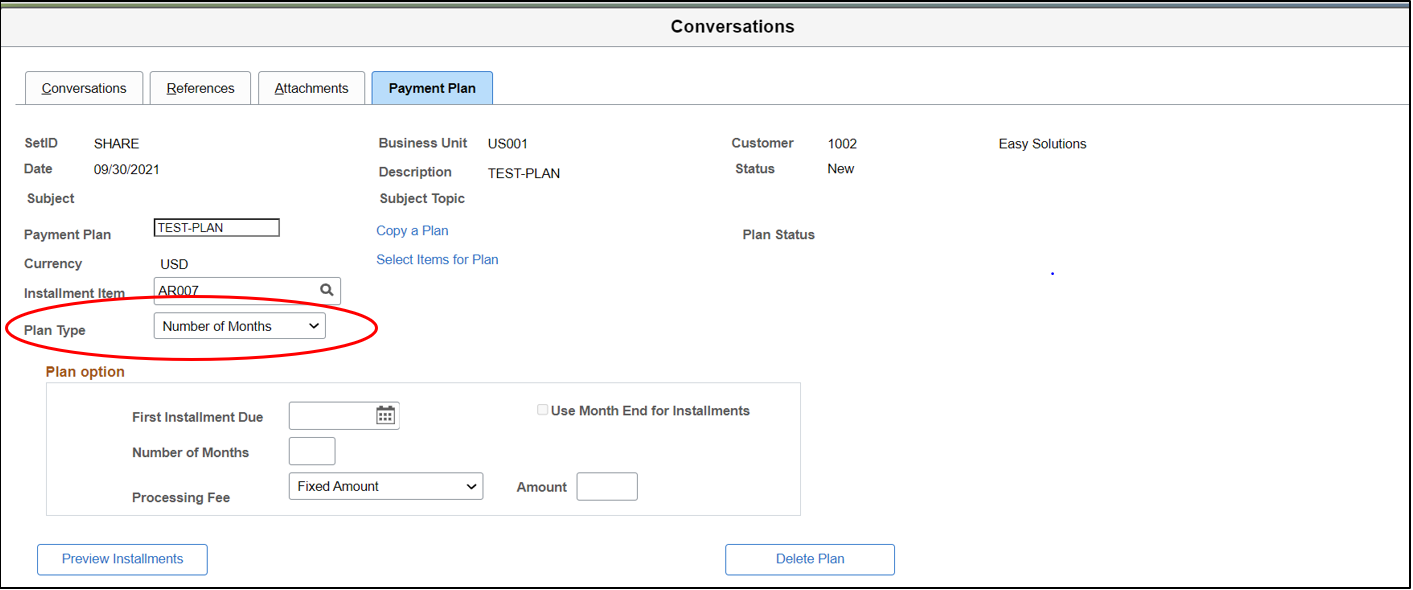
David selects the Monthly Plan. He enters the number of months as 2 and clicks on “Preview Installments”. If needed, there is an option available to delete the Plan as well.
ABC Company is required to pay a one-time processing fee to establish the Payment Plan. Processing Fee types are
- Fixed amount
- Percentage of Plan Balance.
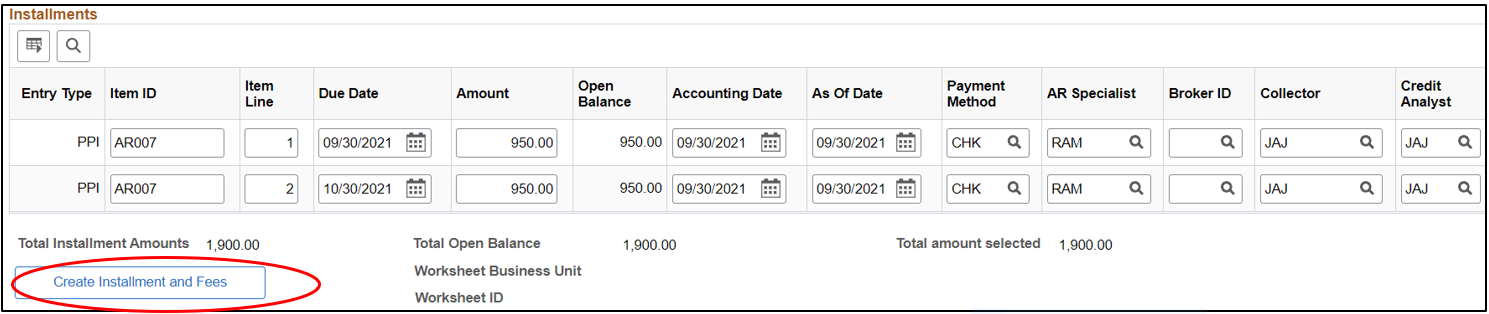
David clicks on the “Create Installment and Fees” button to create installments for the items to be paid on the identified due dates.
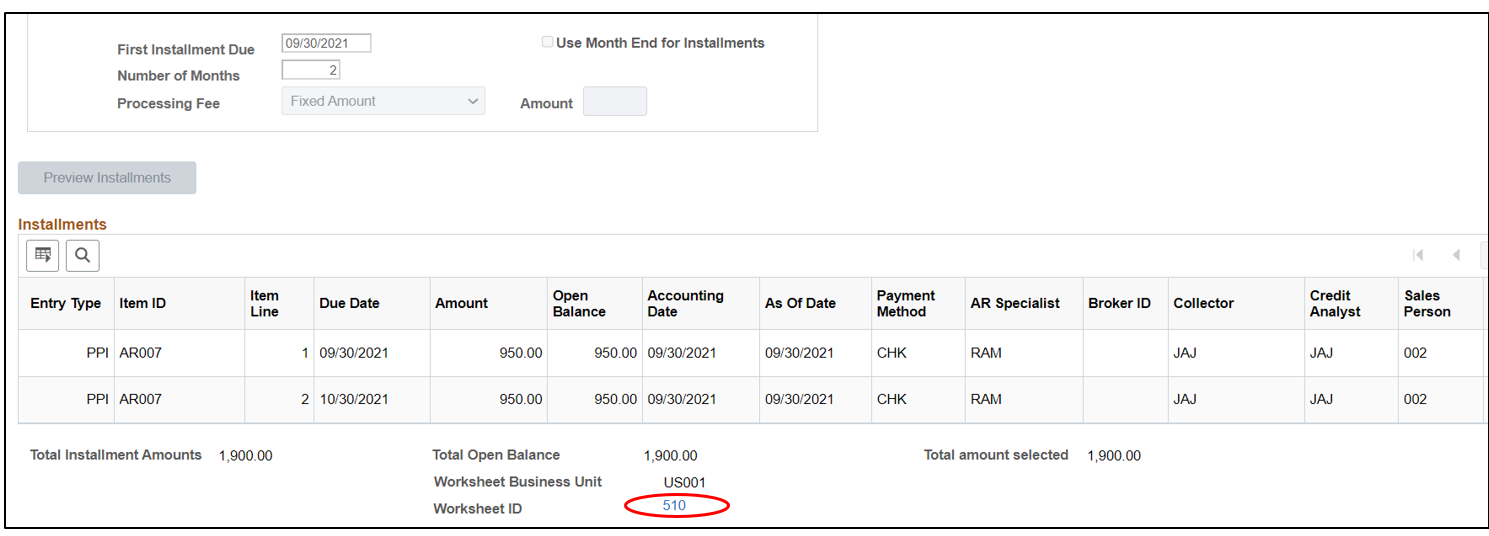
Step # 3: Posting the Payment Plan
The Payment Plan creates a maintenance group which needs to be posted by running the Receivables Update process.
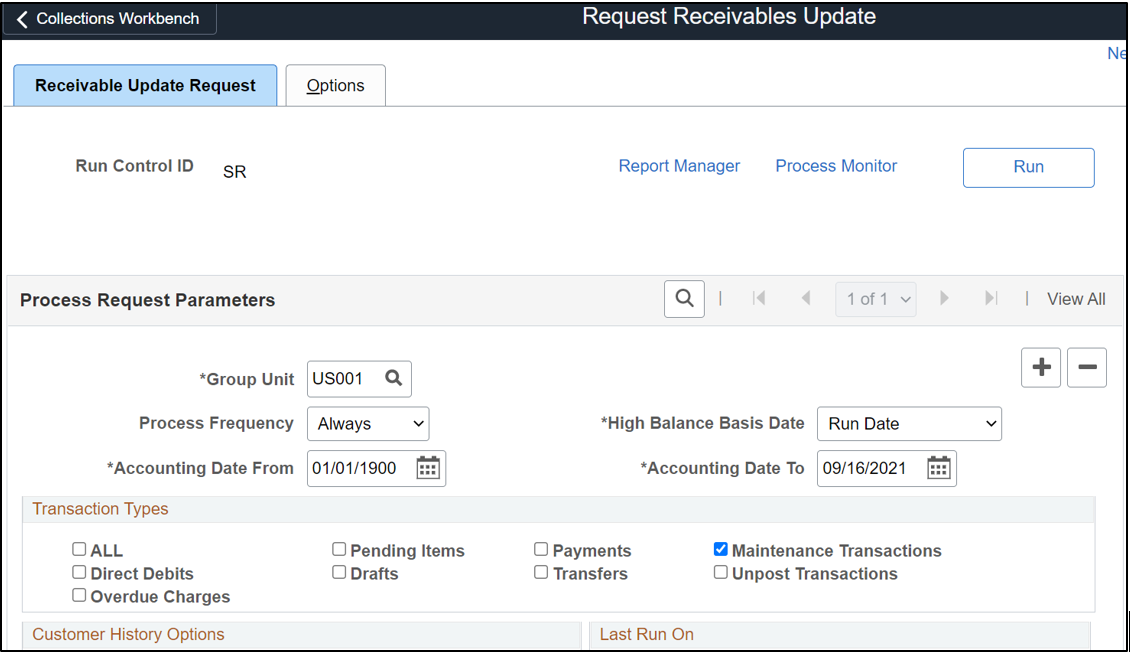
Step # 4: Viewing Installment Items
After the Receivables Update is run, the original Items are closed and the Installment Items are available as open items to be paid. The Plan ID is populated for these items.
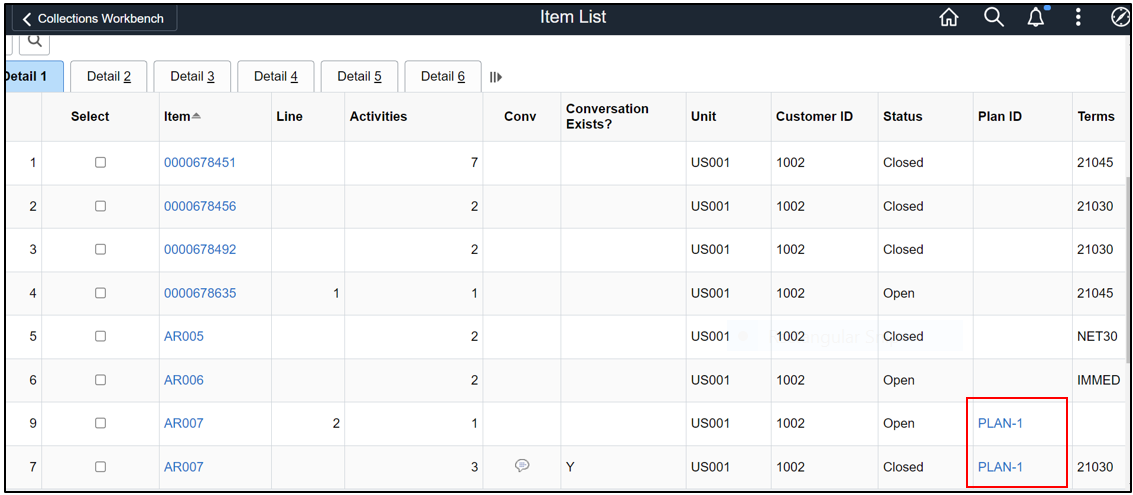
This feature also provides a Payment Plan report to review Payment Plan details.
Watch the Payment Plan Enhancement Video Feature Overview for more details.
Visit PeopleSoft Information Portal for more updates and information on PeopleSoft.