
If you’re working with MySQL HeatWave, Oracle’s powerful in-memory query accelerator for analytics workloads, you might find yourself needing to verify whether your tables are properly loaded into that speedy in-memory columnar storage engine known as RAPID. HeatWave is all about boosting performance by offloading analytical queries from the standard MySQL row-based storage to an optimized in-memory cluster. But how do you confirm that your tables are actually residing in memory and ready for action?
In this short blog post, I’ll walk you through the commands you can use to check this status. We’ll keep it straightforward, assuming you have access to your MySQL HeatWave cluster via the MySQL Shell or a compatible client.
Understanding HeatWave Table Loading
Before we get to the commands, here’s a quick primer: In MySQL HeatWave, tables aren’t automatically loaded into memory. You first have to modify the table definition, to allow the table to use the secondary storage engine, named RAPID. First, use the ALTER TABLE <table_name> SECONDARY_ENGINE = RAPID statement to prepare a table for HeatWave. Then, to load that table into the HeatWave cluster, use the ALTER TABLE <table_name> SECONDARY_LOAD command. Once loaded, the data is stored in HeatWave’s in-memory nodes for lightning-fast queries. And, you don’t have to point your query to HeatWave, you simply run the query as usual, and the MySQL optimizer will select the best storage engine to use (InnoDB or RAPID).
But things can go wrong – maybe the load failed due to insufficient memory, schema changes, or cluster issues. Or maybe you want to check the status after a DB System reboot. That’s where checking the load status comes in handy. MySQL provides system views and performance schema tables to monitor this.
Prerequisites:
- Ensure you have access to the
performance_schemadatabase and are connected to the MySQL DB System with a client like MySQL Shell, MySQL Shell for Visual Studio Code or MySQL Client. - The HeatWave cluster must be enabled and active for these tables to contain relevant data.
If you need to verify the HeatWave cluster status itself, you can check:
SHOW GLOBAL STATUS LIKE 'rapid_plugin_bootstrapped';

A value of YES indicates the HeatWave cluster is active.
The Key Command to Check Load Status
To see if your tables are loaded in HeatWave’s in-memory storage, you can query the performance_schema.rpd_table_id table. I like to use the following SQL command:
SELECT r.ID, i.SCHEMA_NAME as schema_, r.LOAD_STATUS as status, r.LOAD_PROGRESS as progress,
CAST(r.LOAD_START_TIMESTAMP AS DATETIME(0)) as start,
CAST(r.LOAD_END_TIMESTAMP AS DATETIME(0)) as end
FROM performance_schema.rpd_tables r
JOIN rpd_table_id i ON i.ID = r.ID
ORDER BY r.LOAD_PROGRESS DESC, r.LOAD_START_TIMESTAMP ASC;
Here is a sample of the output format:
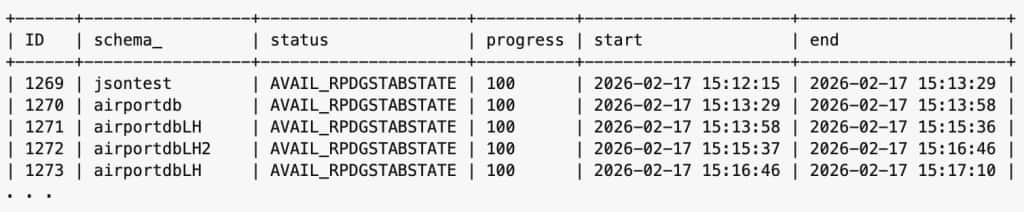
Note: I only used CAST in the above query to remove the microseconds. This is optional.
This query will return details about each table associated with HeatWave:
- id: The database schema id
- schema: The database schema
- status: the status of the load (see below)
- progress: Loading percentage
- start: When the load began
- end: When the load ended
Here are the different statuses from rpd_tables:
NOLOAD_RPDGSTABSTATE– The table is not yet loaded.LOADING_RPDGSTABSTATE– The table is being loaded.AVAIL_RPDGSTABSTATE– The table is loaded and available for queries.UNLOADING_RPDGSTABSTATE– The table is being unloaded.INRECOVERY_RPDGSTABSTATE– The table is being recovered. After completion of the recovery operation, the table is placed back in theUNAVAIL_RPDGSTABSTATEstate if there are pending recoveries.STALE_RPDGSTABSTATE– A failure during change propagation, and the table has become stale.- Note: When
TRUNCATE TABLEoperation is performed, the table is marked for a full reload. However, the table is not reloaded immediately. The system reloads the table only after all currently undergoing incremental or scheduled reloads. hence, the table may appear as stale in the system (e.g., inRPDGSTABSTATE) until it is reloaded completely.
- Note: When
UNAVAIL_RPDGSTABSTATE– The table is unavailable.RECOVERYFAILED_RPDGSTABSTATE– This status is available as of MySQL 9.2.2. A Lakehouse table is marked asRECOVERYFAILED_RPDGSTABSTATEwhen an attempt to recover it fails. Tables in this state can be unloaded. Therefore, before using tables in this state, you need to manually reload them usingSECONDARY_UNLOADfollowed bySECONDARY_LOAD. When a MySQL HeatWave cluster restarts, there is no attempt to recover tables inRECOVERYFAILED_RPDGSTABSTATE. However, when a DB System restarts, an attempt is made to recover tables in this state.
If the load_status shows ‘AVAIL_RPDGSTABSTATE‘, your table is fully loaded in memory and ready for HeatWave queries. If it’s ‘UNAVAIL_RPDGSTABSTATE‘, you might need to reload it with ALTER TABLE your_table SECONDARY_LOAD;.
You can also check the amount of data loaded (in megabytes) or the number of rows with this query:
set @SIZE=1048576;
SELECT r.ID, i.SCHEMA_NAME as schema_, r.NROWS, r.LOAD_STATUS, ROUND(r.SIZE_BYTES / @SIZE, 1) AS SIZE_MB
FROM performance_schema.rpd_table_id i
JOIN performance_schema.rpd_tables r ON i.ID = r.ID
ORDER BY r.SIZE_BYTES;
Here is a sample of the output format:
+------+-----------------+----------+---------------------+---------+
| ID   | schema_         | NROWS    | LOAD_STATUS         | SIZE_MB |
+------+-----------------+----------+---------------------+---------+
| 1296 | nasa            |   114996 | AVAIL_RPDGSTABSTATE |   220.3 |
| 1279 | airportdbLH     | 54304619 | AVAIL_RPDGSTABSTATE |   546.1 |
| 1299 | airportdbLH2    | 54304619 | AVAIL_RPDGSTABSTATE |   548.8 |
| 1307 | nasa2           |   114989 | AVAIL_RPDGSTABSTATE |   697.2 |
| 1269 | jsontest        |   832683 | AVAIL_RPDGSTABSTATE |   812.0 |
| 1284 | airportdb       | 54304619 | AVAIL_RPDGSTABSTATE |  1652.0 |
+------+-----------------+----------+---------------------+---------+
This provides additional details like NROWS (number of rows) and SIZE_MB (size in megabytes) for loaded tables. Note: If you have a larger set of data, you may change the variable @SIZE to gigabytes.
Optional: Filter by Schema
If you want to check tables in a specific schema, add a SCHEMA_NAME filter. For example:
SELECT r.ID, i.SCHEMA_NAME as schema_, r.NROWS, r.LOAD_STATUS, r.SIZE_BYTES
FROM performance_schema.rpd_table_id i
JOIN performance_schema.rpd_tables r ON i.ID = r.ID
WHERE i.SCHEMA_NAME = 'your_schema_name'
ORDER BY r.SIZE_BYTES;
Replace your_schema_name with the name of your database schema (e.g., tpch). You may modify the size as well to represent megabytes or gigabytes as shown earlier.
Tips for Troubleshooting
- Permissions: Ensure your user has access to the
performance_schemadatabase. - Cluster Health: If tables aren’t loading, you may check the status of all of the HeatWave variables for your HeatWave cluster status with
SHOW STATUS LIKE 'rapid%';or via the OCI console if you’re on Oracle Cloud. - Documentation Reference: Always cross-check with the official MySQL HeatWave docs for the latest details, as features evolve.
There you have it – a simple yet effective way to peek under the hood of your HeatWave setup. If you’re optimizing analytics pipelines or just curious about your data’s in-memory residence, these commands will save you time.