
As AI agents become more capable, the focus is shifting from simple code generation to intelligent systems that can connect with enterprise tools, understand context, and safely interact with real business data. OpenAI Codex and Oracle Autonomous AI Database MCP Server represent this new model of AI-driven, connected enterprise workflows.
Codex is OpenAI’s AI coding agent for software development. It helps developers write code, understand codebases, debug applications, and automate engineering tasks such as testing, refactoring, and migrations.
Oracle Autonomous AI Database MCP Server is a built-in, managed feature of Autonomous AI Database Serverless and Dedicated Region, enabling MCP-compatible clients and AI agents to securely access database tools and workflows without deploying separate MCP infrastructure.
Autonomous AI Database MCP server supports the OAuth 2.1 and token-based authentication. It supports both built-in Oracle Select AI Agent framework tools and custom tools created using the DBMS_CLOUD_AI_AGENT package. This allows organizations to expose predefined database capabilities as well as business-specific workflows through MCP-compatible AI clients. By combining built-in tools and custom tools, enterprises can create AI-driven workflows for tasks such as schema exploration, operational diagnostics, reporting, approvals, and application-specific business operations while maintaining database-native security and access controls.
Here is a practical end-to-end walkthrough for connecting OpenAI Codex with Oracle Autonomous AI Database MCP Server, enabling Codex to leverage database security to interact with database tools, inspect schemas, retrieve metadata, and execute database workflows through the Model Context Protocol (MCP).
Getting Started
Log in to the OCI Console and add this free-form tag to your Autonomous AI Database Serverless:
Tag Name: adb$feature
Tag Value: {“name”:”mcp_server”,”enable”:true}
Once you add this tag, the MCP server gets enabled.
After enabling, your database will expose an MCP endpoint like this:
https://dataaccess.adb.{region-identifier}.oraclecloudapps.com/adb/mcp/v1/databases/{database-ocid}This endpoint allows authorized clients to connect and run tools on your database.
If your Autonomous AI Database instance is set up with a Private Endpoint, access is limited to your VCN (Virtual Cloud Network), and anyone outside that network won’t be able to connect.
Your endpoint will look like this instead:
https://{hostname_prefix}.adb.{region-identifier}.oraclecloudapps.com/adb/mcp/v1/databases/{database-ocid}2. Create Select AI Agent Tools in the database
The DBMS_CLOUD_AI_AGENT package defines and manages agents, tasks, tools, and orchestration in the database.
To create an MCP tool, we can use the CREATE_TOOL Procedure in the DBMS_CLOUD_AI_AGENT package. The tools can be custom PL/SQL functions, or use the built-in tool types such as RAG, SQL, WEBSEARCH, or NOTIFICATION. We’ll use a custom PL/SQL function as a tool.
For example, a sample function run_sql
CREATE OR REPLACE FUNCTION run_sql(
    query   IN CLOB,
    offset  IN NUMBER,
    limit   IN NUMBER
) RETURN CLOB
AS
    v_sql   CLOB;
    v_json  CLOB;
BEGIN
    v_sql := 'SELECT NVL(JSON_ARRAYAGG(JSON_OBJECT(*) RETURNING CLOB), ''[]'') ' ||
             'FROM ( ' ||
             '  SELECT * FROM ( ' || query || ' ) sub_q ' ||
             '  OFFSET :off ROWS FETCH NEXT :lim ROWS ONLY ' ||
             ')';

    EXECUTE IMMEDIATE v_sql
        INTO v_json
        USING offset, limit;

    RETURN v_json;
END;
create a tool that uses the above PL/SQL function
BEGIN
  DBMS_CLOUD_AI_AGENT.CREATE_TOOL (
    tool_name  => 'MY_RUN_SQL_TOOL',
    attributes => '{
      "instruction": "This tool runs the provided read-only (SELECT) SQL query.",
      "function": "RUN_SQL",
      "tool_inputs": [
        {"name":"QUERY","description":"SELECT SQL statement without trailing semicolon."},
        {"name":"OFFSET","description":"Pagination parameter for page size."},
        {"name":"LIMIT","description":"Pagination parameter for result offset."}
      ]
    }'
  );
END;
For additional custom tools, see Autonomous AI Database MCP Server Tools
3. Configure Codex with Autonomous AI Database MCP Server
Navigate to Settings, then click MCP Servers to access the MCP configuration page, where currently no MCP servers are connected or configured.
You can also add the MCP Server from Terminal UI
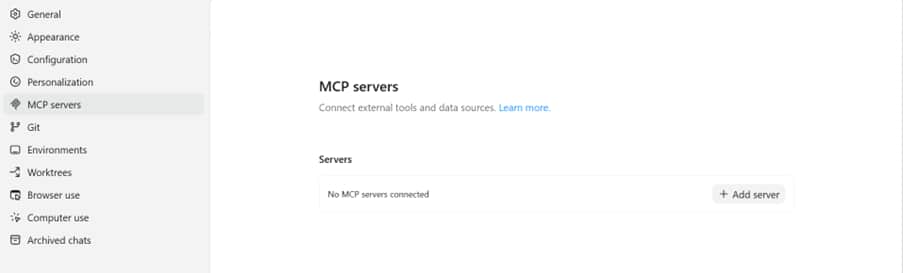
Figure 1: Before Autonomous AI Database MCP Server Configuration
We add the Autonomous AI Database Server configuration details in C:\Users\.codex\config.toml
[mcp_servers.adb]
url = "https://dataaccess.adb.{region-identifier}.oraclecloudapps.com/adb/mcp/v1/databases/{database-ocid}"
startup_timeout_sec = 30
tool_timeout_sec = 300
enabled = true
where {region-identifier} is specific oracle cloud region, and {database-ocid} is OCID of your Autonomous AI Database.
Save it and restart the Codex app
Navigate to Settings, then MCP Servers to manage external tool and data source
The screenshot shows an active ADB MCP server connection, indicating that the server has been successfully configured and enabled
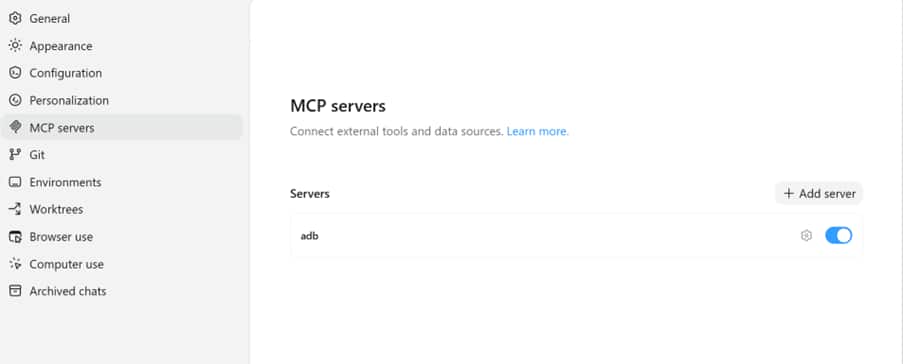
Figure 2: After Autonomous AI Database MCP Server Configuration
4. OAuth Authentication with Autonomous AI Database MCP Server and Codex
With Codex CLI, run this command
C:\Users\> codex mcp login adbA browser/login flow should appear. Sign in with the database username and password for the user who can access the registered MCP tools
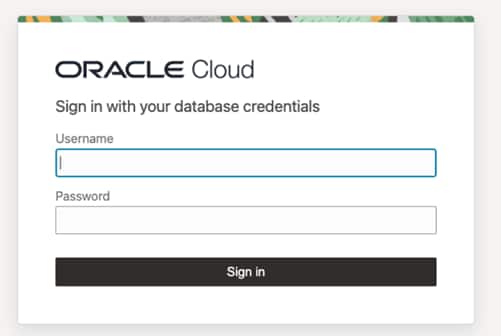
Figure 3: OAuth Authentication
You can also see the response below to the Codex CLI command:
C:\Users>codex mcp login adb
Authorize `adb` by opening this URL in your browser:
https://dataaccess.adb.{region-identifier}.oraclecloudapps.com/adb/auth/v1/mcp/databases/{database-ocid} /authorize?response_type=code&client_id=95Mc7CG81iQRCvtY-AMbMP1PAHfveHlc&state=UwNFwE14CoaxCWQHdbsSow&code_challenge=O3CPnvjGRustyquULIvEPMnTCJ-2qI6KGBHDqDqTFb4&code_challenge_method=S256&redirect_uri=http%3A%2F%2F127.0.0.1%3A53485%2Fcallback

Successfully logged in to MCP server 'adb'.
In the Codex terminal user interface (TUI), you can verify that the server is active by running
/mcp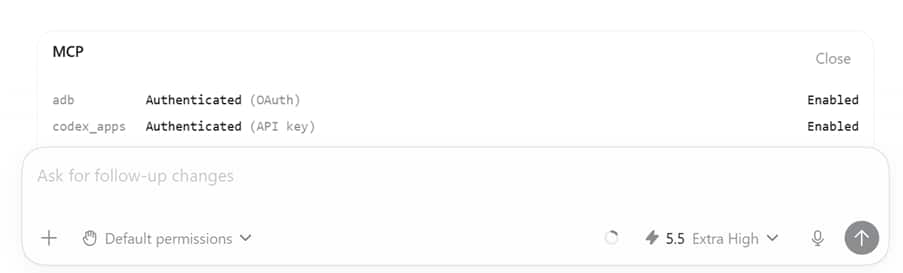
Figure 4: Autonomous AI Database MCP Server status from TUI
5. Test Codex with Autonomous AI Database MCP Server
For this walkthrough, I used a simple HR leave-management workflow as the practical scenario. The EMPLOYEES table stores employee information such as names, departments, and managers, while the LEAVE_REQUESTS table tracks leave applications, dates, reasons, and approval status. By exposing MCP tools from Oracle Autonomous AI Database, Codex can help HR teams retrieve employee details, review pending leave requests, and securely update approval status through natural language prompts.
Before that, let’s verify the tools available to SELECT_AI_USER in the Autonomous AI Database.
select * from USER_AI_AGENT_TOOLS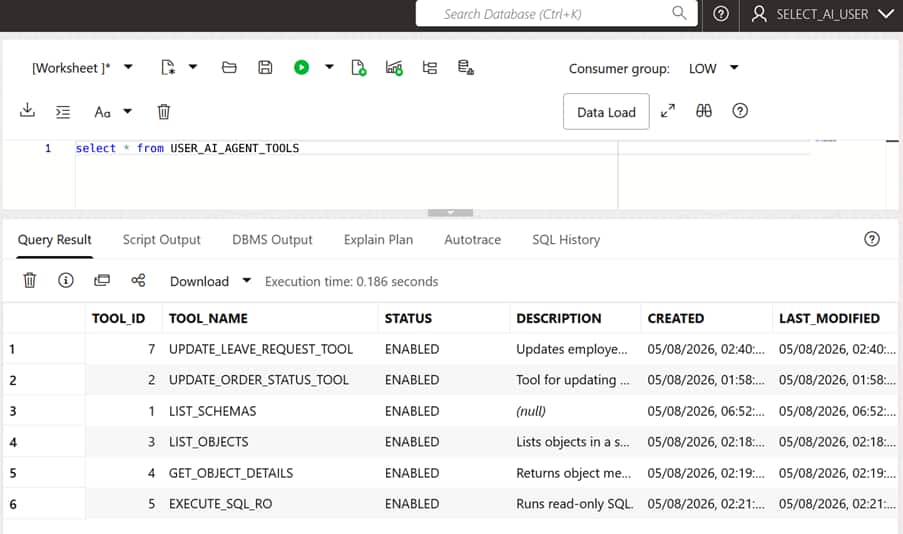
Figure 5: SELECT_AI_USER Tools
In Codex, the user asks to display the EMPLOYEE and LEAVE_REQUESTS tables using the connected Autonomous AI Database MCP server.
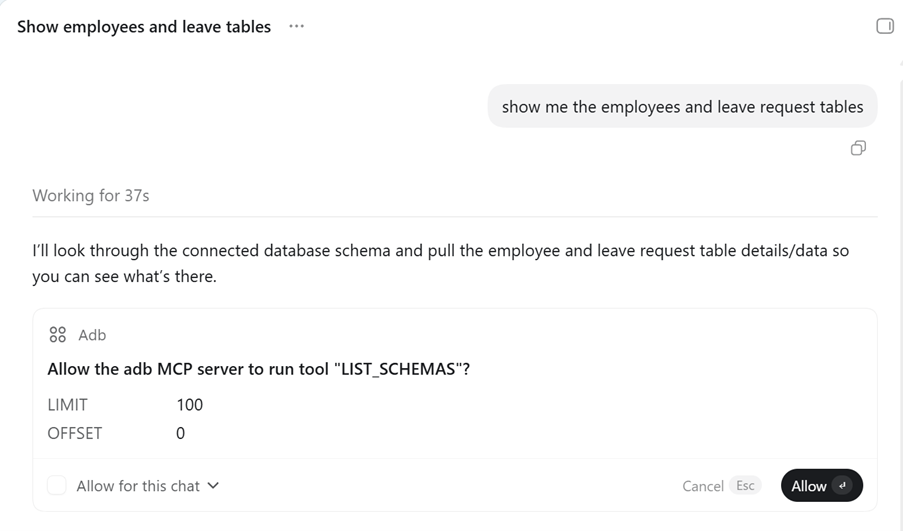
Figure 6: Run LIST_SCHEMAS via Autonomous AI Database MCP Server
Before invoking the tool, Codex prompts for approval to run the LIST_SCHEMAS tool, click Allow.
Codex requests permission to run the LIST_OBJECTS tool using the Autonomous AI Database MCP server. Click Allow.
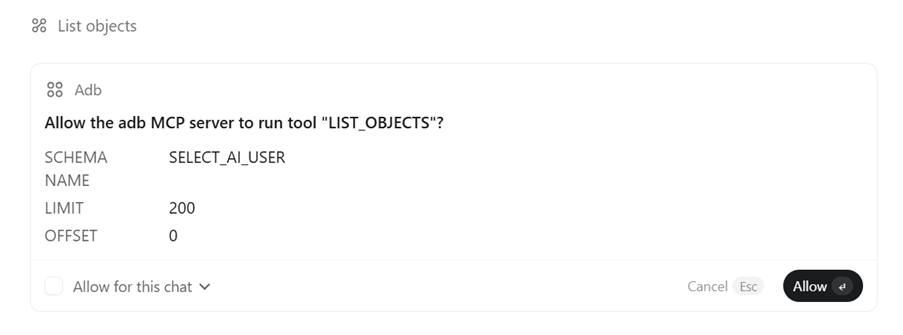
Figure 7: Run LIST_OBJECTS via Autonomous AI Database MCP Server
Codex requests permission to run the GET_OBJECT_DETAILS tool using the Autonomous AI Database MCP server. Click Allow.
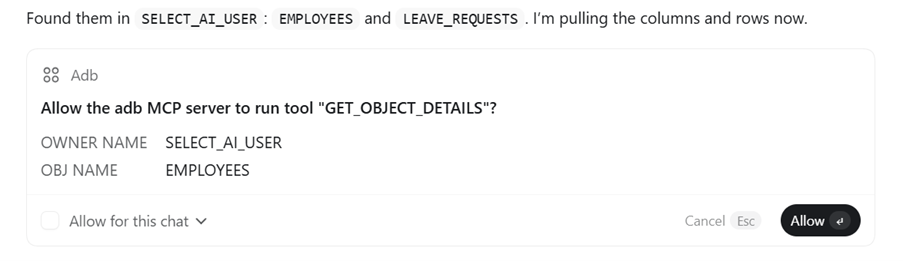
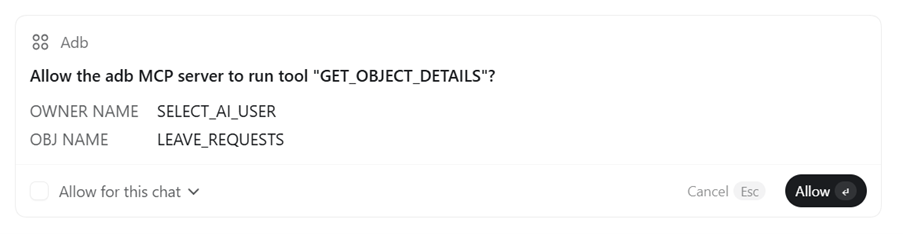
Figure 8: Run GET_OBJECT_DETAILS via Autonomous AI Database MCP Server
Codex requests permission to run the EXECUTE_SQL_RO tool using the Autonomous AI Database MCP server. Click Allow
Next it runs the tool EXECUTE_SQL_RO, click Allow
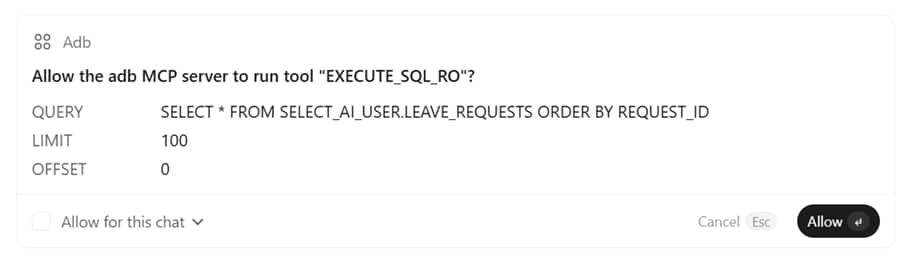
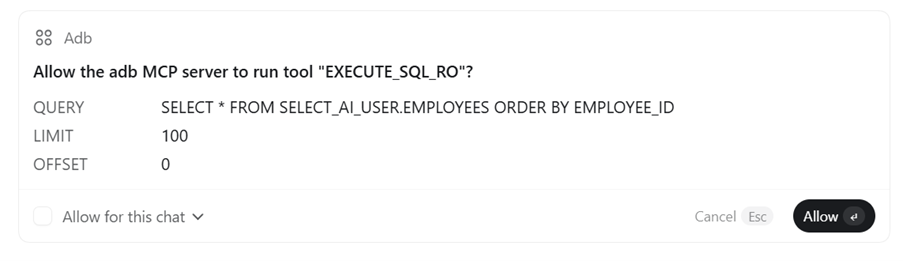
Figure 9: Run EXECUTE_SQL_RO via Autonomous AI Database MCP Server
Codex successfully retrieves and displays the EMPLOYEES and LEAVE_REQUESTS tables from the SELECT_AI_USER schema using the Autonomous AI Database MCP server.
The output also identifies the relationship between the tables through the EMPLOYEE_ID column.
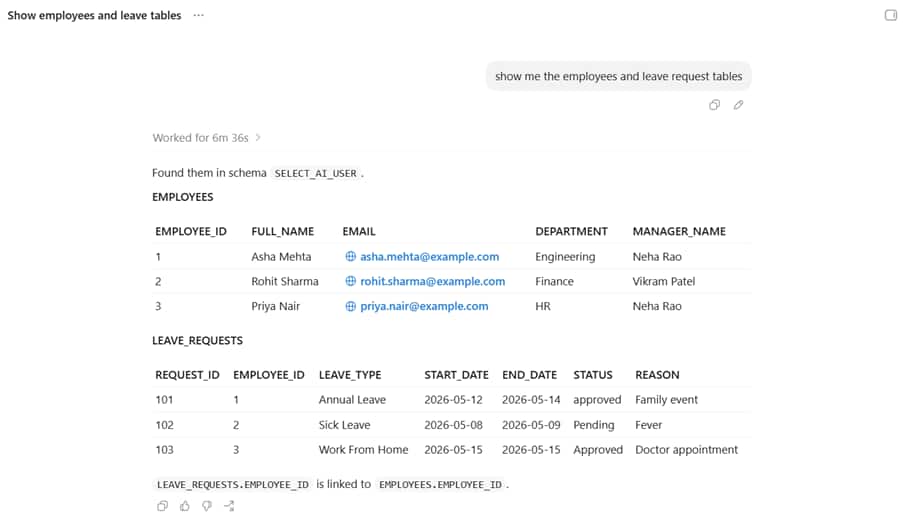
Figure 10: MCP-Based Database Interaction Workflow in Codex
With the Autonomous AI Database MCP Server configured in Codex, database interaction becomes more natural and agent-driven. Instead of manually switching between tools, writing repetitive queries, or remembering connection details, Codex can discover, and call database tools exposed through MCP while benefiting from database security features.
This setup is especially useful for tasks like listing schemas, checking metadata, exploring objects, and building automation workflows. Once the MCP server is enabled and tools created using the Select AI Agent framework, Codex becomes a practical assistant for working directly with your Autonomous AI Database.
As a next step, you can extend the workflow by creating custom MCP tools for database operations, or by using built-in Select AI Agent tools such as NL2SQL,RAG etc.,
Resources
For more information: