
During a DR switchover, failover, or drill, every minute matters. When a plan step fails, your team needs to quickly understand what went wrong, resolve the issue, and continue execution. OCI Full Stack Disaster Recovery (Full Stack DR) execution logs capture every API call, pre-check result, and error across all plan groups in your DR Protection Group (DRPG). But navigating detailed log output to find the root cause takes time your team should be spending on resolution.
OCI Full Stack Disaster Recovery (Full Stack DR) now integrates with OCI Generative AI to provide step-level execution log summarization. For plan steps that end in Failed, Failed Ignored, or Succeeded with Warning states, the View Summary action generates a plain-language summary of the execution log. It tells you what the step attempted, what caused the failure or warning, and where to focus next.
What this feature does
Full Stack DR adds a View Summary option on individual plan steps that finished in one of three states:
- Failed
- Failed Ignored
- Succeeded with Warning
When you click View Summary on an eligible step plan execution log, Full Stack DR sends that step’s execution log to OCI Generative AI in your tenancy. The summary is returned directly in the OCI Console and is structured into three sections:
- Problems: a plain-language description of what the step attempted and what caused the failure or warning
- Solutions: suggested investigation steps and corrective actions to resolve the issue
- Reference IDs: key identifiers extracted from the log, including OCIDs, tenancy name, bucket name, and work request ID, listed for easy reference when investigating further or opening a support ticket
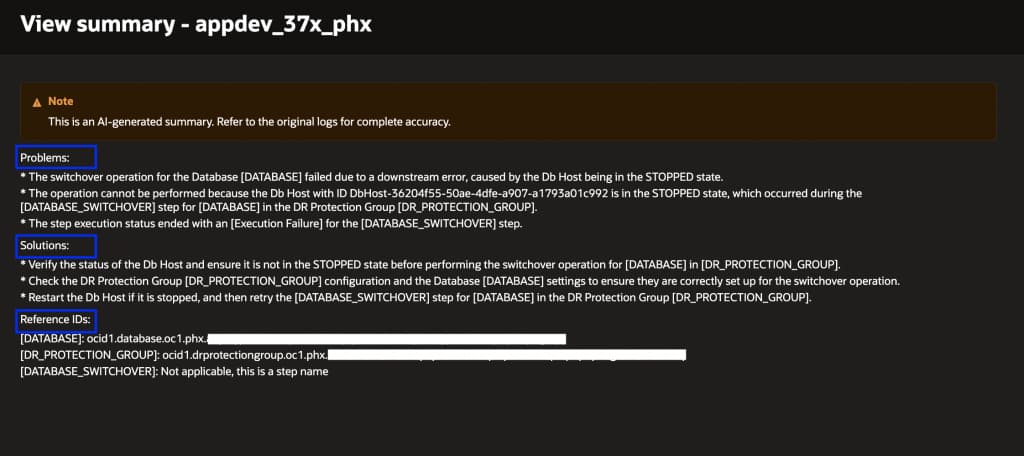
The summary title includes the step name, so you always know which step you are looking at.
This summary is generated by OCI Generative AI using the step execution log combined with Full Stack DR product knowledge. This grounds the suggested solutions in how Full Stack DR actually works. Take the screenshot above as an example: the step failed because the database node was in a STOPPED state. Full Stack DR identified that from the log, described the problem in plain language, and provided recommended next steps to resolve it.
Please keep in mind that the summary is AI-generated. Use it as a starting point for your investigation, not as a final diagnosis. Always cross-check the suggested solutions against the actual log entries before taking corrective action.
What is included and what is not
| Step Type | View Summary Available |
|---|---|
| Built-in plan group steps (including built-in pre-check steps) | Yes |
| User-defined plan group steps | No |
View Summary is restricted to built-in steps and built-in pre-check steps. User-defined plan group steps are excluded from summarization in this release.
How it works
Full Stack DR connects to the OCI Generative AI service running in your tenancy. When you select View Summary on an eligible step, Full Stack DR sends the step log to OCI Gen AI. The generated summary appears directly in the OCI Console.
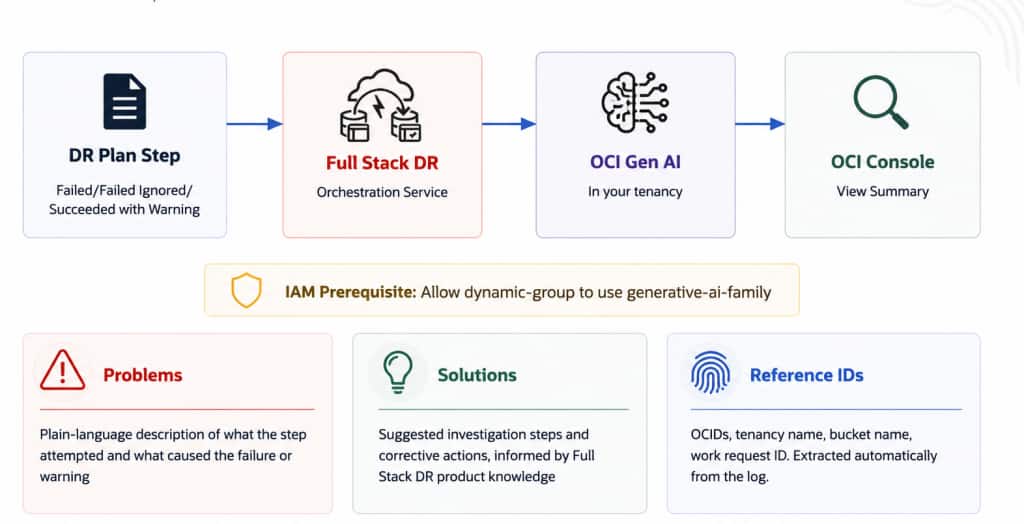
There is no model deployment, endpoint configuration, or integration code required on your side. The only prerequisite is an IAM policy that allows Full Stack DR to access OCI Generative AI in your tenancy.
Required IAM policy
Add the following policy to allow the Full Stack DR dynamic group to call OCI Generative AI:
Allow dynamic-group {dynamic_group_name} to use generative-ai-family in compartment {compartment_name}
If you have already configured a dynamic group for Full Stack DR, see the IAM policies blog. You only need to add this one policy statement. No changes to the dynamic group rules themselves are required.
Feature availability
View Summary is available in OCI Full Stack DR in OCI public cloud regions only. It is not available in government, sovereign, or dedicated cloud regions.
OCI Generative AI is not available in every OCI public cloud region. Full Stack DR uses cross-region calling to handle this automatically. If your tenancy region does not directly offer OCI Generative AI, Full Stack DR routes the call to the nearest supported destination region. No configuration is required on your side.
If your tenancy region has no OCI Generative AI calling route, the View Summary feature is not available. Check the OCI Generative AI regions page to confirm your region is listed in the cross-region calling table before expecting this feature to work.
Billing
Using View Summary triggers a Generative AI inference call in your tenancy. Standard OCI Generative AI pricing applies, and this usage appears as a separate line item on your OCI bill. Full Stack DR itself does not charge for this feature. The Gen AI inference cost is the only additional charge.
How to get started
- Confirm that your tenancy region is a supported calling region for OCI Generative AI. Check the OCI Generative AI regions page and the cross-region calling table.
- Add the IAM policy allowing your Full Stack DR dynamic group to use
generative-ai-family. - Open a DR plan execution that has one or more steps in Failed, Failed Ignored, or Succeeded with Warning state.
- Navigate to the eligible built-in step and select View Summary.
- Review the generated summary. Cross-check against the full execution log before taking corrective action.
Final word
DR plan execution logs exist to give you the full picture. But during an active switchover, failover, or drill, reading through hundreds of log lines to find one root cause is time your team cannot afford.
Gen AI log summarization in OCI Full Stack DR changes that. For any eligible built-in step, one click gives you a structured summary. It tells you what the step attempted, what went wrong, and where to look next. The summary is grounded in Full Stack DR product knowledge, not just the raw log text.
No additional setup is required beyond one IAM policy. The feature works across OCI public cloud regions, with cross-region Gen AI calling handled automatically.
Treat the summary as a starting point. Validate the suggested solutions against the actual log before acting. That is the right way to use any AI-generated output.
Learn More
If you haven’t seen OCI Full Stack Disaster Recovery in action yet, ask your Oracle Cloud Infrastructure account team to set up a demonstration today. For more information, including documentation, pricing, customer success stories, videos, tutorials, and hands-on labs, visit Full Stack Disaster Recovery.
Additional Resources:
Feel free to connect with me directly on LinkedIn, X, and Bluesky.